Overview
Slack Bots | |
| Settings Location | N/A |
| Prerequisites |
|
Once the Slack Module is added to a project you will be able to configure a Slack Bot inside your project. These slack bots can be used to execute flows by tagging the bot inside of slack. Once configured, you can simple "@" the bot inside of a channel and it will execute the flow and respond based on how its configured.
Configuration of Slack Bot
1. See the Slack Module Overview document for an overview on how to configure a Slack App inside of the Slack Application
2.
Locating Slack Channel ID
The Slack Channel ID can be located in Slack by right clicking the channel > view channel details. In addition the Get Channel List and Get Channel ID by Name steps will also display the Channel ID as outputs. 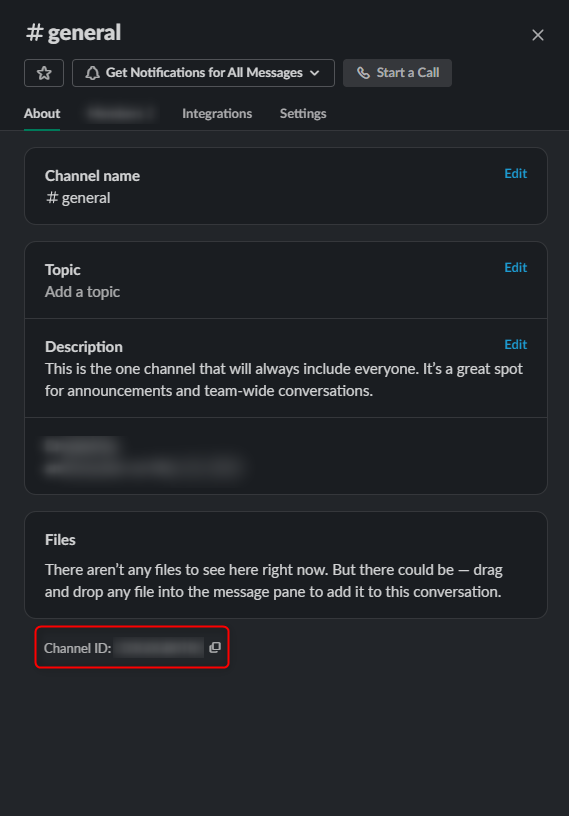
Module Steps
| Step Name | Description |
|---|---|
| Archive Channel | Changes a channel's status to Archived meaning that no new messages can be added to it. |
| Create Channel | Allows a user to create a public or private channel. |
| Delete Message from Channel | Allows messages to be removed that were posted by the bot within the Slack application. |
| Get Channel Id by Name | Retrieves a Channel ID by inputting the channel name. |
| Get Channel List | Returns a list of all channels created within the Slack workspace. |
| Get Messages from Channel | Receives messages from the specified channel. |
| Get User List in Channel | Shows all the users in a particular channel. |
| Invite to Channel | Invite a Slack user to a channel. |
| Open Channel with Users | Create a Channel and invite users at the same time. |
| Pin Message to Channel | Pins a message at the top of a channel, which makes it easier for users to view the message. |
| Post Message to Channel | Sends a message to the specified channel as the integrated application. |
| Search for Text in Channels | Reviews Channels for specified text. |
| Unpin Message to Channel | Allows a user to remove a pinned message from a channel. |
For further information on Modules, visit the Decisions Forum.