Overview
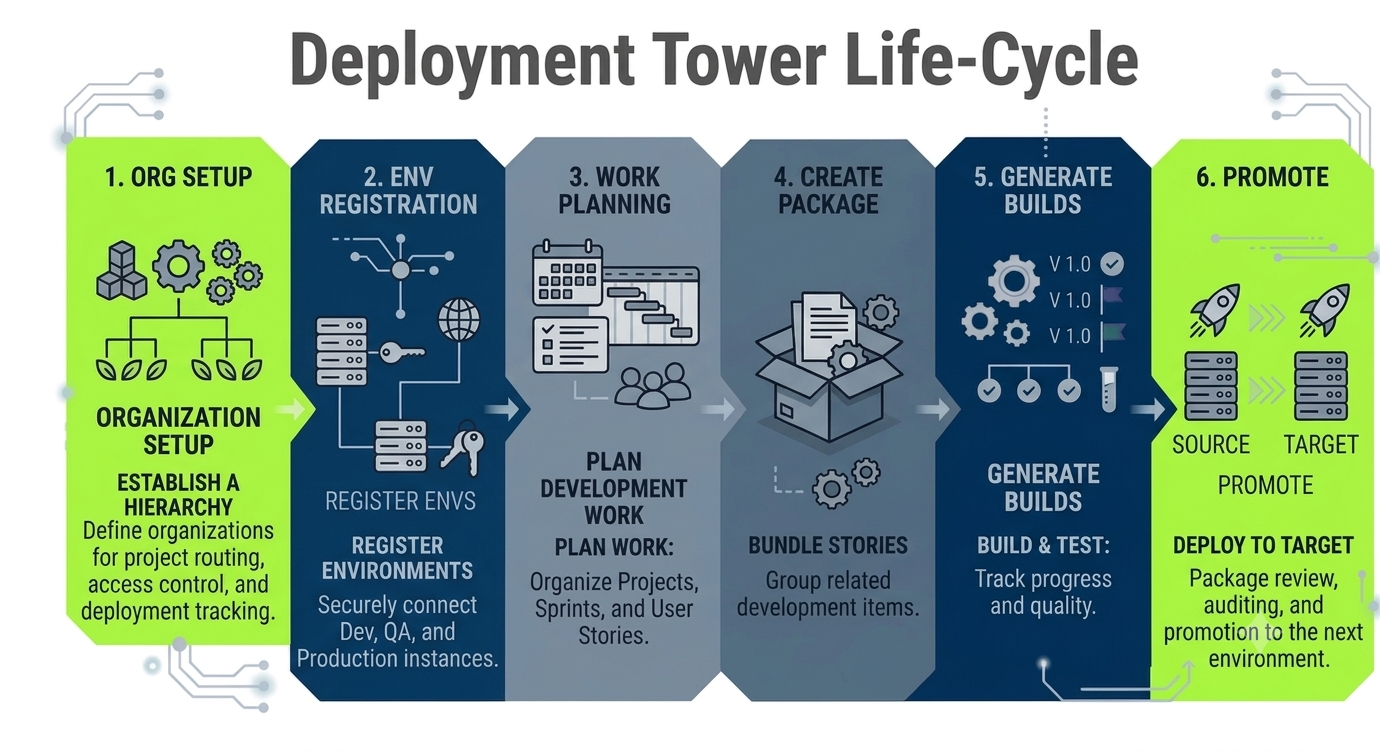
The Deployment Tower Lifecycle provides a structured process for managing work from initial organization setup through promotion to a target environment.
This lifecycle helps teams define organizational structure, register environments, plan development work, package related changes, generate builds, and promote approved packages between environments.
Deployment Flow
The Deployment Flow follows this order:
Set up the organization hierarchy. See Organization Setup.
Register the deployment environments. See Environment Registration.
Plan development work. See Work Planning.
Create a package from related work items. See Create Package.
Generate and validate builds. See Generate Builds.
Promote the package from the source environment to the target environment. See Promote.
Organization Setup
.png)
Organization Setup establishes the hierarchy used to manage deployment work. It allows Decisions environments to be connected to the Deployment Tower through Organizations. Only the development environment can be connected to one Organization within the Deployment Tower. Once the connection has been made, users can commit changes to start tracking their designer elements.
Use this stage to define organizations for:
Project routing: Categorize projects into organization to track changes
Access control: Give the user or group permissions to access to view changes
Deployment tracking: Track designer element versioning and changes
A clear organization structure helps ensure that projects, users, and deployments are managed consistently.
For more about organization setup, see Organizations.
Environment Registration
.png)
Environment Registration connects the environments used during the Deployment Lifecycle. Done using environment keys from the environments that will be connected to the Deployment Tower. The most common environments used in Deployment Tower are:
Development
QA
Production
Registering environments allows deployment packages to move between approved source and target environments.
For more about environment registration, see Connecting an Environment to Deployment Server.
Work Planning
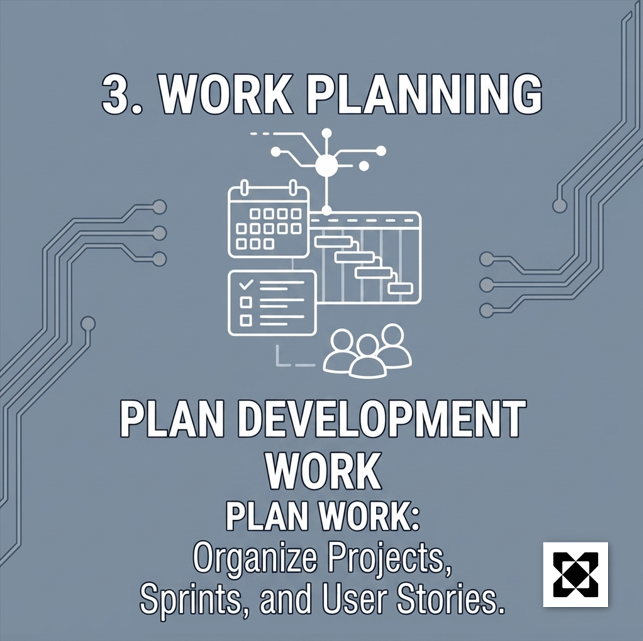
The Work Planning stage organizes the development work that will be included in a deployment. Deployment Tower and Decisions V10 Development environments allow users to group designer elements into user stories, group user stories into sprints, and incorporate a element review to refine a business process. The primary functions that is done in this stage is:
Projects: Determine what process automation projects a business needs.
User Stories: Created in Decisions or imported from a PMIS system.
Sprints: Group users stories into functionalities that can be reviewed.
This helps teams group related work and prepare it for packaging.
For more about work planning, see Projects, Sprints, and Executing User Stories.
Create Package
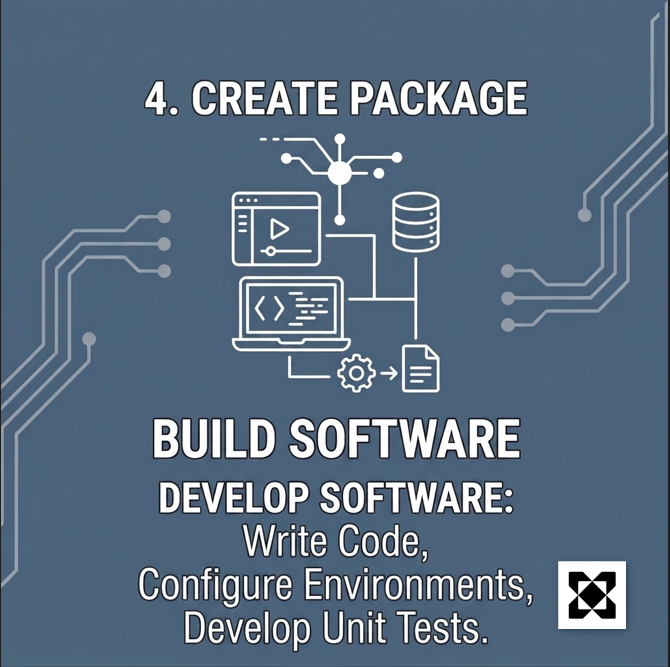
When all development work has been completed and tested it becomes ready for deployment to Production. Packages are used to collect the stories or work items that should move together through the Deployment Lifecycle. Creating a package involves a user grouping all related development items into a deployment package. After it is created, the packaged can then be prepared to be deployed to higher environments
For more about create package, see Deployment Packages.
Generate Builds
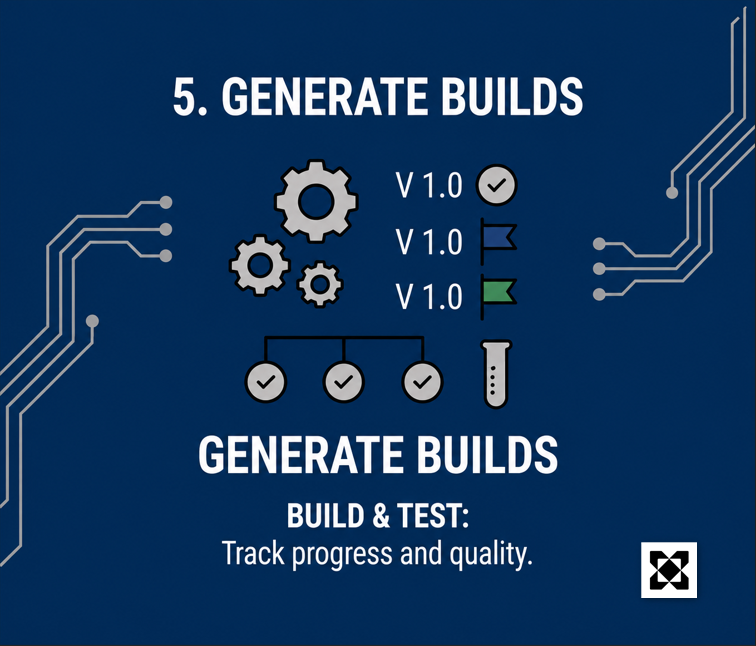
Generate Builds creates deployable builds from the selected package. The purpose here of this stage is to track project versioning, run unit tests, and create deployable builds to production level environments. The testing capabilities in this stage give users the actions to run unit tests on the target environment. This will find issues that would arise in deployment, and can be identified before promotion. This is done either by a scheduled deployment or auto deployment. The following are the typical functions which happen in this stage:
Generate package builds
Review build versions
Track build progress
Validate build quality
For more about generating builds, see Builds.
Promote
.png)
After the build is created and all the checks have passed, this is when a user can select a build and choose where to deploy it. At this stage users deploy builds to either:
UAT
Production
Any other higher environment
All builds deployed into higher environments are tracked, can have approval levels, and provide a seamless view of what builds are deployed where.
For more about promoting, see Conflict Resolution.