Overview
Builds in the Deployment Tower represent committed package activity. A build is created when work is committed from a User Story that is included in a Deployment Package. Each build provides a point-in-time record of the committed changes that were added to the package.
Builds help teams track, review, audit, and deploy work across environments. Each build is stored under a specific Deployment Package within an Organization's Deployment Folder, providing traceability from development through target-environment deployment.
Builds can be accessed through the Deployment Tower UI by navigating to: Organizations > Deployment > Deployment Package.
When Builds Are Created
A build is created when a commit is made against a User Story that is included in the active Deployment Package.
A User Story can be included in a Deployment Package during User Story creation, while editing the User Story, or by using the Add User Stories To Package action from the Deployment Package.
- If the User Story is included in the active Deployment Package, each commit creates a new build and increments the Build number in the Deployment Package version.
- If the User Story is not included in the active Deployment Package, the commit is still synced to the Deployment Tower, but no build is created for the package, and the package version does not increment.
- If User Stories or entities are removed from a package, the package records that activity by creating a new build.
Builds are created only after a commit or package activity is recorded. Adding a User Story to a Deployment Package makes it eligible for build creation, but the build is created when the related commit or package change is recorded.
Build creation depends on the User Story being part of the active Deployment Package. Committing work to a User Story that is not included in the package does not create a package build.
Build Metadata
Each build contains the following fields to support versioning, traceability, and quality control:
| Field | Description |
|---|---|
| Build ID | A unique identifier automatically assigned to the build. |
| Project | The name of the project the build belongs to. |
| User Story | The specific user story associated with the build. |
| Unit Tests | Status of unit test execution (with visual indicator). |
| QA | Status of QA review and approval (with visual indicator). |
| Timestamp | Date and time when the build was created. |
Build Messages and Activity Details
Each build includes a message that summarizes the package activity recorded in that build. For example, a build message may indicate that a User Story was added to the package and that committed changes from that User Story were added to the package.
Opening a build shows the activity details for that build. These details identify the entities included in the build and the activity performed on each entity, such as Added, Modified, or Deleted.
This build-level view allows reviewers to understand exactly what changed in a specific build before the Deployment Package is promoted to a target environment.
Visual Representation of Build Accumulation
Each build records committed activity for the Deployment Package. The package-level view represents the current deployable contents of the package, while the build-level view shows the specific activity captured in an individual build.
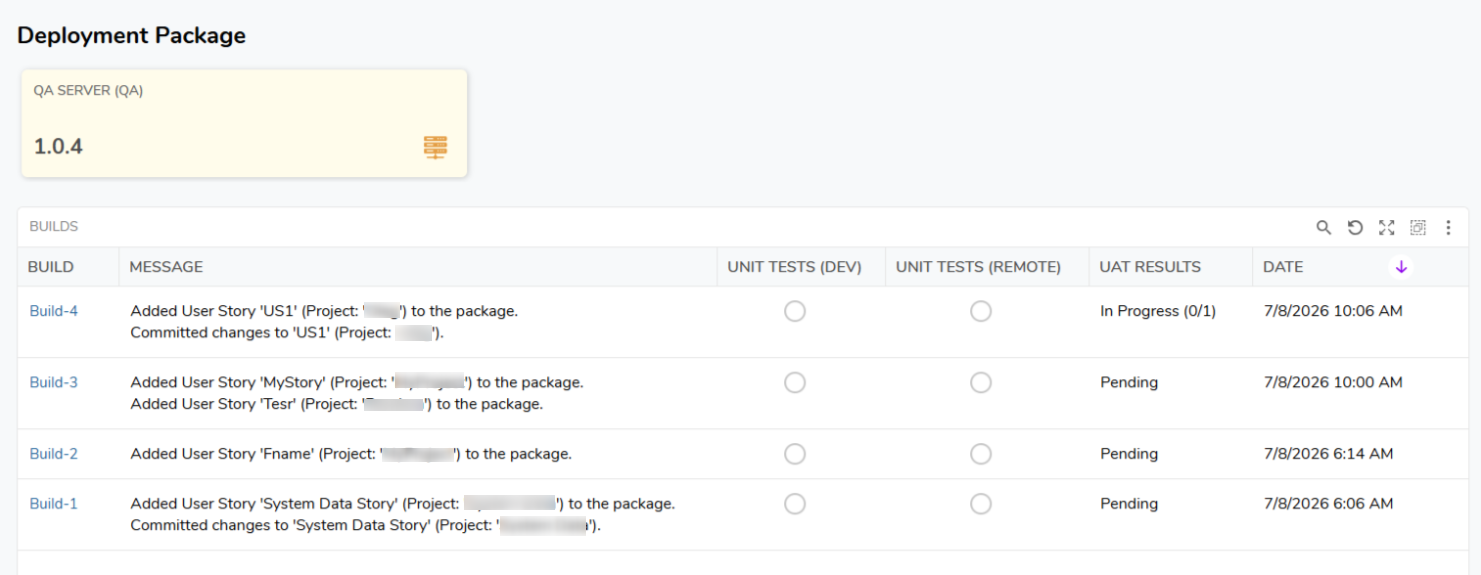
The following screenshots illustrate the Builds list for a single Project - User Story combination, the actions available on an individual build, and how build status is tracked through the Unit Tests columns.
In the example:
- Build-1, Build-2, Build-3, and Build-4 all belong to the same project and user story and are listed together in the Builds list.
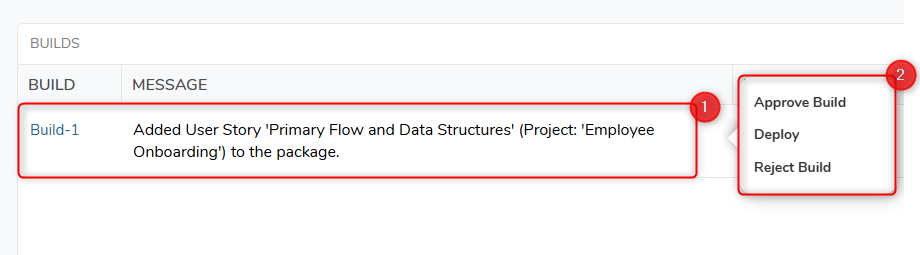
- Right-clicking a build, such as Build-1, opens a context menu with options to approve, deploy, or reject it.
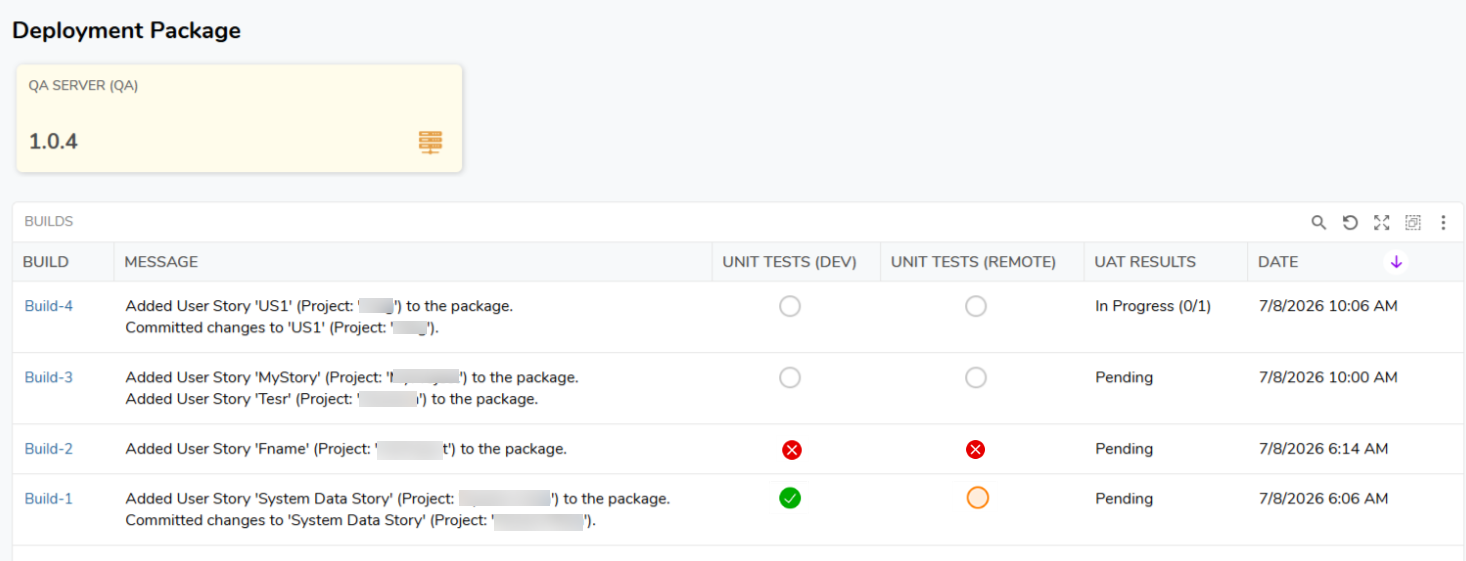
- Each build's Unit Tests (Dev) and Unit Tests (Remote) columns show status indicators independently. For example, Build-1 shows a passed Unit Test in Dev with a Unit Test (Remote) status of awaiting review, while Build-2 shows a failed status.
Build #1, Build #2, Build #3, and Build #4 are all shown in the Builds list for the same Project and User Story, illustrating how builds accumulate over successive commits.
Right-clicking Build #1 opens a context menu with three actions: Approve Build, Deploy, and Reject Build.
For Build-1, the Unit Tests (Dev) column shows a green checkmark, indicating all unit tests passed. The Unit tests (Remote) column shows an orange circle, indicating the build is deployed to QA and awaiting review.
Build-2 shows a red circle in both the Unit Tests (Dev) and Unit Tests (remote) columns, indicating one or more unit tests failed.
Unit Test Execution and Status Indicators
When a user story is checked in from the Development Environment, if unit tests are included, they are executed automatically. The result of this execution is reflected visually in the Builds list.
Unit Test Circle Indicators
| Icon | Meaning |
|---|---|
 | All unit tests passed successfully. |
 | One or more unit tests failed. |
 | No unit tests were included in the build. |
 | Build is deployed to QA, awaiting review. |
These indicators are shown in the Unit Tests column for each build.
Dev and Remote Unit Test Results Dashboard
The Dev and Remote Unit Test Results Dashboard provides a build-level view of unit test results associated with a build. This dashboard centralizes test visibility by showing unit test outcomes that are captured as part of the build lifecycle.
The dashboard can be accessed by navigating to a Deployment Package - Build tab
Unit test results can originate from two points in the workflow:
- Dev Unit Test Results: During check-in, the Run Unit Tests option is enabled by default on the check-in dialog. This runs unit tests on the Development environment before check-in, and the results are synced to the Deployment Server as part of the build record. Only unit tests belonging to the current Project are run at this stage.
- Remote Unit Test Results: Results captured when unit tests are configured to run automatically in a target environment after deployment. Unlike the Dev-side run, unit tests for all Projects in the target environment are executed at this stage, not only the Project associated with the build. To configure this, see Deployment Types.
When unit tests are run after deployment, the results are stored at the build level, allowing build records to include both development-side and target-environment test outcomes.
This dashboard supports build validation by providing a single location to review unit test outcomes for the selected build, including tests executed in connected target environments.
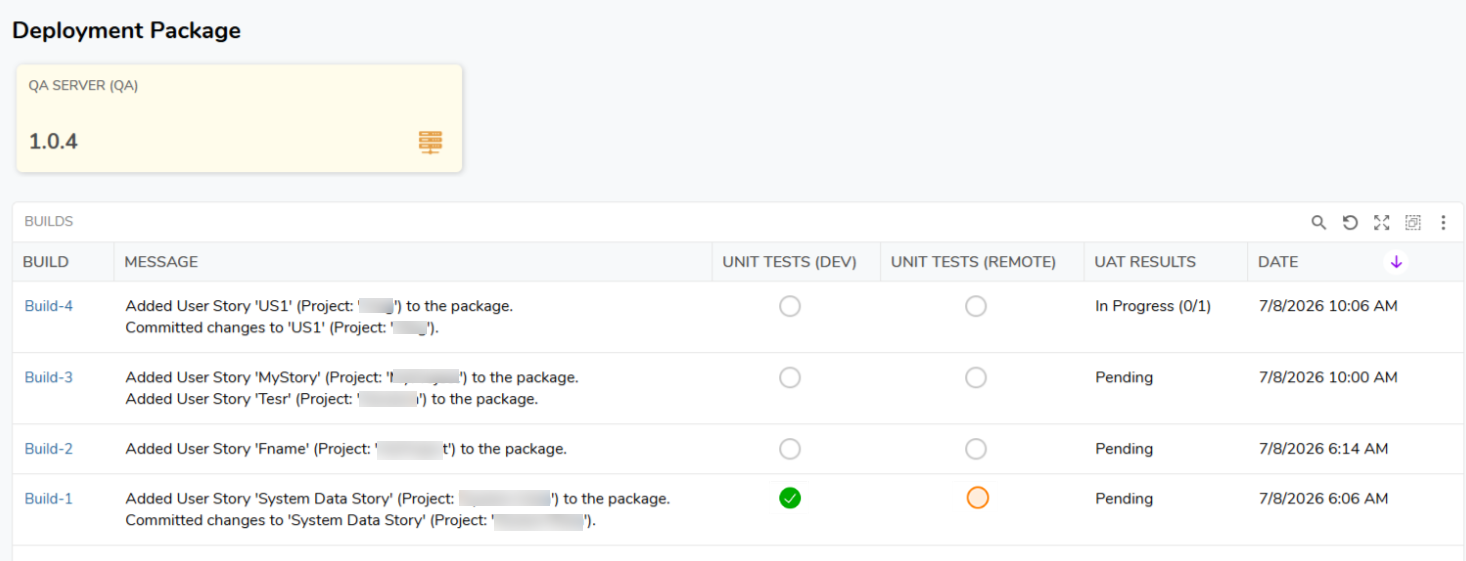
Remote unit test results are available when unit tests are configured to run after deployment. These results are captured as part of the selected build’s reporting details.
Deploying Builds and QA Status Indicators
Deployment to QA
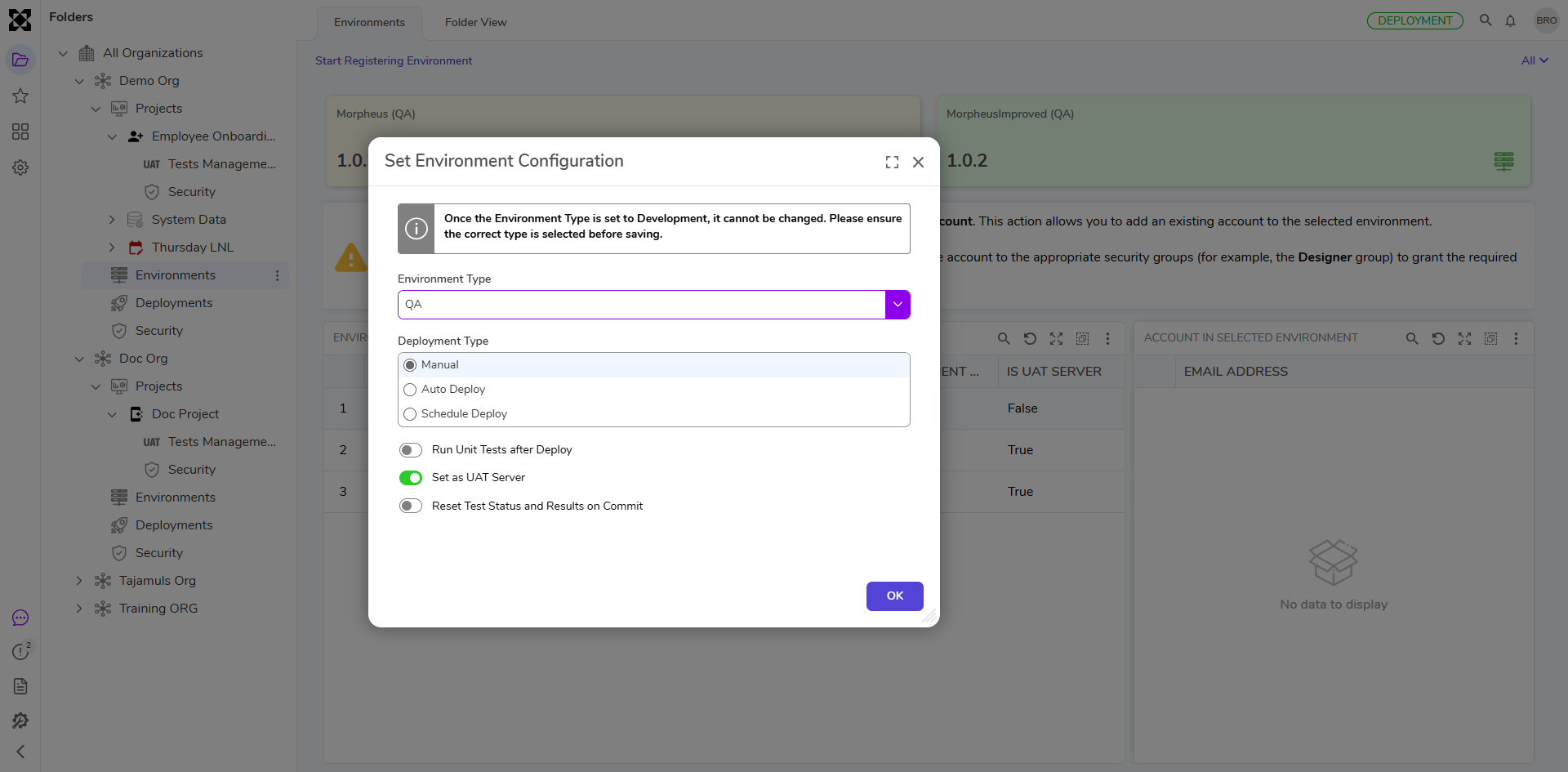
Builds can be deployed to the QA environment either manually or automatically. For more on how environments are categorized and configured, see Environment Types.
- Manual: Right-click the build and select Deploy. This triggers a change in the QA column status.
- Automatic: Configure the QA environment to deploy a build as soon as it is created, eliminating manual deployment steps during continuous testing cycles.
Note: Automatic deployment is restricted to QA environments and is not available in Production, ensuring controlled, safe releases.
Unit Test Execution on Target Environments
The Deployment Server can run unit tests in the selected target environment during deployment. This helps verify project integrity before changes are promoted.
- Manual: Run unit tests during deployment.
- Automatic: Configure the environment to run unit tests automatically on every deployment.
Deployment Wizard
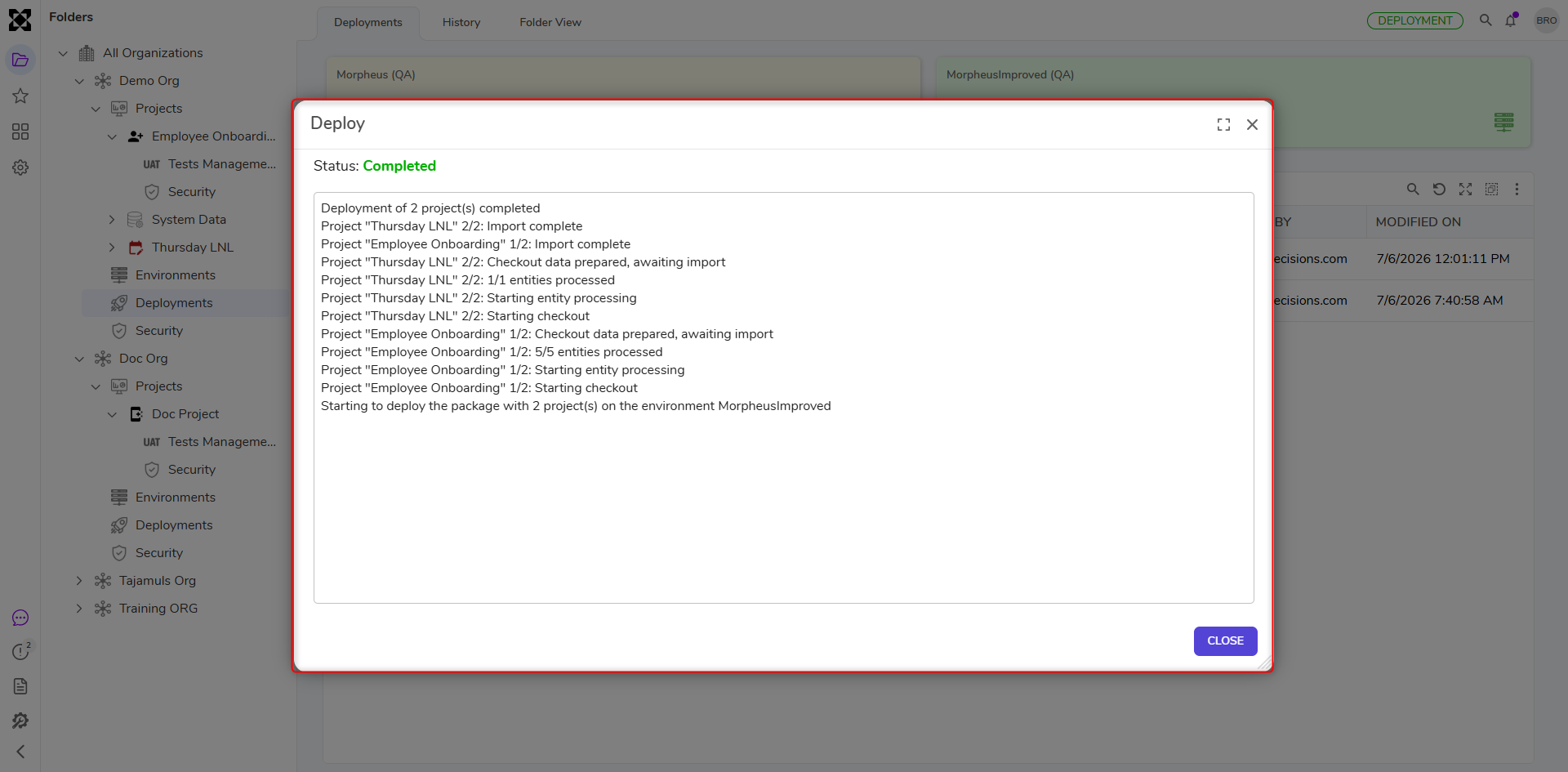
Deploying a build opens the Deployment Wizard, which provides line-by-line visibility into each action performed during deployment to support review and troubleshooting.
Deployment Package Readiness
A Deployment Package becomes eligible to be marked as Ready only when the following conditions are met:
- The final build for a Project - User Story has a Green Unit Test Circle, or no tests.
- The final build for a Project - User Story has a Green QA Circle (approved by QA).
- All user stories associated with the builds are in Approved status.
This ensures that only validated and tested code, reviewed by both automation and QA, moves forward in the deployment lifecycle.
Only Builds created from User Stories included in the Deployment Package are considered part of that package's deployment lifecycle.