Overview
Deployment Packages are a key component of the Deployment Tower, enabling customers to move their projects efficiently and reliably between environments. They provide a structured way to track, manage, review, and audit changes across the development lifecycle, ensuring that all necessary work is deployed with confidence.
Deployment Packages allow teams to organize related sets of modifications, clearly identifying what has been added, changed, or removed. Visual indicators distinguish these changes, such as blue for modified items and red for removed items, making it easier to understand the scope of each package.
Each Deployment Package can include committed changes from multiple projects, allowing teams to deploy all included projects together as a single unit. Deployment Packages also track builds. A build represents a point-in-time snapshot of the committed work in the package, providing traceability and supporting review and audit workflows.
Deployment Packages also support the testing and validation needed before a release reaches Production. Packages can be deployed to intermediate environments for functional testing and User Acceptance Testing (UAT), and any conflicts between the package and the target environment are surfaced through the Conflict Resolution Wizard before deployment completes, helping teams catch and resolve issues early in the release process.
Role Within the Deployment Tower Workflow
Deployment Packages are the core unit of change within the Deployment Tower workflow, grouping related work into versioned packages via builds generated from committed user story changes.
They provide visibility, control, and confidence throughout the release process by ensuring all changes are tracked, reviewed, and approved before promotion to the next environment.
- Track what is going to production – Clearly see which builds and changes are included in each deployment.
- See approvals and deployment status – Ensure required reviews are completed before release.
- Know exactly what changed – Review committed stories, revisions, and builds in one place.
- Review committed work before deployment – Validate changes before they move forward.
- Improve deployment reliability – Reduce risk through traceable and controlled deployments.
- Support Testing and UAT – Validate package contents in target environments before final release.
- Handle conflict resolution – Identify and resolve deployment conflicts before changes are promoted.
- Maintain package progression – Move packages through controlled states from In Progress to Production.
Each Deployment Package provides a complete, versioned snapshot of work, enabling safe and predictable movement of changes from development to testing and production environments.
How Work Moves from Entities to a Deployed Package
Every Deployment Package traces back to a chain of smaller building blocks. Decisions entities belong to a User Story; committing changes to a User Story that's included in a package creates a Build; Builds are collected into the Deployment Package; and the package is ultimately deployed to a target environment.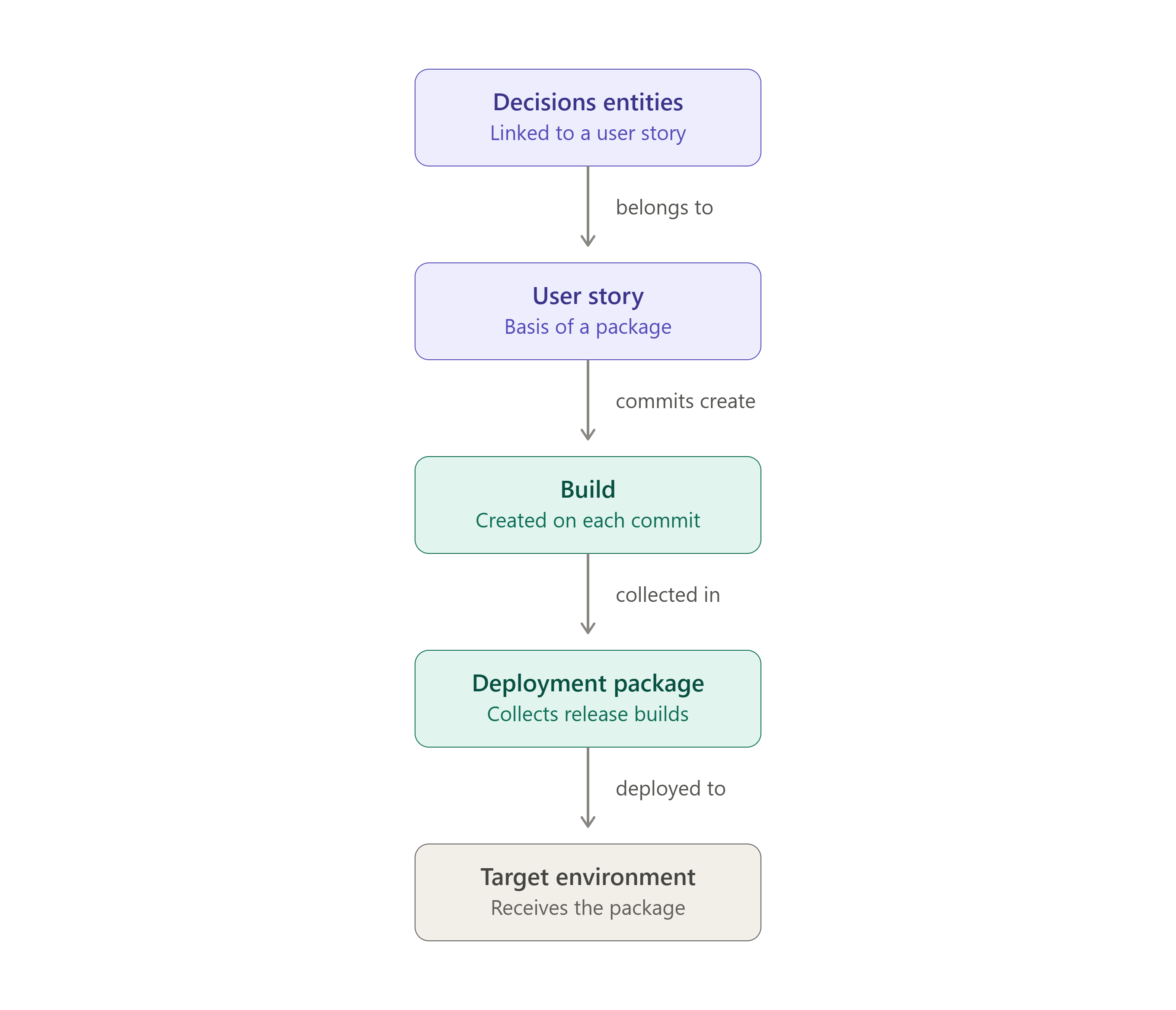
Whether a commit actually creates a Build depends on one thing: whether the User Story is included in the active Deployment Package at the time of check-in.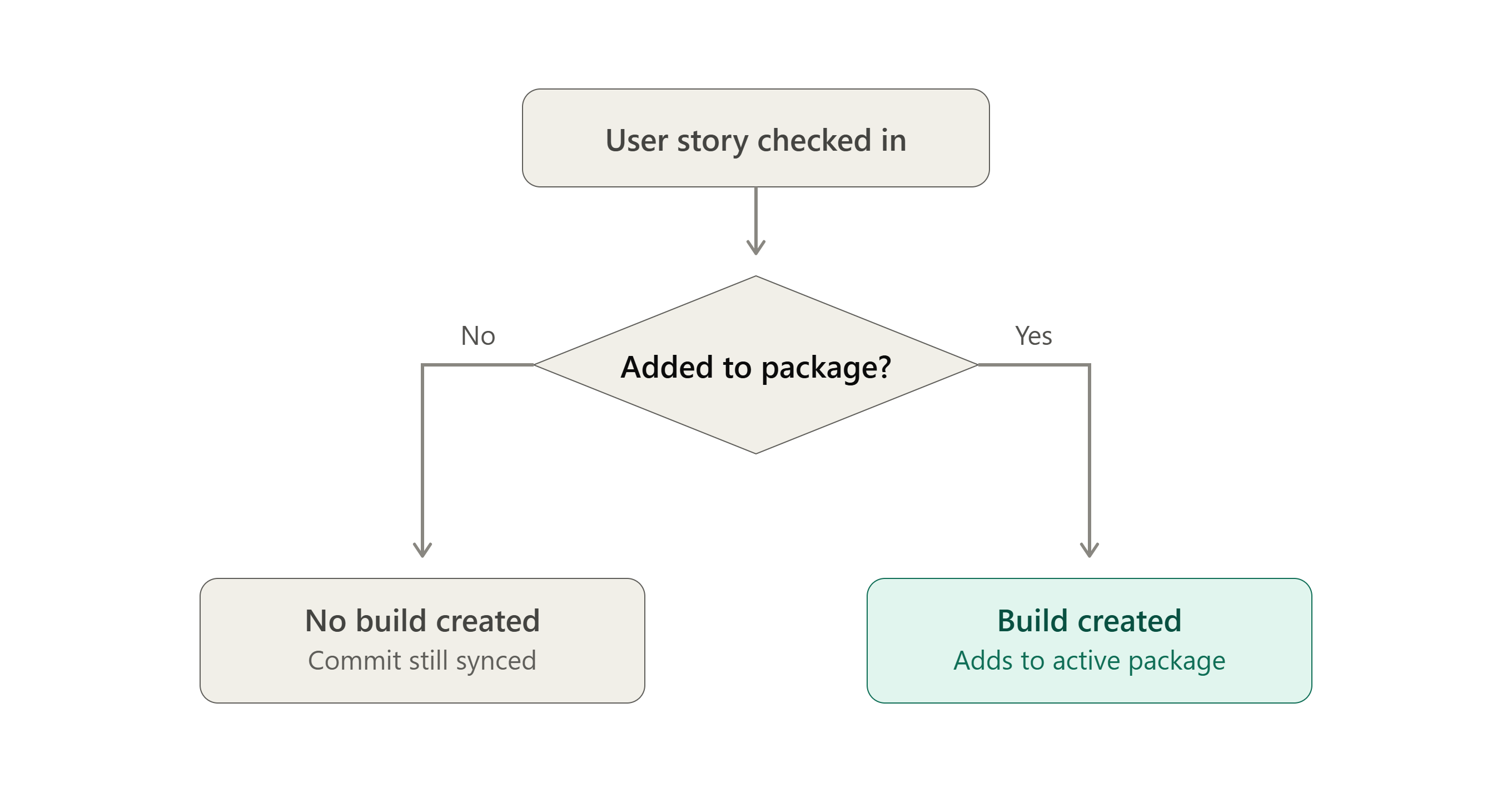
A User Story can be added to a package in one of two ways, and both produce the same result. A new Build that includes all past commits already made against that User Story:
- From the Development Server, use the Include in Deployment Package toggle on the User Story.
- From the Deployment Tower, use the Add User Stories To Package action on the package itself.
Deployment Package Versioning
Deployment Packages display a version label in the Version column using the format: [MajorVersionNumber].[PackageNumber].[BuildNumber].
When an Organization is created, the Deployment Tower automatically creates an initial Deployment Package. This package remains in an In Progress state and acts as the active package where upcoming committed work can be added.
The initial Deployment Package starts blank and does not include any builds until work is committed from a User Story that is included in the package.
For more information about builds, see the Builds documentation.
- Major: A manually set number that represents a major release line (default is 1).
- Package: The Deployment Package number. The first package starts at 0, and this number increments when a new package is created.
- Build: The number of builds created within the current package. This increments when committed work or package activity is recorded in the package.
How the Version Changes
- New package: A newly created package starts at 1.0.0.
- Build creation: When a build is created for the package (for example, when user stories are included and changes are committed), the Build number increments: 1.0.1, 1.0.2, and so on.
- New package when marked Ready: When a package is marked Ready, a new Deployment Package is created in the In Progress state, based on the Ready package. The Package number increments, and the Build number resets to 0 (example: 1.0.6 -> 1.1.0).
Set Major Version
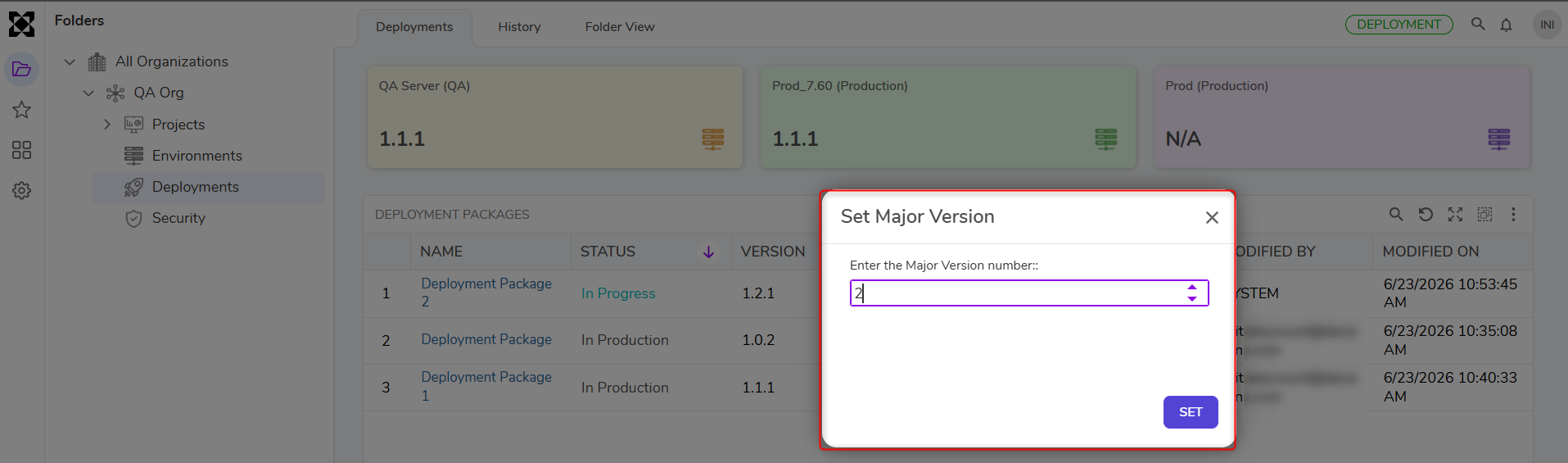
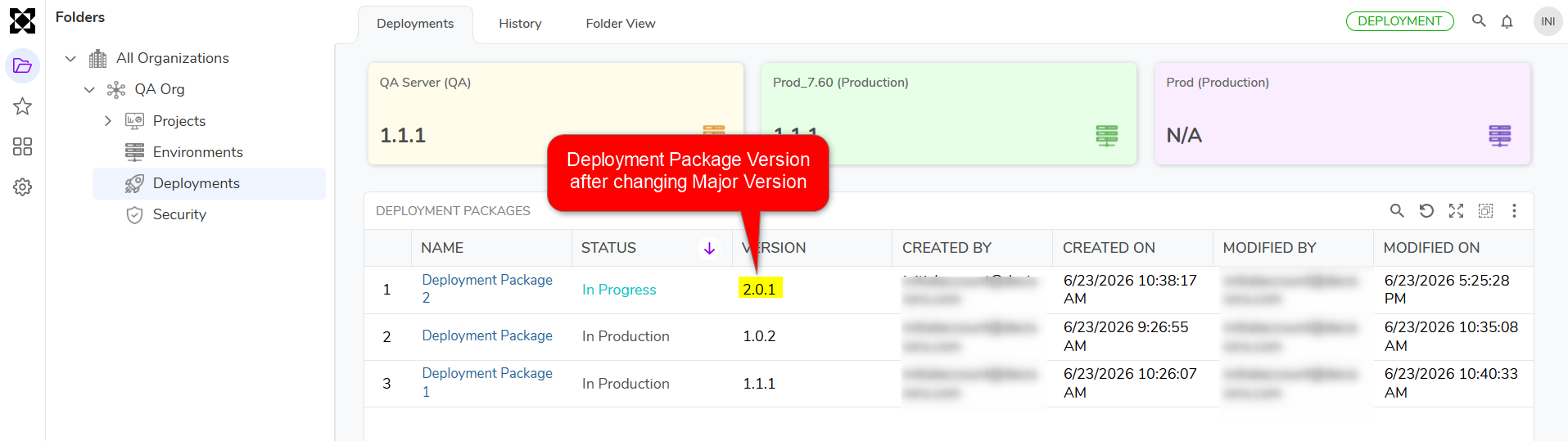
The Major number can be changed using the Set Major Version action.
Example
The following walkthrough illustrates how Deployment Package versioning changes at each stage.
When the first Deployment Package is created, the version starts at, for example, 1.0.0.
When the first build is created within the package, the version increments to 1.0.1. As additional builds are created within the same package, the build number continues to increase. For example, after several builds, the version becomes 1.0.6.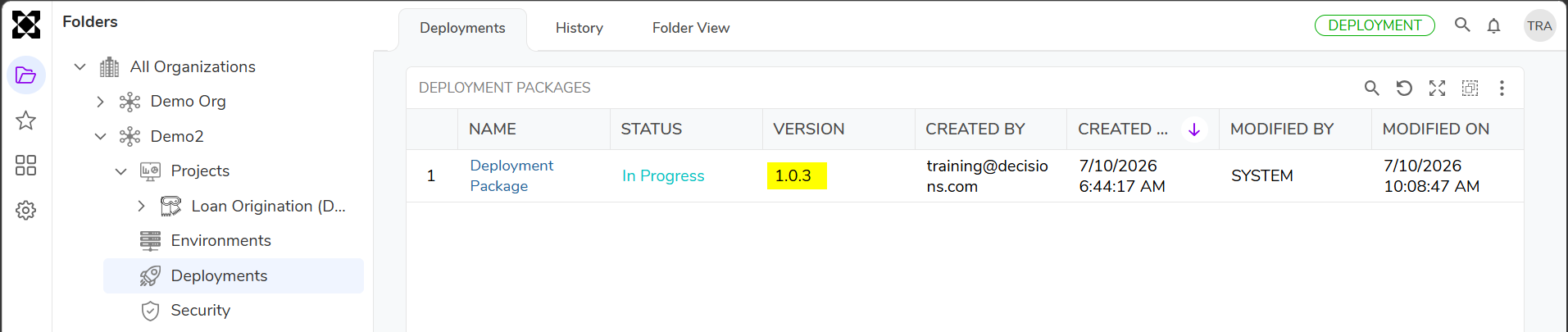
When the package is marked Ready, a new package is automatically created in the In Progress state and the version increments to 1.1.0. The original package remains Ready and later moves to Production once deployed there. If the major version is manually changed, for example, set to 2, the version becomes 2.0.0. 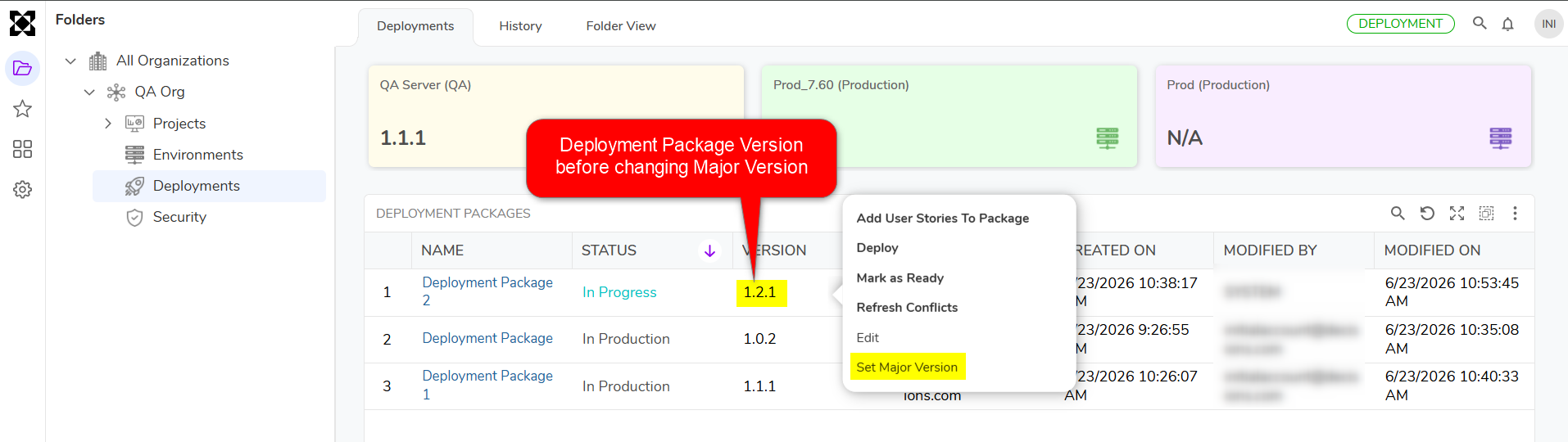
Deployment Package States
Deployment Packages progress through controlled states as they move through the deployment lifecycle. These states help teams understand where a package is in the release process and what actions can be performed next.
| Package State | Description | Can Deploy To |
|---|---|---|
| In Progress | The active package where new committed work is collected. Only one package can be In Progress at a time, ensuring there's a single, unambiguous destination for new builds. | QA only |
| Ready | The package has been finalized and is queued for release to Production. Only one package can be in the Ready state at a time, so there is never more than one package awaiting promotion to Production. | QA and Production |
| In Production | The package has been deployed to Production. Multiple packages can be In Production at once, forming the historical release record as packages are promoted over time. | QA and Production |
How a Package Moves Between States
- Organization connected → In Progress: When an Organization is connected, the Deployment Tower automatically creates the first Deployment Package in the In Progress state.
- In Progress → Ready: A user marks the package Ready using the Mark it as Ready action. This action is only available once every User Story included in the package is in the Approved state. Once marked Ready, the package is locked; no additional User Stories can be added to it, and a new Deployment Package is automatically created in the In Progress state, based on the Ready package, to hold the next round of active work.
- Ready → Production: The package moves into the Production state once it is deployed to a Production environment.
Only one Deployment Package can be In Progress at a time, and only one package can be in the Ready state at a time. Multiple packages can exist in the In Production state as historical production packages.
Adding User Stories to a Deployment Package
There are two ways to add User Stories to a Deployment Package:
User Stories are created and committed on the Development Server. Those committed changes are collected into Deployment Packages on the Deployment Tower for review and deployment to target environments.
A User Story must be included in a Deployment Package before its committed changes can create builds for that package. If a User Story is not included in the active Deployment Package, commits made to that User Story are still synced to the Deployment Tower, but they do not create a build and do not increment the package version.
- Include in Deployment Package: This action is available at the User Story level. Navigate to: Project > Sprints > User Stories. A User Story can be included in the current active Deployment Package in one of the following ways:
- During creation: Select the Include in Deployment Package toggle while creating the User Story.
- When editing: Edit an existing User Story and select the Include in Deployment Package toggle.
When Include in Deployment Package is enabled, each commit to that User Story creates a new build within the active Deployment Package.
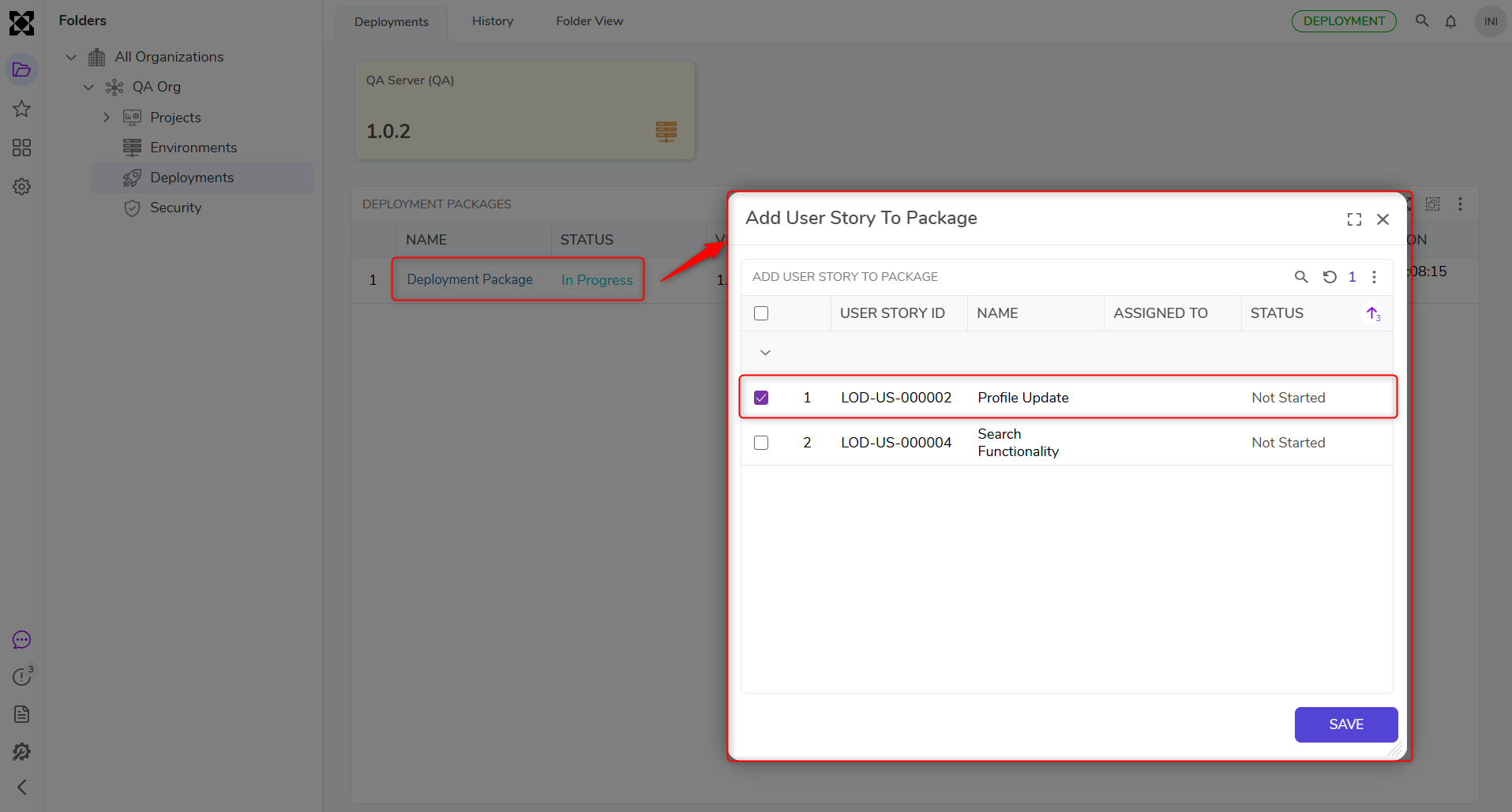
- Add User Stories To Package: Right-click on an in-progress Deployment Package and select Add User Stories To Package. This opens the Add User Story To Package dialog, where User Stories that are still not part of any Deployment Package can be selected for inclusion. After selecting the required items, click Save to confirm.
 Note
NoteEach commit made against a User Story that is included in the active Deployment Package creates a new build and increments the Build number in the package version.
Changes made to the package, such as adding or removing User Stories from the package, can also create a new build to record the package activity.
Package and Build Details Dashboard
The Deployment Tower includes package-level and build-level dashboards that provide a detailed view of the contents of a Deployment Package and its builds. These dashboards support review, validation, and audit workflows by surfacing the items included in a package before deployment.
Package Details Dashboard
Each Deployment Package includes a Changes dashboard that displays the contents of the selected package. This dashboard groups information by project and shows the entities and user stories included in that package.
For each listed item, the dashboard can display details such as the entity name, user story, last revision, commit metadata, and the activity associated with the entity. Activities indicate whether the entity was added, modified, or deleted.
This package-level view provides a clear audit trail of what is included in the package and helps teams review the scope of deployment before promotion to another environment.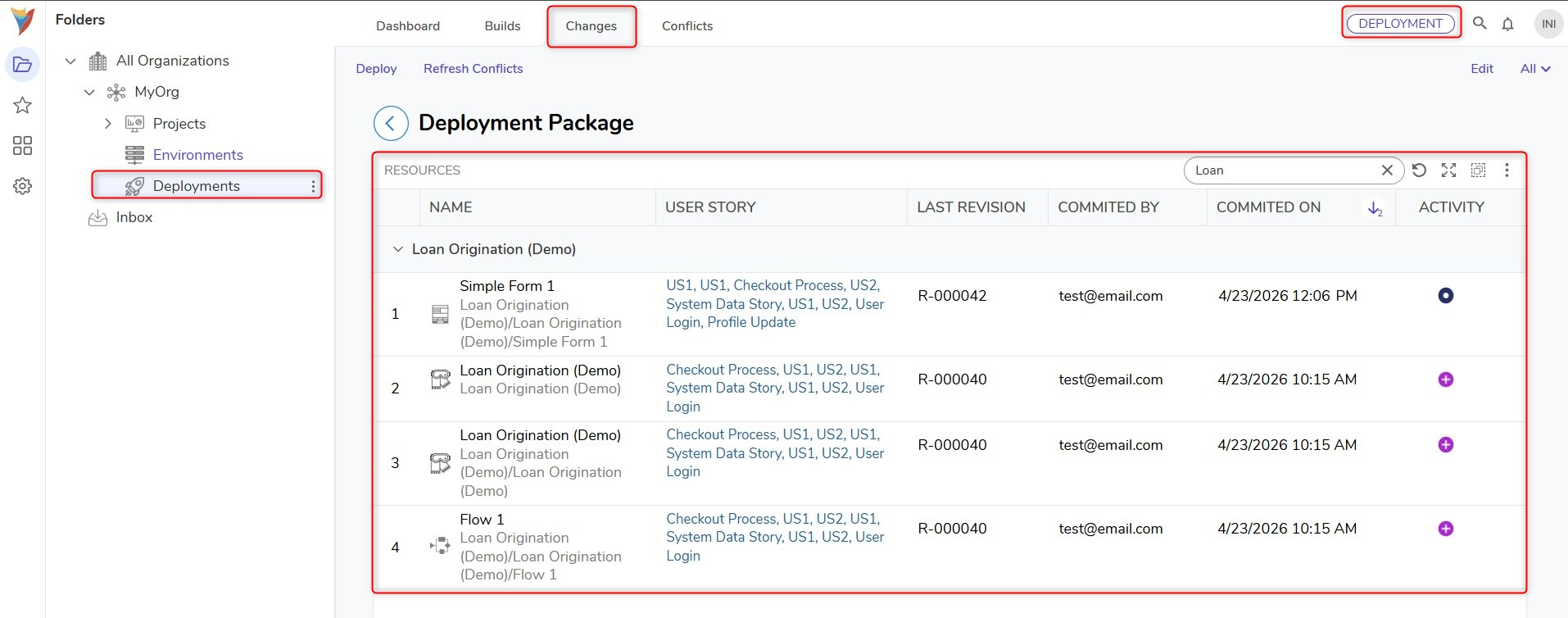
Build Details Dashboard
Each Deployment Package can contain multiple builds. Build-level reports provide a more focused view of the entities included in an individual build.
The build details view surfaces information such as the associated user story, the last revision, commit details, and the activity performed on each entity within that build.
Build activities are categorized as added, modified, or deleted. Deleted items are visually distinguished in the dashboard, including a red indicator and a cross icon, to make removal activity easy to identify during review.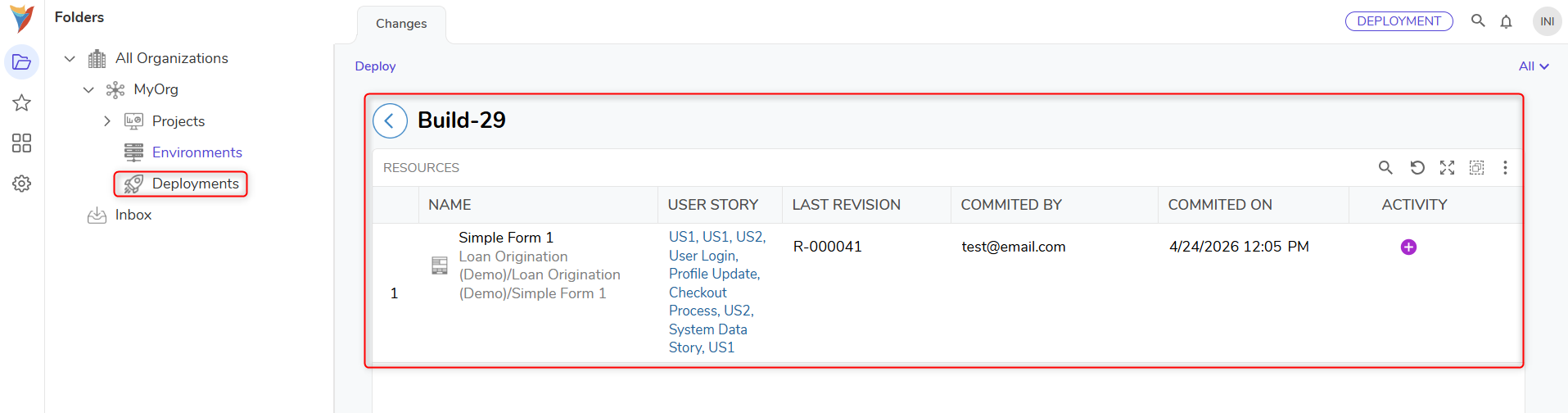
Together, the package and build dashboards provide line-by-line visibility into what is being prepared for deployment, helping support review and audit processes across the deployment lifecycle.
For more information about how builds are created and reviewed, see the Builds documentation.
Deploying a Package
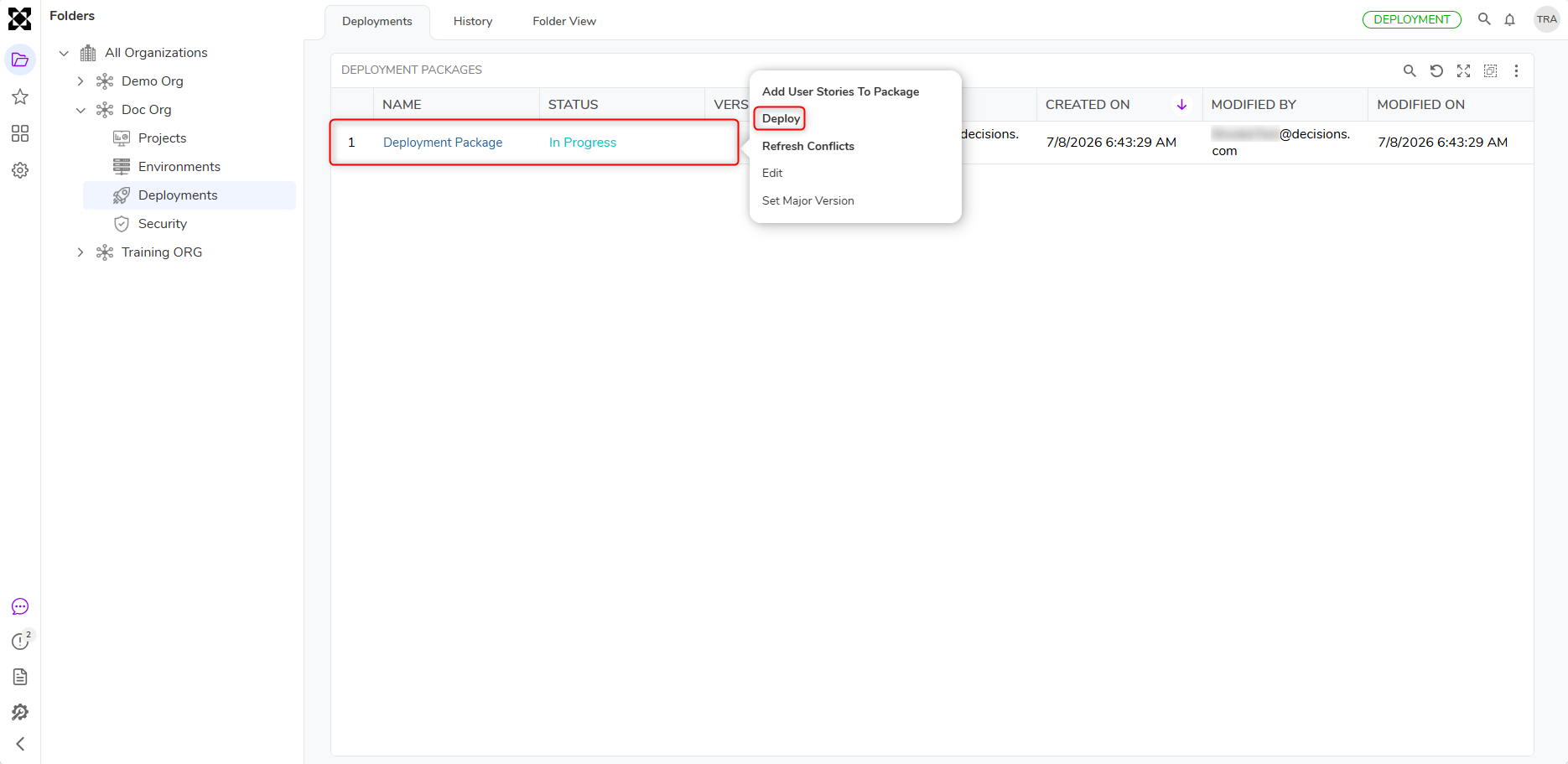
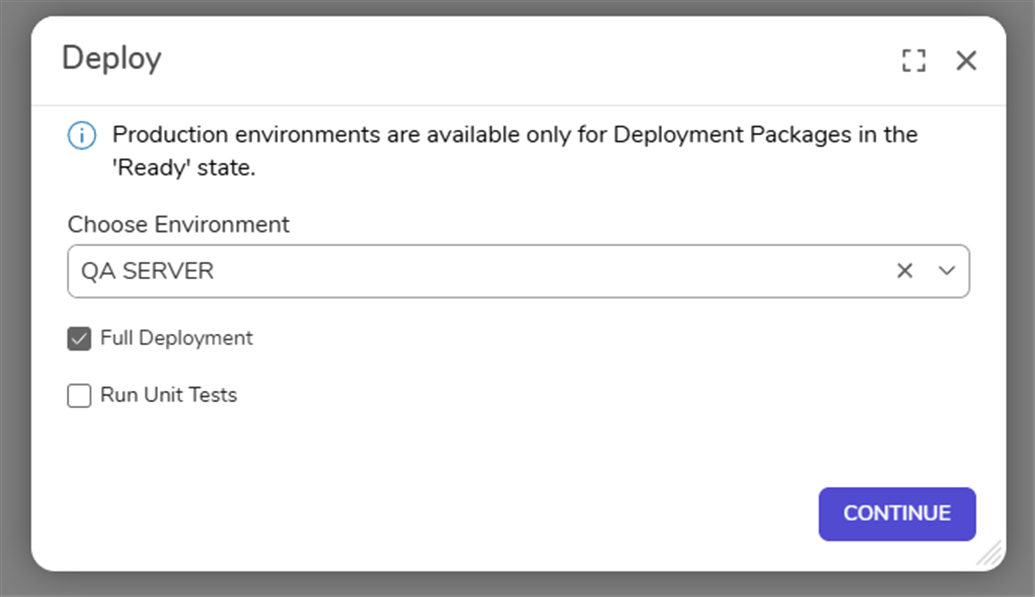
To initiate deployment, right-click on the Deployment Package and select Deploy. A dialog will appear, prompting a selection of the target environment from a dropdown menu.
Production is available as an environment option in the dropdown only when the Deployment Package is in a Ready state.
The Deploy dialog also includes two checkboxes:
- Full Deployment – Deploys every build contained in the package, regardless of the version already deployed on the target environment (see Full Deployment vs. Normal Deployment below).
- Run Unit Test – Runs unit tests on the target environment as part of this deployment (see Unit Test Execution on Target Environments below).
After selecting the target environment and any options, click Continue to proceed with the deployment.
If conflicts are detected during deployment and no default resolution has been configured, the Conflict Resolution Wizard appears before deployment continues. For more information, see the Conflict Resolution documentation.
Full Deployment vs. Normal Deployment
By default, a Normal Deployment compares the version already deployed on the target environment against the version of the current Deployment Package. If the versions match, nothing in the package is deployed.
This can create a gap when a project inside the package was never actually deployed – for example, if that project had a missing dependency at deployment time. In that case, the target environment's version is still updated to match the Deployment Package version, even though the affected project was skipped.
Adding the missing dependency and deploying again does not fully resolve this on its own: since Normal Deployment only deploys builds with a version higher than what is already on the target, only the newly added dependency project deploys. The originally skipped project remains undeployed, since the target's version already matches the package version.
Full Deployment resolves this by deploying every build in the package, regardless of the version already on the target environment.
| Deployment Type | Behavior |
|---|---|
| Normal Deployment | Compares the target environment's version to the package version; deploys only builds with a version higher than what is currently deployed. |
| Full Deployment | Deploys all builds in the package, regardless of the version already deployed on the target. |
Unit Test Execution on Target Environments:
The Deployment Tower can run unit tests in the selected target environment during deployment. This helps verify project integrity before changes are promoted.
- Manual: Run unit tests during deployment.
- Automatic: Configure the environment to run unit tests automatically on every deployment.
For details on configuring an environment to run unit tests automatically and on setting deployment types such as Auto Deploy or Schedule Deploy, see Configuring Deployment Type for an Environment.
Deployment Wizard
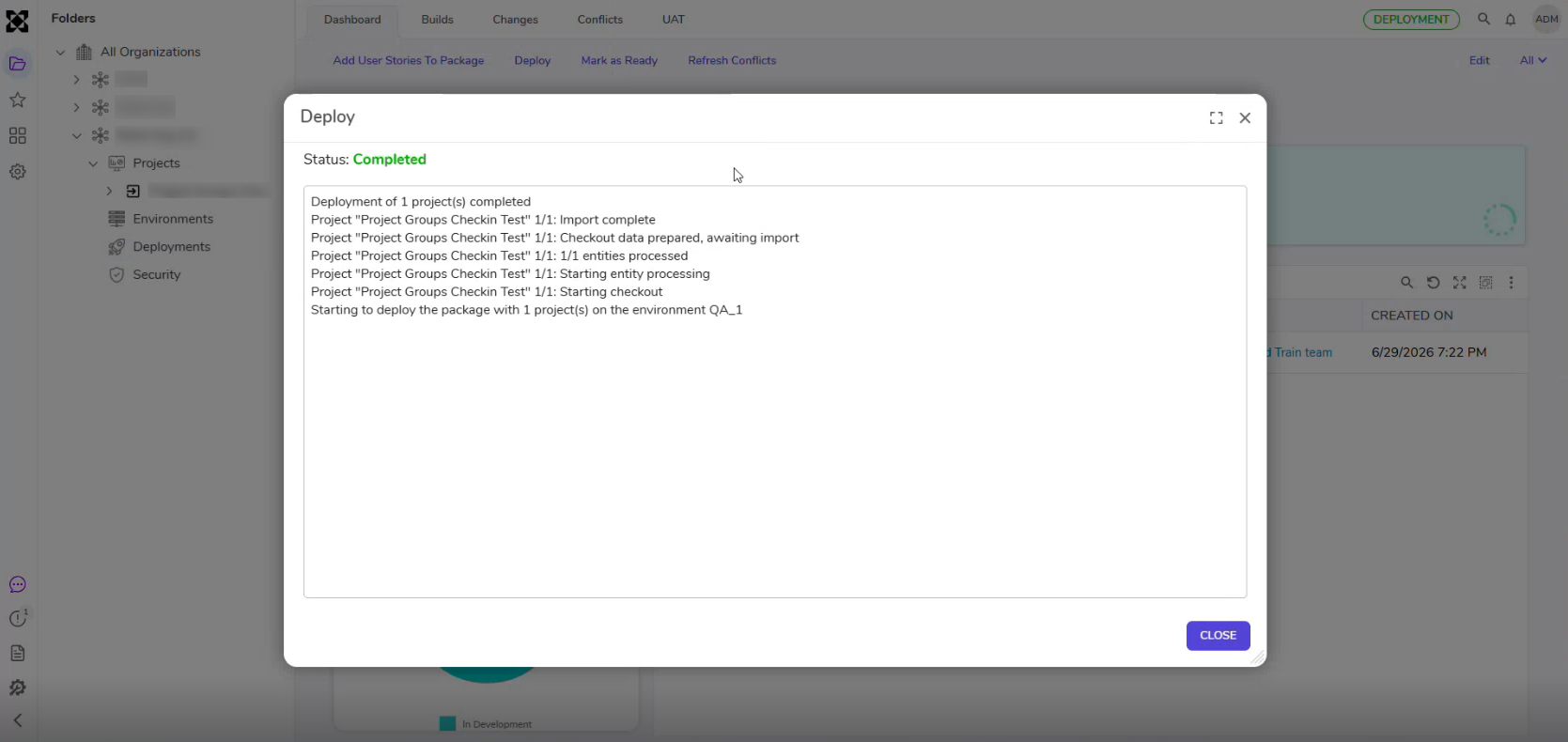
After clicking Continue, the deployment runs through the Deployment Wizard, which provides line-by-line visibility into each action performed during deployment to support review and troubleshooting.
No manual dependency management is required. If the project included in the Deployment Package has module dependencies, the Deployment Tower automatically installs the required modules on the selected target environment during deployment.