Overview
This document explains how administrators can connect Decisions environments, such as Development, QA, and Production, to a Deployment Server. The connection uses a secure, key-based authentication model for server-to-server communication. Authentication keys are generated from the environment-level action in the Deployment Server and configured on each client environment during registration.
- Already installed the Deployment Tower.
- Copy the Deployment Tower's Portal Base URL for future reference.
- Already configured the Organization in the Deployment Tower.
- Review the supported Environment Types before registering an environment.
Connect to the Deployment Tower
The following section explains how to connect a Decisions environment to the Deployment Tower. Each connected environment is registered as a specific environment type, such as Development, QA, or Production. For more information, refer to the Environment Types article.
There are two ways to register an environment with the Deployment Tower:
- If the environment has not been connected before, the registration option appears on the All Projects landing page, where all project cards are displayed.
- If the registration option is not visible on the All Projects landing page, navigate to System > Settings > Deployment Server Settings to register the environment or update connection settings.
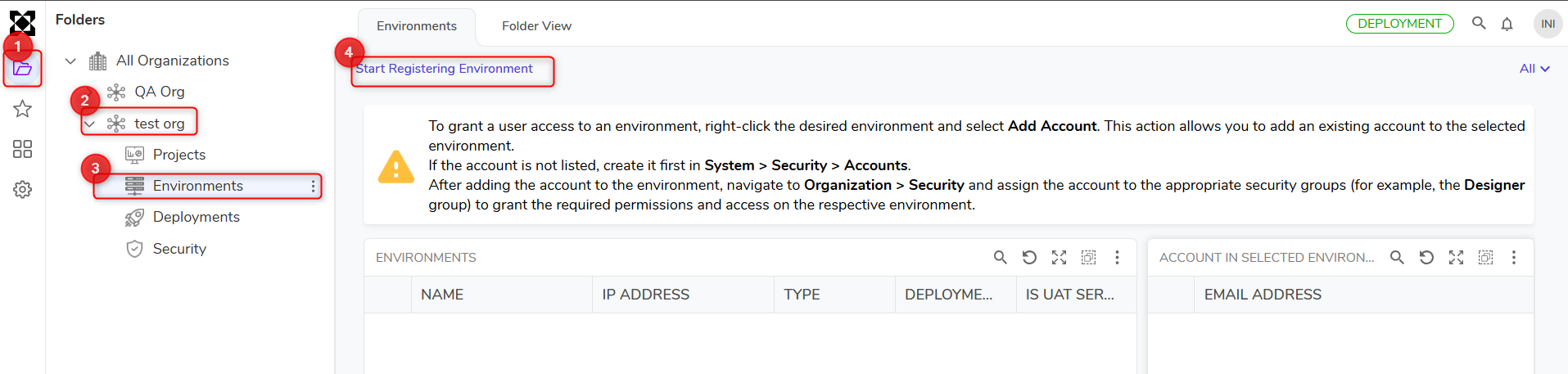
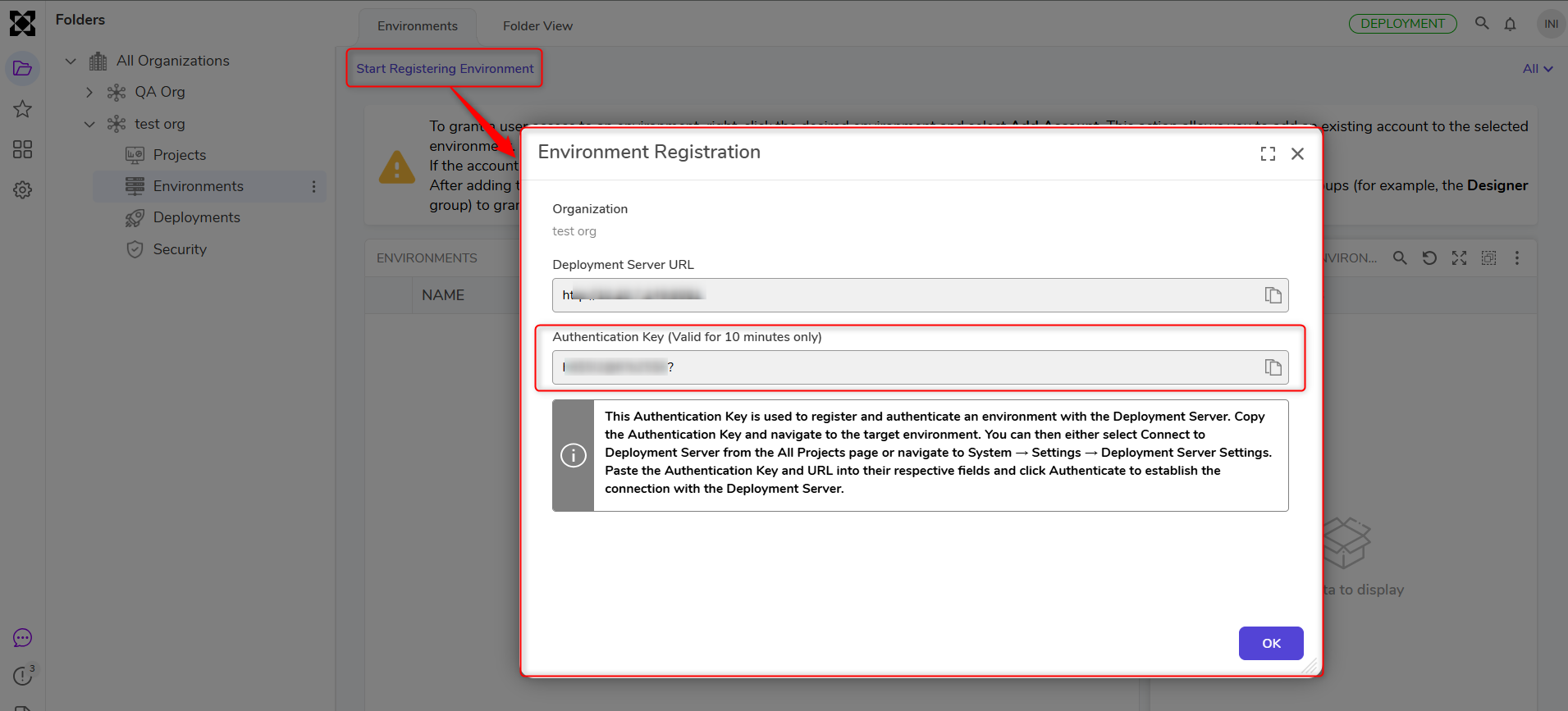
- Generate an Authentication Key in the Deployment Tower: In the Deployment Tower, navigate to the required Environment, right-click the Environment, and select the Start Registering Environment action. Copy the generated Authentication Key.Notes:
- The Authentication Key left idle is valid for 10 minutes.
- One key = one instance. The key expires once the instance is connected. Generate a new key for each environment instance being registered.
- In the environment to connect, use one of the following options:
- If the environment has not been connected before, use the registration option displayed on the All Projects landing page.
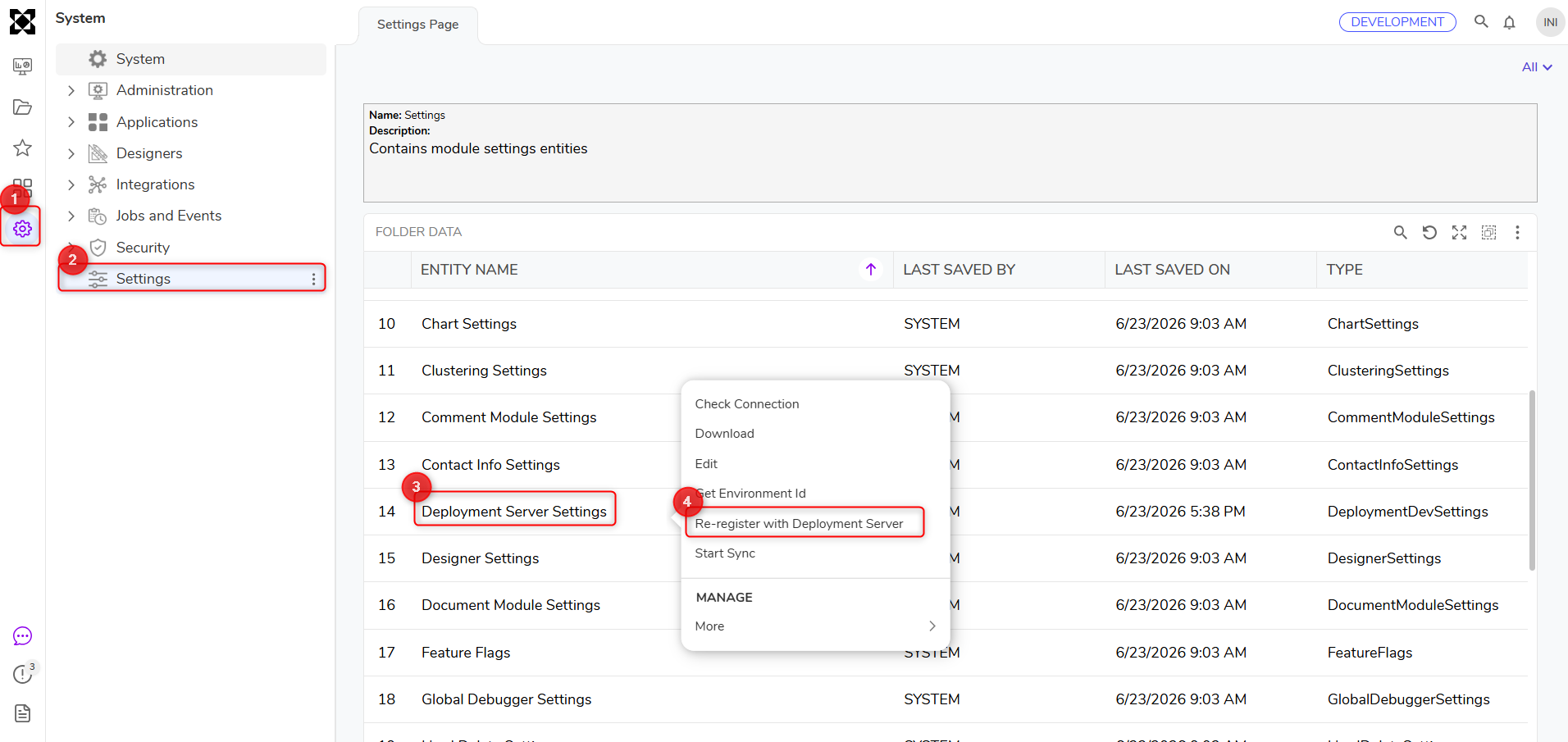
- If the option is not visible, navigate to System > Settings > Deployment Server Settings.
- Right-click Deployment Server Settings and select Register (or Re-register with Deployment Server, if the environment was previously connected.
- In the registration dialog:
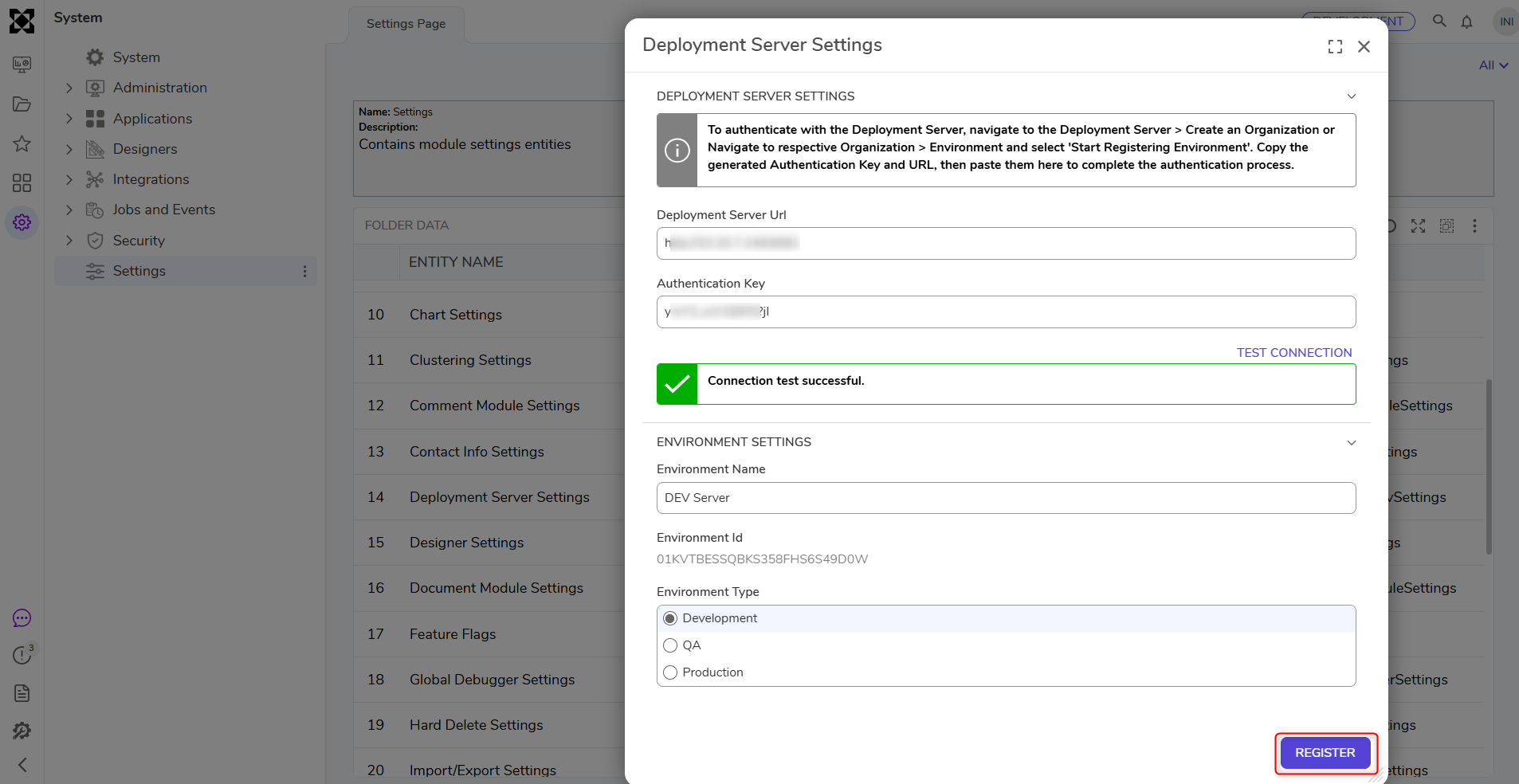
- Enter the Environment Name.
- Select the Environment Type. Available options include Development, QA, and Production.
- Under Deployment Server URL, paste the Deployment Tower's Portal Base URL.
- Paste the copied Authentication Key into the Authentication Key field.
- Click Register.
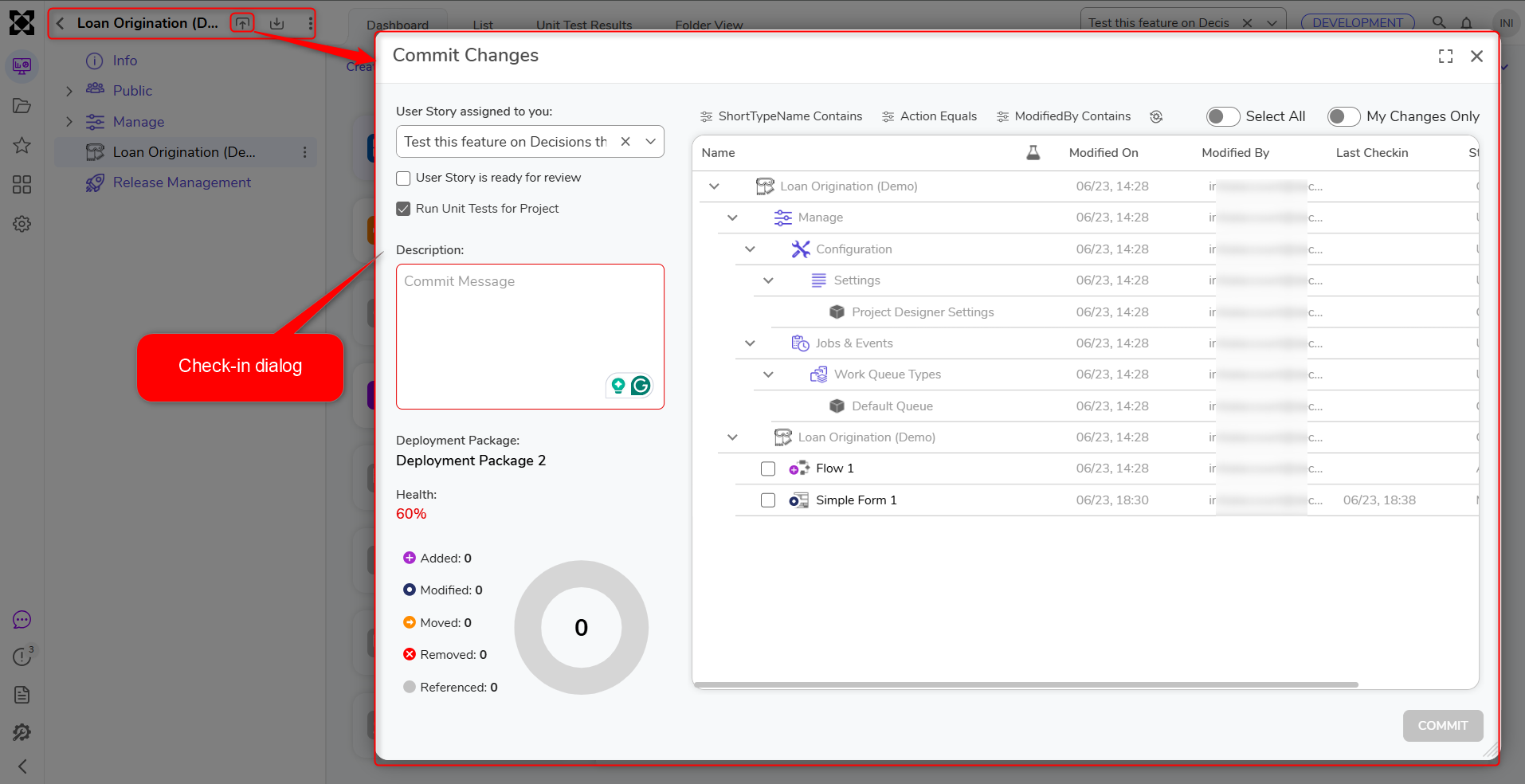
- After registering, verify the connection by navigating to the project level and selecting the Check-in action. If the connection is successful, the Check-in dialog appears and displays the entities available for check-in.
Account Synchronization When Connecting an Environment
In v10, account management is controlled by the Deployment Tower. When an environment is registered with the Deployment Tower for the first time, the accounts from that environment are synchronized to the Deployment Tower and created at the system level.
Accounts are also associated with the environment they were synchronized from. For example, accounts synchronized from a Development environment appear under that connected Development environment, while accounts synchronized from a Test or QA environment appear under that respective environment.
Native Decisions Accounts
For accounts created and managed natively in Decisions, the account password is also synchronized with the Deployment Tower. This synchronization follows a first-come, first-served approach.
For example:
- If the Dev environment is connected to the Deployment Tower first, and an account with a specific email address exists in Dev, that account and its password are synchronized to the Deployment Tower.
- If the same email address also exists in the QA environment and QA is connected to the Deployment Tower afterward, the password already stored in the Deployment Tower from Dev is synchronized to the QA account.
- This behavior assumes that the same email address represents the same user across environments and should therefore use the same password.
Active Directory Accounts
This password synchronization applies only to native Decisions accounts. It does not apply to Active Directory accounts, because AD account passwords are managed externally and are not controlled by Decisions.
If any connected environment uses Active Directory, the AD settings must also be configured at the Deployment Tower system level. After configuration, AD synchronization must be performed from the Deployment Tower.
Configuring Deployment Type for an Environment
After an environment is connected to the Deployment Tower, administrators can configure how deployments are delivered to it. Deployment type is configured per environment: navigate to All Organizations > [Organization Name] > Environments, right-click the environment, and select Configure to open the Set Environment Configuration dialog.
The following deployment types are available, depending on the environment:
- Manual: Builds are deployed only when a user manually starts the deployment.
- Auto Deploy: New builds are automatically deployed to the configured target environment as soon as they are created in a Deployment Package.
- Schedule Deploy: A selected package is deployed automatically at a specified future date and time.
In addition to deployment type, the configuration dialog includes two toggles: Run Unit Test After Deploy, which runs unit tests automatically after each deployment, and Set as UAT Server, which designates the environment for user acceptance testing.
Available options differ by environment type:
- Development environment: Only the Set as UAT Server toggle is available. Development does not use a deployment type, since it is the source of changes rather than a deployment target.
- QA environment: All three deployment types – Manual, Auto Deploy, and Schedule Deploy – are available, along with the Run Unit Test After Deploy and Set as UAT Server toggles.
- Production environment: Two deployment types are available – Manual and Schedule Deploy – along with the Run Unit Test After Deploy toggle.
- Auto Deploy is typically intended for non-production target environments such as QA.
- Production environments should use Manual or Schedule Deploy. Automatically deploying every new build to Production is not recommended.
- For a scheduled deployment, the package is expected to pass unit tests before promotion to Production.
- If a deployment is already scheduled and a user starts the deployment manually before the scheduled time, the scheduled deployment is canceled, and the deployment begins immediately.
- Only one Development Server can be attached to an Organization within the Deployment Tower.
Common Troubleshooting Points
- Ensure the Deployment Tower URL entered in the Deployment Server Settings is correct.
- Do not use
localhostas the Deployment Tower URL in the Deployment Server Settings. This will cause the connection to fail. - Ensure the Deployment Tower is reachable and actively running. If the server is unreachable, please contact your IT administrator.
- Ensure to use
HTTPSin the URL in the Deployment Server Settings, if the deployment tower is configured with a secured connection.