Overview
This article walks Users through upgrading an existing Decisions environment from v9 to v10.
Information about the Deployment Tower (v10+)
In v10, the Legacy Repository Server (available in v9 and below) has been upgraded to the Deployment Tower, where Developers can create Builds and User Stories, and Admin Users can quickly manage and track changes. For more information about the Deployment Tower, please refer to What is the Deployment Tower?
Users are advised to read all documents related to the Deployment Tower before upgrading and using the Server.
Users are advised to read all documents related to the Deployment Tower before upgrading and using the Server.
Upgrade Prerequisites & Considerations
- Back up all Decisions Databases.
- Verify all environments (Dev, QA, Prod, Deployment) will be upgraded to v10. Minor version mismatches are not recommended.
- For example, if the Development server was upgraded, the Repository Server must also be upgraded and migrated to the Deployment Tower.
- Ensure admin privileges have been granted.
- All connected servers must be upgraded to the same version.
- Decisions does not support backwards compatibility from v10 to v9.
- The Repository Server must be upgraded and migrated before upgrading Dev environments.
- If a Development Server is upgraded to v10 first, for example, changes cannot be pushed to the existing Repository Server, and deployment activities must be postponed until the Repository Server upgrade and migration are complete.
Commit Local Development Changes
Before upgrading, review all Development Servers for local modifications.
- It is recommended that Developers:
- Check in any outstanding work.
- Push local changes to the Repository Server.
Upgrade and Migrate the Repository Server to the Deployment Tower
We recommend Users start the upgrade process by first migrating data from the Repository Server to the Deployment Tower. Please refer to Migrating From Repo to Deployment Tower for steps, prerequisites, and considerations.
Upgrading from v9 to v10
- Download the Decisions v10 Installer from https://releases.decisions.com/releases/.
- Right-click the installer, then select Run as Administrator.
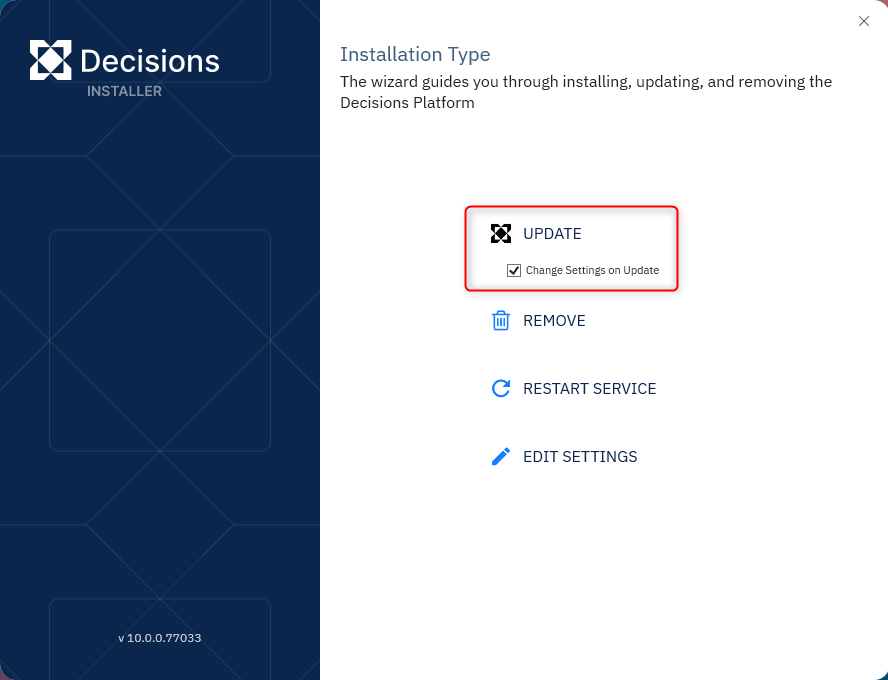
- From the Decisions Installer, enable Change Settings on Update, then click UPDATE.
- Review the terms, check the I accept the terms of the License Agreement box, and then click Next to proceed.
- For the installation type, select the desired server type. This example chooses a Standard server. Select Next to continue.
- Upon reaching the Settings screen, click Next.
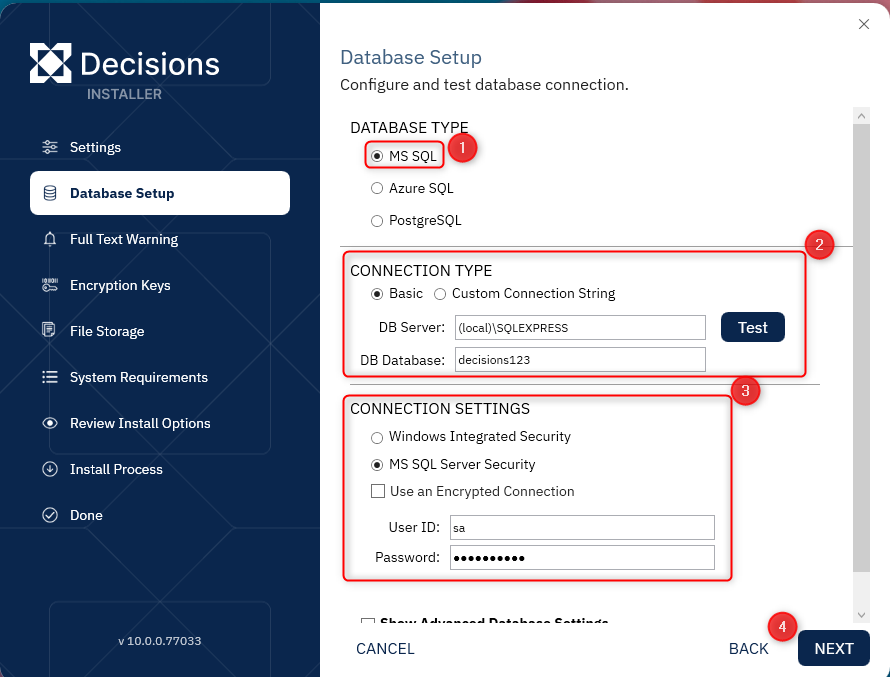
- On the Database Setup screen, select the appropriate Database Type, and match the Connection Type and Connection Settings for the new v10 database. Click Next.
- If upgrading a clustered environment, the installer will prompt users to enter the Redis Base URL. Enter the Redis Base URL for the clustered environment. For more information, refer to Setting Up Redis External Caching.
- Continue past the Full-Text Warning screen.
Portal Base URL
Set up the Portal Base URL based on the chosen Hosting Option. It is recommended to maintain the same URL as the prior version if possible.
To ensure previously emailed v9 task links resolve correctly, reference the v9 Settings.xml file to configure the matching values during the v10 installation.
Encryption Keys and File Storage
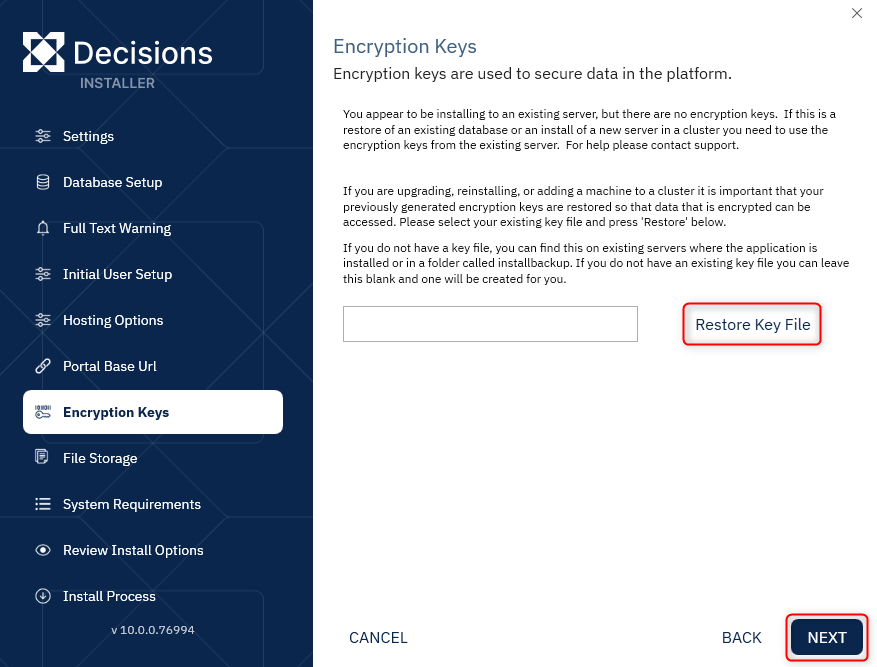
- If Database Encryption was used, click Restore Key File to upload the copied v9 Keys.dat, then click Next.
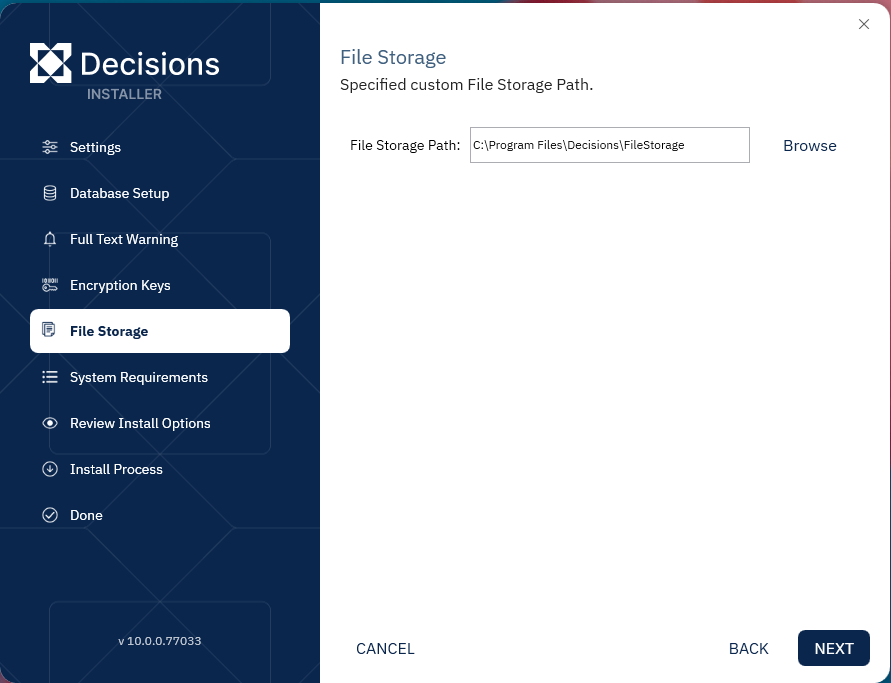
- Define a new v10 File Storage location or select the original one. Then, click Next.
- This ends any upgrade-specific changes from the standard installation. Proceed with the installation as detailed in the Installation Guide.
Continue Deployment (For Users that Utilize the Deployment Tower)
Once all desired environments have been migrated and upgraded:
- Development Projects will remain available.
- The Development Tower will not be emptied or reset.
- Developers can continue working on existing Projects after the upgrade process is complete.