Overview
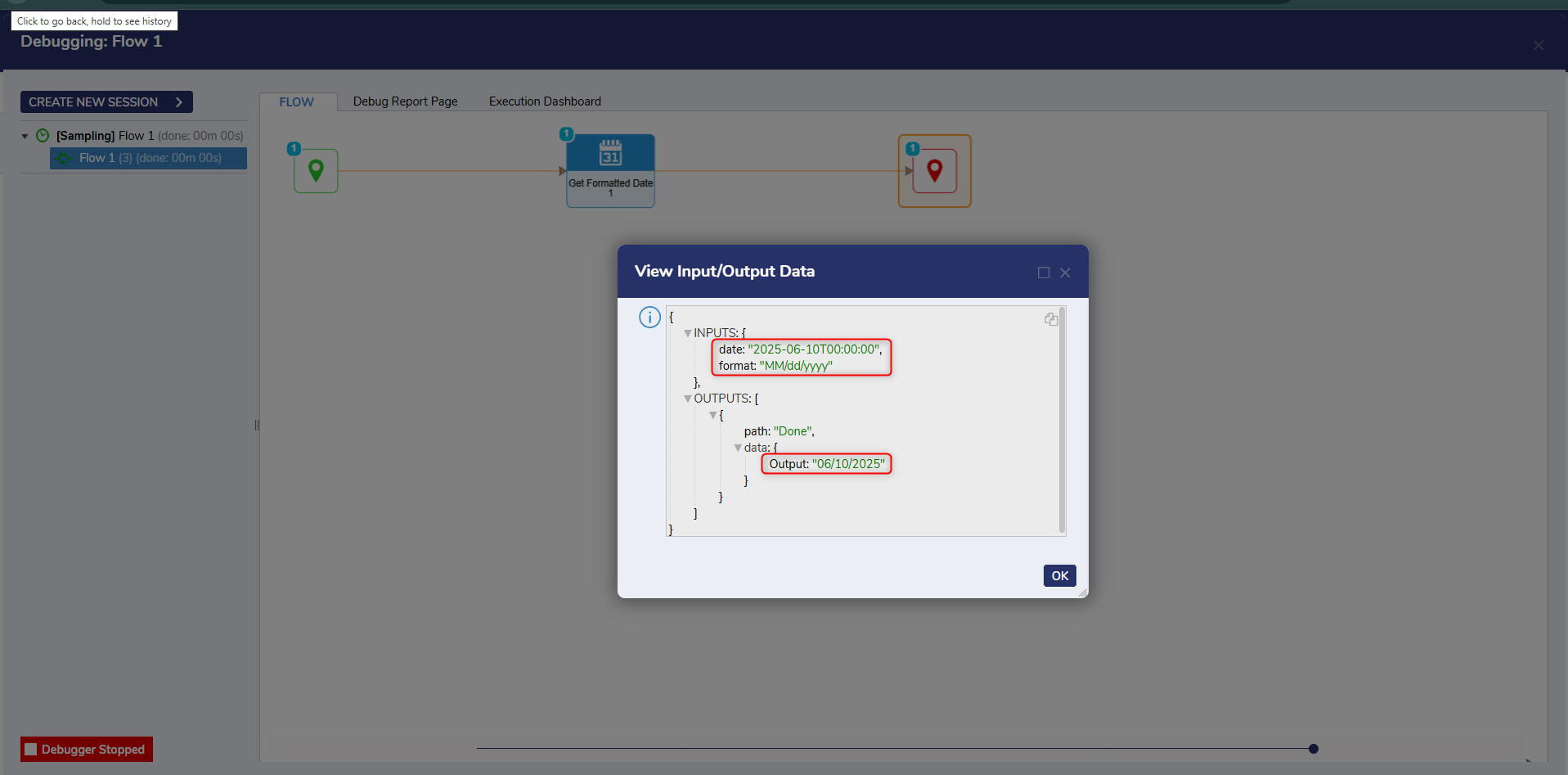
Datetime objects can be parsed into a formatted String to be displayed to be displayed in a Report or a Form. This can be done using the Parse Date With Format and Get Formatted Date steps within a Flow.
Please use the Custom Date & Time Format Strings for a list of formatting options available.
Using the Parse Date With Format Step
- From Designer Project, click CREATE FLOW and select Flow. Enter a Name for the Flow and click CREATE.
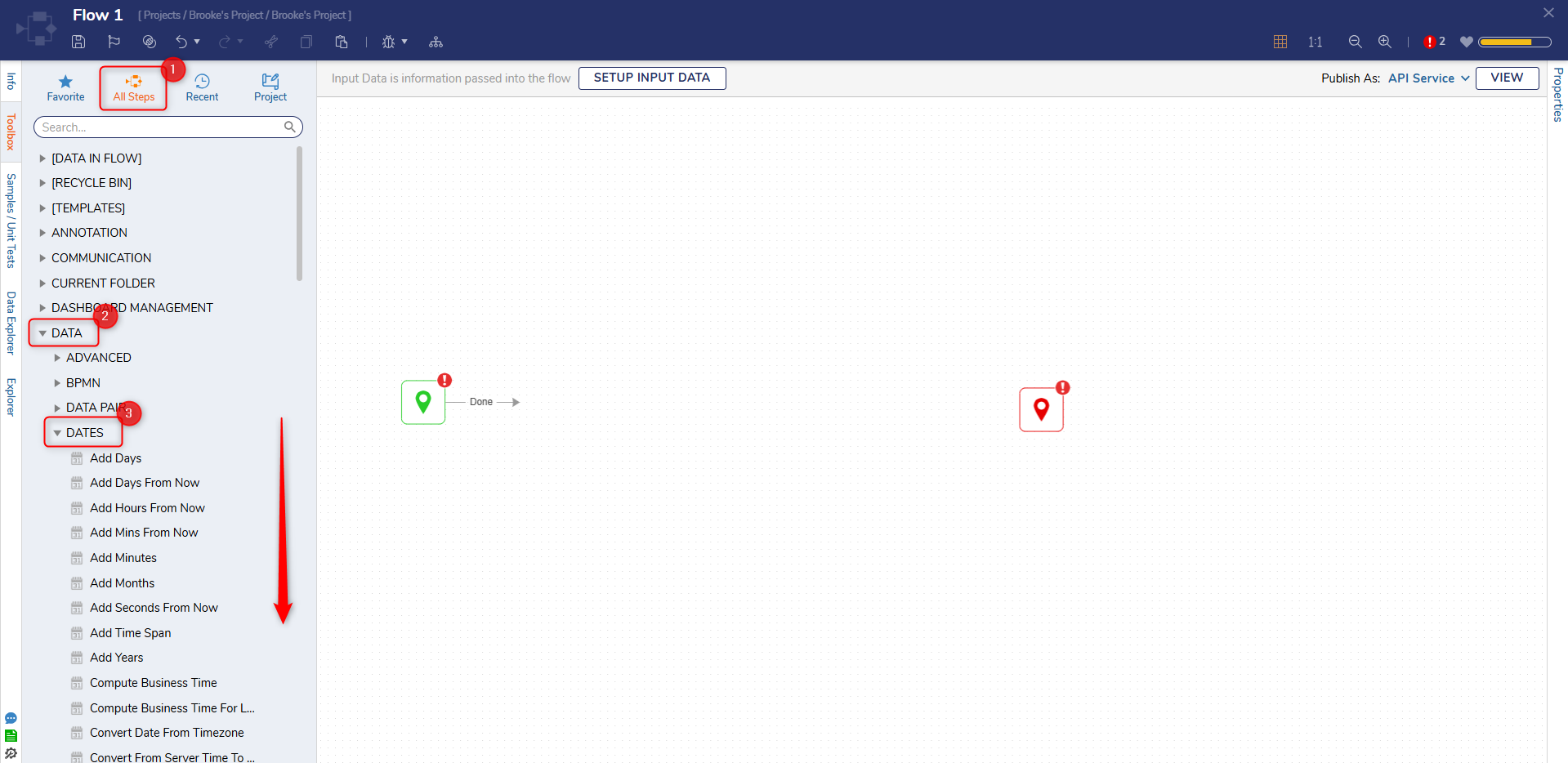
- Add the Parse Date With Format step from the DATA > DATES category on the Toolbox tab to the Start step.
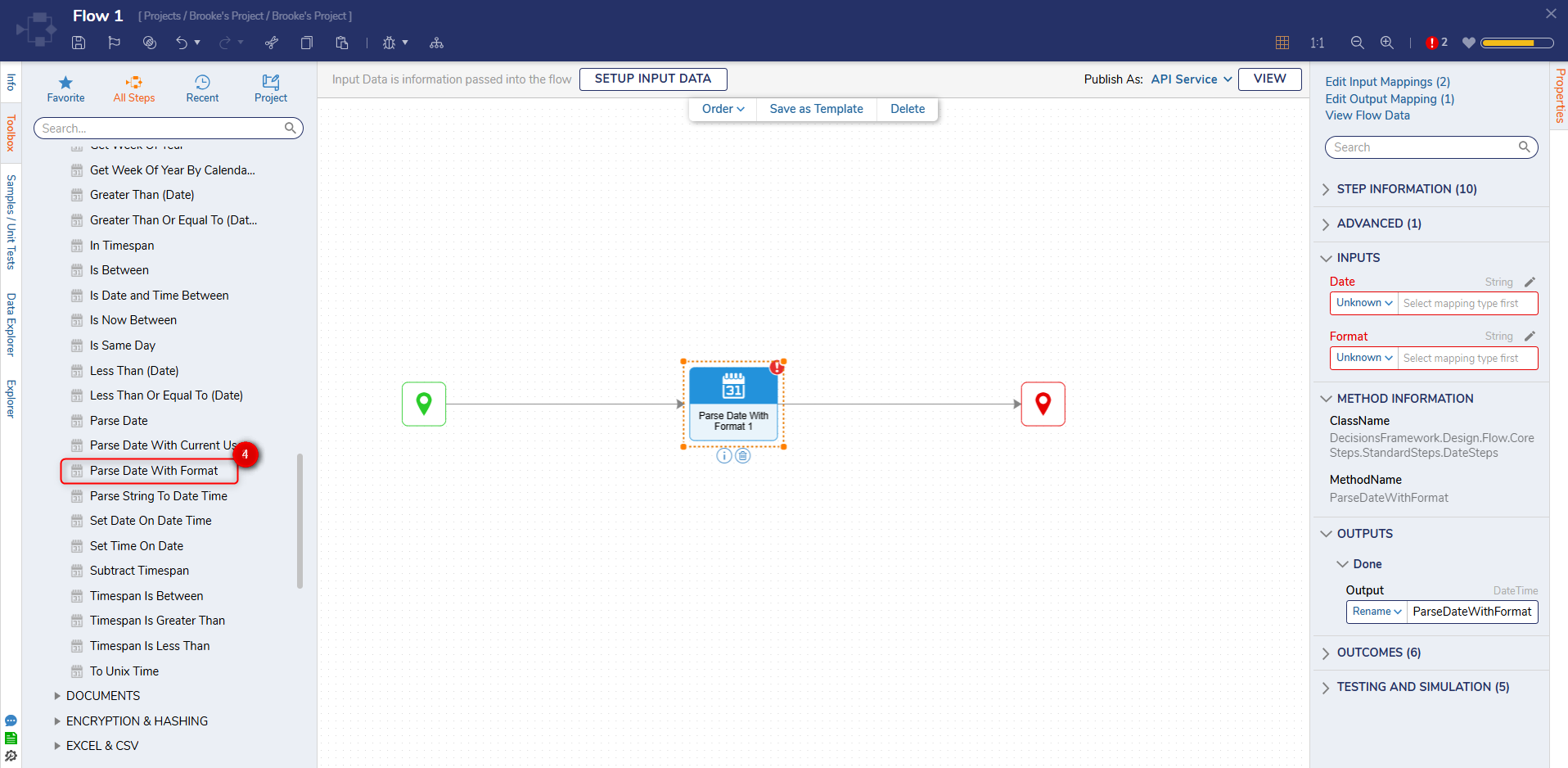
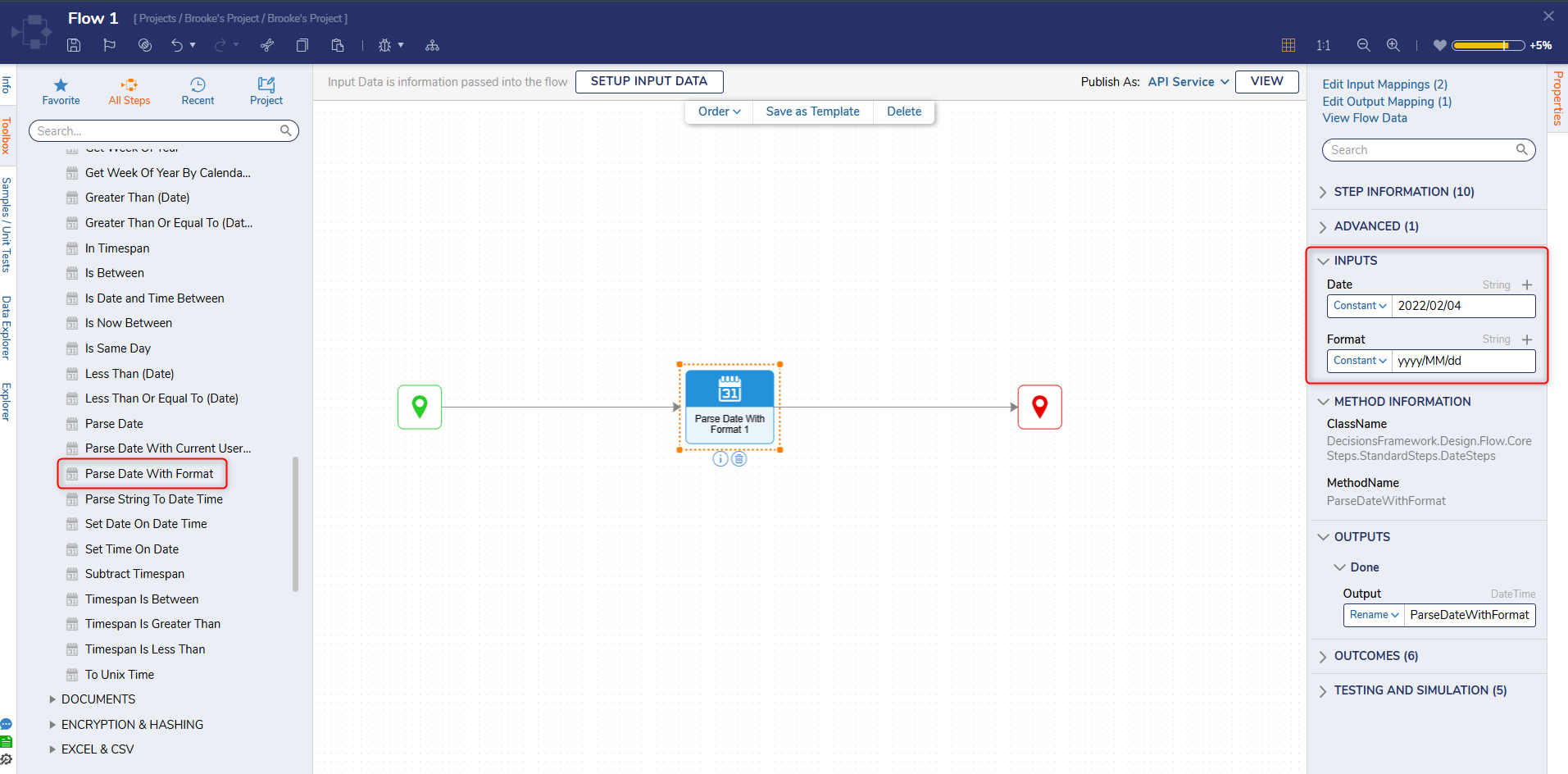
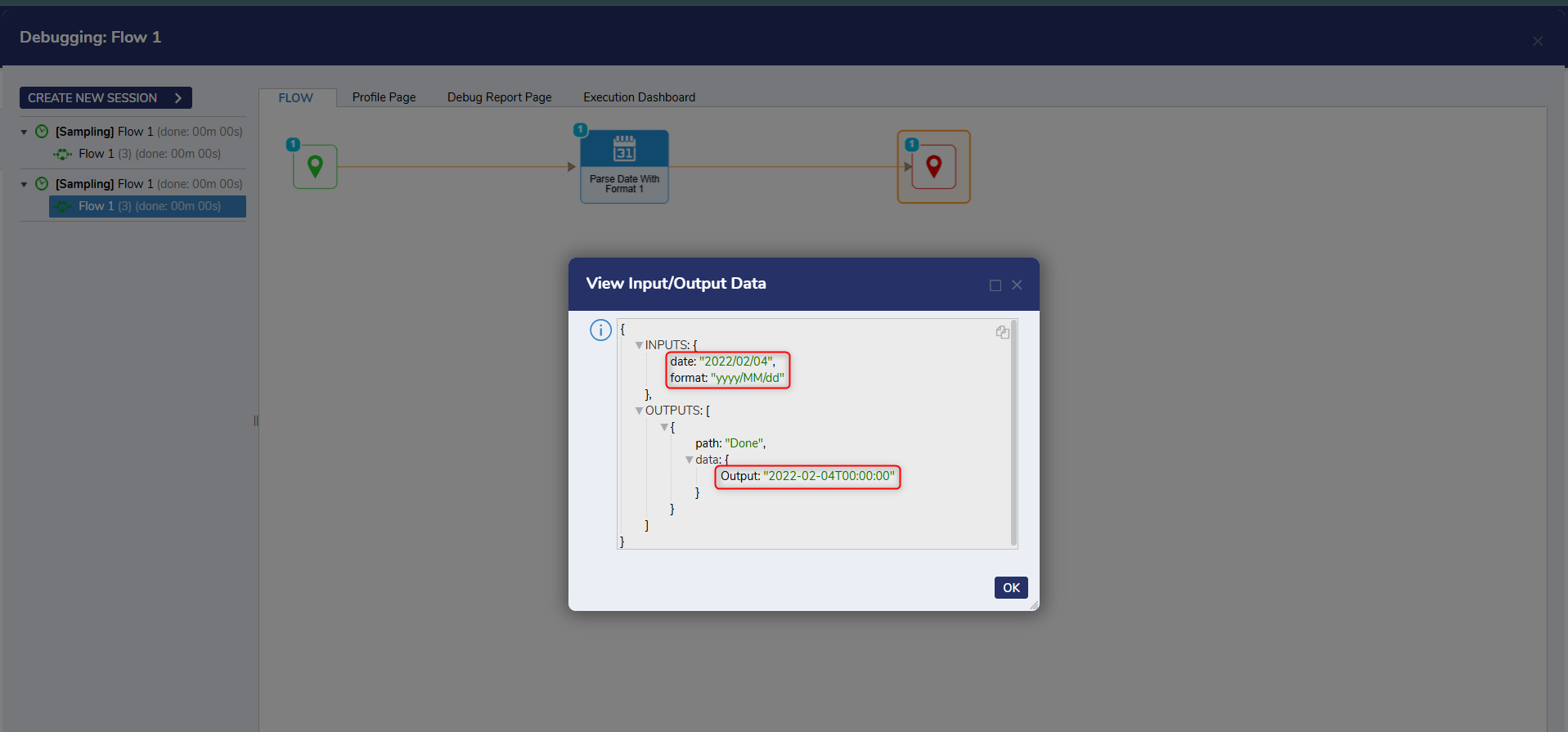
- From the Properties tab of the step, enter "yyyy/MM/dd" in the Format field under the INPUTS category. In the Date field, enter "2022/02/04". The Format field is case sensitive requires a valid DateTime String Format to properly read the Date value.
- Connect the Done path to the End step. Click Save to save changes.
- Click Debug from the top action bar and click START DEBUGGING. After the debugger runs, select the Parse Date with Format step, select Execution 1, and select View Input/Output Data. The output from the step will be formatted as a DateTime value in the configured format.
Using the Get Formatted Date
- Add the Get Formatted Date step from the DATA > DATES category of the Toolbox tab to the Start step.
- From the Properties panel, click Unknown and select Constant Date for the Date field. For this example, leave the default value under the Format field unchanged.
- Debug the Flow and select View Input/Output Data for the Get Formatted Date step. The resulting Output String will be the Date Input in the style dictated by the Format input.