Overview
Locations steps are used in a Flow to calculate DateTime for Business days. Users may use these steps for processes that require calculating dates for only Business days, such as dates for meetings, appointments, due dates, etc., that require calculating dates for only Business days.
Prerequisite
Users must configure the Location entity used for the steps discussed in this tutorial. Location entity can be found under System > System Data > Locations. For further information, refer to Configuring Locations.
Example for Compute Business Time For Location Step
This step calculates a Business date. It will exclude all non-working days and holidays configured for the Location entity.
- Create a new Flow. Refer to Create Flows.
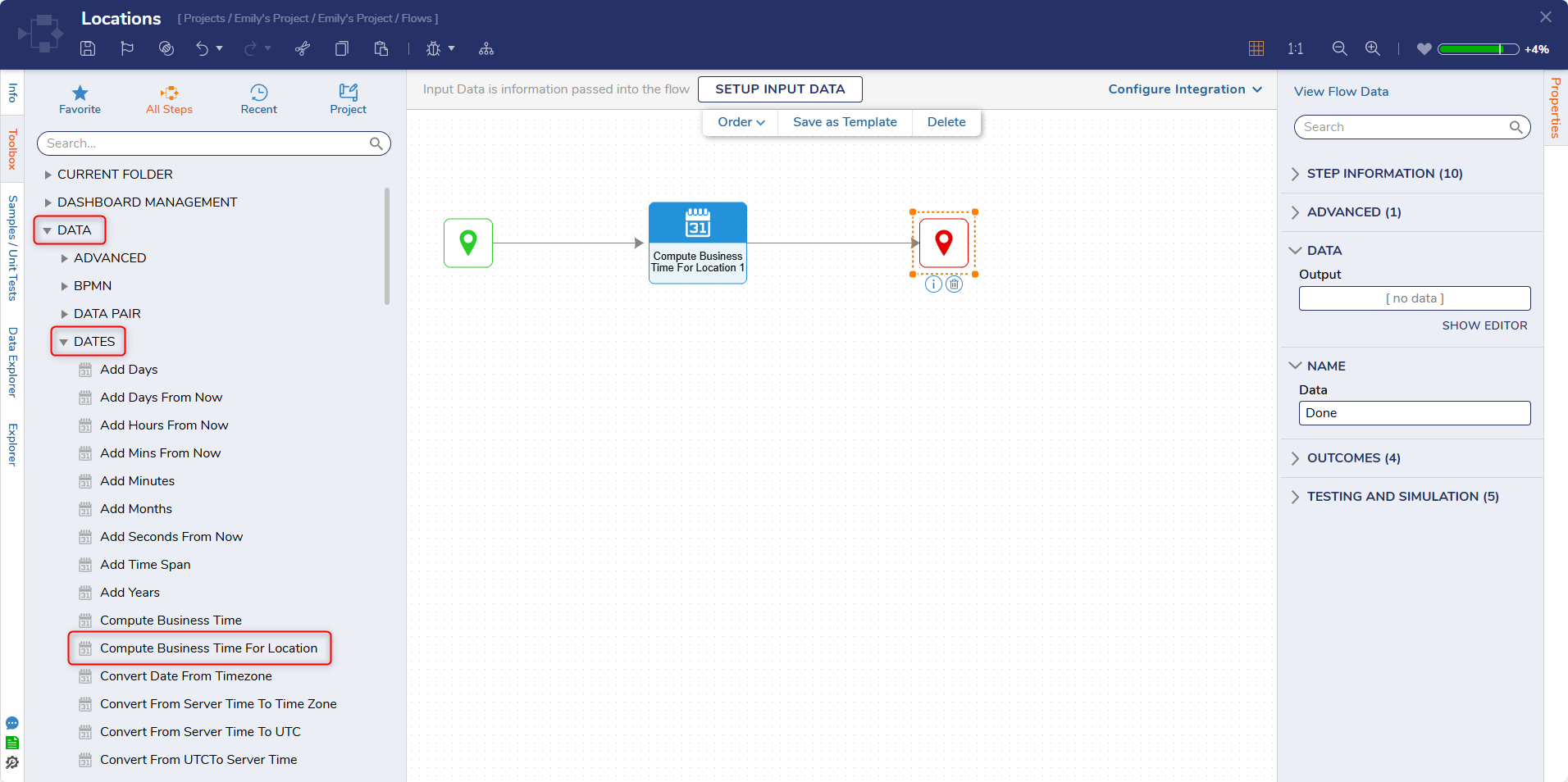
- From the Toolbox tab, navigate to the DATA > DATES category and drag Compute Business Time For Location step to the designer surface. Connect the Start and End steps.
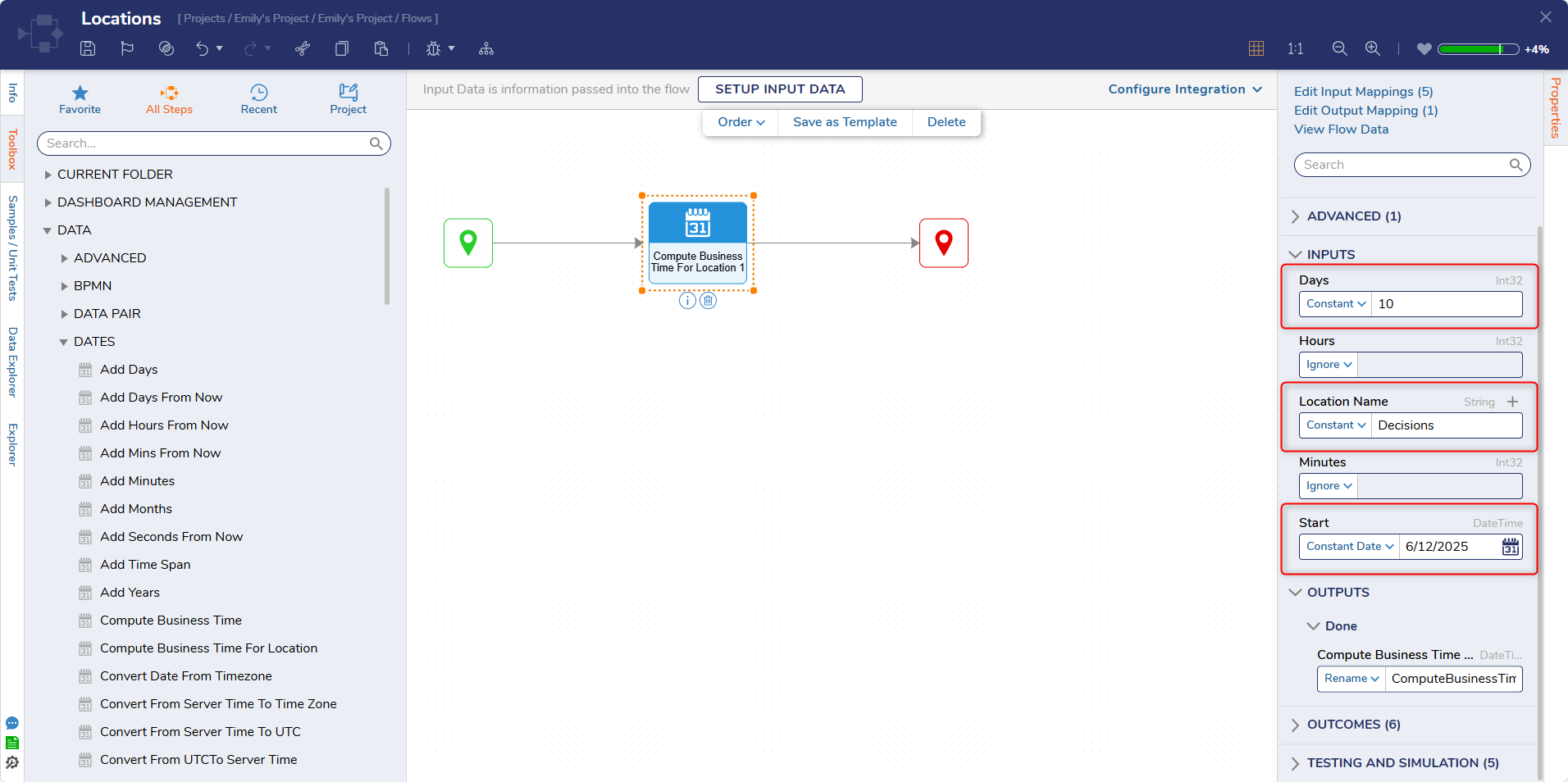
- Select the newly added step to configure its Properties panel.The inputs will be configured to calculate a date 10 Days after the Start date, excluding Weekends and Holidays for the given Location.
- Under INPUTS, map Days to Constant and enter value 10
- Map Location Name to Constant and enter value "Decisions".Note:Location Name should be exactly the same as the Location configured in System Data. Refer to Configuring Locations.
- Map Start to Constant Date and enter June 30, 2022.
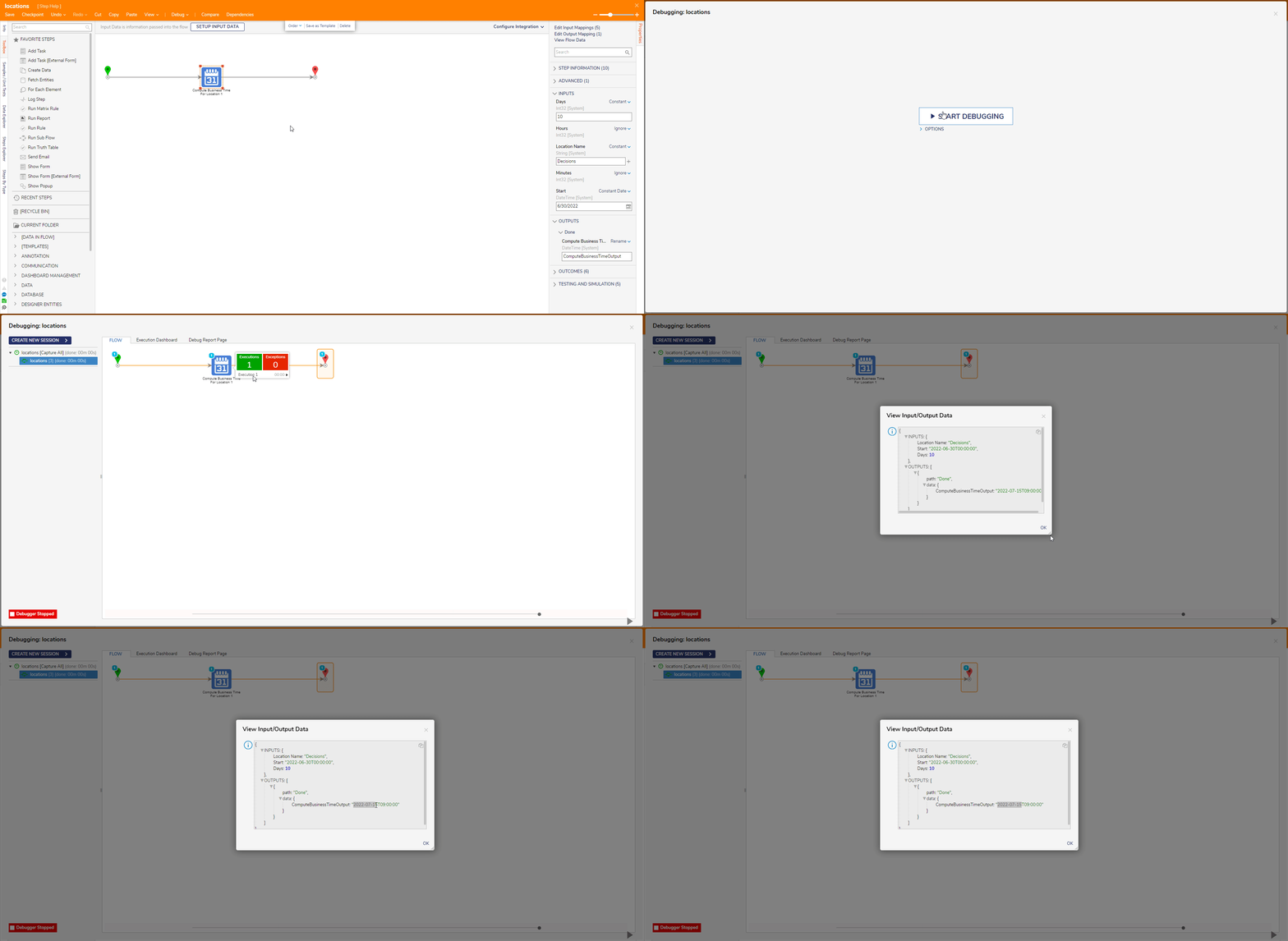
- Save the Flow, then click Debug on the top action bar. Select START DEBUGGING.
- After the Flow runs, select the Compute Business Time For Location Step > Execution 1 > View Input/Output Data.
Successful execution of the flow will eliminate all the weekends (Saturday & Sunday) and a Holiday (July 4, 2022) configured for the location (Decisions) to output the date July 15, 2022.
Example for Get Business Days Between Dates For Location Step
This step calculates the number of Business Days between the Start and End dates. It will exclude all non-working days and holidays configured for the Location entity.
- Create a new Flow. Refer to Create Flows.
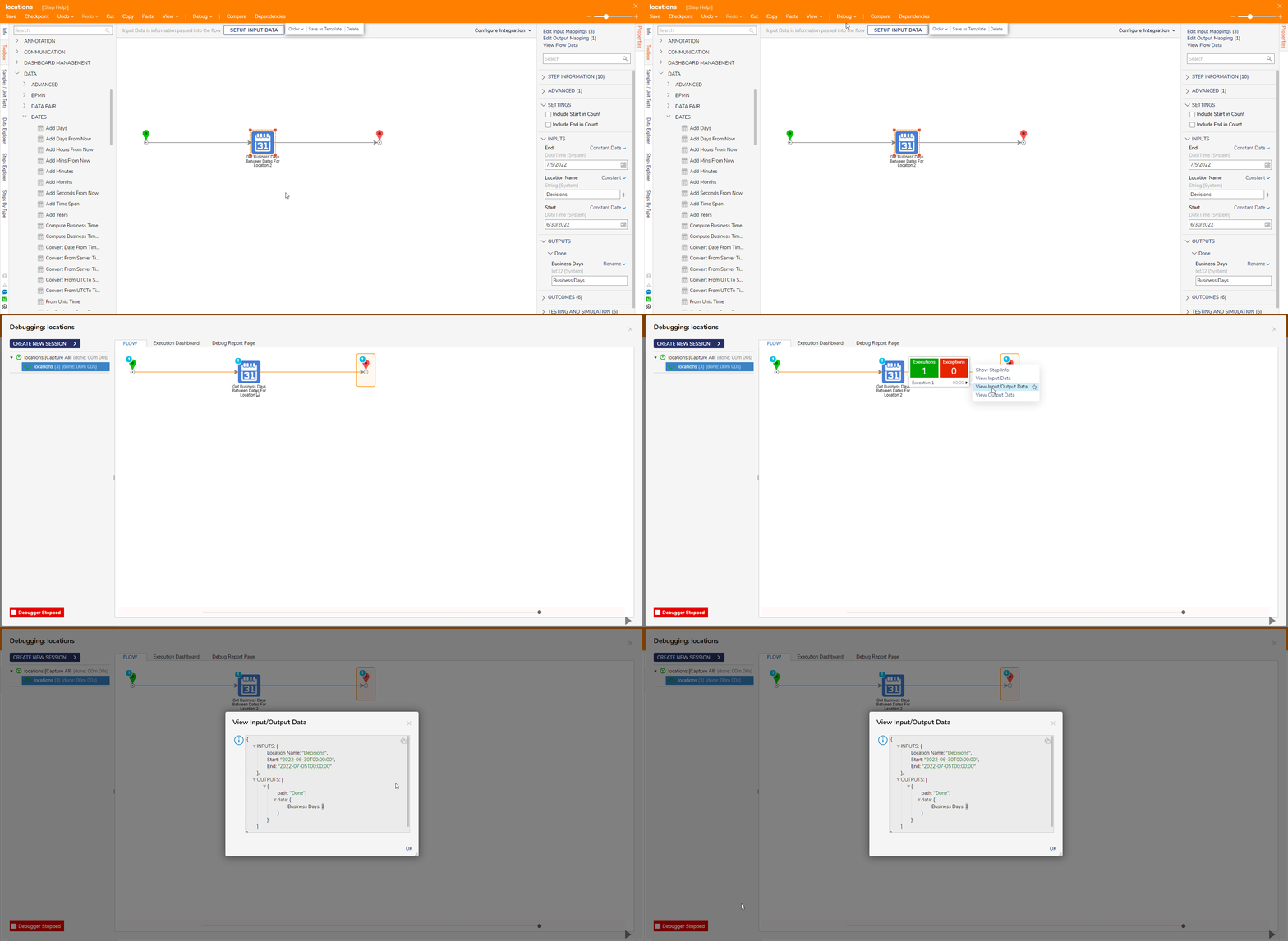
- From the Toolbox tab, navigate to the DATA > DATES category and drag the Get Business Days Between Dates for Location step to the designer surface. Connect the Start and End steps.
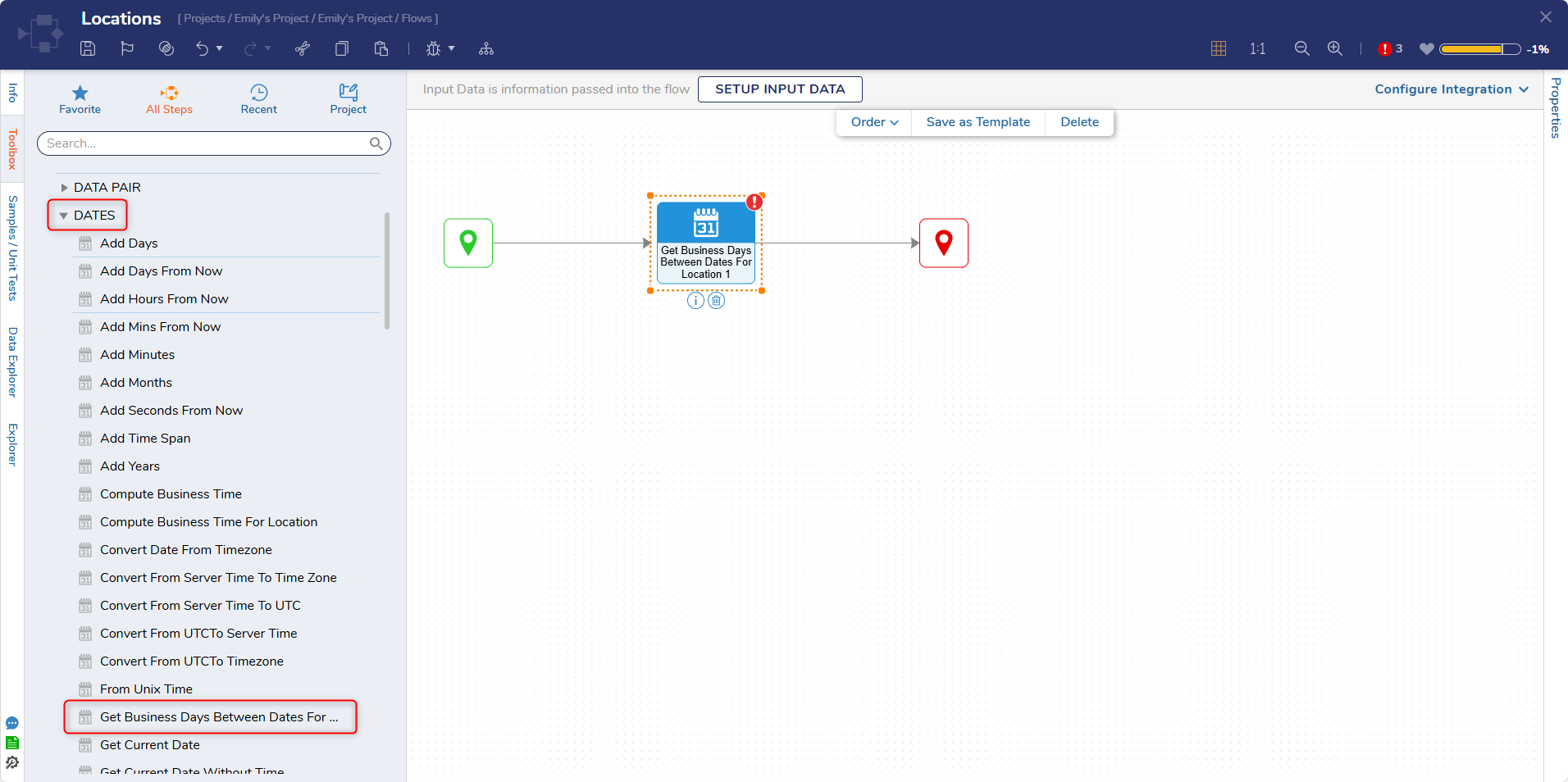
- Select the newly added step to configure its Properties.
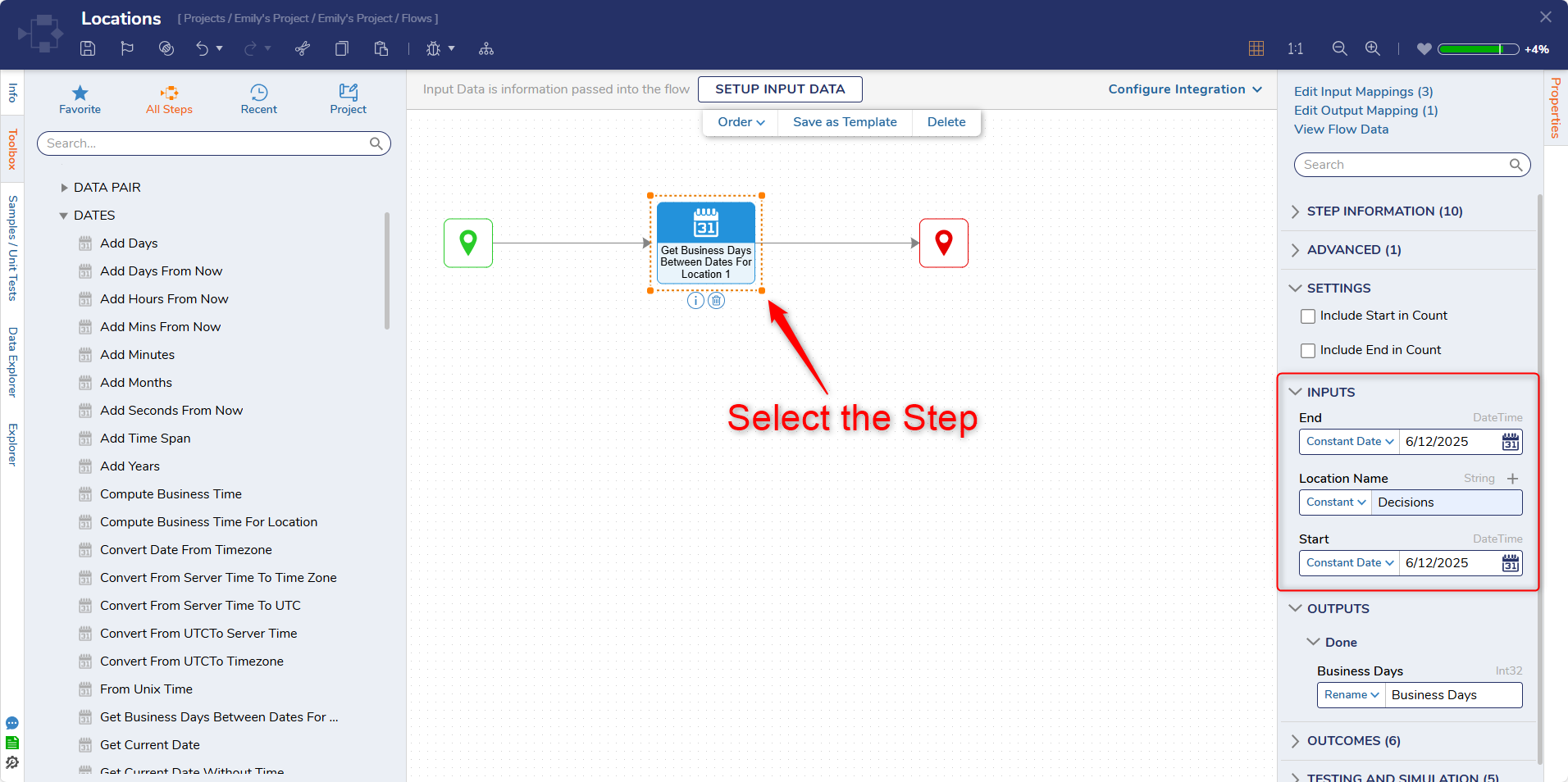
- Under INPUTS, map End to Constant Date and select July 5, 2022.
- Map Location Name to Constant and enter value "Decisions."Note:Location Name should be exactly the same as the Location configured in System Data. Refer to Configuring Locations.
- Map Start to Constant Date and select June 30, 2022.
- Save the Flow, then click Debug on the top action bar. Click START DEBUGGING.
- After the Flow runs, select the Get Business Days Between Dates For Location step > Execution 1 > View Input/Output Data.
Successful execution of the flow will eliminate all the weekends (Saturday & Sunday) and a Holiday (July 4, 2022) configured for the Location (Decisions) to output the value 2.