Overview
Module Details | |
| Core or GitHub Module | Github Module |
| Restart Required? | No |
| Steps Exposed? | Yes |
| Step Location | Integration > Shopify |
| Settings Location | N/A |
| Prerequisites |
|
The Shopify Module enables integration between Decisions and Shopify using the Shopify Admin API. This module provides steps to interact with core Shopify resources, including Products, Inventory, Orders, and Customers.
Installing the Shopify module adds steps to Integration > Shopify in the Flow Toolbox. These steps allow data to be sent to and retrieved from Shopify, enabling automation of common e-commerce operations such as product management, order processing, and customer updates.
Configuration
The Shopify module requires an OAuth token configured in Decisions to authenticate with the Shopify Admin API.
Create a Shopify App
- Navigate to Shopify Partners and create a Partner account.
- Open the Partner Dashboard and access the App Distribution > Dev Dashboard.
- Create a Dev Store.
- Provide a store name and select a plan
- Enable “Generate test data for store”
- Create a new application:
- Click Settings (bottom left)
- Navigate to Apps > Develop Apps > Build App in Dev Dashboard
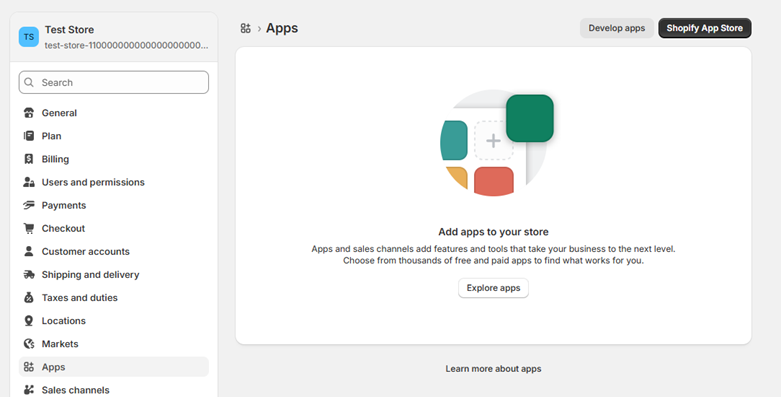
- Click Create App
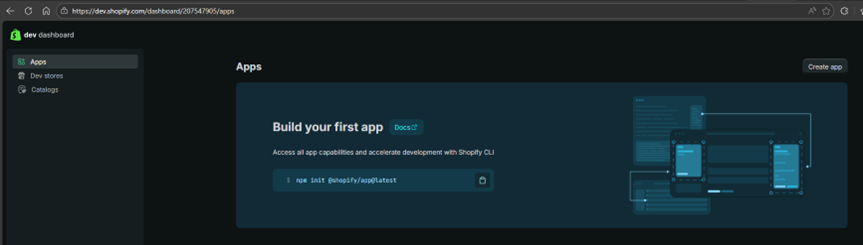
- Configure required Admin API scopes, such as:
- read_products, write_products
- read_orders
- read_customers
- read_inventory, write_inventory
- Install the application in the development store:
- Return to the Dev Dashboard and open the created application
- Click Install App
- Select the store and click install.
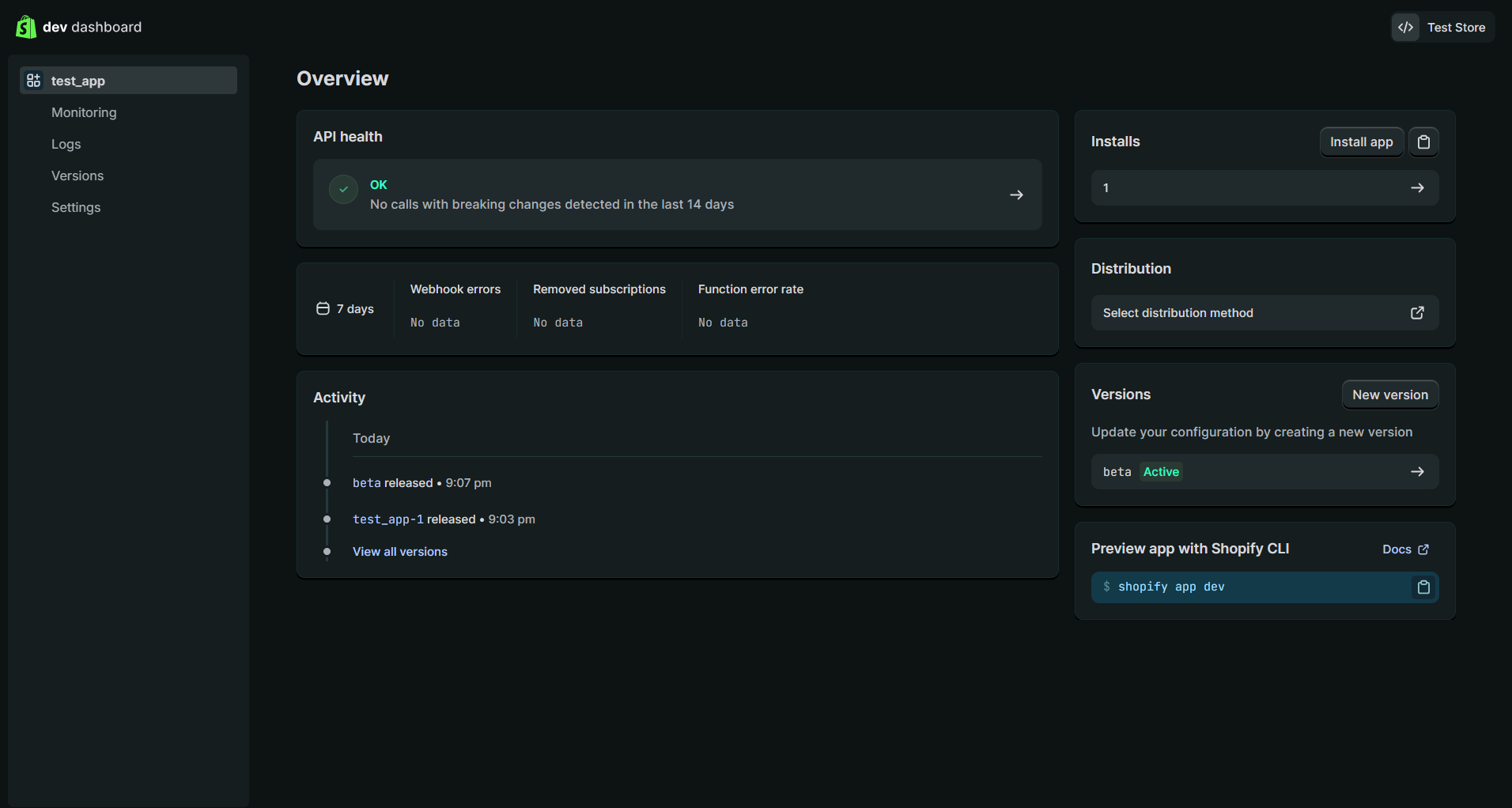
- From the app settings, obtain the Client ID and Client Secret.
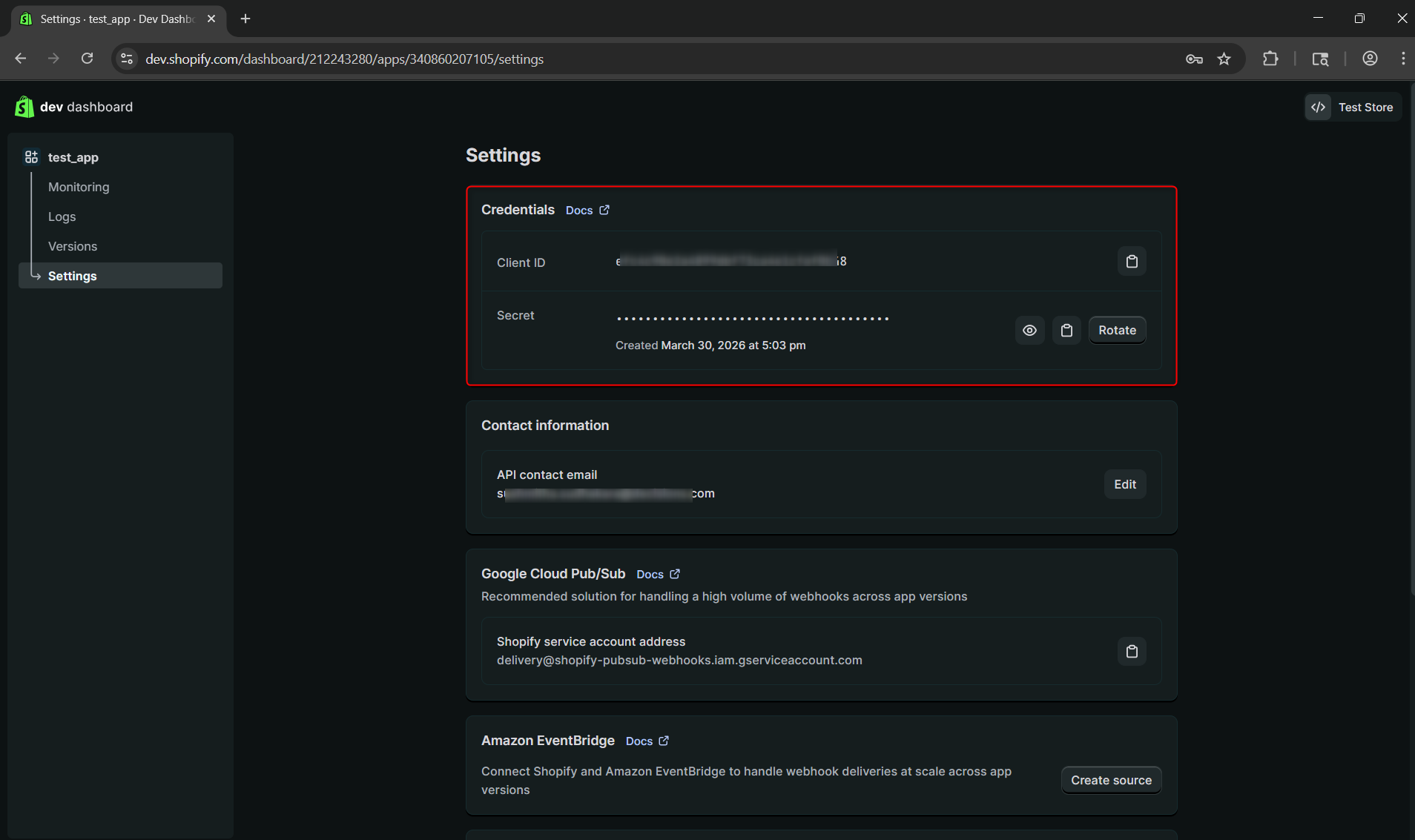
Create an OAuth Provider in Decisions
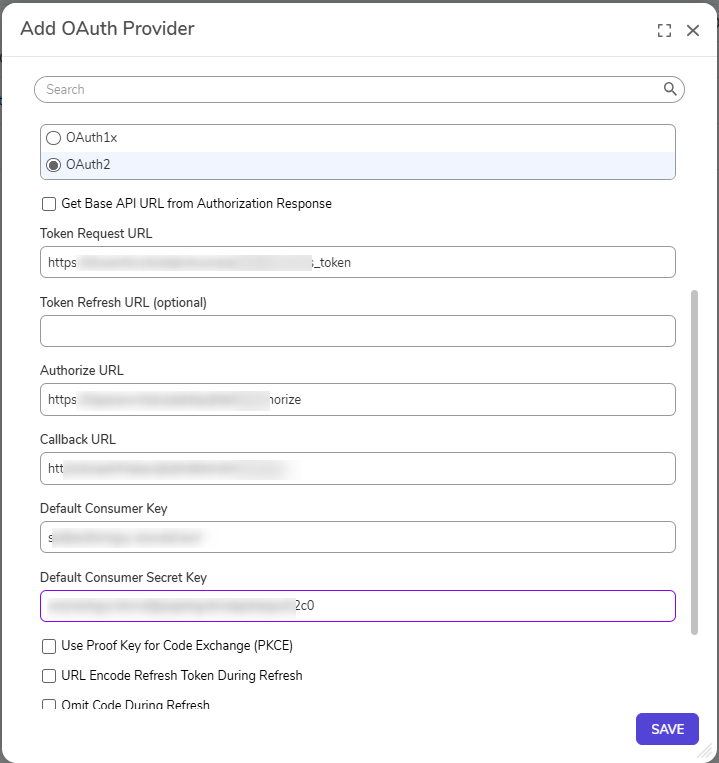
- Navigate to System > Integration > OAuth > Providers.
- Click ADD OAUTH PROVIDER.
- Configure the provider using Shopify OAuth endpoints:
| URL | Description | Example |
|---|---|---|
| Authorize URL | Used to request user authorization | https://{shop}.myshopify.com/admin/oauth/authorize |
| Token Request URL | Used to exchange an authorization code for an access token | https://{shop}.myshopify.com/admin/oauth/access_token |
| Callback URL | Used to receive the token response | [portalbaseurl]/HandleTokenResponse |
- Enter the Client ID and Client Secret from the Shopify app configuration.
- Save the provider.
Create an OAuth Token
- Navigate to System > Integration > OAuth > Tokens.
- Click CREATE TOKEN.
- Select the Shopify OAuth provider.
- Provide the required scopes that match the Shopify app configuration.
- Click Request Token and complete the authorization flow.
Module Steps
| Step Name | Description |
|---|---|
| Get Customer By Id | Retrieves details for a specific customer using the provided customer ID. |
| List Customers | Returns a list of customers from the Shopify store. |
| Adjust Inventory Available | Adjusts the available inventory quantity for a specific inventory item at a location. |
| List Inventory Levels By Inventory Item Id | Retrieves inventory levels for a specific inventory item across locations. |
| List Locations | Returns a list of locations configured in the Shopify store. |
| List Variants By Product Id | Retrieves all variants associated with a specific product. |
| Get Order By Id | Retrieves detailed information for a specific order using the order ID. |
| List Orders | Returns a list of orders from the Shopify store. |
| Create Product | Creates a new product in Shopify with the provided details. |
| Delete Product | Deletes an existing product from the Shopify store. |
| Get Product By Id | Retrieves details of a specific product using the product ID. |
| List Products | Returns a list of products available in the Shopify store. |
| Update Product | Updates an existing product’s information, such as title, description, or pricing. |
For further information on Modules, visit the Decisions Forum.