Overview
The For Each Step passes individual items from a list belonging to a defined Data Type to a Flow loop. The Flow loop will then perform the same actions on each item. When every item has been processed, the loop forwards the finished list to any subsequent steps outside of the loop. The ForEach step can iterate through both default system data and user-defined data types.
Example
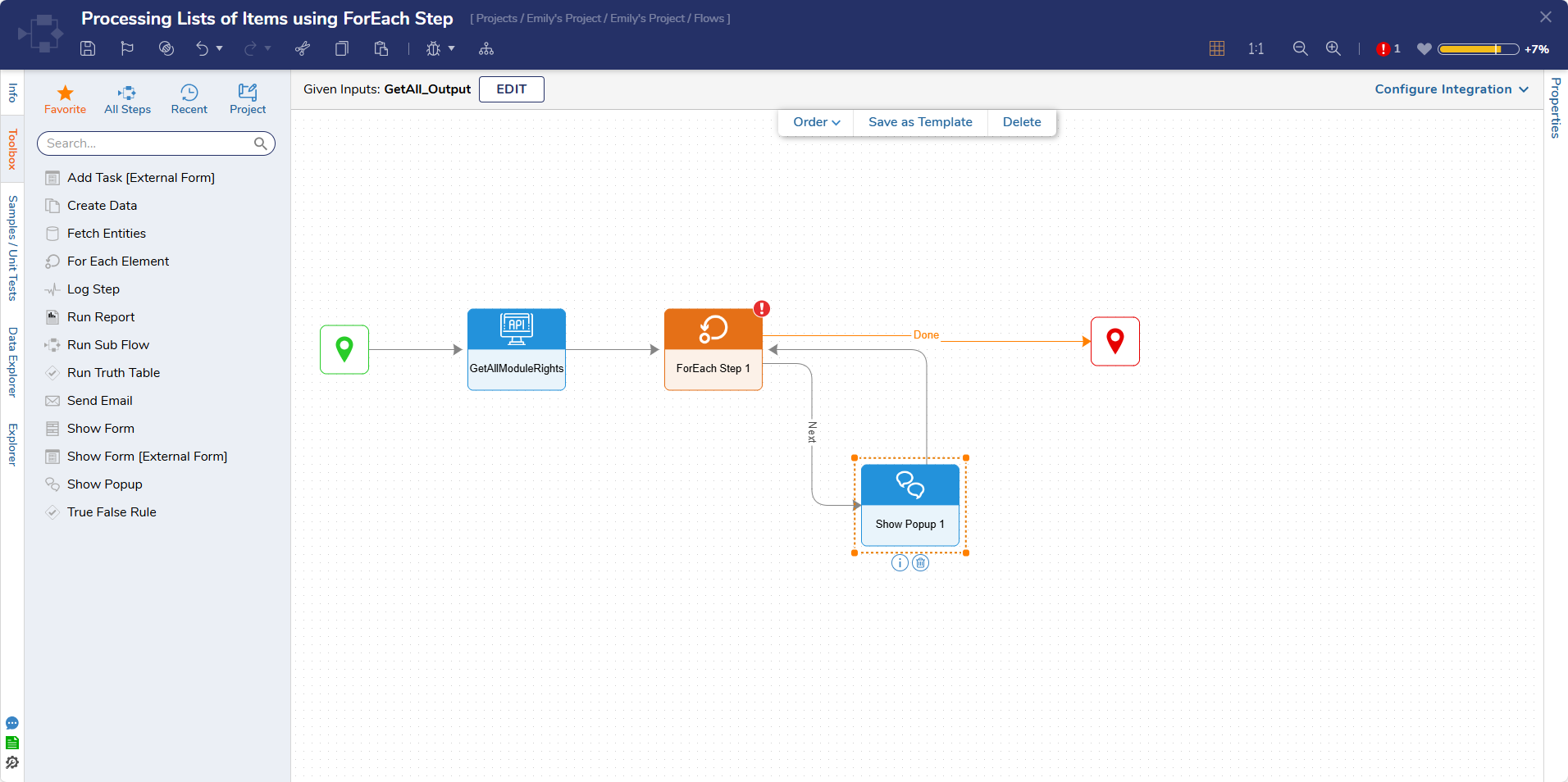
The following example will obtain a list of all system accounts. For each Account, the Flow will show a Pop Up displaying the account user's email address and an Index order number.
Below is a downloadable example to import into Decisions.
- In a Designer Project, click CREATE FLOW and select Flow. Name the Flow and click CREATE.
- Click the Done path of the Start step. Navigate to Integrations > All Integrations > Internal Services > Accountservice and select the GetAll step. Click ADD.
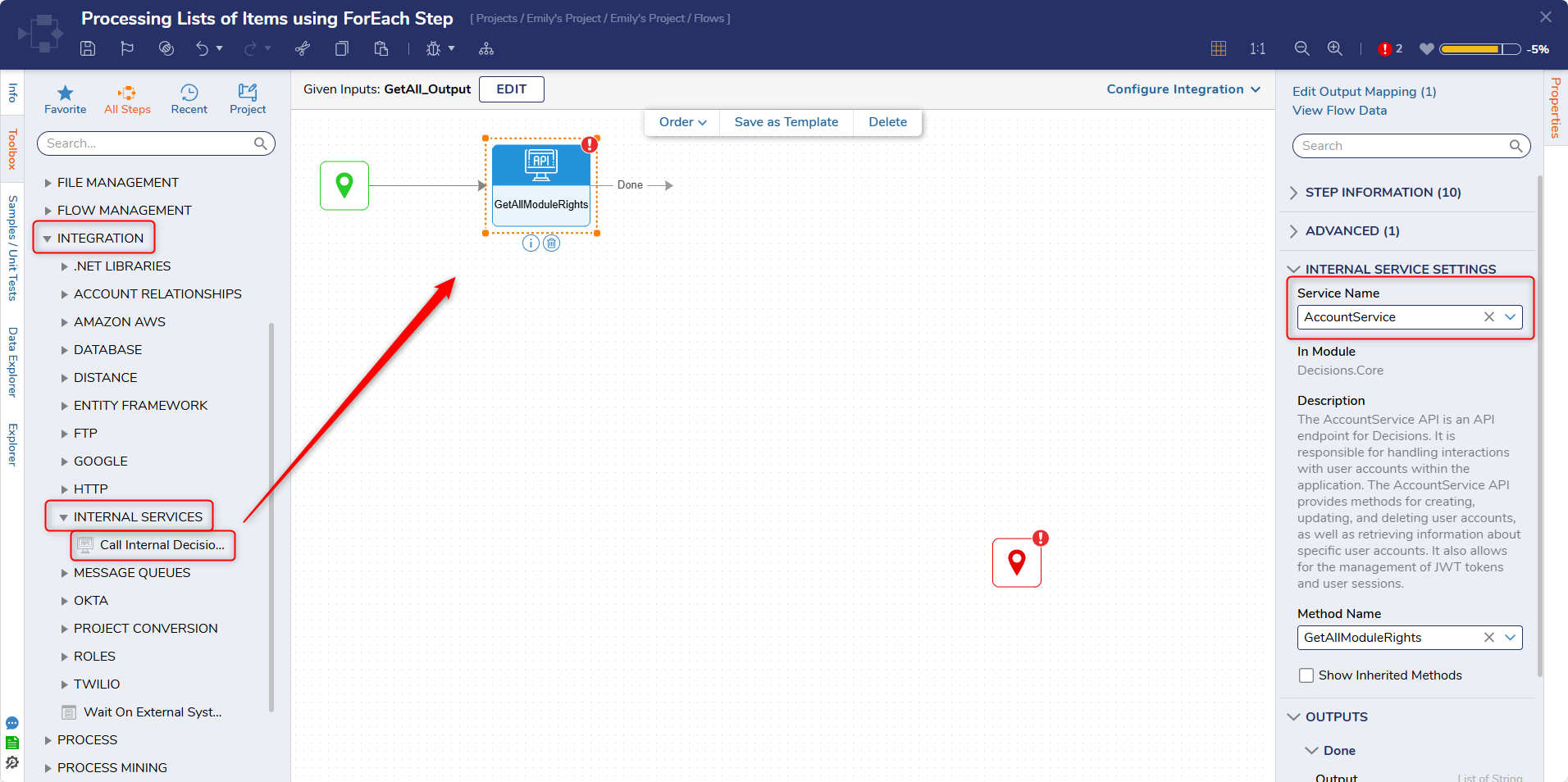
- Attach a ForEach Step step from the FLOW MANAGEMENT > ITERATION category in the Toolbox panel to the Done path of the GetAll step.
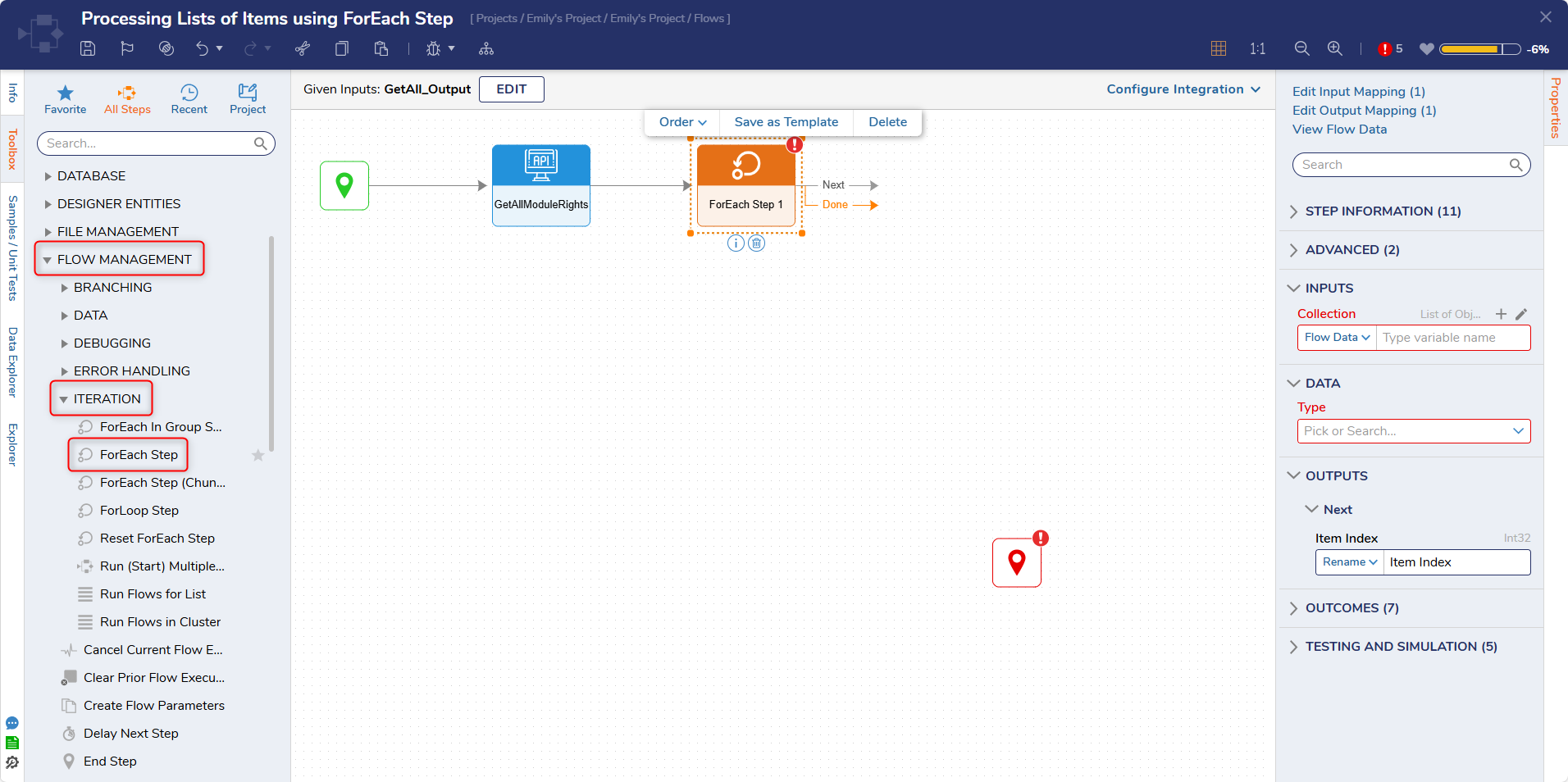
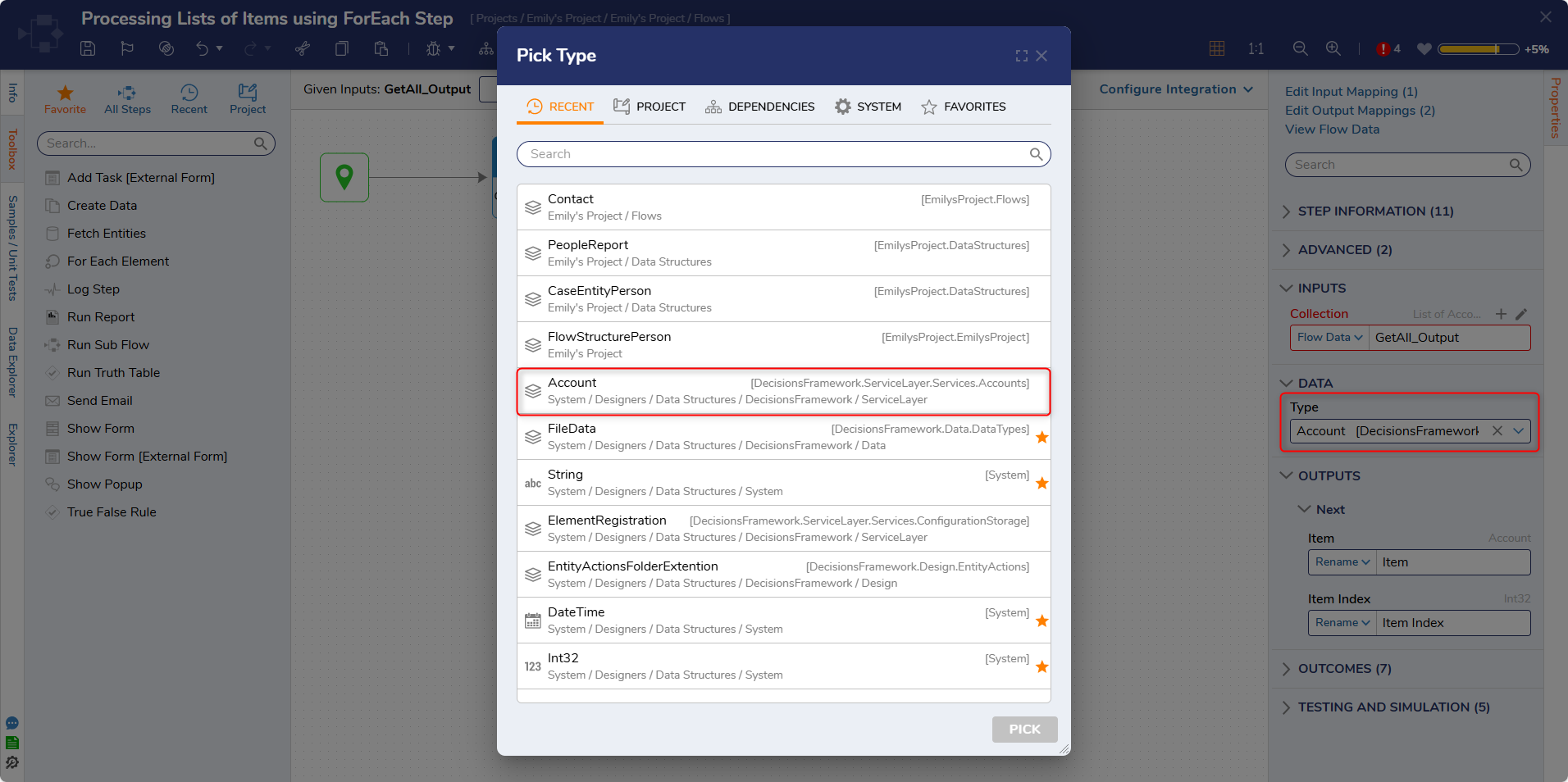
- On the Properties panel, click Unknown next to the Collection field and select Select From Flow. Select GetAll1_Output and click DONE. The ForEach step will output the Item (single element of the array) and Item Index (order number of an element starting at 0). Enter "account" in the Type field under DATA and select Account.
- Connect the Done path of the ForEach step to the End step.
- On the Next outcome path of the ForEach step add a Show Popup step from the FAVORITE STEPS category in the Toolbox panel.
- On the Properties panel, map from the Flow Item.EmailAddress for the Subject field and Item Index.Default for the Message field.
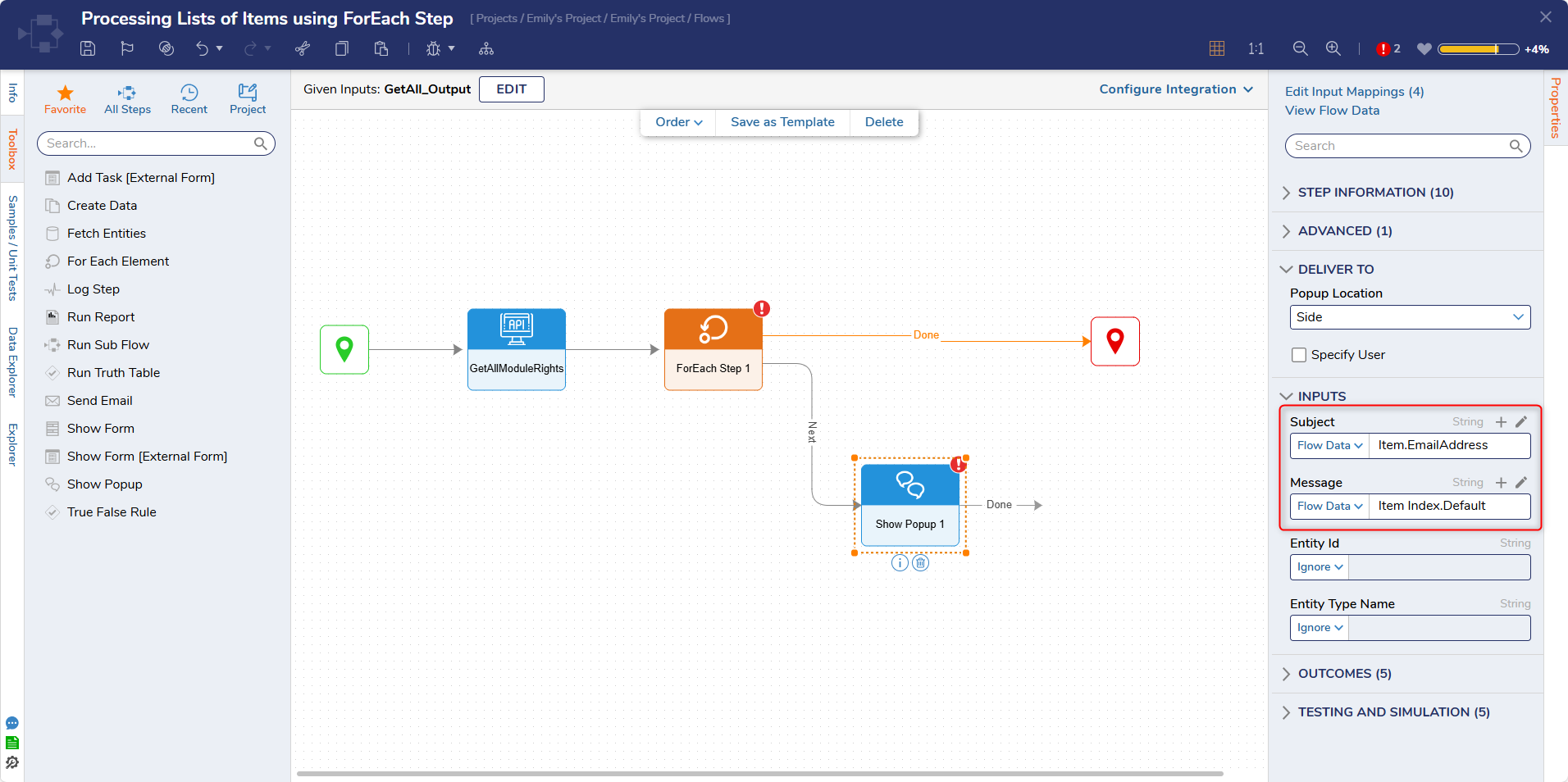
- Connect the Show Popup step's Done path to the ForEach step.
- Click Save to save changes to the Flow.
Debug
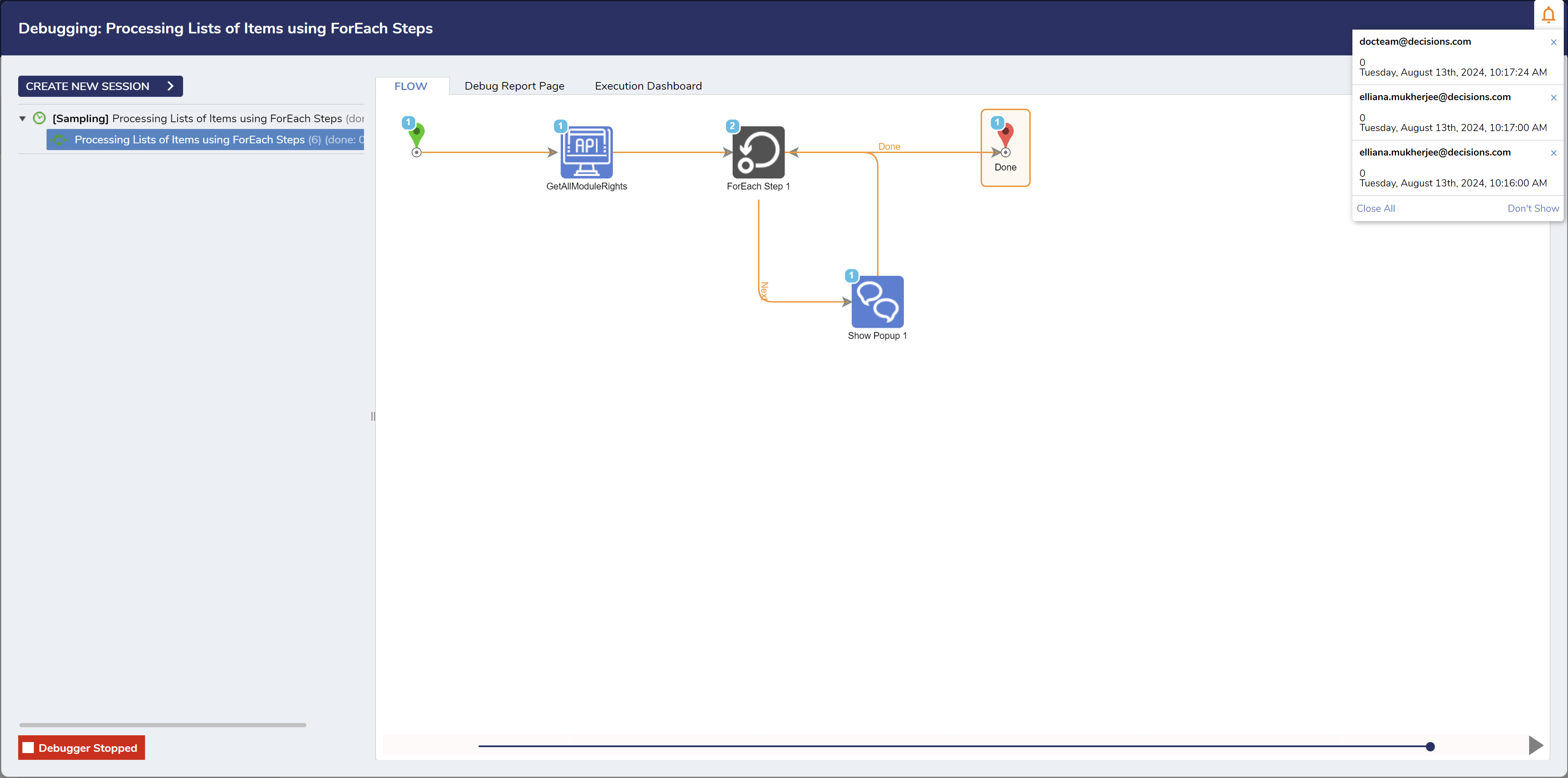
- Click Debug from the top action bar. Click START DEBUGGING.The Flow will run in the Debugger and display a Pop Up for each Account's Email Address and the order number in the Collection's Index.
For further information on Flows, visit the Decisions Forum.