Overview
The Collection Sort Step takes in a list of items and compares them in the Filter Flow. The Filter Flow runs these items through the specified sorting logic and, based on the logic, sorts and configures the order of the list.
Example
The following example will demonstrate how to alphabetically sort a list of names using the Collection Sort step.
- In the Designer Project, click CREATE FLOW from the Global Action Bar and select Flow. Name the Flow and click CREATE.
- Click the Done path on the Start step. Navigate to All Steps [Catalog] > Data > List and select the Add Item to List step. Click ADD.
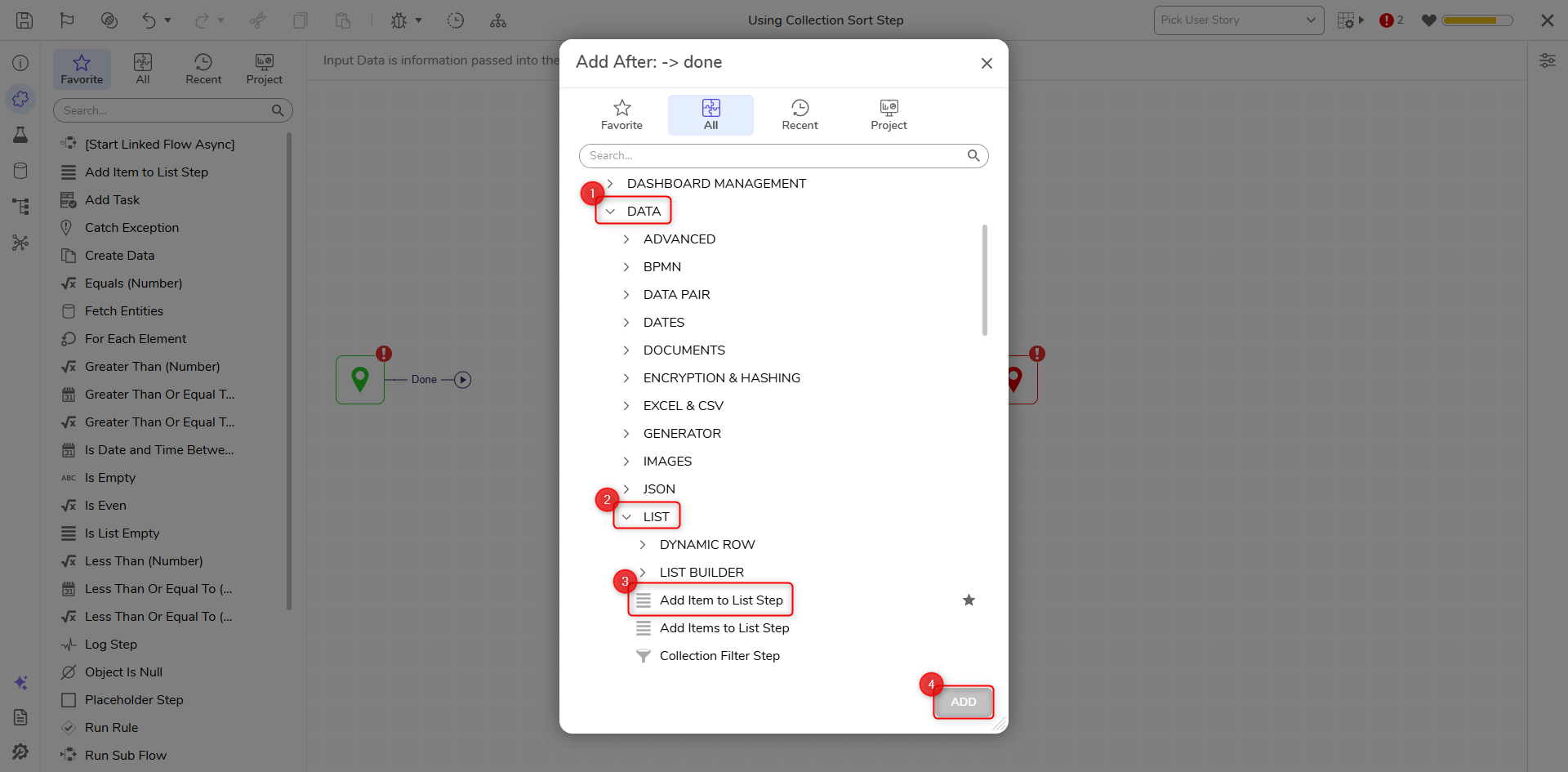
- On the Properties panel, change the mapping of the New Item and Original List fields by clicking Unknown and selecting Constant. In the New Item Field, enter "Aaron Parker". In the Original List field, enter "Alex Carter", "Taylor Swan", "Brittany Morgan", and "Casey Bennett".
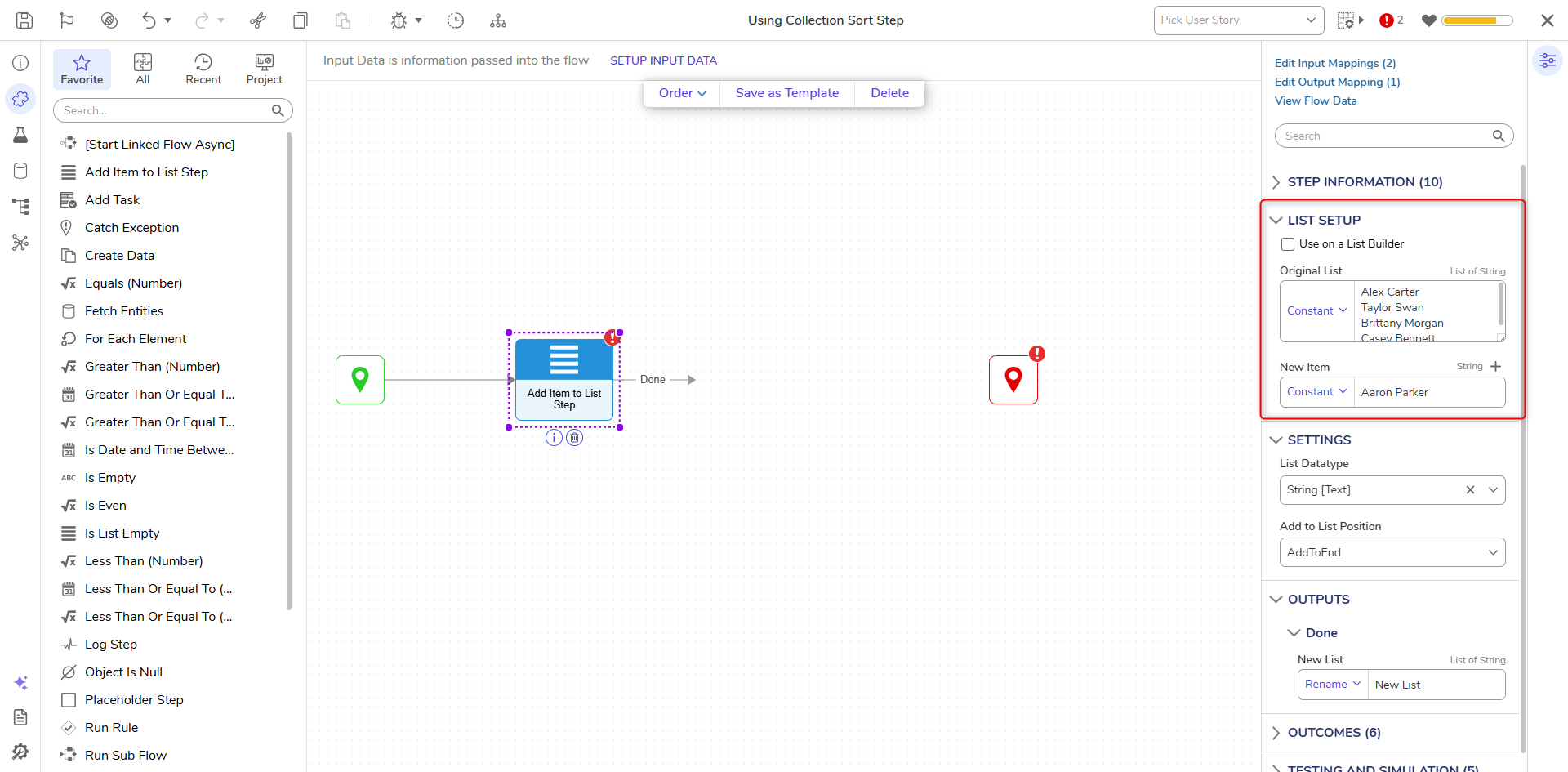
- Attach the Collection Sort Step to the Done path by navigating to DATA > LIST and dragging the step from the Toolbox panel.
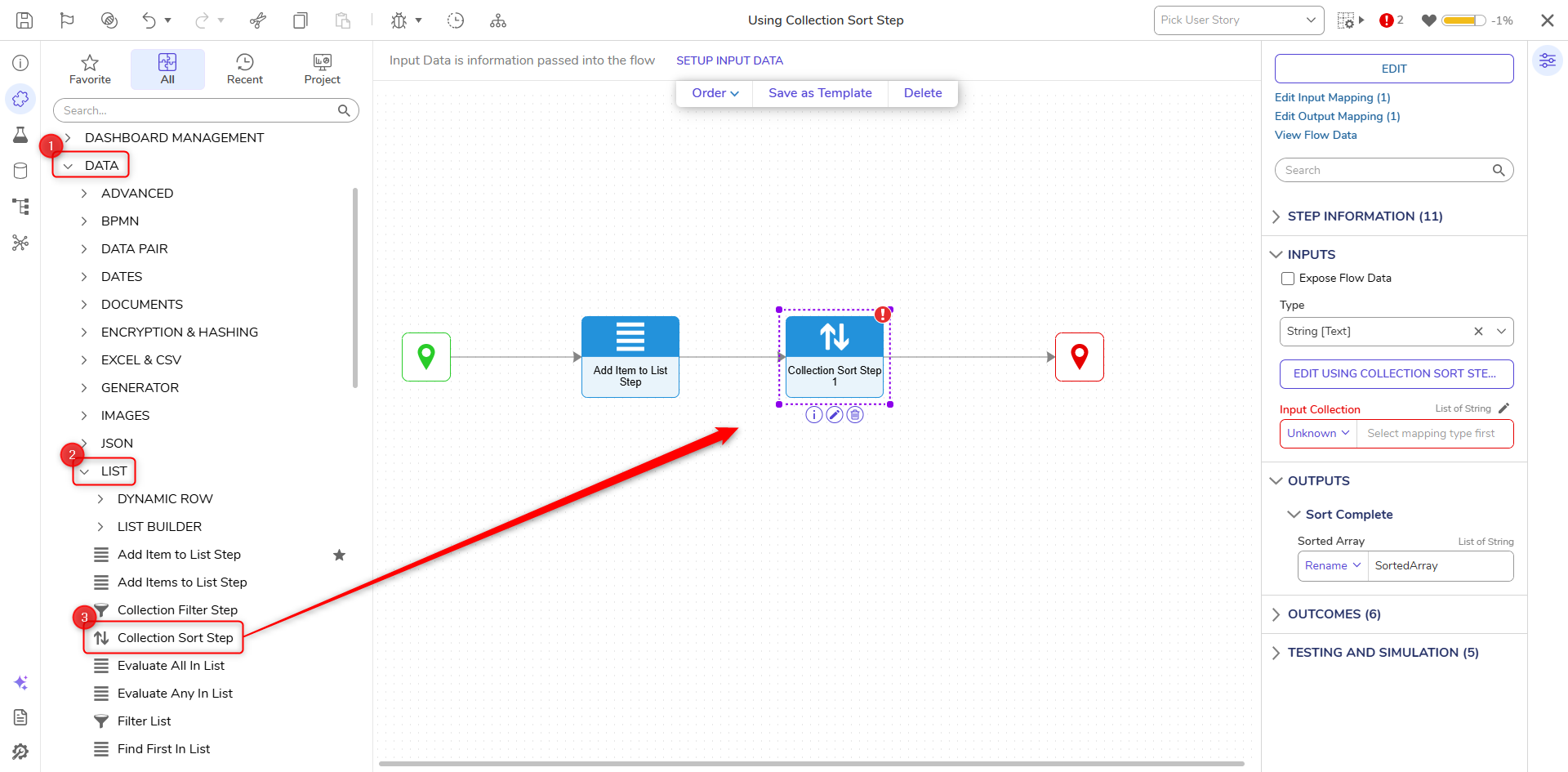
- On the Properties panel, click Unknown next to the Input Collection field and select Flow Data. Select New List and click DONE.
- On the Properties panel, click EDIT to open the Filter Flow.This Filter Flow is where the sorted logic is configured. The Filter Flow has a Start step with First Entity and Second Entity inputs (of the Collection Type). Three End steps are provided, Entity First Sorts First, Entity Second Sorts First, Entity First, and Second Sorted The Same.
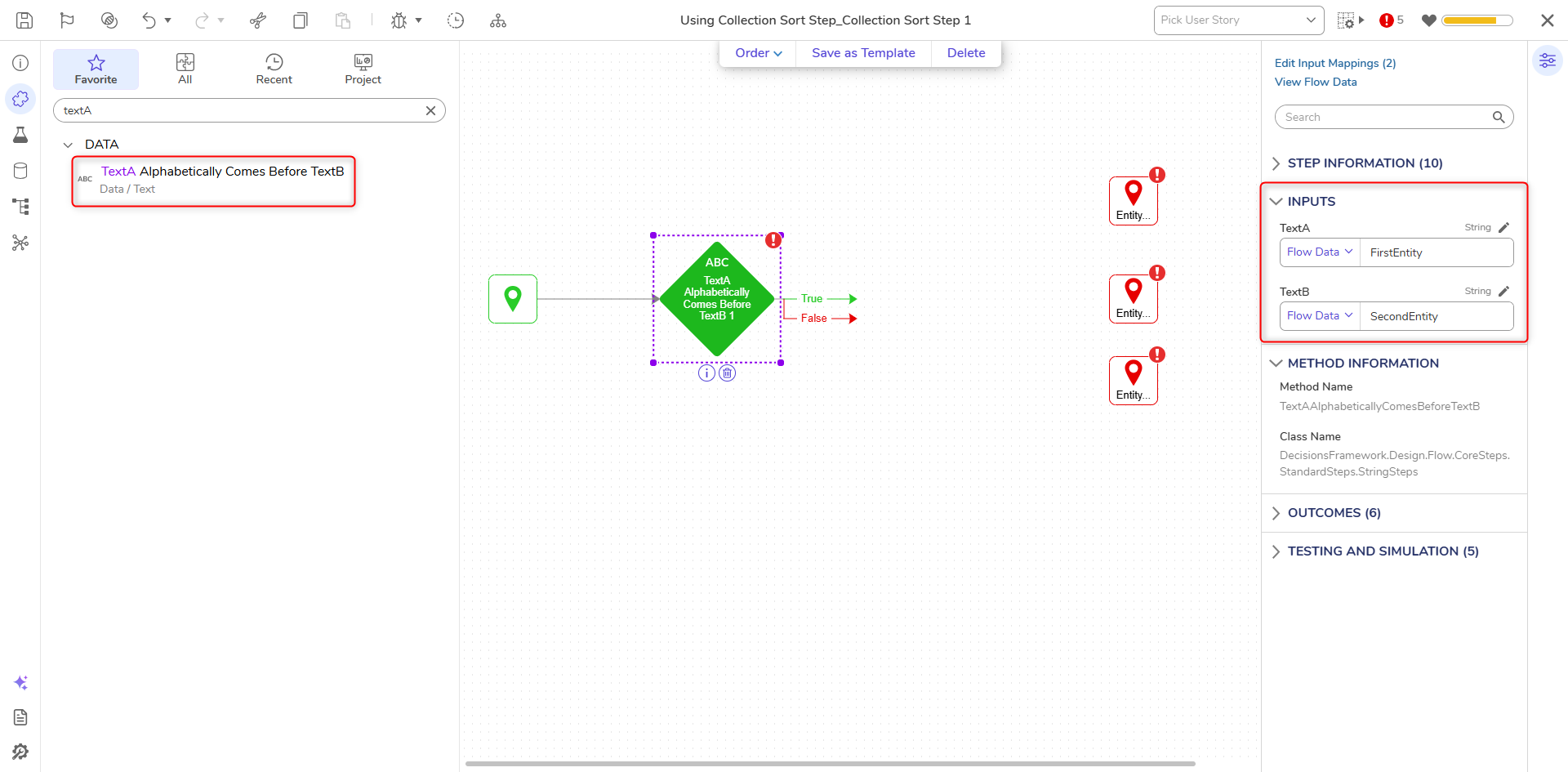
- Navigate to DATA > TEXT category on the Toolbox panel and attach a TextA Alphabetically Comes Before TextB to the Start step. Map the TextA field to FirstEntity and TextB to SecondEntity.The Text AAlphabetically Comes Before TextB step will be used to determine which String is placed first in alphabetical order. The Strings will be sorted according to International Components for Unicode (ICU) order, For more information regarding ICU, see International Components for Unicode.
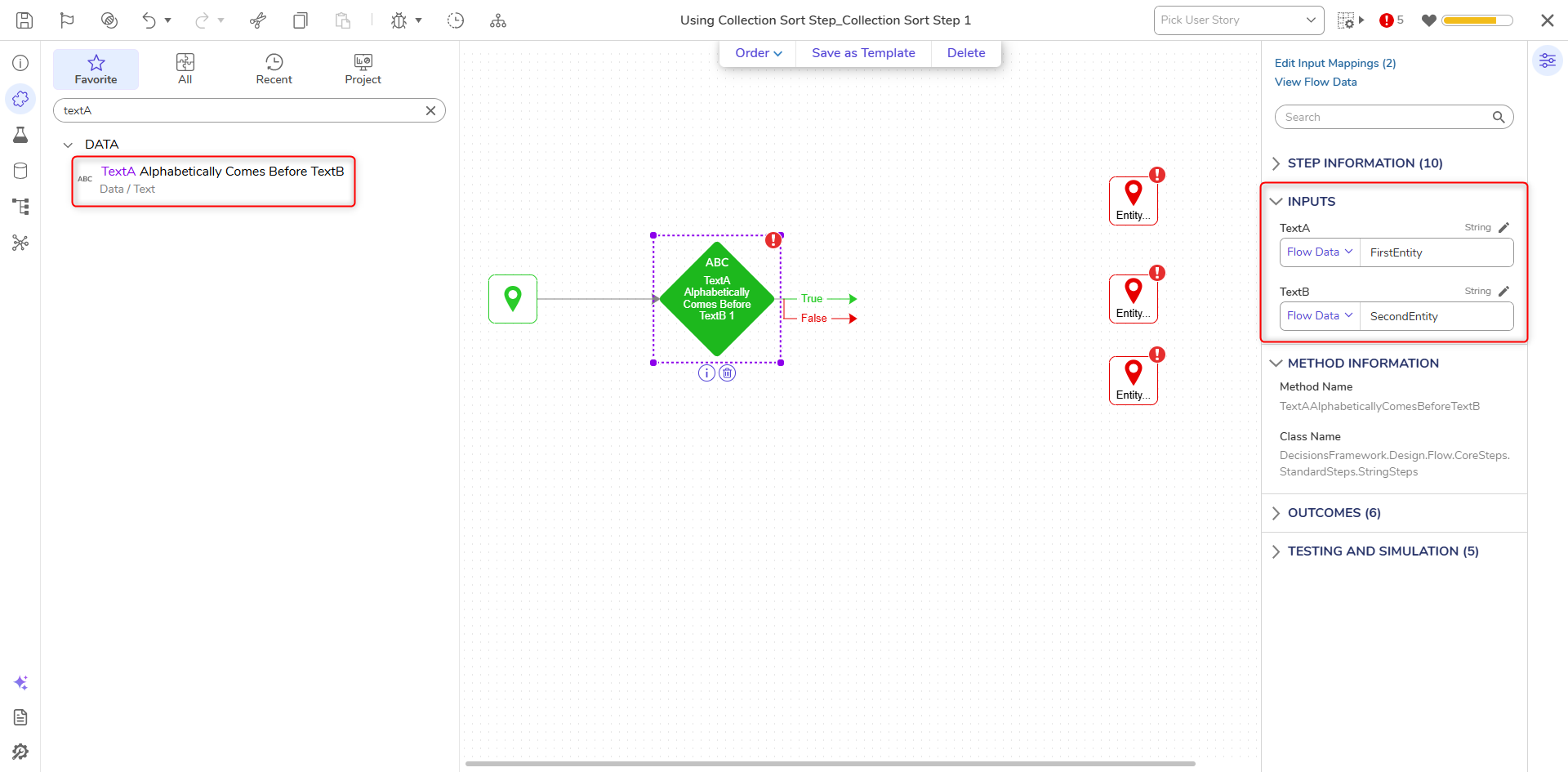
- Connect the True path to Entity First Sorts First.
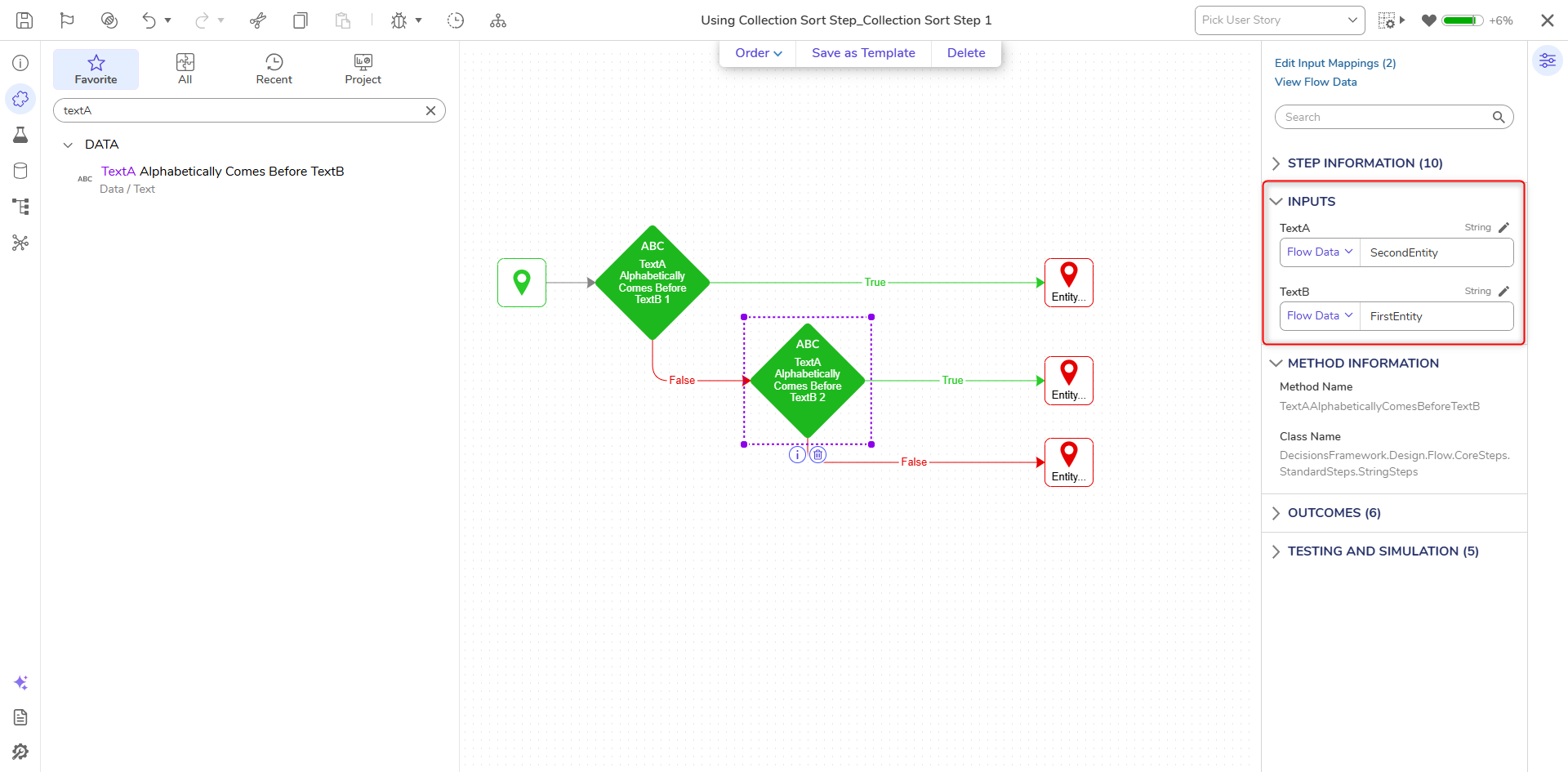
- Attach another TextA Alphabetically Comes Before TextB step to the False path. Map TextA field to SecondEntity and TextB field to FirstEntity. Connect the True path to Entity Second Sorts First and the False path to Entity First and Second Sorted the Same. Click Save and close the Flow Designer.
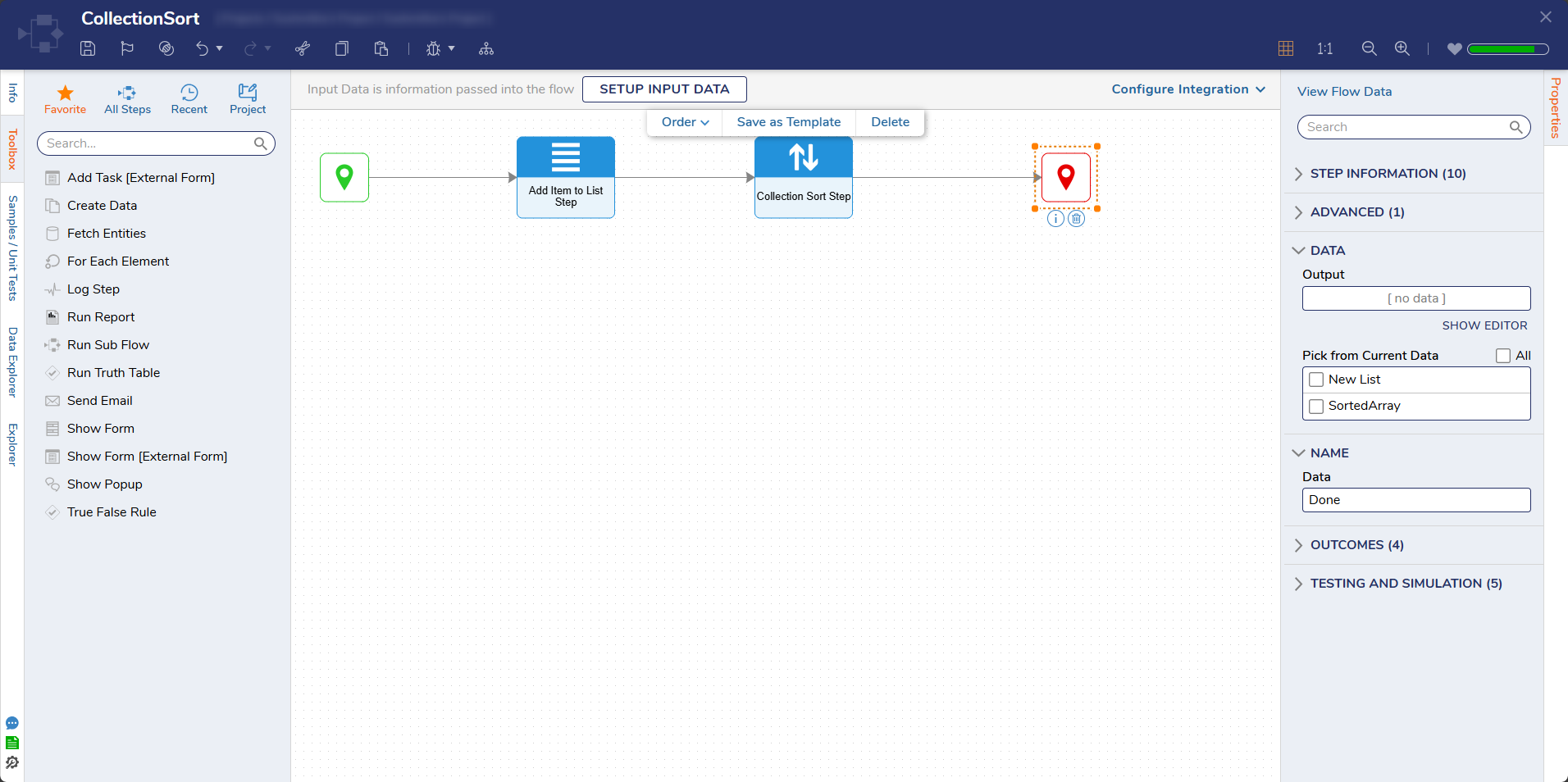
- Connect the Done path to the End step. Click Save to save changes to the Flow.
Debug
- On the top action bar, click Debug.
- Click START DEBUGGING.
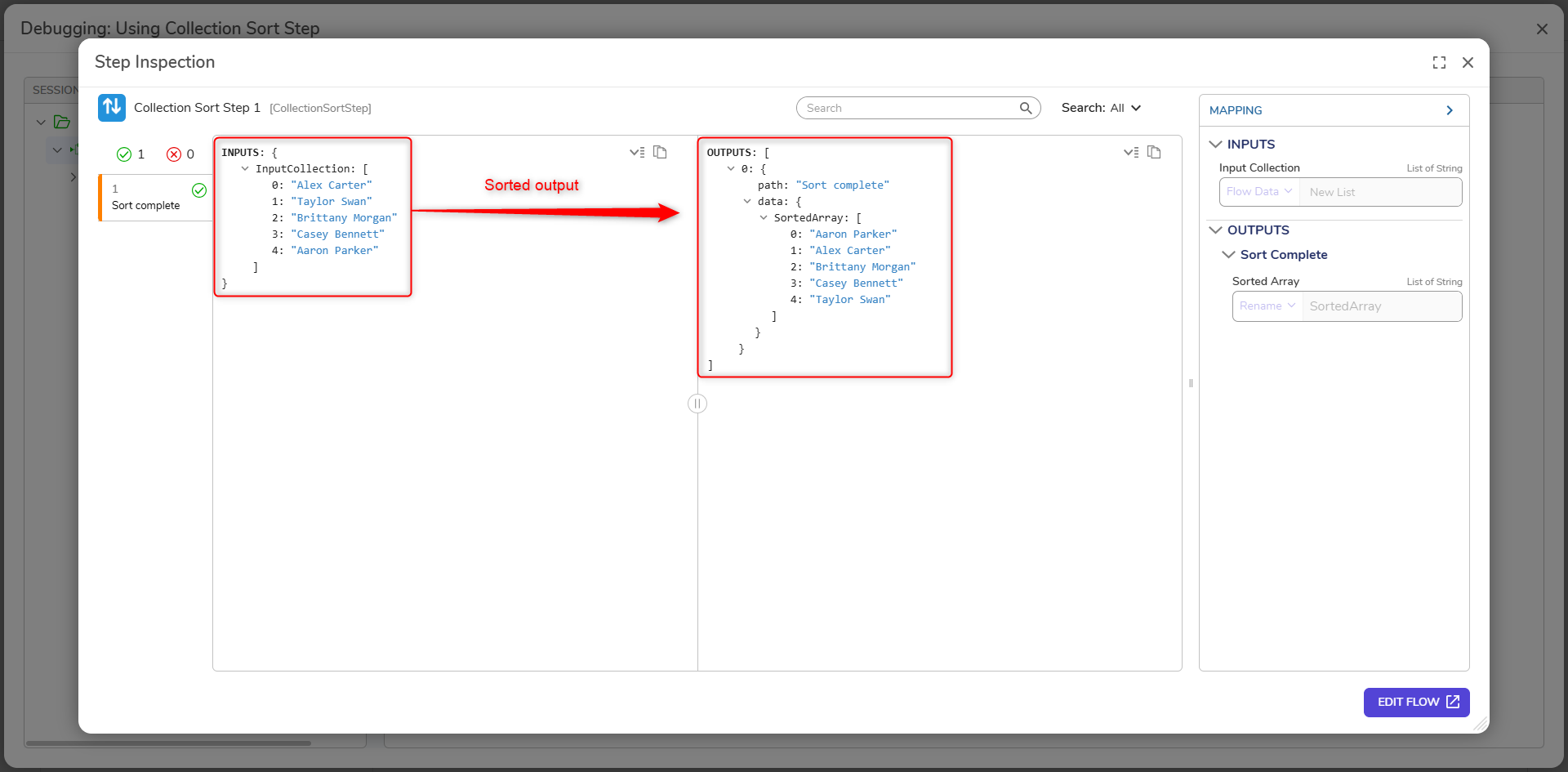
- Select the Collection Sort Step, select Execution 1, and select View Input/Output Data. The output is the input list of the names in the input list placed in alphabetical order.
For further information on Flows, visit the Decisions Forum.