Overview
Steps within the Object Locks Services category enable users to lock, unlock, and other locking related functionalities onto an Object.
Locking an Object prevents any edits to the Object for a specified amount of time. Use cases for locking an Object may involve preventing users from making simultaneous edits or preventing access altogether during scheduled maintenance.
Unless a Flow is built to display a warning and/or prevent access, users will be able to access a locked Object when it's selected in the Portal.
| Step | Description |
|---|---|
| LockObject | Locks an Object based on an object Id. The lock for Time input specifies how long the Object will be locked |
| IsLocked | Checks if an Object is locked based on the object Id input. |
| ReleaseLock | Releases the lock on a locked Object based on the object Id input. |
Locking an Object
The following example demonstrates locking and unlocking Objects with the Lock Object, Is Locked, and ReleaseLock steps. Below is an example that will prevent access to a Folder. The Project can be imported into a Decisions environment.
- In a Designer Folder, create a Flow. The Flow Designer will open.
- From Toolbox > FAVORITE STEPS, attach a Fetch Entities step to the Start step.
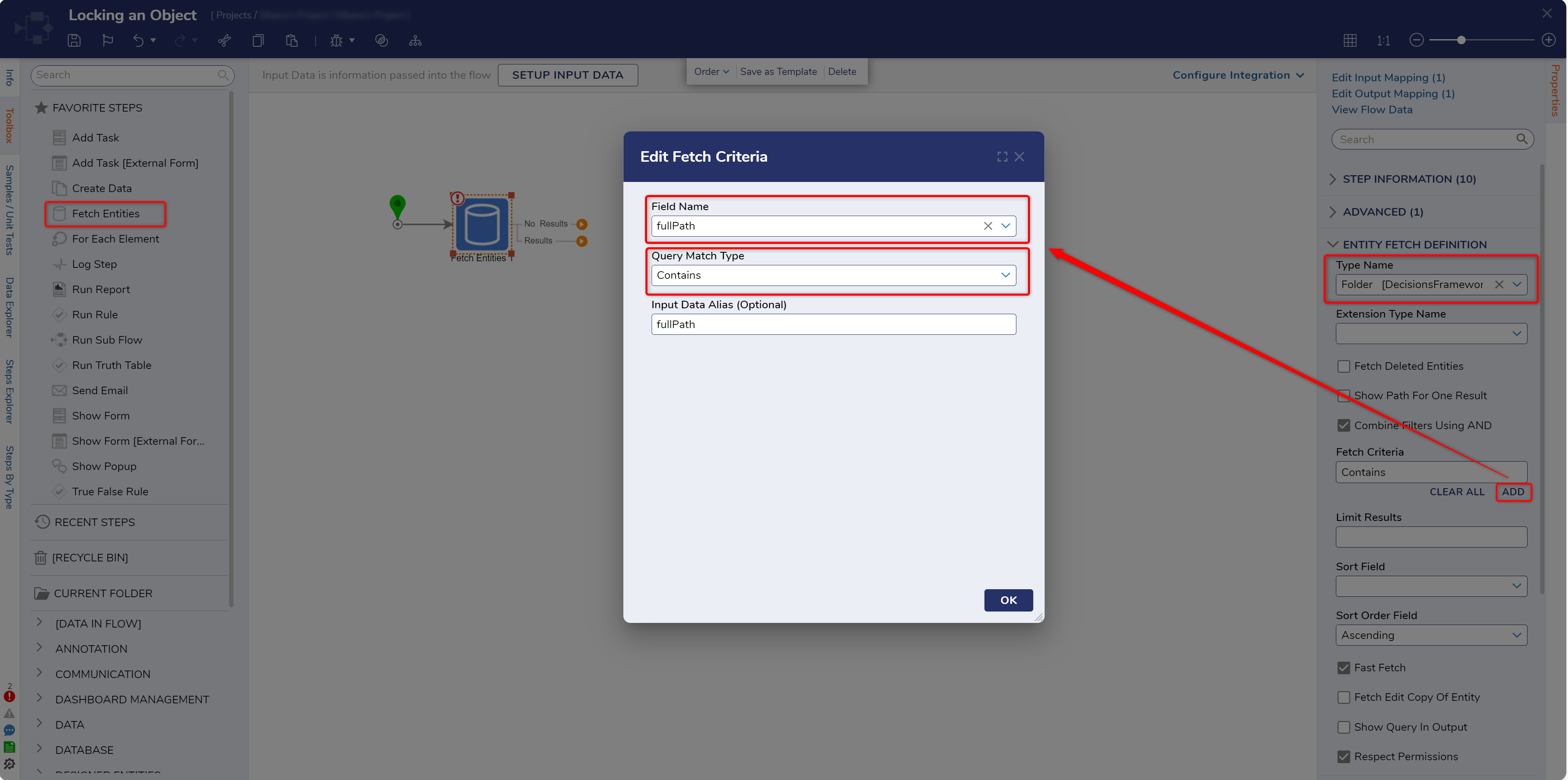
- In the Properties tab for the Fetch Entities step, define the ENTITY FETCH DEFINITION by selecting Folder for TypeName.
- Under Fetch Criteria select ADD and define the Field Name to 'fullPath' and Query Match Type to Contains, then, click OK.
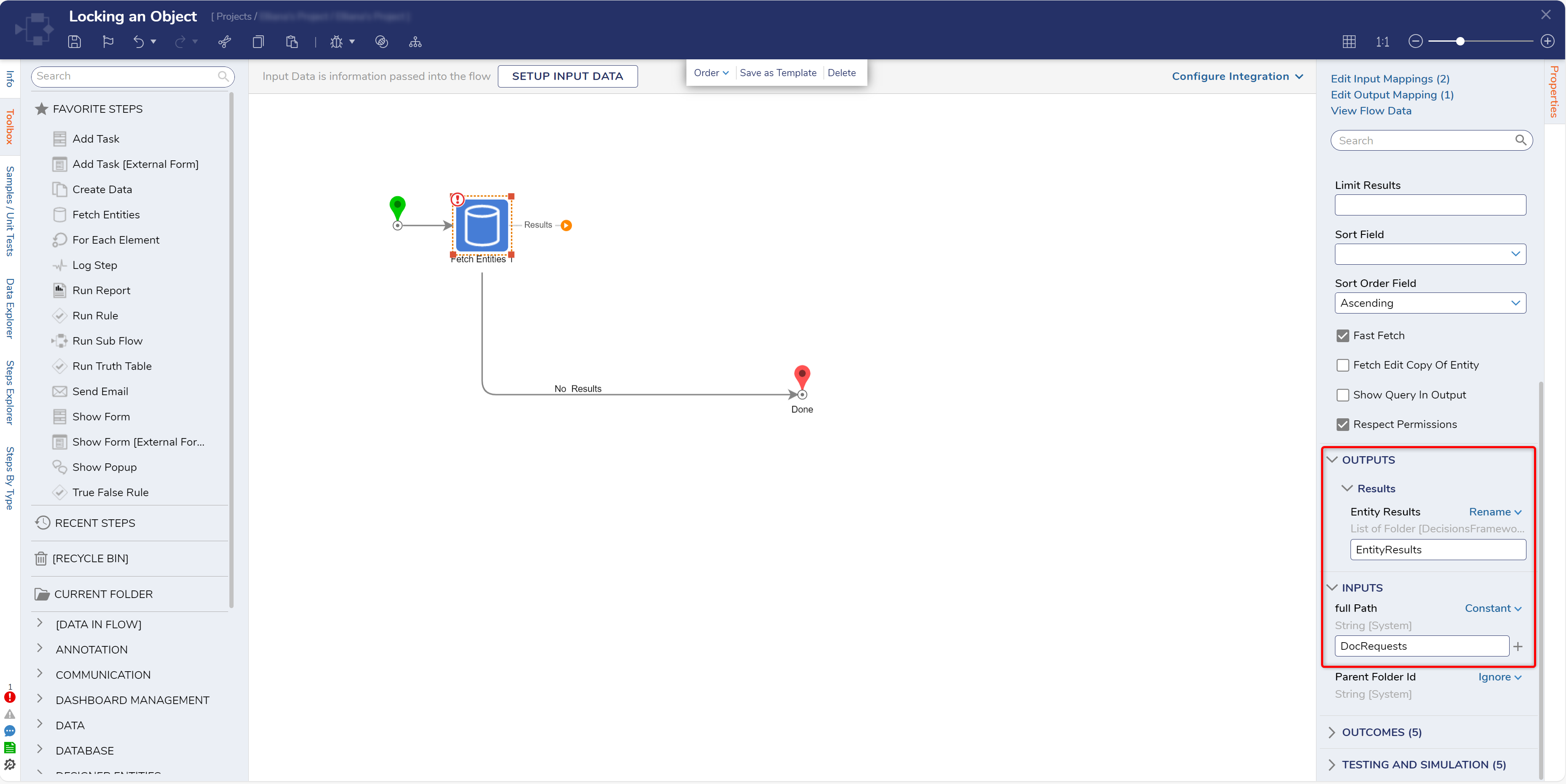
- Constant map 'DocRequests' to INPUTS > fullPath. This ensures that the Object locked by the Lock Service step is the DocRequests Folder. Then connect the No Results path to the End step.
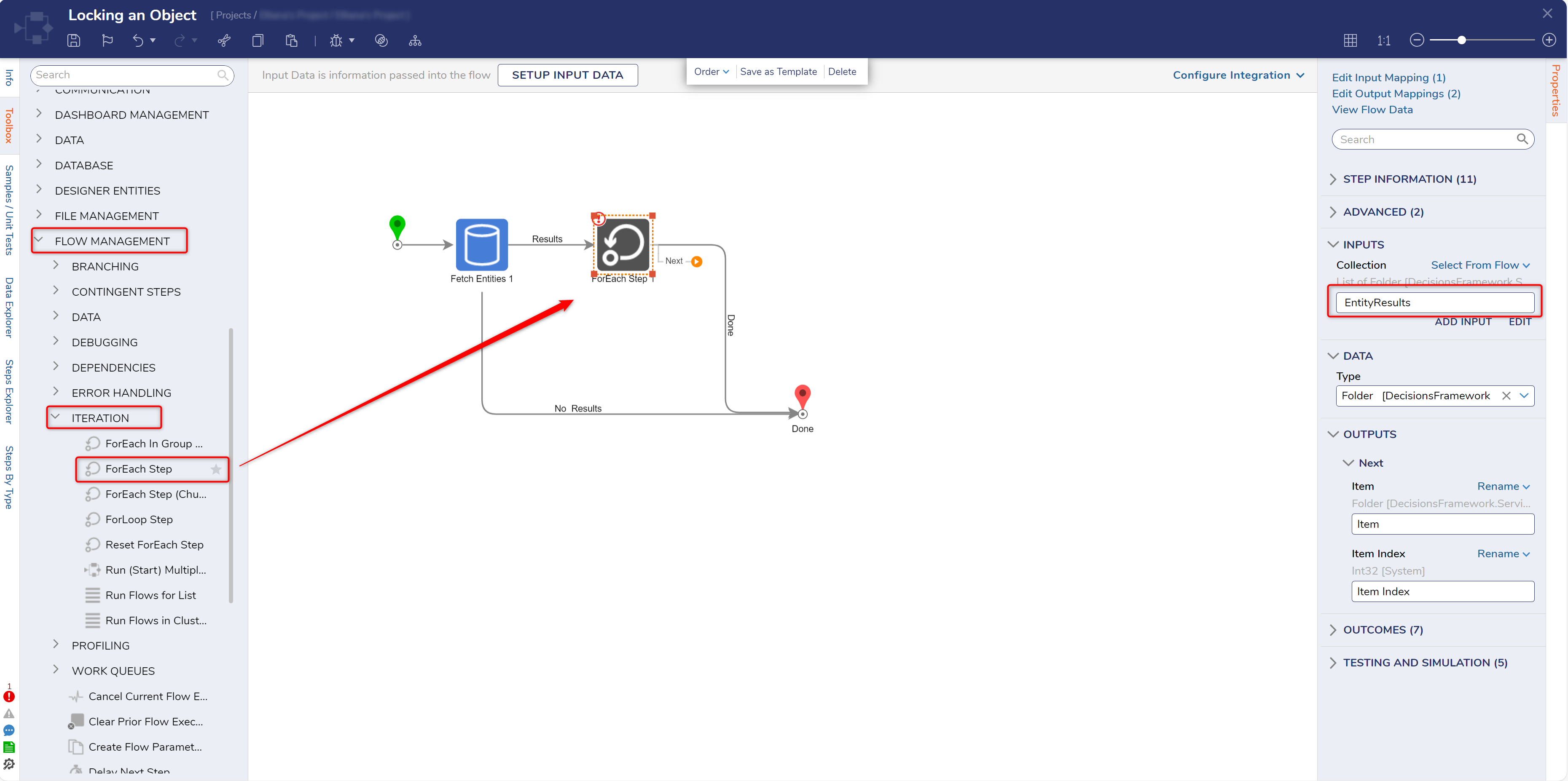
- From Toolbox > ITERATION, add a ForEach step to the Results path.
- Navigate to the Properties for the ForEach step, then map EntityResults to INPUTS > Collection.
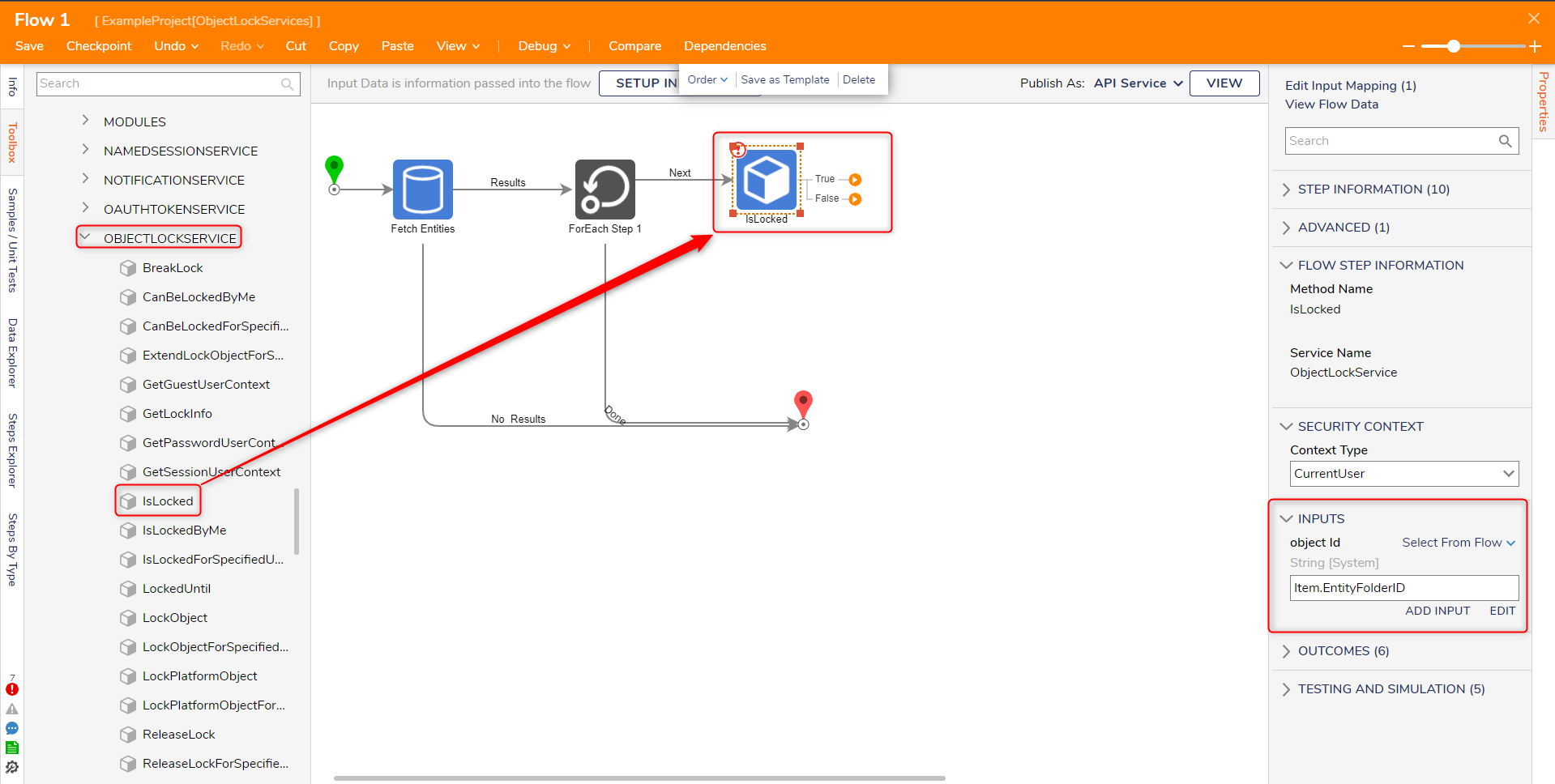
- On the Next path, add an IsLocked step from INTEGRATION > INTERNAL SERVICES > OBJECTLOCKSERVICE.
- From the Properties of the IsLocked step, map Item.EntityFolderID to INPUTS > object Id.
- Attach a Show Form step to the True path. Design the Form to contain a Button control labeled Done and a Label control stating the Object was already locked.
- Connect the Done path to the ForEach Step.
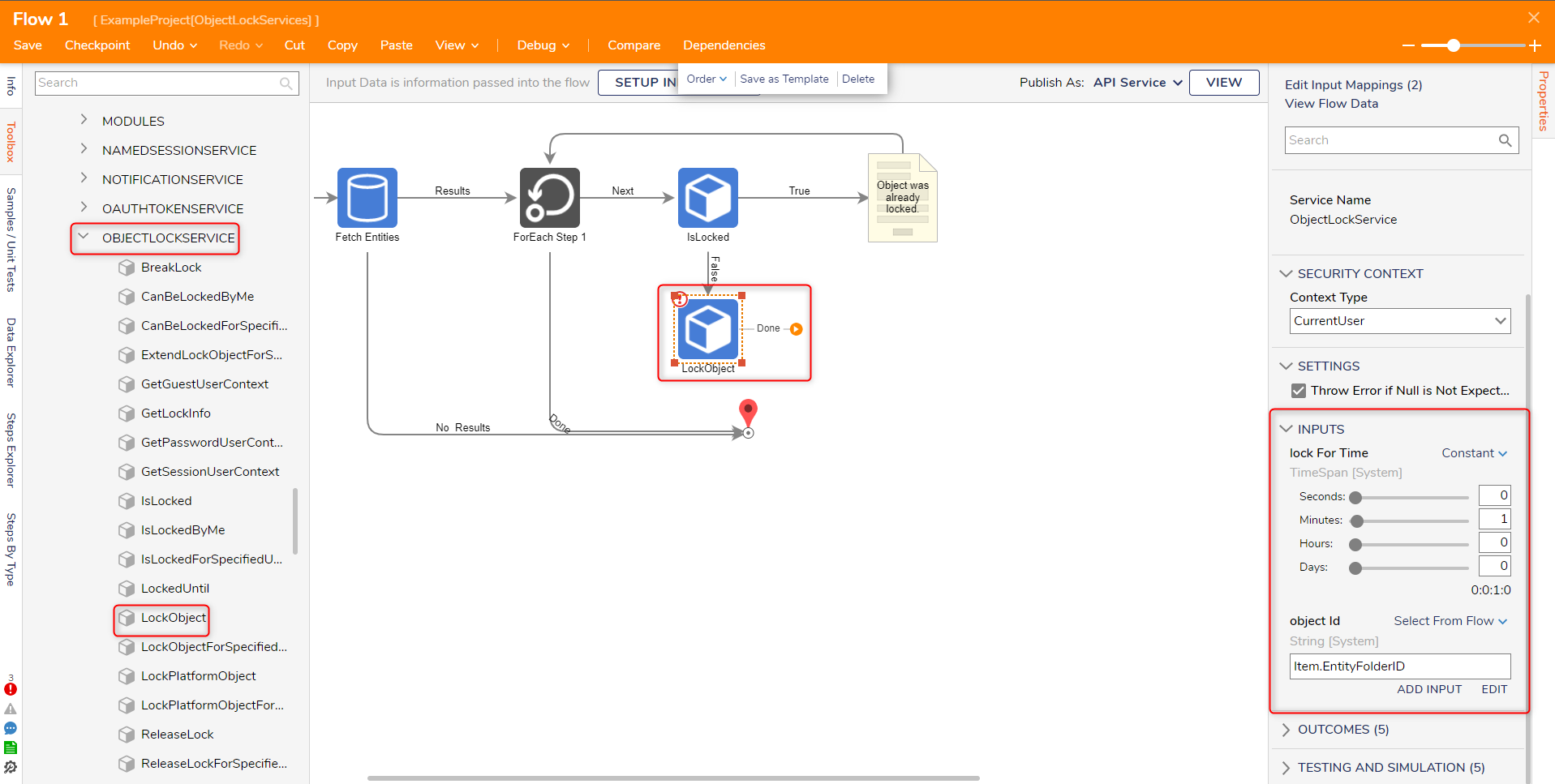
- On the False path, attach a LockObject step from INTEGRATION > INTERNAL SERVICES > OBJECTLOCKSERVICE from the Toolbox.
- Navigate to the LockObject step's Properties and map Item.EntityFolderID, to object Id. Then, set lock For Time to a Constant value of 1 Minute[s].
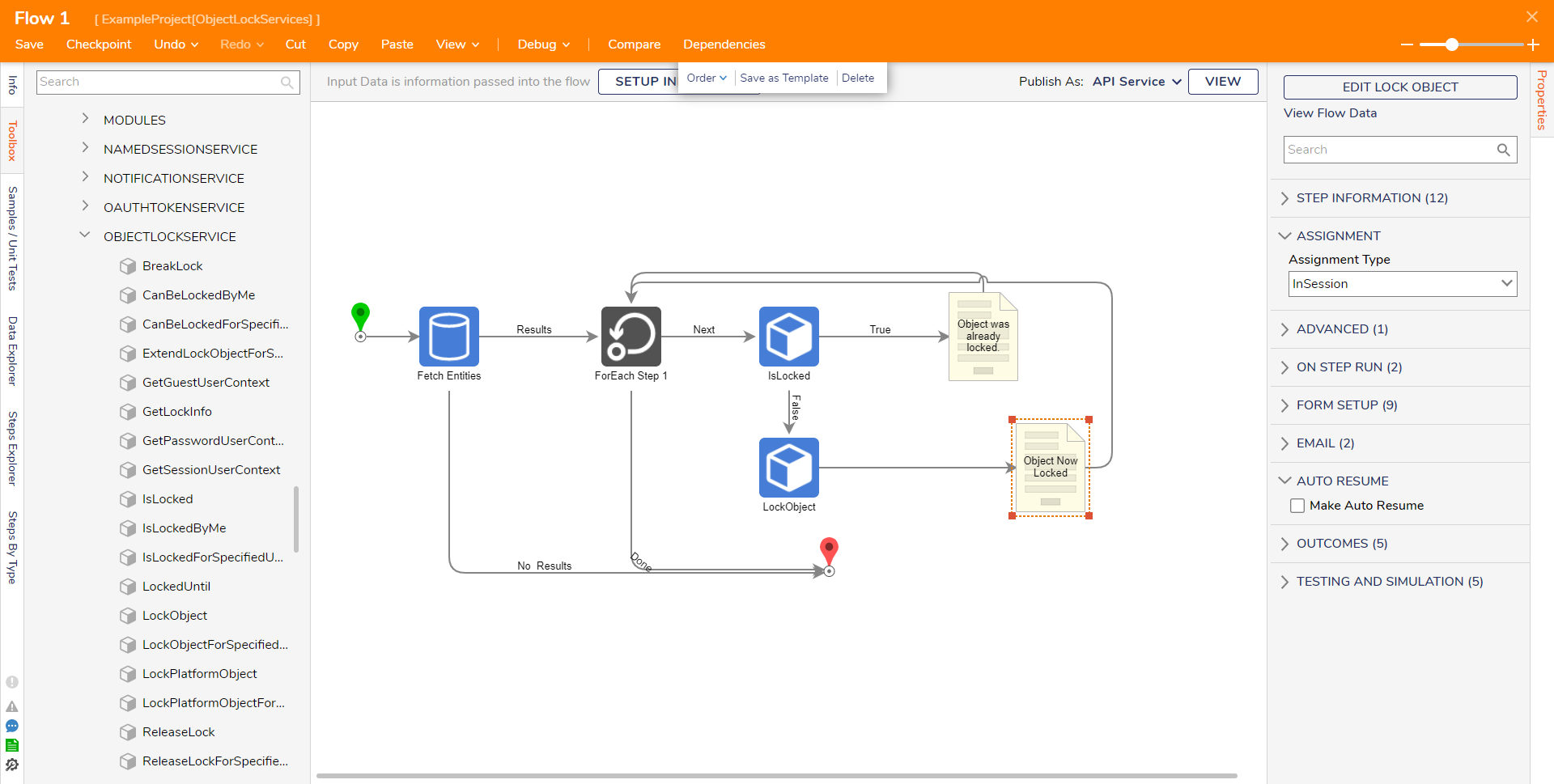
- On the Done path of the LockObject step, add another Show Form step from the FAVORITE STEPS category of the Toolbox panel.
- Create a Form with the Label control stating that the Object is now locked, along with a Done Button. Then, save and close the Form.
- Connect the Done path of the Object is locked Form to the ForEach Step.
- Save the Flow.
Debug
- From the FlowDesigner, select the Debug link from the top Action bar.
- Click START DEBUGGING.
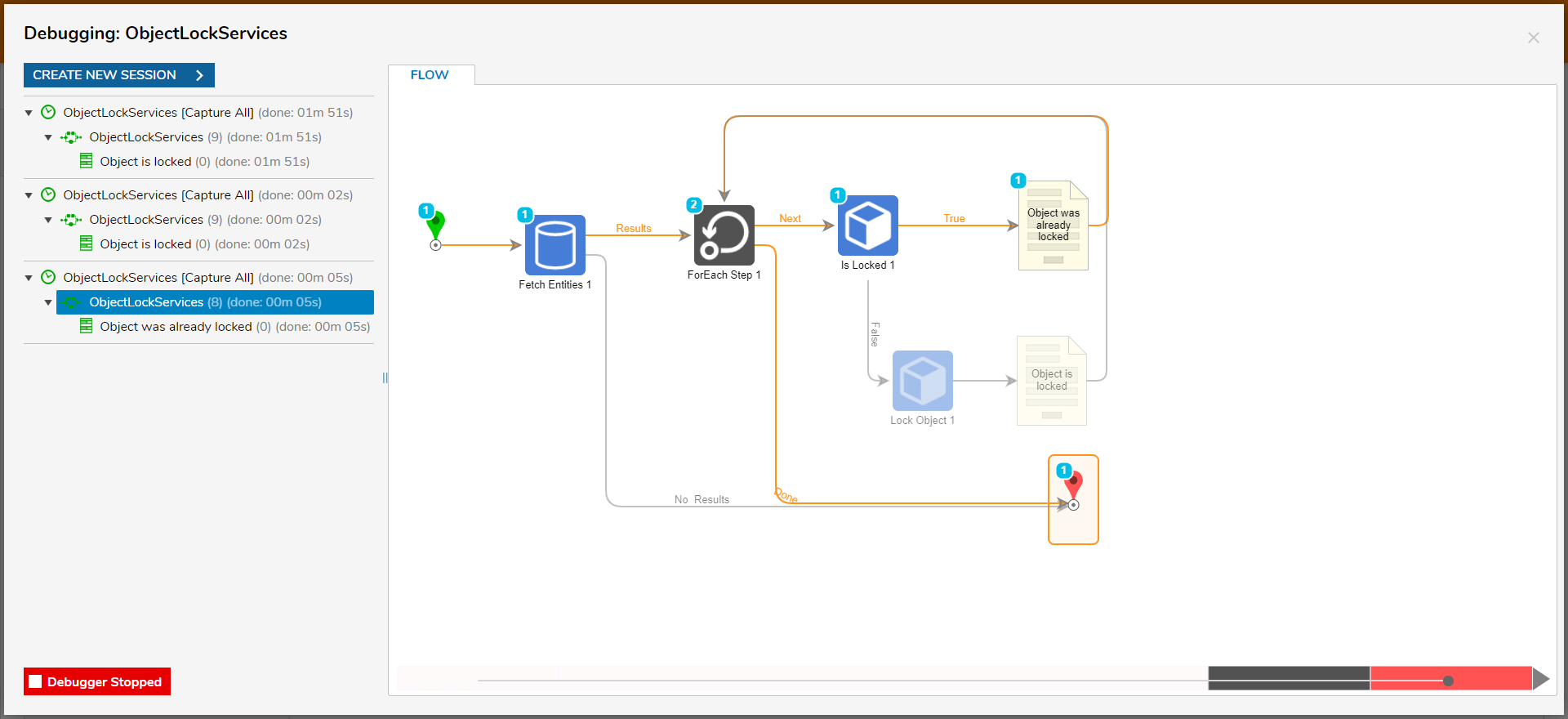
The Flow will fetch the DocRequests Folder, send it through the ForEach step, and check if it's locked. This result returns False thus sending it to the Lock Object step to be locked before landing at the End step.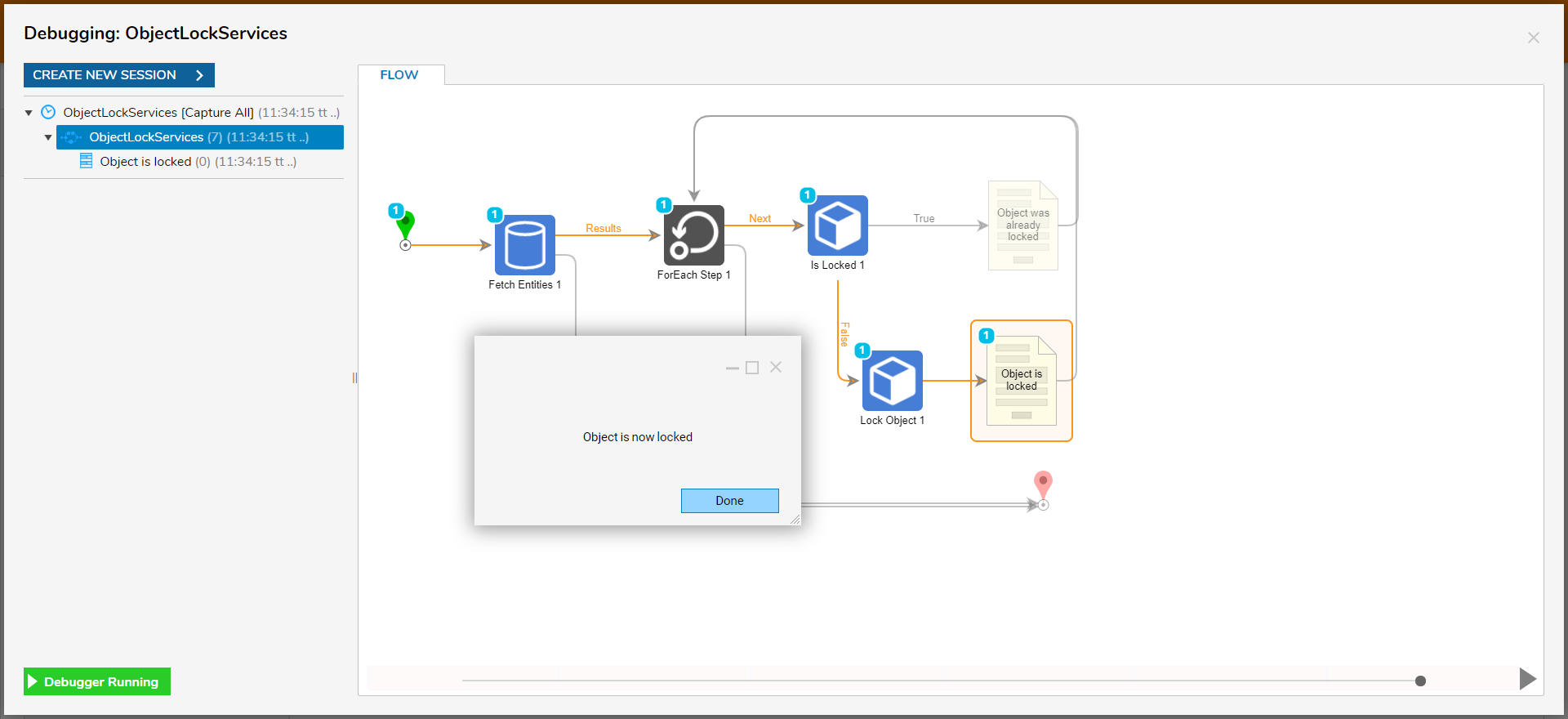
- Click CREATE NEW SESSION.
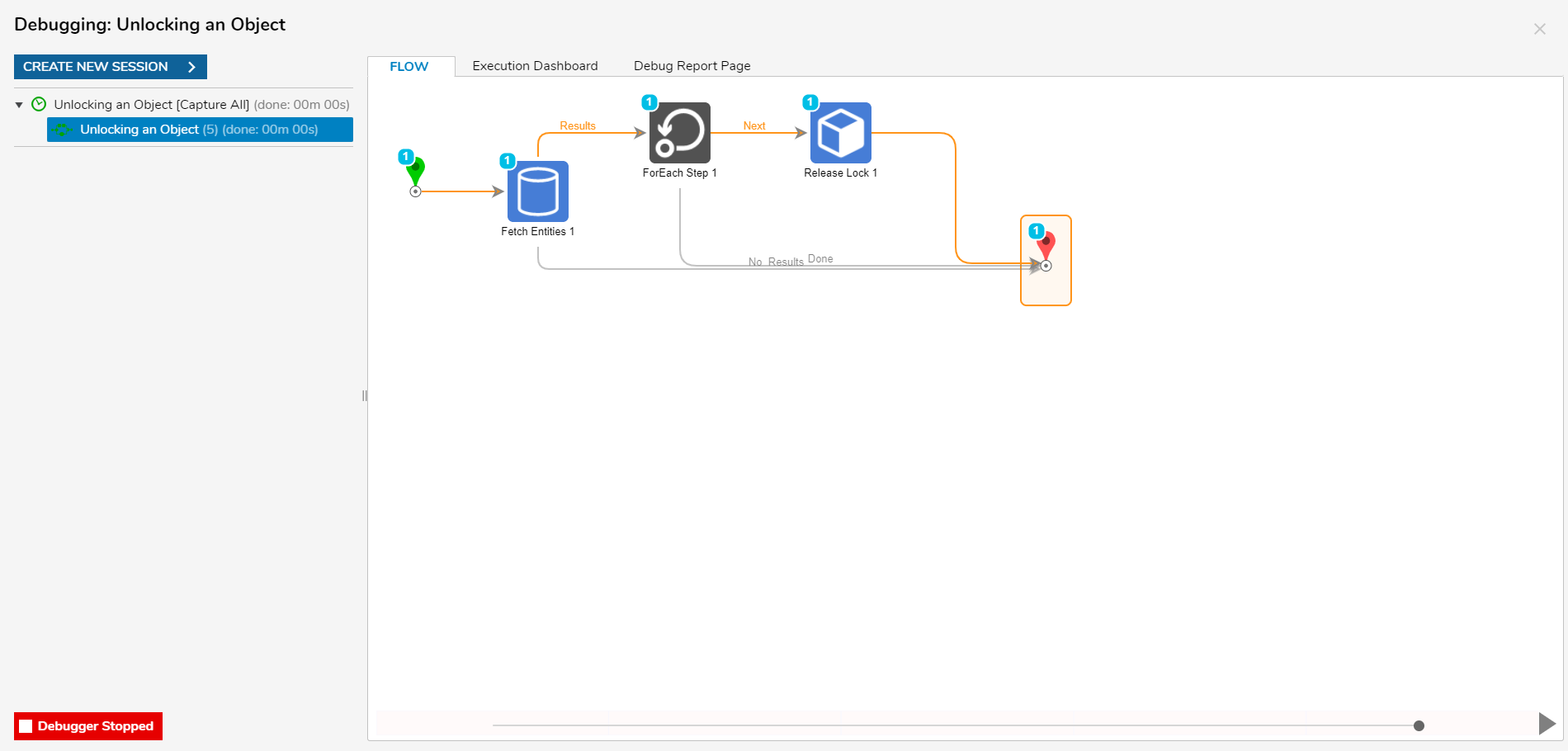
Unlocking an Object
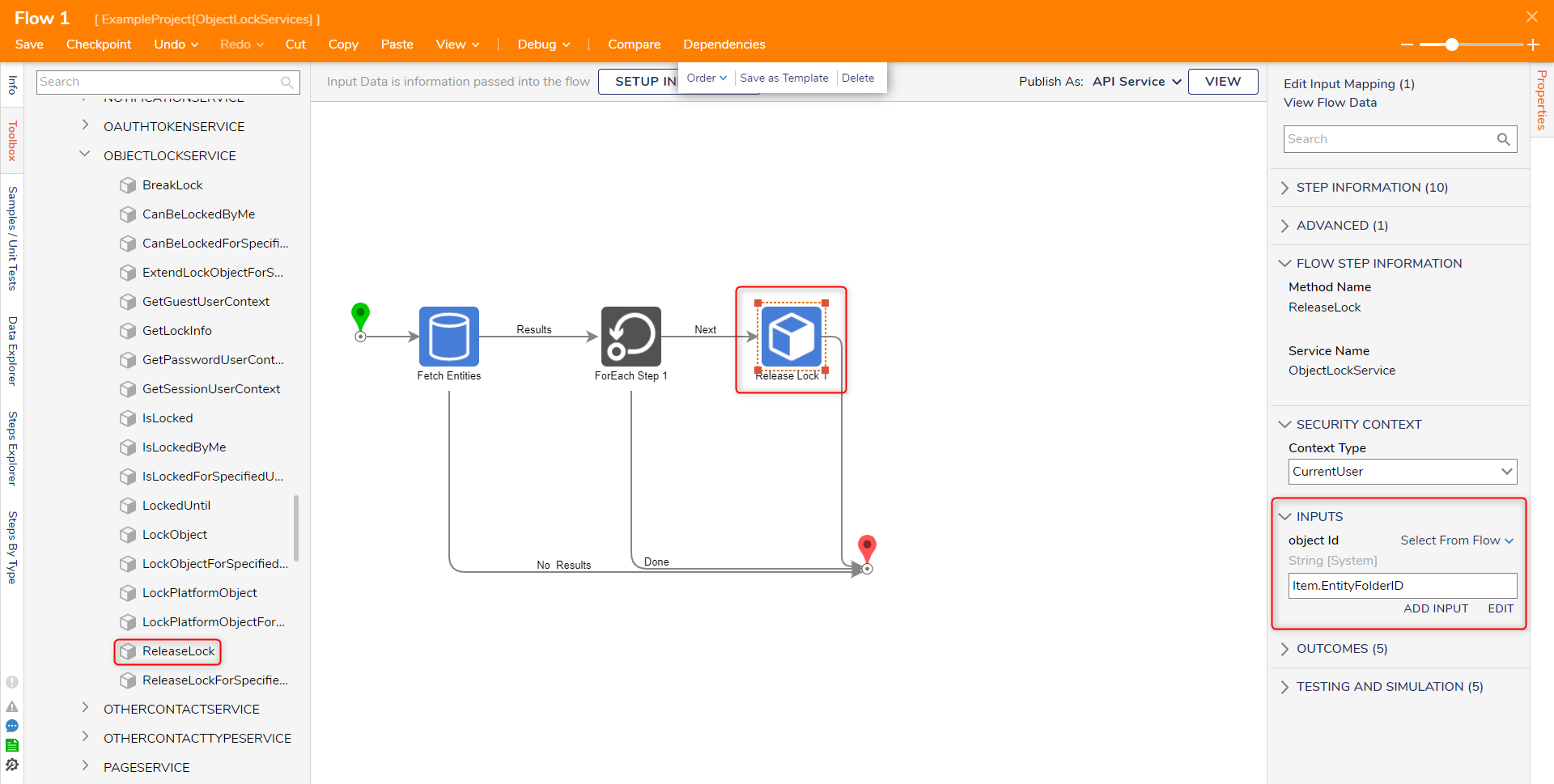
- Create a new Flow. Ensure the Fetch Entities step's Input is set to the locked Object.
- On the Next path, add a ReleaseLock step found in INTEGRATION > INTERNALSERVICES > OBJECTLOCKSERVICES.
- In the Properties for the step, map the object Id Input to Item.EntityFolder.ID.
Debug
- From the FlowDesigner, select the Debug link from the top Action bar.
- Click START DEBUGGING.
Upon completing the Flow, the locked Object is now released.