Overview
The Generate GUID step allows a user to create a unique ID String. The ID can be used as the default ID type for objects to point directly to those elements in a Flow or navigation links.
Example
- In a Designer Project, click CREATE FLOW.
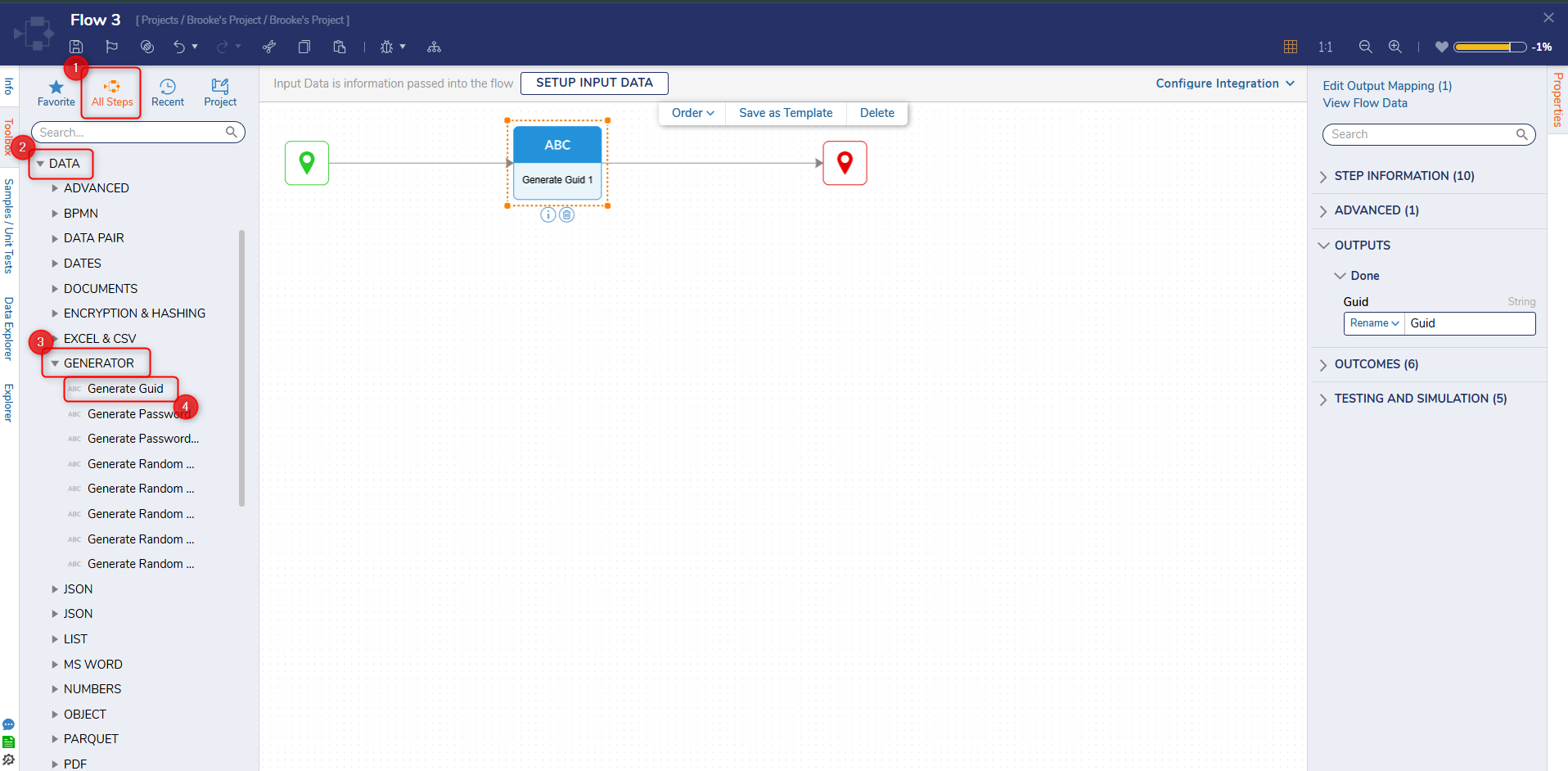
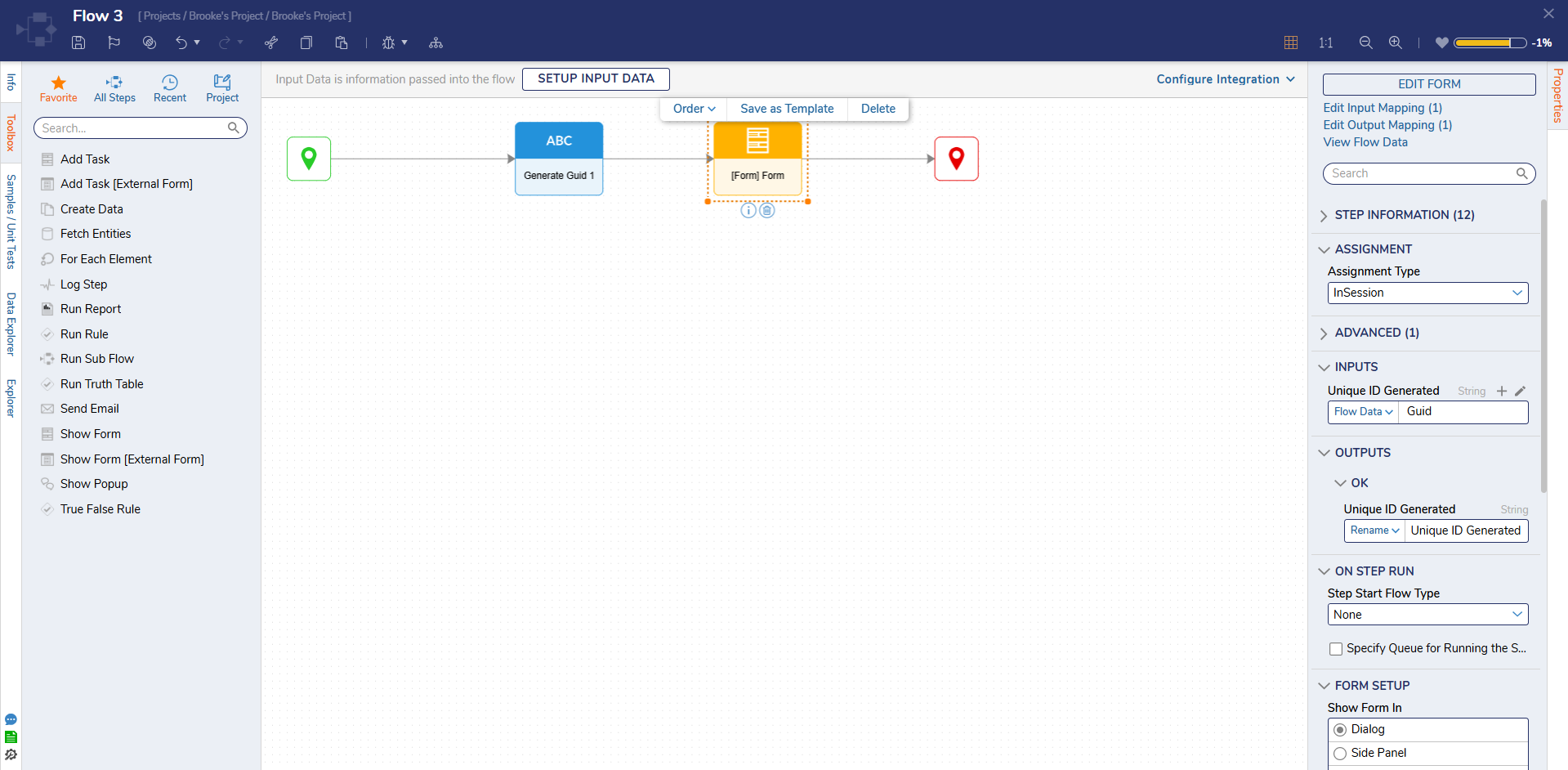
- Attach a Generate Guid step to the Start step by navigating to the DATA > GENERATOR category in the Toolbox tab.
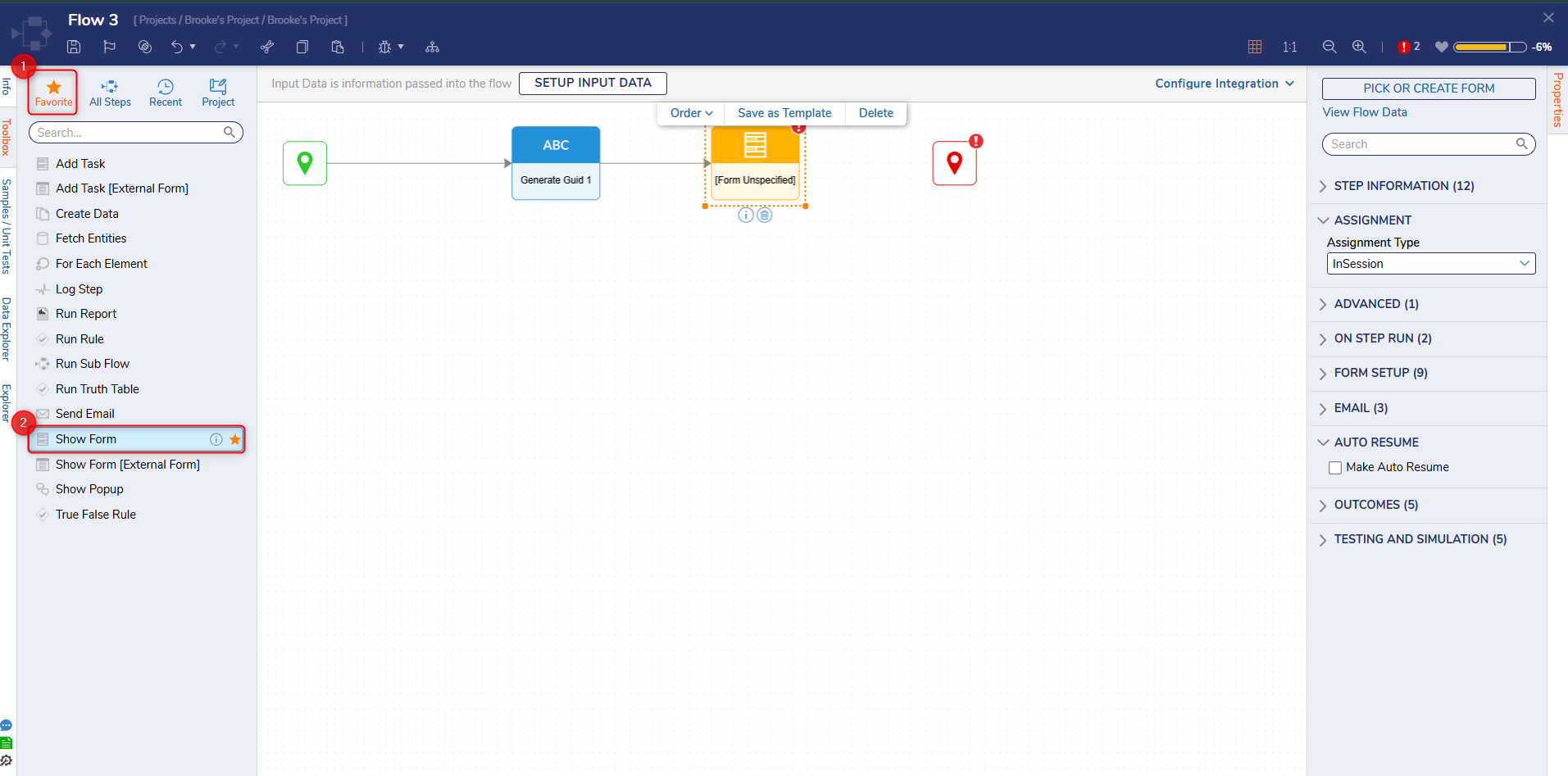
- Attach a Show Form step from the FAVORITE STEPS category to the Done path of the Generate Guid step.
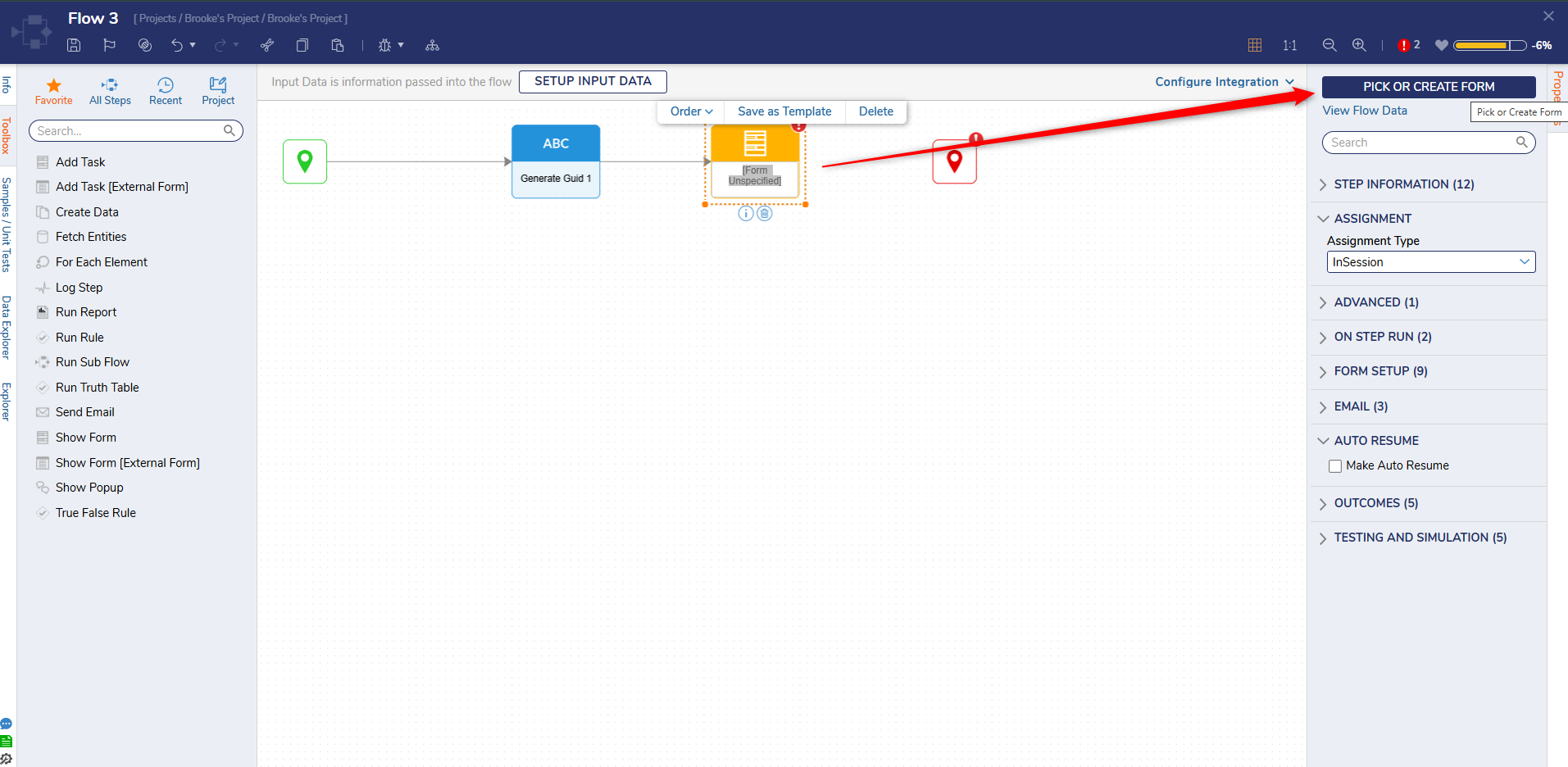
- Select the Show Form step and click PICK OR CREATE FORM from the Properties panel to create a Form.
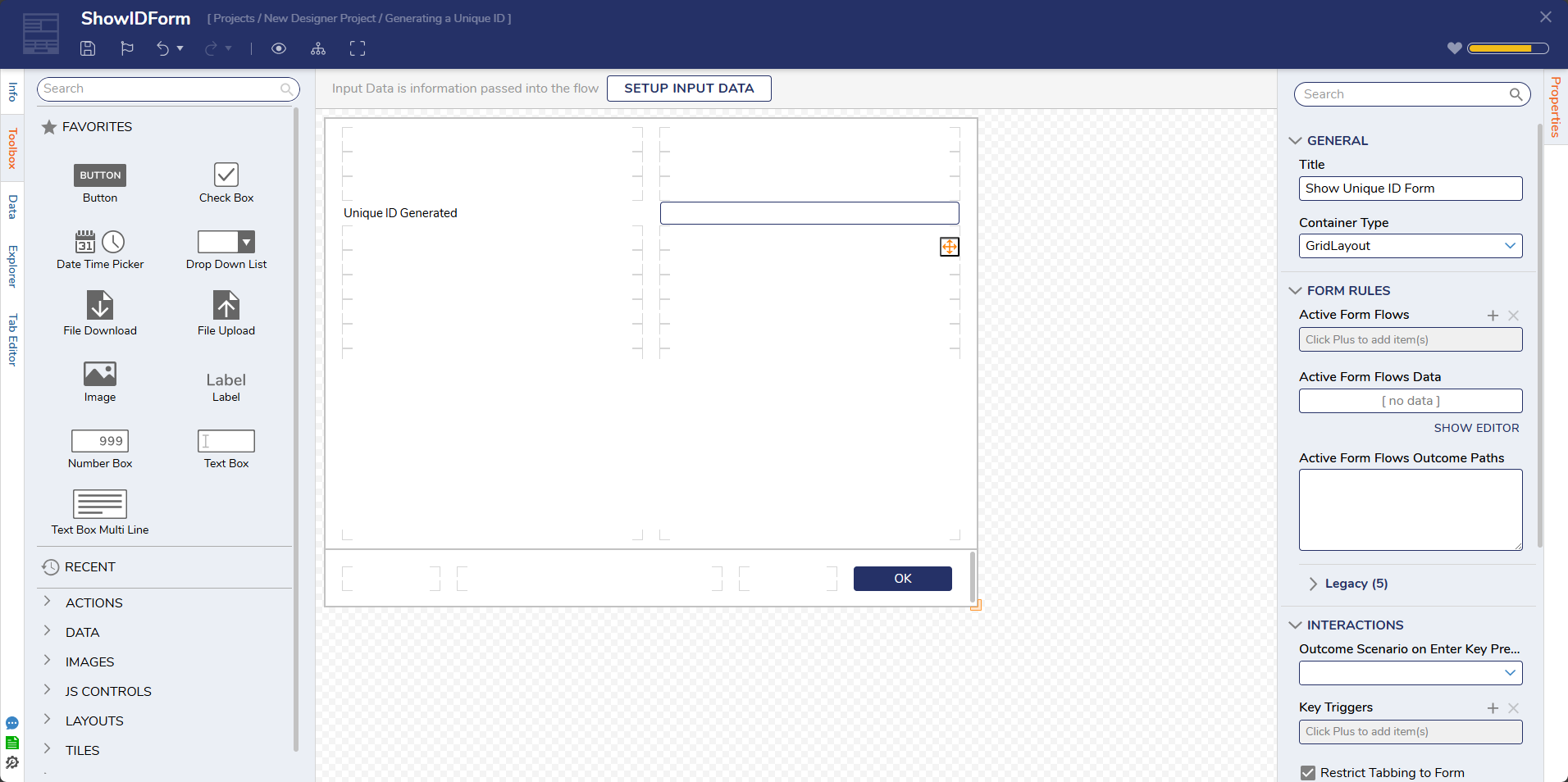
- Configure the Form to contain a Text Box component (IdtoShow) and a Button component (OK). Click Save and close the Form.
- On the Properties panel, click Unknown for the Id To Show field and select Select From Flow. Select Guid and click DONE.
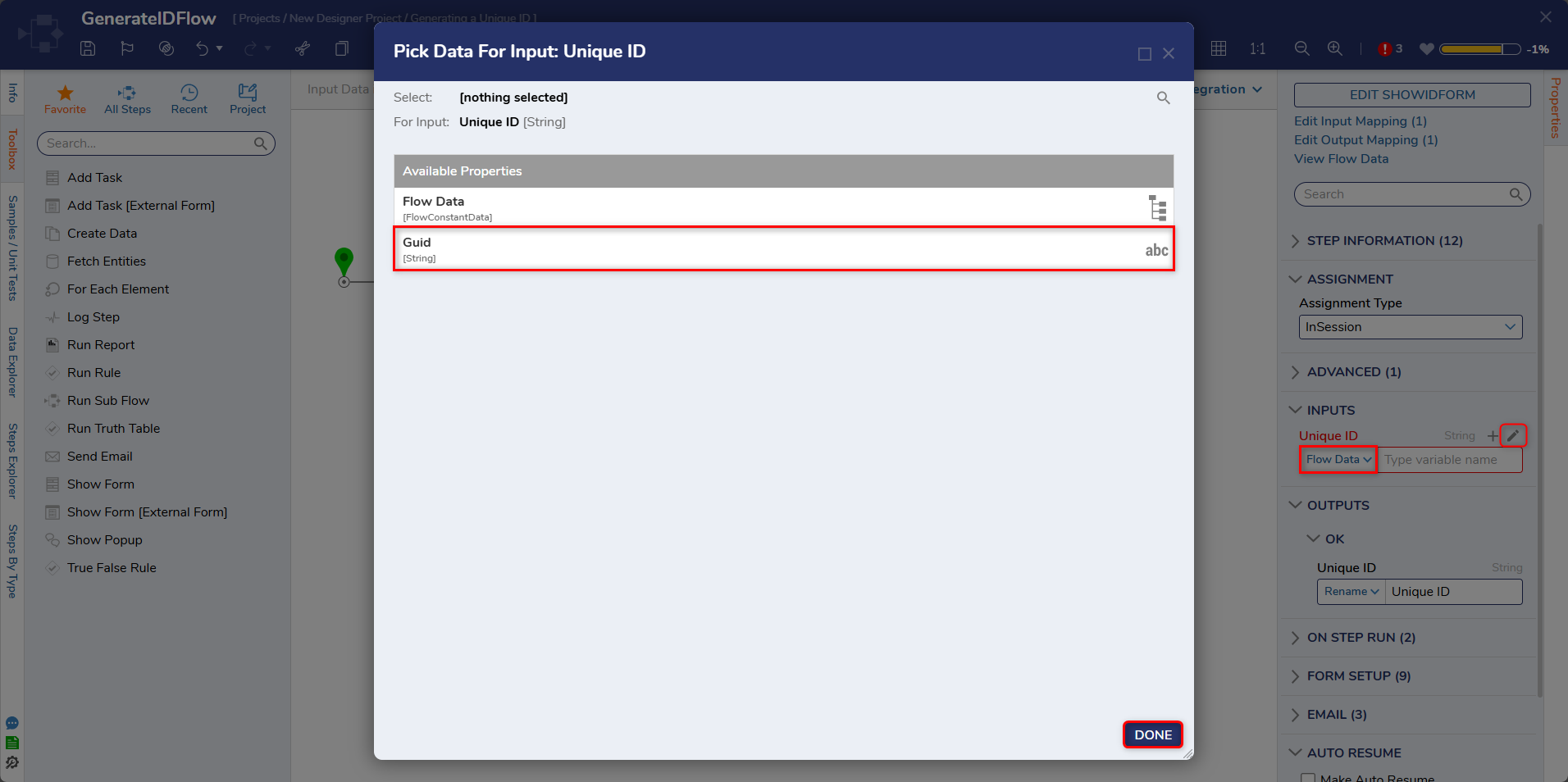
- Connect the OK path to the End step. Click Save to save changes to the Flow.
Debug
- On the top action bar, click Debug.
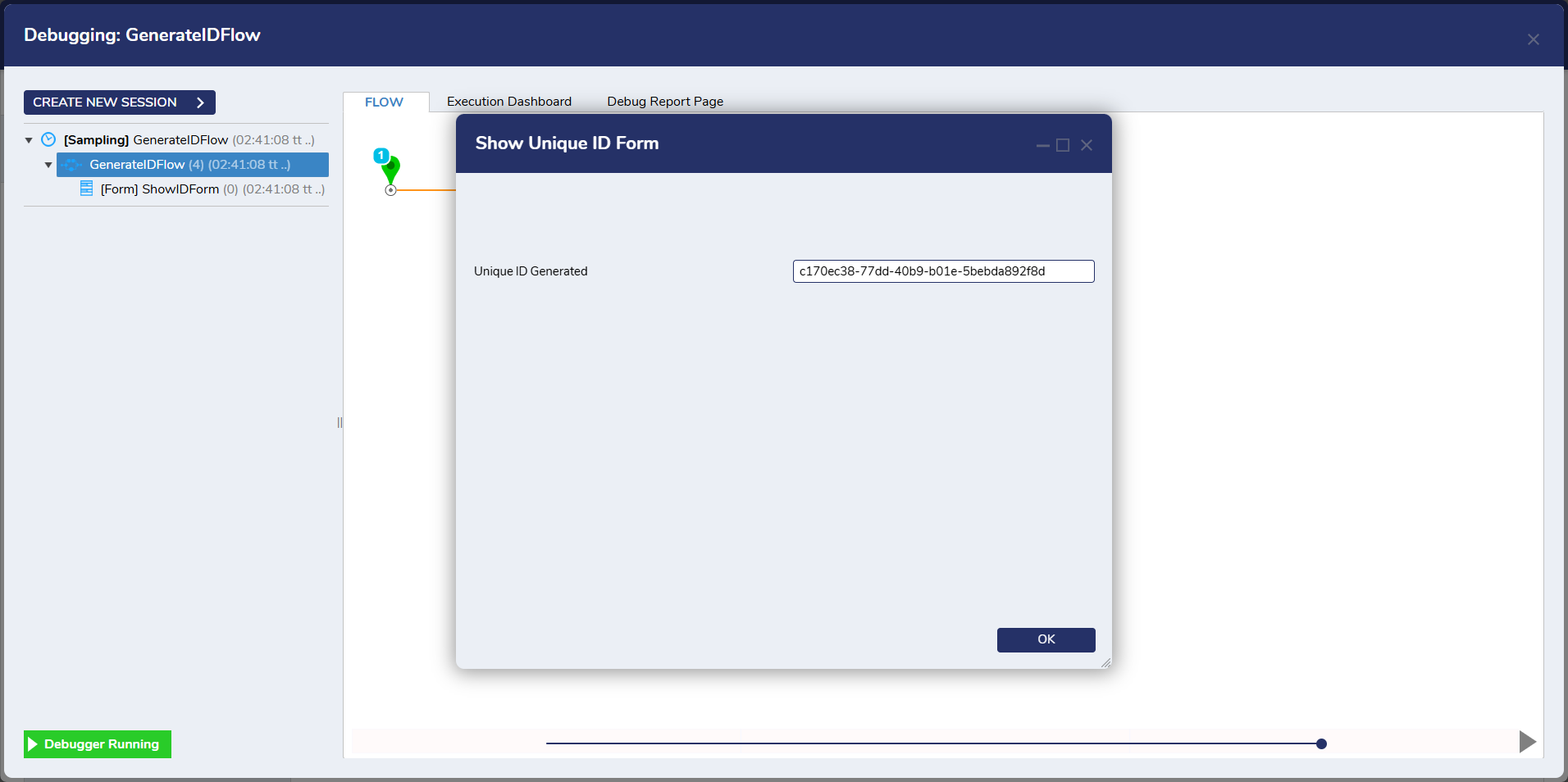
- Click START DEBUGGING. After the debugger runs, the newly generated GUID will display in the Form's Text Box.
For further information on Flows, visit the Decisions Forum.