Overview
Module Details | |
| Installation Location | Core module |
| Step Location | Integration > R |
| Settings Location | N/A |
| Prerequisites | R installed R Module Installed Project Dependency created |
The R Module allows a user to execute R scripts. R is a programming language that is used for statistical computing and graphics.
Prerequisites
- The R Module will need to be installed. To learn how to install modules, click here.
- To run R scripts, install R on the system by going to https://cran.r-project.org/bin/windows/base/.
- A Project dependency must be established.
Considerations
Users should note that the R Module does not work in containers for the current and previous versions.
ProjectHub
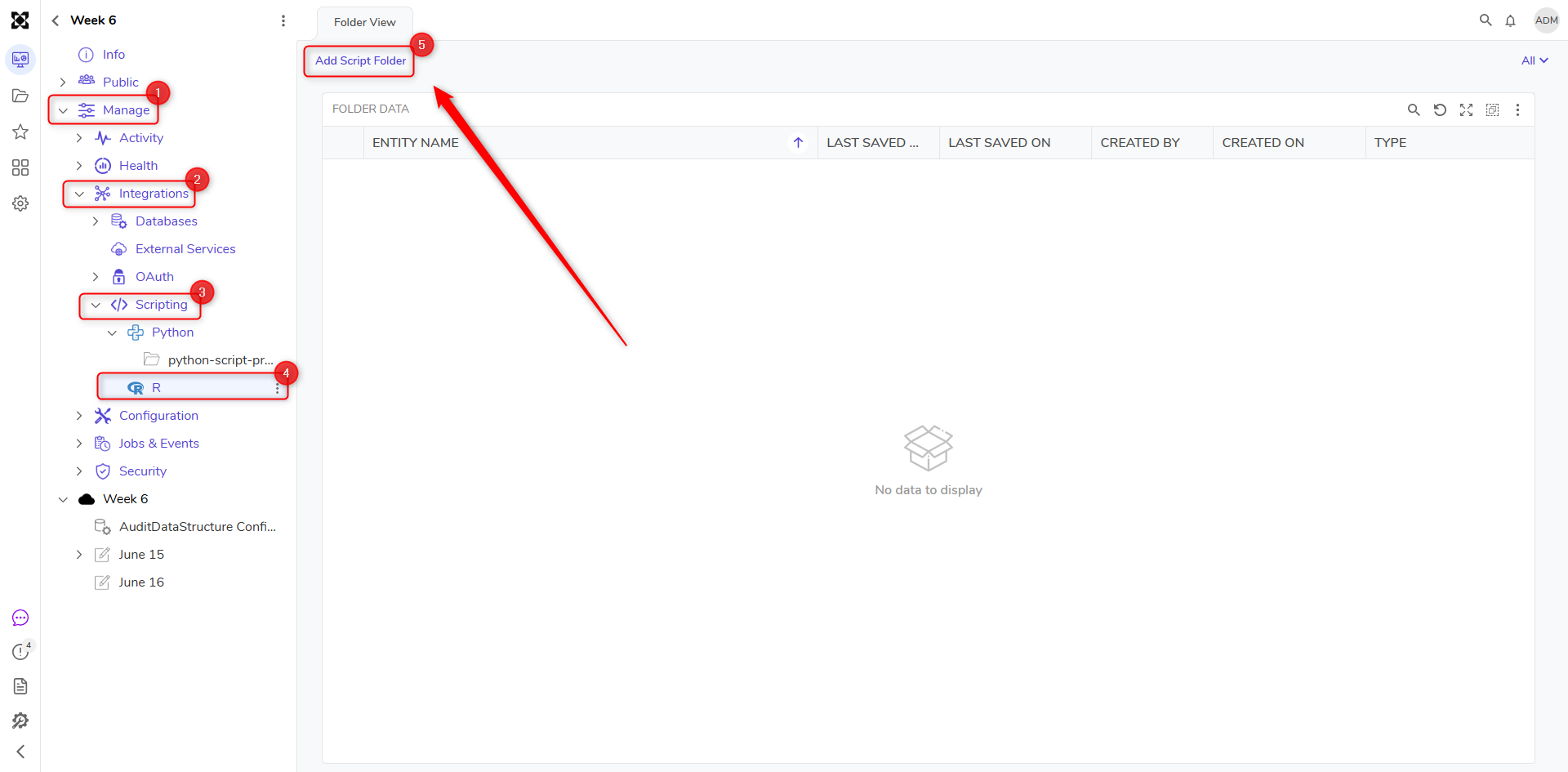
A dependency must be made with the R module before any of the module's functionality can be accessed within a Project. All scripts are kept within a folder under the Manage section: [Project Name] > Manage > Integrations > Scripting. The ADD SCRIPT FOLDER action creates new scripting folders within the primary R folder.
Script folders can be deleted by right-clicking the folder, then selecting Manage > More > Delete.
System Level
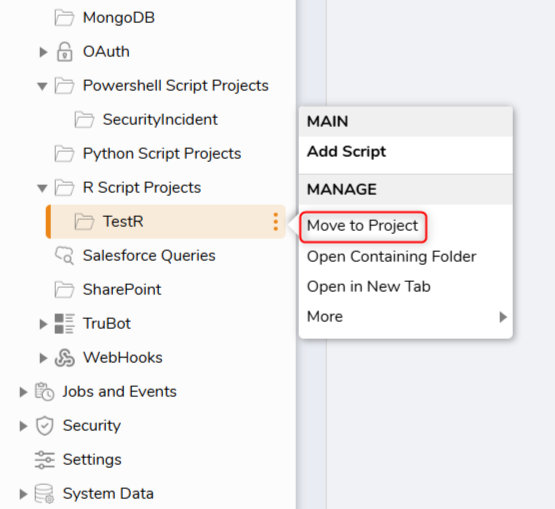
Starting in Version 10, Scripts can only be created at the Project level. However, if migrating from earlier versions (such as Version 8 or Version 9) to Version 10, previously created Scripts can still be found at the System level. For more information, please refer to: Projects Conversion. The screenshot below depicts how a Script folder can be moved to a specific Project. Right-click the folder and select Manage > Move to Project.
Example
This example will demonstrate how to execute an R script.
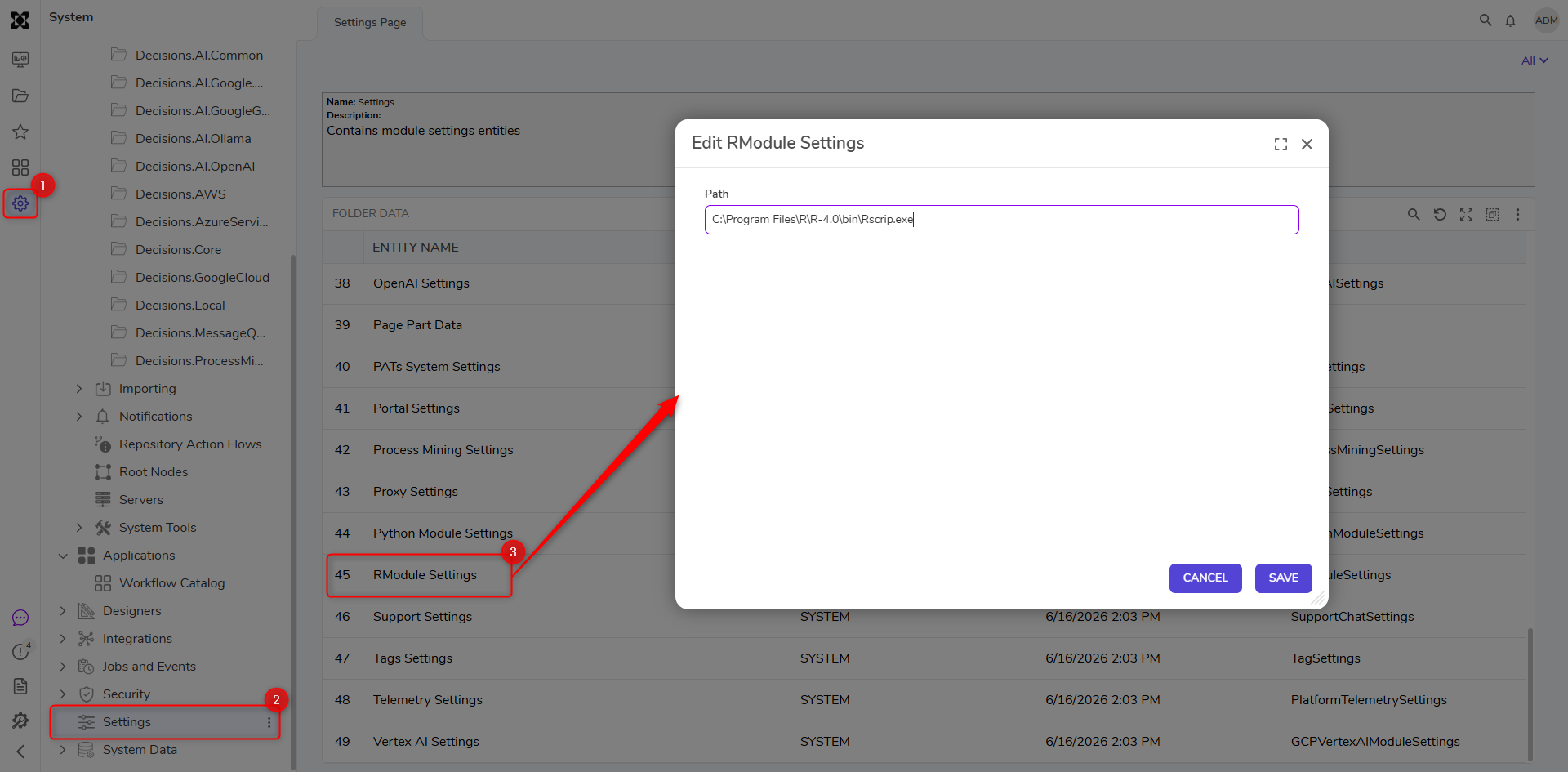
- Navigate to Settings > R Module Settings and enter the path where R is installed. Then, click SAVE.
- Navigate to [Project Name] > Manage > Integrations > Scripting. Right-click on R Script Projects and select Add Script Project.
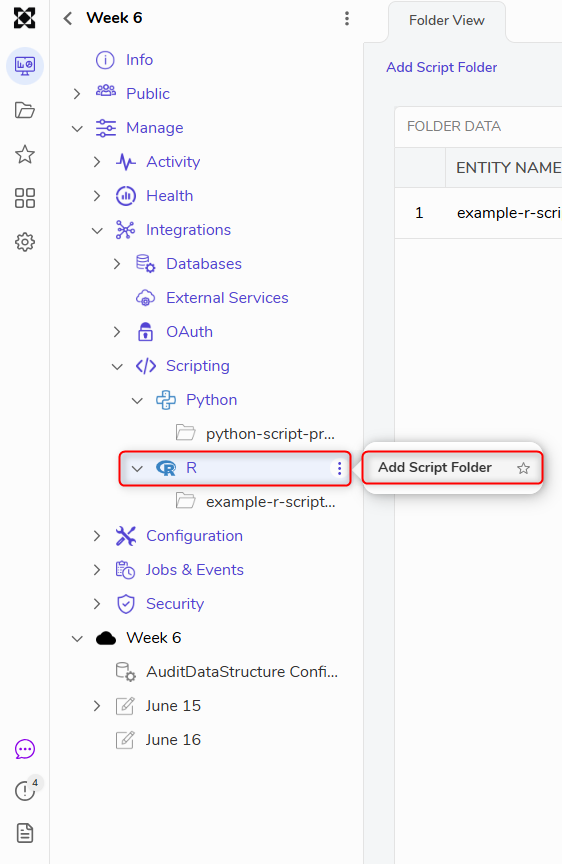
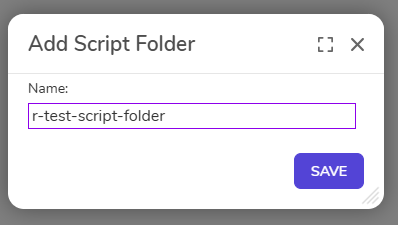
- Name the Script Project (R Test Script) and click SAVE.
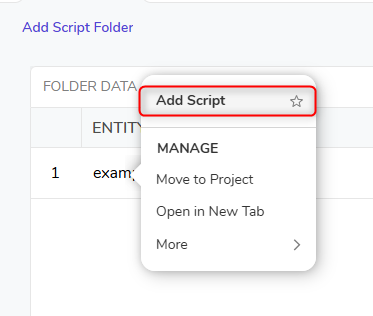
- Right-click on the R Script Project and select Add Script.
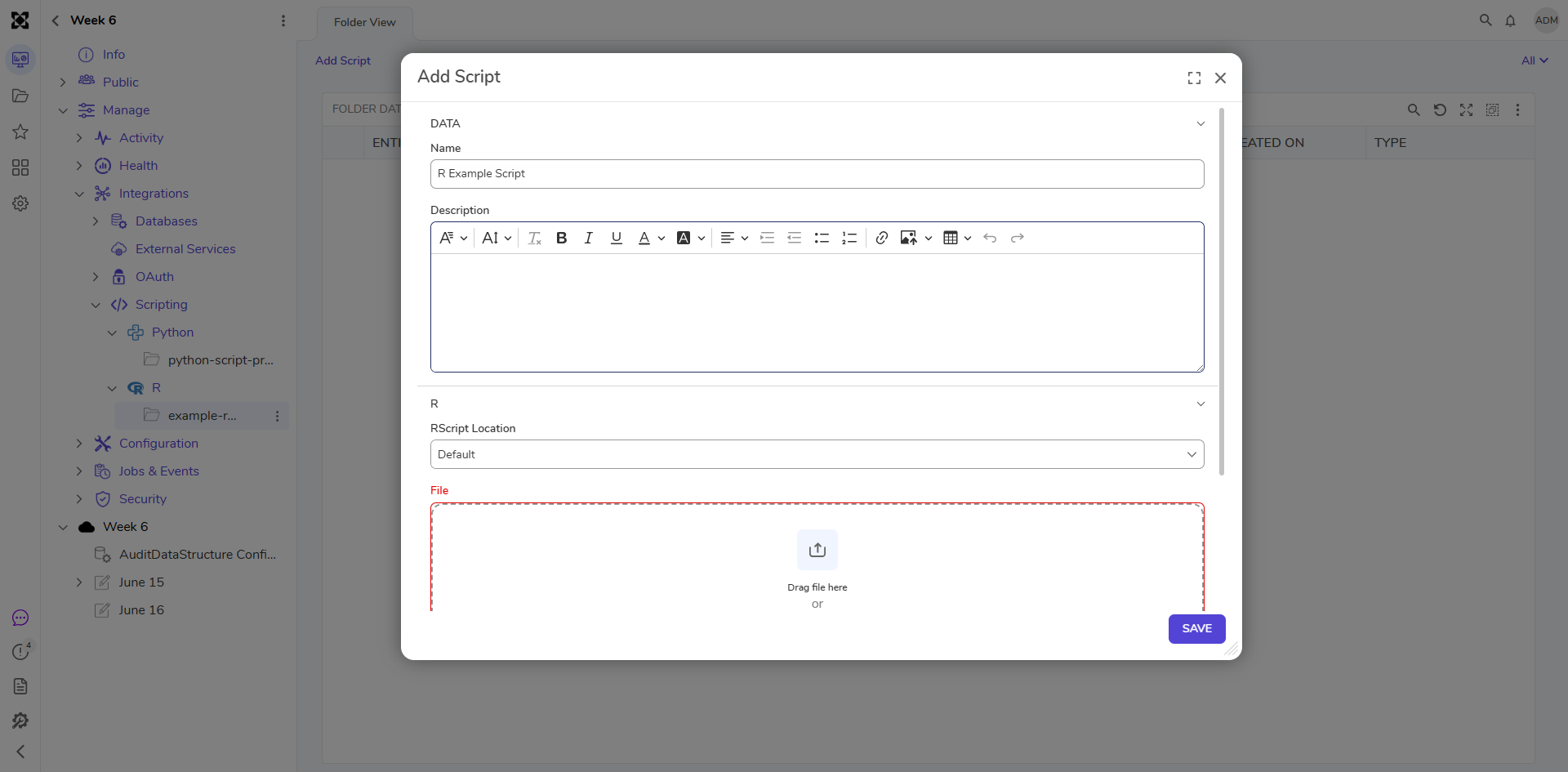
- Name the Script (R Example Script) and upload a valid R file. Then, click SAVE.
- Inside the same Project, click CREATE FLOW on the Global Action Bar and select Flow. Name the Flow (R Module Flow) and click CREATE.
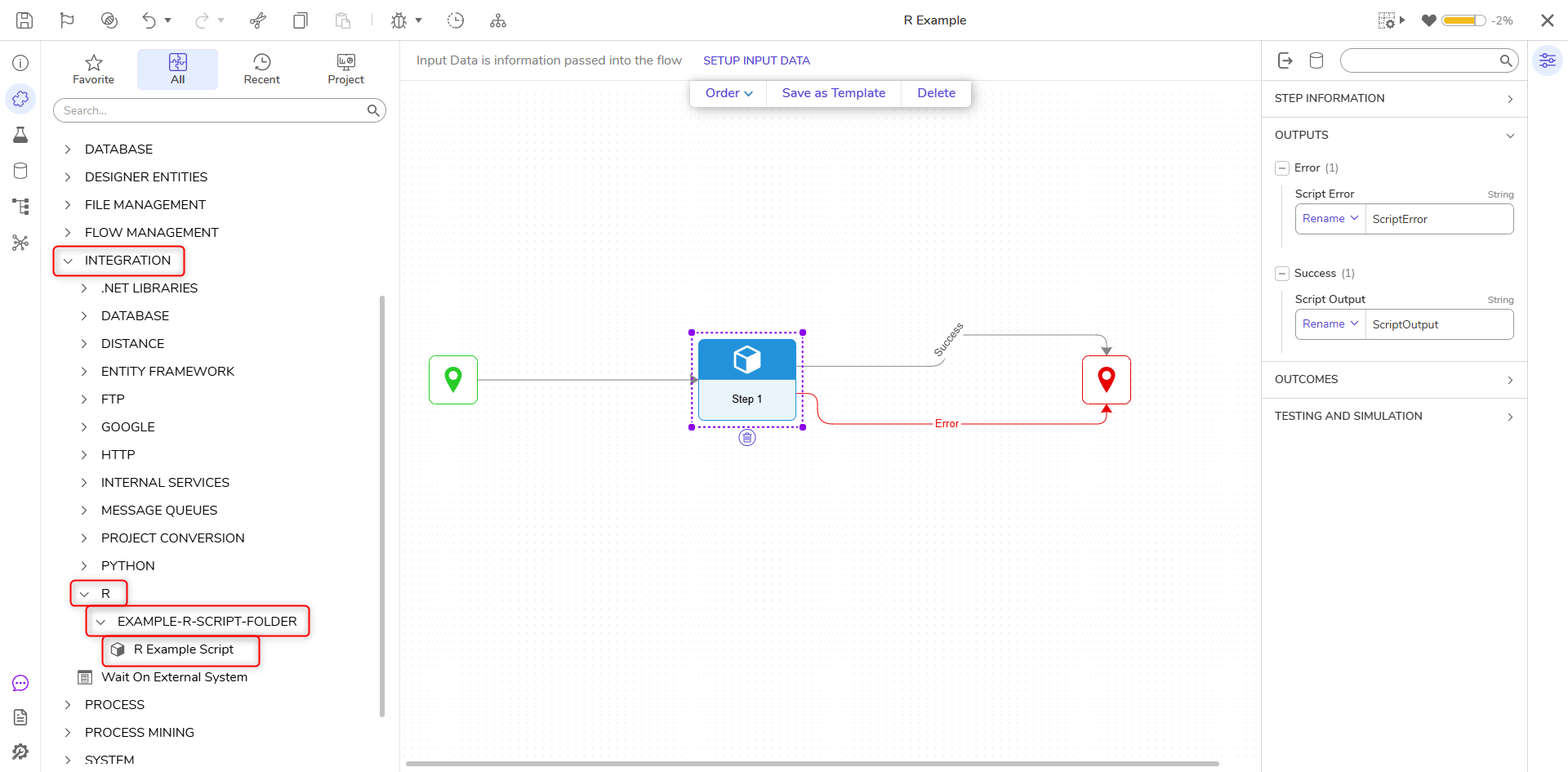
- Click on the Done path of the Start step. Navigate to Integrations > All Integrations > R > R Test Script. Select the Example R Script step and click ADD.
- Connect the Success and Error paths to the End step. Then, click Save to save changes to the Flow.
Debug
- On the top action bar, click Debug. Then, click START DEBUGGING.
- After the debugger runs, click on the script step, click Execution 1, and select View Output Data. The Output Data will display the execution of the R script.
Feature Changes
| Description | Version | Release Date | Developer Task |
|---|---|---|---|
| Updated the styling for scripting module folder icons, including PowerShell, Python, and R. | 10.1 | August 2026 | [DT-048252] |