Overview
Custom actions are created and saved within a Configuration Folder for the data type. It is possible to create multiple Folder Action Folders and in some cases, it is recommended. Only Data Structures that have Configurations Folders can have user actions. The Database Structure and the Defined Data Structures do not have a Configuration Folders by Default. They can be configured to have one by enabling actions on the Database Structure and setting the Defined Data Structure to be database stored. Here are the user action options:
| Types of User Actions | Description |
|---|---|
| Create Group User Action | Adds an action to a group of selected entities using multi-select on a report. |
| Create User Action | Adds more functionality to the Entity. |
Use Shared User Action | Allows developers to pick an already created Action Flow. |
| Create Add Entity Action | Allows developers to customize the way that Entities are added, the default way is displaying a basic property grid as displayed in: Folder Extension Data Structures |
Reasons to create more than one Action folder are:
- To organize by functionality
- To apply security by restricting users to see only folder actions relevant to them. For example, restricting the ability to edit a form or granting permission
Classification Configuration
User Action Flows have additional settings that can be configured by selecting Set Classification Info. This setting can be found by right-clicking a Flow in an Entity's Configuration Folder.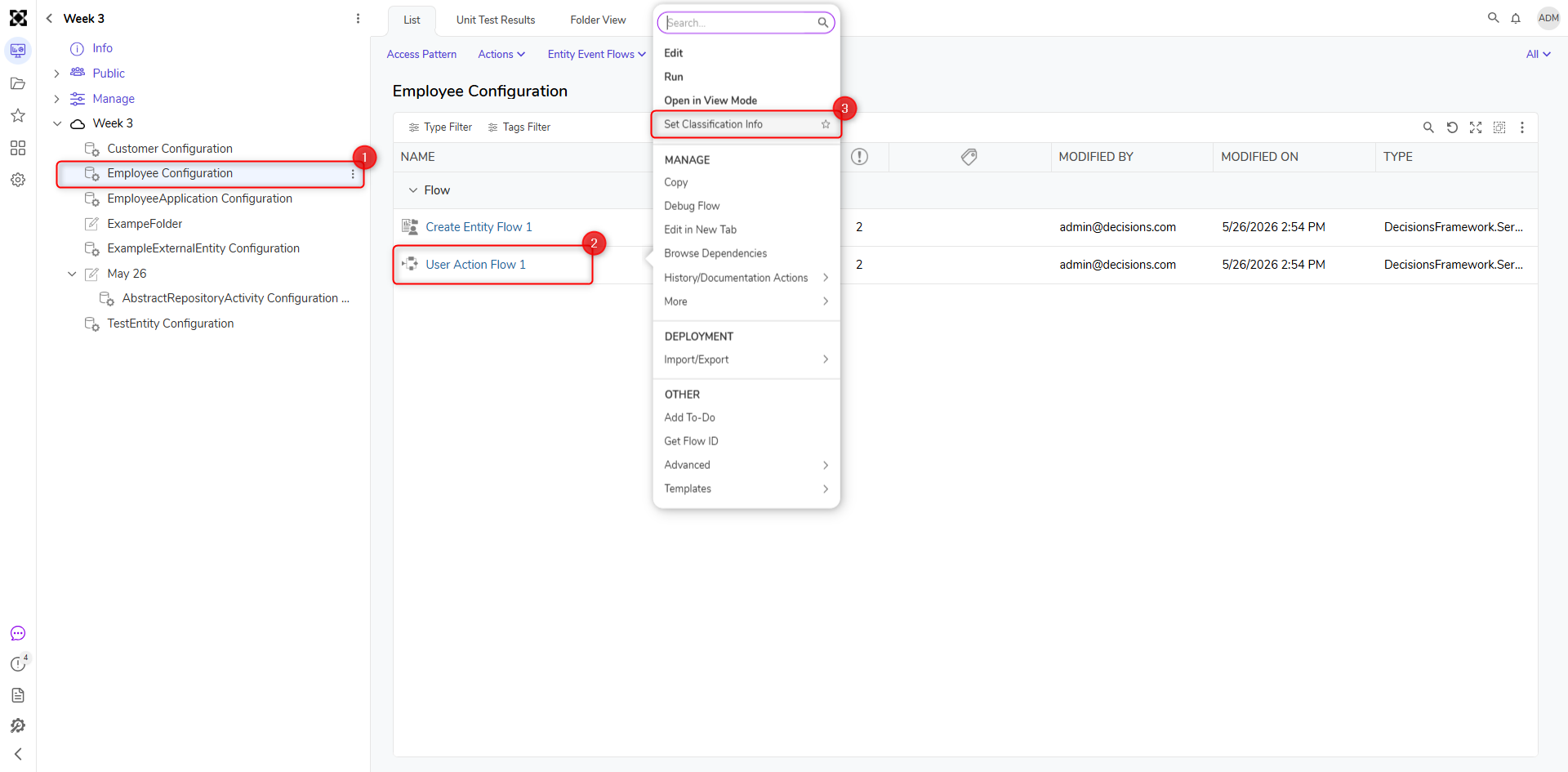
This is the summary of the Set Classification Info settings.
Action Classification
| Setting | Function |
|---|---|
Action Name | This is the name of the right-clickable Entity Action. |
Category Name | A named category list where User Action Flows will reside in. |
Order | A number that determines where the user action will be positioned in the user action list. |
Display Type | Changes the user action name font to primary bold font type, or secondary un-bolded font. |
Is Default Grid Action | Sets a user action to be the default left-click action. |
Show Loading Indicator Outside Dialog | Loading Indicator is shown outside of the Decisions Portal. |
Group Name | A grouping of the user actions. |
Hide Action For Single Entity (v9.6+) | Enabling will cause the action to not be visible on any single entity. Only when multiple entities are selected will the action appear on right-click. |
Group Order | A number that determines where the user action will be positioned in the user action list. |
Permission for Actions
| Setting | Function |
|---|---|
Permissions For Actions | Configures the level of permissions a user needs to have to use those actions. Choose as many as needed. |
Valid In States
| Setting | Function |
|---|---|
Valid In States | Configures the user actions to be available only in certain Entity or Folder states. |
Example
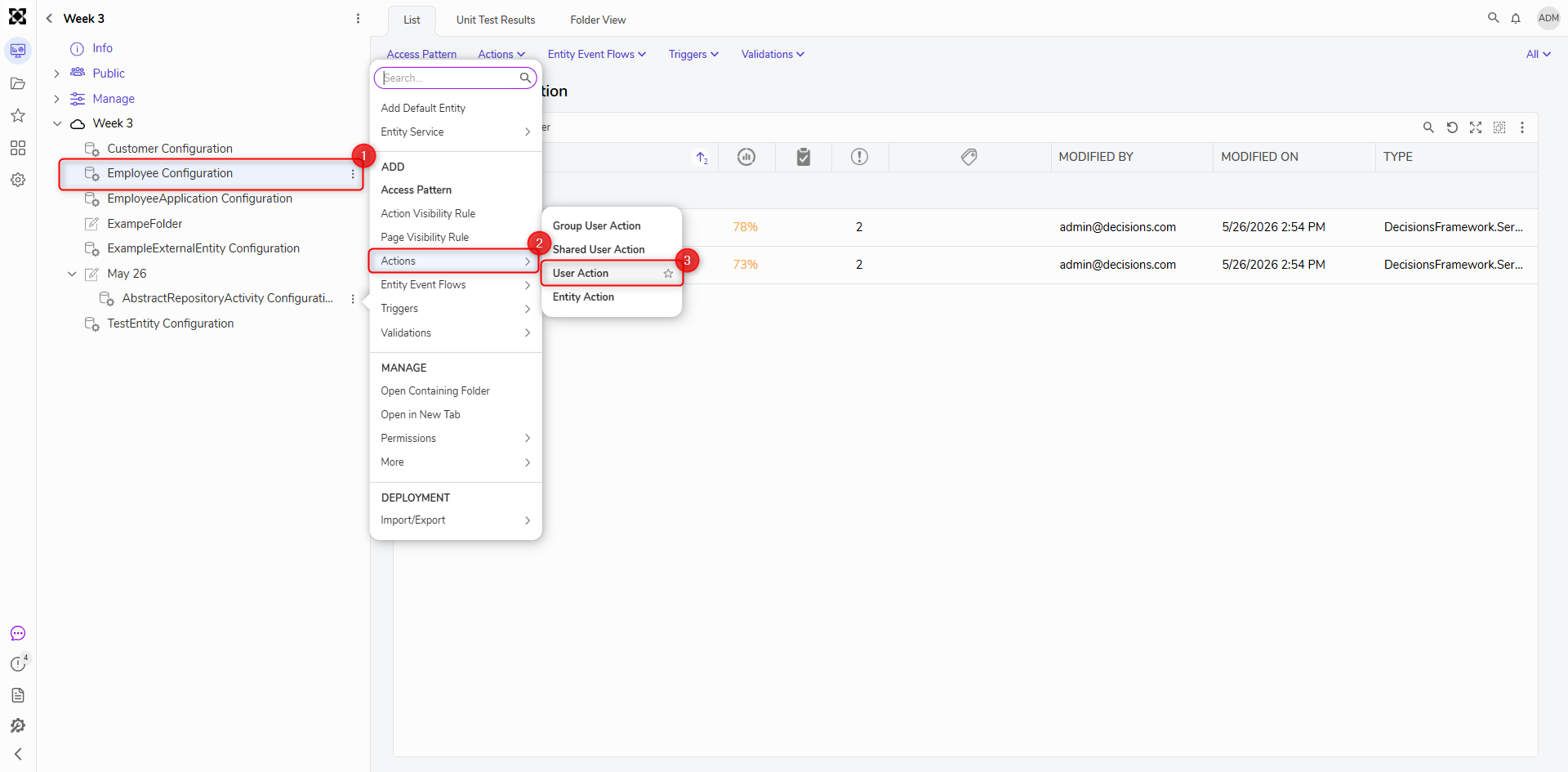
- A User Action can be created by either right-clicking the Configuration Folder navigating to 'User Actions' ->' Create User Action', or by clicking the 'Create User Action' button within the folder.
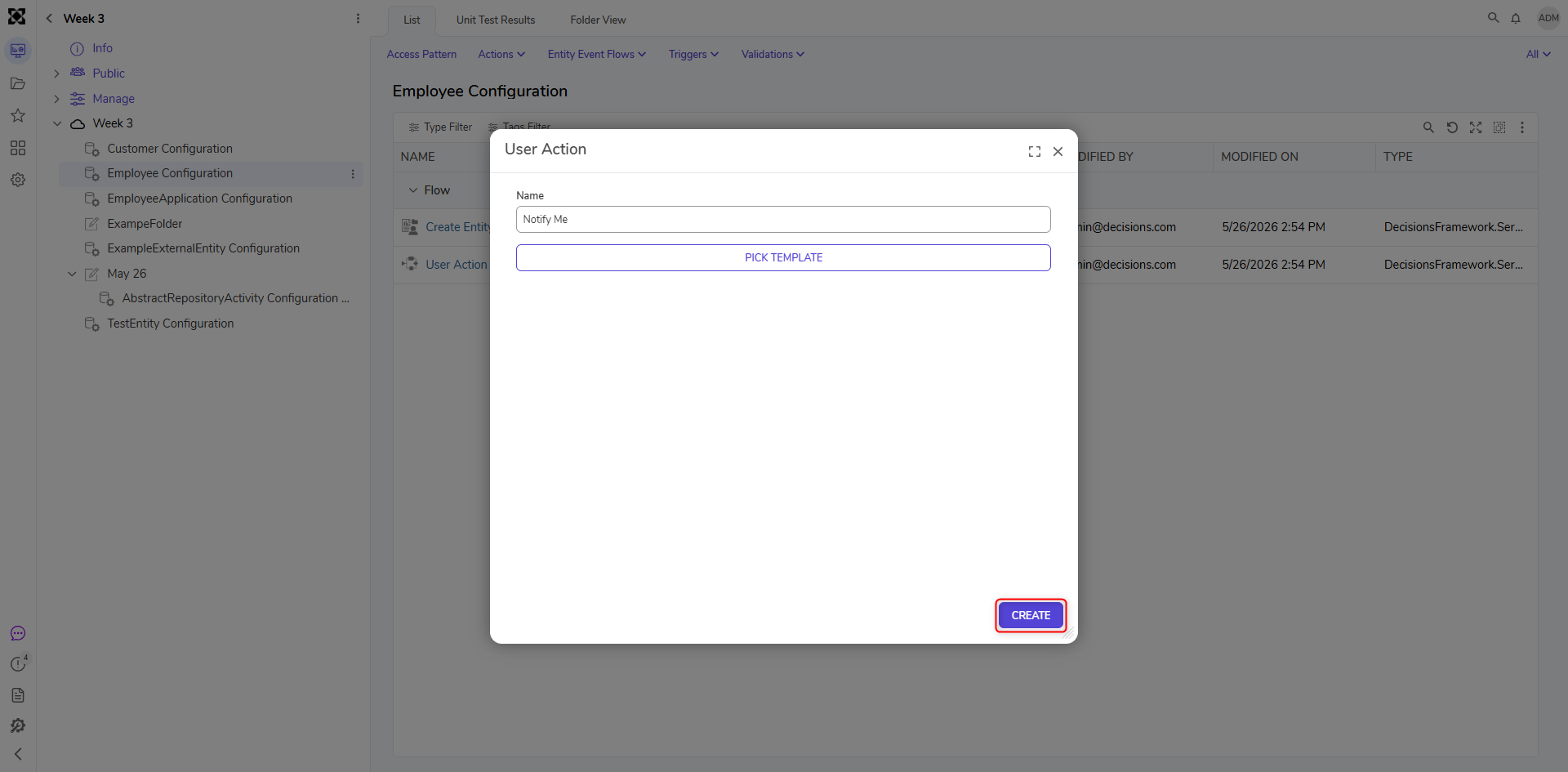
- Name the User Action Flow 'Notify Me' and then click 'CREATE'
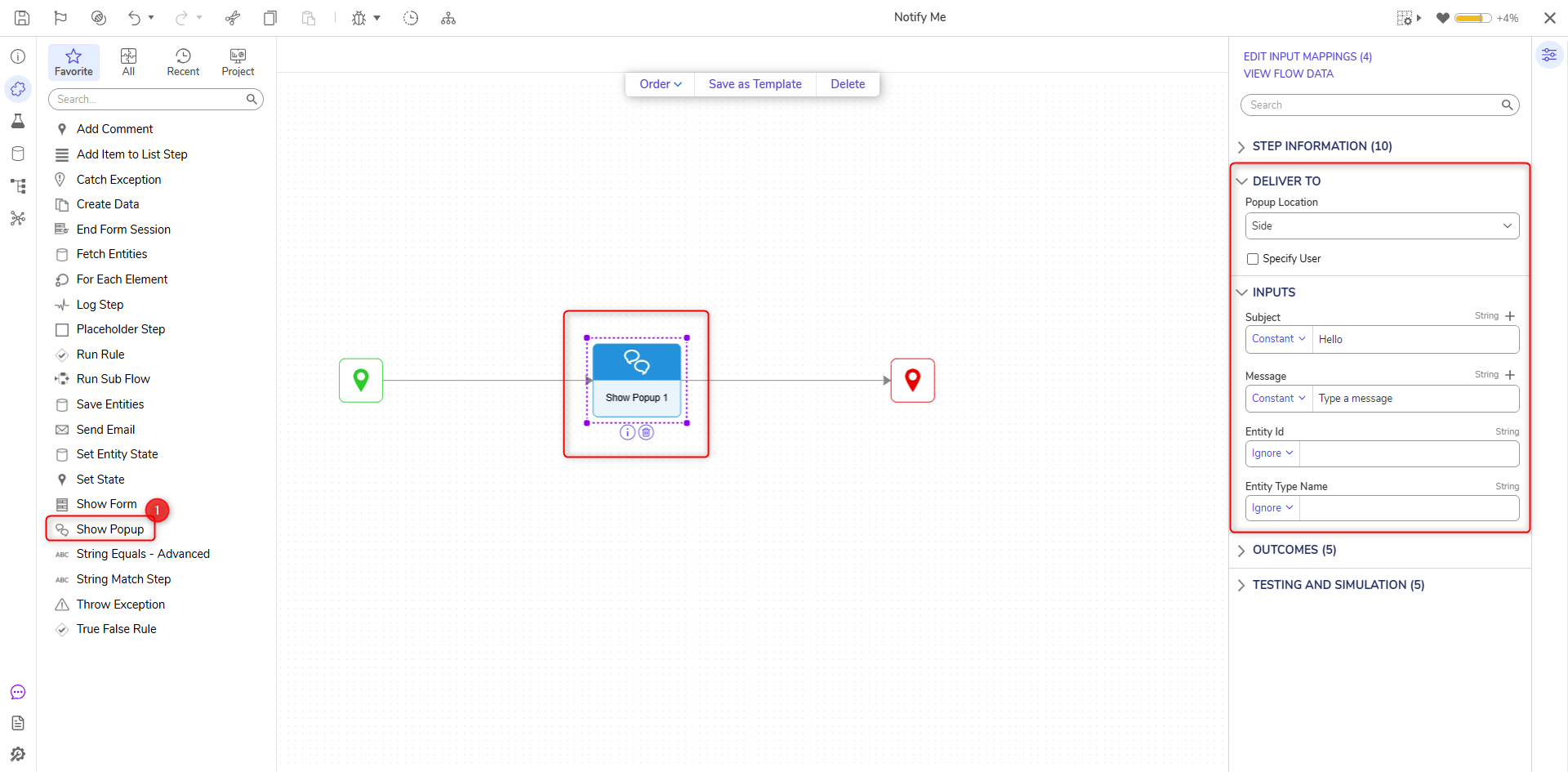
Within the Flow Designer, find a 'Show Popup' step and drag it on the Canvas. Configure the inputs to have constant values. It is important to note that User Action' Flow has a variable called Entity. This entity will be the record that the user right-clicks on. Decisions will pull in that record, allows users to map in those values from that entity to create more sophisticated user actions like editing or deleting. After adding the 'Show Popup' step, save and close the Flow.
Navigate to the Dashboard that contains a report sourced on this Data Structure and right-click a record to use that custom action.
Feature Changes
| Description | Version | Release | Developer Task |
|---|---|---|---|
| Added "Hide Action for Single Entity" property. | 9.6 | January 2024 | [DT-042809] |