| Feature | |
| Introduced in Version | 6.8.0 |
| Last Modified in Version | 9.14.0 |
| Location | System > Administration > Encryption |
Overview
In an effort to support PCI and SOC compliance, data stored within Decisions can be encrypted using a rotating encryption key. This prevents data from being compromised if a key is lost or stolen.
How key rotation works: during rotation, Decisions attempts to decrypt existing encrypted values using the current key and then re-encrypts those values using a new key. If any value cannot be decrypted (for example, because it is already corrupted/invalid), rotation cannot proceed until the issue is resolved.
Accessing Key Rotation
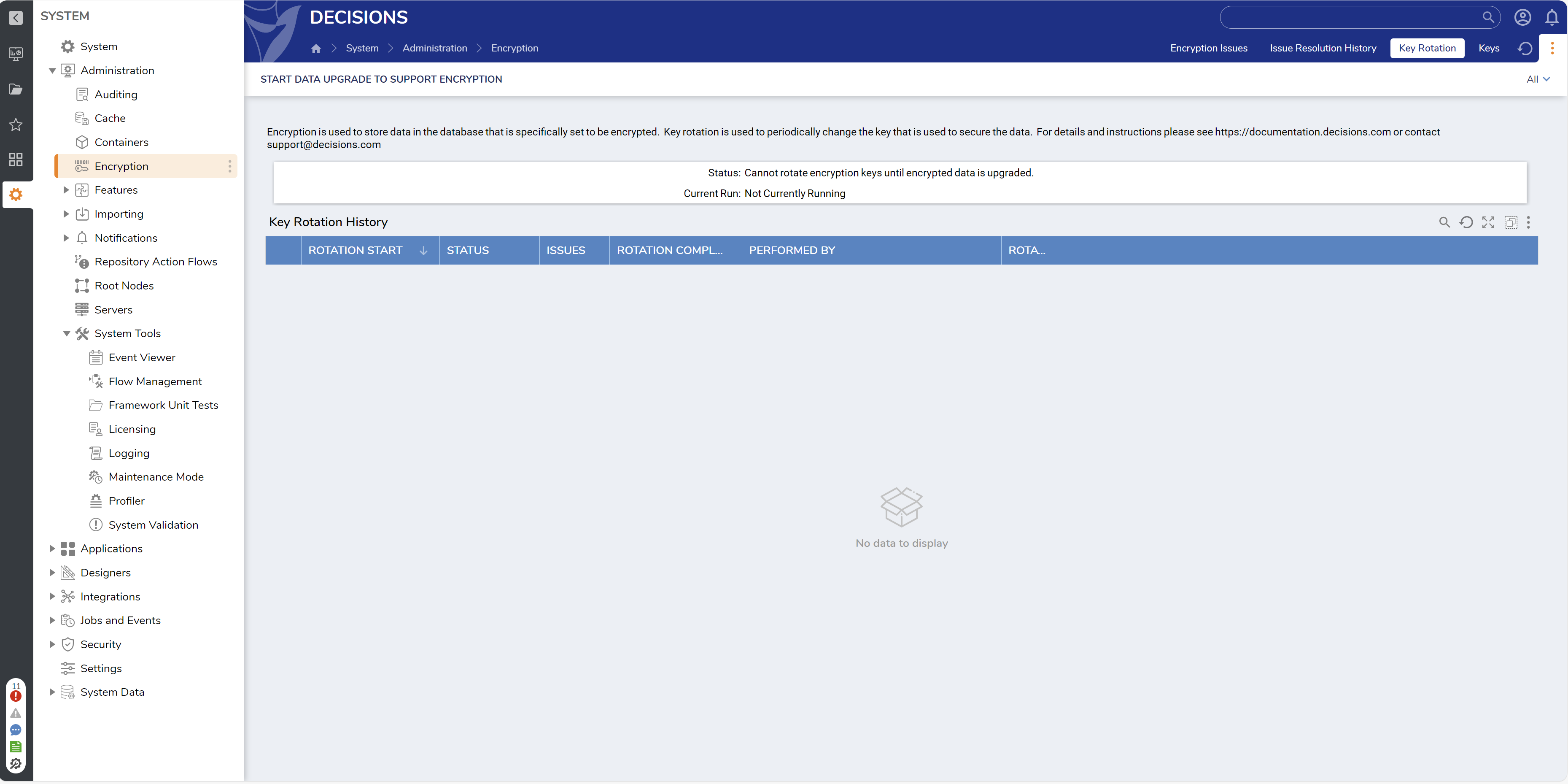
To view the Key Rotation History, navigate to System > Administration > Encryption. The Key Rotation Audit dashboard will appear, displaying the rotation history.
Before you begin
- Run key rotation during a maintenance window.
- Take a backup of the Decisions database before rotating keys.
- Take a backup of Keys.dat before rotating keys.
What is unaffected/unchanged by Key Rotation?
Cached data will not be affected by rotating Encryption Keys.
In addition, data that cannot be updated/decrypted during this process will:
- Become a task assigned to the admin group for review.
- Be recorded in an
encryption_key_change_issuetable within the Decisions database with the following columns:- Source datatype Table
- Source datatype ID
- Field Name
- Data
- Date Time
- Current Key
Changing Keys
To rotate encryption keys:
- Select Test Default Key Rotation on the Key Rotation Audit dashboard to verify that rotation can be completed successfully.
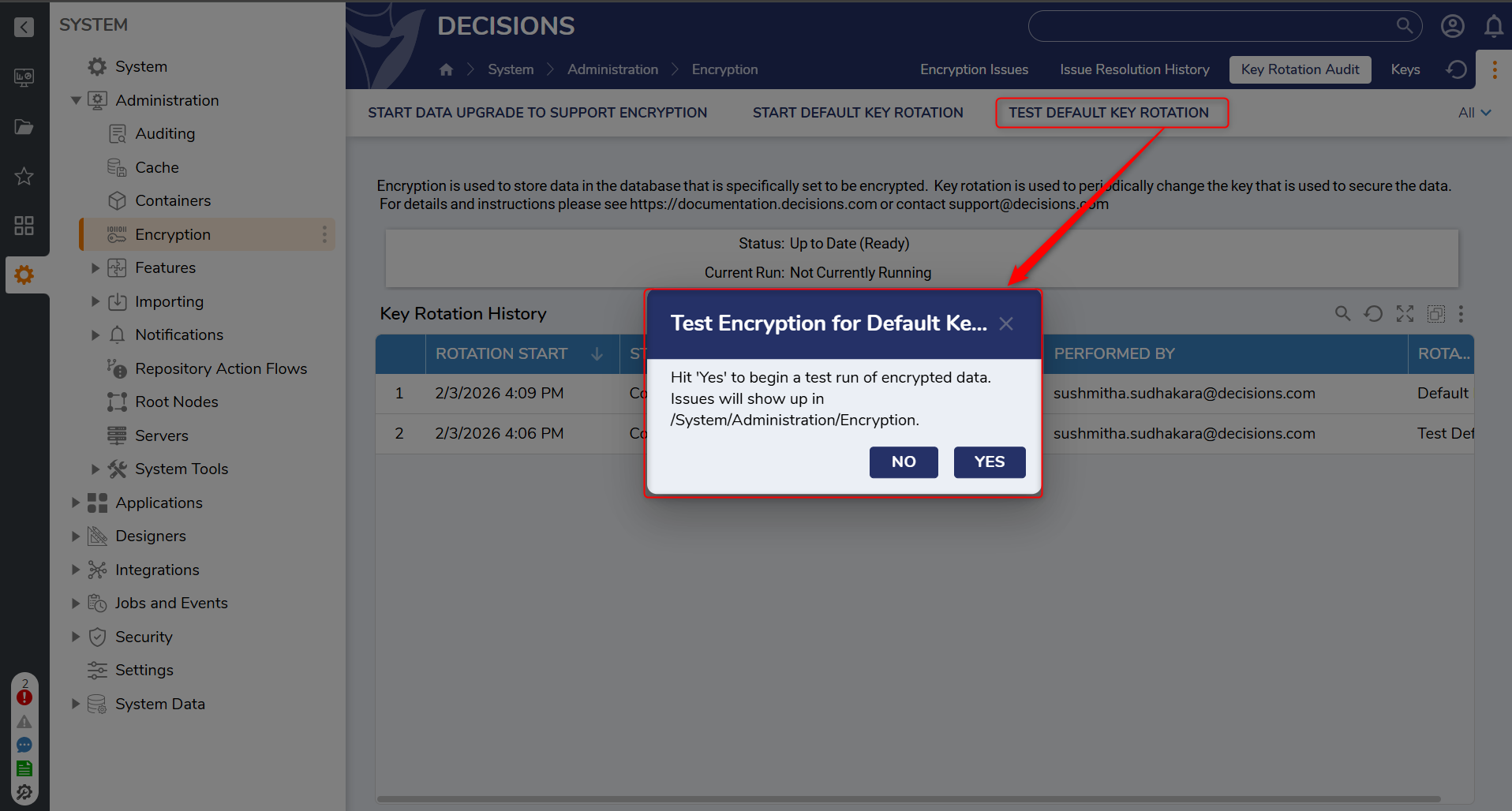
- If the test reports blocking issues, resolve them using the steps in Troubleshooting Key Rotation, then re-run Test Default Key Rotation.
- When Test Default Key Rotation succeeds, select Start Default Key Rotation.
- In the confirmation pop-up, confirm that the key will be rotated.
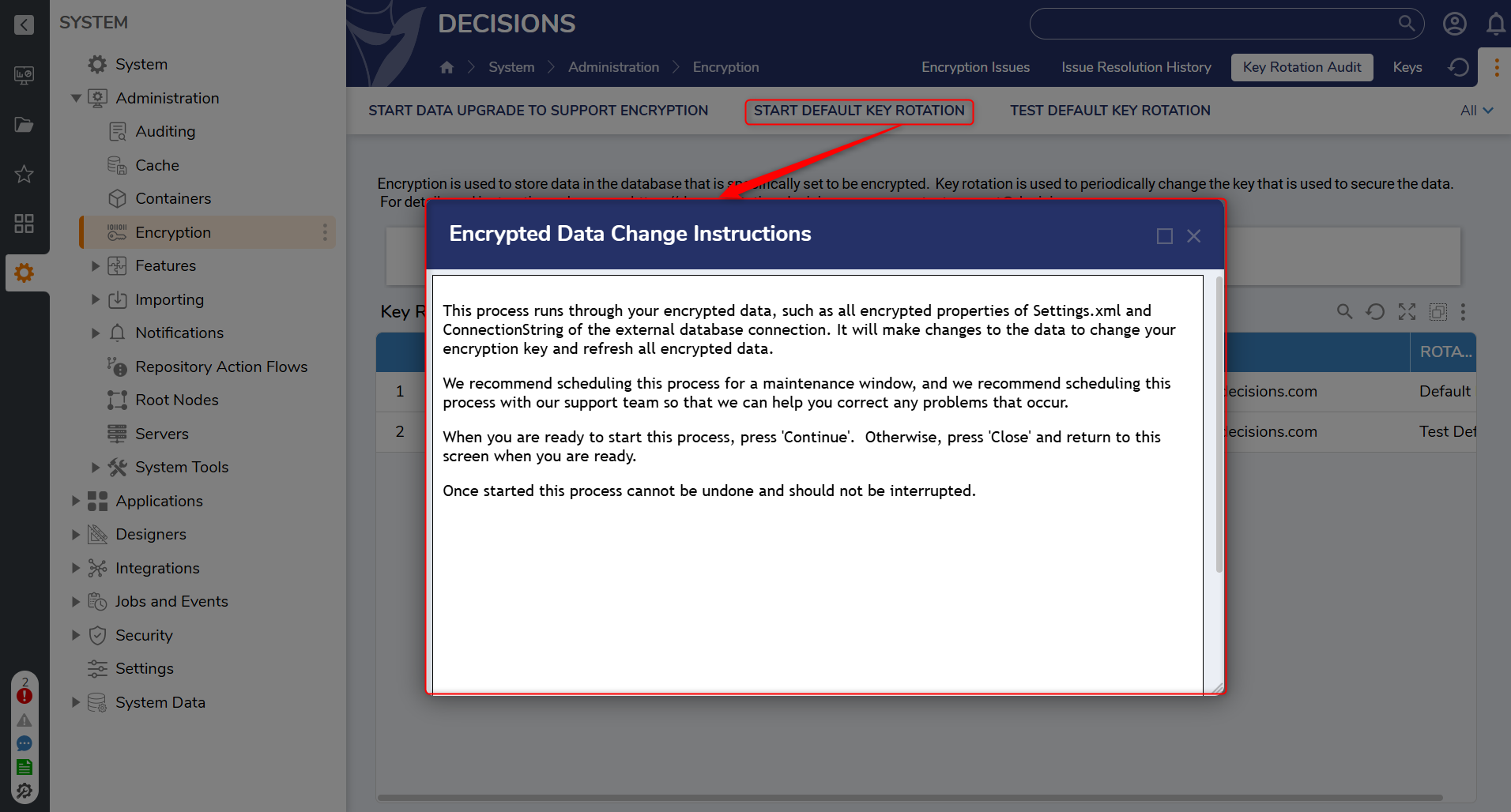
If the rotation was successful, then:
- The Rotation Status is set to Complete
- Old keys.dat is moved to archive/Keys.dat.MMddYYYY folder within the Decisions folder tree.
- NewKeys.dat becomes the new keys.dat file.
If the key rotation is unsuccessful, then the following will occur:
- The status message on the Keys dashboard will be updated to Rotation Not Available: Encryption Issues Exist.
- The Encryption Issues Report will be updated, displaying the cause for failure.
- All issues must be resolved for Key rotation to continue.
Troubleshooting Key Rotation
If Test Default Key Rotation fails, it typically means some encrypted data is already in a bad state and cannot be decrypted with the current key. Because rotation requires decrypting existing values first, all reported issues must be resolved before rotation can proceed.
Common failure scenario
- Encrypted configuration data is invalid or corrupted (for example, an external database connection stored with an incorrect/invalid connection string).
How to remediate Encryption Issues
- Open System > Administration > Encryption and review the Encryption Issues report.
- Identify the affected item (the report typically indicates what failed and where it is stored).
- Navigate to the referenced configuration item (for example, the external database connection) and re-save it with correct values (for example, update and save the connection string/credentials).
- Return to the Key Rotation Audit dashboard and re-run Test Default Key Rotation.
- Repeat until no blocking issues remain, then run Start Default Key Rotation.
Dashboards
The following section lists the different dashboards and reports available under System > Administration > Encryption Folder
| Feature | Description | Screenshot |
|---|---|---|
| Key Rotation Audit | The main dashboard that is displayed when navigating to Encryption > Key Rotation Audit. Displays a list of activities involving Key rotation. | 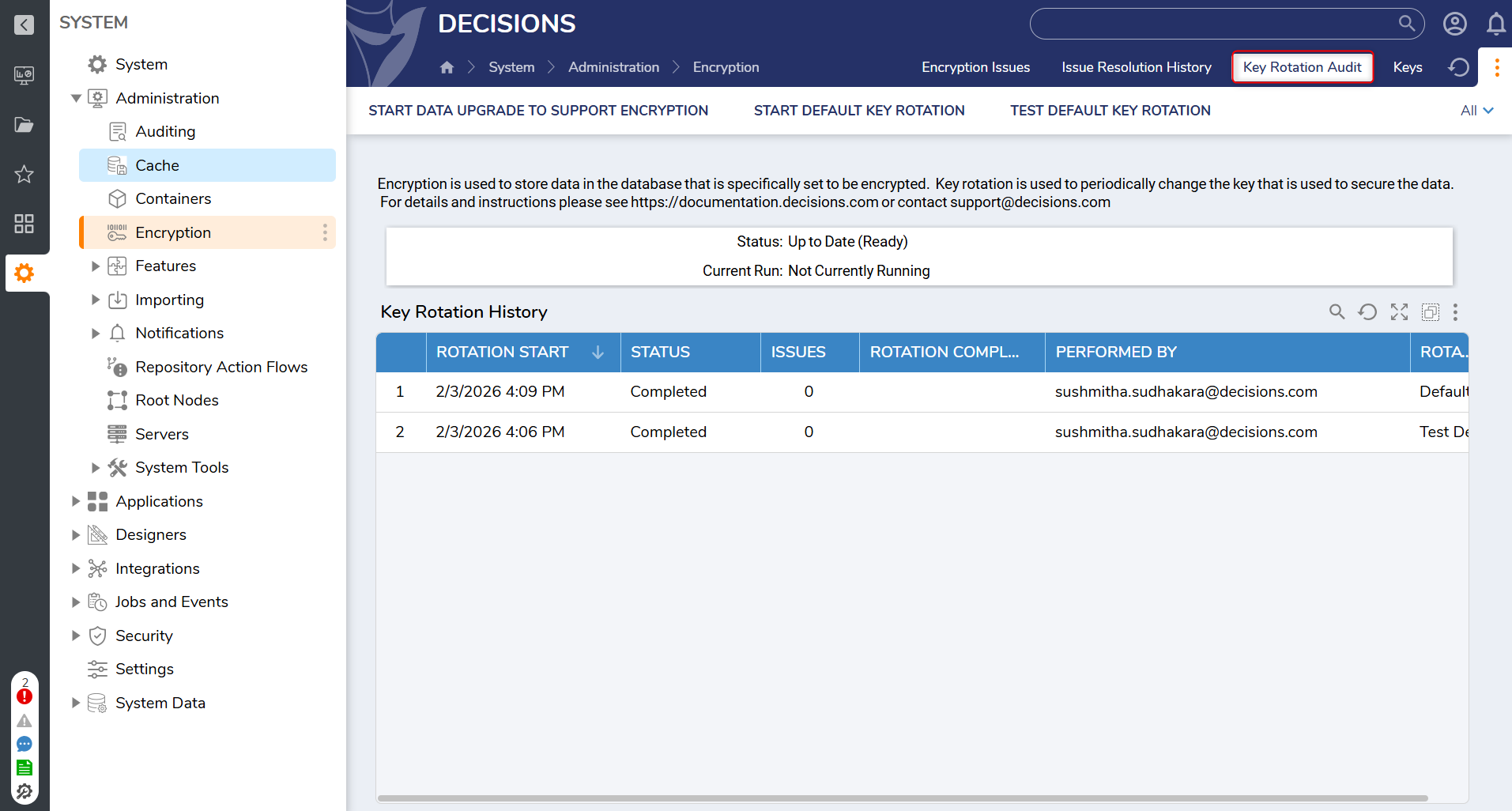 |
| Keys | A Report that displays the list of active encryption keys within Decisions | 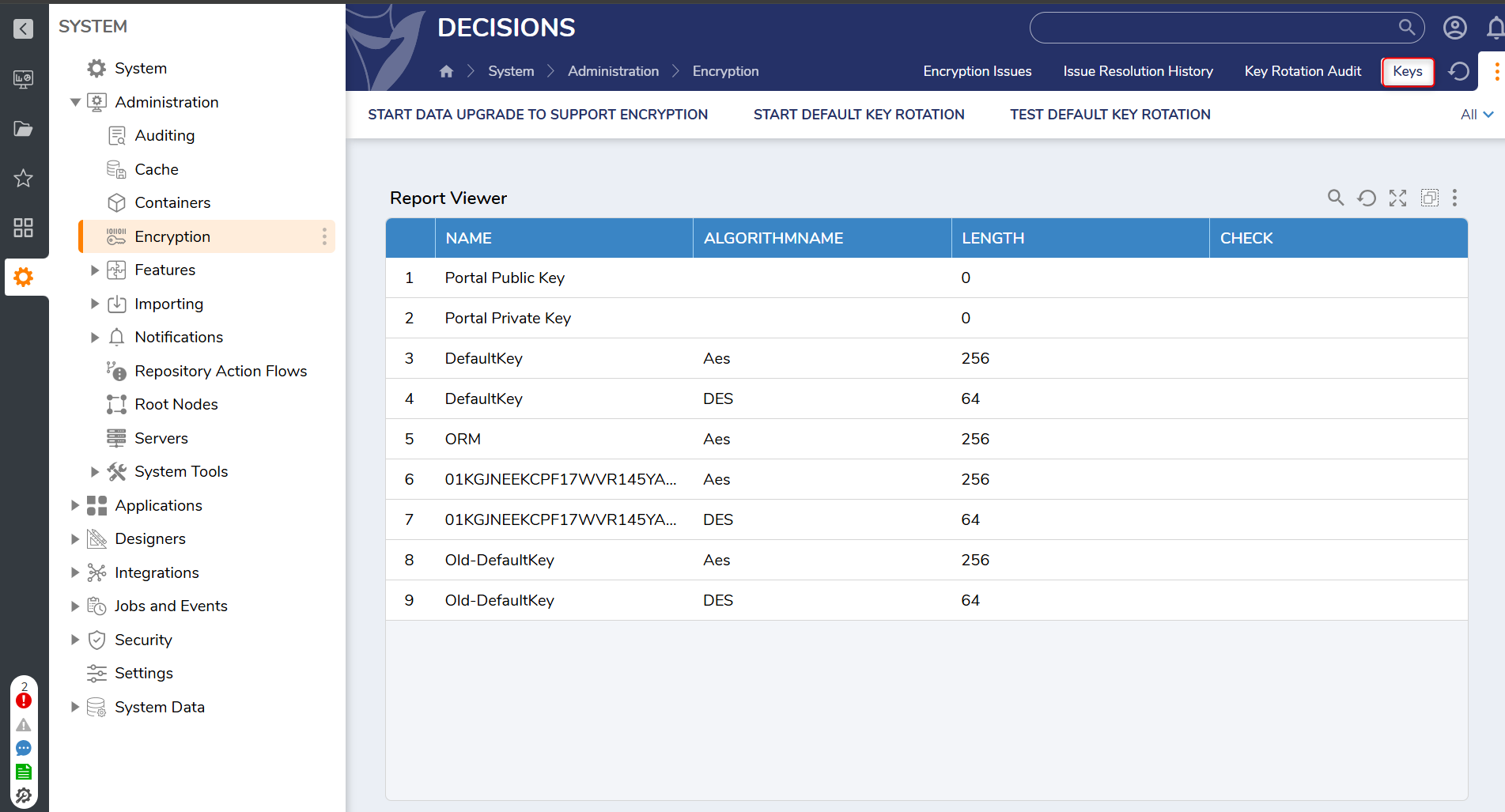 |
| Encryption Issues | A Report detailing a list of encryption issues that are preventing encryption keys from being rotated. Use this report to identify the failing item and remediate it (for example, re-save an invalid encrypted connection/configuration), then re-run Test Default Key Rotation. | 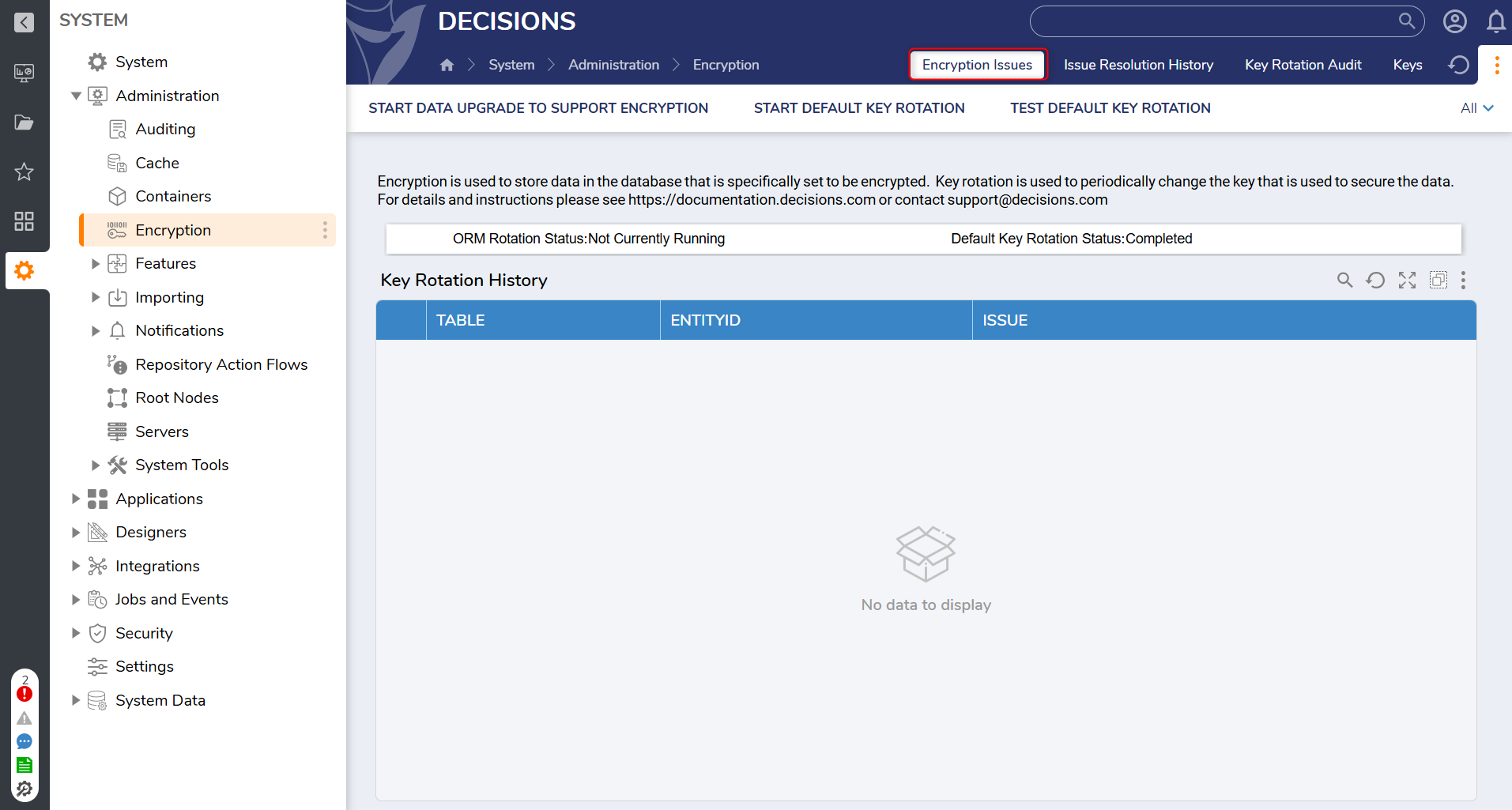 |
| Issue Resolution History | A Report detailing what actions were taken to resolve issues that had appeared when attempting to encrypt keys for the environment. | 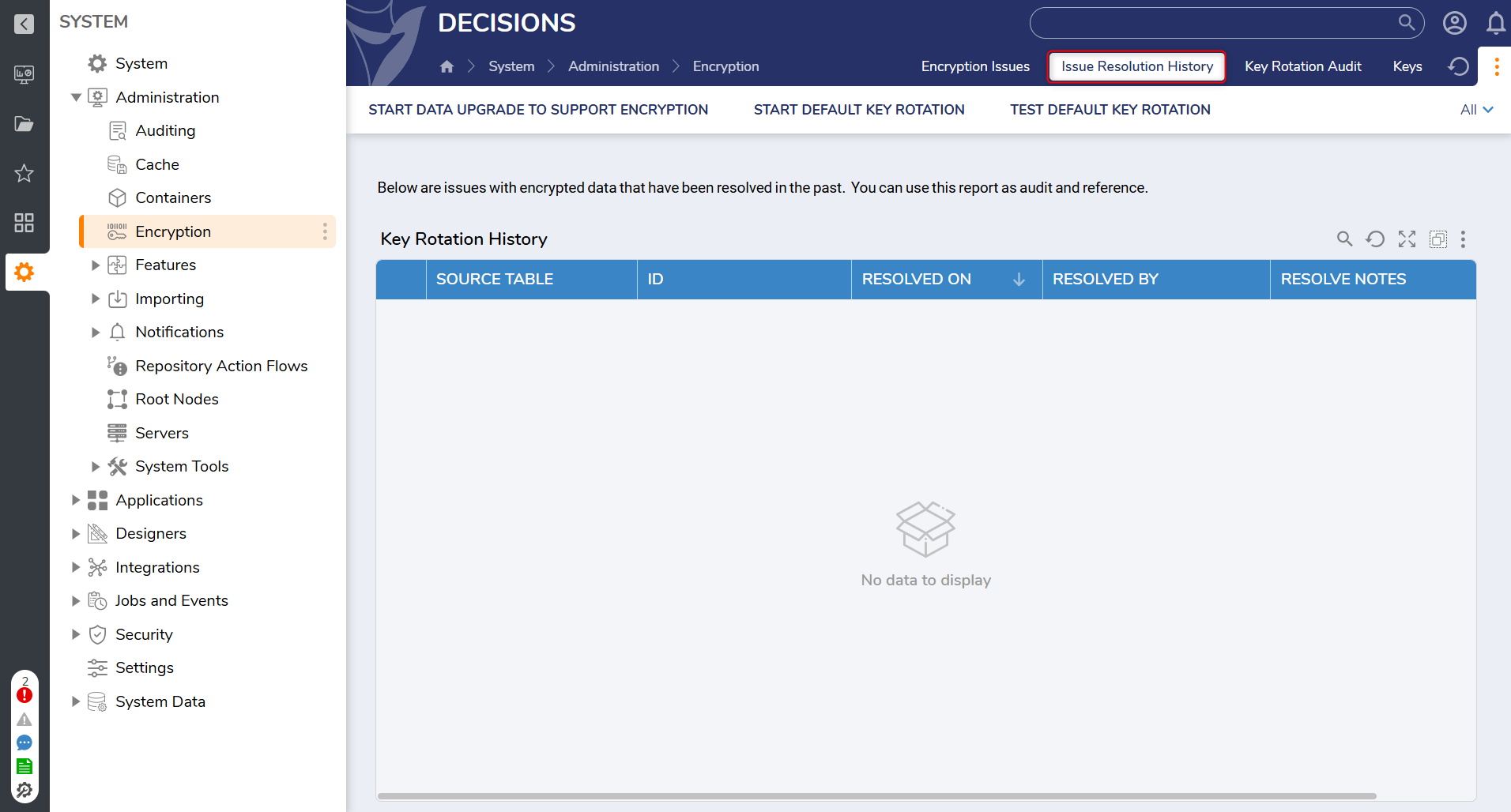 |
Status
The following section lists common status messages for the encryption process.
| Status | Description |
|---|---|
| Key Rotation is Available | This status means that key rotation is available and can be run. We recommend that this be done during a maintenance window. |
| Rotation Not Available: Encryption Issues Exist | There are issues with encrypted data, or a previous key rotation appears to be in progress. This will prevent the encryption keys from being rotated until all issues are resolved. |
| Complete | The encryption key has been successfully rotated. No further actions are necessary. |
Types of Key Rotation
Users in v9.5 and higher have access to two kinds of key rotation: ORM and Default.
ORM rotation applies to keys tied to Data Structures.
Default rotation is for any keys that are associated with system-wide data, such as connection strings, SMTP settings, or passwords.
After performing a Default Key Rotation, a pop-up message will appear, indicating that the Decisions service must be restarted to clear the cache. Restarting the service is recommended after key rotation to avoid potential issues.
Feature Changes
| Description | Version | Release Date | Developer Task |
|---|---|---|---|
| Added Default Key Rotation | 9.5 | November 2024 | [DT-042772] |
| After performing a Default Key Rotation, a pop-up message appears indicating that the Decisions service needs to be restarted to clear the cache. | 9.14 | August 2025 | [DT-044689] |