| Feature Details | |
| Introduced in Version | -- |
| Modified in Version | 8.11 |
| Modification Detail | Some service names have been changed |
Overview
Decisions Cores Services allow Users to utilize Folder actions via API. The purpose of this capability is to allow Decisions to integrate with other systems.
By default, more than 151 Decisions Core Services are available out of the box. However, Users may expand upon these by adding their own Custom Services. The following document covers the most commonly used Decisions Core Services and how to view those Services' Integration Details.
Most Commonly Used Services
| Decisions Core Service Name | Function | Use Case |
|---|---|---|
| Account Service | The Account service contains methods that interact with the entity_account table for adding, deleting, or modifying Decisions accounts. | Setting up Single-Sign On Configuration |
| Assignment | The Assignment service contains methods for manipulating the entity_assignment table. | Remove Assignments that caused an exception during Flow testing |
| Comment | The Comment service is used for manipulating Comments on a Folder by editing the entity_comment table. | Used to gather an audit trail from a process for creating System Comments |
| DocumentService | This method manipulates documents in Decisions. | Used for Document retrieval and storage in and out of Decisions |
| FileReferenceService | This method manipulates File References in the file_reference_entity. | Used to manipulate large files on the app server with more efficiency |
| FolderService | This service is used to create, modify, or delete folders in the entity_folder table. | Designer Project Folder scaffolding |
| GroupService | This service contains methods that interact with the entity_group table for adding, deleting, or modifying Decisions groups. | Create, Edit, or Delete groups |
| ImageService | Contains methods that are used to manipulate the image_folder_extension_data. | Used to store images |
| ImportExportService | Contains methods for utilizing Decisions Import or Export Service. | Can be used for automation of Project associations |
Integration Details
These Services can be found by navigating to System > Administration > Features > Decisions.Core.
To access any integration details, right-click on the Service and select View Integration Details.
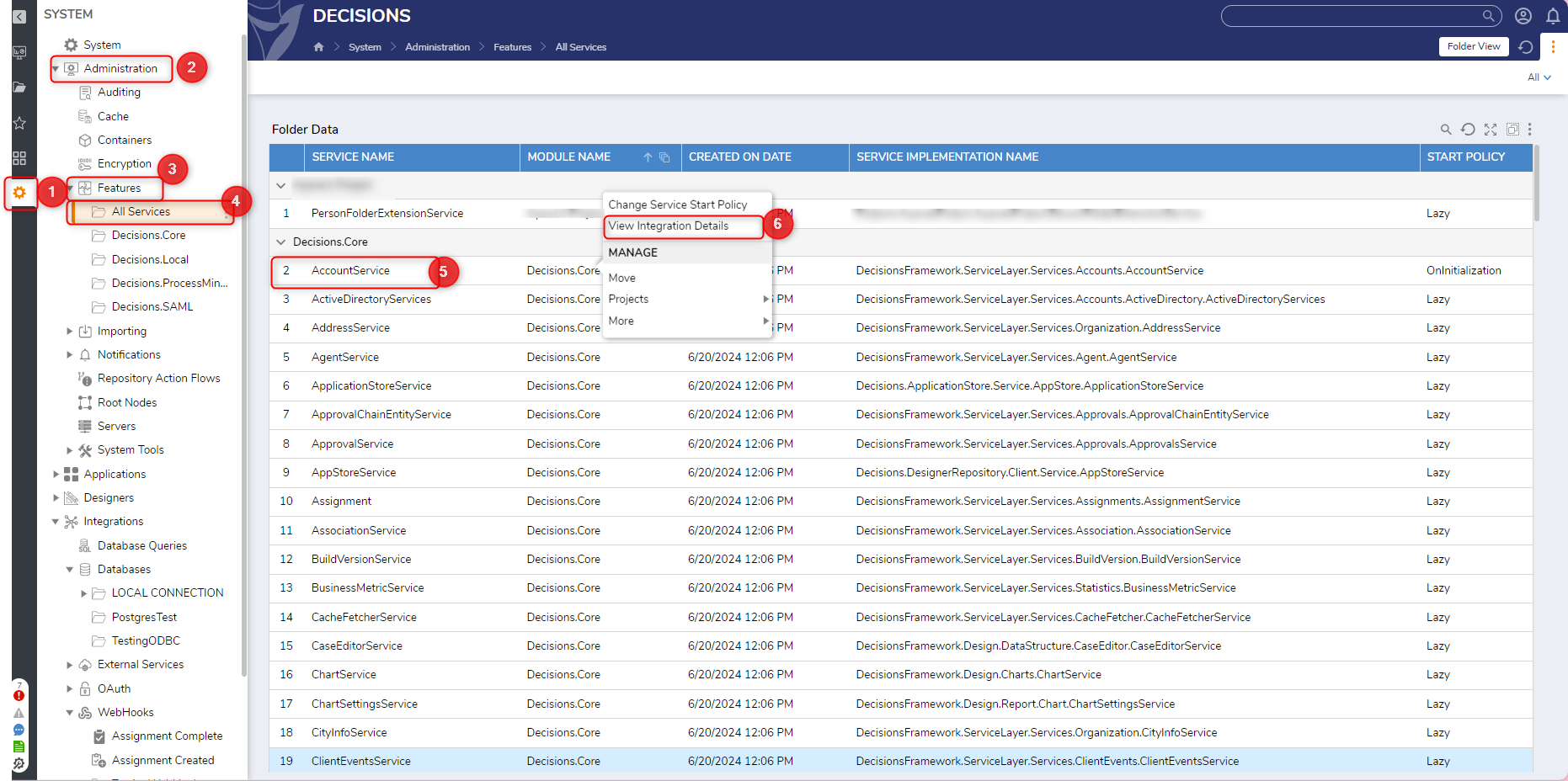
View Integration Details will open the Service call information in a new tab and show all the available methods that can be called. 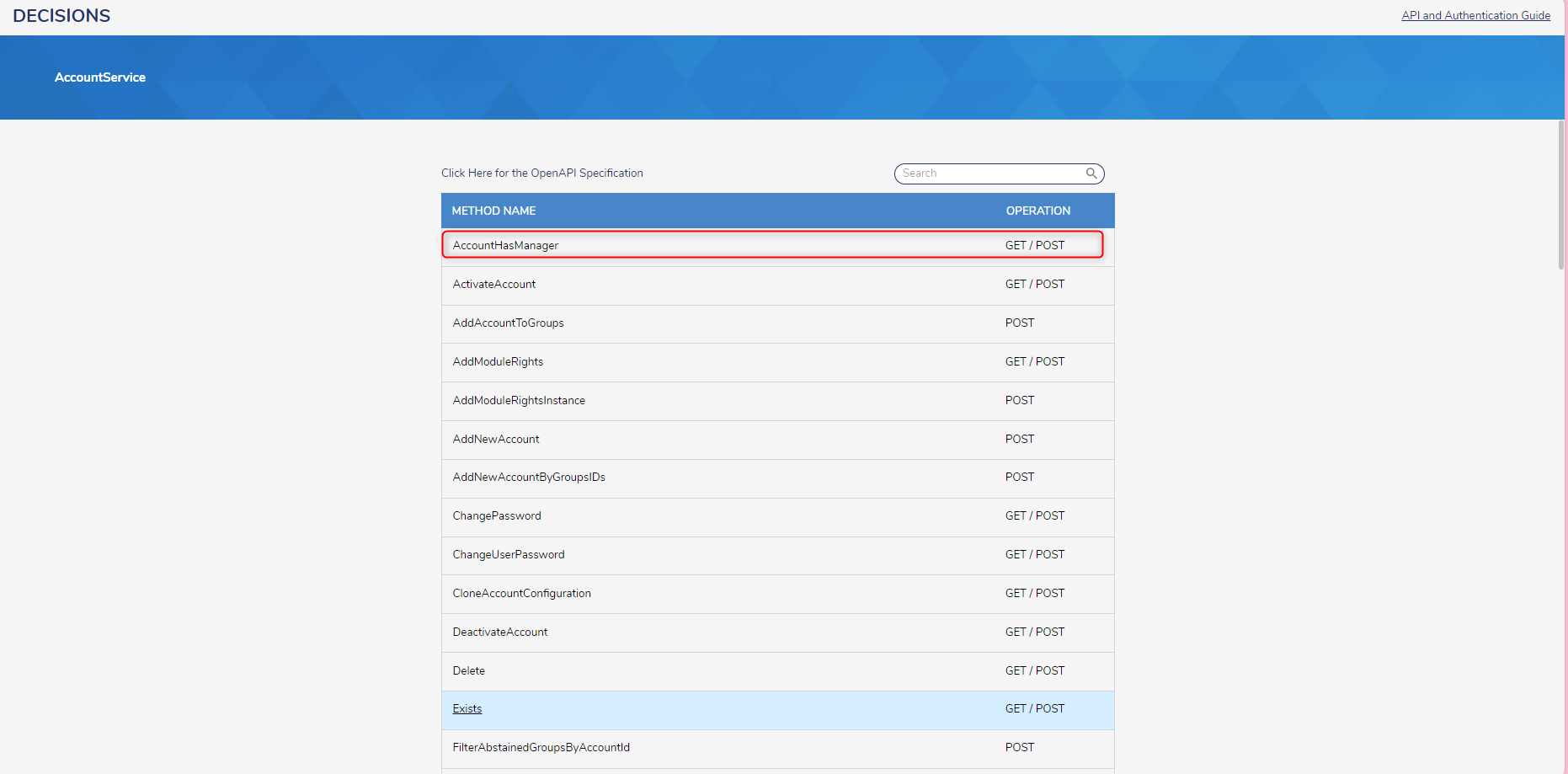
Any of these methods can be clicked to view an example of their expected Inputs and outputs. 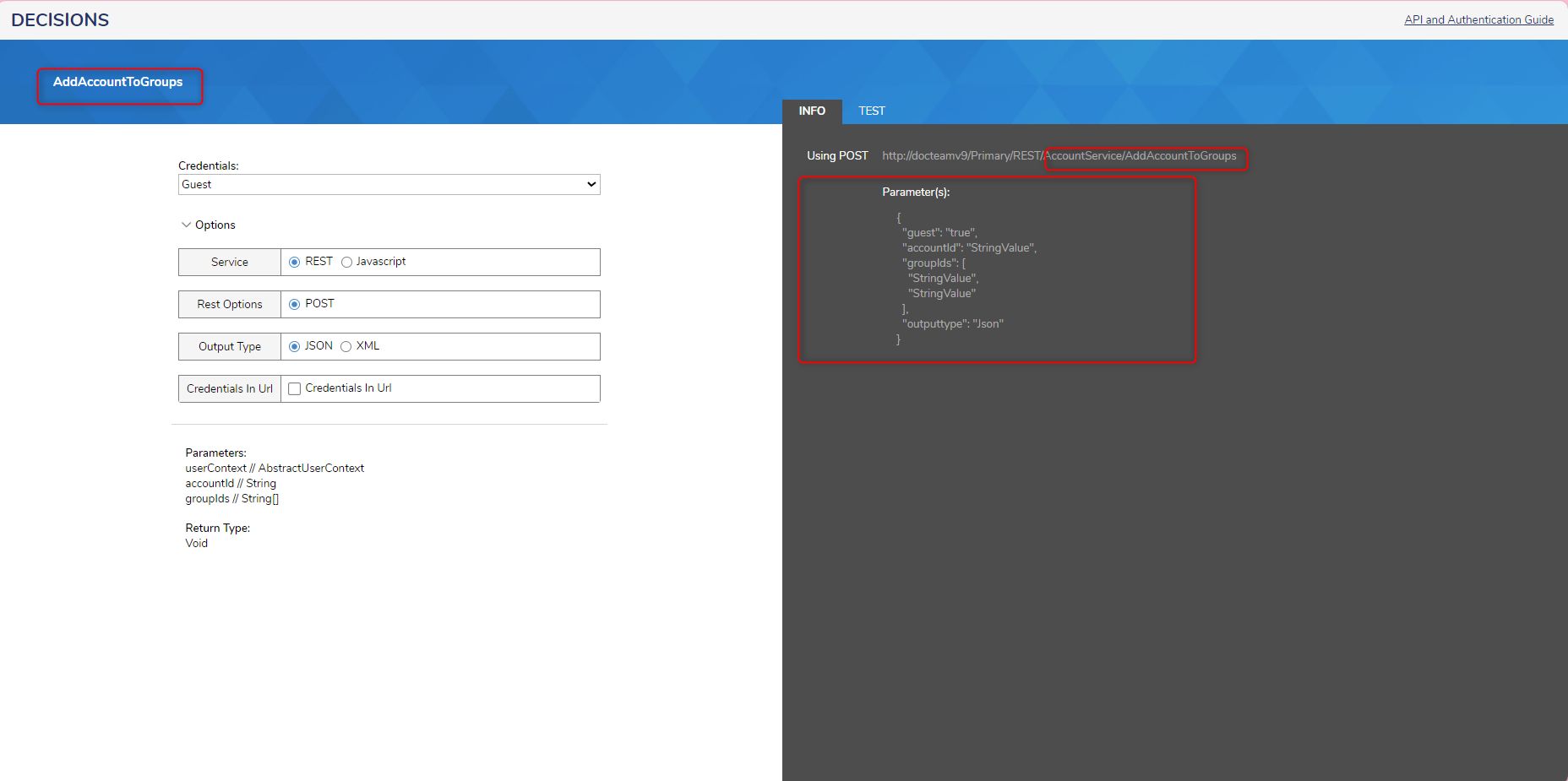

Example: Calling AccountService Methods
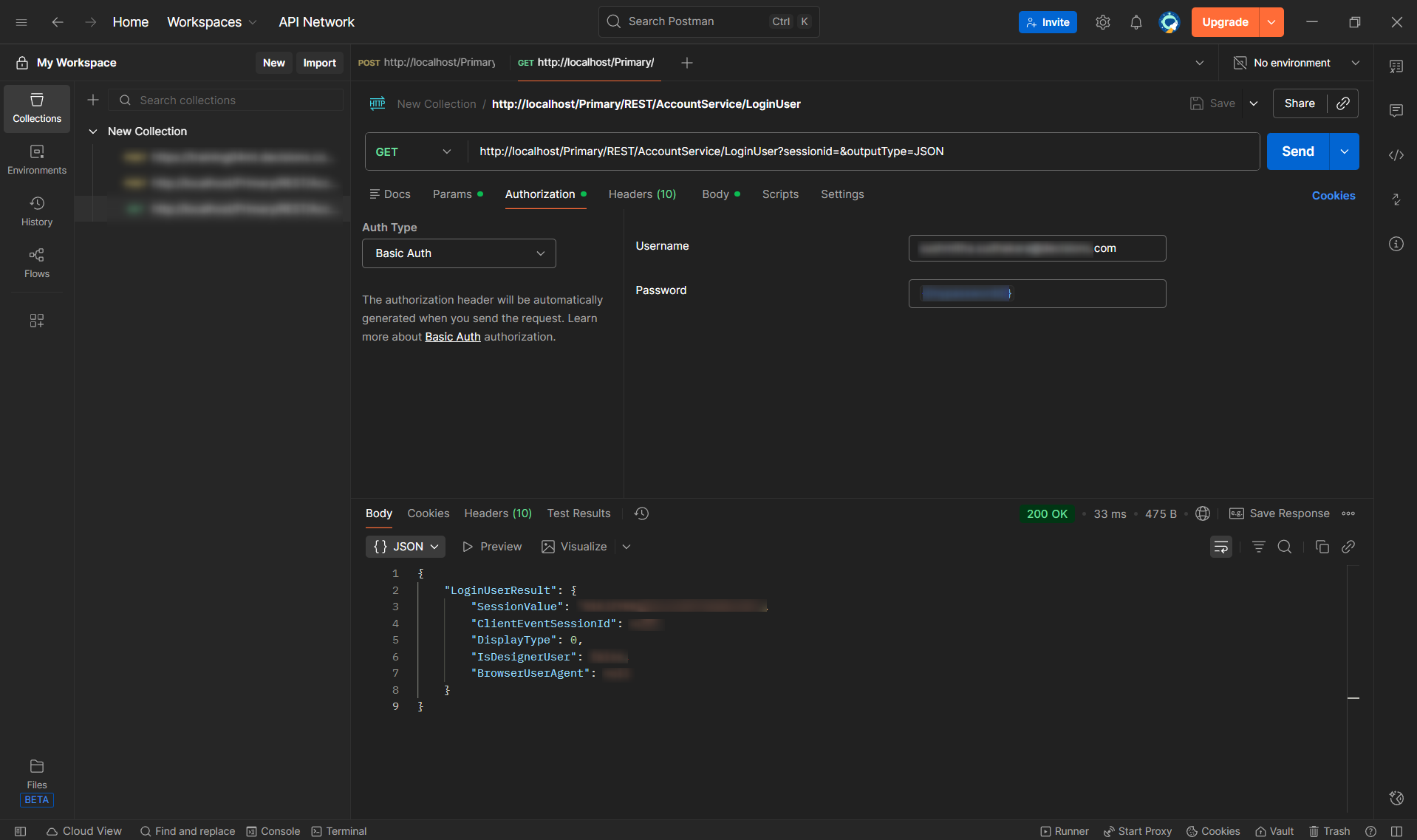
This section demonstrates calling an AccountService method using Postman. The example uses a session-based workflow: LoginUser returns a SessionID, which is then used to call AddAccountToGroups.
Prerequisites
- A Decisions User account that is authorized to manage accounts and group membership.
- Values required by the selected method (for example, accountId and one or more groupIds).
- Request URL and example body captured from View Integration Details.
Step 1: Call LoginUser to obtain a SessionID
- Create a GET request in Postman using the request details shown for AccountService/LoginUser.
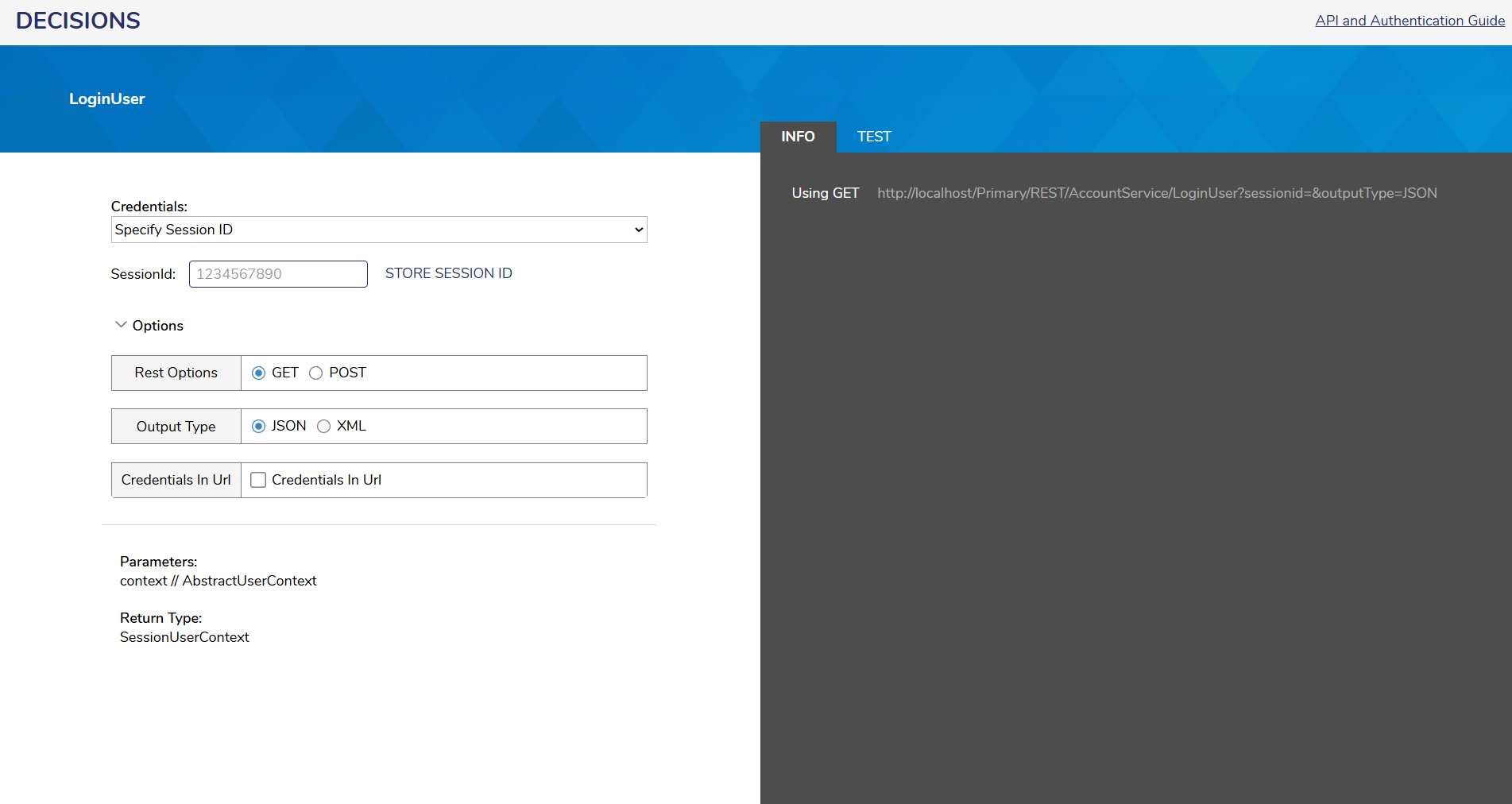
- In Postman, configure authentication (for example, Basic Authorization for the login call).
- Send the request and copy the SessionID from the response.
Step 2: Call AddAccountToGroups using the SessionID
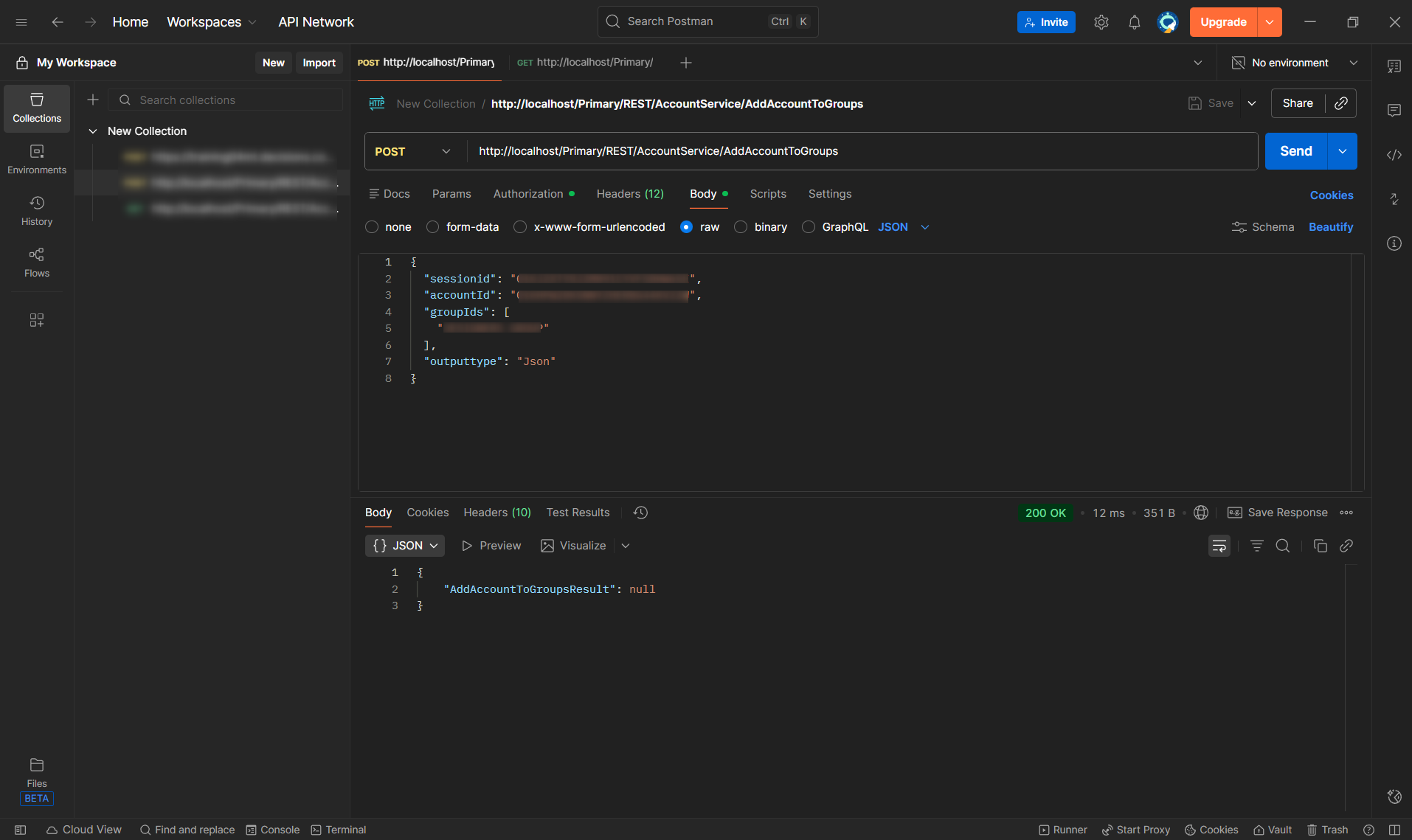
- Create a POST request using the URL from Integration Details: http://localhost/Primary/REST/AccountService/AddAccountToGroups
- In Postman, add the following headers:
- Content-Type: application/json
- Authorization: SessionID [SessionID from Step 1]
- In Body > raw > JSON, paste the example body from Integration Details and replace values as needed:
Step 3: Verify the result
The AddAccountToGroups method returns Void. A successful call typically returns a success status code (for example, 200 or 204). If verification is required, confirm the account’s group membership in Decisions before and after the API call.
Verification (Before and After)
Before: Account group membership before calling AddAccountToGroups.
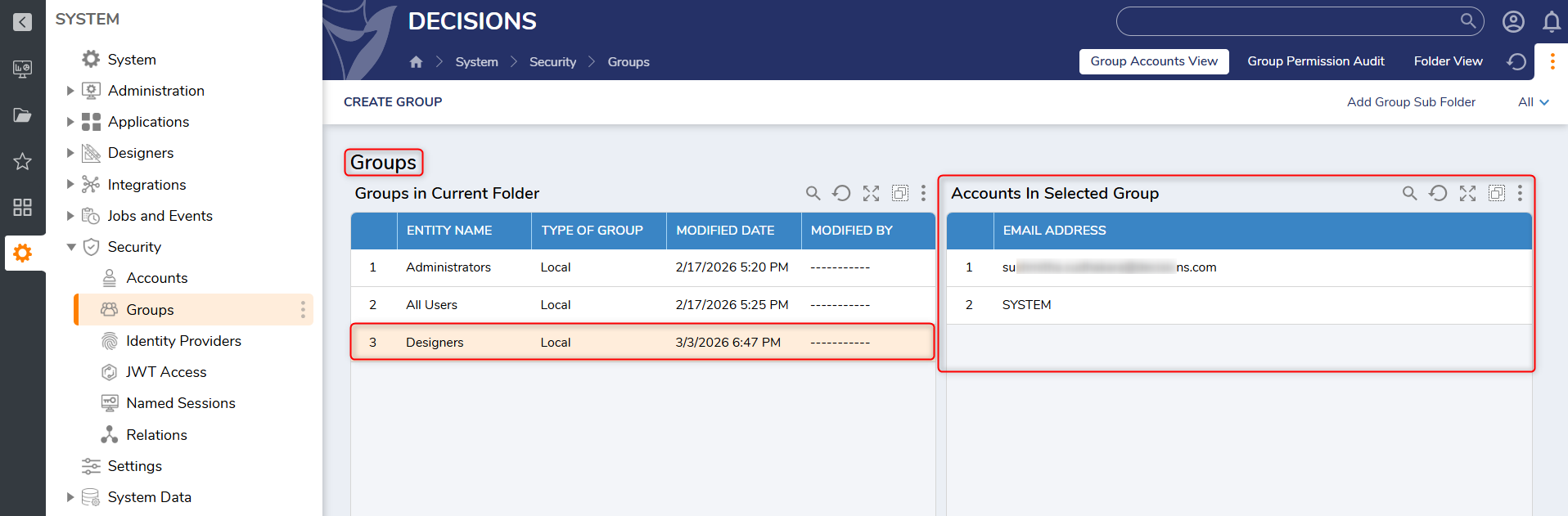 Account group membership before the AddAccountToGroups call
 After: Account group membership after calling the AddAccountToGroups.
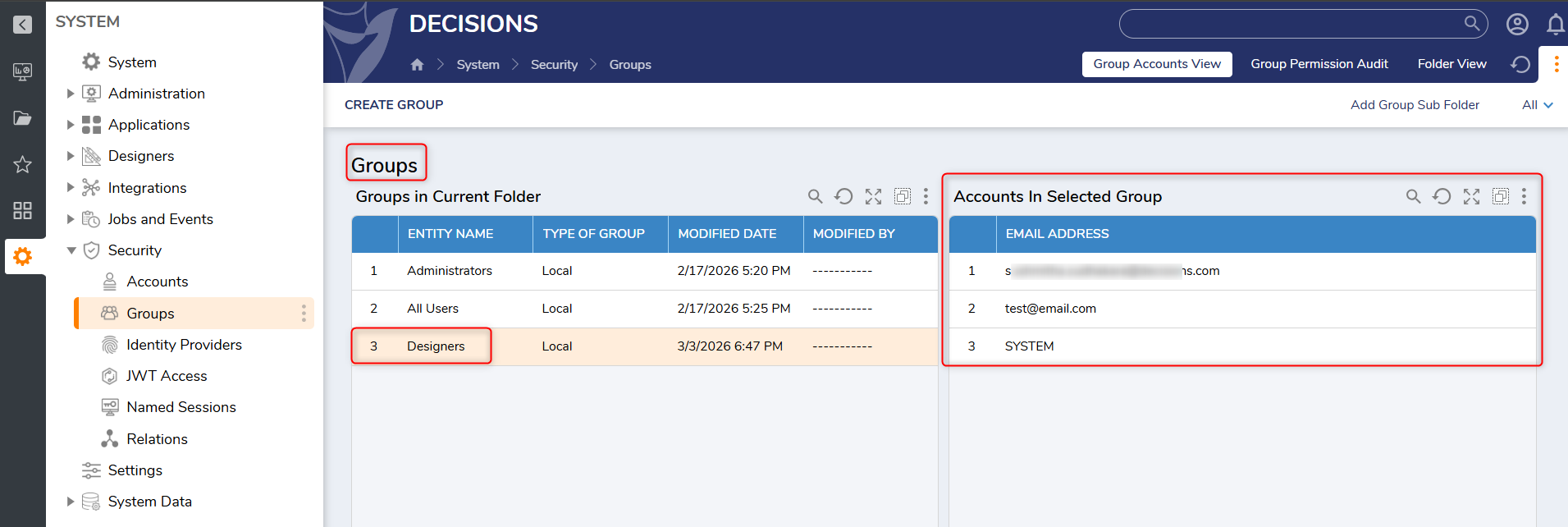 Account group membership after the AddAccountToGroups call
Applying the same pattern to other Core Services
After the request format and authentication approach are confirmed, repeat the same workflow for other Core Services by capturing the request URL, request type, headers, and example body from View Integration Details.
OpenAPI Specification (API Docs) for Core Services
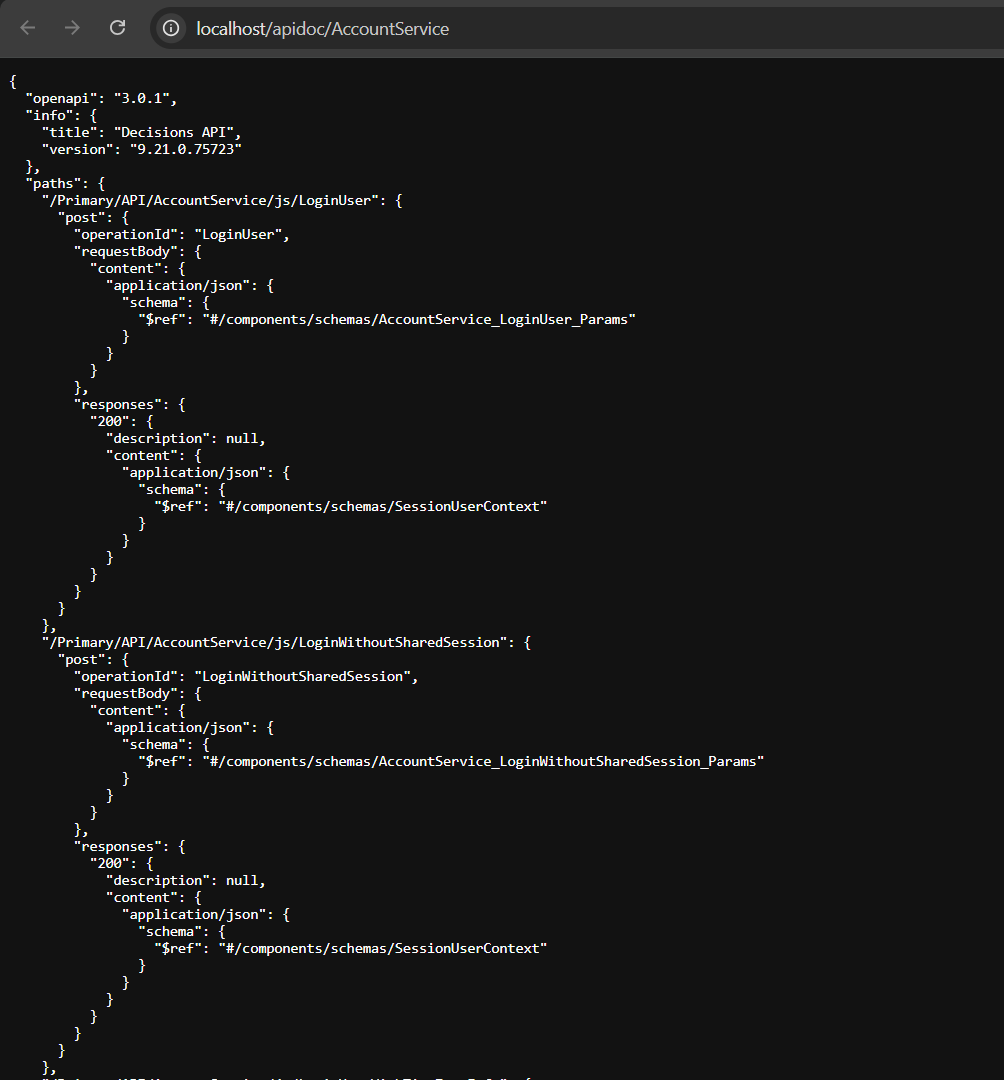
The View Integration Details page provides request details on a per-method basis. For integrations that require multiple endpoints from the same service, the OpenAPI specification link at the top of the page can be used to view the entire service definition (all methods) in a single document. This OpenAPI definition can then be imported into tools such as Postman to generate the full set of requests without manually configuring each endpoint.
Step 1: Enable OpenAPI documentation access (settings.xml)
Set AllowApiDocAccess to true in settings.xml and restart the application service.
<AllowApiDocAccess>true</AllowApiDocAccess>Step 2: Open the OpenAPI specification for a Core Service
- Navigate to System > Administration > Features > Decisions.Core.
- Right-click a service (for example, AccountService) and select View Integration Details.
- At the top of the Integration Details page, select the OpenAPI specification link.
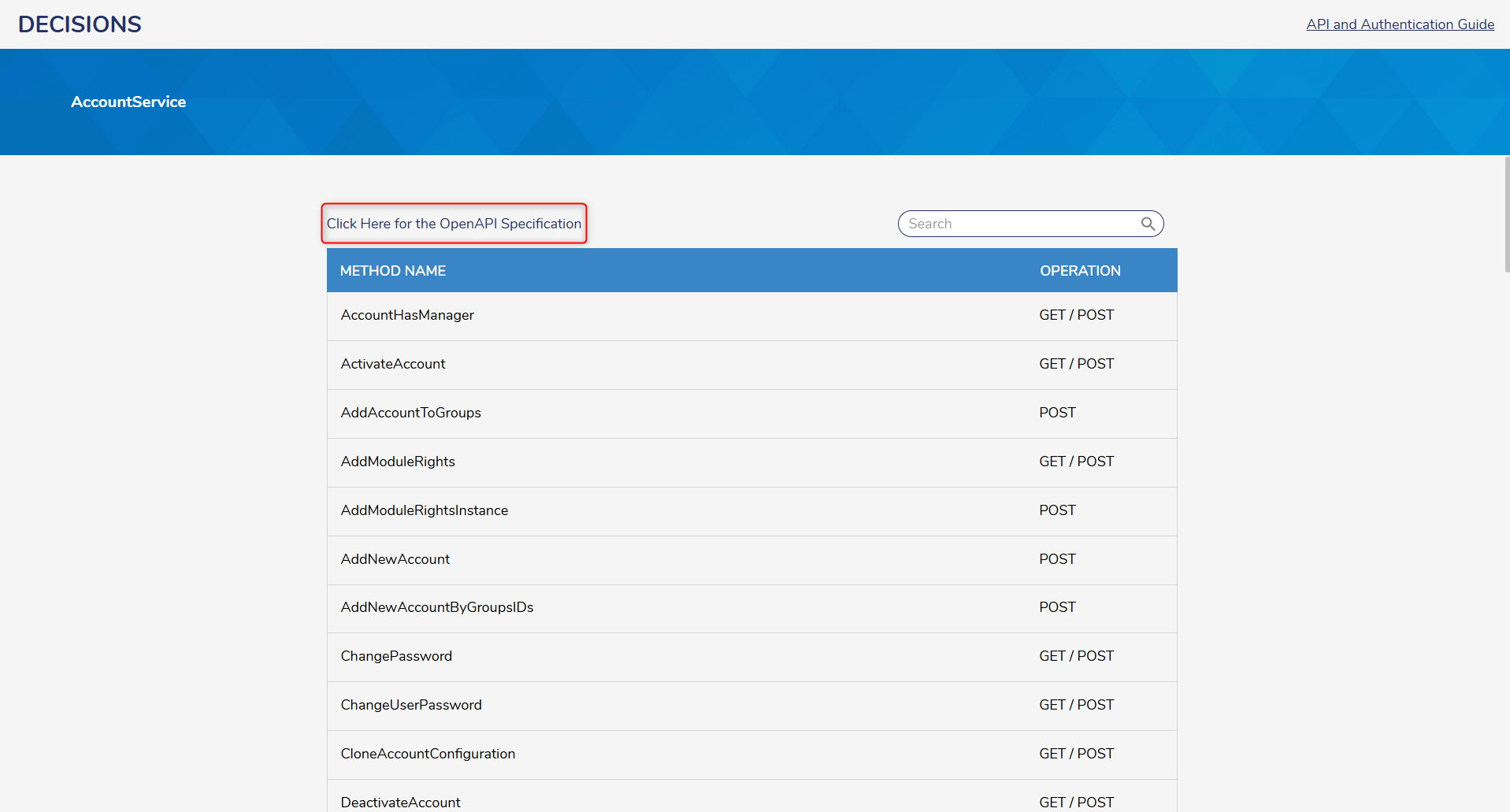
- Confirm the OpenAPI page lists all methods for the selected service in a single specification.
Step 3: Import the service into Postman
- Copy the OpenAPI specification URL from the browser (for example: http://localhost/apidoc/AccountService).
- In Postman, select Import.
- Use the import option for an OpenAPI definition (by link/URL or file, depending on the environment).
- Complete the import to generate a collection containing all endpoints for the service.