The way a Flow behaves is based on the defined Properties found in the Flow Designer Properties tab. This article discusses the settings available in the Properties tab. 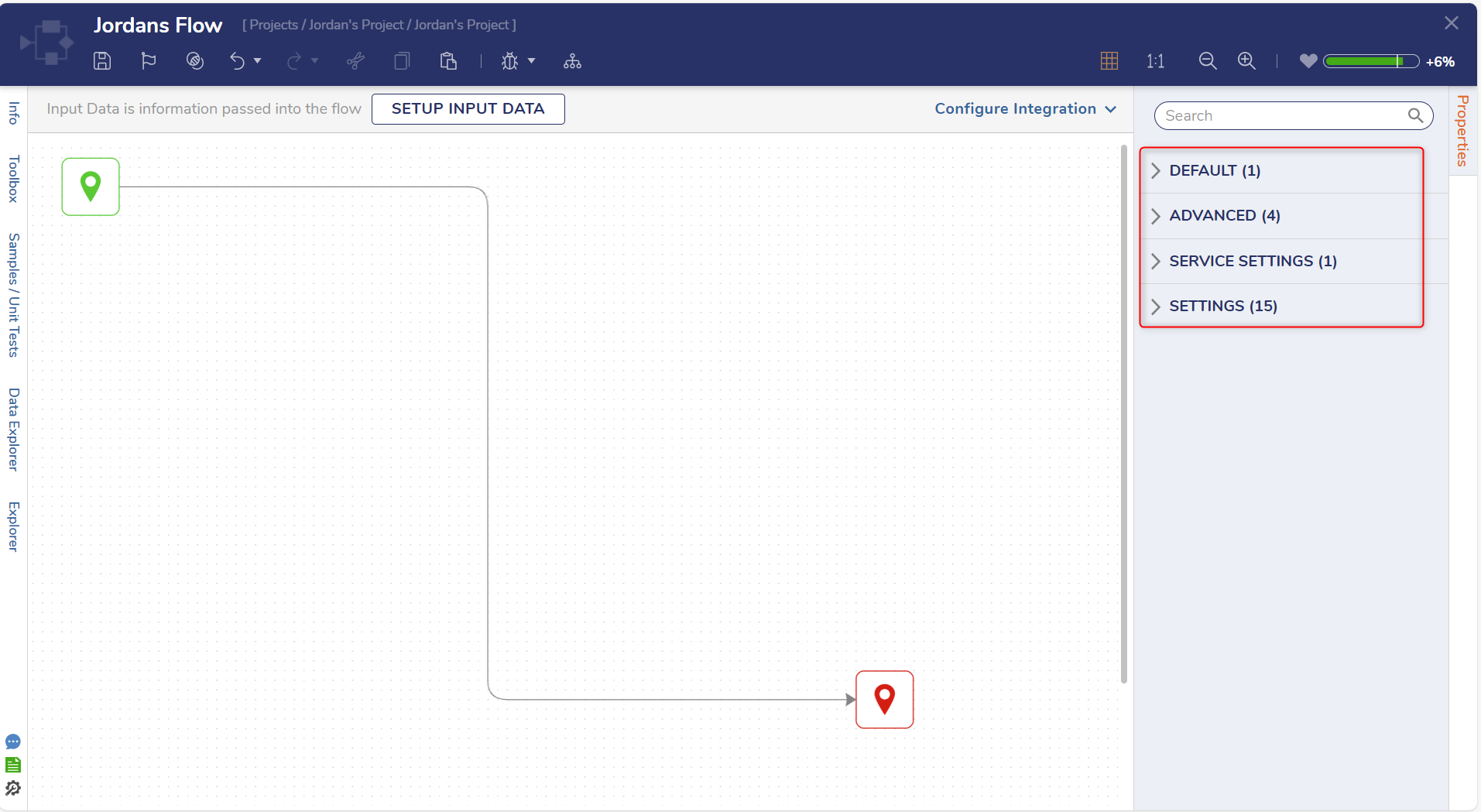
Default
Existing Flow Input Data is displayed in this section; Input Data may also be added here.
Advanced
| Advanced Setting | Description | |||
|---|---|---|---|---|
| Colors | Customize the colors used in the Flow Designer for this specific Flow. | |||
| Designer Background | Changes the color of the workspace. | |||
| Links Color | Changes the color of the lines connecting steps. | |||
| Node Labels | Changes the font styling of steps. | |||
| Link Labels | Changes the font styling of labels of the lines connecting steps. | |||
| Shape Defaults | Changes the behavior of the lines connecting steps. | |||
| Link Line Type | Line Style - how the lines that connect Steps within the Flow look. | |||
| Default | Cornered style. | |||
| Direct | Makes lines sharper and more direct. | |||
| Cornered | Curved corner effect on lines. | |||
| Jump Lines | Applies a hill effect on lines that cross each other. | |||
| Avoid Nodes | Determines if paths in a Flow will route around Flow steps | |||
| Statistics | ||||
| Capture Statistics | Turns on Statistics | |||
| Category Name | Category Name for Statistics | |||
| Sub Category Name | Sub Category Name for Statistics | |||
| Swimlanes | ||||
| Swimlane Type | Applies Swimlanes to the workspace in a horizontal or vertical layout. | |||
Service Settings
Configure the Integration Type to be API Service, User Interface, Webhook, or None. Once a Type is selected, additional configuration options become available, along with a VIEW button that provides settings, displays call information and expected outputs, and tests the integration.
Settings
- In the Flow Designer, navigate to the Properties tab.
- Expand the Settings panel.
| Setting Name | Description | ||
|---|---|---|---|
| Behavior Type | The Behavior Type drop-down list sets the desired Flow Behavior. | ||
| Recursion Policy | |||
| Use Top Flow Settings | Uses the Parent Flow's Recursion Policy settings. | ||
| Use This Flow's Settings | Uses the current Flow's Recursion Policy settings. | ||
| Off | Turns off the Recursion Policy settings. | ||
| Stop Recursion At | The default Stop Recursion At setting is 20000, preventing a Flow from an infinite loop and overflow memory. This number should be increased if Users intend to process more than 20000 records. | ||
| Allow Flow Start Recursion | Allows Flow Starts to bypass the recursion limit. | ||
| File Storage Association Policy | Determines how a file is stored in a Flow. | ||
| Always | Files will be associated with the Flow and move to the Flow Data directory. Users should check this setting if the file must persist beyond the Flow's completion. | ||
| Never | Files in the Flow will not move to the Flow Data directory and will only remain in the temp directory. Users should check this setting if the file is only needed during the Flow. | ||
| Storage Policy | The Storage Policy defines how Flow Data is stored in the database when a Flow is abandoned. | ||
| Automatic | Flow Designer chooses between Journal and Snapshot. | ||
| Journal | Heavier processing but lighter on storage space in the database. | ||
| Snapshot | Lighter on processing but heavier on storage space in the database. | ||
| Clear Policy On Exception | When a Flow ends on an Exception, by default, it does not clear the Flow Data that may have been saved in the database. Override this via the Clear Policy On Exception setting. | ||
| Use Default | Uses the default set in System > Settings > Designer Studio Settings > Flow Designer. | ||
| Yes | Clears Policy on Exception. | ||
| No | Prevents Policy from clearing on Exception. | ||
| Rollback Enabled | Sets Rollback for Flow data based on the Clear Policy On Exception setting. | ||
| Keep Active Time Span | This setting determines how long a Flow remains in the 'running state' if it is stalled on a Sync step. Once it is no longer active, the Flow becomes abandoned. | ||
| Abandoned Storage Policy | Defines if Flow data should be saved or discarded if a Flow is abandoned. | ||
| Store Step Statistics | This setting determines whether Step data is stored in the database. | ||
| Sampling | Stores no more than ten records of Step data. | ||
| Always | Stores the Step data in the database. | ||
| Never | Step Statistics are not stored. | ||
| Enabled | These settings configure specific Enablement options for the Flow. | ||
| Enabled | By default, Flows are initially enabled. | ||
| Use Enabled Rules | Enables the Flow based on the evaluation of the Enabled Rule (must be configured). | ||
| Begin Date | Select a Start date for the Flow to be enabled. | ||
| End Date | Select an End date for the Flow to be disabled. | ||
| Flow Execution Messages | These settings configure specific Start and End behaviors for the Flow. | ||
| Flow Started UI Behavior | |||
| Default | Uses default Flow behavior. | ||
| Expect Form | Acts as if a Form is expected. | ||
| Show Message | Shows a Message in the Studio. | ||
| Show Notification | Shows a Notification in the Studio. | ||
| Run Silently | Runs without a Notification. | ||
| Flow Started UI Delay | Used to configure the duration before the Flow Started behavior happens. | ||
| Flow Started UI Message | A customizable message appears after the Flow starts (after the specified Delay). | ||
| Flow Ended UI Behavior | The behavior that should be used when the Flow has ended. | ||
| Flow Ended UI Message | A customizable message appears when the Flow has ended. | ||
| Triggers | Triggers are used with the Flow Step Trigger behavior, available in the Behavior Type drop-down list. | ||
| Before Trigger Type | Configures whether the before Trigger uses a Store or Run Flow function. | ||
| After Trigger Type | Configures whether the after Trigger uses a Store or Run Flow function. | ||
| Error Trigger Type | Configures whether the errorTrigger uses a Store or Run Flow function. | ||
For further information on Flows, visit the Decisions Forum.