Overview
File Transfer Protocol (FTP) is a method for transferring files across a network. While certain FTP servers allow an anonymous connection, the majority require a user name and password when connecting to the FTP server. Uploading a file in Decisions with FTP utilizes the Upload step shown in the example below.
Another method for transferring files across a network is the Secure File Transfer Protocol (SFTP). These servers are similarly configured to FTP servers by use of the Upload by SFTP step instead. A Flow uploads a file to an FTP or SFTP server by using the authentication information specified by the user.
Example (FTP)
In the following example, a Flow will be created to upload a file using FTP. The only prerequisite for this example is an FTP host.
Uploading via SFTP?
This example's configuration mirrors the process for SFTP except replace the Upload step with Upload by SFTP. A SFTP host must be used as well.
An SFTP or FTP host is a computer connected to the internet that hosts the files available for download via SFTP or FTP.
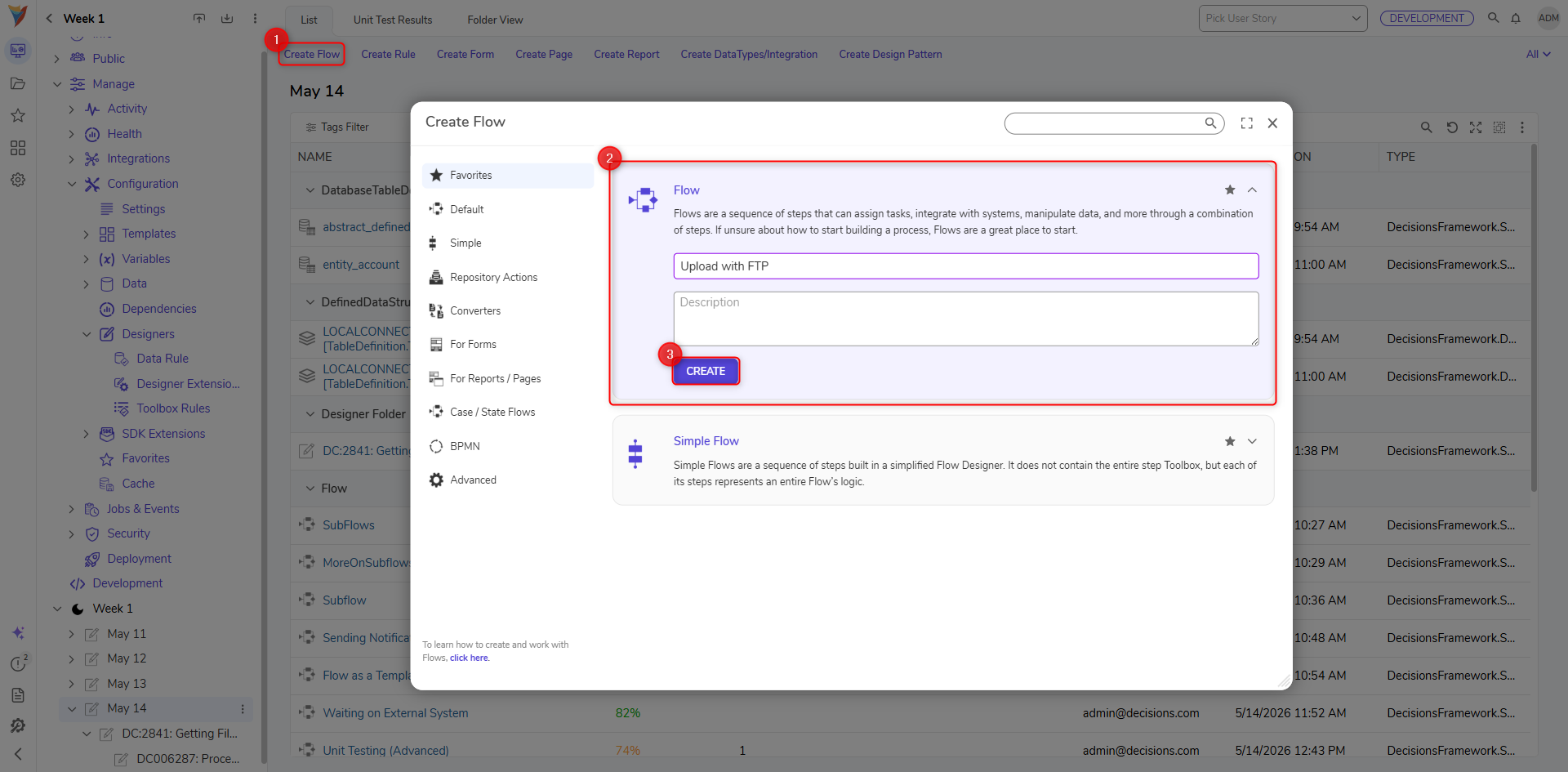
- To begin, navigate to a Designer Folder and select CREATE FLOW from the Global Action Bar.
- In the Create Flow dialog, select and name the default Flow [Upload with FTP]. Click CREATE to proceed to the Flow Designer.
- In the Flow Designer, from the Toolbox > INTEGRATION > FTP category, drag and connect an Upload step to the Start step and the End step.
- In the Properties panel > Server > Host value field, enter the name of the host of the FTP server.
- In the Authentication > Username and Password fields, add the username and password for the FTP account.
- Navigate further down in the Properties panel > INPUTS > File and change the input mapping from Unknown to Constant.
- In the resulting selector, upload the file to be transferred.
- Next, in the Upload to Path value field, provide a path for the uploaded file. Upload to Path DefinitionThe Upload to Path value must represent and be formatted as a valid path in the FTP Directory of the FTP Host, beginning with the primary Folder and ending with the File Name.
Define the file Path in the following format: /[Folder Name]/[Subfolder Name]/[File Name], for example: "/Projects/Project2/test.txt".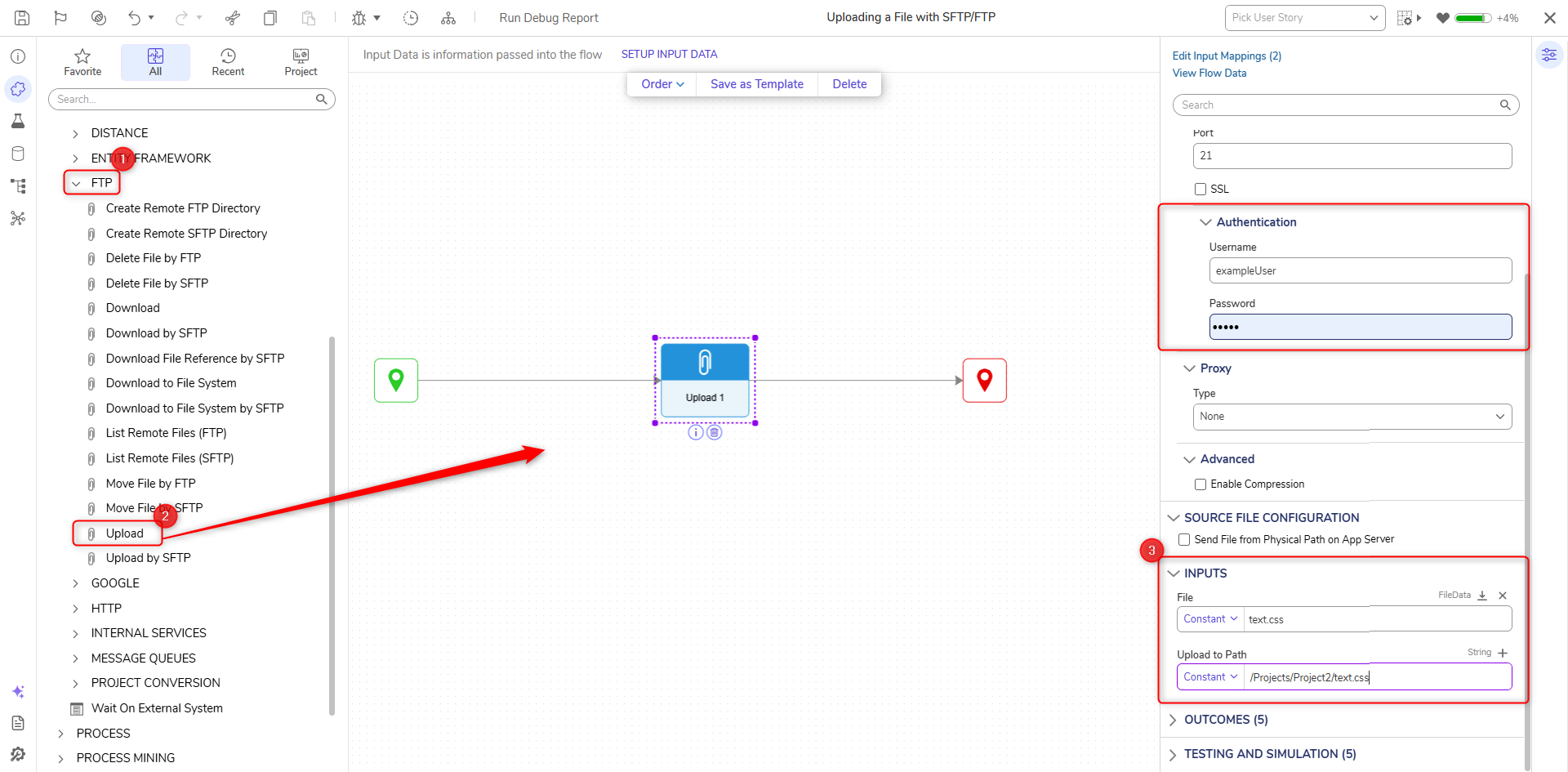
- Save and Debug the Flow.Upload Speed VarianceUpload speeds will vary by network traffic and transfer speed.