Overview
The Html to PDF step converts a text or HTML input file into PDF format. It is used with the Create File step to create the PDF file. One use case for this step may include converting a patient's old text formatted medical record into a PDF.
Example
The following example will demonstrate how to use a Custom Merge [NVelocity] step to define an HTML value that will be converted and sent to a Form for download.
- In a Designer Project, click CREATE FLOW to create a new Flow.
- From the Toolbox panel, navigate to DATA > TEXT, attach a Custom Merge [NVelocity] step to the Start step.
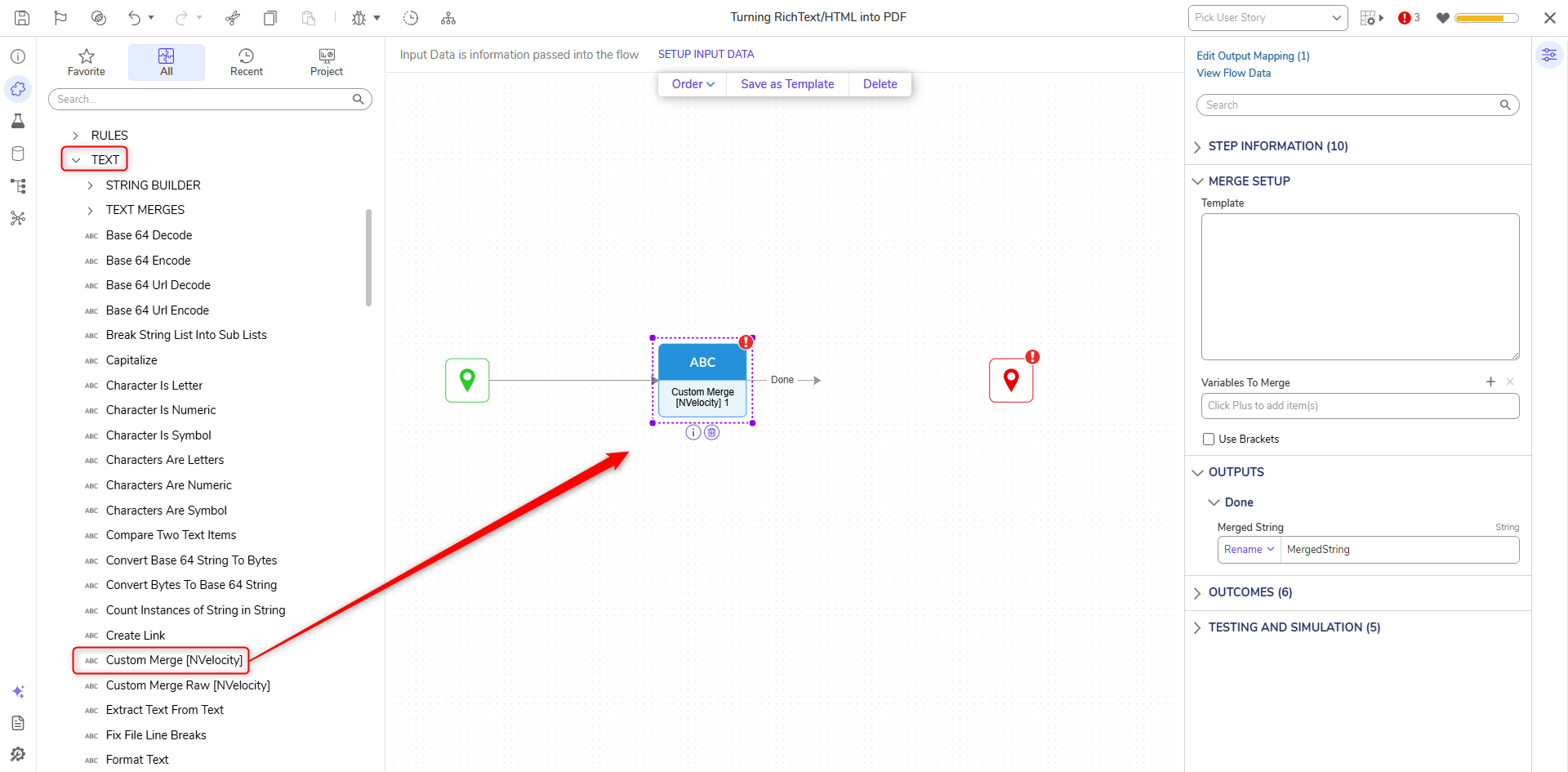
- From the Properties panel, paste the following HTML code into the Template field. About Custom MergeThe Custom Merge step is used to define the HTML. Since the step utilizes .NET scripting, it is important to declare the document as HTML via the <!DOCTYPE HTML> opening tag.
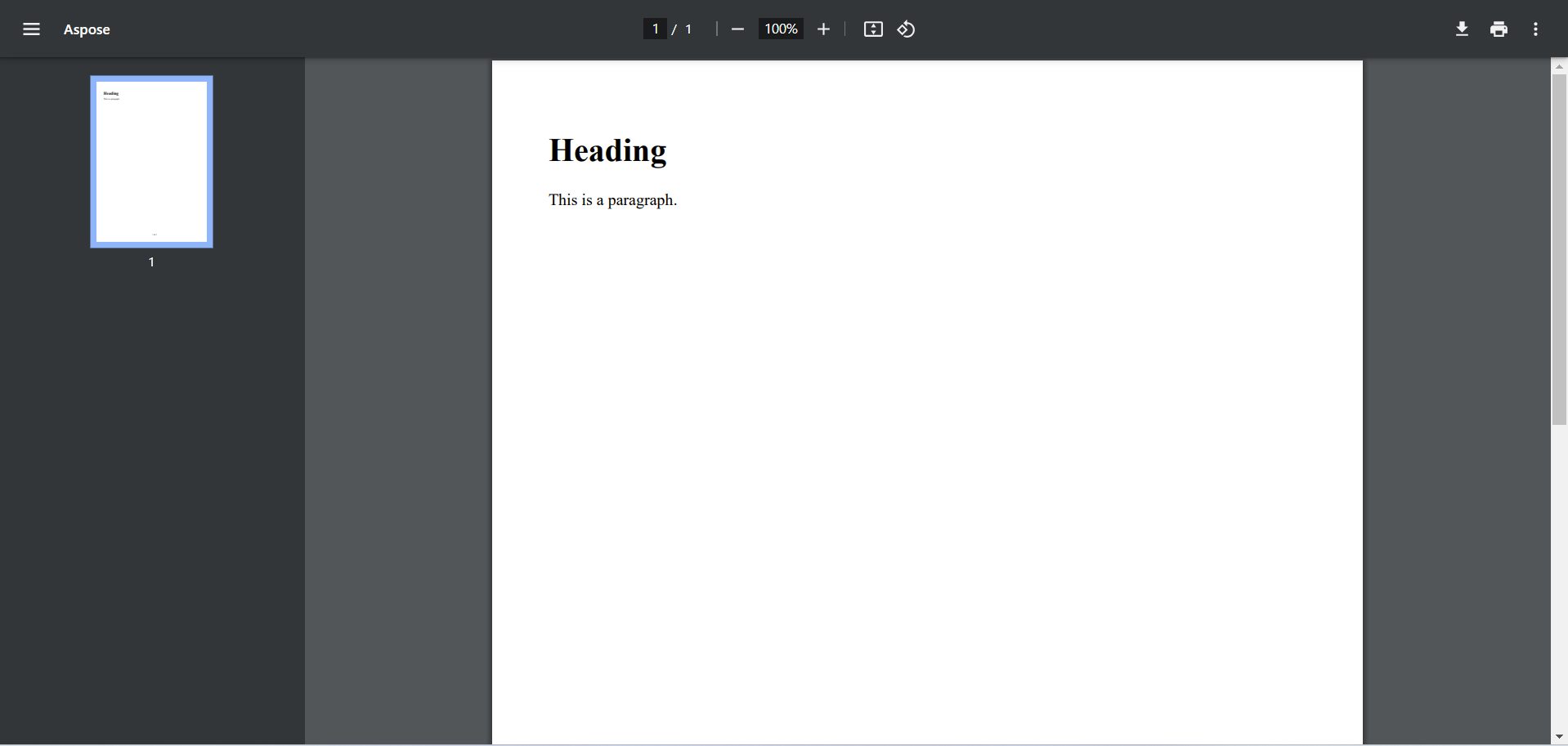
<!DOCTYPE html> <html> <body> <h1>Heading</h1> <p>This is a paragraph.</p> </body> </html> - From the Toolbox tab, under DATA > PDF, attach an Html to PDF step to the Done path of the Custom Merge step.
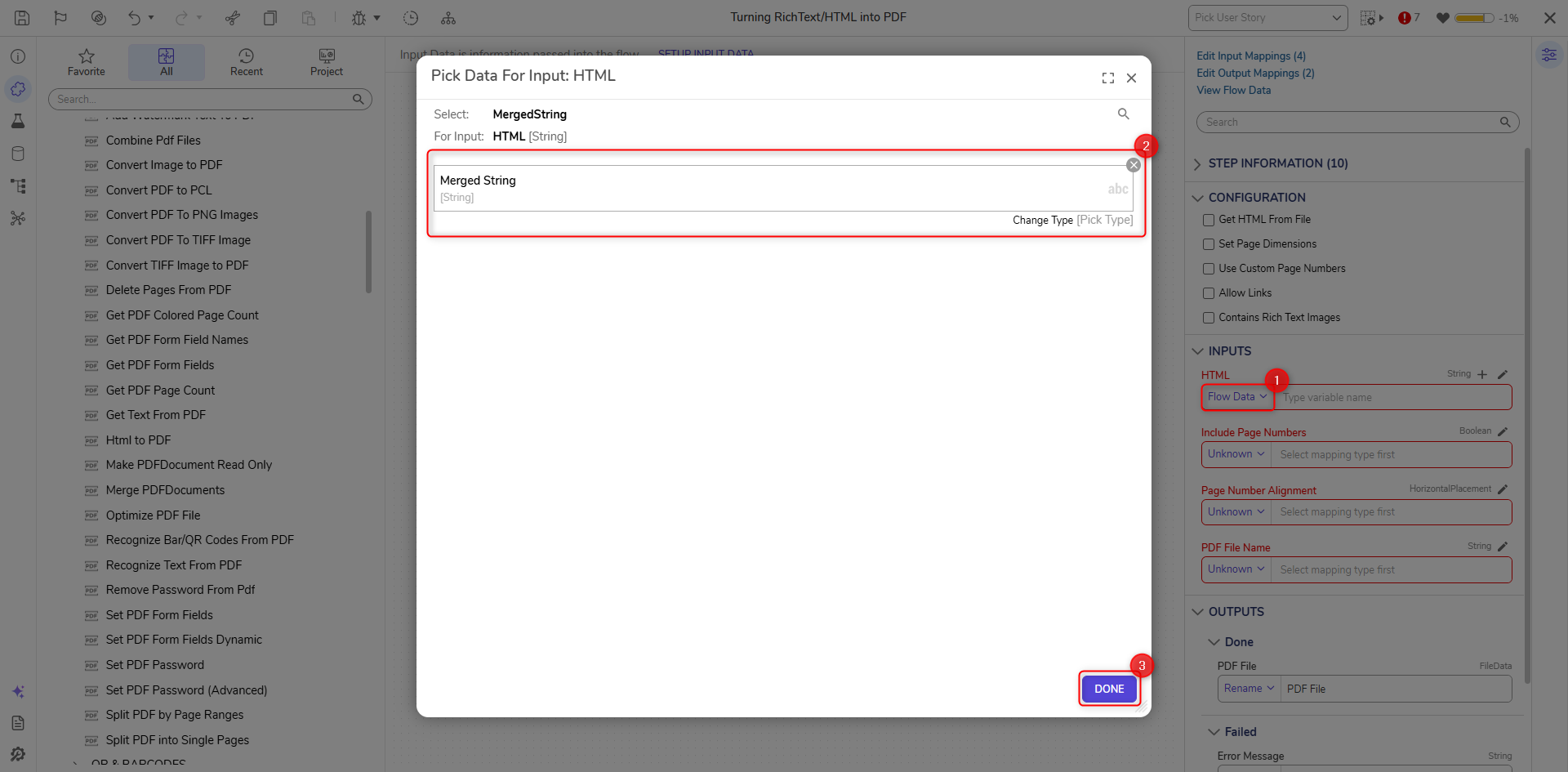
- On the Properties panel, click Unknown next to the HTML field and select Flow Data. Select MergedString and click DONE. To map an Html File directly, from the Properties tab check the CONFIGURATION > Get HTML From File boolean. Then map the desired file via the HTML File input.
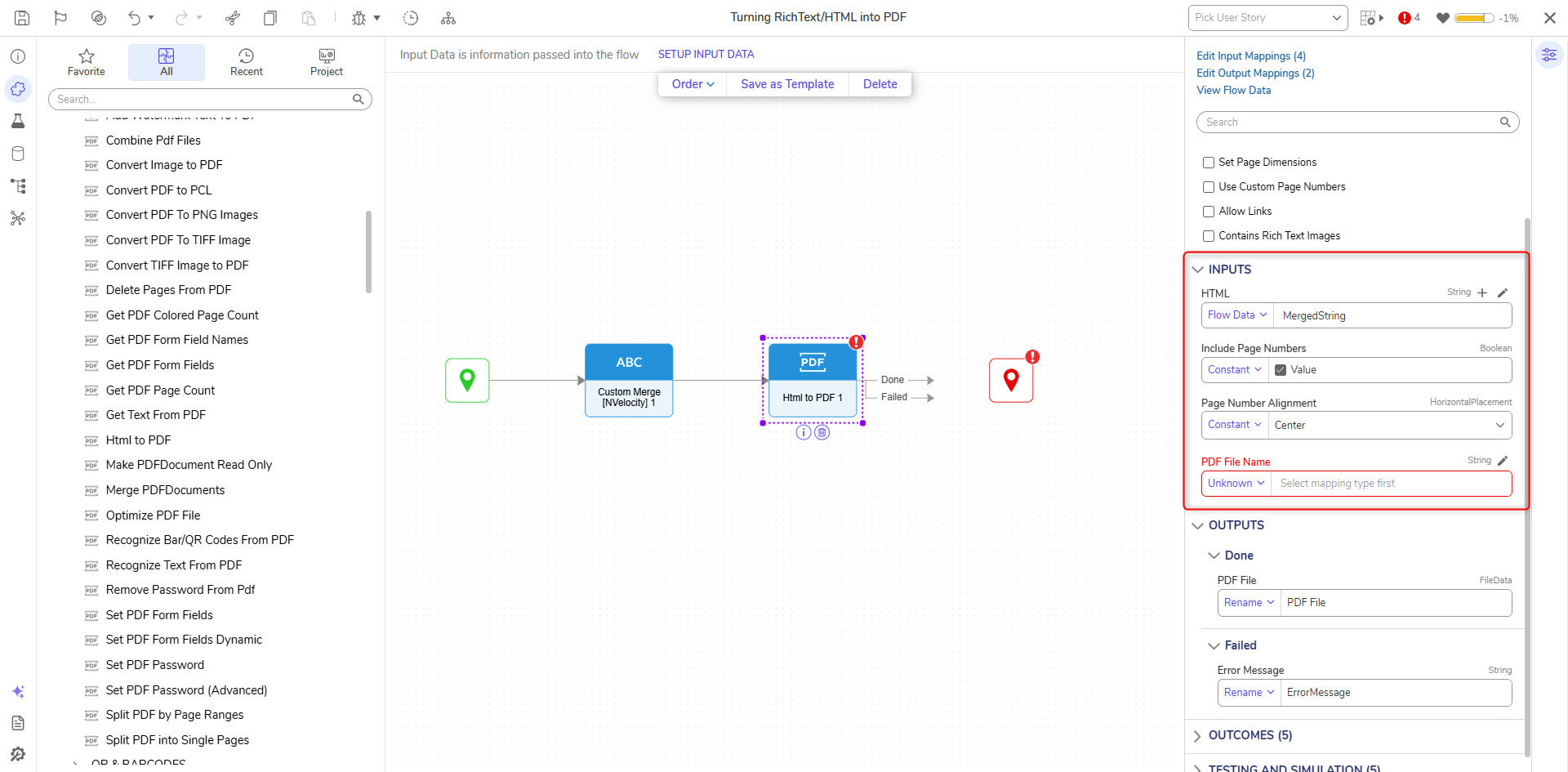
- Set the Include Page Numbers value field to Constant and set the value to true. Set the Page Number Alignment field to Constant and select Center from the dropdown menu.
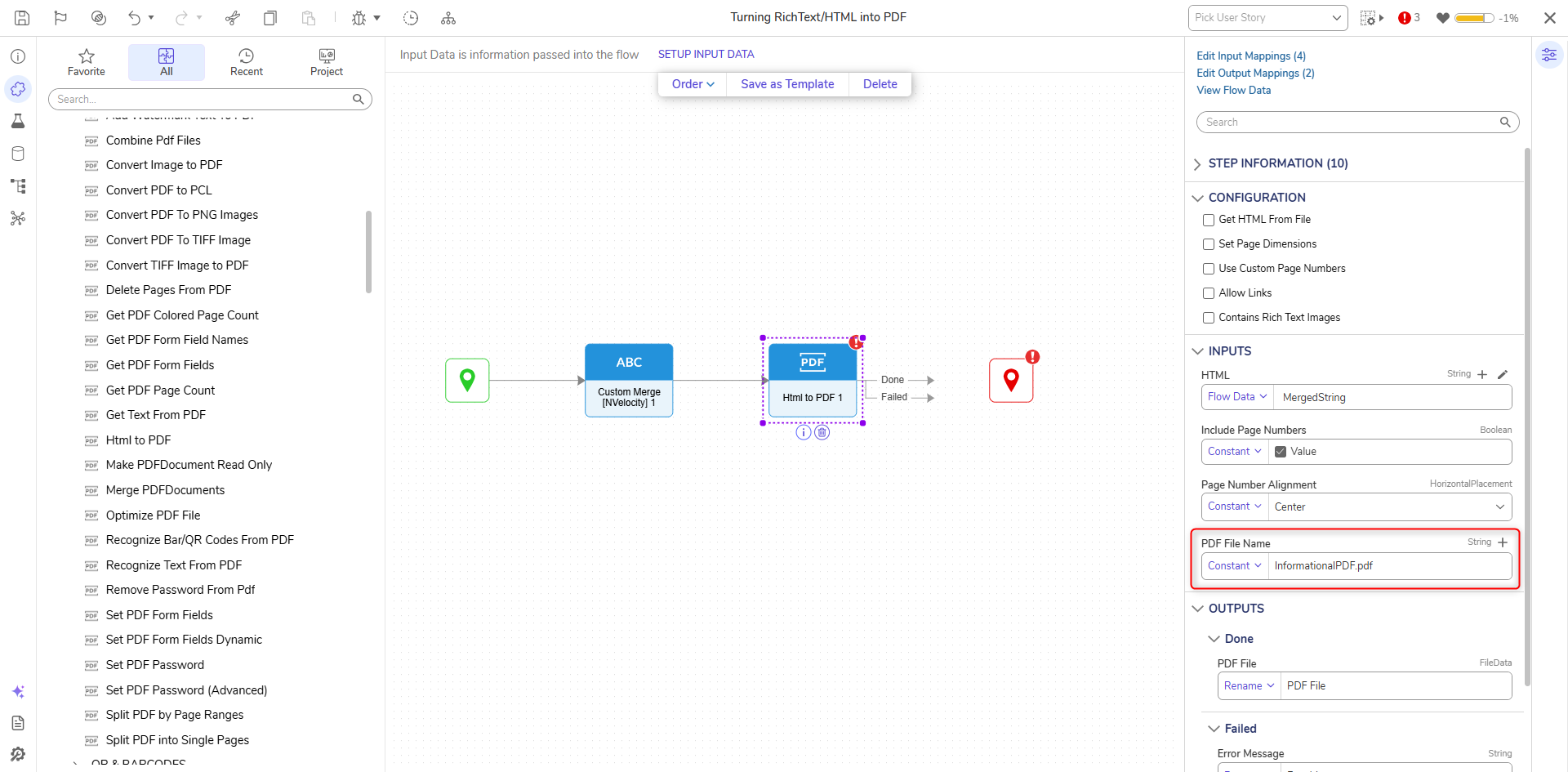
- In the PDF File Name field, enter "Informational PDF.pdf". Connect the Failed path to the End step.
- Under the FILE MANAGEMENT category in the Toolbox, connect a Create File step to the Done path of the HTML to PDF step.
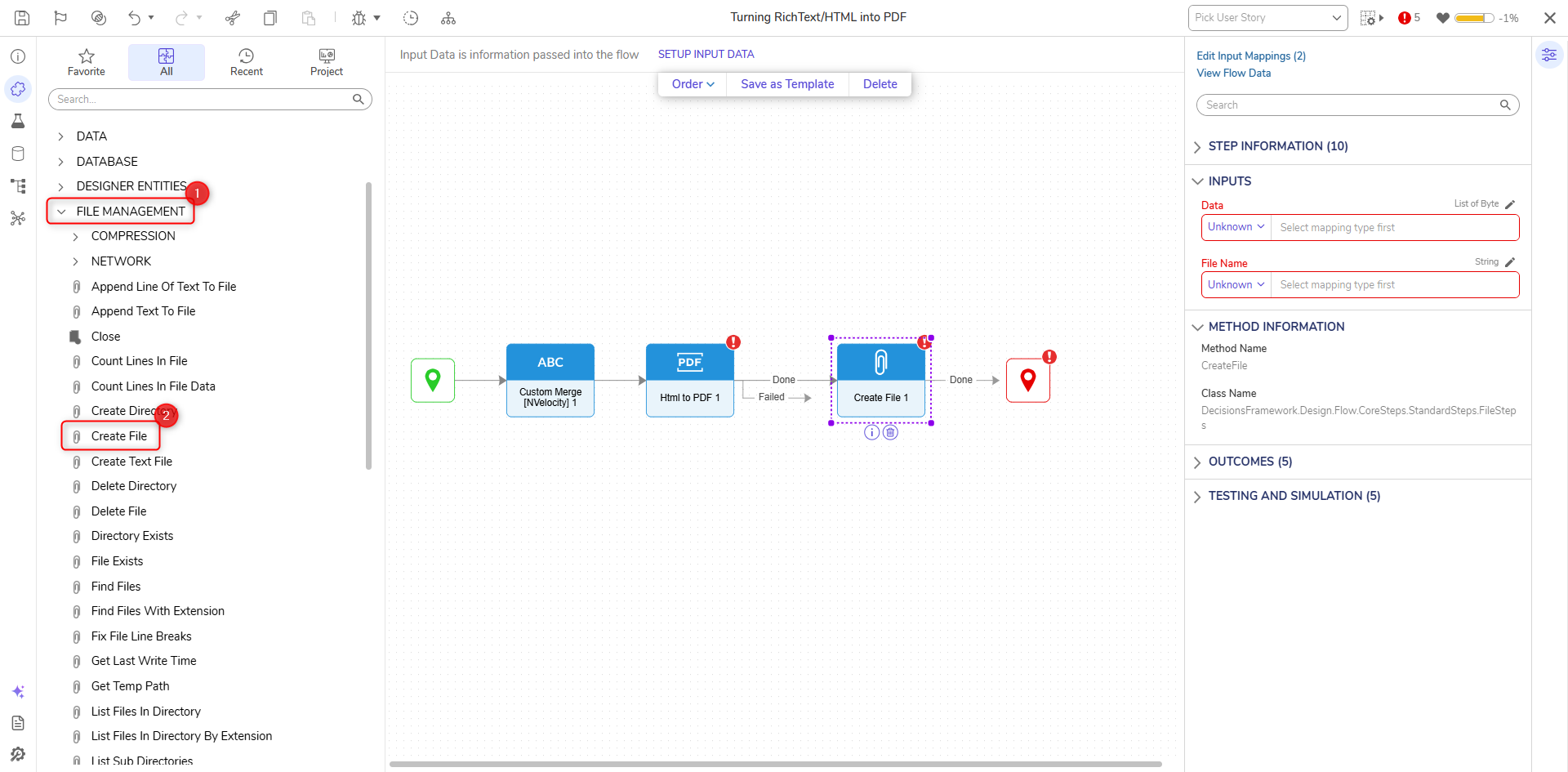
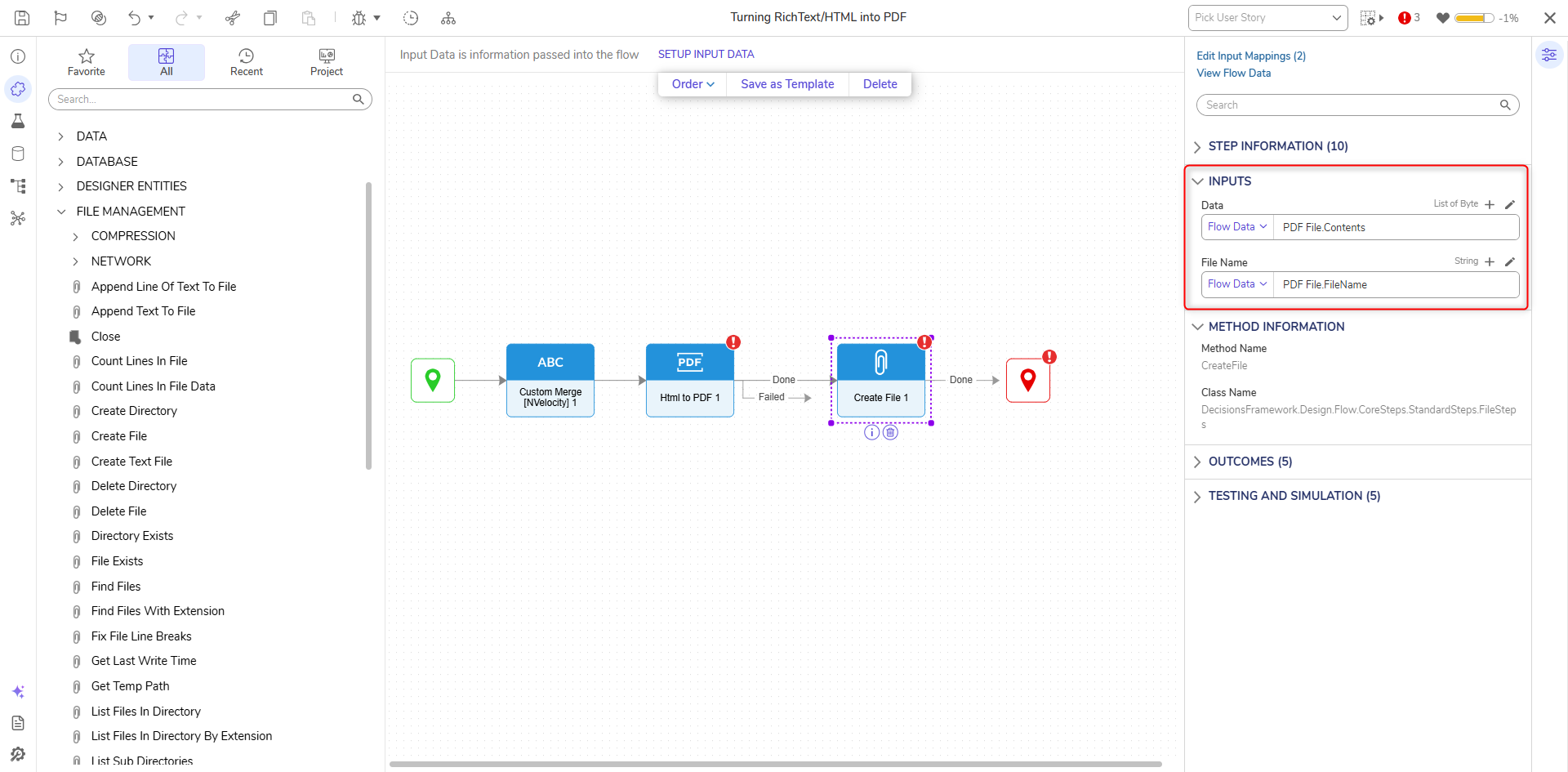
- From the Properties panel, Flow Data map PDF File.Contents to Data and map PDF File.FileName to File Name.
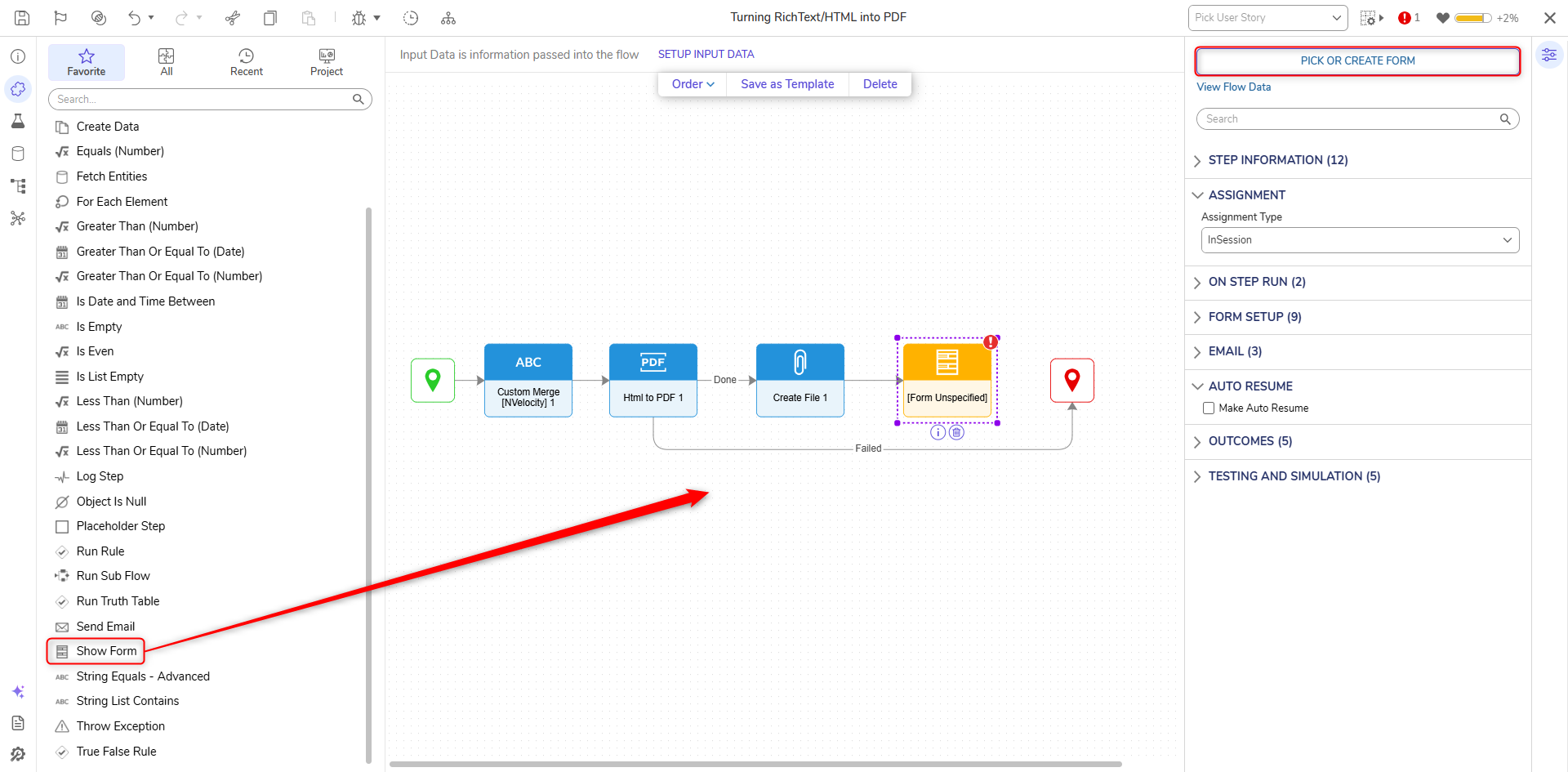
- In the Toolbox panel under FAVORITE STEPS, attach a Show Form step to the Done path of the Create File step. On the Properties panel, click PICK OR CREATE FORM and create a new Form.
- Configure the Form to have a File Download component (PDFFile) and a Button component. Set the Select Button Type to Button. Click Save and close the Form.


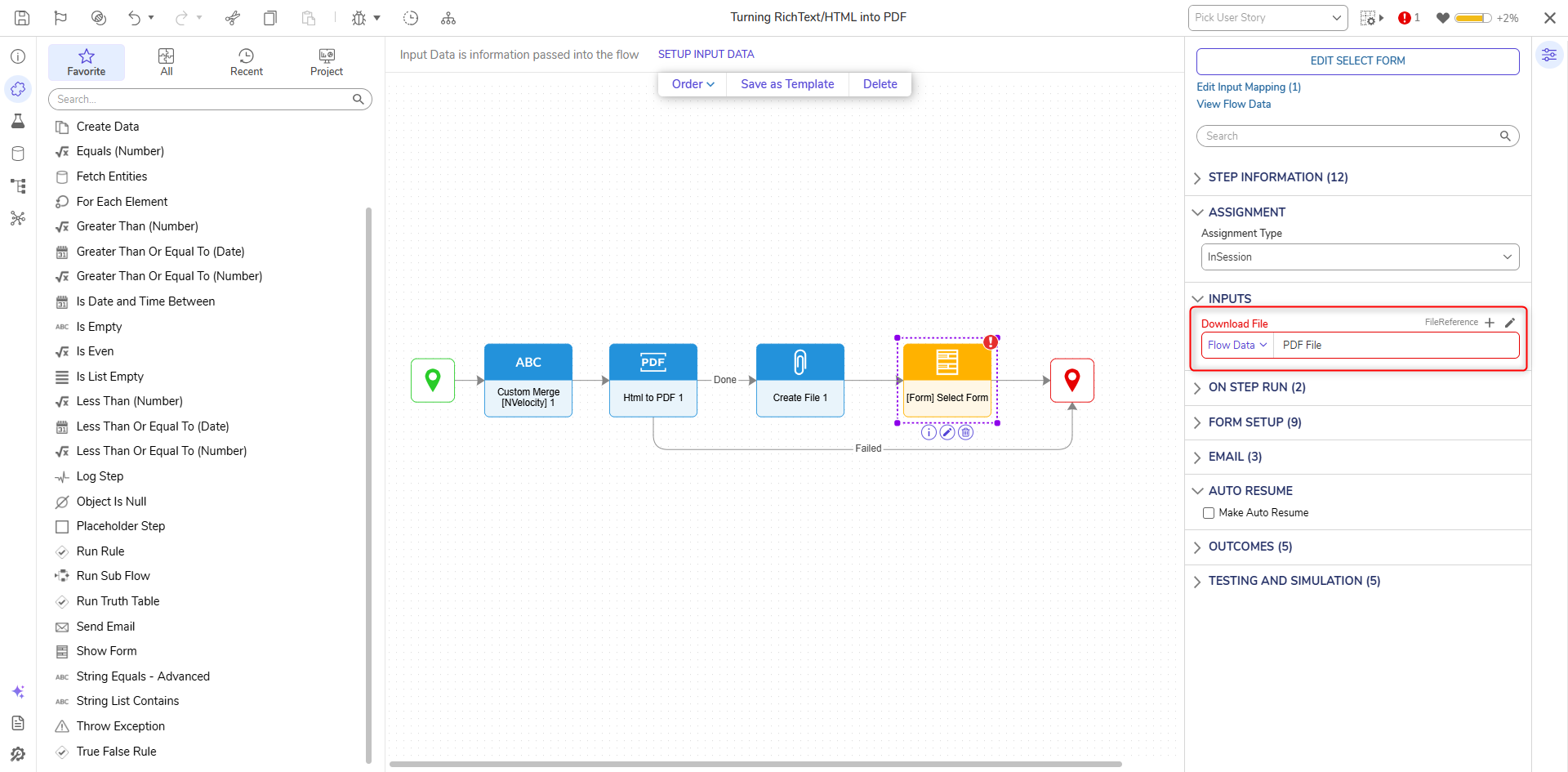
- Map the PDF File field to PDF File. Connect the Close path to the End step. Click Save to save changes to the Flow.
Debug
- Click Debug from the top action panel.
- Click START DEBUGGING.
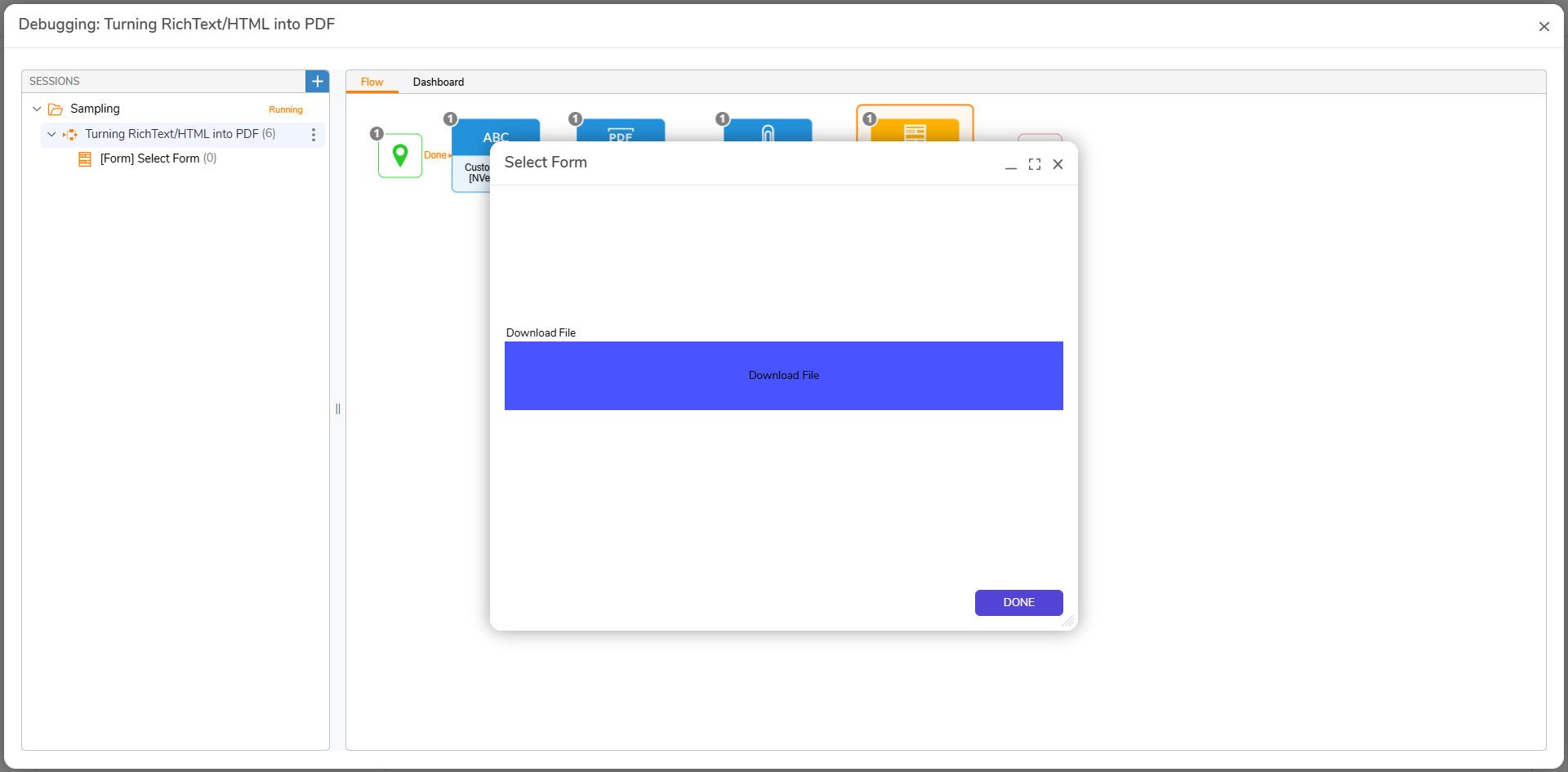
- When the debugger runs, click Download File.
- Open the File to view the contents.
For further information on Flows, visit the Decisions Forum.