Overview
Custom Text Merges can be created in a Designer Project or Flow to merge written text and data. When a custom Text Merge is created and referenced in a Flow, inputs can be mapped dynamically using Flow data.
Using a Custom Text Merge in a Flow
Text Merges have a Designer that acts as an interface with pre-built Calculated Fields and Icons. For data to be usable, it must be added as Input Data. This example will explore how to create a text merge and use it in a Flow.
- In a Project, create a new Flow.
- In the Toolbox, navigate to Data > Text > Text Merges. Select [Pick or Create TextMerge] and add it to the workspace.
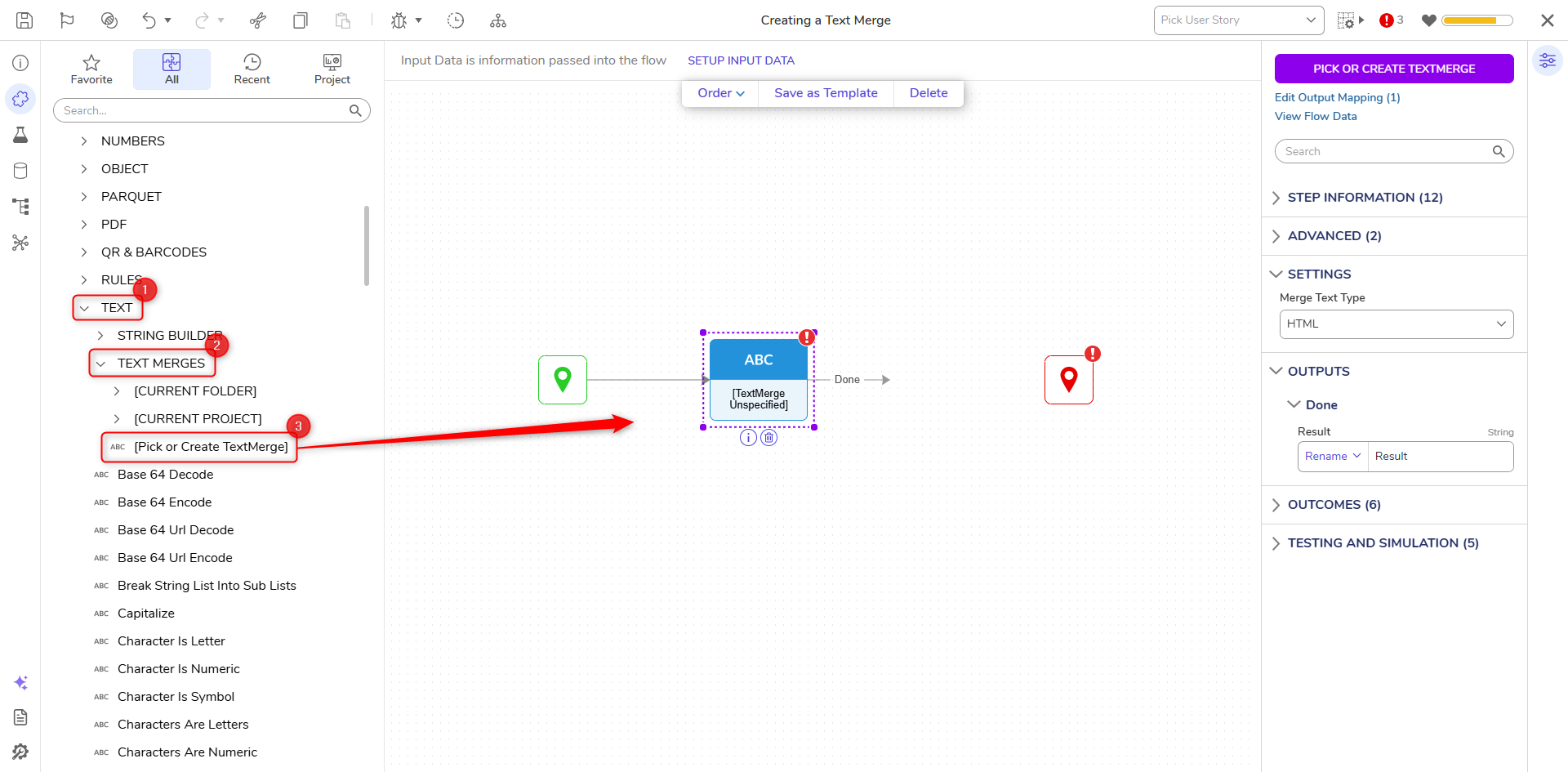
- On the Properties panel, click PICK OR CREATE TEXTMERGE and create a new Text Merge.
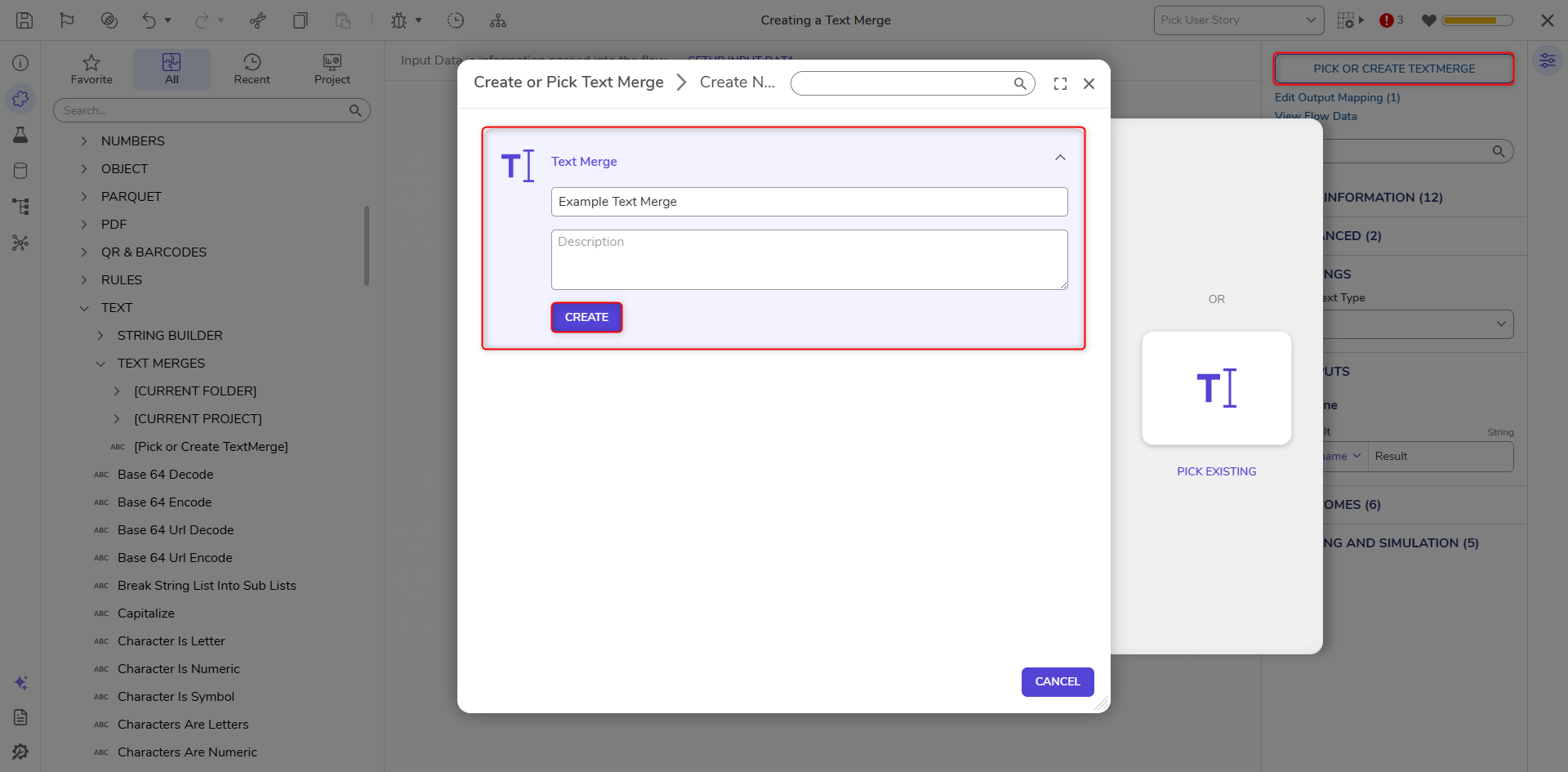
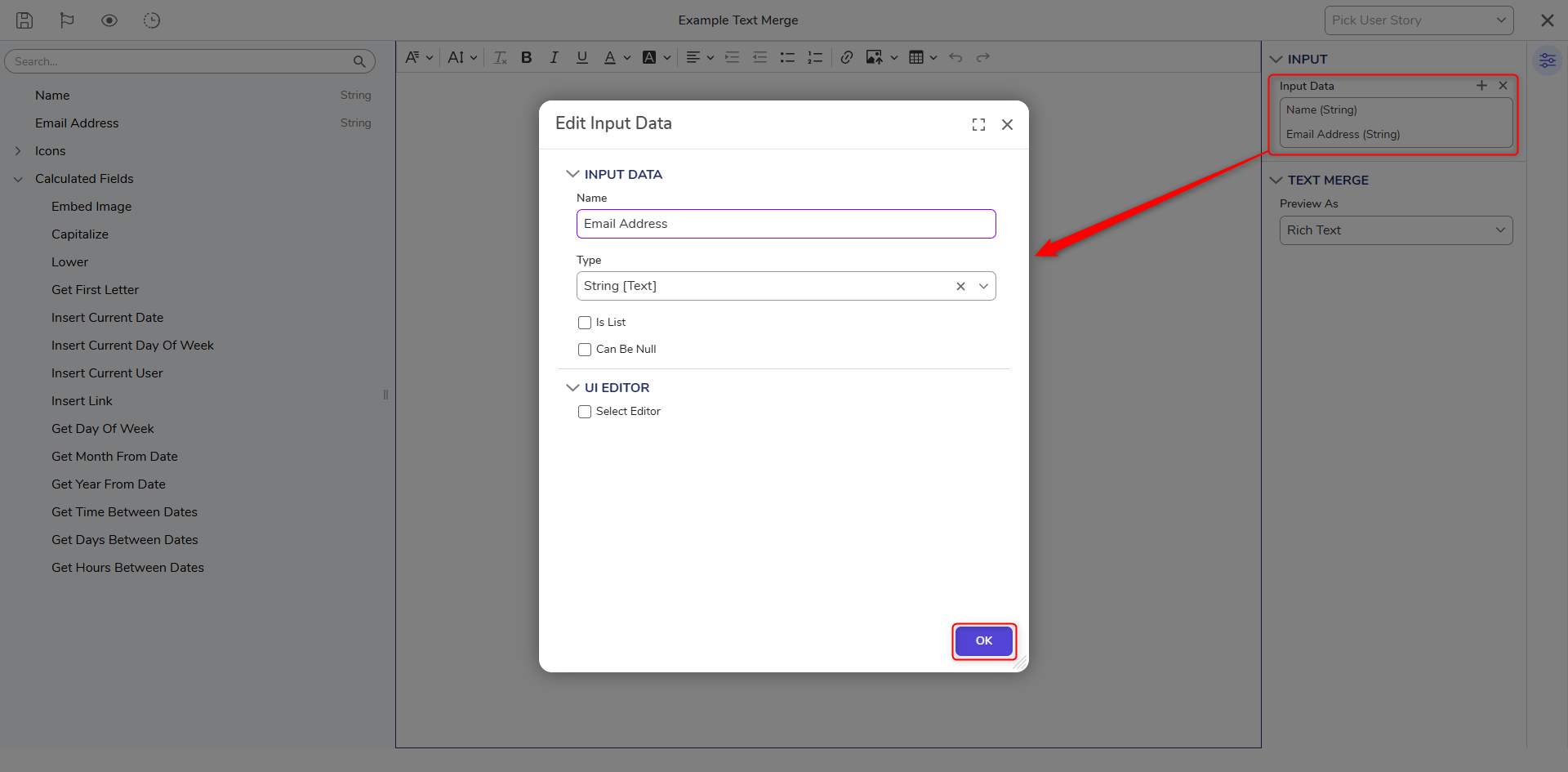
- The Text Merge Designer will open. In the Properties panel for the designer, add two new String inputs, One for Name and another for Email Address.
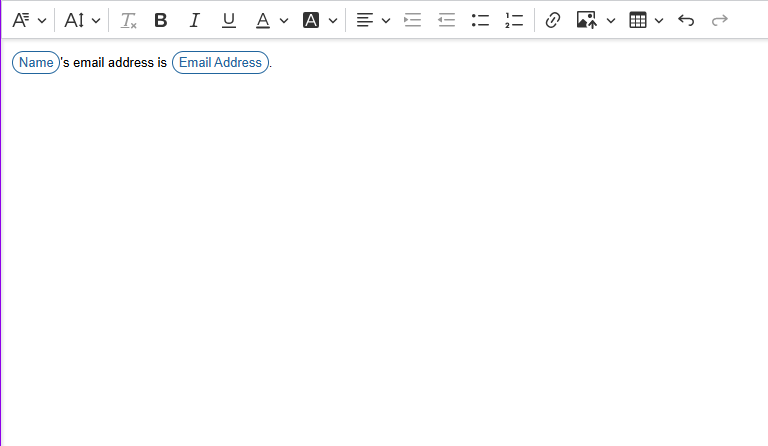
- With the inputs defined, add text into the workspace utilizing the inputs. For example, [Name]'s email is [Email Address].
- Once the Text Merge is defined, save and close this Designer.
- In the Flow Designer, two new input values appear on the step, matching the created inputs for the Text Merge. Define values for the inputs.
- Under Settings, set Merge Text Type to Plain. Below is a brief overview of the different Merge Text Types.
Text Type Description Plain Outputs the Text Merge as a regular string HTML Outputs the Text Merge as HTML string PDF Outputs the Text Merge as a PDF file DOC Outputs the Text Merge as a Word document 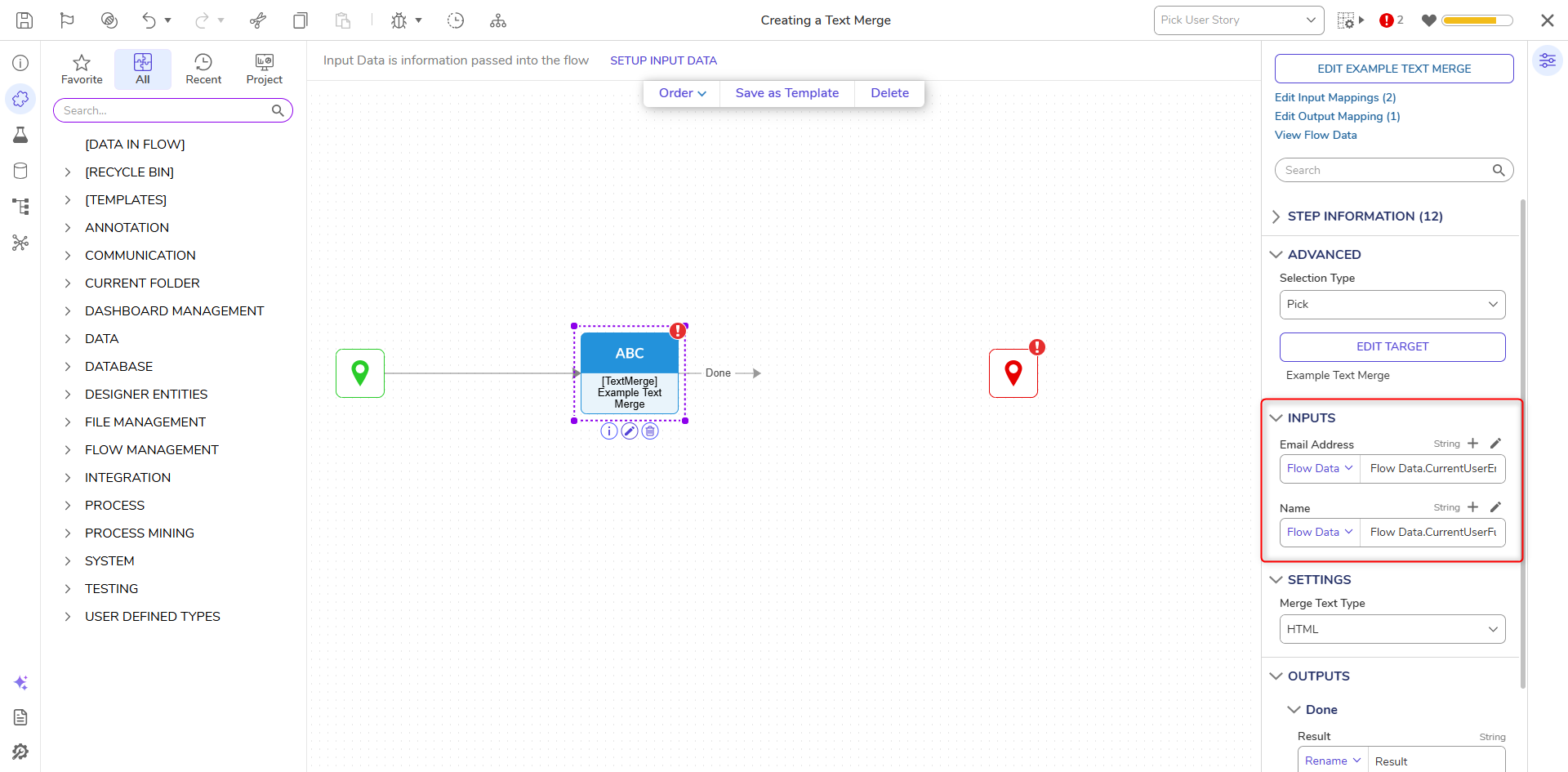
- Add a Form with a Label that will display the Text Merge.
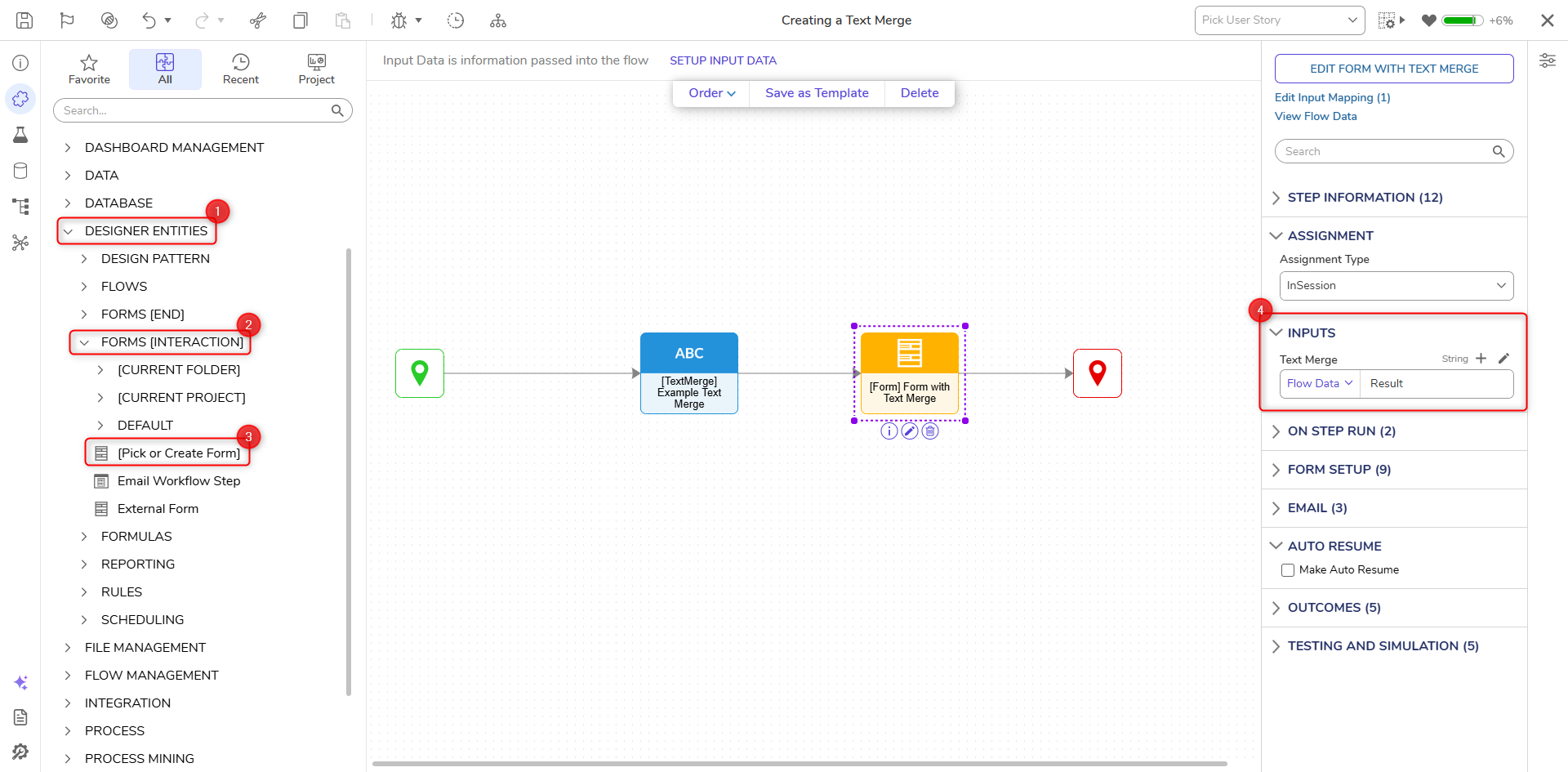
- Save and debug the Flow to view the resulting output.