Overview -rework prob example lab for scheduled jobs
An Email Event is a change in state on an Email Server, such as when the Server receives or relays an email. The system can be configured to handle email events for a Post Office Protocol (POP3) server or an Internet Message Access Protocol (IMAP) Server. A POP3 Server requires that clients download emails from the server to access them. An IMAP server allows a client to access emails directly on the Server.
Using Gmail with Email steps
With Google depreciating Less Secure App settings for Google accounts, users will need to create App Passwords in order to utilize Email steps with Gmail.
Example
- Create a new Scheduled Job
- Enter "Email Check" under Scheduled Job Name then click PICK SCHEDULED FLOW. Click CREATE and create a new Flow.
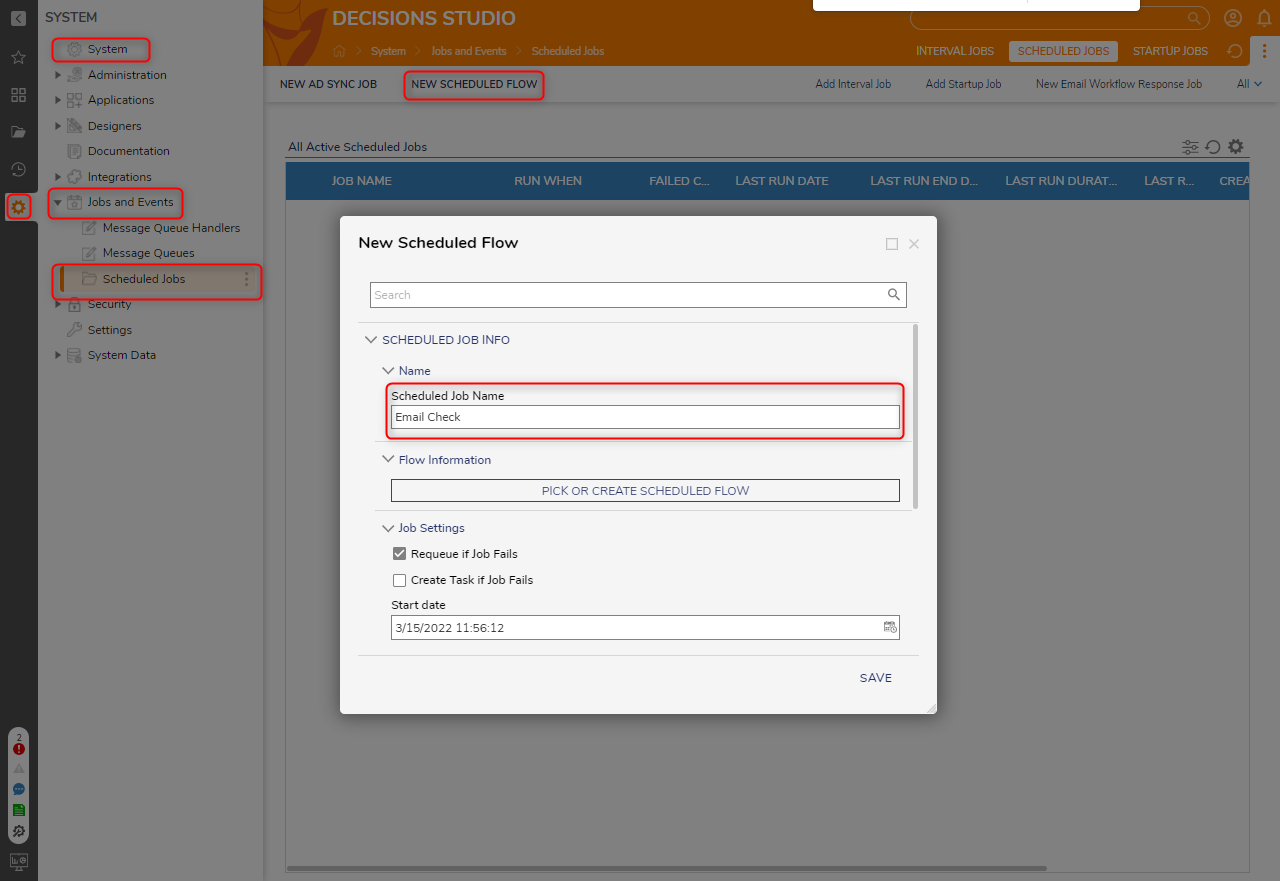
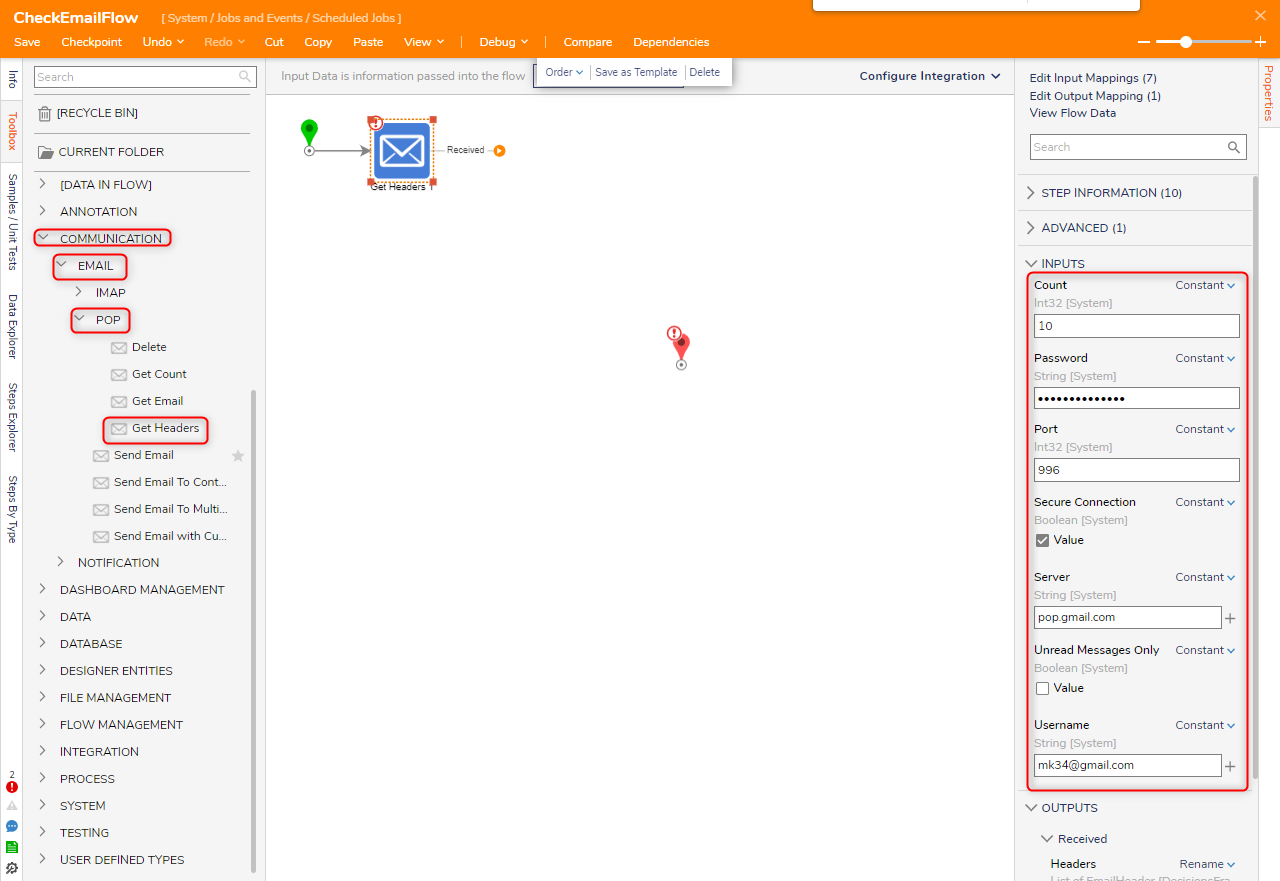
- Attach a Get Headers step from the COMMUNICATION > EMAIL > POP category in the Toolbox panel to the Start step.
- On the Properties panel, enter "10" under the Count field.
- Constant map the Email Servers information for the Username, Password, Server, and Port.
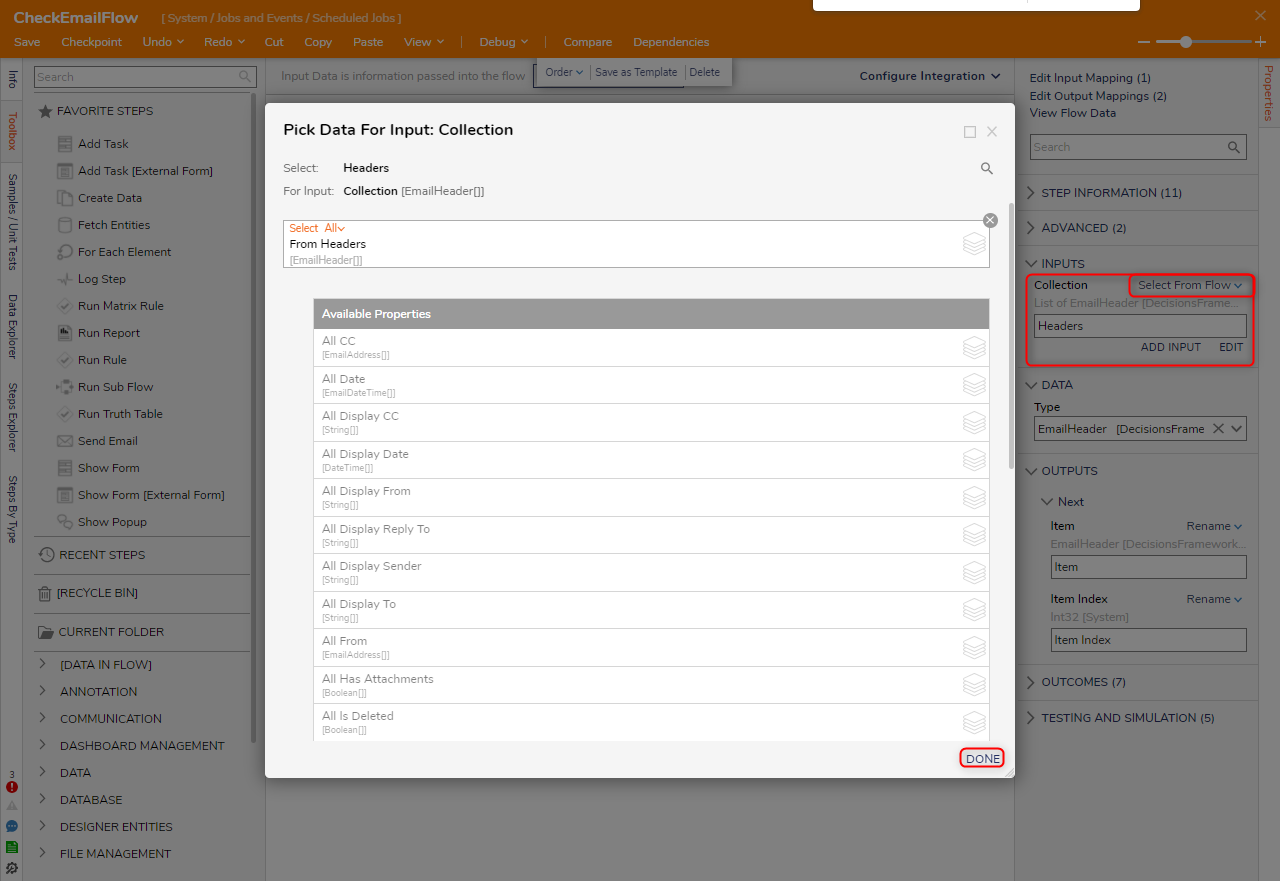
- Attach a ForEach Step from the FLOW MANAGEMENT > ITERATION category in the Toolbox panel to the Received path of the Get Headers step.
- On the Properties panel. Select From Flow map Headers to Collection. Mapping the Collection Input will automatically adjust the Type under DATA, to its corresponding Data Type. This will allow the ForEach Step to pass EmailHeader data through the Flow.
- Attach the Done path to the End step, then attach a Get Email step from COMMUNICATION > EMAIL > POP. On the Properties panel, configure the inputs to match the settings from the Get Headers step. Click Unknown next to the Unique Id field and select Select From Flow. Select Headers. All UniqueId.First and click DONE.
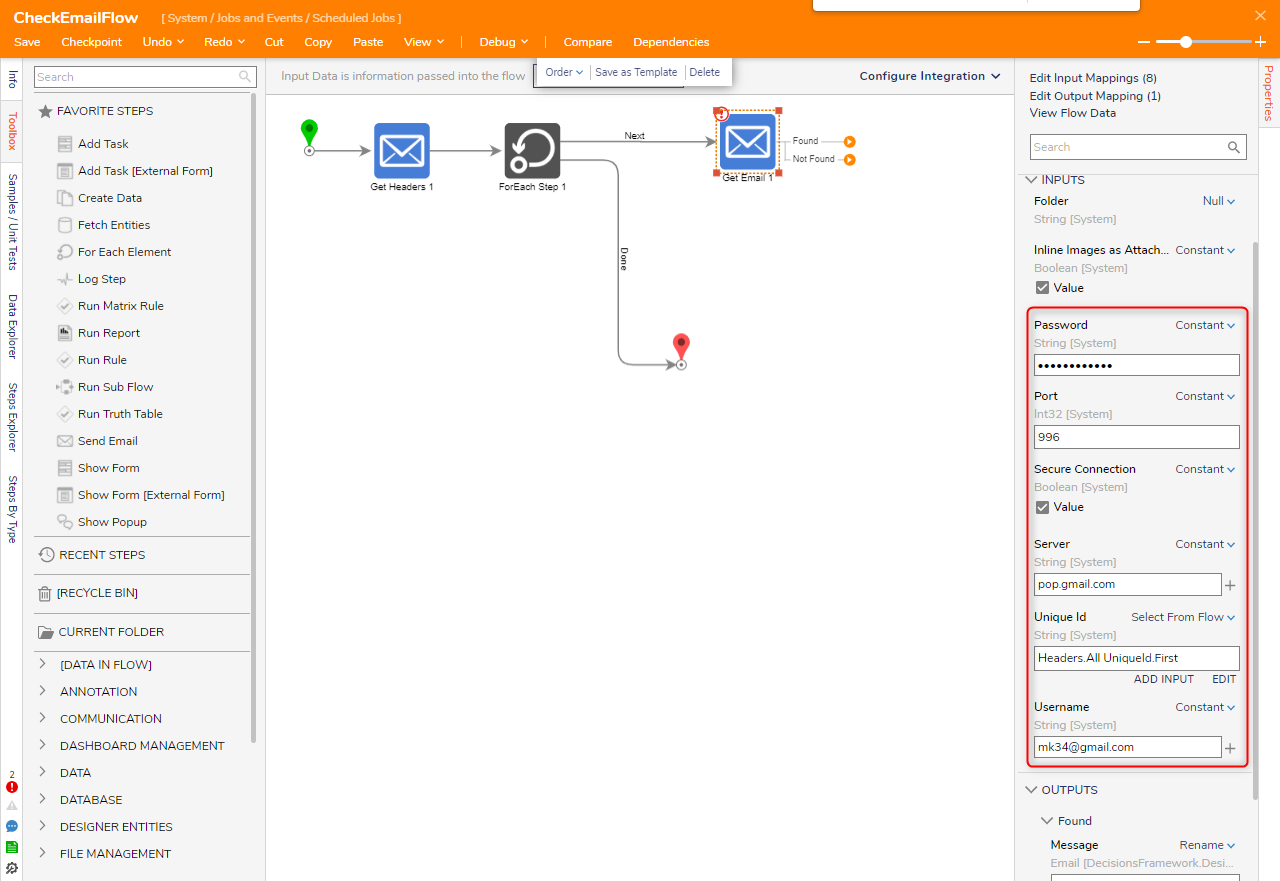
- Connect the Not Found path to the End step.
- Attach the Found path to any desired Email processing Flows running as an Asynchronous Sub Flow. When using an Email processing Sub Flow, define the Output Message data from the Get Email step as the Input for the Sub Flow, to allow the Flow to transfer all information through the Sub Flow and back.
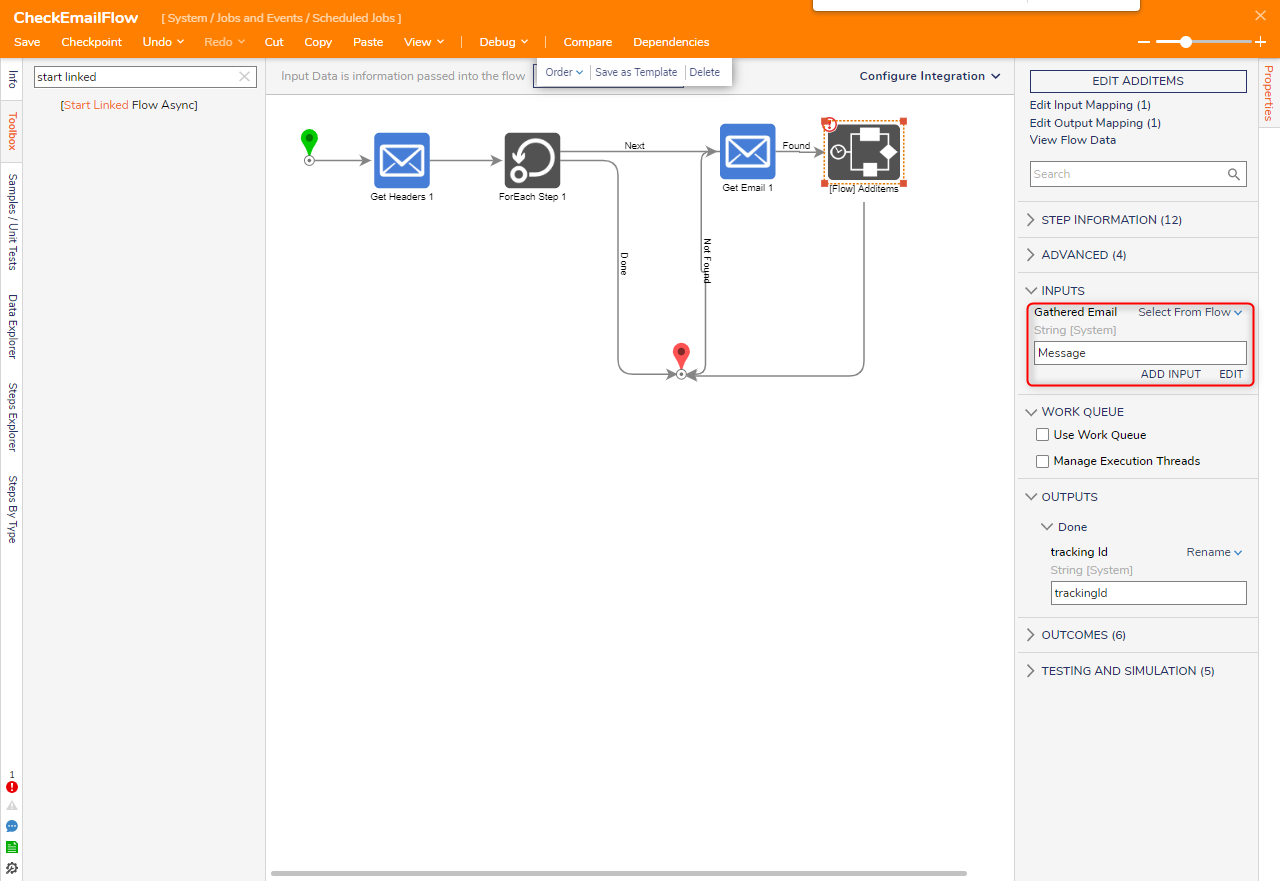
- Click Save to save changes to the Flow and close the Flow.
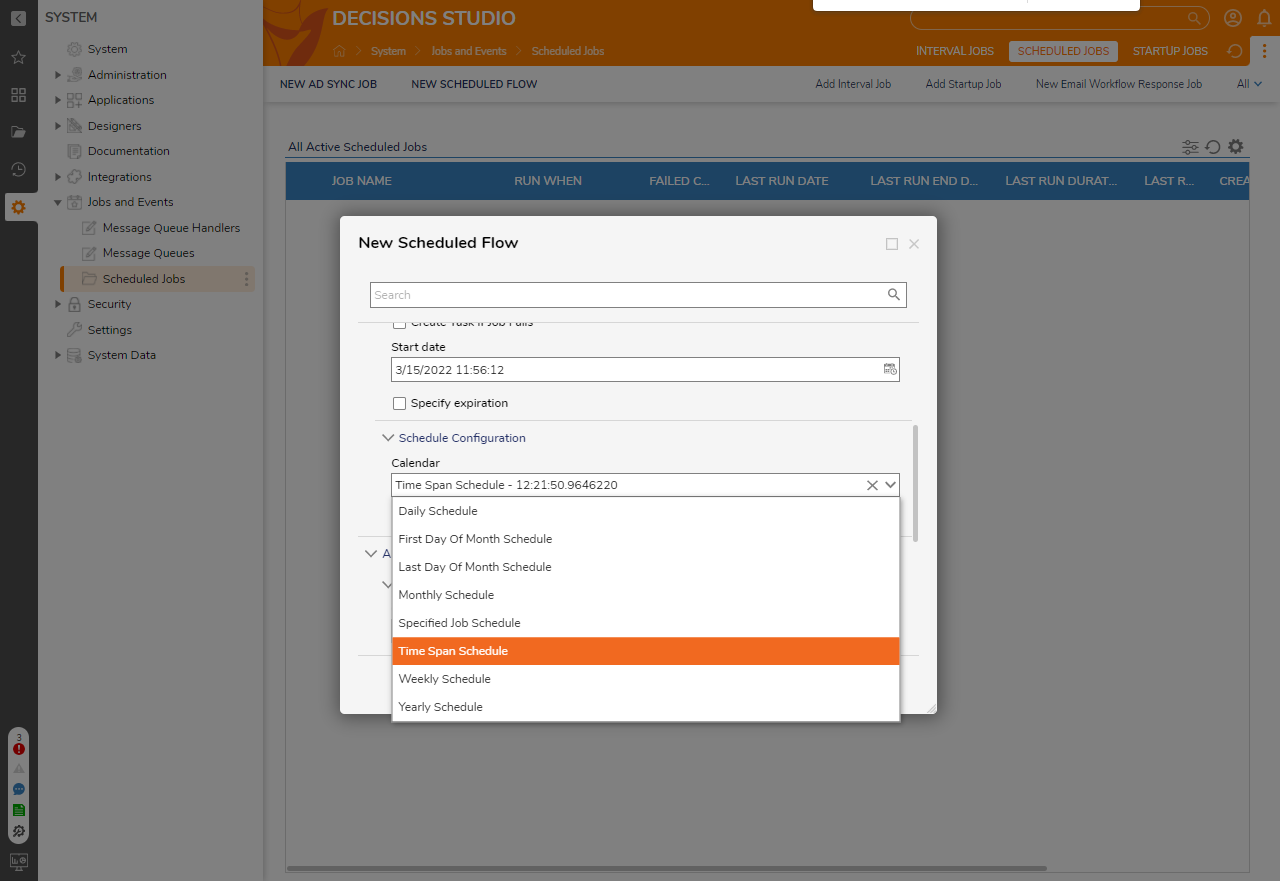
- Back in the New Scheduled Flow window, scroll down to Calendar under Schedule Configuration. Select Time Span Schedule from the dropdown menu.
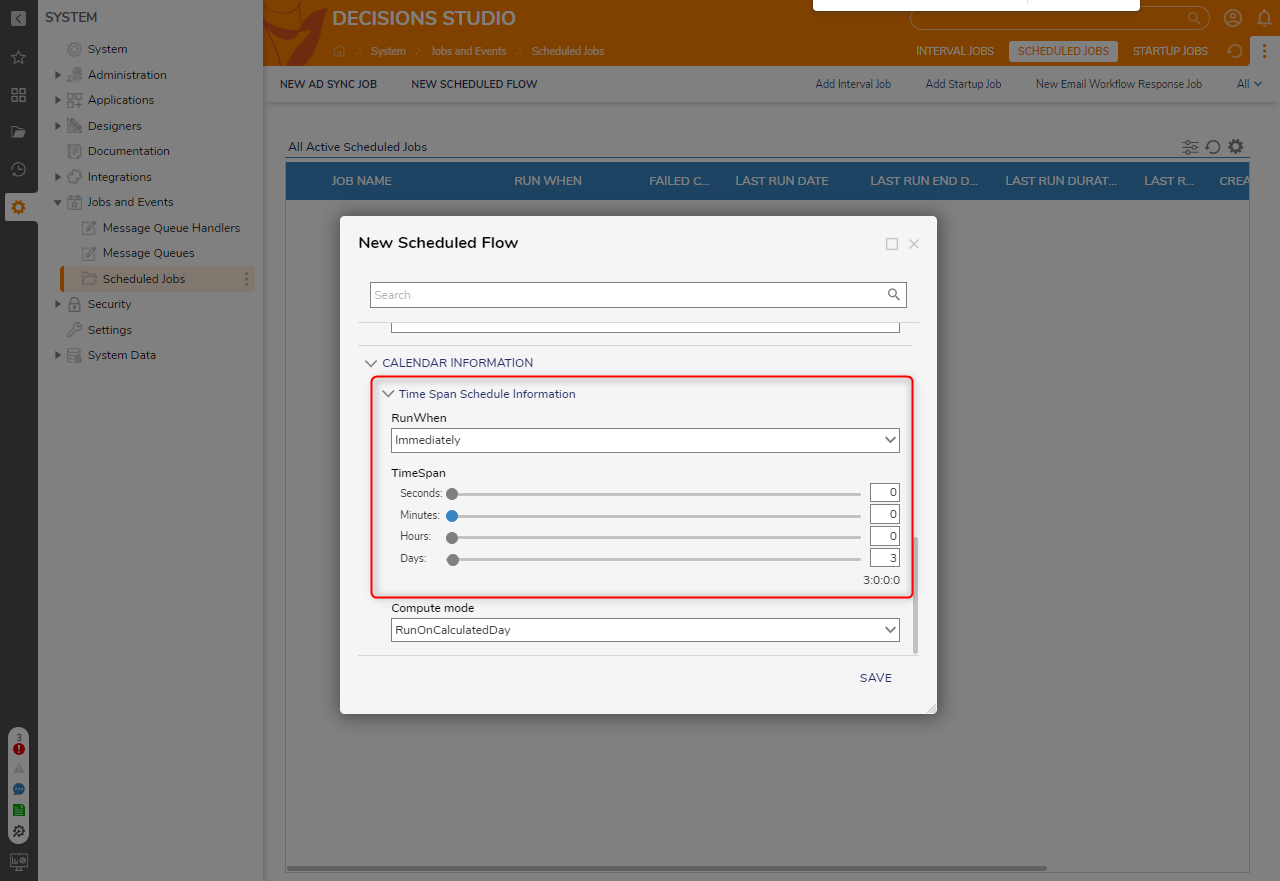
- Navigate to Time Span Schedule Information and configure the values to the desired time. Click Save. The proper configuration of this example allows the Flow to check for new emails on a POP server, then process those emails via process logic in an Async Sub Flow.
For further information on Flows, visit the Decisions Forum.