Overview
The Rule Collection Sort Step takes in a list of any data type and sorts the data based on the outcome of a Rule. Within the Rule Designer, there are settings that set it apart from creating a custom rule. For example, the Outcome Data on the Result and the Else parts are configured for the RuleCollectionSortOutcome Datatype. The RuleCollectionSortOutcome data type has three constant mappings that return a different priority sort value based on the selection.
| Constant Mapping Name | Description |
|---|---|
| FirstEntitySortsFirst | The first item comes before the second one |
| SecondEntitySortFirst | The first item comes after the second one |
| FirstAndSecondEntitySortSame | Sort priority is the same for the first and second item |
Example
- In the Designer Project, click CREATE FLOW on the Global Action Bar and select Flow. Name the Flow and click CREATE.
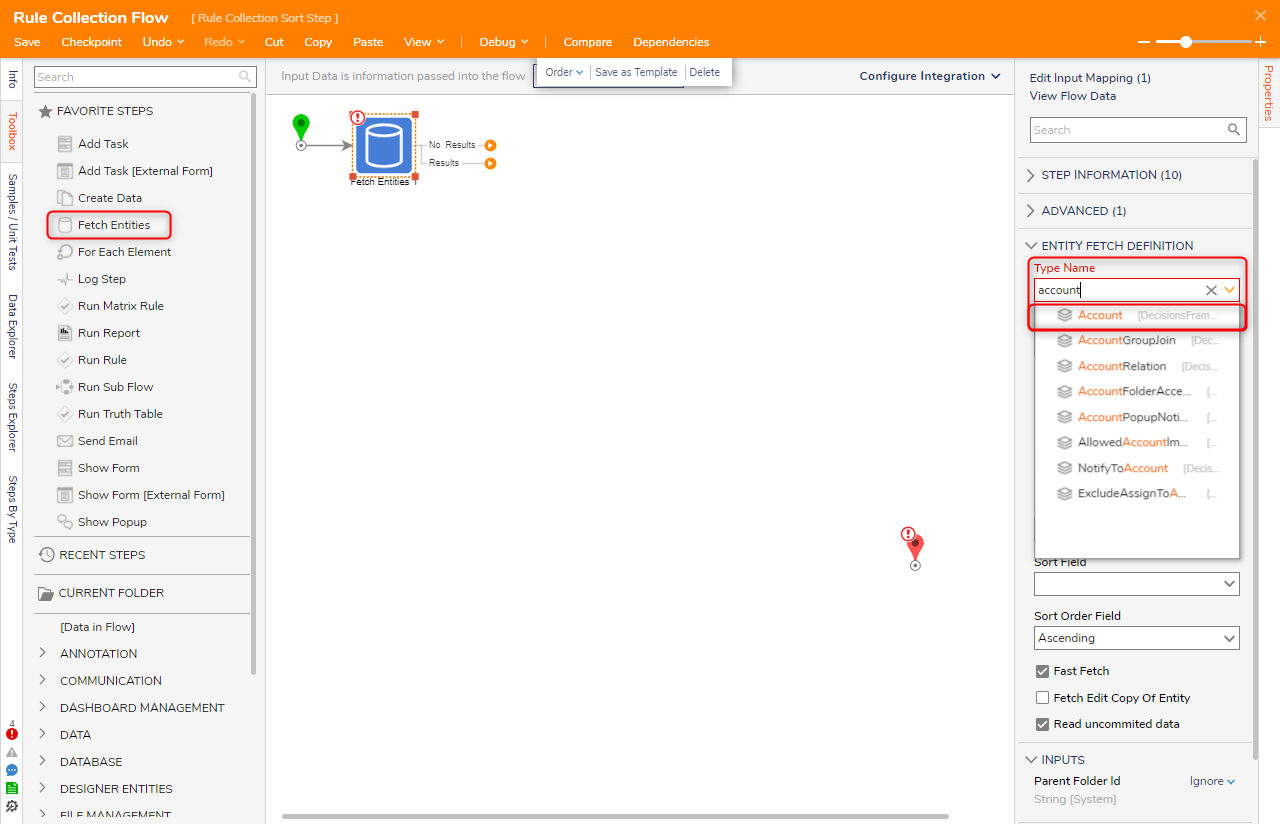
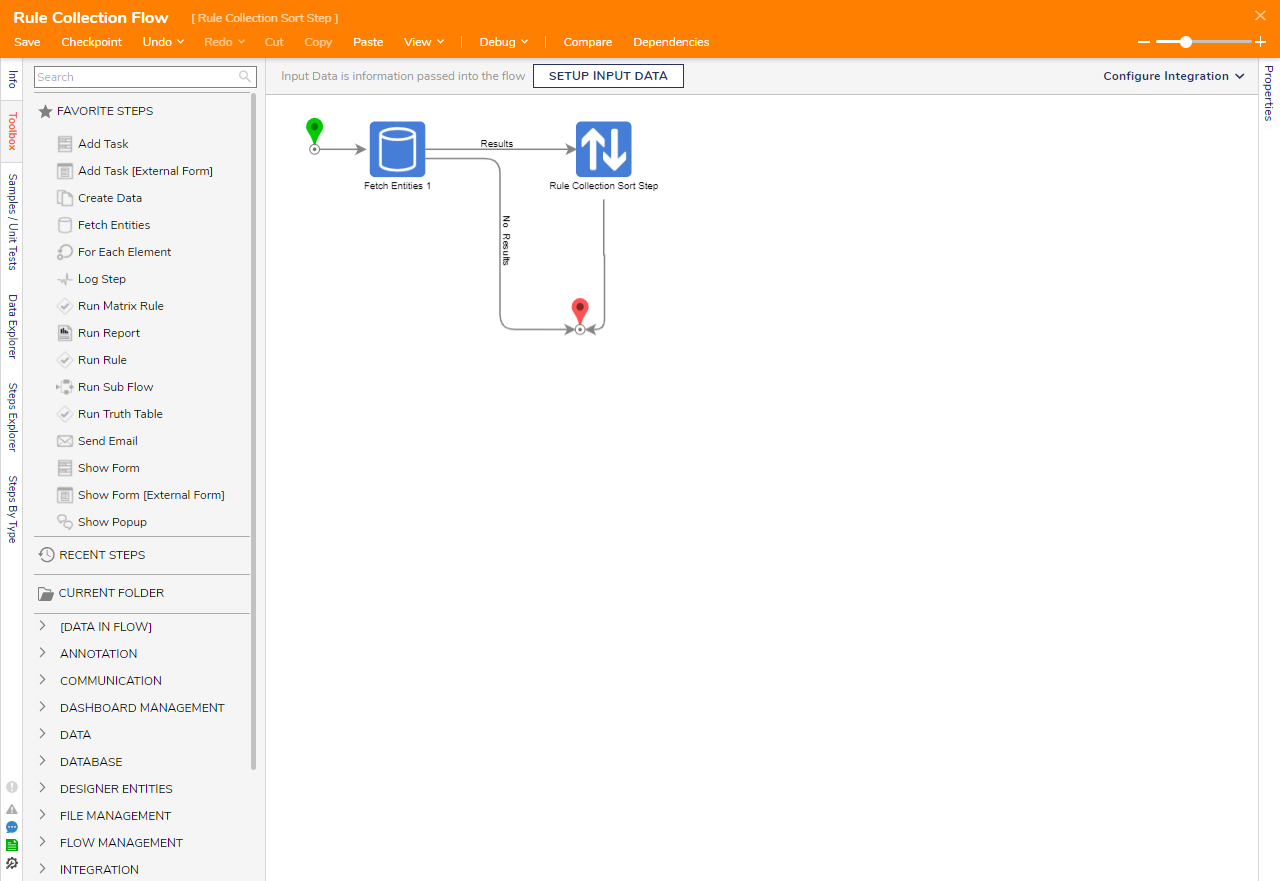
- Attach the Fetch Entities step to the Start step. Under the ENTIY FETCH DEFINITION category on the Properties panel, click the Type Name dropdown. Enter "account" and select Accounts [DecisionsFramework].
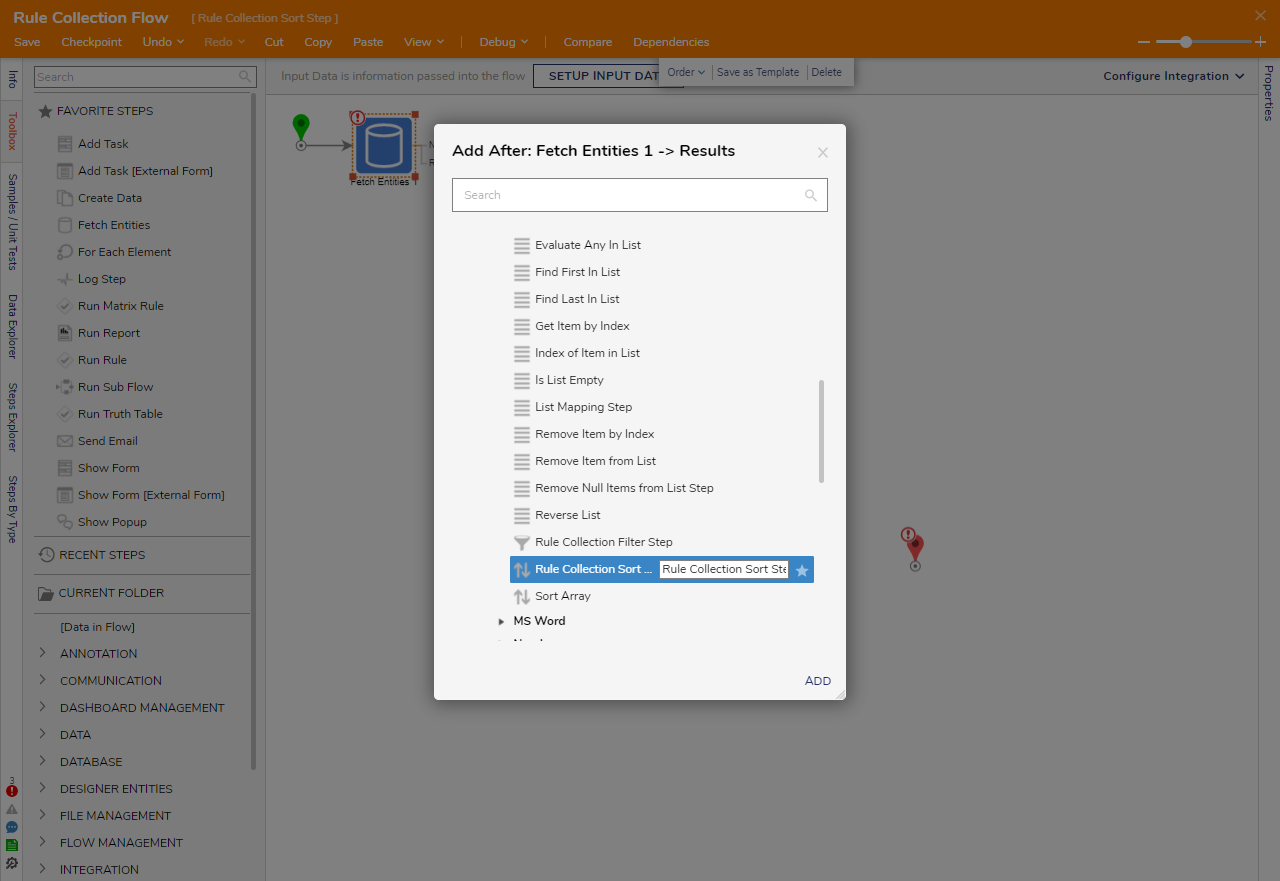
- Click the Results path of the Fetch Entities step and navigate to All Steps [Catalog] > Data > List. Select the Rule Collection Sort step and click ADD.
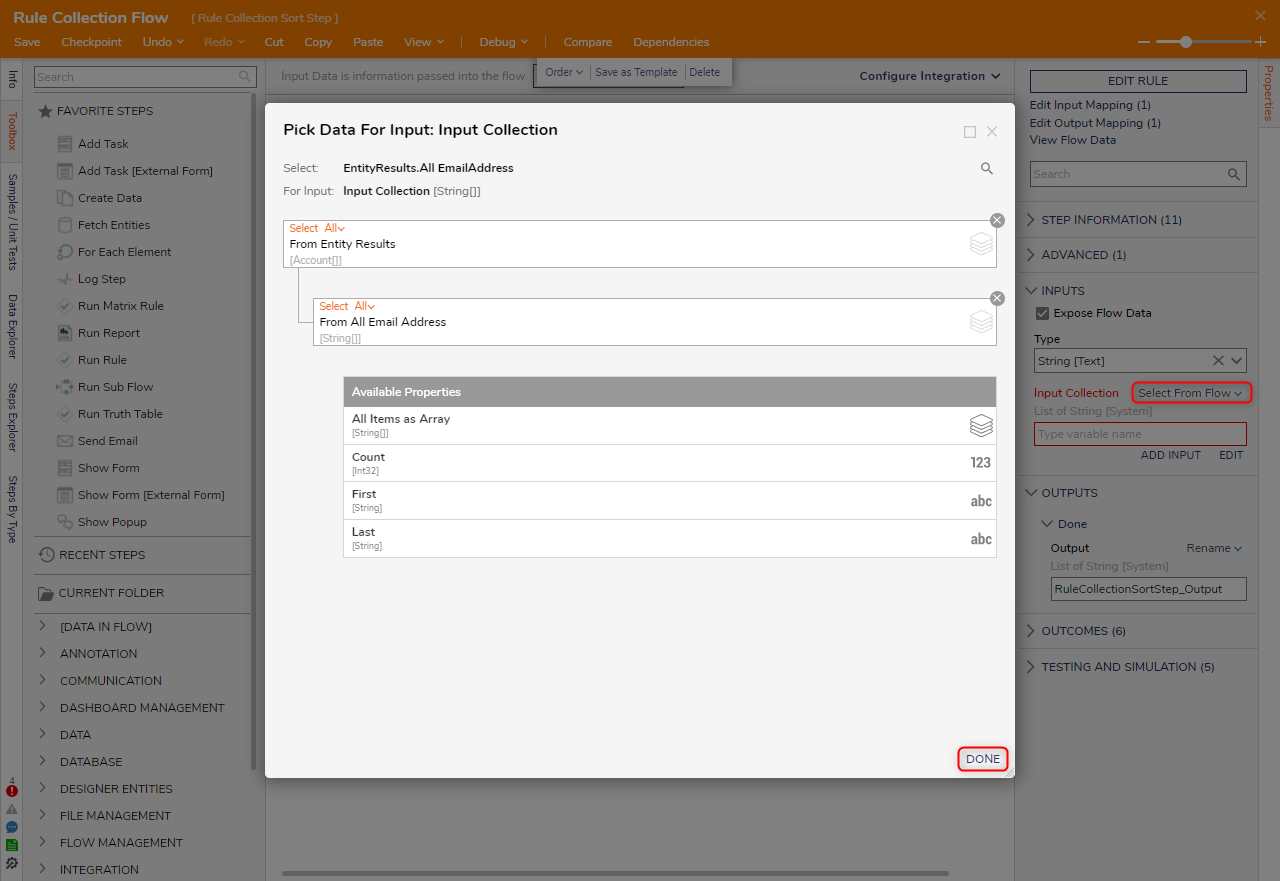
- Click Unknown next to the Input Collection field on the Properties panel and select Select From Flow. Select Entity Results and then select All Email Address. Click DONE.
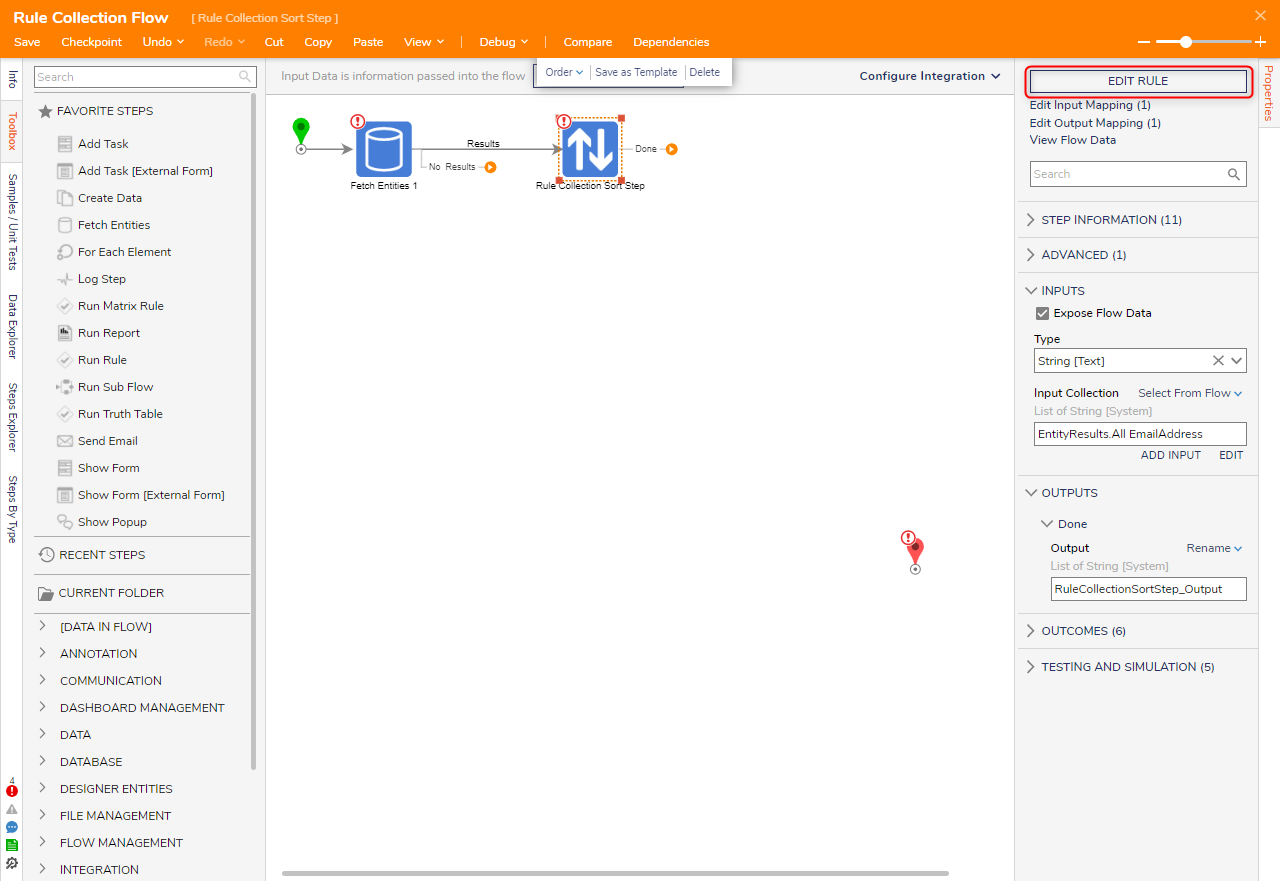
- Click EDIT RULE on the Properties panel.
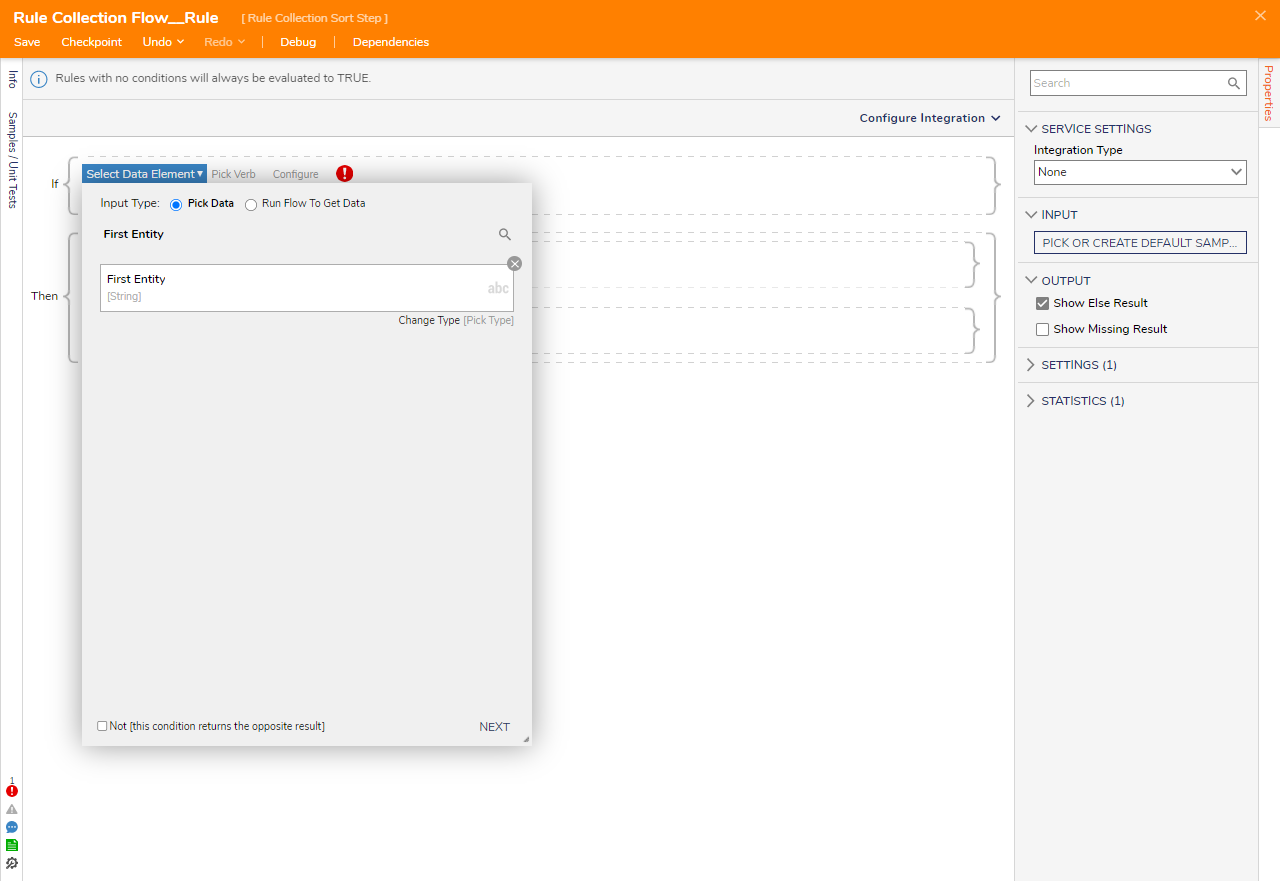
- In the Rule Designer, click Select Data Element and select First Entity. Then, click NEXT.
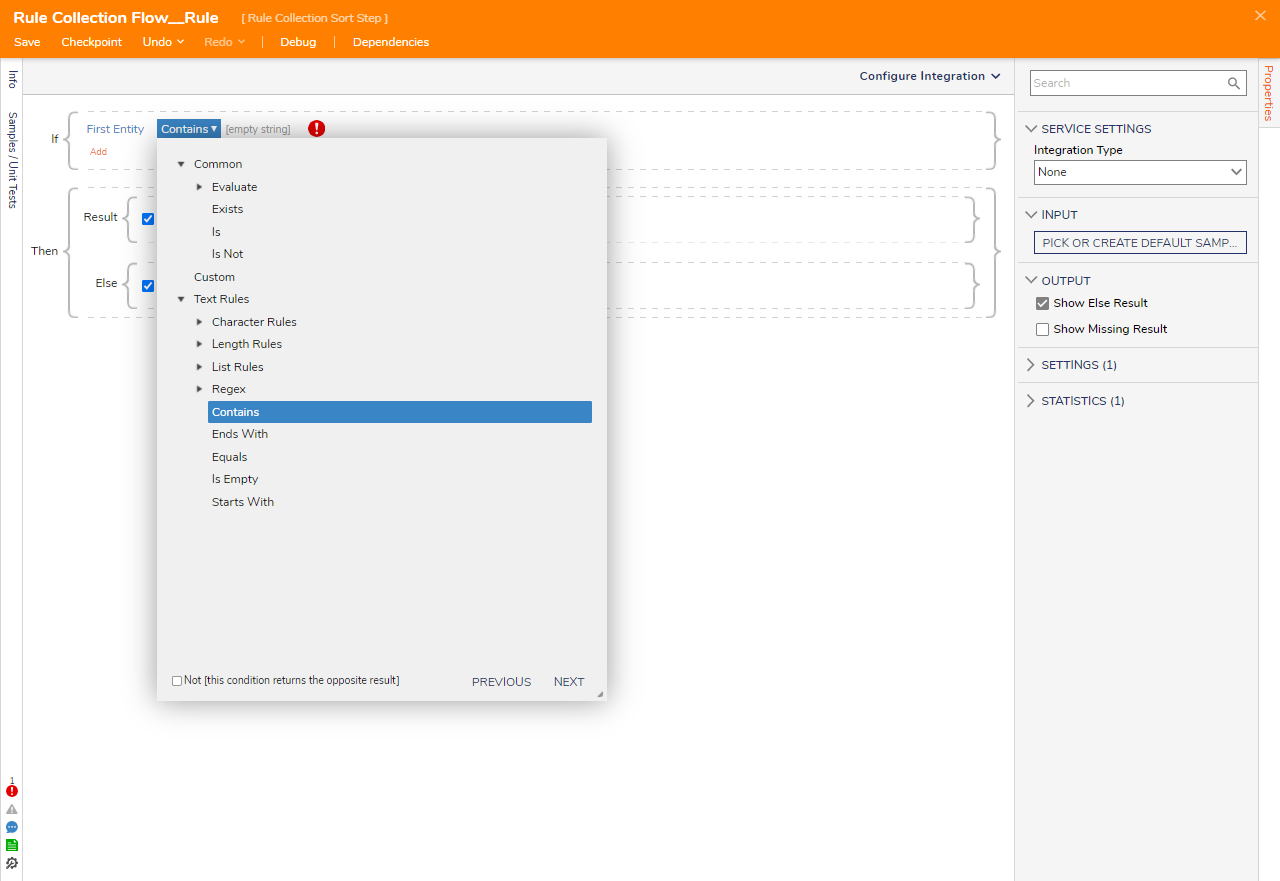
- For Pick Verb, select Contains and click NEXT.
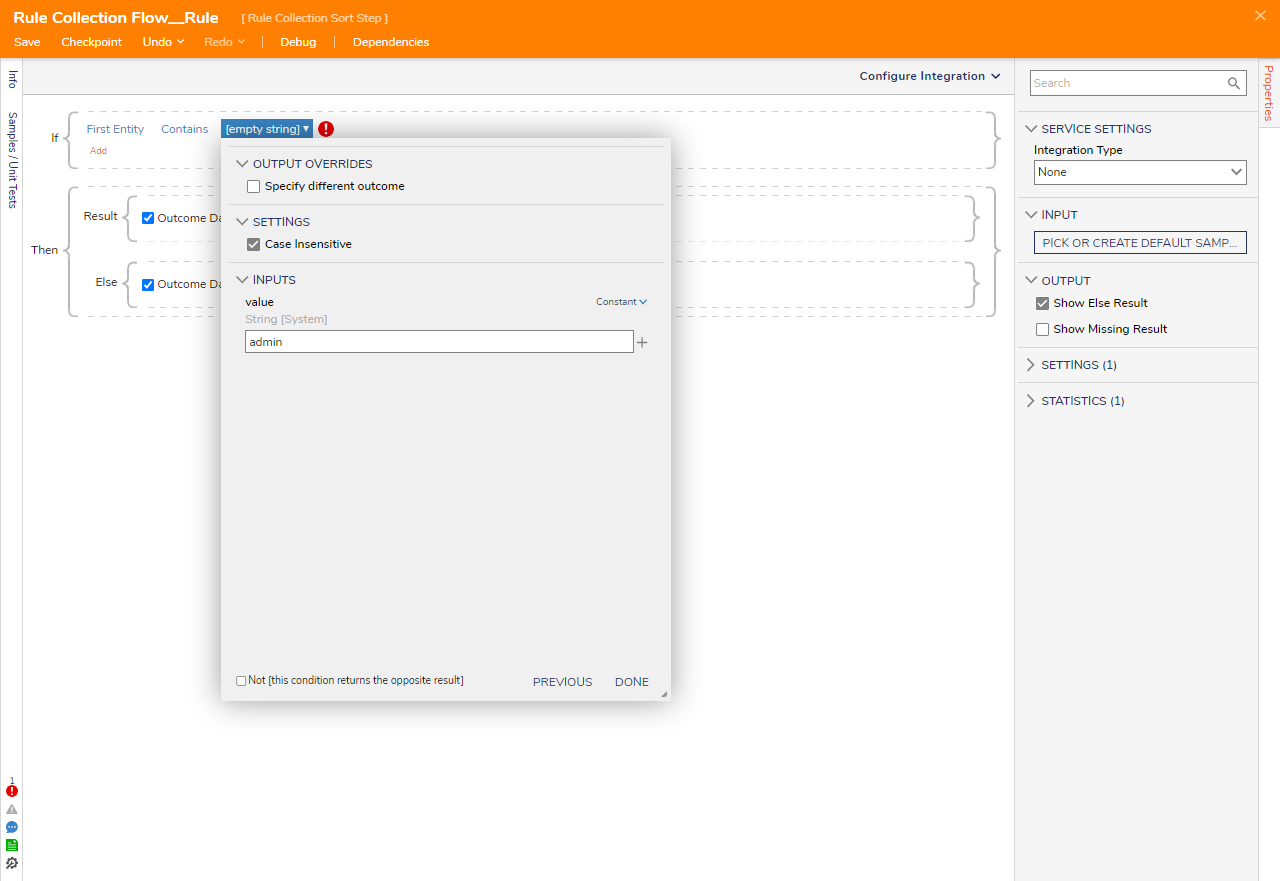
- Under the INPUTS category, enter "admin" as the value and click DONE. Click CLOSE.
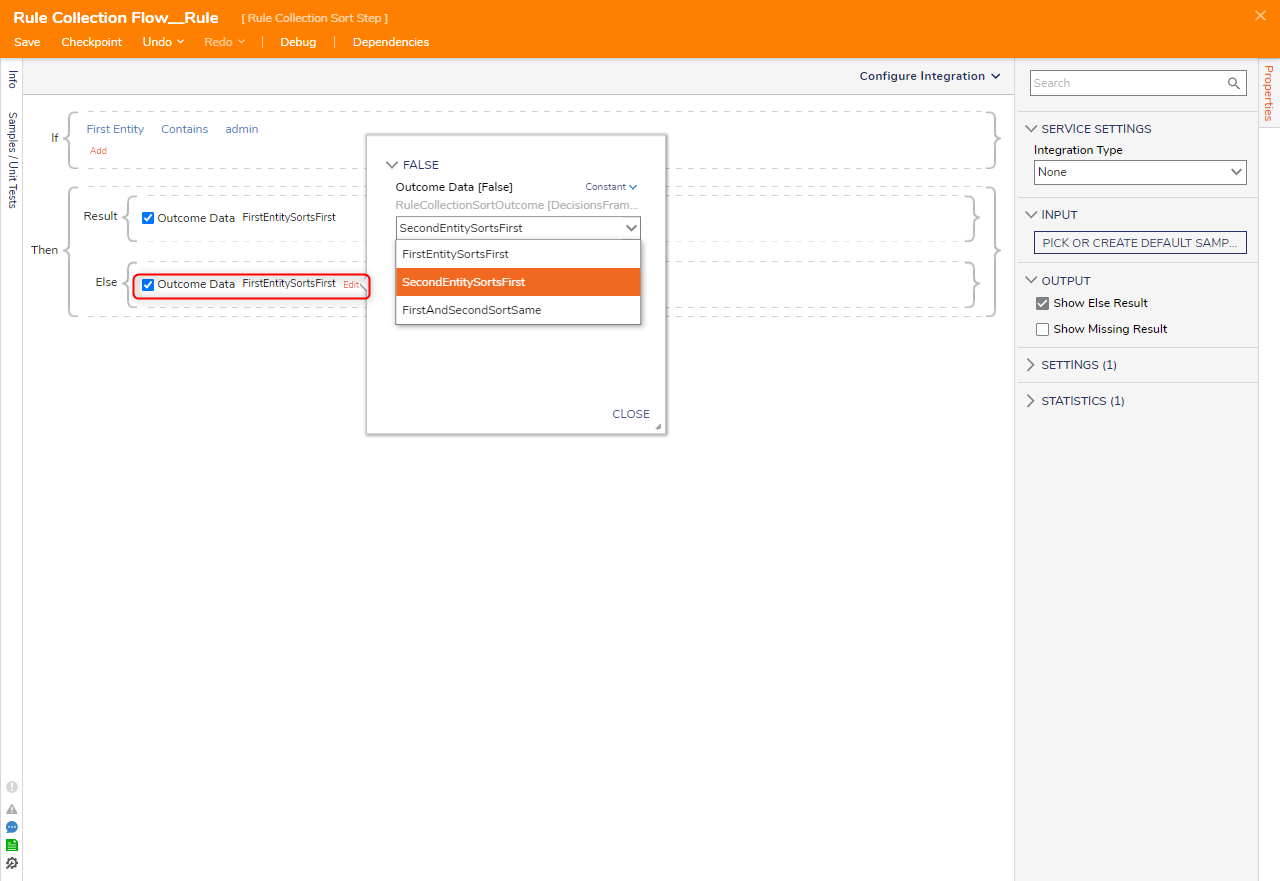
- In the Else statement block, hover over Outcome Data and click Edit. On the dialog window, click the dropdown list and select SecondEntitySortsFirst. Click Save to save changes to the Rule and then close the Rule Designer.
- Connect the Done path of the Rule Collection Sort Step and the No Results path of the Fetch Entities step to the End path. Then, click Save to save changes to the Flow.
Debug
- On the top action bar, click Debug.
- Click START DEBUGGING.
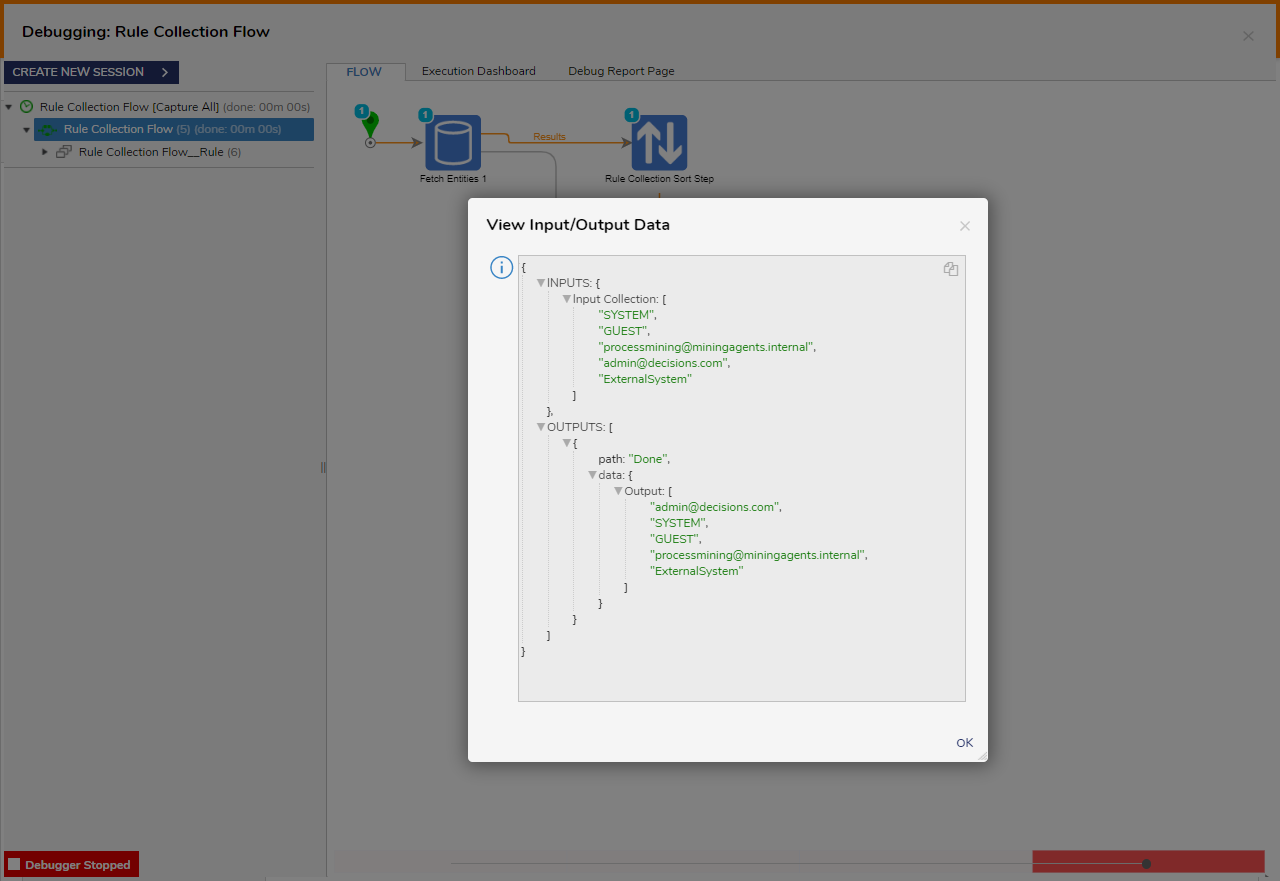
- After the bebugger runs, select the Rule Collection Sort Step, select Execution 1, and select View Input/Output Data.The Rule Collection Sort step evaluates the Rule and outputs the admin email address as the first item in the sorted list.
For further information on Flows, visit the Decisions Forum.