Overview
The List Mapping Step allows users to change a list from one type of structure into a different one. This is helpful with API calls because it can change the XML, JSON, or other list types into a different structure.
| Properties | Description |
| INPUTS | Takes in a list of user-defined types or primitive types |
| Output Type | The type of INPUTS will be changed to |
| Show Item Mapping Editor | The mapping editor to map the desired data fields from the INPUTS type to the Output Type |
The following example can be imported into Decisions.
Example
- In a Designer Project, click CREATE FLOW from the Global Action Bar and select Flow. Name the Flow and click CREATE.
- Attach the Fetch Entities step from the FAVORITE STEPS category of the Toolbox panel to the Start step.
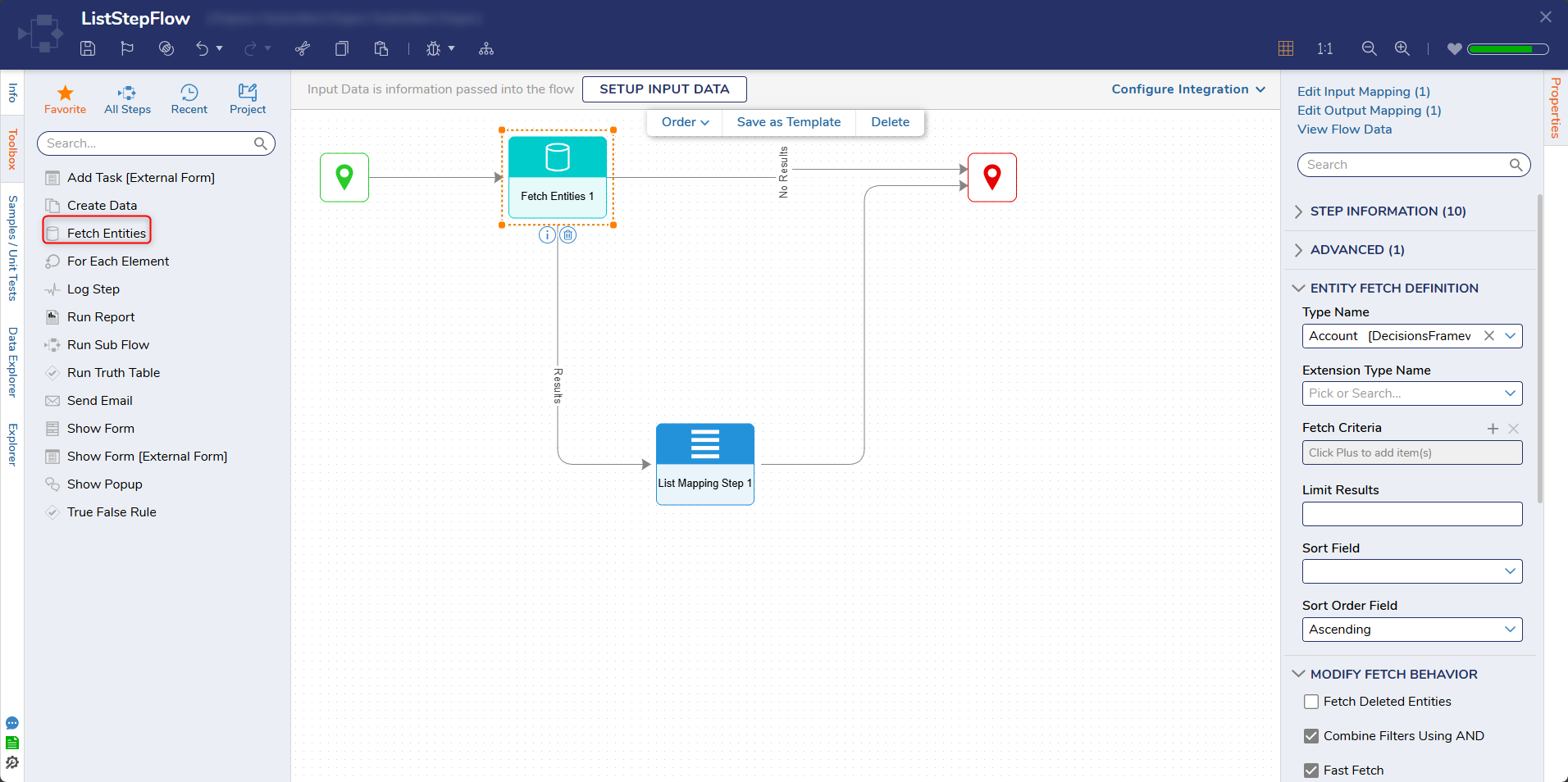
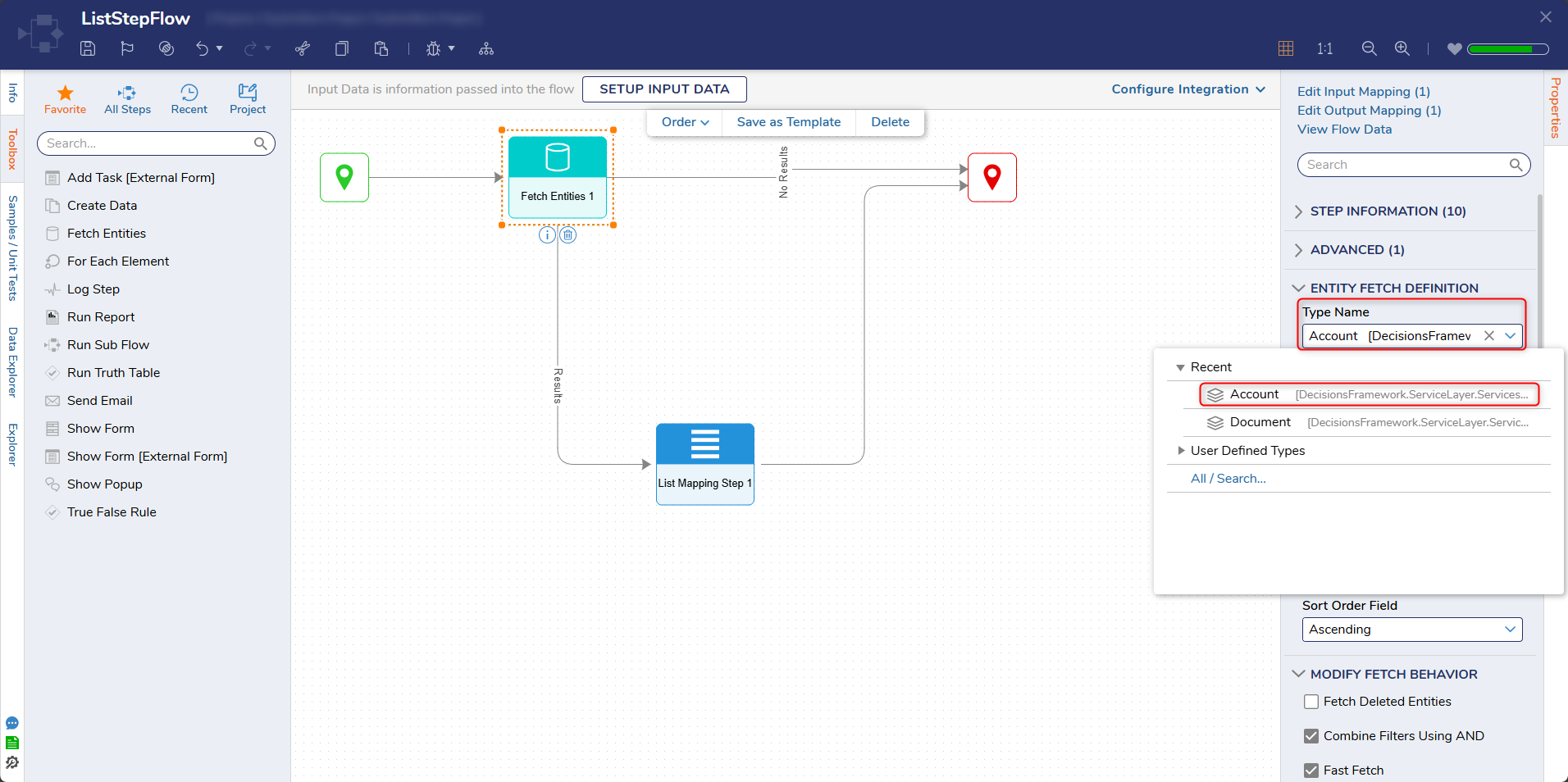
- On the Properties panel under the ENTITY FETCH DEFINITION category. Enter "account" in the Type Name field and select Account from the dropdown menu.
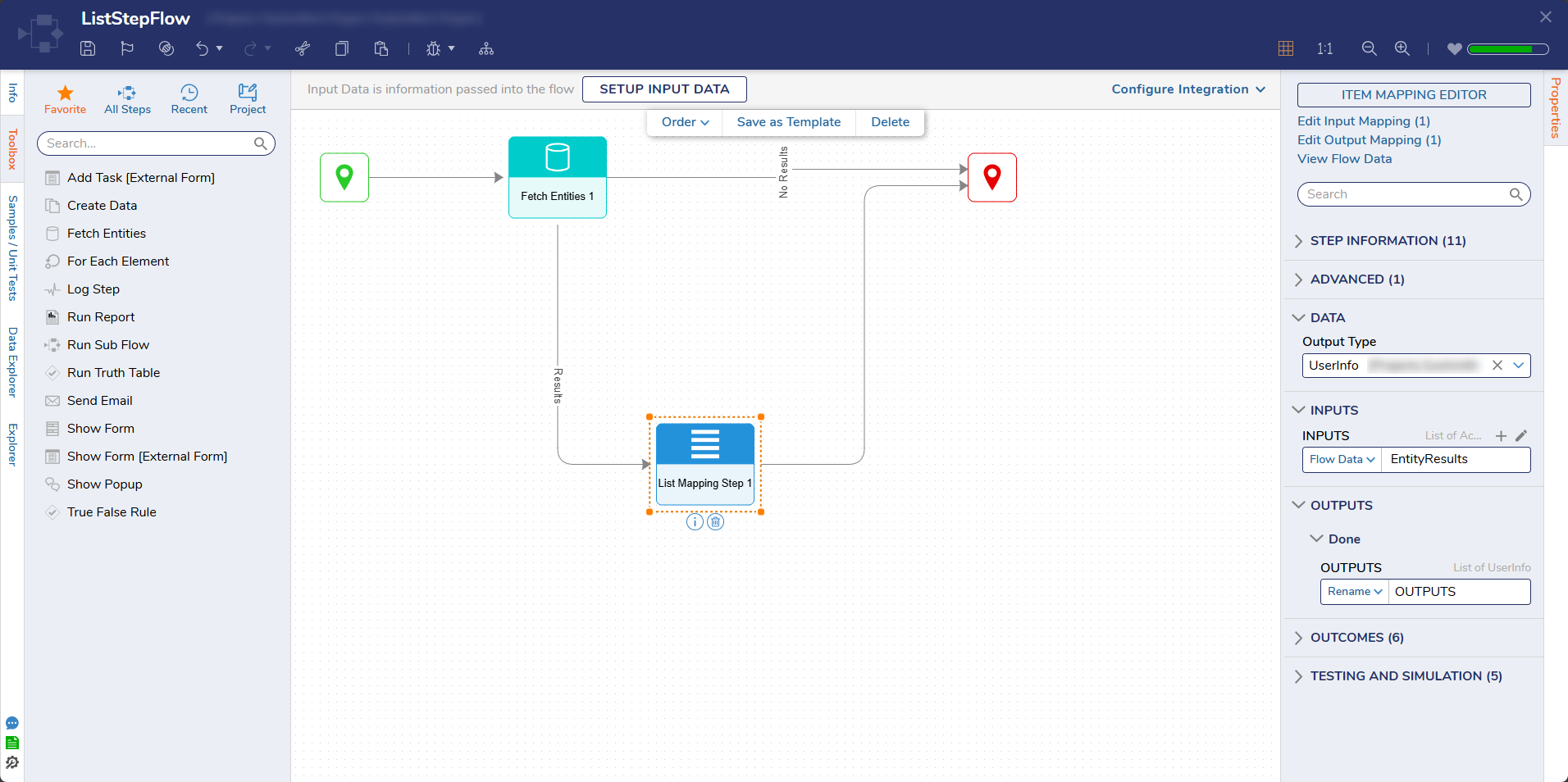
- Attach a List Mapping Step from the Toolbox panel under the DATA > LIST category to the Results path of the Fetch Entities step and the End step. Connect the No Results path to the End step. On the Properties panel, select the desired Data Structure from under the Output Type field. Map EntityResults to INPUTS and click Show Item Mapping Editor.
.png)
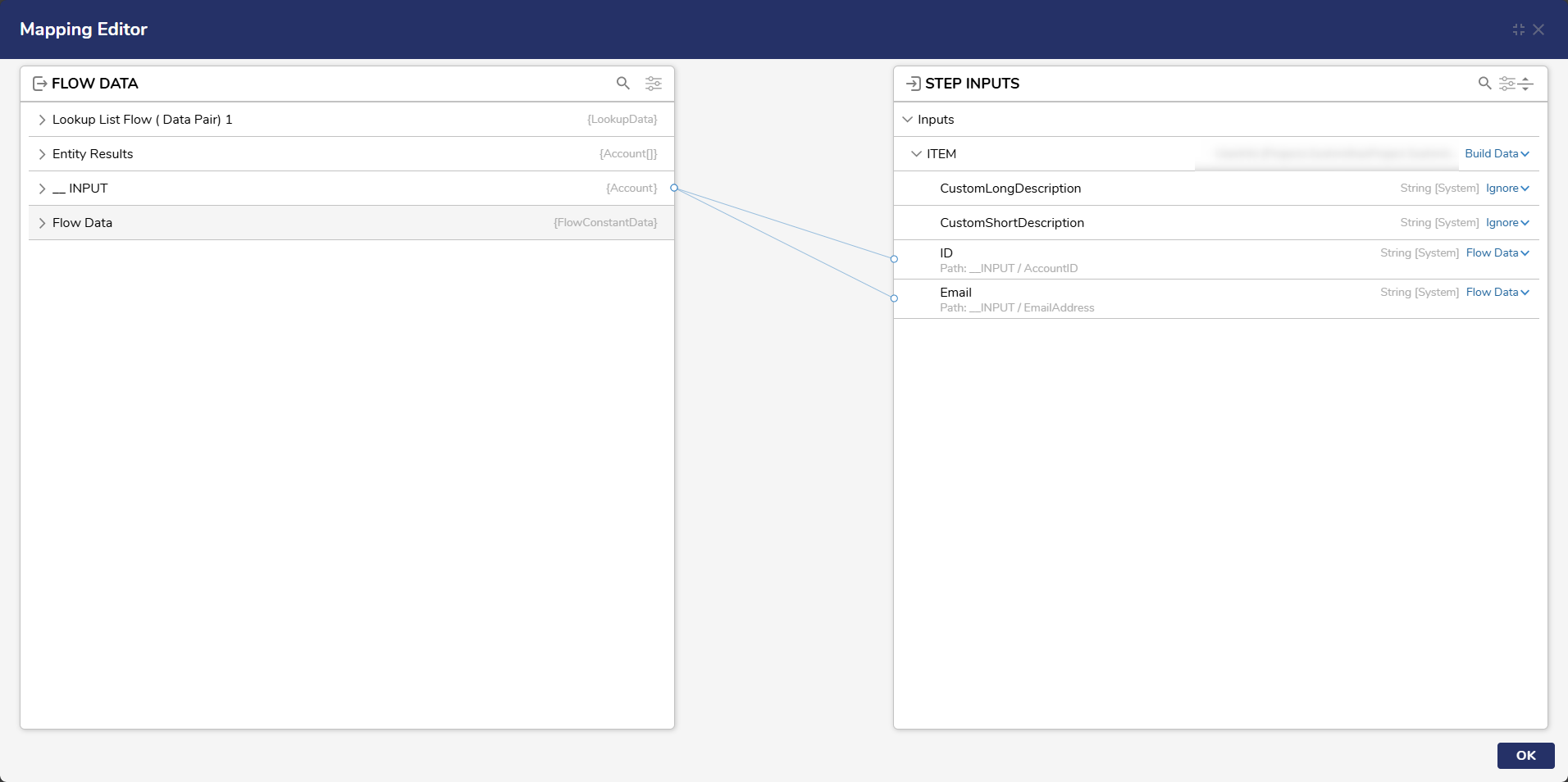
- From the Mapping Editor, set ITEM to Build Data. From _INPUT, map AccountID to ID Value and EmailAddress to Email Address. Click OK.
- Click Save to save changes to the Flow.
Debug
- Click Debug from the top action bar.
- Click START DEBUGGING.
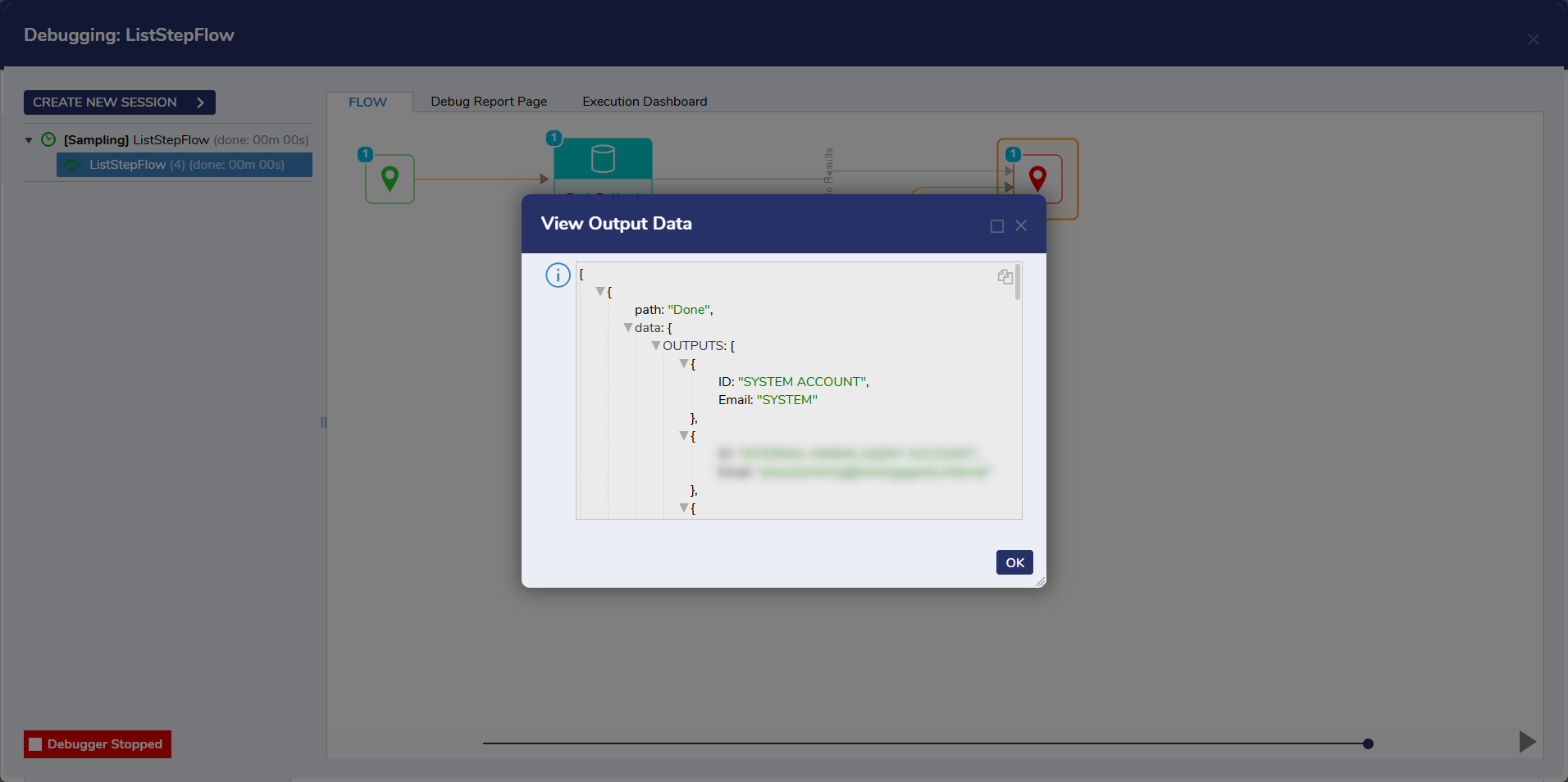
- After the debugger runs, click the List Mapping Step, select Execution 1, and select View Output Data. The resulting data will display as a list mapped in accordance with the selected Output Data Type.
For further information on Flows, visit the Decisions Forum.