Overview
Element Links are specific to their instance. Since Links are intrinsically dependent on their original Element, exporting a Link automatically exports the original Element alongside it.
Example
The following example demonstrates how to export and then import an Element Link into a different Decisions instance.
Export
- Create an Element Link.
- Right click on the Link to open its Action Bar. Navigate to Import/Export > Export. In the following dialog, notice the original is registered as a dependency of the exporting Element Link.
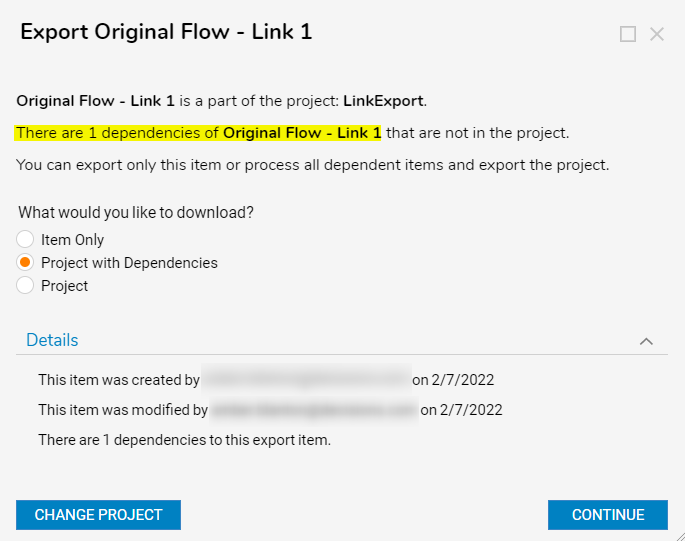
- Download the project with dependencies and select Continue. Include the original Element else the Link will break.
- After receiving the confirmation popup, the exported zip file containing the Element Link and its dependencies including the original Element begins to download.
Import
- In a separate Decisions instance, right-click on a Designer Folder to open its Action Bar. Select Import/Export > Import.
- Select the zip file containing the Element Link, and then select Import.
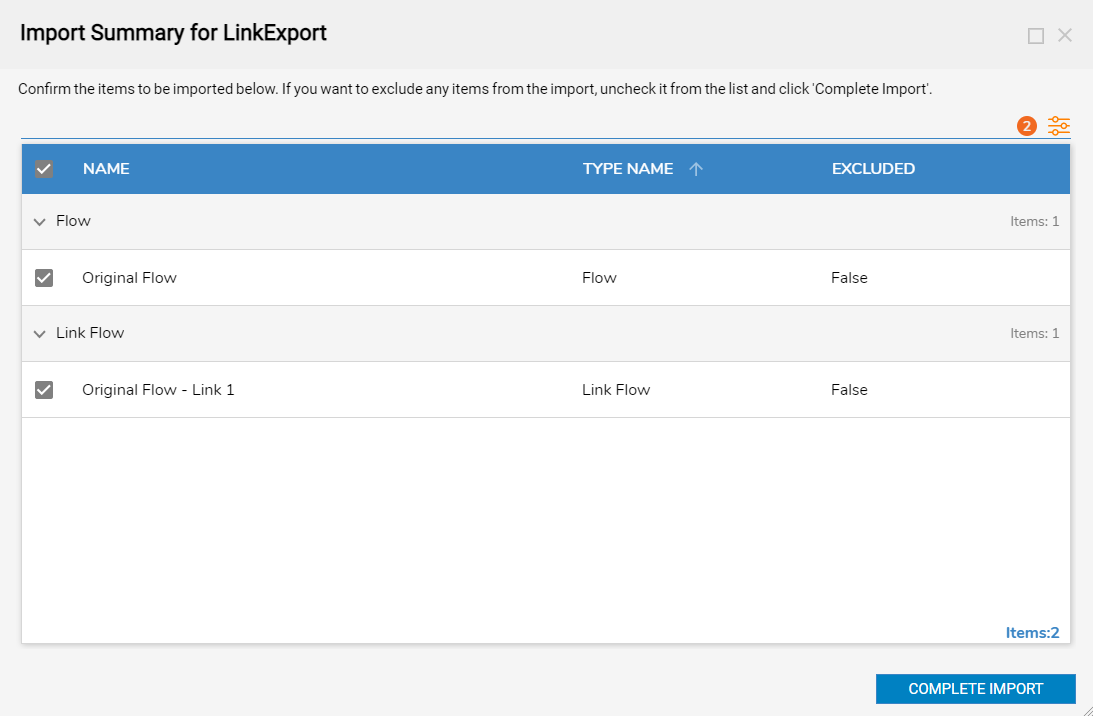
- Complete the Import dialog. The Element Link and its original Element are now within the new instance.
Moving Element Links in the Repository
Moving a Link to a Repository also automatically moves the original Element alongside it since the Link needs the original. Just like with importing/exporting between instances, any Links missing a connection to their original Element will break.