Overview
Decisions provides a comprehensive Decisions can easily be embedded into other software to give your clients access to its robust designers and other functionality. By embedding Decisions into their applications, customers can enhance functionality, streamline processes, and accelerate digital transformation initiatives.
This document will examine some key topics in embedding Decisions into a separate application. It will go into how Decisions operates, methods of integration, and how to manage data once it is embedded. There are separate documents for how to adjust the UI of Decisions and hosting strategies.
Controlling the Decisions Portal
Whether you want to integrate a simple dashboard or a full edit experience, everything in Decisions is delivered through a browser. All that is needed is either the path or the Designer Entity ID. This section will walk users through how to take advantage of this and how the portal renders itself. This section will walk users through what the properties of the path are and how custom URL parameters will present the experience to end users.
Navigating around the Platform
Users can move through the Decisions platform via URL paths, since Decisions is a web-based application. Every element within Decisions is kept in a Folder, and those Folders have unique Ids.
Here is the base of the URL Path:

Any Decisions URL path that does not have a FolderId will send the user to the My Documents Folder. The FolderId can be located by right-clicking any Folder and selecting "Get Folder Id", "Get Designer Folder Id", or "Get Project Id". Projects are considered Folders for purposes of the URL navigation. A Project Id would go after FolderId=.
| URL Component | Description | View |
|---|---|---|
| &pageName= | This determines which Page of the Folder will be accessed. | .png) |
| &objectId= | This is a specific Designer Element in the platform, such as a Rule or Flow. If this parameter is used by itself it will cause the element to run. The word 'object' is replaced by the type of element. So '&ruleid=' or '&pageid='. | (1).png) |
| &action= | This determines what action is going to be applied to a Designer Element. Usually this will be used with an Object ID first, telling the platform what to do with an element. Using "=edit" will open the element up in the appropriate designer. An example of this is in the next section. | .png) |
| &documentId= | This will navigate the user to a direct download of a particular document in the environment. | .png) |
| &chrome= | This is used to customize how the Decisions studio appears in the browser. More specifics are below in the next section. | .png) |
Example: Embedding a Designer
Here is a brief example of how to get a Flow to be directly editable.
- Find the Flow that is going to be edited. Open it in the Flow designer and copy the URL.
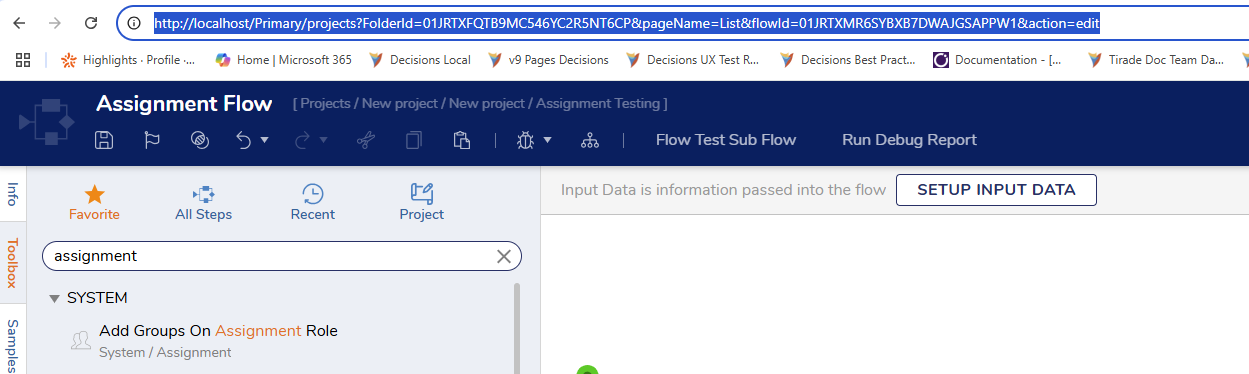
- Remove everything between “projects?” and “&FlowID”. At the end of the URL change “action=edit” to “action=directedit”
- The URL would like something like this: http://localhost/Primary/projects?flowId=01JHG73MBCFFX9H5FNV4XW5JFG&action=directedit
- This can be copied and pasted into any browser to test that it works.
- Now have that URL be called by another step.
Rendering the Platform
Decisions gives users complete control over how the service appears to end users. Below are special URL parameters can be appended to the URL to control the look of edit sessions.
Here are the six available options:
| Parameter Option | Description | View |
|---|---|---|
| &chrome=Off | Will not display the Top Bar or the Folder Tree | 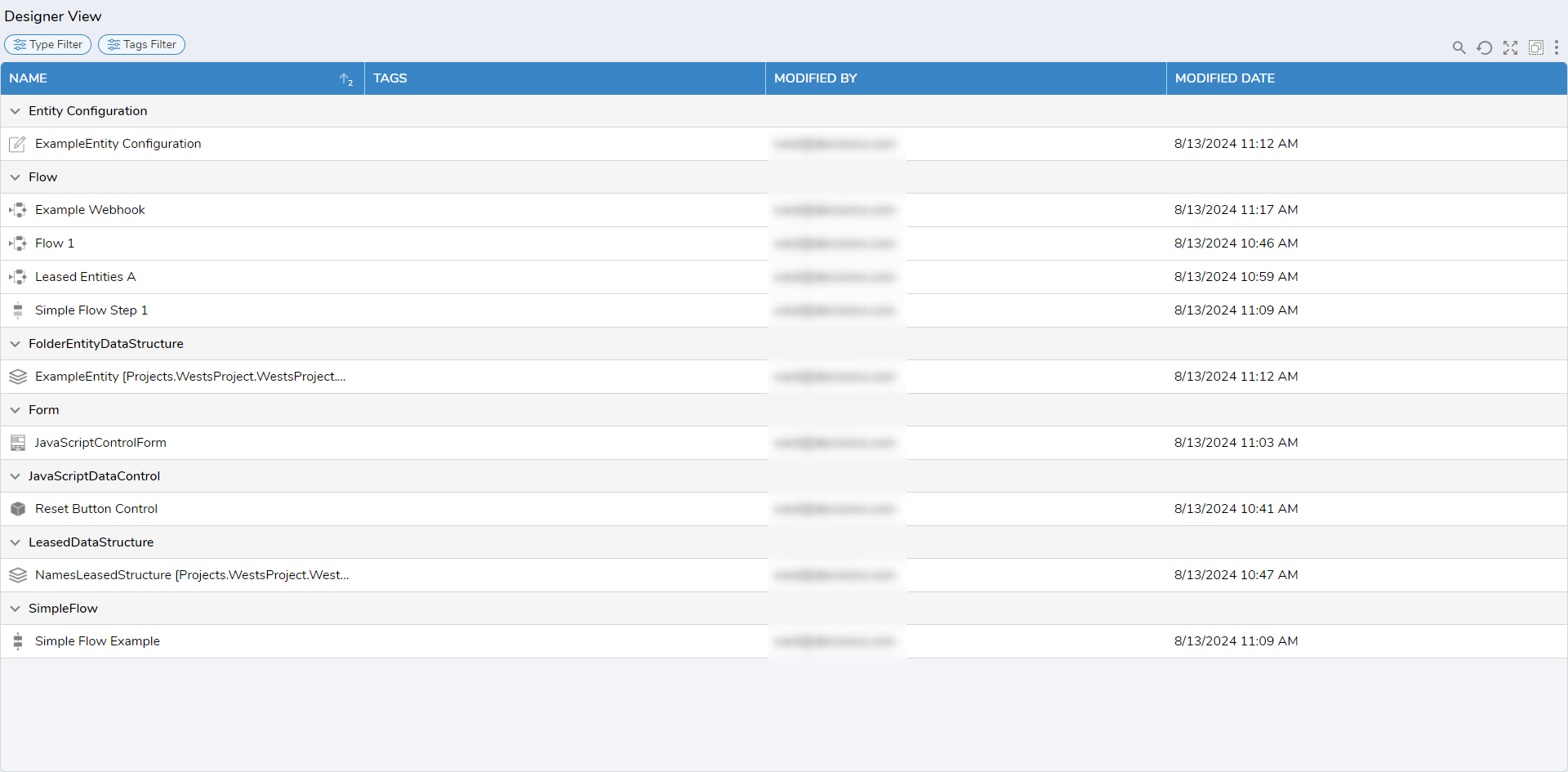 |
| &chrome=Small | Displays a Top Bar with no Top Bar actions | 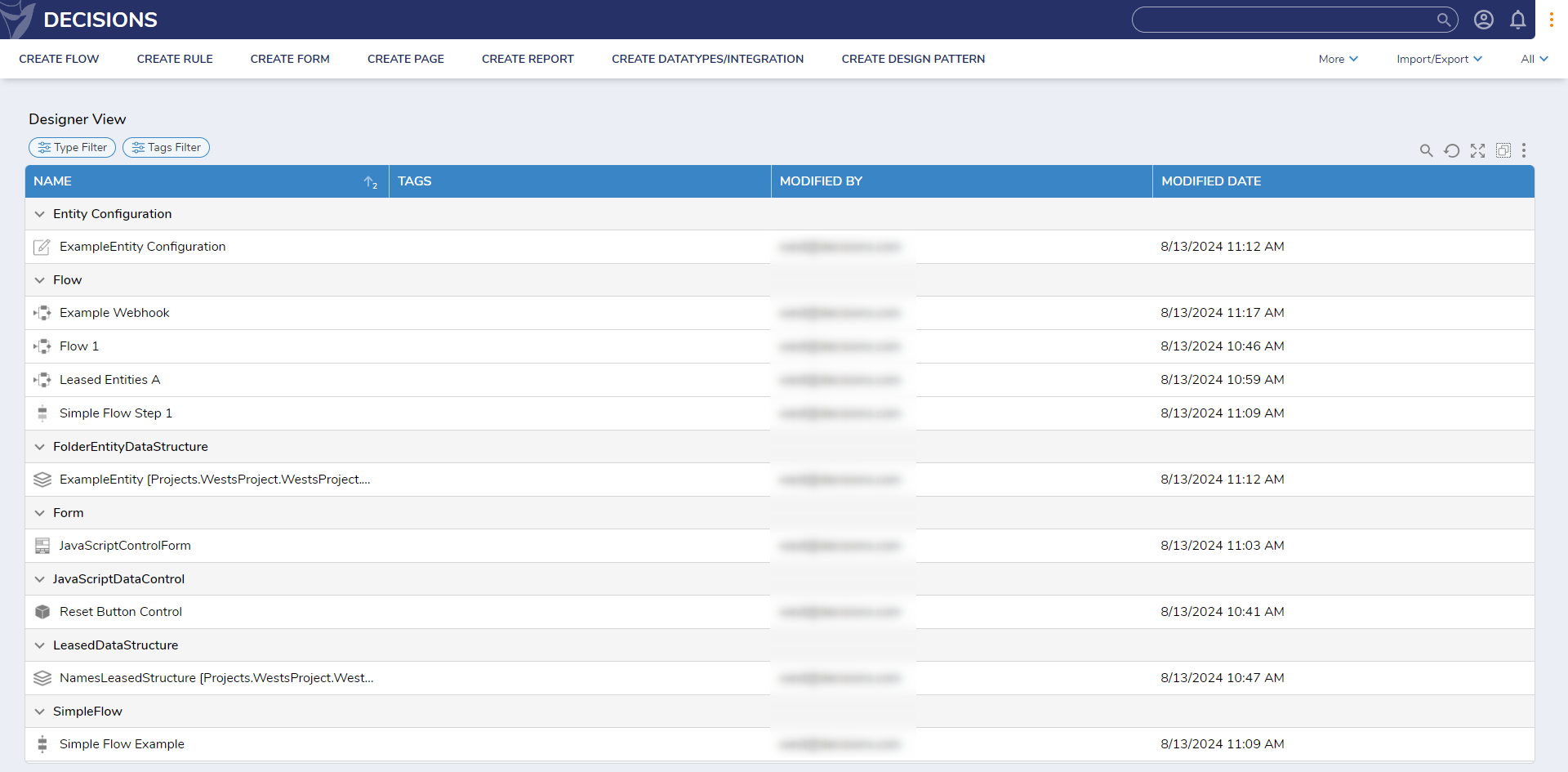 |
| &chrome=TopBarOnly | Only display the full Top Bar | 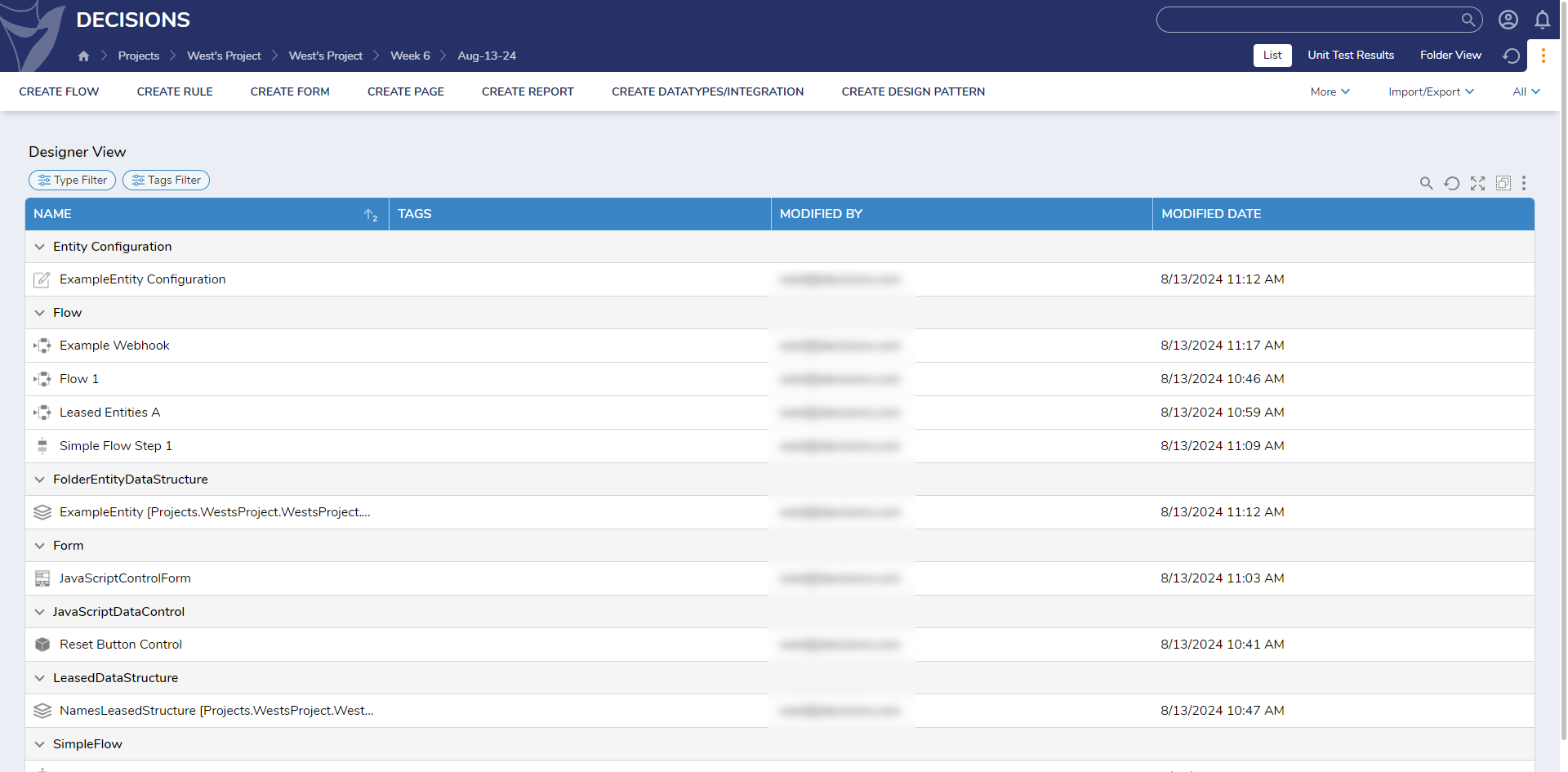 |
| &chrome=TopBarFolderTreeCollapsed | Displays the full Top Bar and the Folder Tree as collapsed | 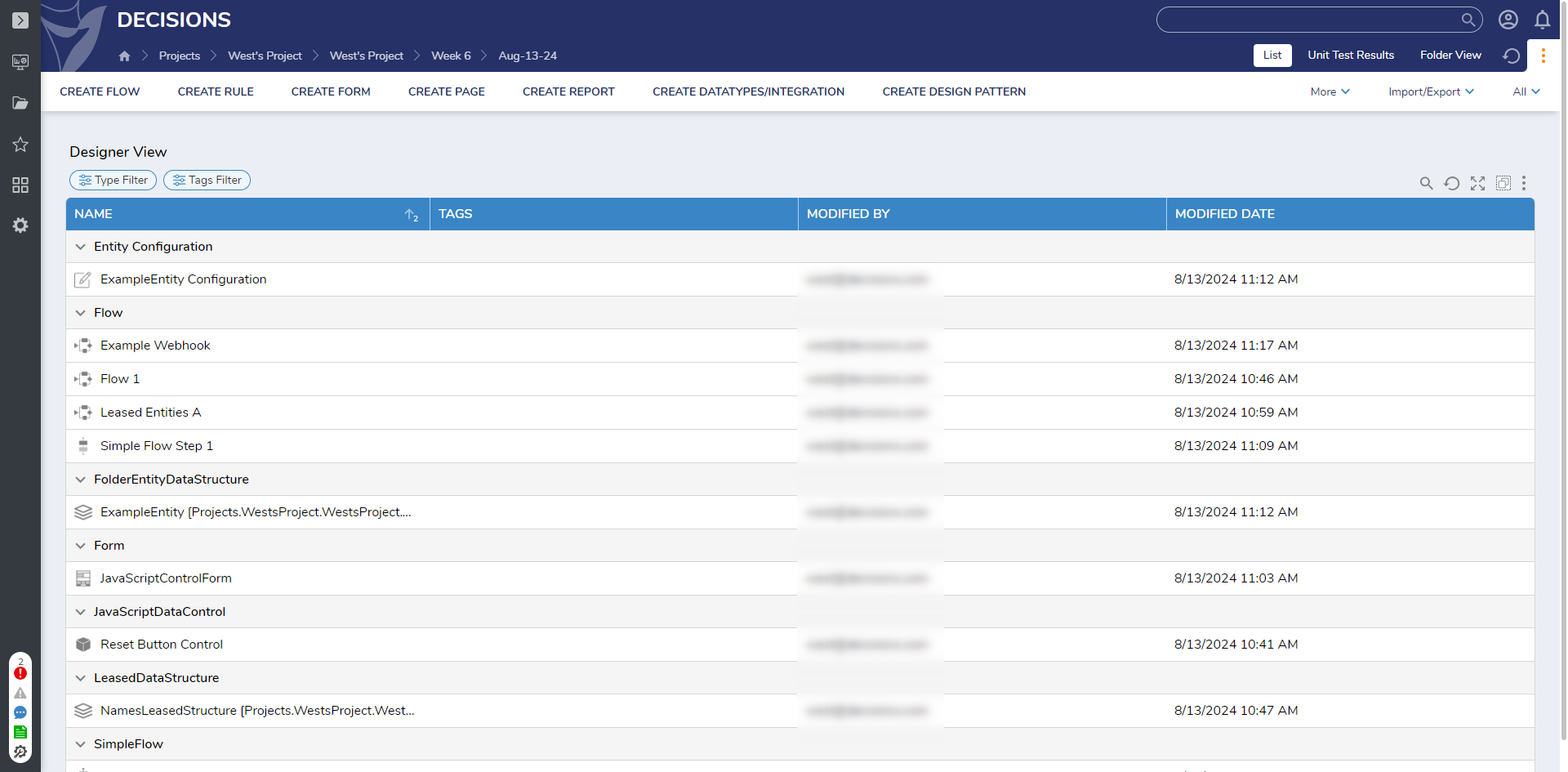 |
| &chrome=NoTopBarHasFolderTree | Will not display the Top Bar but will display the Folder Tree | 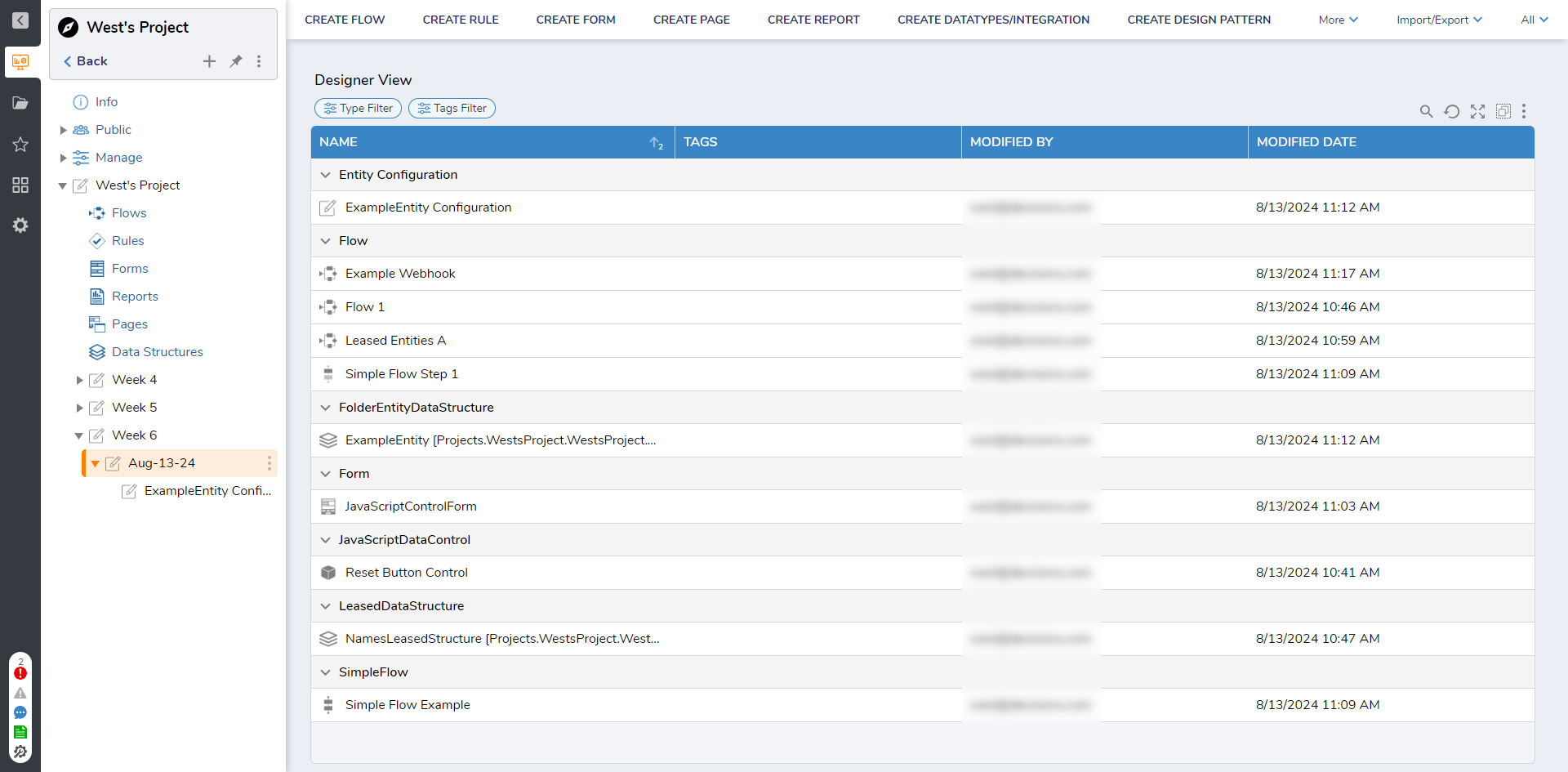 |
| &chrome=NoTopBarFolderTreeCollapsed | Will not display the Top Bar but will display the Folder Tree as collapsed | 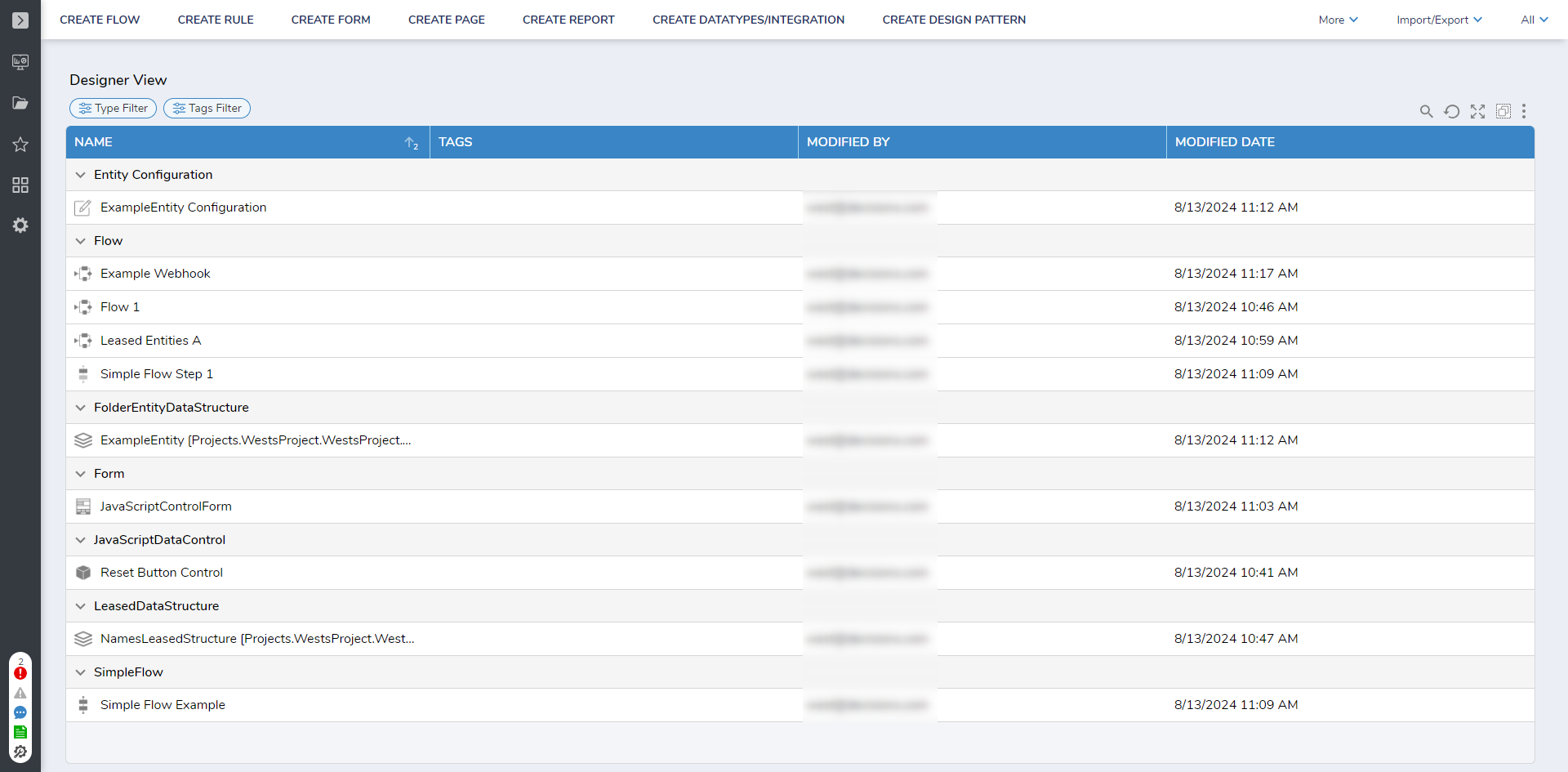 |
Enforcing URL Parameters
To prevent end users from editing the URL and changing the appearance in their personal browser. These can even be made to be 'sticky' so that users refreshing the browser do not lose the parameters.
Default URL parameters are per Group of users. This can be set at either the System level or the Project level.
To set parameters by Group:
- Edit a Group.
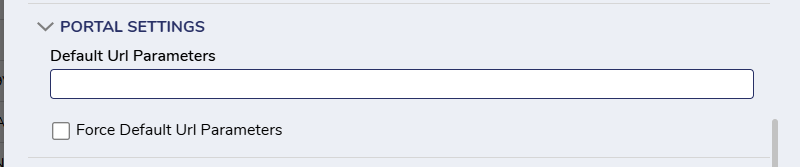
- Go to Portal Settings.
- Enter in the URL parameters that the group will see.
- To keep the URL parameters even after a browser refresh, enable "Force Default Url Parameters."
Customizing the URL
A URL using the Flow ID, a Session ID, and parameters can become a lot. One way around that is to create an alias.
An alias is a short, user-defined name for a Flow that can replace a FlowID. The FlowID is the unique ID generated by the system to identify the Flow. Typically, to run a Flow using a URL, include a FlowID, however, it is possible to make this easier by replacing the FlowID with user-defined alias.
Creating a Flow Alias can be configured easily in the 'SERVICE SETTINGS' of a Designer and clicking the 'Override Service URL'. Then configure the service URL.
Ways to Trigger Events Inside of Decisions
system connectivity patterns
call via api directly, ascync call to an api, sync call to an api, post message to a queue that deci is listening to (doing the opposite of this), file listening - you can read a message in a queue or you can put a message in a queue
deci can call an api and an api can call deci X
checking the status of long running requests - this should be a sep doc that is linked to back here.
you can call a flow to trigger a long running event - one that doesn't give you a result back, but does respond - this is what the async fire and forget subflow does. How do you initiate a 12 hour job via API call -
checking uptime
checking reservicability
scheduled jobs
(could be an entire doc)
Entity Management
A Decisions API layer can consume and respond with JSON specific to the embedded application's needs.
from Dart Best Practices for editing over API and not UX:
Failsafe Logic: Implement failsafe logic for Flows that rely on external API calls. This ensures that your application can handle situations where the API is unreachable or an error occurs.
Minimize API Calls: Reduce the number of API calls to improve workflow performance. This can be achieved by caching API responses where possible.
Efficient Database Calls: When dealing with database operations, pass the entire object into a child flow if it's available in the parent flow. Otherwise, pass the ID and fetch the object in the child flow.
Authentication: Ensure proper authentication when calling Decisions API. Use authentication information provided by the View Integration Details page or include it in the HTTP header.
Project Documentation: Maintain up-to-date documentation on the application's intended function and testing plans throughout the development process.
Consistent Naming Conventions: Use relevant naming conventions for rules and steps to enhance clarity and maintainability.