Overview
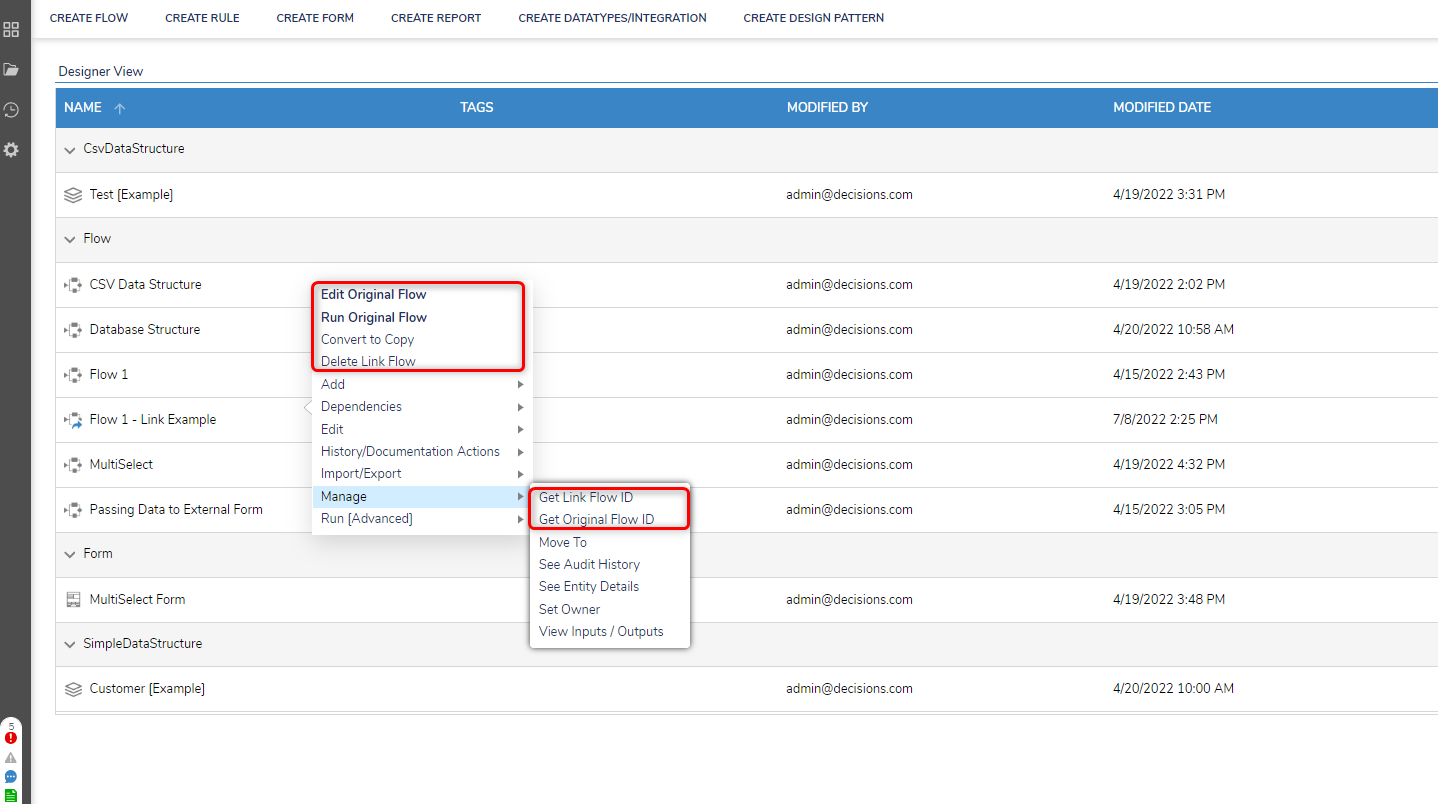
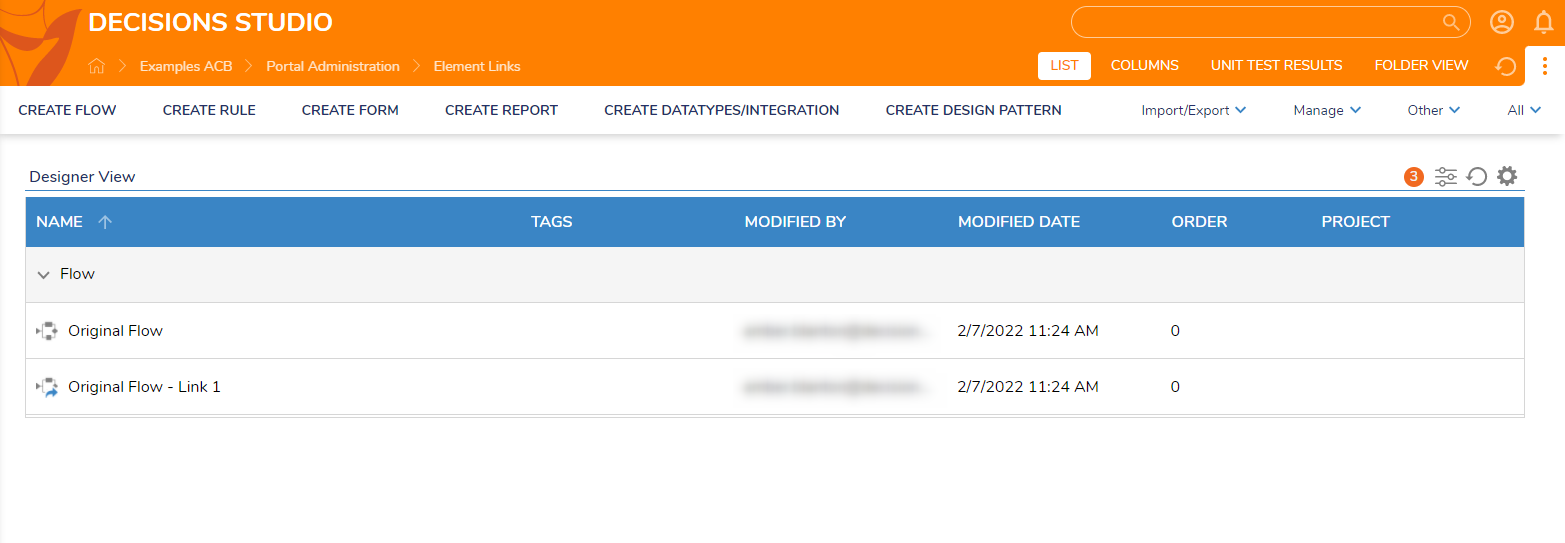
Element Links use the same Decision Element with the same configuration data across multiple dependencies via creating a link. Linking an Element removes unnecessary development time and prevents extra copies of Elements in an instance. In addition, any constraints associated with the original Element, such as requiring manual reconstruction to use outside of a constrained build, are circumvented with Links.
Links are not copies of their original Element; they are shortcuts for inserting the original Element into a Flow similar to any other Element. Links cannot be edited without affecting the original Element; however, converting a Link into a copy allows it to retain unique editing for it is now a regular Element.
The following Designer Elements support Element Linking:
Configuration
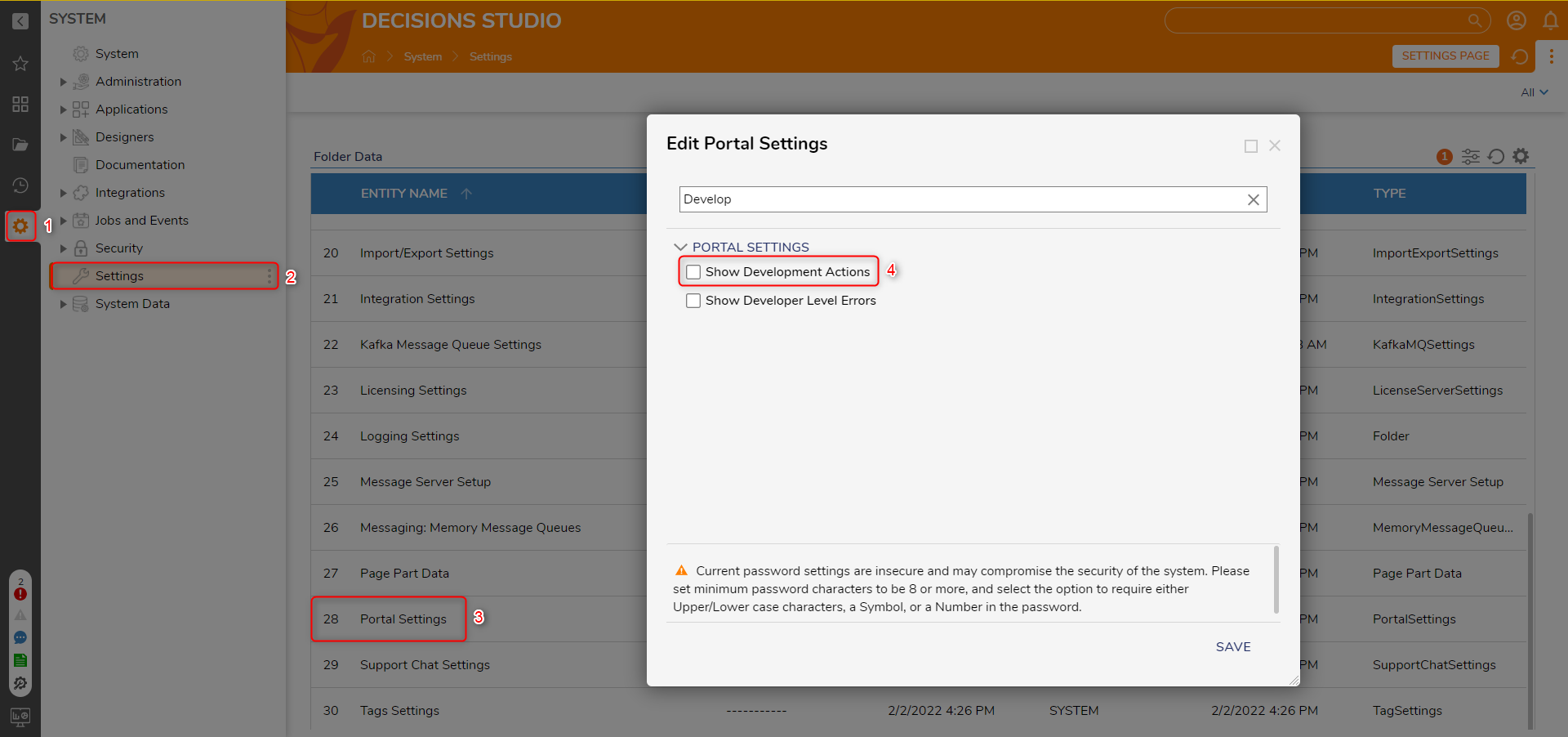
Element Links are an experimental feature thus they can only be accessed by enabling Show Development Actions in the Portal Settings. Navigate to Settings > Portal Settings and under the PORTAL SETTINGS category select the option Show Development Actions.
Element Link Actions
After enabling and creating an Element Link, the following new actions are available in the supported Element's action menu.
| Element | Action Name | Function |
|---|---|---|
| Original Element | Create Link | Opens creation dialog for a new Element Link of the selected original Element |
| Link | Edit Original [Element] | Opens the original Element in its respective Element Designer |
| Run Original Flow | Starts the original Flow | |
| Convert To Copy | Converts an Element Link into a copy allowing for changes to affect only itself and not the original Element | |
| Delete Link [Element] | Removes the Link from the instance | |
| Manage > Get Link [Element] ID | Displays ID of the Link | |
| Manage > Get Original [Element] ID | Displays ID of the Link' original Element |
Original Element: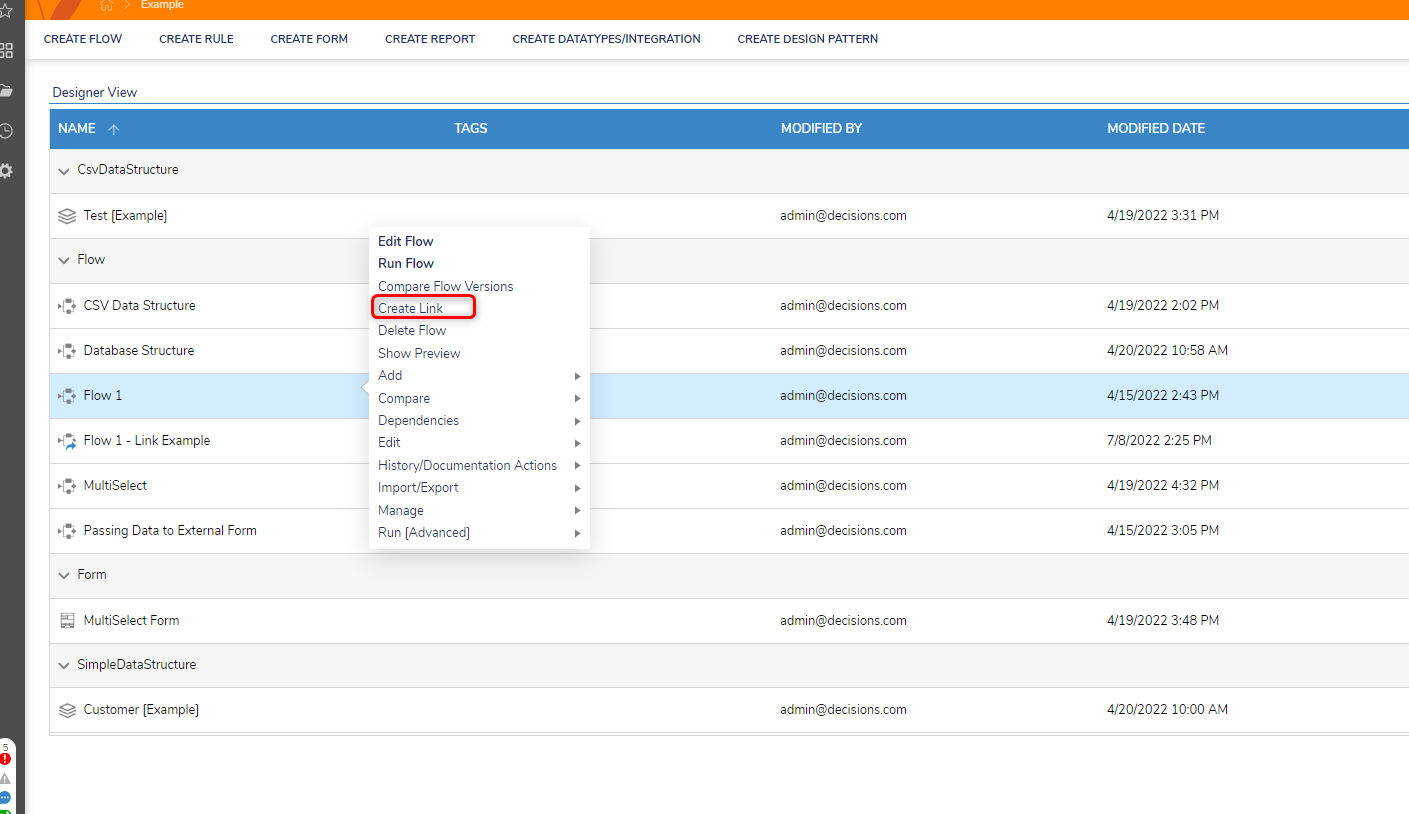
Element Link: