Overview
Deserialization is the process of reversing a String from a previously serialized format. This coverts the serialized String into a format that allows its Data Structure properties to be accessible to manipulation.
Through the use of Deserialization steps, JSON, XML, and XSD Strings can be deserialzed via their respective steps.
Properties
JSON Deserialize Step
| Setting Category | Name | Description |
|---|---|---|
| Parameter | Show Only User Defined JSON Types | Limits the type dropdown list to only show user-defined JSON Data Types |
| Parameter | IsOutputArray | Changes the step output to be a list of a type instead of a single type |
| Parameter | JSON Type or Type | Type of string that the step will Deserialize |
| Inputs | String to Deserialization | The Deserialization step input variable name |
| Output | JsonDeserialize1_Output | The Deserialization step output variable that can be a list if the IsOuputArray checkbox is set to true |
| Output | Error Message | Error message output variable |
XML Deserialize Step
| Setting Category | Name | Description |
|---|---|---|
| Parameter | Show Only User Defined XML Types | Limits the type dropdown list to only show user-defined XML Data Types |
| Parameter | XML Type or Type | Type of String that the step will Deserialize |
| Inputs | String to Deserialize | The Deserialization step input variable name |
| Output | XmlDeserialize1_Output | The Deserialization step output variable |
| Output | Error Message | Error message output variable |
XSD Deserialize Step
| Setting Category | Name | Description |
|---|---|---|
| Parameter | Show Only User Defined XML Types | Limits the type dropdown list to only show user-defined XML Data Types |
| Parameter | XML Type or Type | Type of String that the step will Deserialize |
| Inputs | String to Deserialize | The Deserialization step input variable name |
| Output | XsdDeserialize1_Output | The Deserialization step output variable |
| Output | Error Message | Error message output variable |
Example
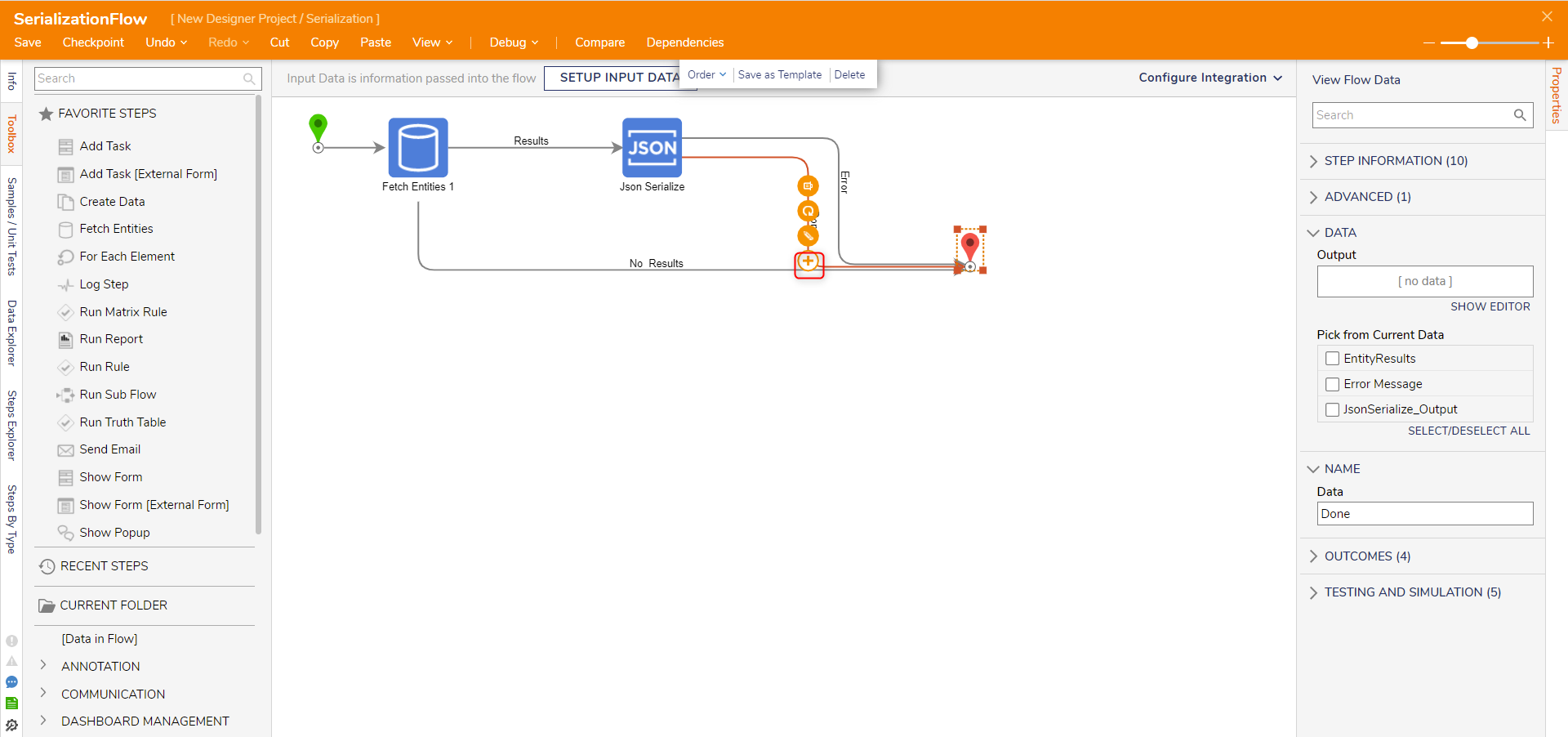
- From the Flow that was previously created using the Serialization article, hover over the Done path of the Json Serialize step and click the plus icon.
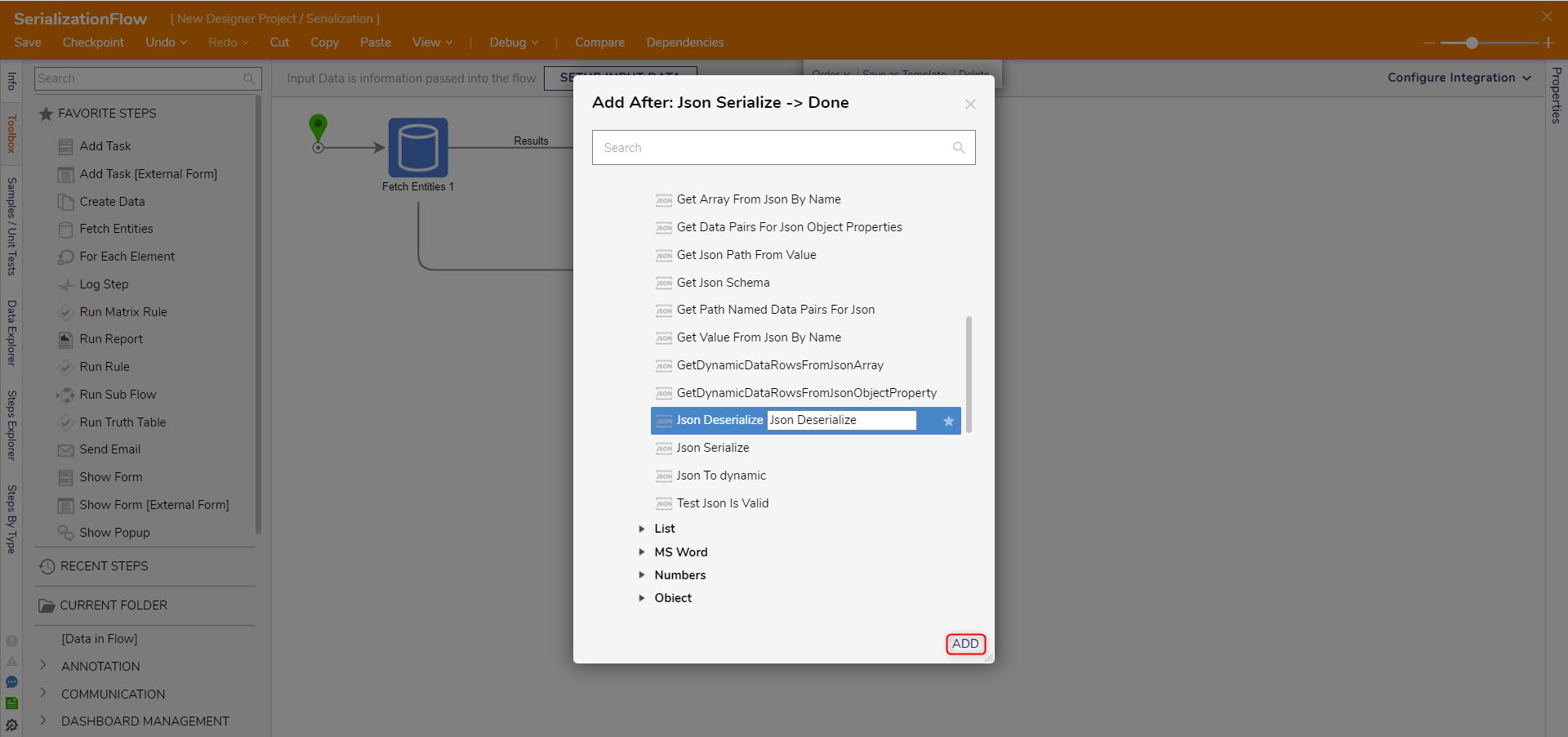
- Navigate to All Steps [Catalog] > Data > Json, select the Json Deserialize step and click ADD.
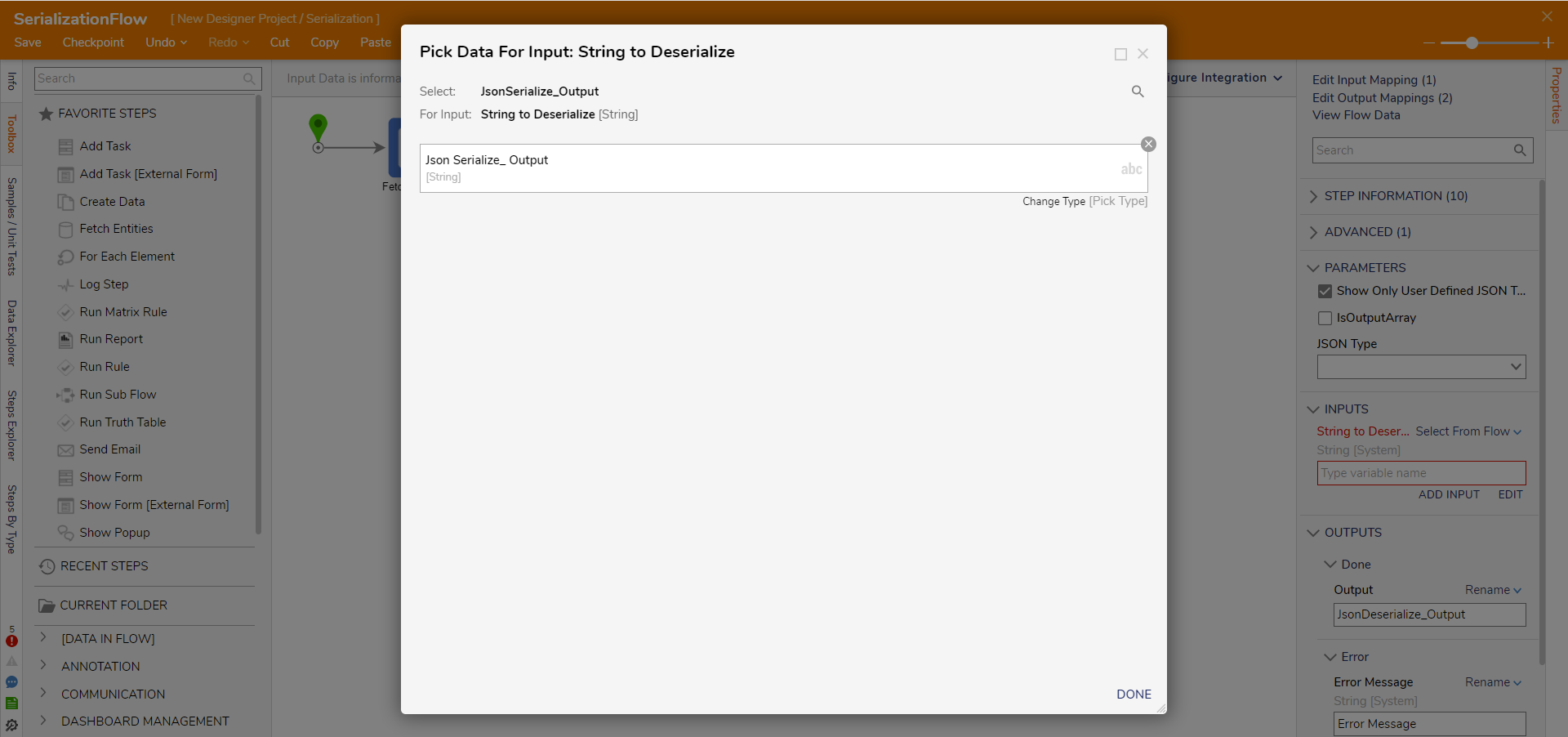
- With the Json Deserialize step selected, map Json Serialize_ Output to INPUTS > String to Deserialize.
- Uncheck Show Only User Defined JSON Type under PARAMETERS.
Then, under the Type field, enter "account" in the text box and select Account [DecisionsFramework].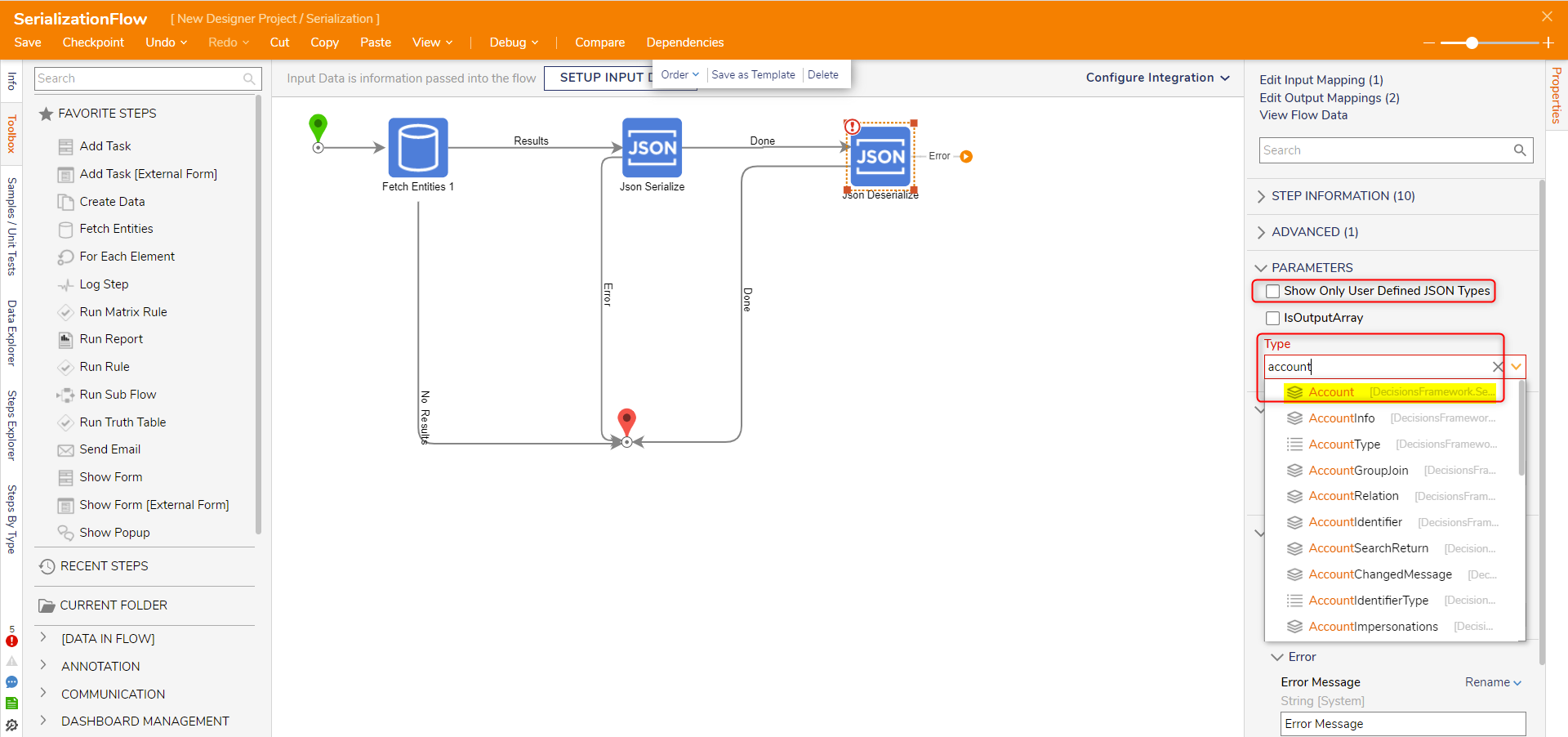
- In the OUTPUTS category, set Output to Rename. Then, enter "JSonDeserialize_Output" in the text box.
Connect the Done path to the End step. Then, Save the Flow.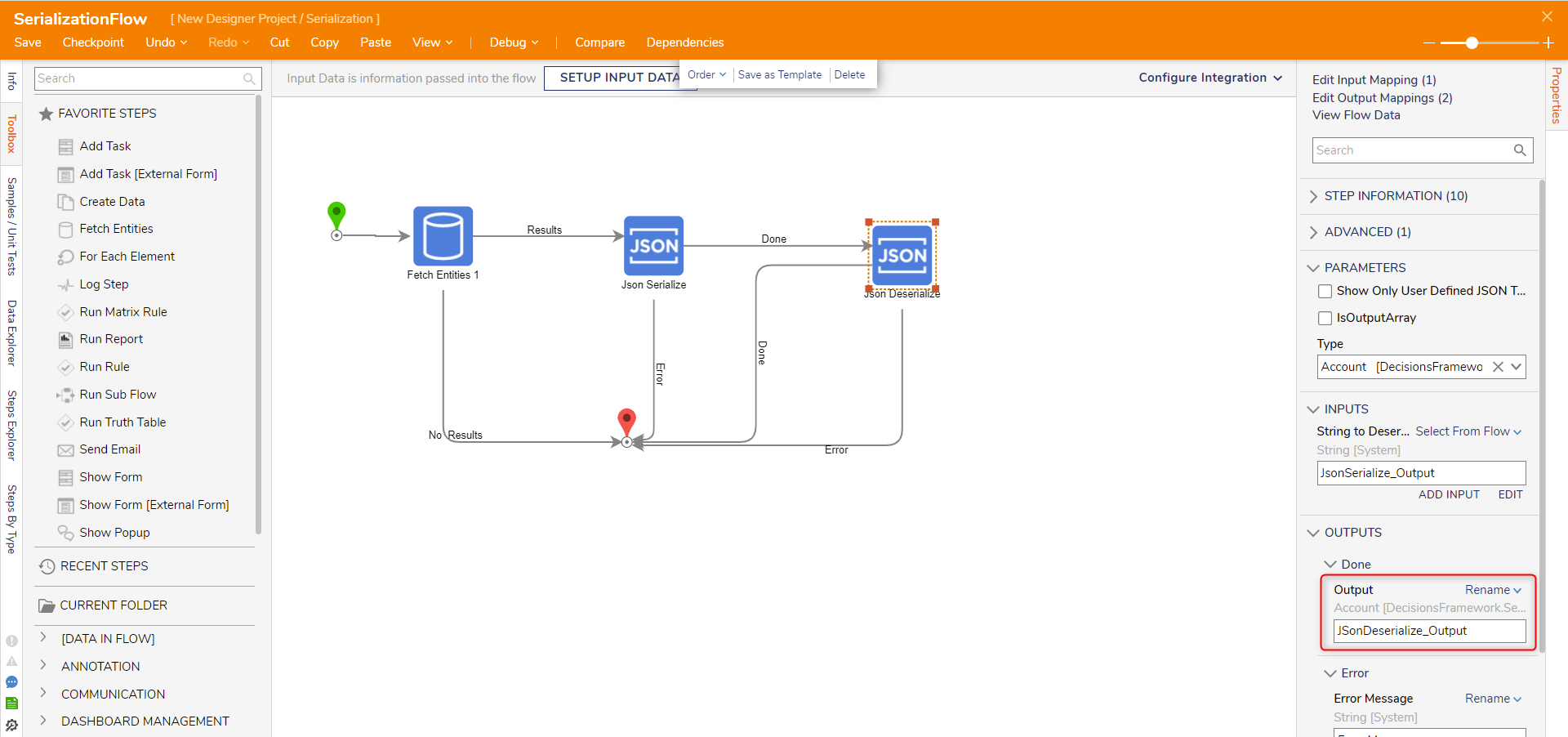
Debug
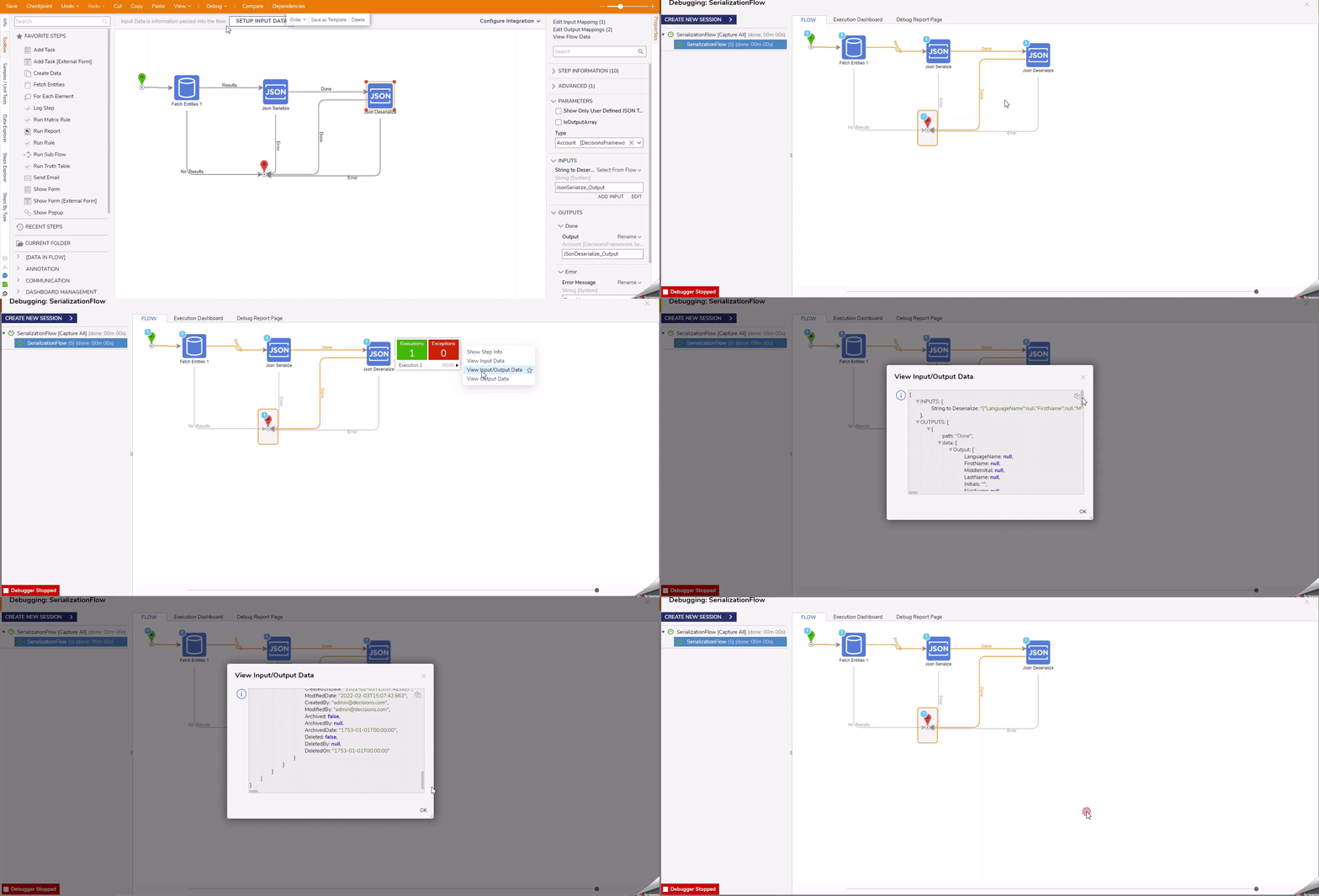
- From the top Action Bar, click Debug. Then, click START DEBUGGING.
- Click the Json Deserialize step. Click Execution 1 and select View Output Data.
- Verify that the String has been deserialized into each individual data member of the Account Data Type.
For further information on Flows, visit the Decisions Forum.