Overview
Conflict Resolution helps manage differences between the version of an entity in a Deployment Package and the version that currently exists in a connected target environment, such as QA or Production.
A conflict occurs when the same entity exists in multiple environments, but the versions are different. For example, a Flow, Rule, Form, or Dashboard may have been changed directly in QA or Production, while another version of the same entity was changed in Development and deployed through the Deployment Server. When this happens, the Deployment Server cannot automatically determine which version should be treated as correct.
This feature provides two ways to review and resolve conflicts:
- Default Conflict Resolution Dashboard: A package-level dashboard used to review conflicts across connected target environments and assign a default resolution for each entity.
- Conflict Resolution Wizard: A guided dialog that appears during Deploy when conflicts exist and no default resolution has already been applied.
Conflict detection compares the version of entities from the Deployment Package against the current state of those entities in connected target environments.
A conflict is shown when the entity in the target environment has been modified after the last package build or deployment date.
Conflicts typically occur when changes are made directly in a target environment, such as QA or Production, outside the normal deployment process.
When Does a Conflict Occur?
Conflicts typically occur when changes are made outside the standard deployment lifecycle. Common scenarios include:
- A critical issue is fixed directly in Production.
- A user manually updates an entity in QA.
- An emergency update causes Production to differ from the version in the Deployment Package.
As a result, Development, the Deployment Server, QA, and Production are no longer synchronized, and the Deployment Server detects that the target environment already contains a different version of the entity.
Default Conflict Resolution Dashboard
The Conflicts dashboard is available inside a Deployment Package on the Deployment Server. It provides a centralized view of conflicting entities across connected target environments.
To open the dashboard, navigate to: Organization > Deployments > [Package] > Conflicts tab.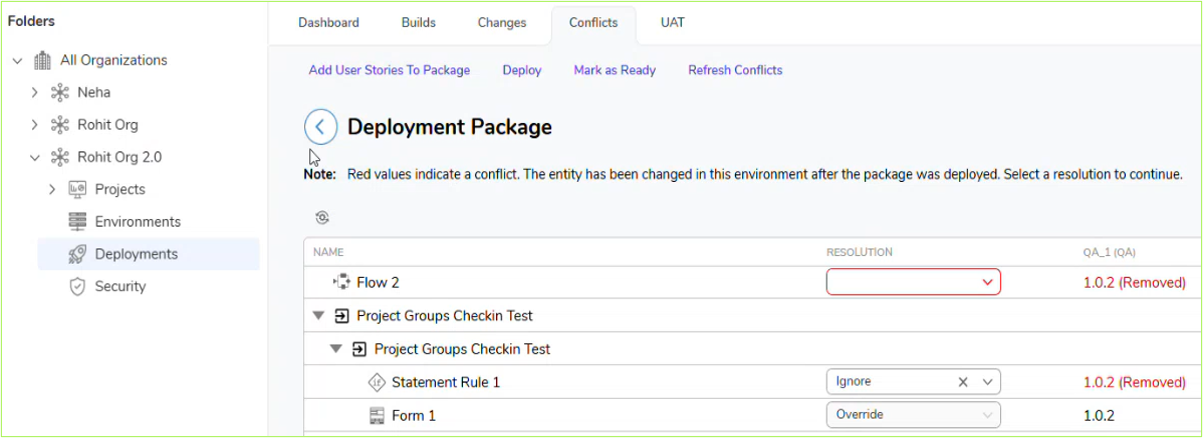
The dashboard displays conflict information for target environments such as QA and Production. The Development environment is not included because it is the source environment for changes and is expected to be ahead of deployed package versions.
Each conflict entry identifies the affected entity and the target environment where the conflict exists, making it easier to review and resolve changes made outside the normal deployment process.
Conflicts are shown for connected target environments where the package has been deployed. If a package has not been deployed to a target environment, conflicts for that package are not compared against that environment.
If the package exists in a target environment but an entity is missing, deleted, or moved to another project in that environment, the entity may appear as Removed in the conflict dashboard.
Refreshing Conflicts
Use the Refresh Conflicts action to update the conflict list for the selected Deployment Package. This action compares the package against the connected target environments and identifies entities that have been modified, removed, or otherwise changed outside the normal deployment flow.
Refreshing conflicts may take some time because the Deployment Server compares package entities against connected target environments.
Resolution Options
Each conflicting entity can be assigned one of the following resolution values:
- Override: Replaces the existing version in the target environment with the version from the Deployment Package. Use this option when the change made in QA or Production was temporary, incorrect, or unapproved.
- Ignore: Keeps the existing version in the target environment and skips the conflicting entity from the Deployment Package. Use this option when a valid business or emergency change was made directly in QA or Production and the version in the target environment must be preserved.
Selecting Override permanently replaces the target-environment version with the version from the Deployment Package. Once deployment is completed, the previous target-environment version cannot be restored through the deployment process.
Resolution selections, whether Override or Ignore, are stored as part of the deployment audit trail.
Saved Resolution Behavior
When a resolution is selected in the package-level Conflicts dashboard, the selected value is saved immediately. During the next deployment, the Deployment Server uses the saved resolution for that conflict.
If a saved resolution exists, the Conflict Resolution Wizard does not appear for that conflict during deployment. If no saved resolution exists, the wizard appears and prompts the user to choose how to handle the conflict.
A conflict can be left unselected while reviewing items in the Conflicts dashboard. However, before deployment can continue, every conflict must be resolved by selecting either Override or Ignore.
Saved resolutions can be cleared before deployment. After a resolution is cleared, the conflict can be resolved again from the dashboard or during deployment.
Conflict History
The Conflicts dashboard may continue to show conflicts that were previously resolved as part of the package history. This provides visibility into conflicts that existed before a deployment and the resolution that was applied.
If a conflict was resolved using Override, the target environment is updated to match the package version. After deployment, the Override selection is locked and cannot be changed for that conflict.
If a conflict was resolved using Ignore, the target environment keeps its existing version. Because the difference may still exist, the item can be overridden in a future deployment if needed. 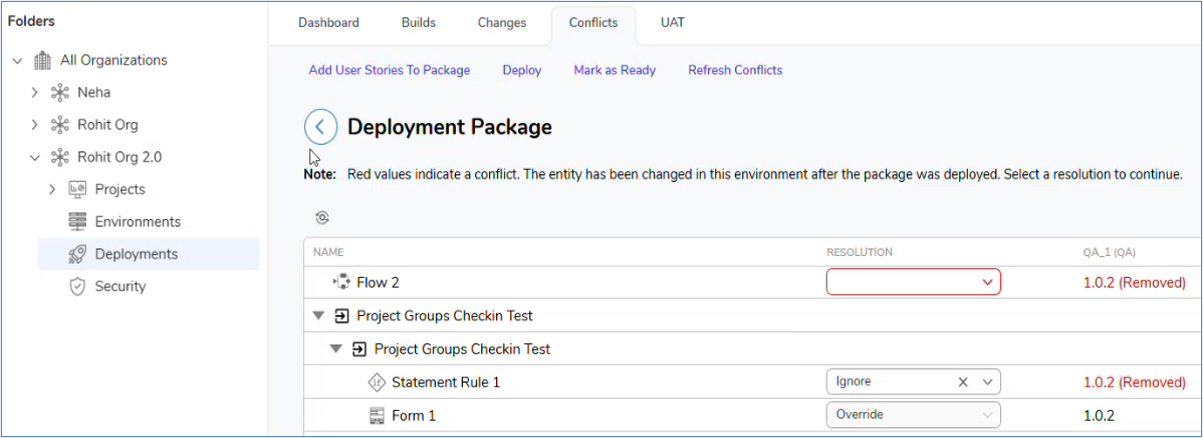
Why Set a Default Resolution?
Setting a resolution in the Conflicts dashboard defines the default behavior for that entity when the package is deployed. If a default resolution has already been selected, deployment can continue without showing an additional conflict-resolution prompt for that entity.
This approach is useful when the intended resolution is already known before deployment begins.
Bulk Resolution Actions
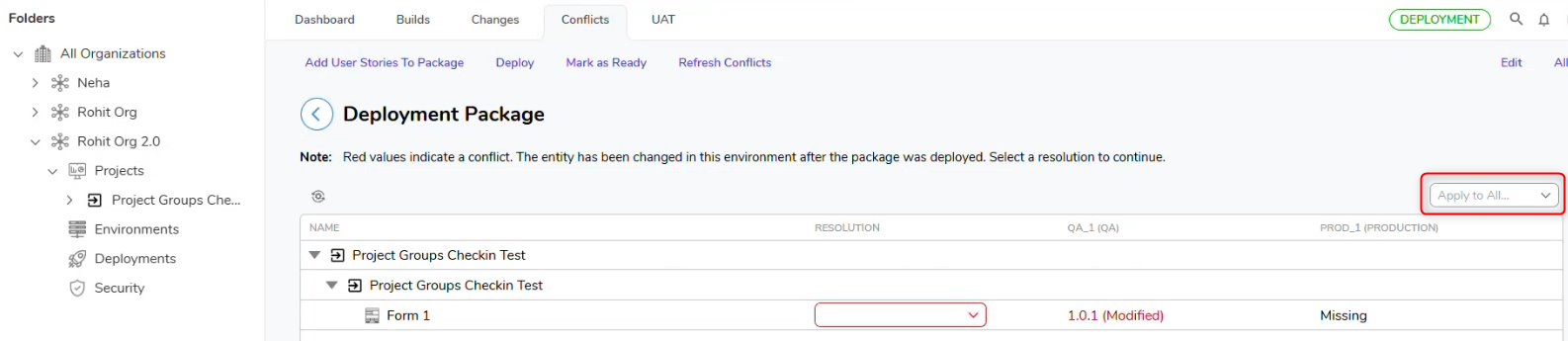
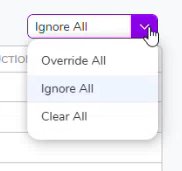
The Conflicts dashboard provides bulk actions for applying or clearing resolutions across listed conflicts:
- Override All: Sets all listed conflicts to Override.
- Ignore All: Sets all listed conflicts to Ignore.
- Clear All: Clears the selected conflict resolutions.
Use these actions when multiple conflicts should be handled the same way.
Conflict Resolution Wizard
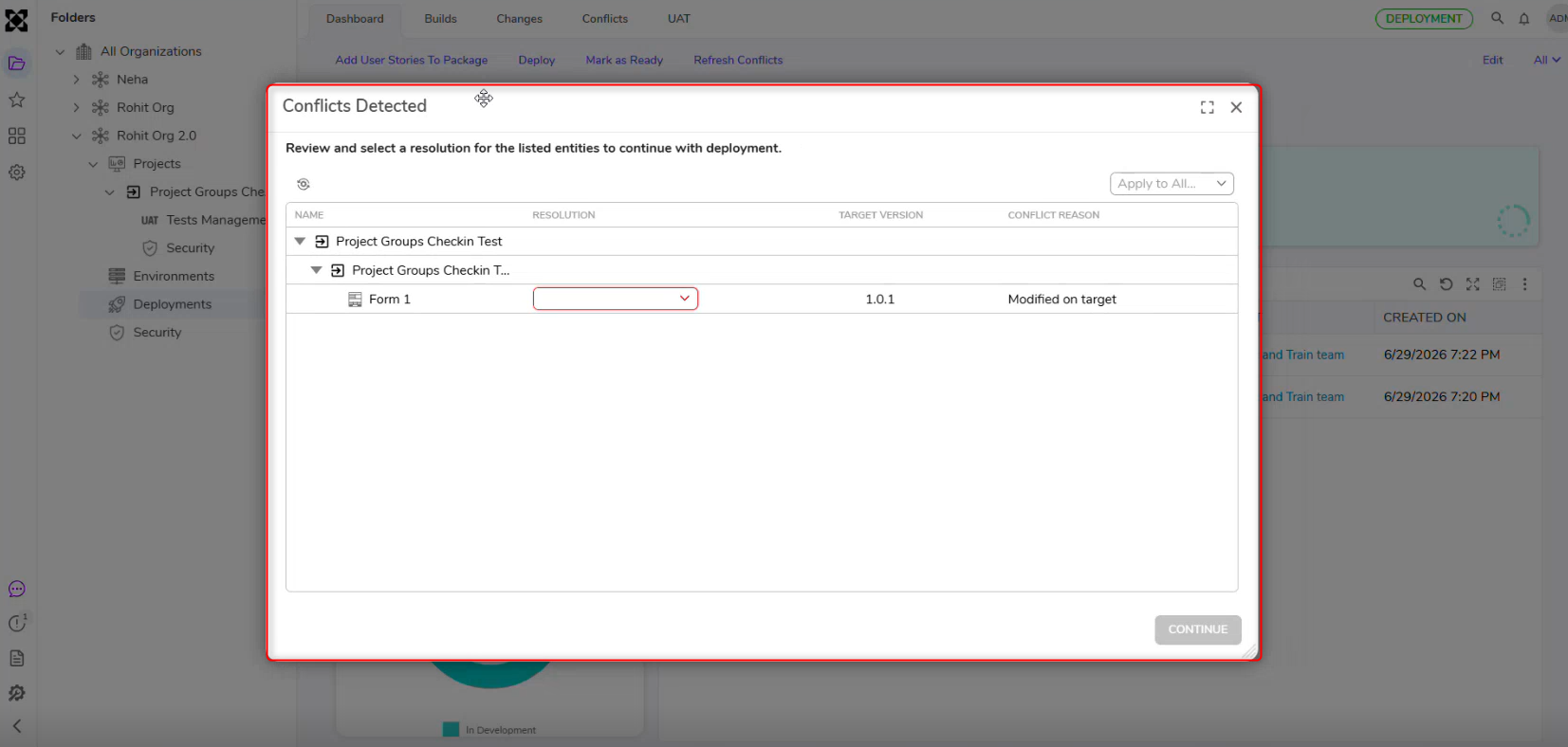
The Conflict Resolution Wizard appears when a conflict is detected, and no default resolution has been set in the package-level Conflicts dashboard. The wizard presents the conflicting entities and requires a resolution before the action can continue.
The wizard appears when deploying a package to a target environment, provided no default resolution has already been applied to the conflicting entity.
Conflict Resolution Wizard: Deploy
During deployment, the wizard displays only the conflicts relevant to the selected target environment. For example, if deployment is being performed to QA, only conflicts detected in QA are shown in the dialog.
If a default resolution has already been configured in the package-level Conflicts dashboard, the deployment workflow continues without opening the wizard for those entities.
Each listed entity requires one of the following resolutions:
- Ignore: The conflicting entity in the target environment is kept as-is, and the incoming package version for that entity is skipped.
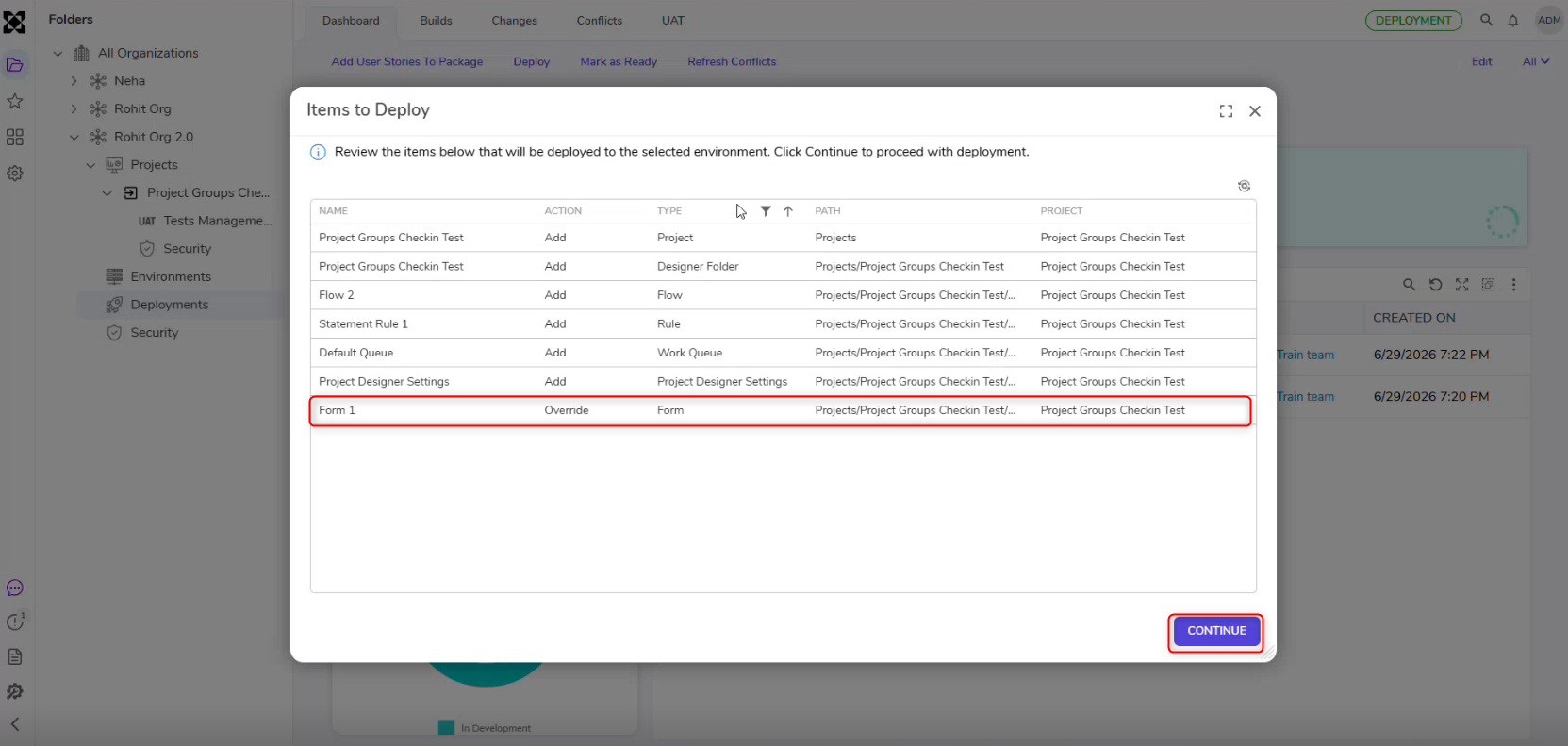
- Override: The incoming package version replaces the conflicting version in the target environment.
After a resolution is selected for each listed entity, deployment can continue.
Deploy Behavior
- A package is selected for deployment to a target environment.
- The Deployment Server checks whether conflicts exist for the selected target environment.
- If saved resolutions exist, deployment uses those resolutions automatically.
- If unresolved conflicts exist, the Conflict Resolution Wizard opens.
- The conflicting entities are listed for review.
- An Ignore or Override resolution is selected for each unresolved conflict.
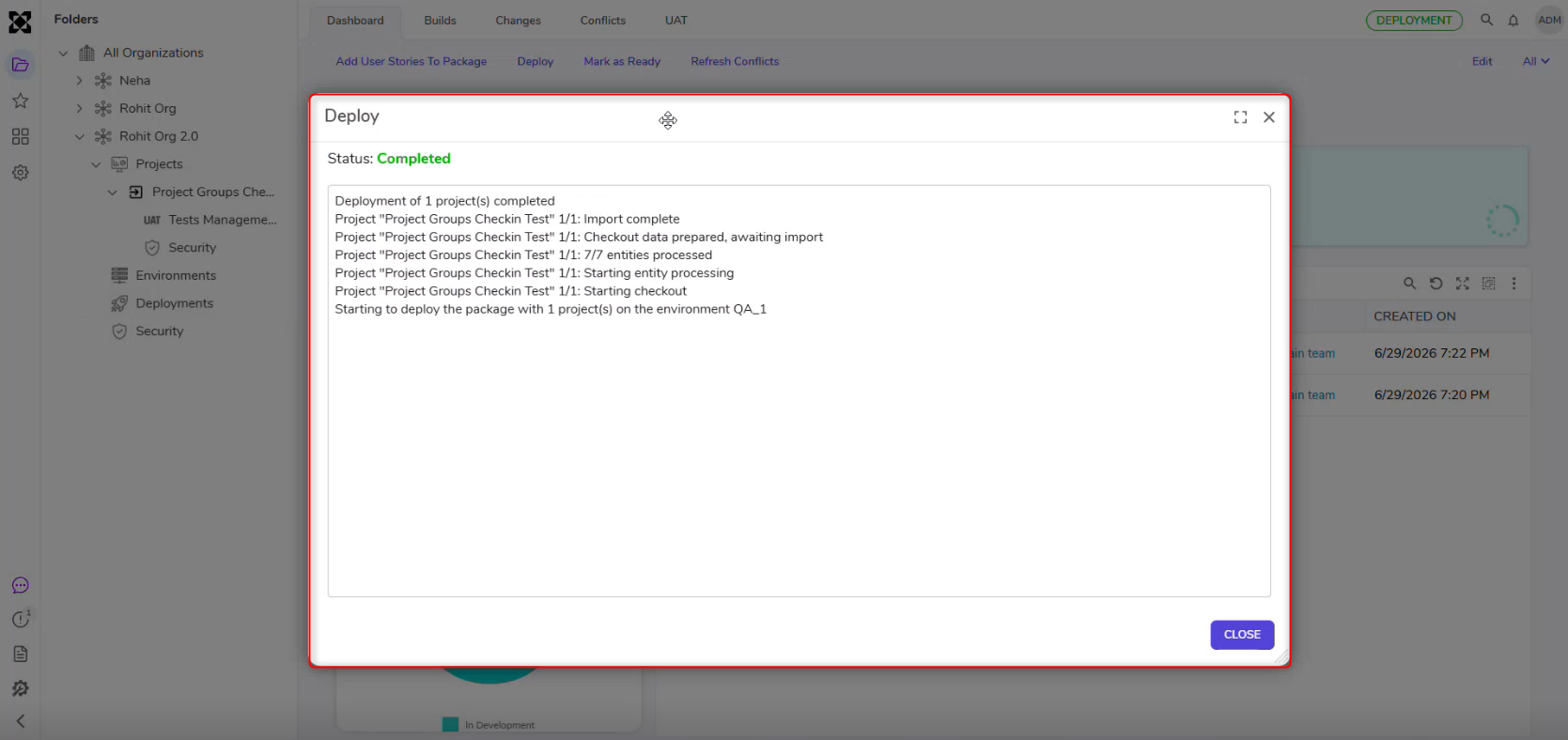
- Deployment continues using the selected resolutions.
Selecting Override during deployment replaces the conflicting version in the target environment with the version from the Deployment Package.
After the deployment is completed, the overwritten target-environment changes cannot be restored through conflict resolution.
Best Practices
To reduce conflicts and keep environments aligned, follow these best practices:
- Make all design changes in Development.
- Use the Deployment Server for all promotions between environments.
- Avoid direct edits in QA and Production unless necessary.
- Reserve emergency changes for exceptional situations.
- After a valid change is made directly in QA or Production, update Development as soon as possible to keep environments synchronized.
- Review each conflict carefully before selecting Override, since the target-environment version will be permanently replaced.