Step Details | |
| Introduced in Version | 9.24.0 |
| Modified in Version | 9.24.0 |
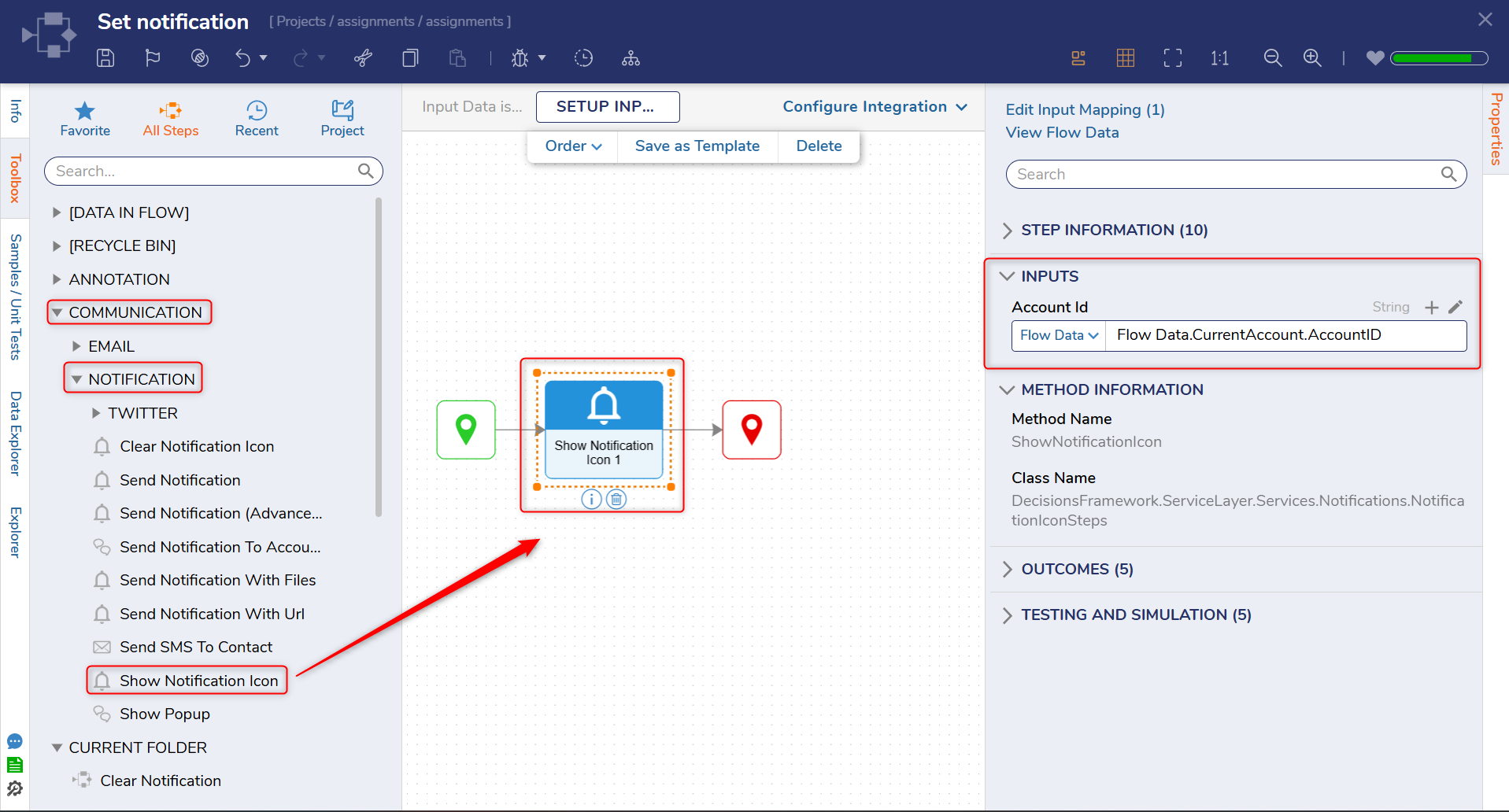
| Location | Communication > Notification |
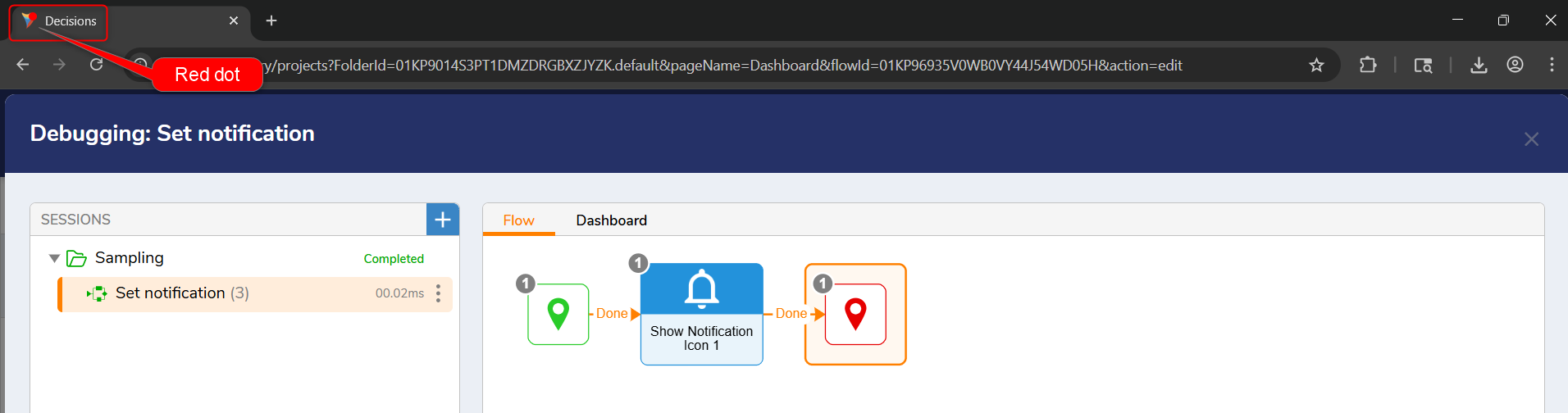
The Show Notification Icon step adds a red notification indicator to the Portal favicon for the mapped user account. This step can be used in a Flow to notify a user that new work or an important update requires attention.
This step is useful when users work across multiple open Portal sessions and need a visual indicator on the browser tab.
Properties
Inputs
| Property | Description | Data Type |
|---|---|---|
| Account ID | The ID of the account for which the notification icon should be displayed. | String |
Example Inputs and Outputs
| Account ID | Output |
|---|---|
| 8f3d2b9c-1a44-4f7a-91c8-123456789abc | Displays a red notification indicator on the Portal favicon for the mapped user's open sessions. |
Example
In this example, a Flow uses the Set Notification Icon step to notify a user when a new assignment requires attention.
- In the Flow Designer, drag the Set Notification Icon step into the Flow from Communication > Notification.
- Map the Account ID for the user who should receive the browser tab notification.
- Configure the Flow to execute this step when a new assignment or important item is created.
- When the Flow runs, the Portal favicon displays a red notification indicator for the mapped user's open sessions.