| Step Details | |
| Introduced in Version | 4.0.0 |
| Last Modified in Version | 9.18.0 |
| Location | Data > Text |
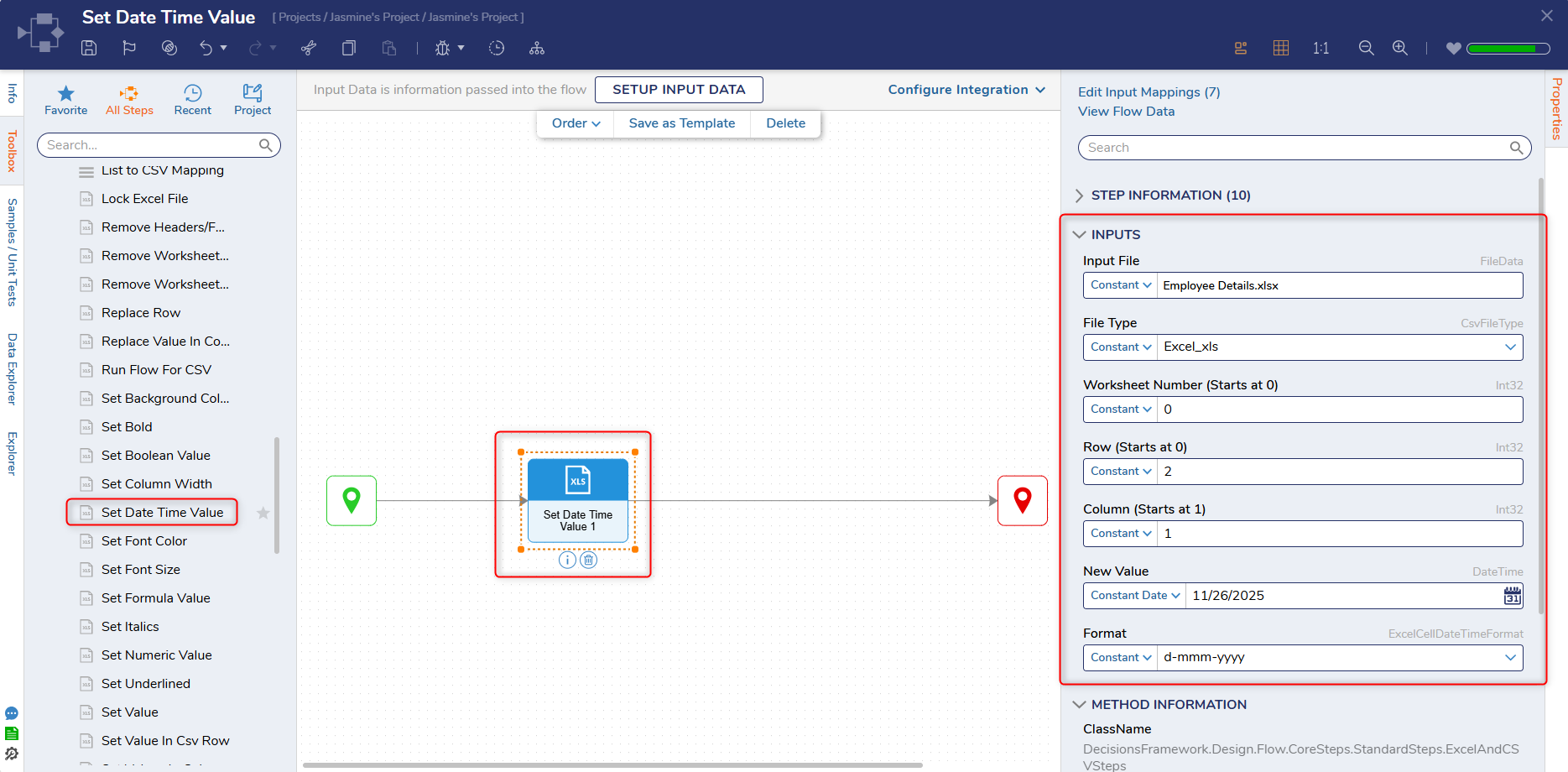
The Set Date Time Value step enables Users to format 'date time values' in a spreadsheet as desired. Users can select a CSV, Excel_xls, Excel_xlsx, or enable the step to autoselect the File Type. Once the provided input values have been selected, Users can debug the Flow to set the 'date time value'. This step can also be used in conjunction with other steps to satisfy additional use cases, such as displaying the new 'date time value' on a Form.
Properties
Inputs
| Property | Description | Data Type |
|---|---|---|
| Input | Allows Users to upload a file. | FileData |
| File Type | Allows Users to select a file type for the uploaded file. | CsvFileType |
| Worksheet Number (Starts at 0) | Allows Users to select a Worksheet number. | Int32 |
| Row (Starts at 0) | Allows Users to select a row number. | Int32 |
| Column (Starts at 1) | Allows Users to select a column number. | Int32 |
| New Value | Allows Users to choose a new 'date time value' for the chosen specifications. | DateTime |
| Format | Allows Users to select or update the format for the selected 'date time value'. Formatting options include:
| ExcelCellDataTimeFormat |
Example Inputs and Outputs
Inputs
Id: "24f6b399-b6d1-43bd-b752-53469a1ba301"
FileName: "Employee Details.xlsx"
Length: 10722
FileType: ".xlsx"
fileType: "Excel_xls"
row: 2
column: 1
newValue: "2025-11-26T00:00:00"
worksheetNumber: 0
format: "d-mmm-yyyy"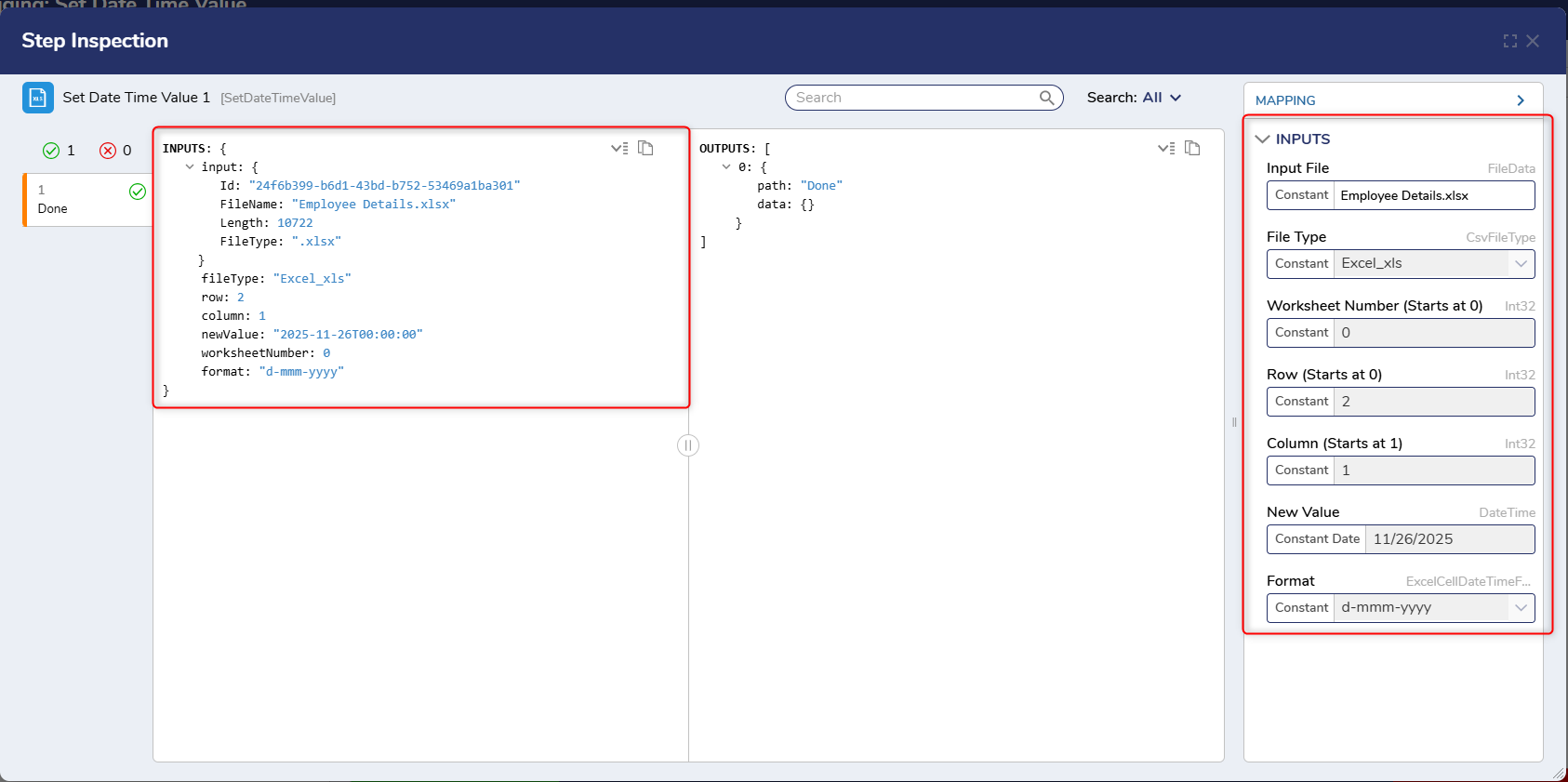
Step Changes
| Description | Version | Date | Developer Task |
|---|---|---|---|
| Formatting options have been added to the Set Date Time Value step. | 9.18 | December 2025 | [DT-046181] |