| Step Details | |
| Introduced in Version | 9.26 |
| Last Modified in Version | 9.26 |
| Location | AI > Agents |
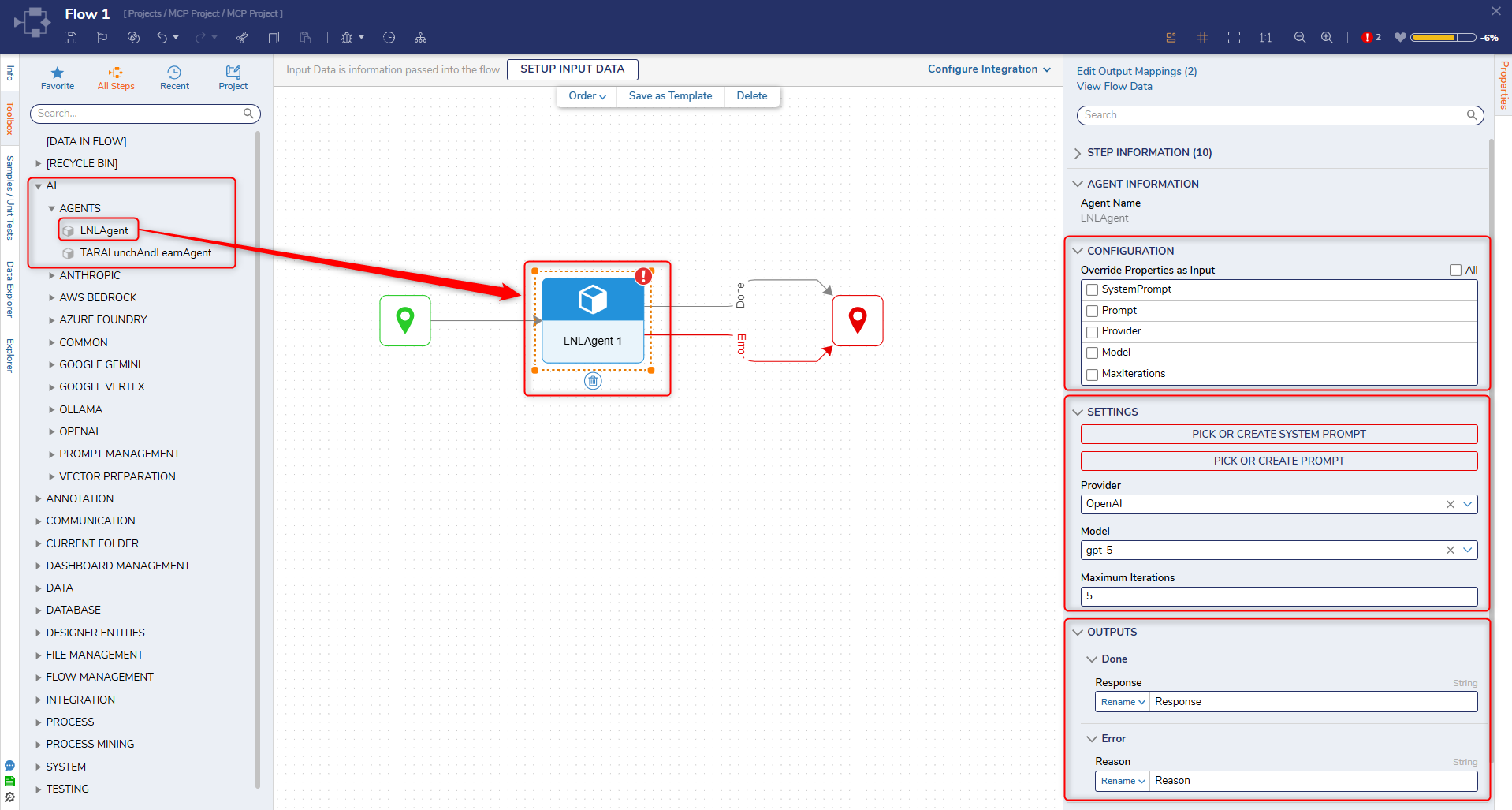
This step represents a configured AI Agent and allows it to be executed directly within a Flow. For every AI Agent created in a project, a corresponding step is automatically generated and made available under AI > Agents in the toolbox.
The step uses the Agent’s predefined configuration (system prompt, prompt, provider, model, and max iterations) and allows those values to be configured directly or overridden at runtime through inputs.
How It Works
- AI Agents are created and configured within a Decisions project.
- For every Agent created, a corresponding step is automatically generated.
- These steps appear in the Flow Designer toolbox under AI > Agents.
- Each Agent has its own unique step tied to its configuration.
Properties
Configuration
The Configuration section controls whether Agent properties are provided as static settings or dynamic inputs.
| Property | Description | Type |
|---|---|---|
| Override Properties as Inputs | Enables selected properties to be exposed as inputs instead of being configured in Settings. | Boolean |
| System Prompt | Checkbox to expose System Prompt as an input. | Boolean |
| Prompt | Checkbox to expose Prompt as an input. | Boolean |
| Provider | Checkbox to expose Provider as an input. | Boolean |
| Model | Checkbox to expose the Model as an input. | Boolean |
| Max Iterations | Checkbox to expose Max Iterations as an input. | Boolean |
Settings
These properties are used when corresponding Configuration options are unchecked.
| Property | Description | Data Type |
|---|---|---|
| System Prompt | Select or create a system prompt to control Agent behavior. | Pick / Create |
| Prompt | Select or create the prompt used by the Agent. | Pick / Create |
| Provider | Select the AI provider. | Dropdown |
| Model | Select the model based on the chosen provider. | Dropdown |
| Max Iterations | Maximum number of iterations the Agent can run. | Int32 |
Inputs
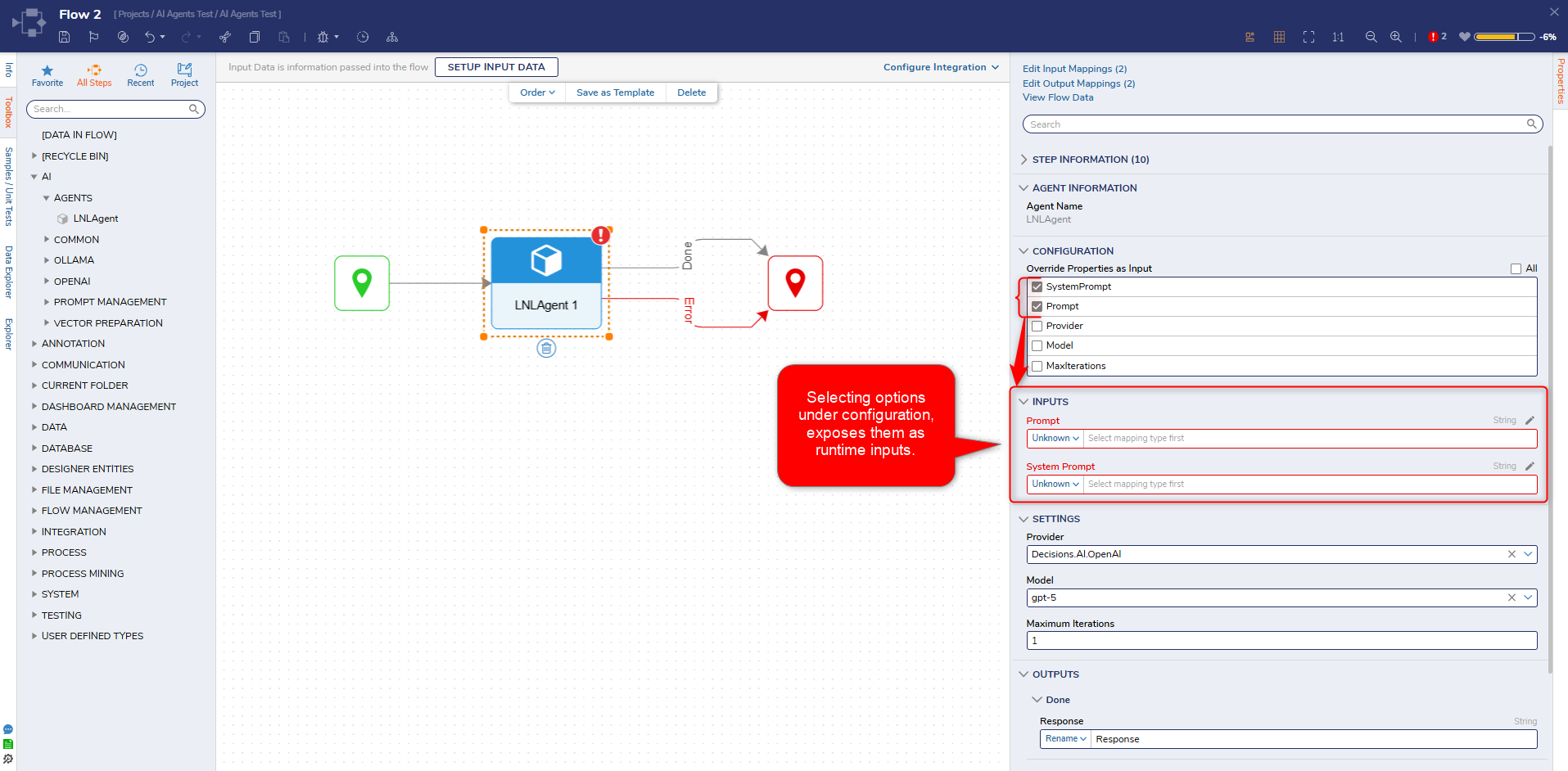
When a Configuration checkbox is enabled, the selected properties appear here as input mappings and are removed from Settings.
| Property | Description | Data Type |
|---|---|---|
| System Prompt | Overrides the configured system prompt. | String |
| Prompt | Overrides the configured prompt. | String |
| Provider | Overrides the configured provider. | String |
| Model | Overrides the configured model. | String |
| Max Iterations | Overrides the iteration limit. | Int32 |
Outputs
| Output | Description | Data Type |
|---|---|---|
| Response (Done) | Returned when the Agent completes successfully. | String |
| Reason (Error) | An error message is returned if execution fails. | String |
Use Case
| Use Case | Description |
|---|---|
| Reusable AI Logic | Create an Agent once and reuse it across multiple flows. |
| Simplified Flow Design | Use a preconfigured Agent instead of configuring AI settings in each step. |
| Dynamic Behavior | Override Agent properties at runtime using flow inputs. |
Example
- Create an AI Agent
Configure an Agent in [Designer Project] > Manage > Integrations > AI > Agents > Add Agent.
- Add Agent Step
Drag the corresponding Agent step from AI > Agents into a flow.
- Configure Properties
Set values in Settings or enable overrides in Configuration to pass values dynamically.
- Run the Flow
The Agent executes using the configured or overridden values and returns a response.
Overriding Behavior
- When Override Properties as Inputs is enabled, selected properties become dynamic inputs.
- These inputs can be mapped from flow data at runtime.
- When disabled, all properties must be configured statically in Settings.
Step Changes
| Description | Version | Release Date | Developer Task |
|---|---|---|---|
| Removed the "Decisions.AI" prefix from LLM provider names in the provider picker and updated the default Max Iterations value to 5. | 9.27 | June 2026 | [DT-047294] |
| Introduced dynamically generated AI Agent steps available in the Flow Designer toolbox. | 9.26 | June 2026 | [DT-045792] |