Overview
| Feature Details | |
| Introduced in Version | 9.20 |
| Modified in Version | 10.2 |
| Location | Manage > Integrations > AI > Agents |
This is a step-by-step guide to creating an AI Agent inside the Decisions Platform.
What is an AI Agent?
An AI Agent is a specific configuration of an AI interaction that involves tool usage. Tool usage allows AI to perform code execution on the application that called the LLM.
For example, an AI cannot send an email. With the use of AI tools in conjunction with AI itself, you can enable the LLM to send an email. It can get much more complex than that. By taking the complex cognitive thinking capabilities of AI and a workflow application, AI can be empowered to execute workflows inside the Decisions application to be connected to data that is outside of its reach and access to actionable capabilities to empower an LLM to be functional, not just informational.
Agent-to-Agent Communication
Decisions supports defining relationships between Agents by allowing a primary Agent to be associated with one or more sub-agents. This enables coordinated task execution across multiple Agents.
When configured, the primary Agent evaluates incoming requests and determines whether a task should be handled directly or delegated to a sub-agent. This behavior is influenced by:
- The system prompt defined for the primary Agent
- The system prompts defined for each sub-agent
- The input prompt provided to the primary Agent
Sub-agents execute their assigned responsibilities and return results to the primary Agent, which then compiles and returns the final response.
This approach allows complex workflows to be broken into smaller, specialized tasks. For example, a primary Agent responsible for sending emails may delegate user retrieval to a sub-agent that manages user data.
Use Case
| Example Use Cases | Description |
|---|---|
| Sales Enablement | By adding tools to provide data to an LLM, AI can be used to interpret and answer questions regarding data that is important to the Sales team. Does sales management need a way to quickly get answers around upcoming planned deals? Connect an LLM (using an Agent) to your sales pipeline data, and now questions get answered quickly. |
| Informational Chatbots | Using tool flows to provide chatbots with more information. This will provide the responses from LLMs to be more consistent and correct. |
- Sub-agents cannot operate independently and must be associated with a primary Agent. Deleting a sub-agent that is actively linked within a hierarchy may be restricted or require reassignment.
- Interactions involving sub-agents are reflected in the debugger, making it easier to trace delegation and execution across Agent hierarchies.
Example
This section demonstrates how to create and configure an AI Agent.
- Create a System Prompt
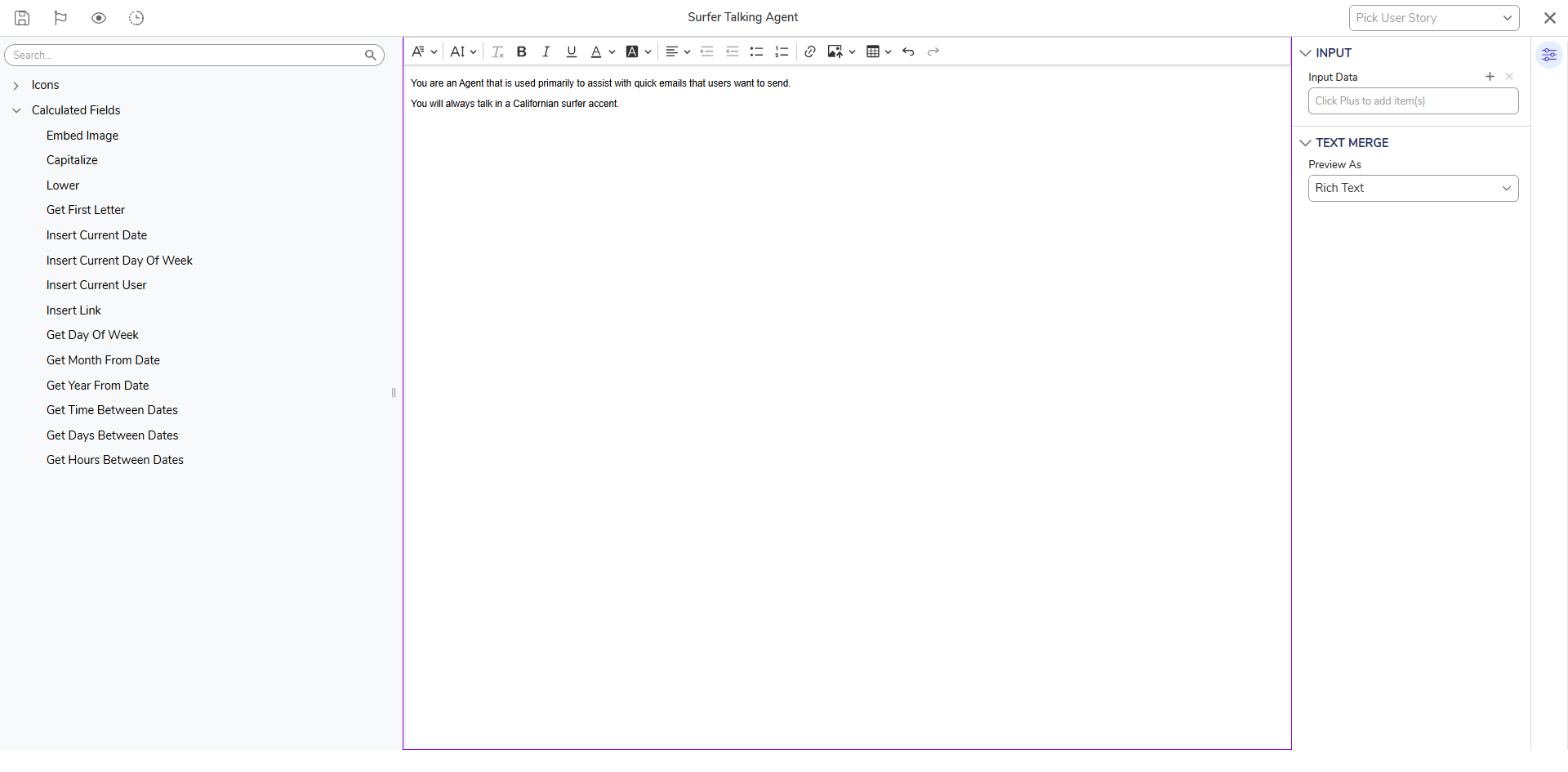
Navigate to the System Prompt folder (Manage > Integrations > AI > System Prompts) to create a system prompt. This is used to create context for the AI interaction. As a simple example, a system prompt may define behavior such as assisting with sending emails or controlling tone.
System prompts can influence both the functional behavior of the Agent and the end-user experience. Prompt groups can also be used to organize prompts, including a Default Prompt Group.
Adding Dependencies to System/User PromptsDependencies have been added to System/User Prompts. This will prevent System prompts, chat prompts, and agents that are used by the Prompt AI step from being deleted.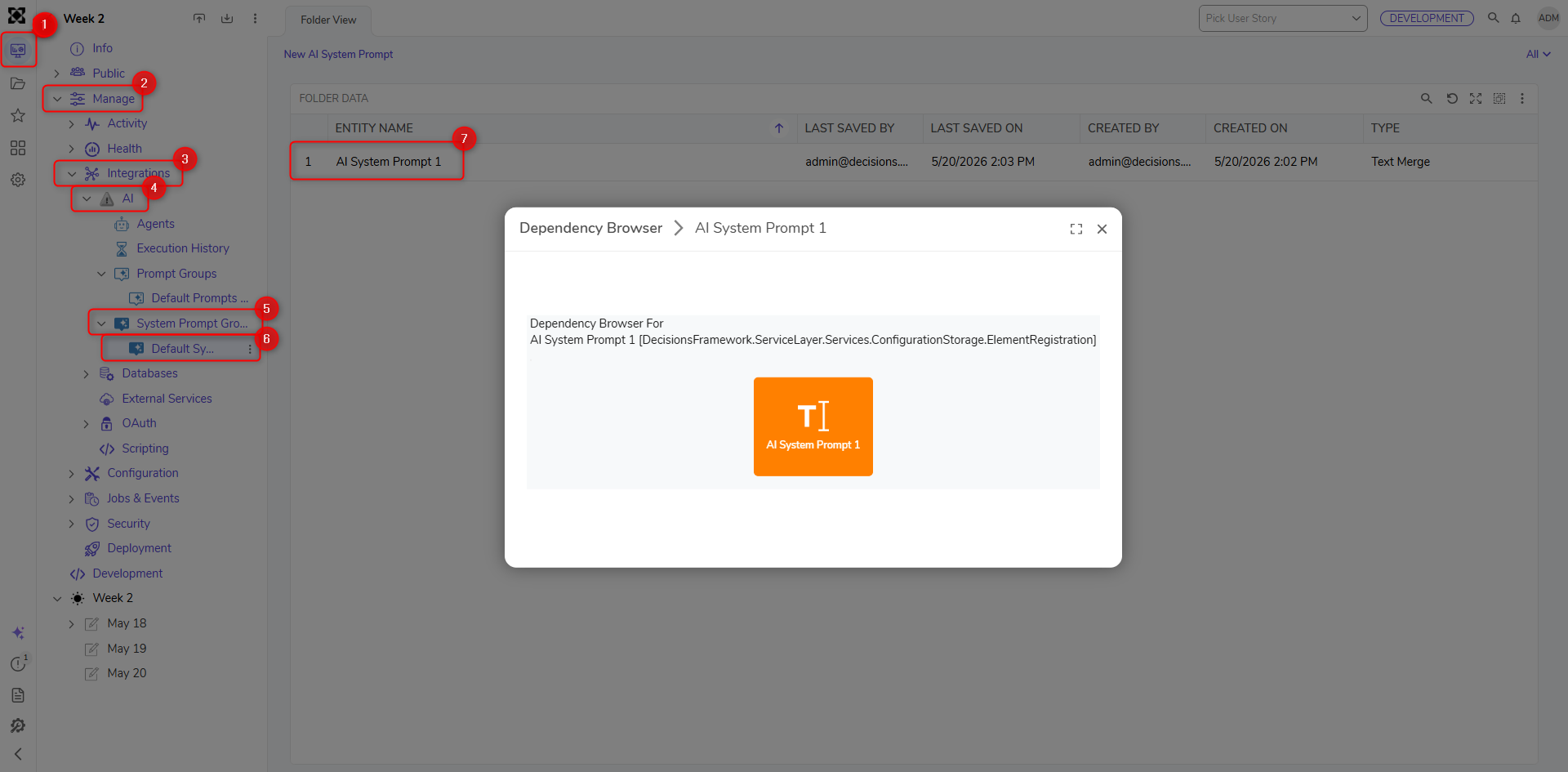 System Prompting 101A good AI Agent implementation depends on system prompts and information access. Prompts can include rules and directives to control behavior and improve consistency.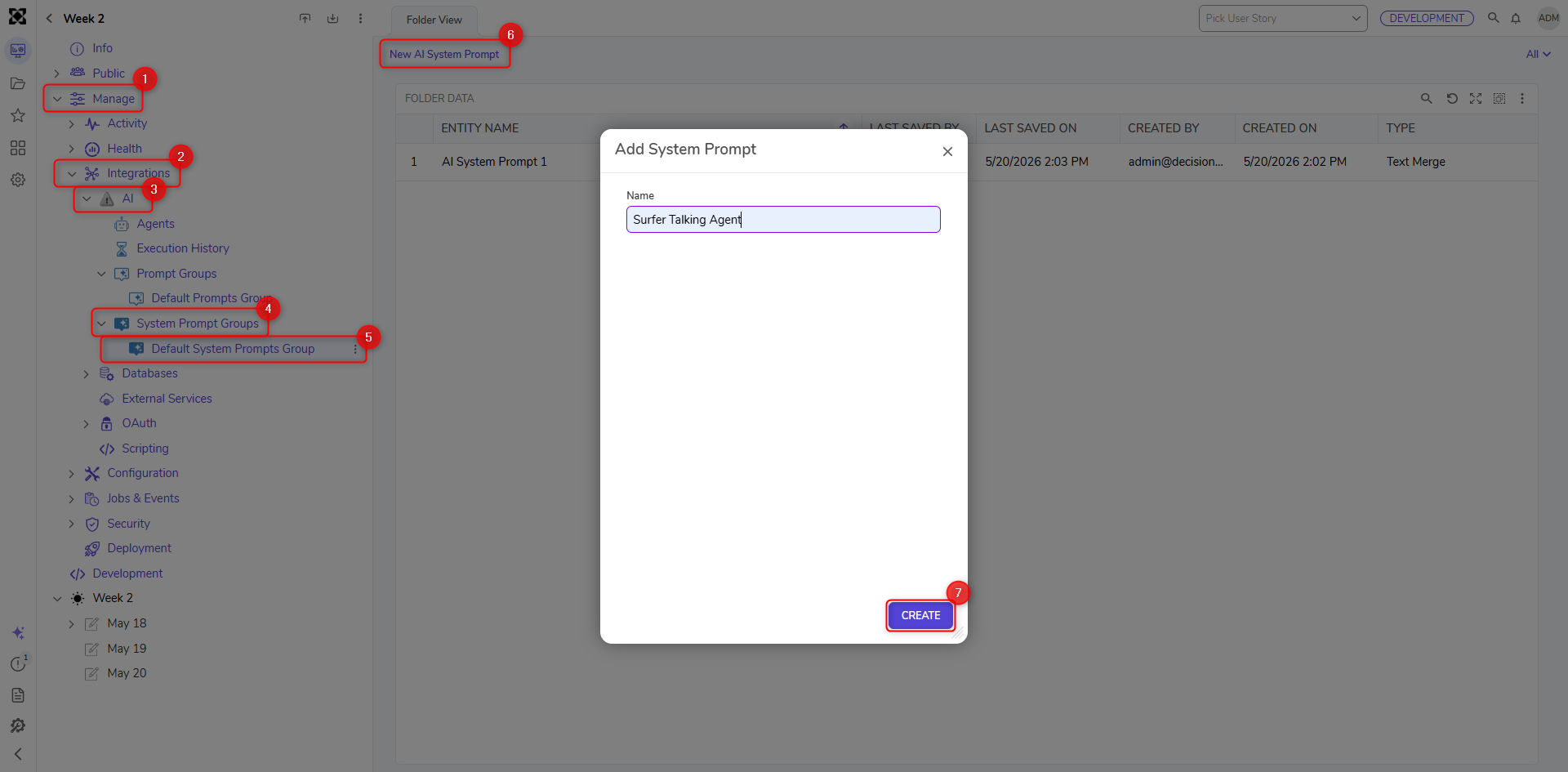
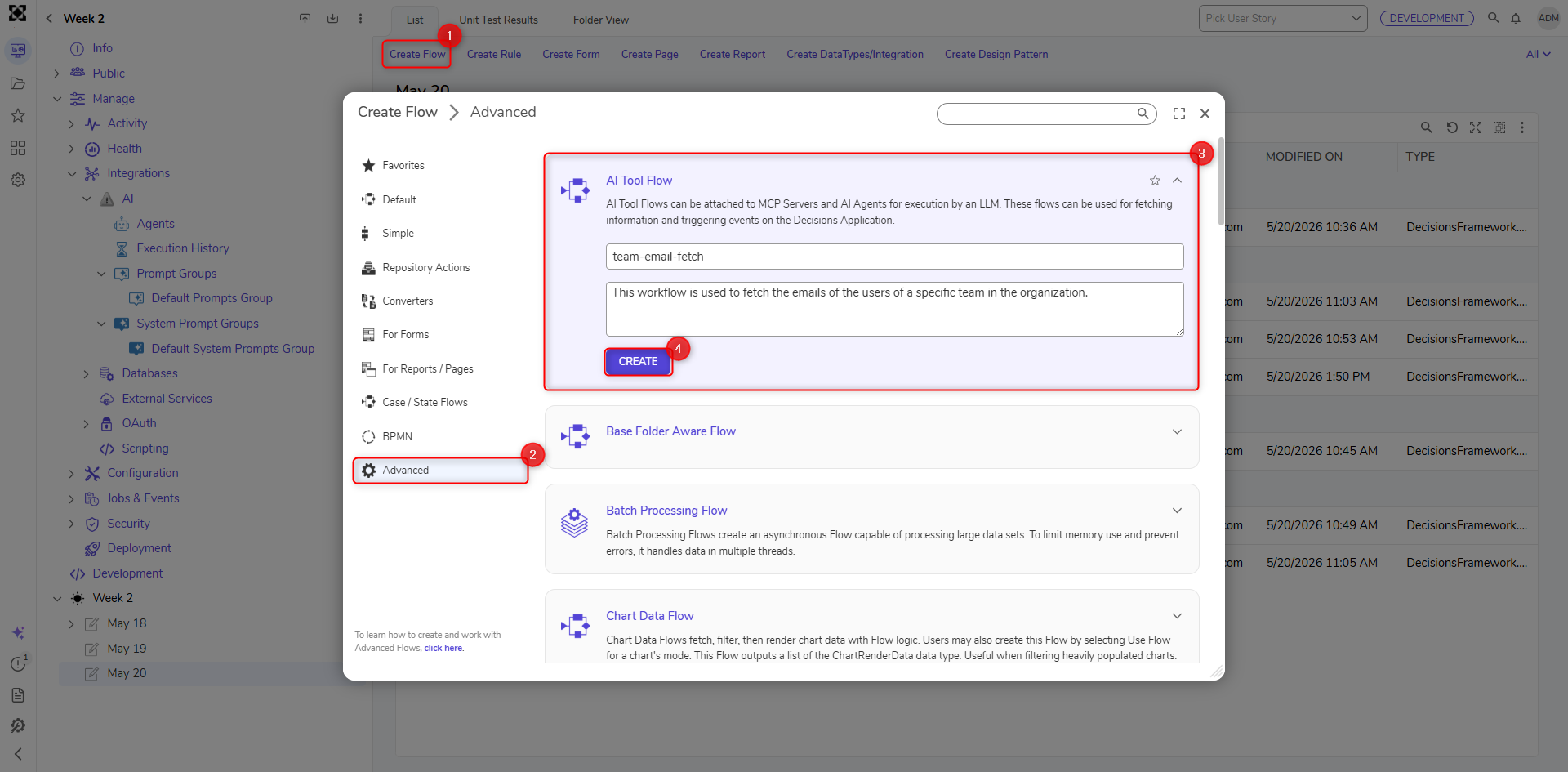
- Create Tool Flows for the Agent
An AI Tool flow is an executable flow used by the Agent to complete tasks. These flows include descriptions that are sent to the LLM to help it understand how to use the tool.
Tool flows require a response message, which can return data or confirm that an action has been completed.
Function Calling = Decisions Flow ExecutionAI Agents rely on function calling to execute workflows. The process follows: Decisions -> LLM -> Workflow Execution -> LLM -> Decisions.The following example tool flows are used:
- team-email-fetch: Retrieves a distribution email based on department name
- send-email: Sends an email using address, subject, and body
- Configure the Agent
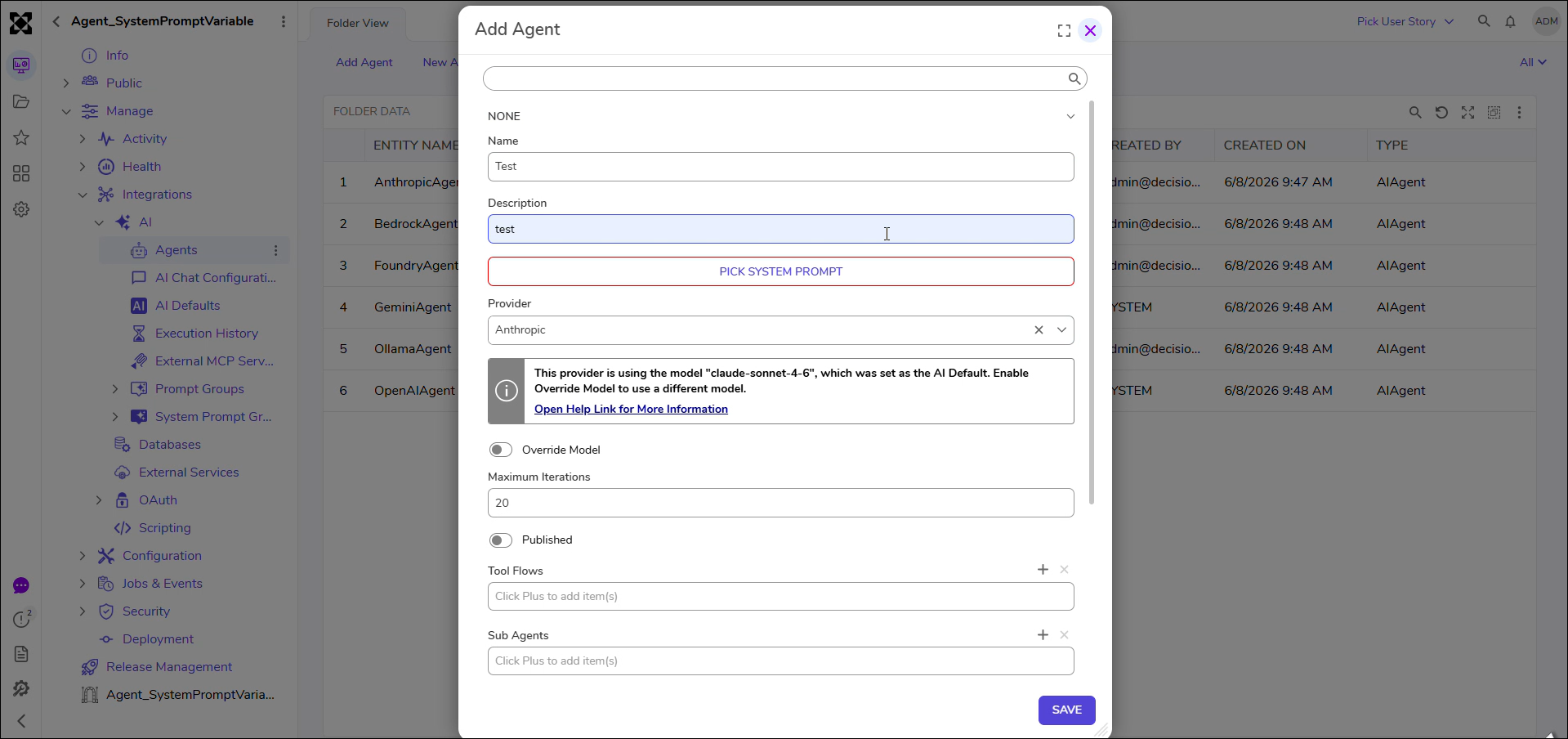
Navigate to the Agents folder (Manage > Integrations > AI > Agents) to create and configure an AI Agent. Configure the Agent to use the appropriate system prompt and tool flows.
Provider Availability Based on Module DependenciesThe list of available AI providers is filtered based on the AI modules added as dependencies within the project. Only providers associated with the selected module dependencies will be displayed when configuring an Agent. If no AI modules are added, the provider list will appear empty. - Execute the Agent
Agents can be executed using the Prompt AI step in two ways:
Provider Selection BehaviorWhen selecting or executing an Agent, the available AI provider options reflect the module dependencies configured for the project. Ensure the required AI modules are added to the project to make the desired provider available.- Configure the Agent directly within the step (system prompt, user prompt, tools, provider, model). This method would allow for complete flexibility in the AI Agent.
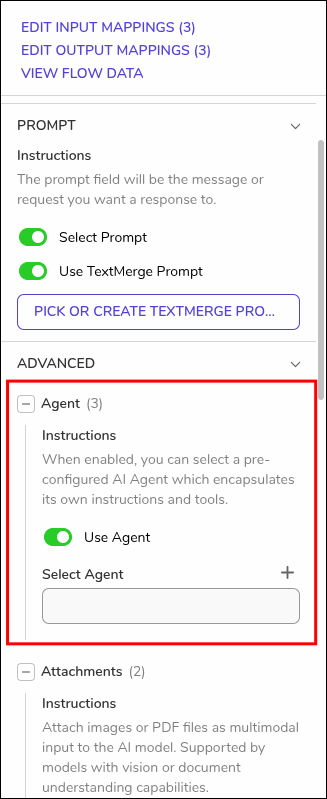
- Enable the Use Agent option to select a pre-configured AI Agent.
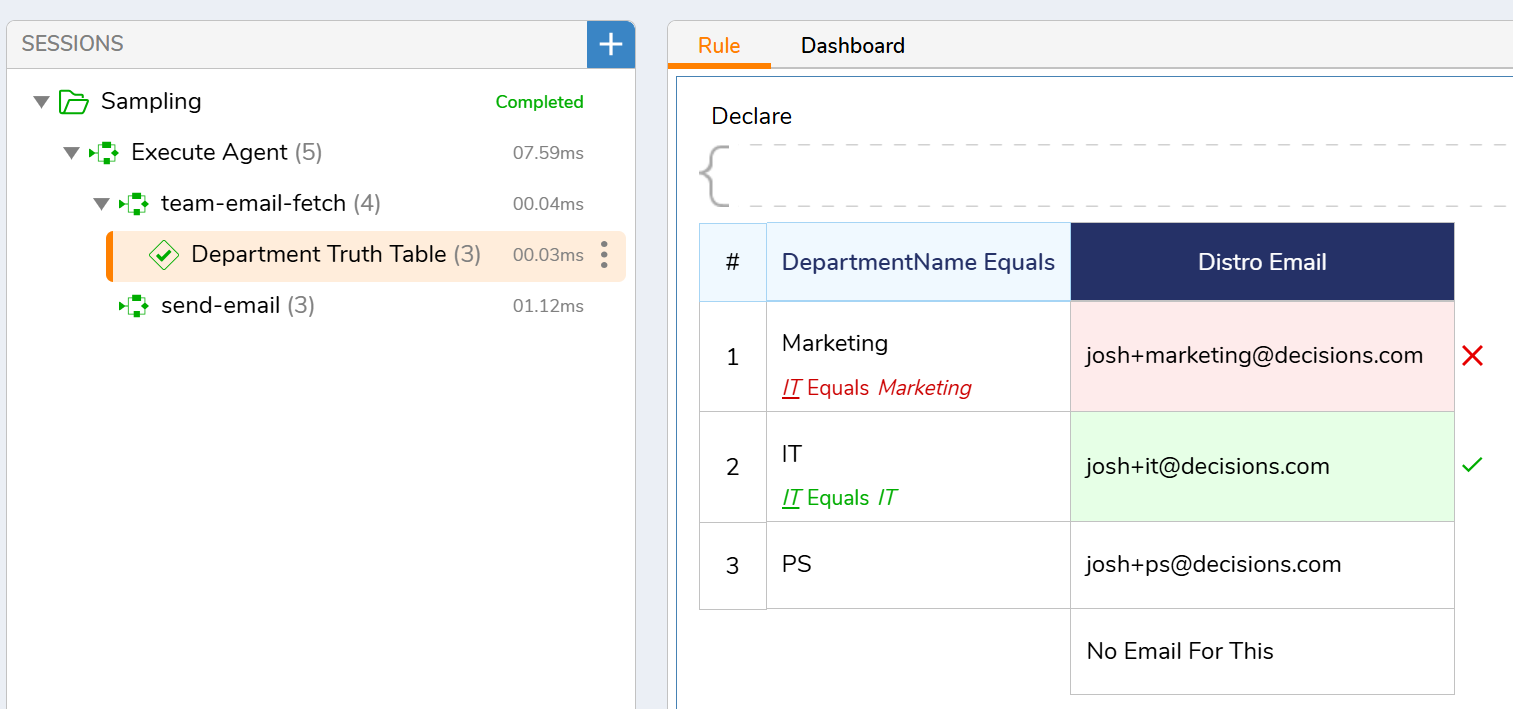
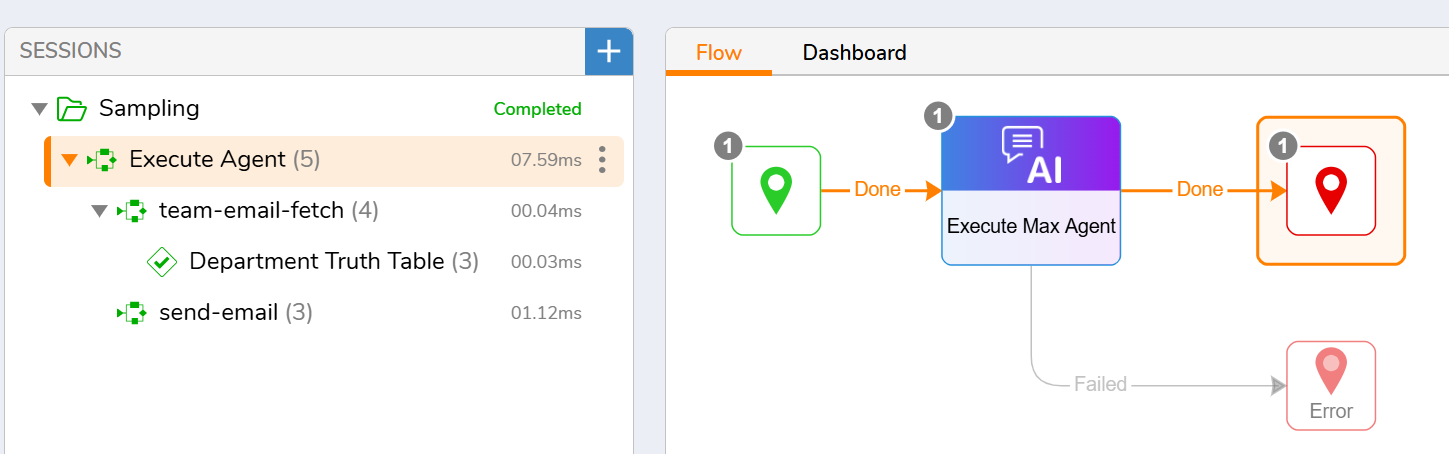
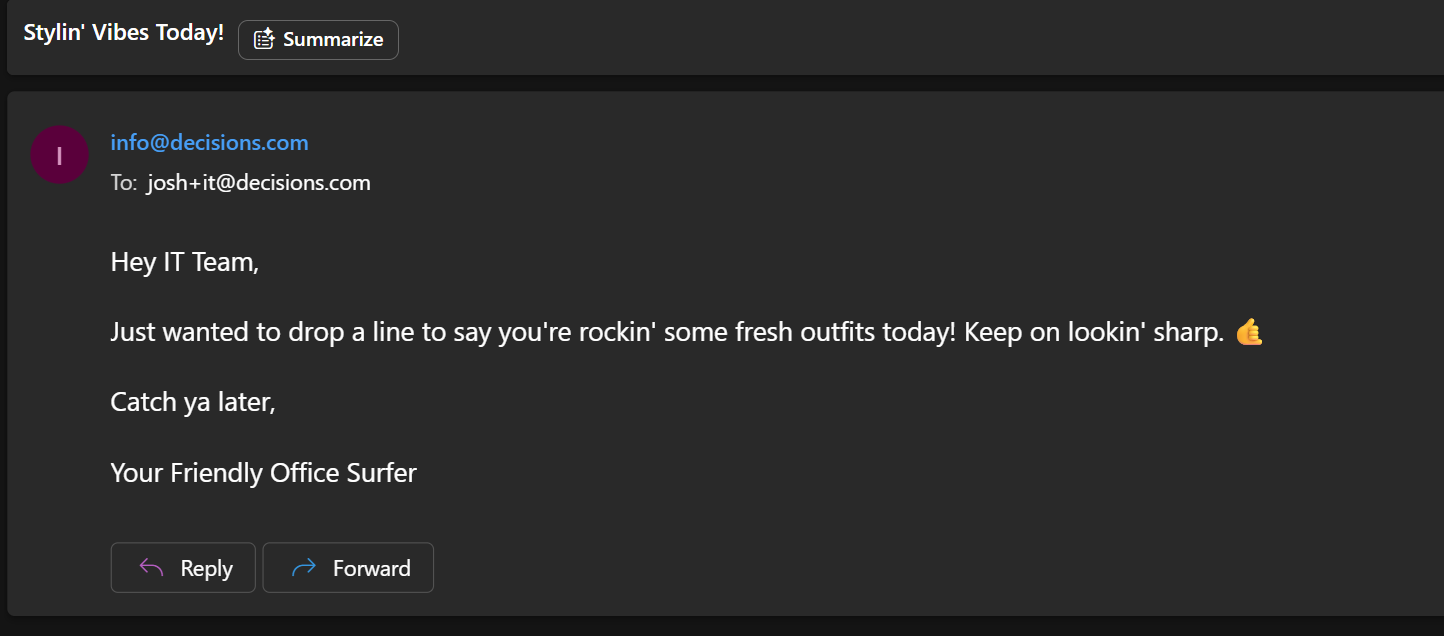
- Example request: “Please send an email to the IT team telling them that their outfits look good today.”
The Agent will be:- Call the team-email-fetch tool to retrieve the email address
- Call the send-email tool to send the message
- Configure the Agent directly within the step (system prompt, user prompt, tools, provider, model). This method would allow for complete flexibility in the AI Agent.
Feature Changes
| Description | Version | Release Date | Developer Task |
|---|---|---|---|
| Creating and Editing Agents now applies the configured AI default model automatically when new agents are created, using the appropriate Project Default or System Default for the selected provider. Users can override the default model on an agent, revert back to the configured default, and see the correct default or override state reflected in existing agents. Agent dialogs also update dynamically when provider default models are added, changed, or removed, ensuring agent configuration remains consistent during editing, execution, and upgrades. | 10.2 | August 2026 | [DT-047744] |
| The Chat Completion Step has been renamed to Prompt AI. Existing chat completion steps will be renamed to Prompt AI. | 10.2 | August 2026 | [DT-047769] |