The Review Rules step allows you to define how extracted values are cleaned, validated, calculated, reviewed, and handled before they are included in the final output. Rules are configured on a per-field basis using the review rules matrix.
Configure Review Rules
In the Review Rules step, locate the field you want to configure in the Review Rules Matrix.
.png)
Review the field's Current Value to verify the extracted data.
Configure one or more of the following rule types as needed:
Clean: Normalize or transform extracted values before further processing.
Format: Validate that the extracted value matches an expected format.
Compute: Calculate or derive values from extracted data.
Review: Define conditions that trigger manual review.
Action: Specify how the system handles the field when review conditions are met.
Click any Edit option in the desired column to open the rule editor for that field.
Configure the required rule settings and save your changes.
Rule Types
Clean
Use cleaning rules to standardize extracted values before validation or output generation.
Examples include:
Removing unwanted characters.
Trimming leading or trailing spaces.
Normalizing text values.
Format
Use format rules to verify that extracted values conform to a specific pattern or structure.
Examples include:
Phone numbers.
Email addresses.
Dates.
Identification numbers.
Compute
Use compute rules to create derived values based on extracted content.
Examples include:
Calculating totals.
Combining multiple fields.
Generating formatted output values.
Review
Use review rules to determine when a field should be sent for manual review.
Review conditions can be based on:
Confidence thresholds.
Missing values.
Validation failures.
Business-specific requirements.
Action
Define how the system should respond when review conditions occur.
Common actions include:
Allow: Accept the extracted value without intervention.
Send the field for manual review.
Apply additional processing based on configured conditions.
Bulk Configuration
The Bulk Actions feature allows you to quickly apply a predefined document profile across all fields in the review rules matrix. Profiles automatically configure cleanup, formatting, and review settings based on the selected document type.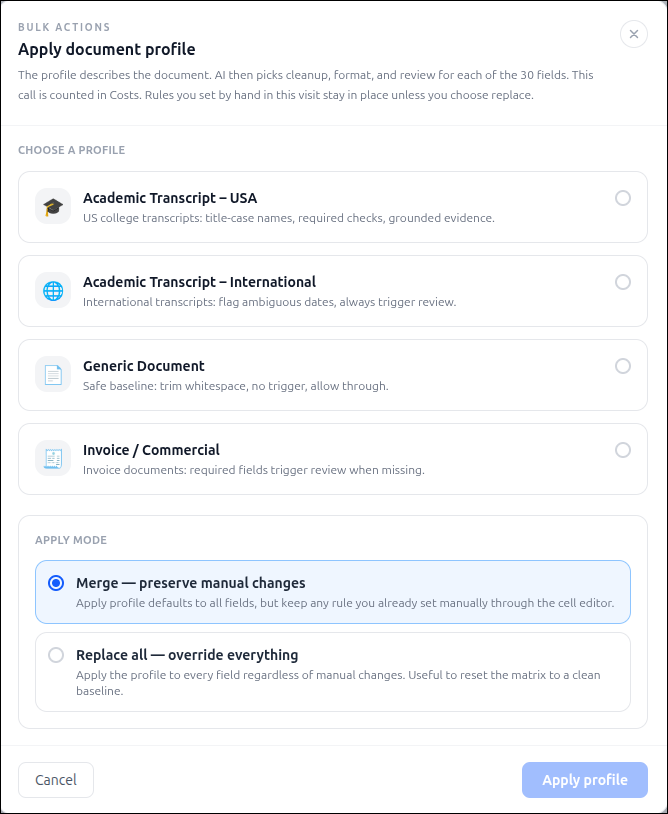
Select a Document Profile
Choose the profile that best matches the document type you are processing:
Academic Transcript – USA
Designed for U.S. college transcripts.
Applies transcript-specific validation and review settings.
Academic Transcript – International
Designed for international transcript formats.
Applies additional review checks for potentially ambiguous values.
Generic Document
Applies a standard baseline configuration.
Uses minimal cleanup and review rules suitable for general-purpose documents.
Invoice / Commercial
Designed for invoices and commercial documents.
Applies validation and review settings commonly used for financial documents.
Choose an Apply Mode
After selecting a profile, choose how the profile should be applied.
Merge - Preserve Manual Changes
Select Merge - Preserve Manual Changes to apply the profile defaults while keeping any rules that have already been configured manually.
Use this option when:
You have already customized some fields.
You want to apply profile settings only to fields that do not have manual configurations.
You want to enhance existing rules without overwriting previous work.
Replace All - Override Everything
Select Replace All - Override Everything to apply the profile settings to all fields and replace any existing manual configurations.
Use this option when:
Starting over with a new configuration.
Standardizing all fields using the selected profile.
Resetting the review rules matrix to the profile defaults.
Warning: This option removes existing manual rule configurations.
Apply the Profile
Select the desired profile.
Choose an apply mode.
Click Apply Profile.
The system updates the review rules matrix based on the selected profile and application mode.
Review Data
Before proceeding, verify that:
Required fields have validation rules where appropriate.
Review triggers are configured for critical data.
Actions align with your review process requirements.
After configuring all necessary rules, click to Continue to Test run to continue to the Test Run step.
Tip: Apply review rules to business-critical fields such as invoice numbers, dates, totals, and identification values to help ensure extraction accuracy and reduce downstream processing errors.