The Test Run step allows you to validate the current model configuration against a sample document before publishing. Running a test helps verify that extraction, mappings, labels, and review rules are working as expected.
Run a Test
Open the Test Run step.
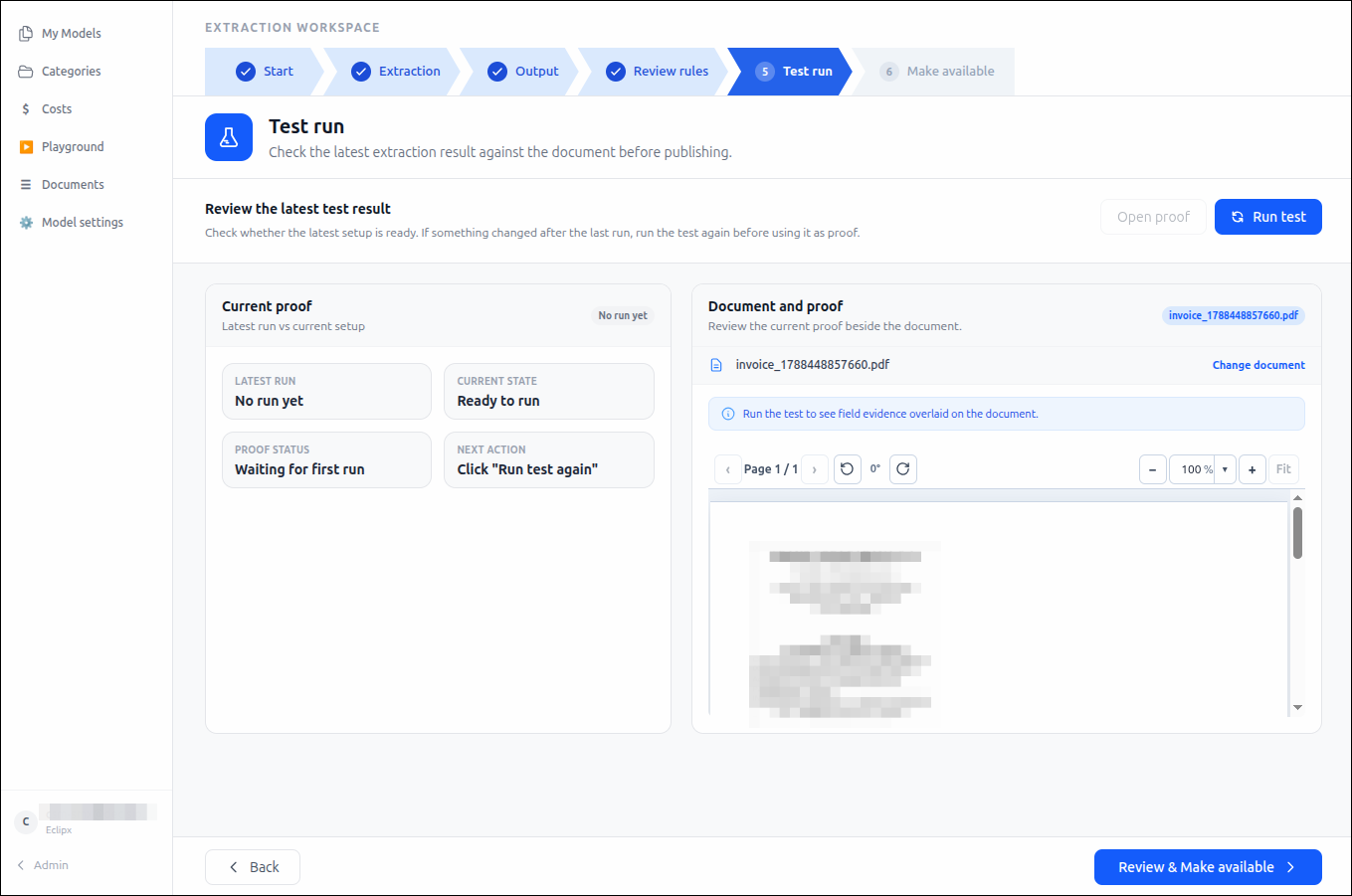
Review the document displayed in the Document and Proof panel.
Click Run Test to process the document using the current model configuration.
Wait for the test run to complete.
After the run finishes, review the generated proof and extraction results.
Review the Current Proof
The Current Proof panel compares the most recent test run with the current model configuration..png)
The panel displays:
Latest Run: The status of the most recent test execution.
Current State: Indicates whether the current configuration is ready for testing.
Proof Status: Shows whether proof data is available for review.
Next Action: Recommends the next step based on the current test status.
If no test has been run, the panel displays a status such as Waiting for First Run.
Review Document Evidence
After a successful test run:
Select Open Proof to view the generated proof data including the JSON format.
.png)
Review the field evidence displayed alongside the document.
Verify that:
Fields are extracted correctly.
Mapped values appear in the expected output fields.
Rules and validations behave as intended.
Display labels are applied correctly.
Review triggers activate when expected.
Use the document viewer controls to:
Navigate pages.
Rotate the document.
Zoom in and out.
Fit the document to the viewing area.
Change the Test Document
To validate the model with a different document:
Click Change Document.
Select or upload a new document.
Run the test again to compare results.
Re-Run Tests After Changes
Whenever you modify:
Extraction fields
Output mappings
Display labels
Review rules
AI model settings
run a new test to ensure the latest configuration is reflected in the proof results.
Proceed to Publication
Once the test results meet your requirements:
Review the proof one final time.
Click Review & Make Available to proceed to the publishing step.
Tip: Test with multiple document variations whenever possible. Running tests against different document layouts and formats helps identify extraction issues before the model is made available to users.