The Output step defines how extracted data is organized and mapped to the final result structure. Here, you connect extracted fields to output fields and configure the labels that users will see when reviewing results.
Configure the Output Structure
In the Output Structure tab, choose how to define the result schema:
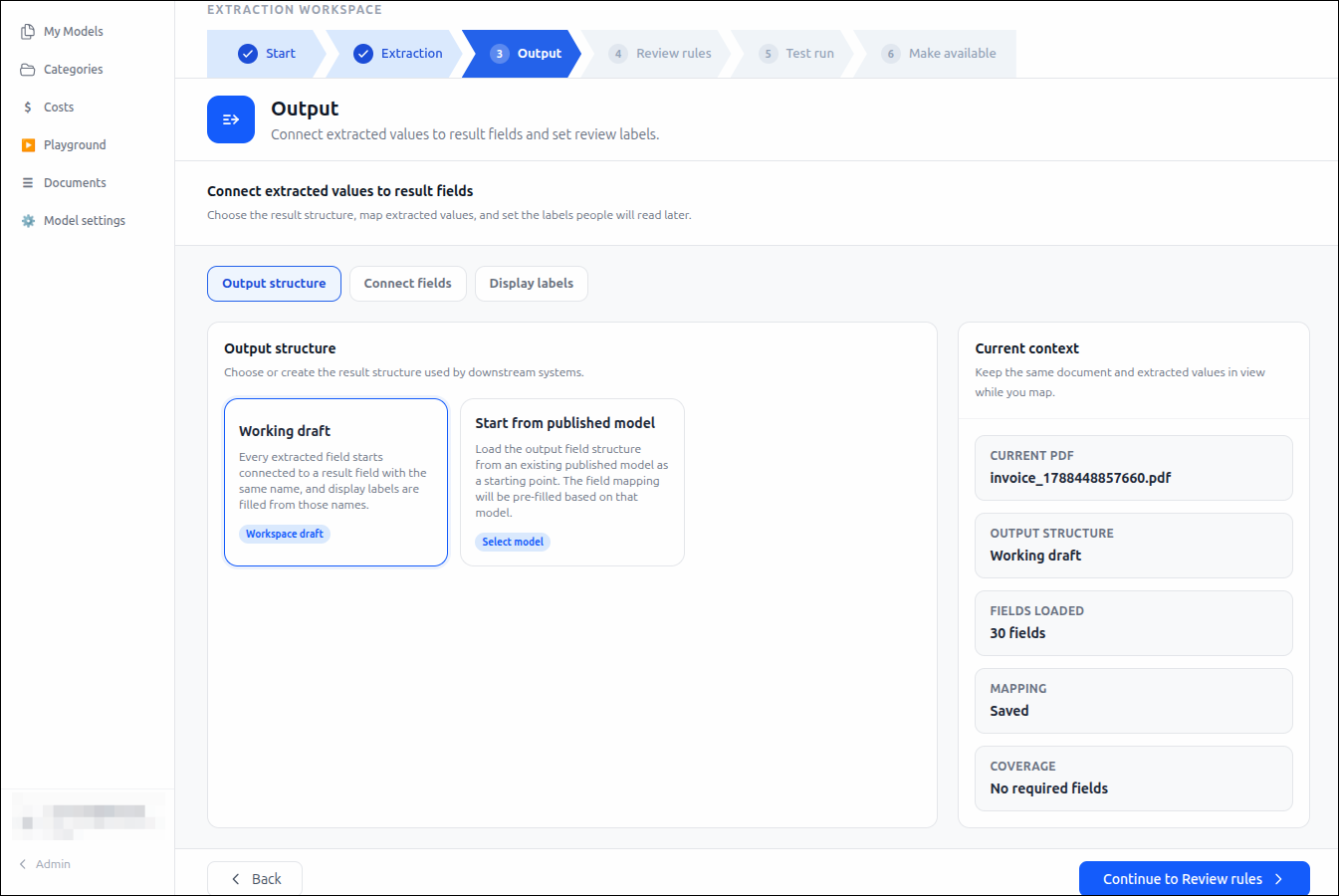
Working Draft: Creates the output structure using the fields currently configured in the workspace. Each extracted field is automatically connected to a result field with the same name.
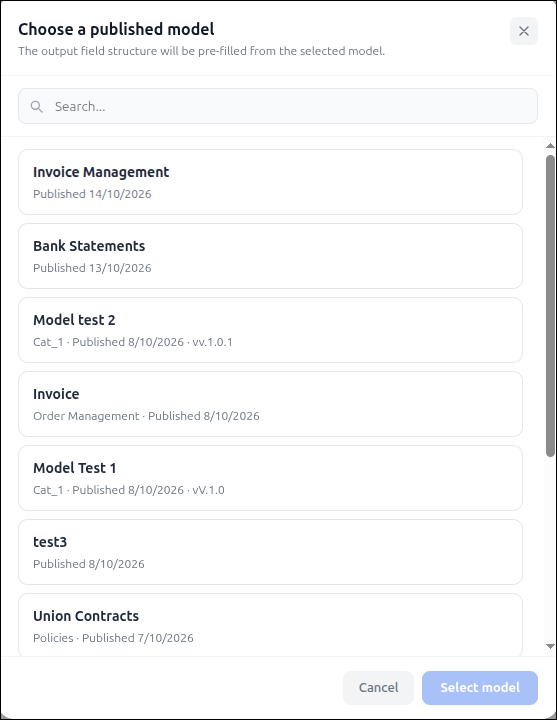
Start from Published Model: Uses the output field structure from an existing published model as the starting point. Field mappings are preconfigured based on the selected model.
If using a published model, click Select Model and choose the model whose output schema you want to reuse.
Connect Extracted Fields
The Connect Fields tab is used to map extracted fields to the fields in your output structure. Field mapping determines how extracted values are transferred to the final output and allows you to apply formatting profiles to extracted data.
Create Field Mappings
Open the Connect Fields tab.
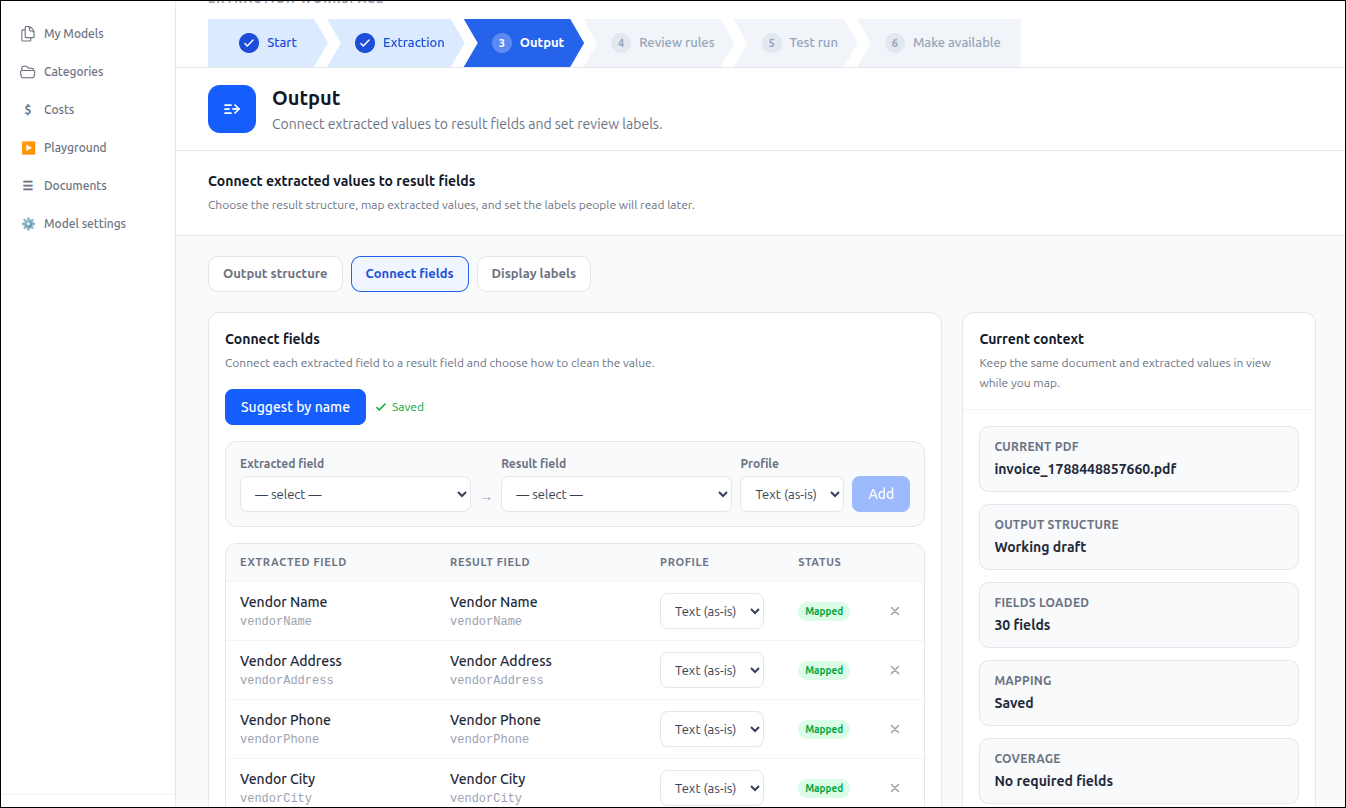
To automatically match fields with similar names, click Suggest by Name. The system attempts to create mappings between extracted fields and output fields based on matching names.
To create a mapping manually:
Select an Extracted Field.
Select the corresponding Result Field.
Choose a Profile to control how the extracted value is formatted or processed.
Click Add.
Repeat the process until all required fields are mapped.
Manage Mapping Profiles
The Profile setting determines how the extracted value is handled before being written to the output field. For example, a text field may use a Text (as-is) profile to preserve the extracted value without modification.
To change the profile for an existing mapping:
Locate the mapped field in the mapping list.
Select a different profile from the Profile drop-down menu.
The mapping is updated automatically.
Review Mapping Status
The mapping table displays:
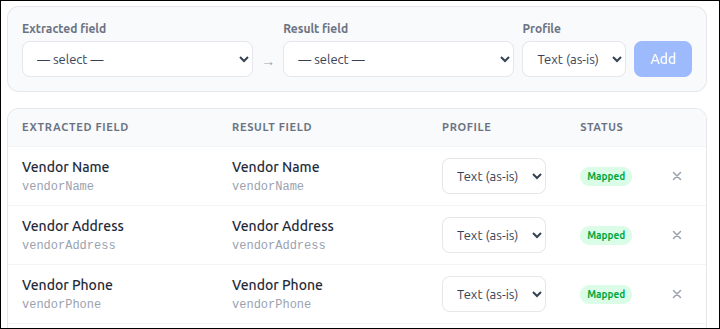
Column | Description |
|---|---|
Extracted Field | The value identified during document extraction. |
Result Field | The destination field in the output structure. |
Profile | The transformation or formatting profile applied to the value. |
Status | Indicates whether the field has been successfully mapped. |
Mapped fields display a Mapped status.
Remove a Mapping
Locate the mapping you want to remove.
Click the Remove (×) icon in the row.
The mapping is deleted and can be recreated as needed.
Verify Mapping Coverage
Use the Current Context panel to review:
The document being used for validation.
The selected output structure.
The number of loaded fields.
The mapping status.
Coverage information for required fields.
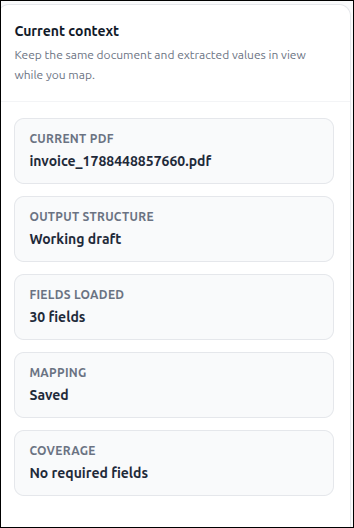
Tip: Use Suggest by Name as a starting point, then review each mapping to ensure extracted fields are connected to the correct output fields, especially when field names are similar but serve different purposes.
Display Labels
The Display Labels tab allows you to define the names that users see when reviewing extraction results. These labels control how sections and fields are presented in the user interface and exported outputs, making extracted data easier to understand.
Generate Display Labels
Open the Display Labels tab.
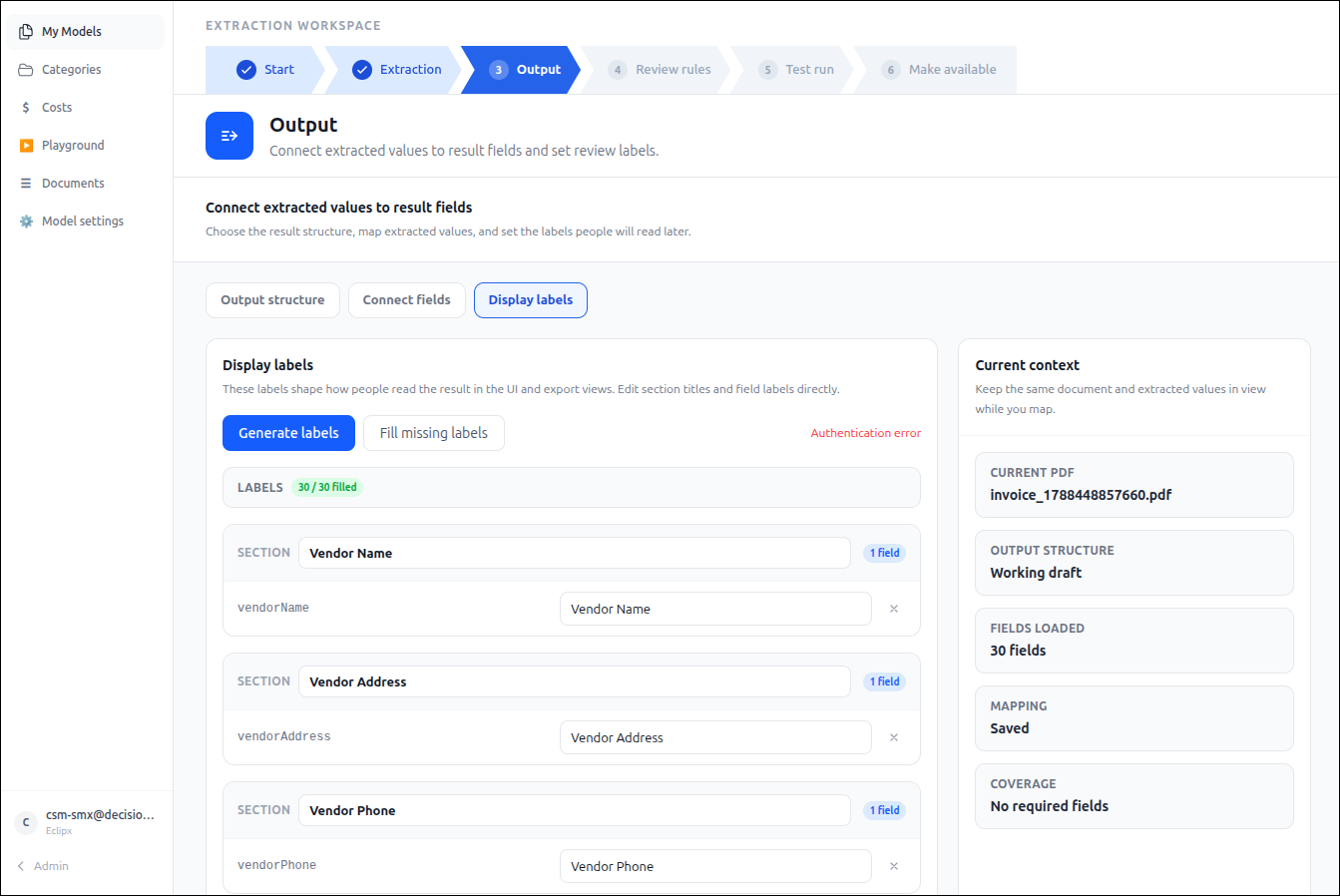
To automatically create labels for fields and sections, click Generate Labels.
To generate labels only for fields that do not already have one, click Fill Missing Labels.
Review the generated labels and make adjustments as needed.
Edit Section Labels
Locate the section you want to modify.
In the Section field, enter a descriptive name for the group of related fields.
Changes are saved automatically and will be reflected in review and export views.
Edit Field Labels
Within a section, locate the field label you want to modify.
Enter a user-friendly name that clearly describes the extracted information.
Repeat for all fields that require custom labels.
Monitor Label Coverage
The Labels indicator shows the number of fields that currently have display labels assigned.
For example:
30 / 30 Filled indicates that all configured fields have display labels.
Lower values indicate that some fields are still missing labels.
Review Current Context
Use the Current Context panel to verify:
The reference document being used.
The selected output structure.
The number of loaded fields.
Mapping status.
Overall field coverage.
Tip: Use concise, business-friendly labels instead of technical field names. For example, use Vendor Name instead of vendorName and Invoice Total instead of invoiceTotalAmount. This improves readability for reviewers and downstream users.