The Extraction step is where you define and validate the fields that the model will extract from documents. Review each field against the document, refine extraction behavior, and configure model settings before proceeding.
Review the list of fields in the Fields to Extract panel.
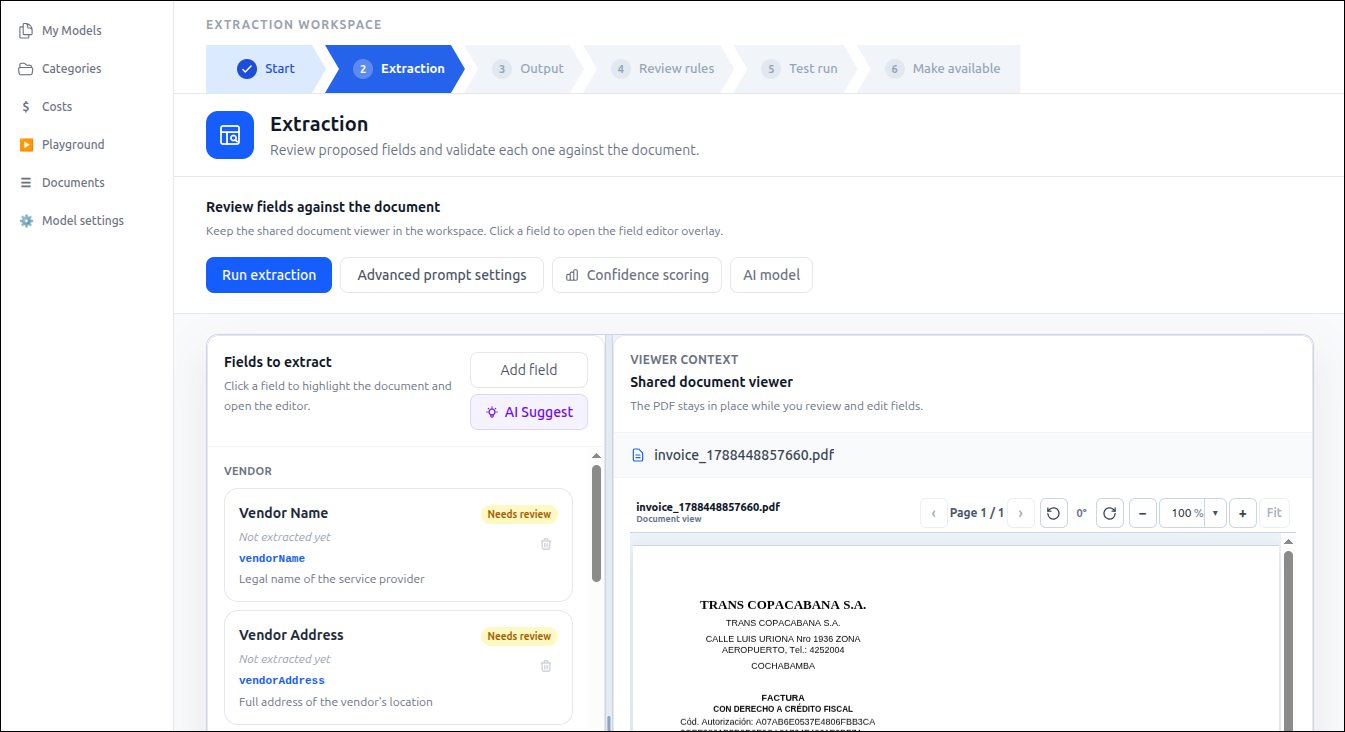
To add a new field, click Add Field and configure the field name, description, and extraction settings.
To generate field suggestions automatically, click AI Suggest. The system analyzes the document and proposes fields that can be extracted.
Select a field from the list to:
View the field details.
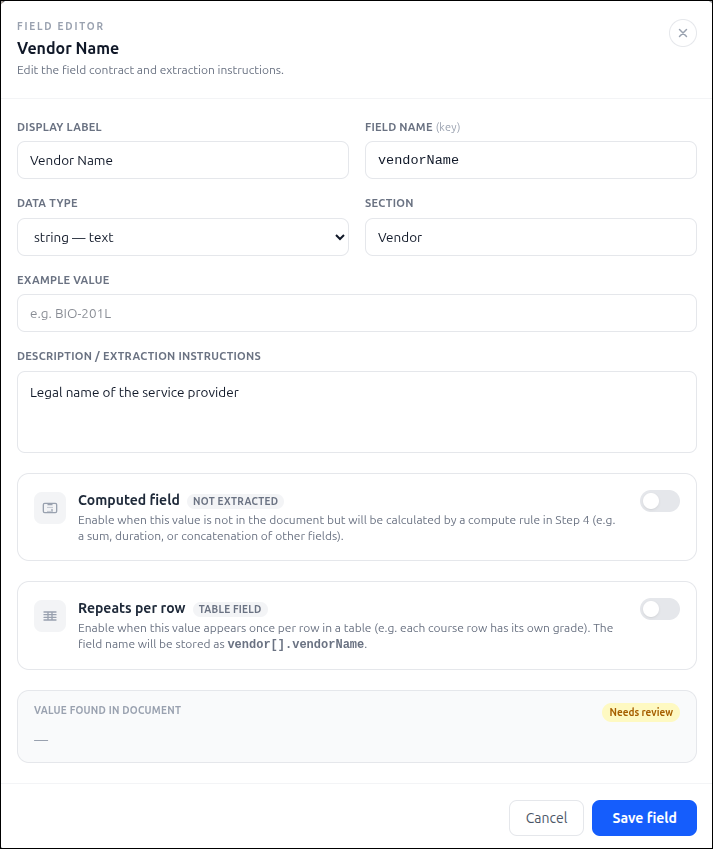
Highlight the corresponding value in the document.
Configure extraction instructions and validation rules.
Use the Shared Document Viewer to verify that each field is extracting the correct information from the document. The document remains visible while you review and edit fields.
Configure extraction settings as needed:
Advanced Prompt Settings: Customize extraction instructions and field-specific guidance.
Confidence Scoring: Define confidence thresholds used to evaluate extraction results.
AI Model: Select or configure the AI model used for document processing.
Click Run Extraction to extract the current field configuration against the reference document.
Review the extraction results and update fields as necessary until all required values are extracted correctly.
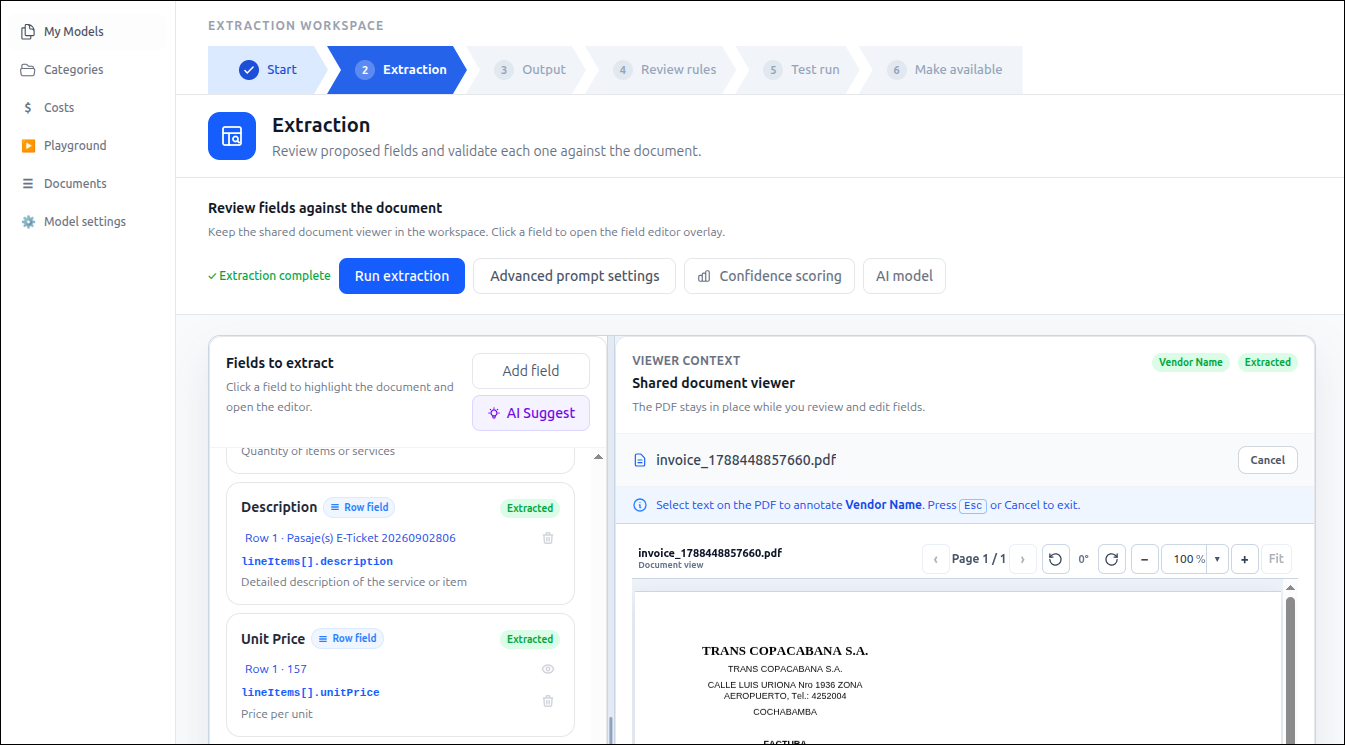
Once the extraction setup is complete, Click Continue to Output proceed to the Output step.
Tip: Review all fields marked as Needs Review before continuing. Validating extraction results early helps ensure accurate outputs and reduces adjustments in later steps.