Follow the next steps to create a new model:
Click + New Model.
In the dialog, enter a name and select a category.
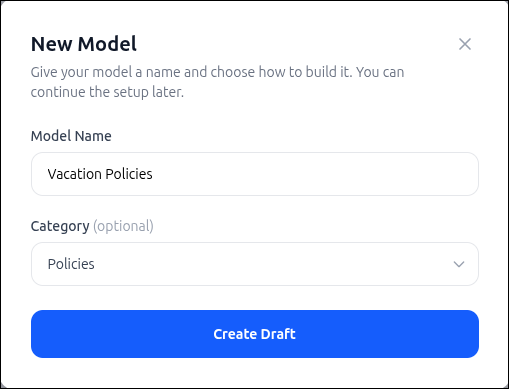
Click Create Draft.
In the Start step, select how you want to choose a source:
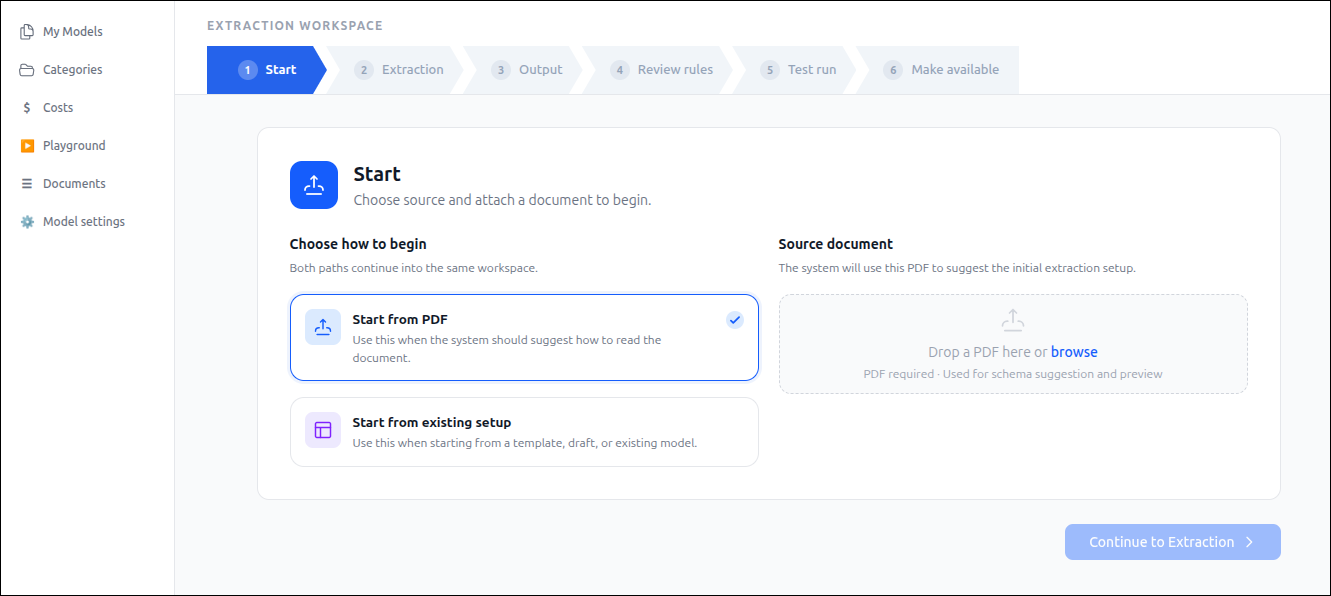
Start from PDF: Upload a PDF document and let Smart Extract analyze the document structure and suggest an extraction schema.
Start from existing setup: Reuse an existing model, template, or draft as the starting point.
If you select Start from PDF, upload a representative PDF document by dragging and dropping the file into the Source document area or clicking browse to select a file.
Important: The source document should closely match the format and structure of the documents you plan to process. Smart Extract uses this document to identify fields, infer data patterns, and generate an initial extraction. The uploaded PDF becomes the reference document for model creation.
After the document is uploaded, click Continue to Extraction to proceed to the next step.
Start from Existing Setup
Use Start from existing setup when you want to build a model from a predefined configuration instead of starting with a new PDF. This option allows you to begin with an existing template or create an editable draft from a published model.
Select Start from existing setup.
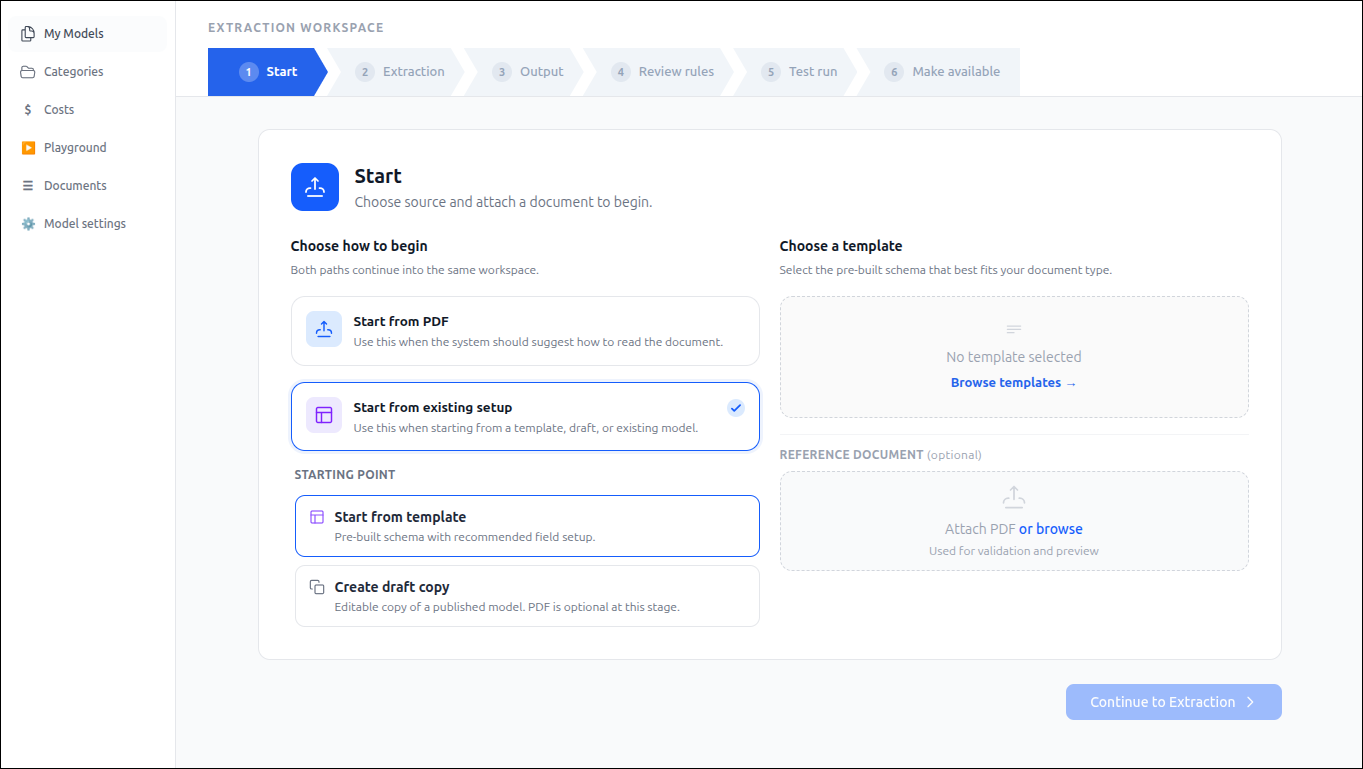
Choose one of the following starting points:
Start from template: Creates a new model using a pre-built schema with recommended fields and extraction settings.
Create draft copy: Creates an editable draft of an existing published model. A reference PDF is optional at this stage.
In Choose a template, click Browse templates and select the template that best matches your document type.
(Optional) In Reference Document, upload a PDF document to use for validation and preview during model configuration.
Click Continue to Extraction to proceed to the Extraction step.
Tip: Use Start from template when creating a new model based on a common document type. Use Create draft copy when you want to modify or extend an existing published model without affecting the original version.