Overview
Custom Dashboard Templates is a new feature introduced in v3.8 that enables Users to create reusable Dashboard templates that can be copied later to generate new Dashboards more efficiently in the Process Mining Platform.
Creating and Editing a Custom Dashboard Template
- Follow the instructions mentioned in Creating a Custom Process Dashboard to create a Custom Dashboard.
.gif)
- Once the Dashboard is created with the desired specifications, save the Dashboard, then select SAVE AS TEMPLATE.
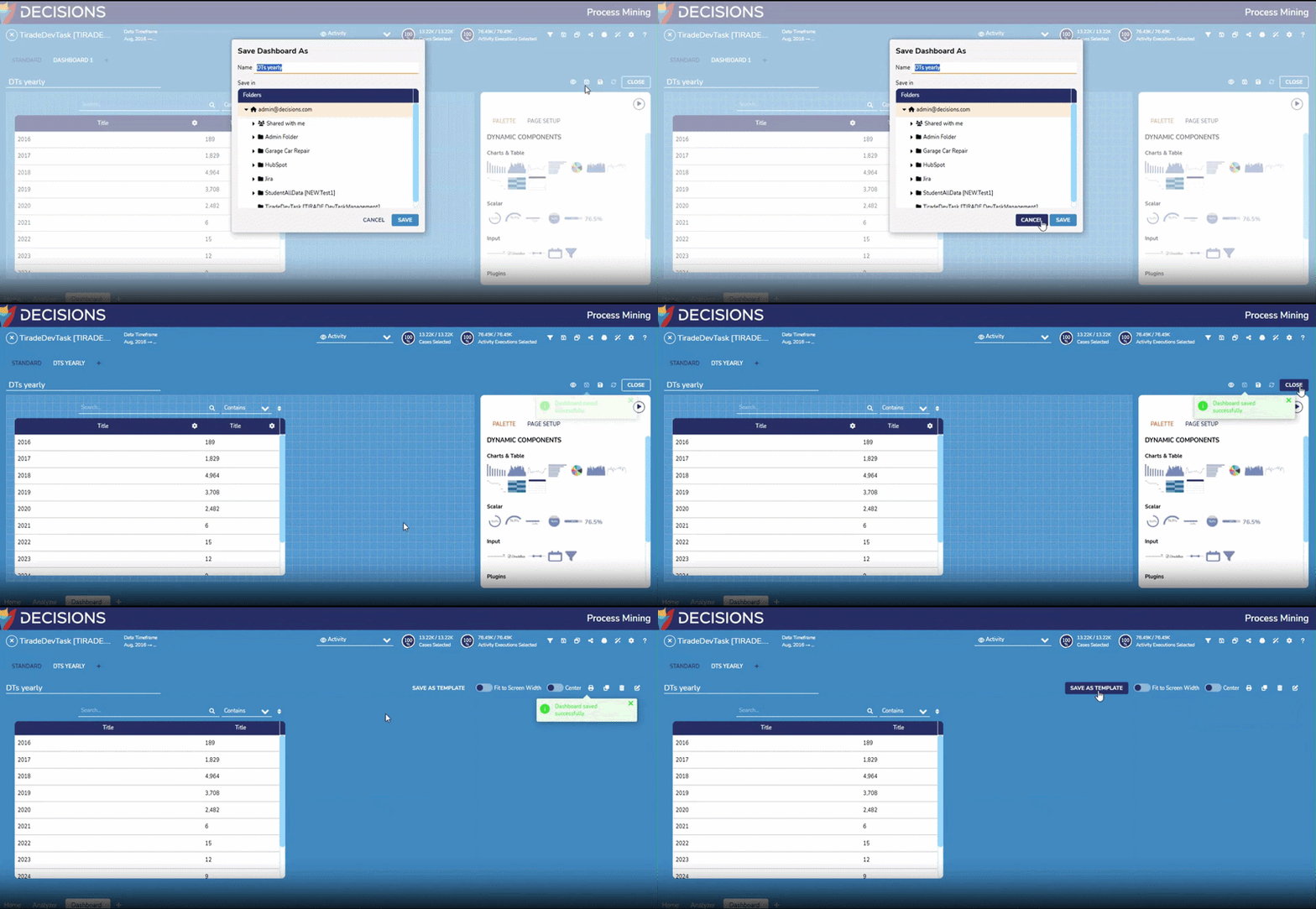
- This action will display the Create Template window. From here, Users can confirm or change the name of the template and add a description. Users should note that any changes that need to be made to the template must be made before saving.
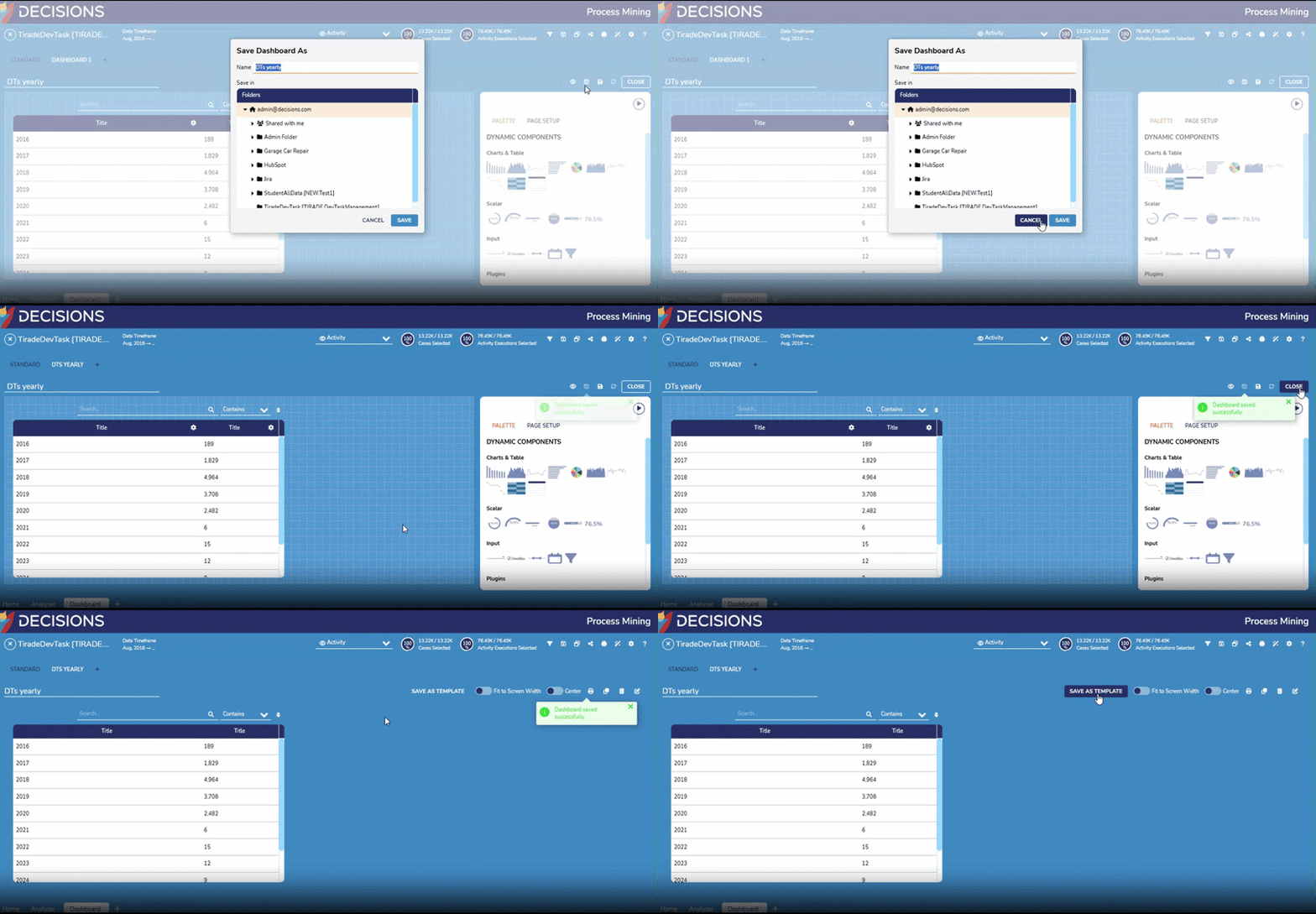 After verifying that the information displayed is correct, click SAVE.
 Note
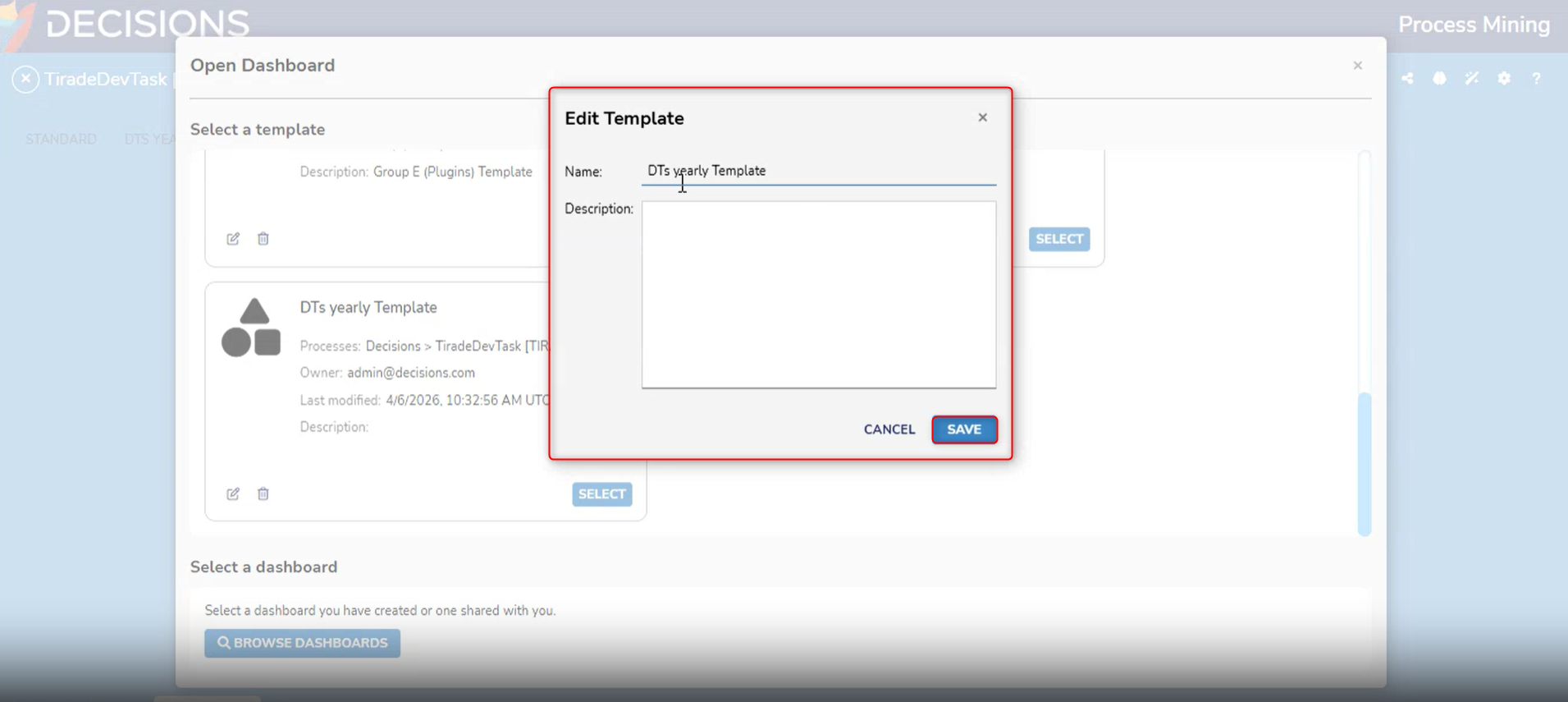
Once saved, only the name and description of a template can be edited by an Admin User. - Admin Users can edit the name and description of a Custom Dashboard template after saving by selecting OPEN AN EXISTING DASHBOARD.
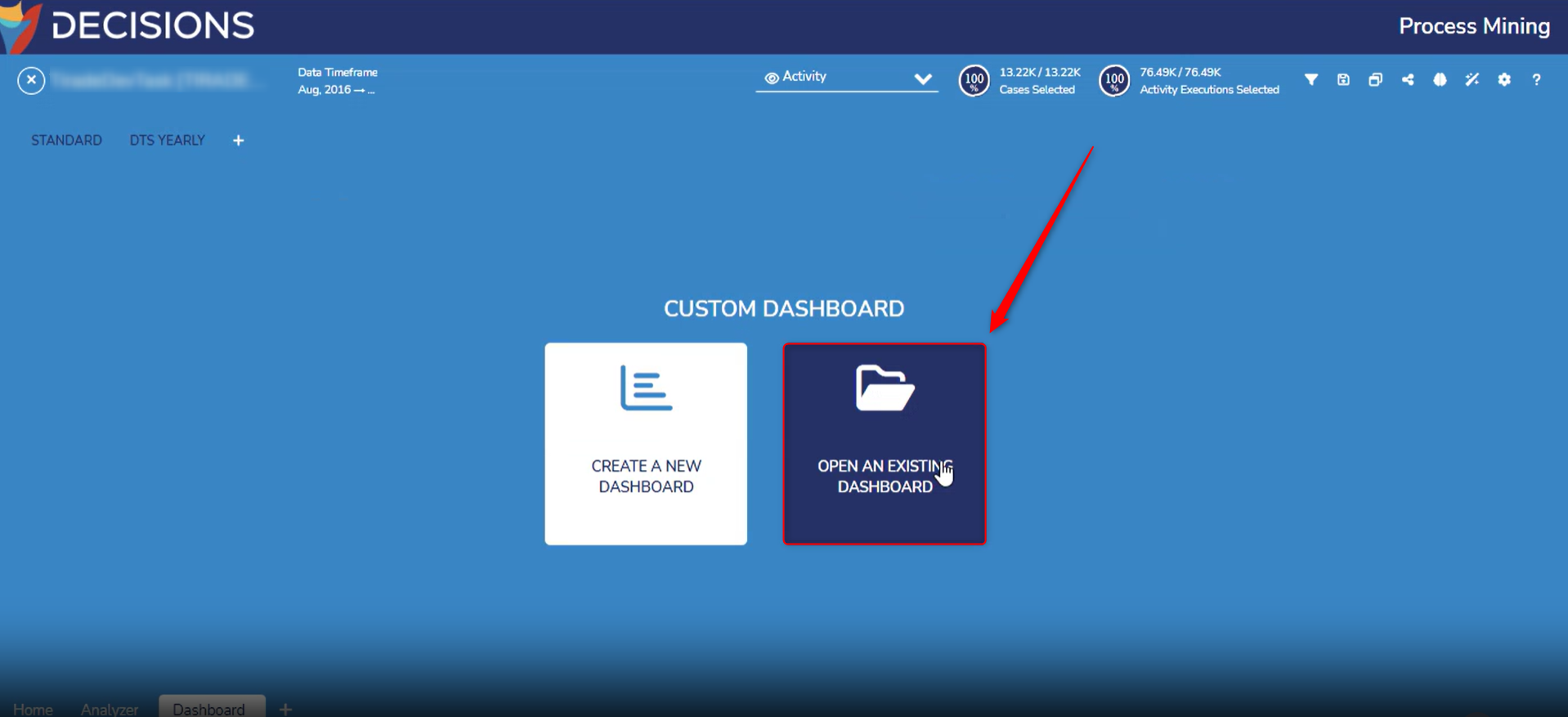
- This action opens a window displaying a list of dashboard templates created for the selected event log in the Process Mining platform. Users can browse the list and select the desired template.
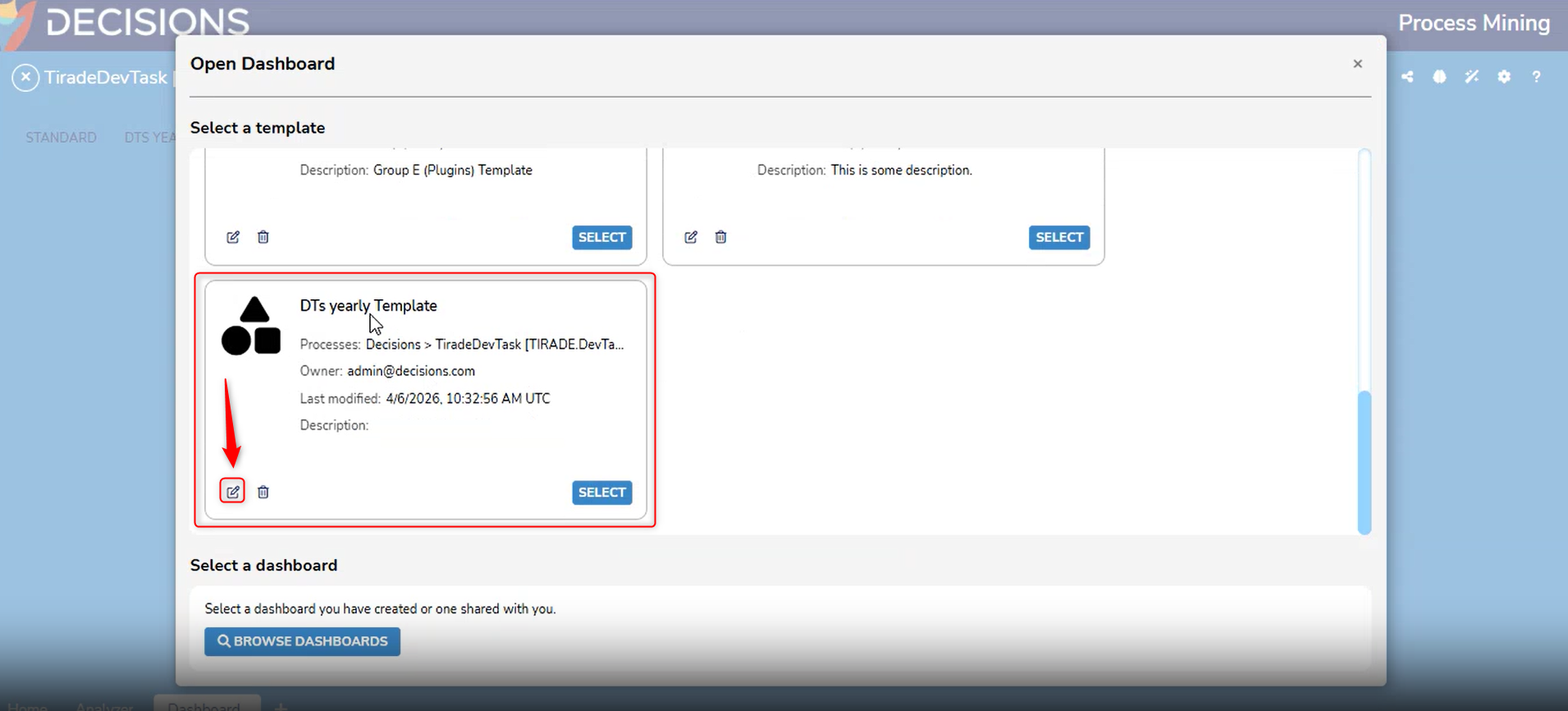
- Once the Dashboard is selected, Admin Users can edit the template name and description. Changes are immediately reflected after the Dashboard is saved.
Using a Custom Dashboard Template
- Once a Custom Dashboard Template is created, it can be copied and reused at any time. To use a template, simply select the template from the Open Dashboard menu.
.png)
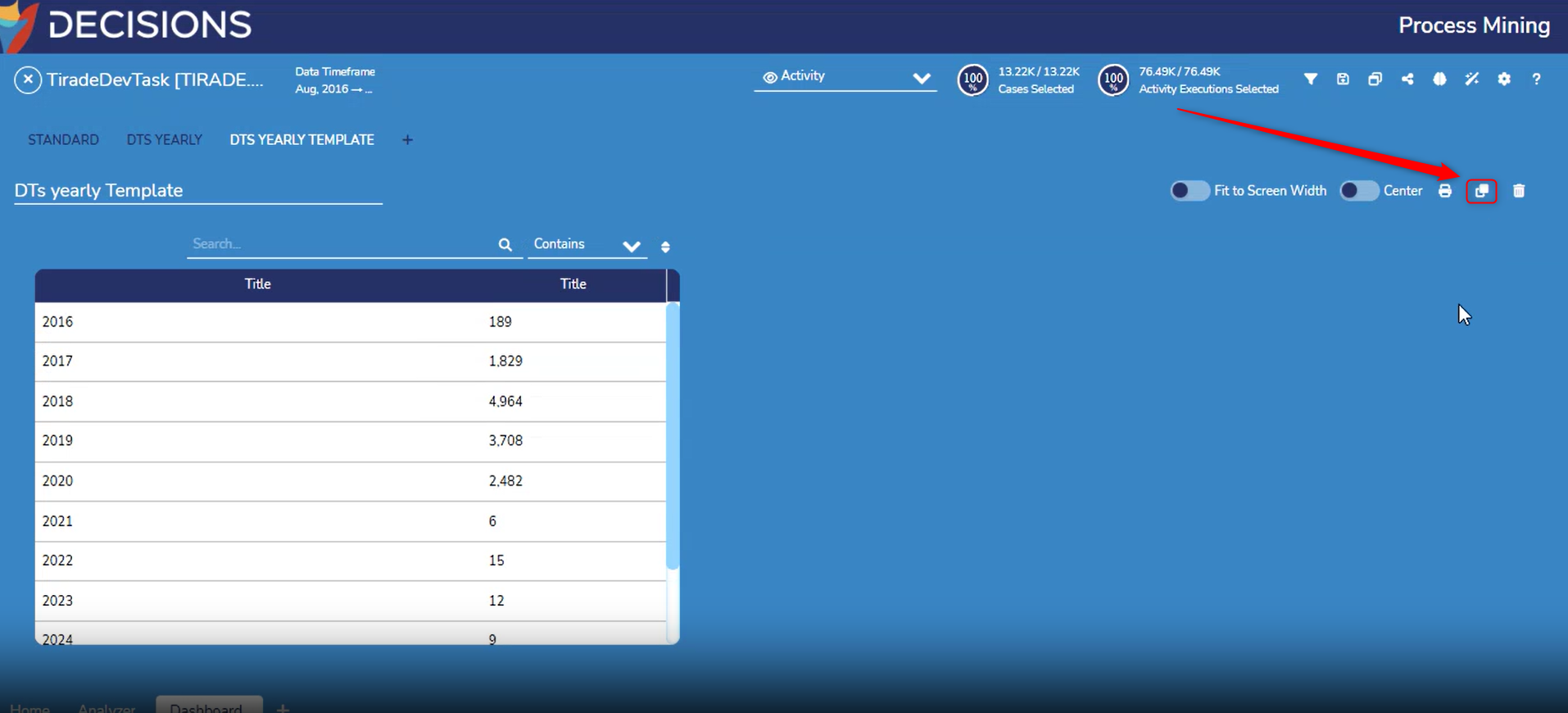
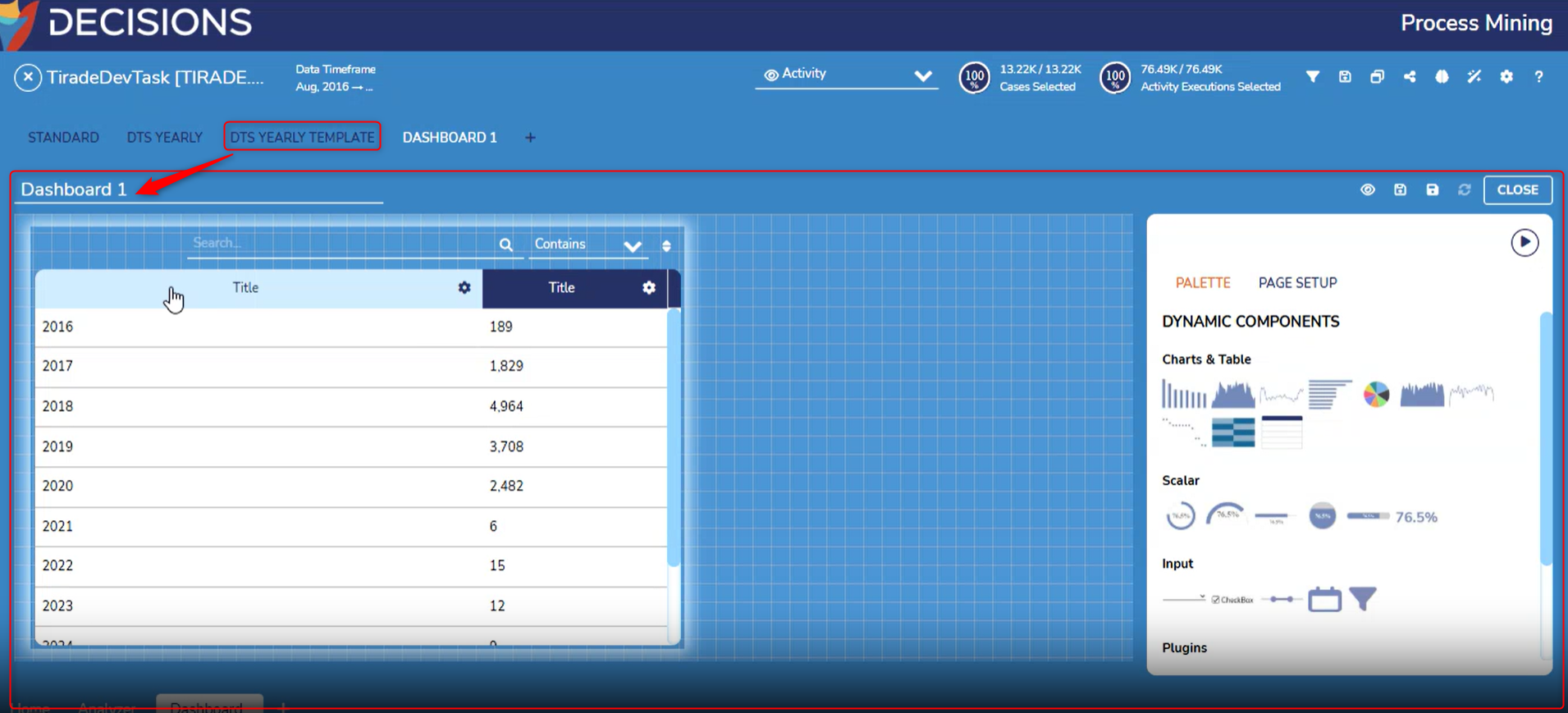
- After selecting the template, click the clone icon to copy the template into a new tab.
- From here, Users can use elements included in the template as desired.
Feature Changes
| Description | Version | Release Date | Developer Task |
|---|---|---|---|
| Custom Dashboard Templates have been added to the Process Mining Templates. | 3.8 | April 2026 | [DT-045781] |