Overview
The Prompt Execution History Dashboard provides visibility into all past executions of prompts run on the platform with any supported AI model. This dashboard helps users understand how their prompts behave in real-world execution scenarios by displaying detailed information, including inputs, outputs, execution duration, and success status.
Whenever a flow runs a prompt through any Chat Completion step, whether from Anthropic, Azure Foundry, Google Gemini, OpenAI, or the AI Common module, the system automatically logs the full execution details. These records allow users to evaluate prompt behavior, identify unexpected responses, and improve overall prompt design.
Prerequisites
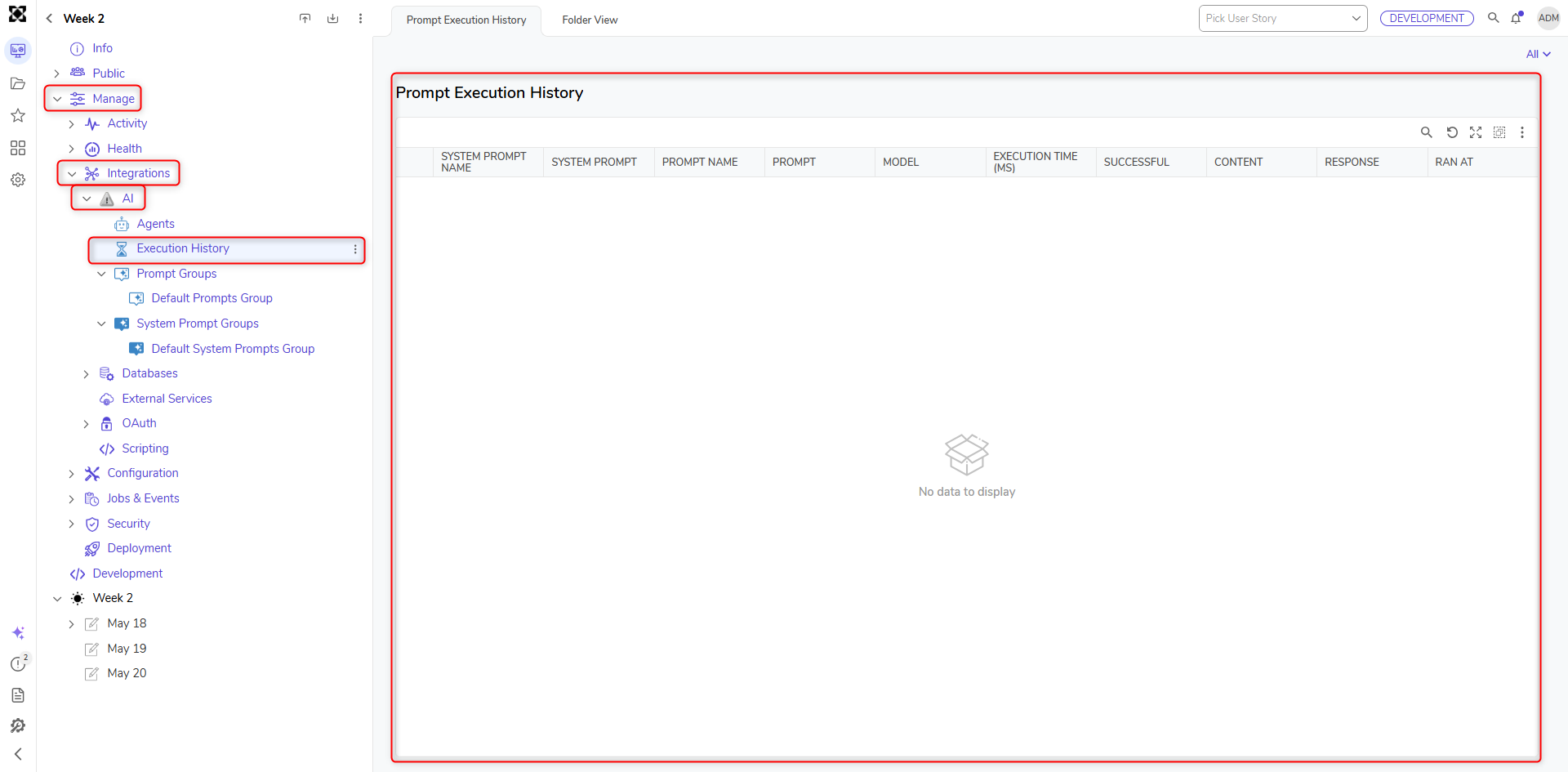
For the Execution History folder to appear under [Project] > Manage > Integrations > AI, the project must have the AI.Common module installed and added as a dependency. Once this module is included, the dashboard becomes available and records prompt execution activity from any Chat Completion step in the system.
Use Case
Users who design or maintain prompts often need insight into how those prompts perform over time. If a prompt begins returning unexpected, inconsistent, or low-quality outputs, the dashboard provides a way to review exactly what occurred during each execution - what input was used, which model processed it, how long it took, and what response the model returned.
By reviewing this history, users can identify patterns, troubleshoot incorrect behavior, and refine prompts to improve accuracy, quality, and consistency.
Execution History Details
The dashboard includes the following columns for each recorded execution:
- Prompt – The name or identifier of the prompt used during execution.
- Model – The AI model used by the Chat Completion step (Anthropic, Azure Foundry, Google Gemini, OpenAI, or open models via AI Common).
- Execution Time (ms) – The total time taken by the model to process the prompt.
- Successful – Indicates whether the execution completed successfully (True) or encountered an error (False).
- Content – The actual prompt text provided to the model.
- Response – The output returned by the model based on the prompt.
- Ran At – The date and time of the execution.
These execution logs provide full context around each prompt run, which is essential for debugging, analysis, and prompt optimization.
Data Source Information
The data displayed in the Prompt Execution History Dashboard is sourced from the dbo.aiprompt_execution_history table. This table stores all recorded prompt execution activity captured from any Chat Completion step across supported AI modules.
Users may also create their own custom reports, dashboards, or data views by querying this table directly, allowing deeper analysis and expanded insight into AI prompt performance.
Execution History Storage & Retention
Prompt execution records are stored in the AIPromptExecutionHistory table. In v10.1 and above, Create Embedding calls now record execution details to this table, alongside prompt execution records.
Administrators can use the Record Prompt Execution History setting in Common AI Settings to control recording globally. This setting is enabled by default. When disabled, new execution records are not recorded.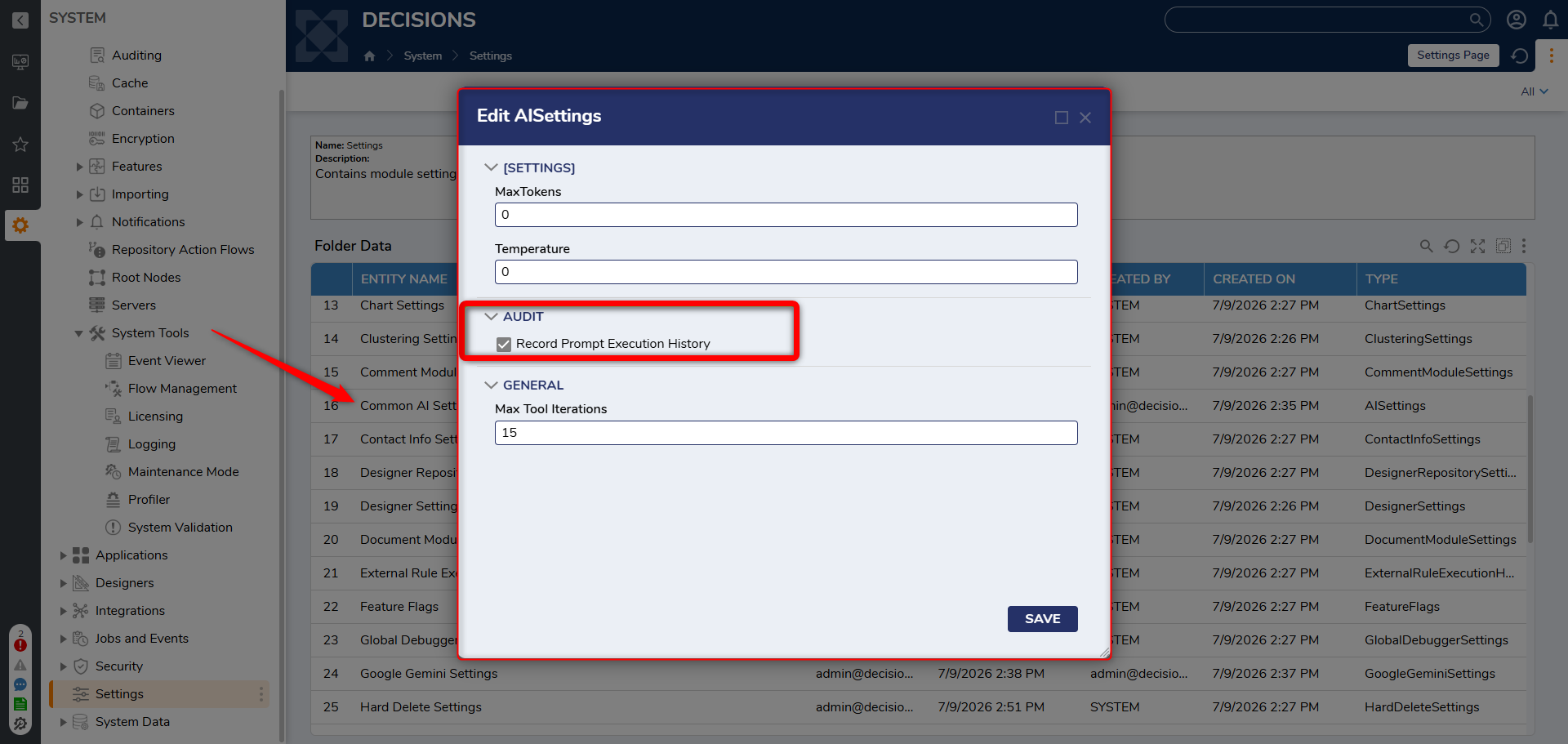
Records in AIPromptExecutionHistory can be automatically aged out using the platform's existing Hard Delete Settings. Archived records include the Archived, ArchivedBy, and ArchivedDate fields. 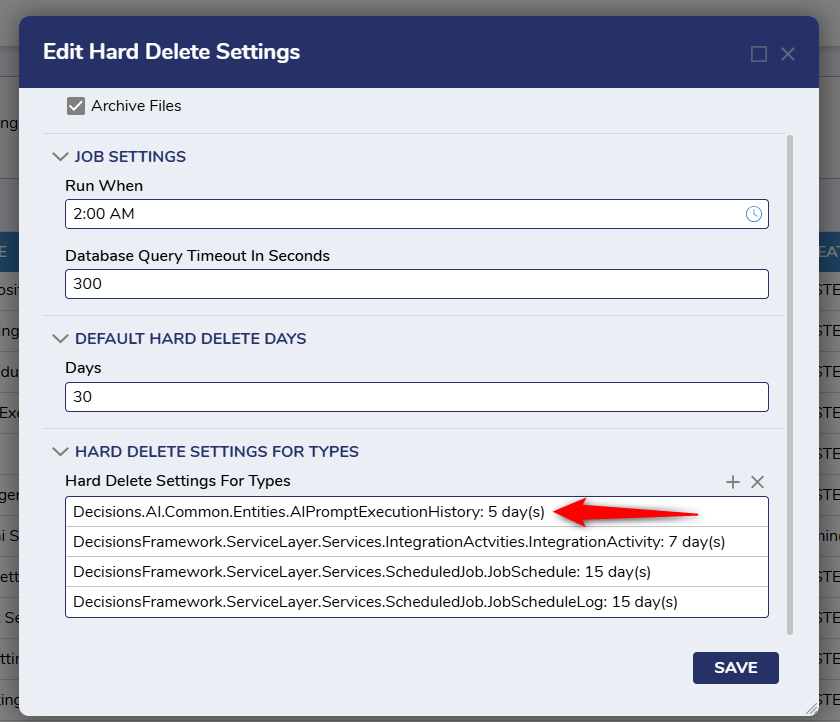
The legacy AIAudit table no longer receives new records. Existing AIAudit records remain available for historical reference.
Feature Changes
| Description | Version | Release Date | Developer Task |
|---|---|---|---|
The following Agent Message History updates have been made:
| 10.1 | August 2026 | [DT-048157] |