Overview
Project Management Information System (PMIS) integrations allow Decisions to connect with external project tracking systems, such as Jira and Azure DevOps. These integrations are used to import external work items into Decisions as user stories and to support sprint-based development and deployment tracking.
PMIS connections are configured on the Deployment Server from System > Integrations > PMIS. After a PMIS connection is configured, sprints and user stories can be imported from the external PMIS system into either the Deployment Server or the connected Development Server. Imported items are synced between the Deployment Server and Development Server to support project tracking and deployment workflows.
Configuring a Jira PMIS Connection
Use a Jira PMIS connection to import Jira work items into Decisions as user stories.
To configure a Jira PMIS connection:
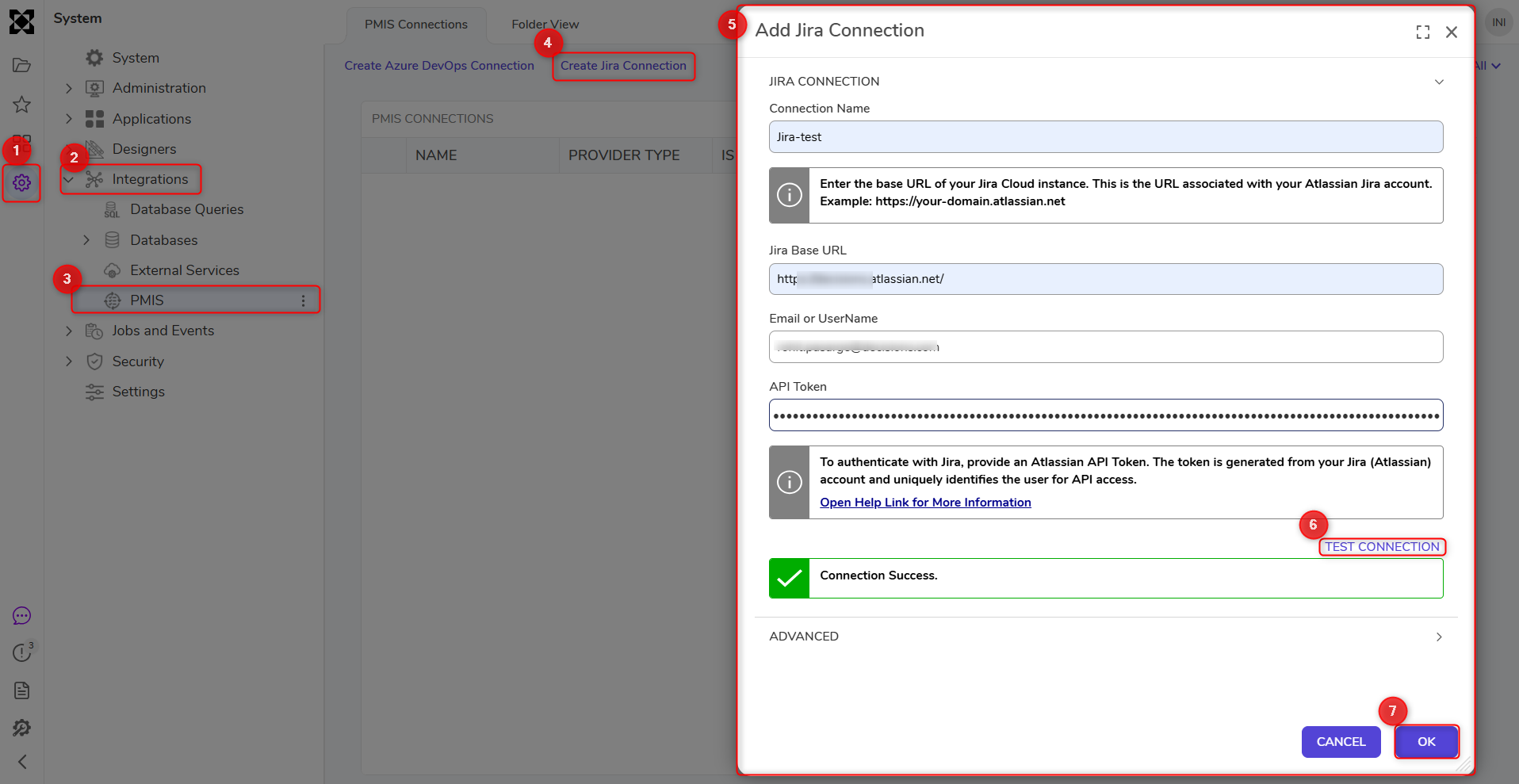
- On the Deployment Server, navigate to System > Integrations > PMIS.
- Create a new Jira connection.
- Provide the required connection details:
- Name: A display name for the connection.
- Base URL: The Jira site URL for the organization.
- Email or Username: The Jira account used for authentication.
- API Token: A Jira API token generated for the account. For more information, see Manage API tokens for your Atlassian account.
- Click Test Connection. The connection must be successfully tested before it can be saved.
- Save the connection.
Configuring an Azure DevOps PMIS Connection
Use an Azure DevOps PMIS connection to import Azure Boards work items into Decisions as user stories.
To configure an Azure DevOps PMIS connection:
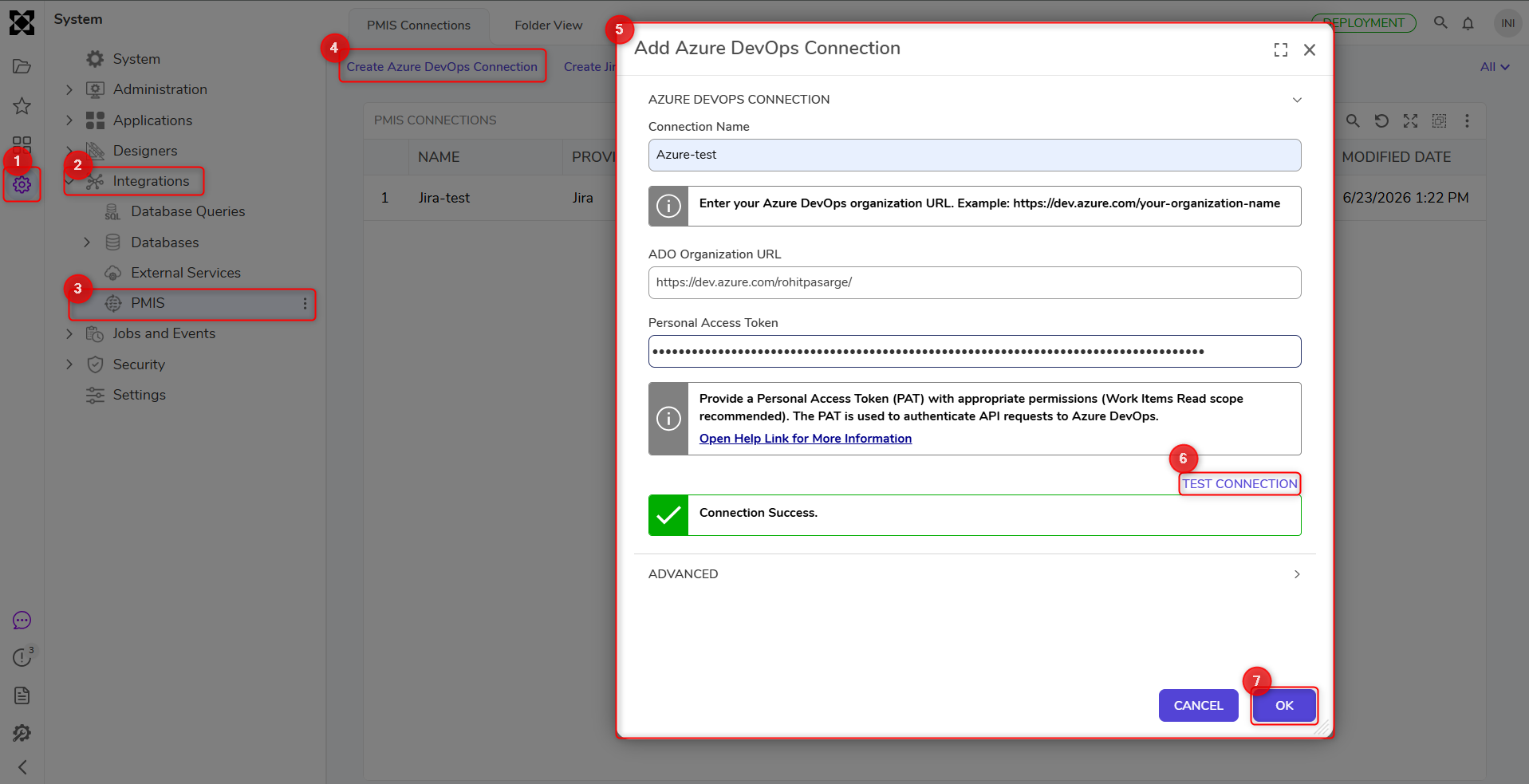
- On the Deployment Server, navigate to System > Integrations > PMIS.
- Create a new Azure DevOps connection.
- Provide the required connection details:
- Name: A display name for the connection.
- Organization URL: The full Azure DevOps organization URL.
- Personal Access Token (PAT): A token generated from Azure DevOps for authentication. For more information, see Create a personal access token.
- Click Test Connection. The connection must be successfully tested before it can be saved.
- Save the connection.
Active PMIS Connection Behavior
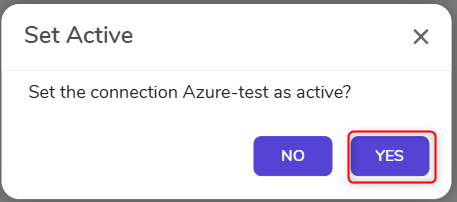
Only one PMIS connection type can be active at a time. For example, if a Jira PMIS connection is marked as Active, an Azure DevOps connection cannot be active at the same time, and vice versa. 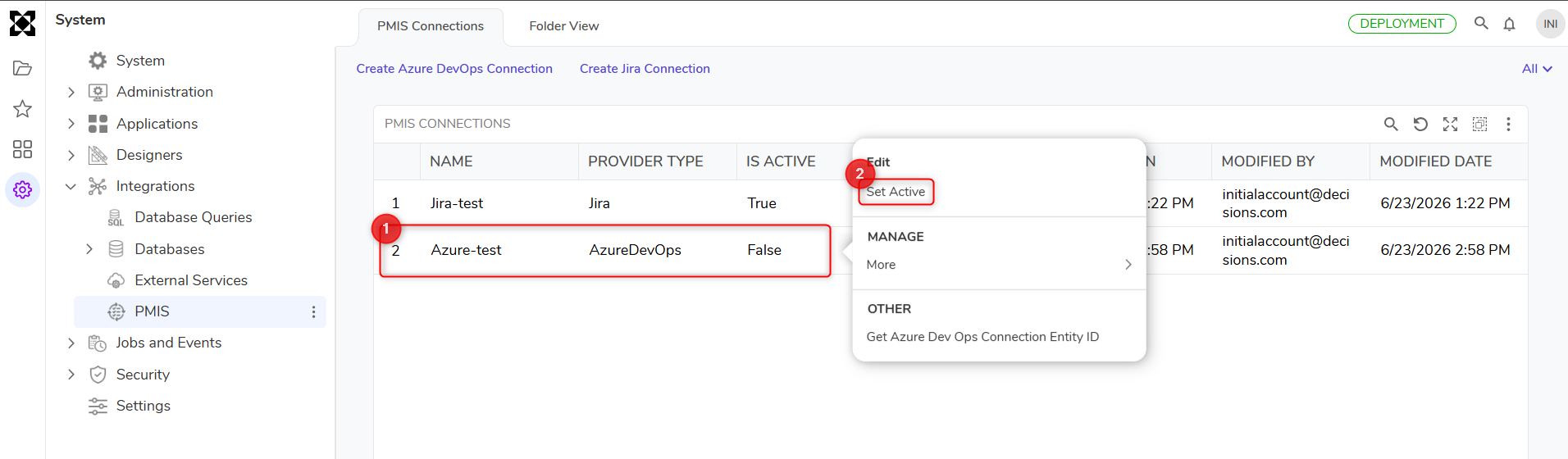
Sprints and user stories imported from external PMIS systems can only be tied to one Decisions Project. This prevents the same external user story from being imported into multiple Projects.
Importing Sprints and User Stories
After a PMIS connection is configured on the Deployment Server, sprints and user stories can be imported from the external PMIS system into Decisions. Imports can be performed from either the Deployment Server or the connected Development Server. This allows teams to import PMIS work items from the context they are working in while keeping the Deployment Server and Development Server aligned.
After sprints are imported or available in Decisions, user stories can be imported into the target sprint and used for development and deployment tracking.
For detailed steps, see the following documents: