Overview
Snowflake is a data warehousing service that can support a high amount of workloads simultaneously. By integrating with Snowflake, users can access Snowflake's ability to store and share large amounts of data, and Decisions' library of automated Workflows, Steps, Reports, and more.
Starting in v9.13, Snowflake drivers are included in Decisions container images. Users with container environments can now integrate with Snowflake databases. Versions v9.12 and below do not support container integration with Snowflake.
Prerequisites:
- Snowflake ODBC driver from the Snowflake Documentation site.
Configuration
- Navigate to Integrations > Databases and click CREATE CONNECTION.
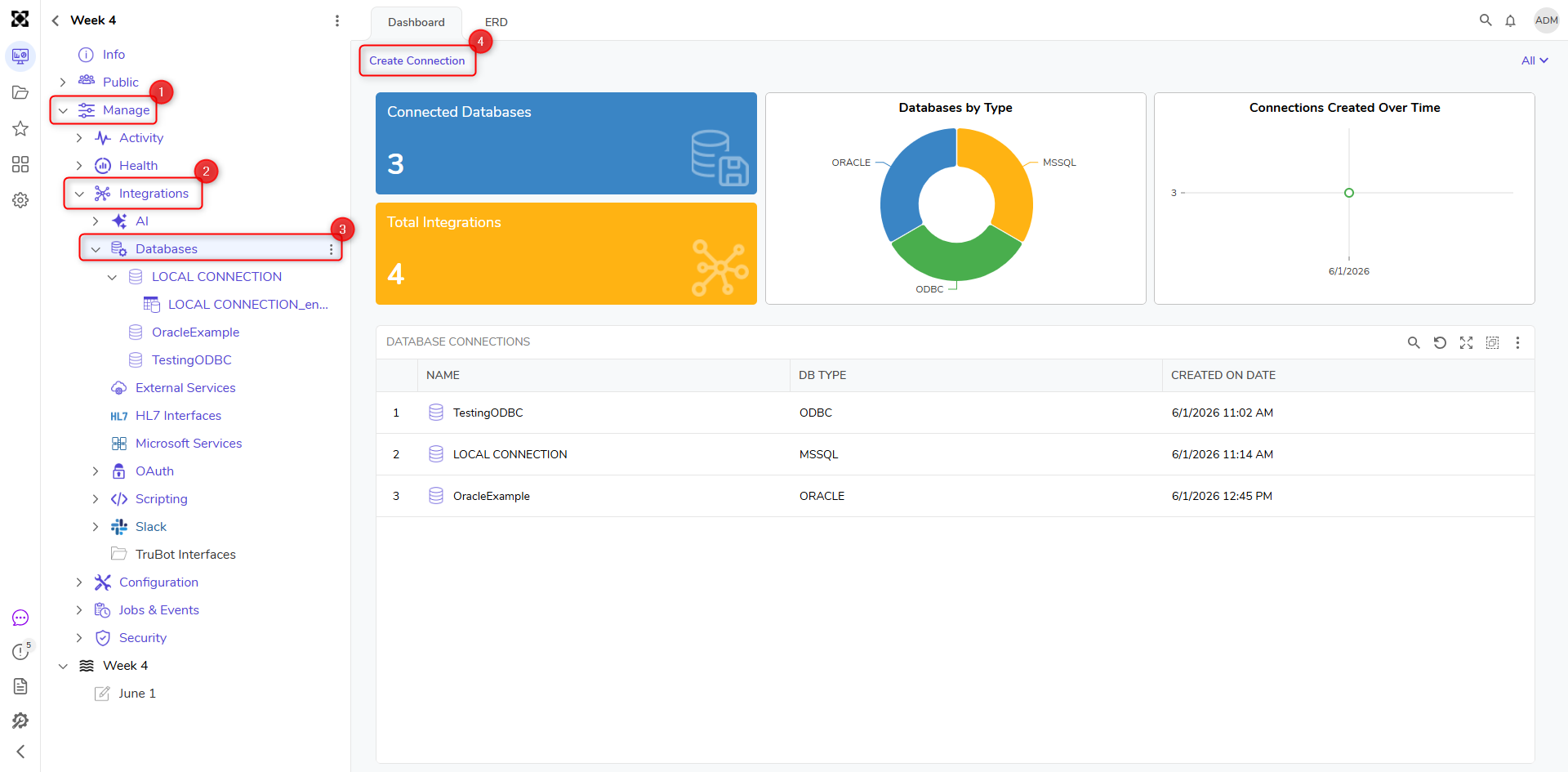
- In the Database Integration dialog, define a Connection Name. From the Database Type dropdown, select ODBC.
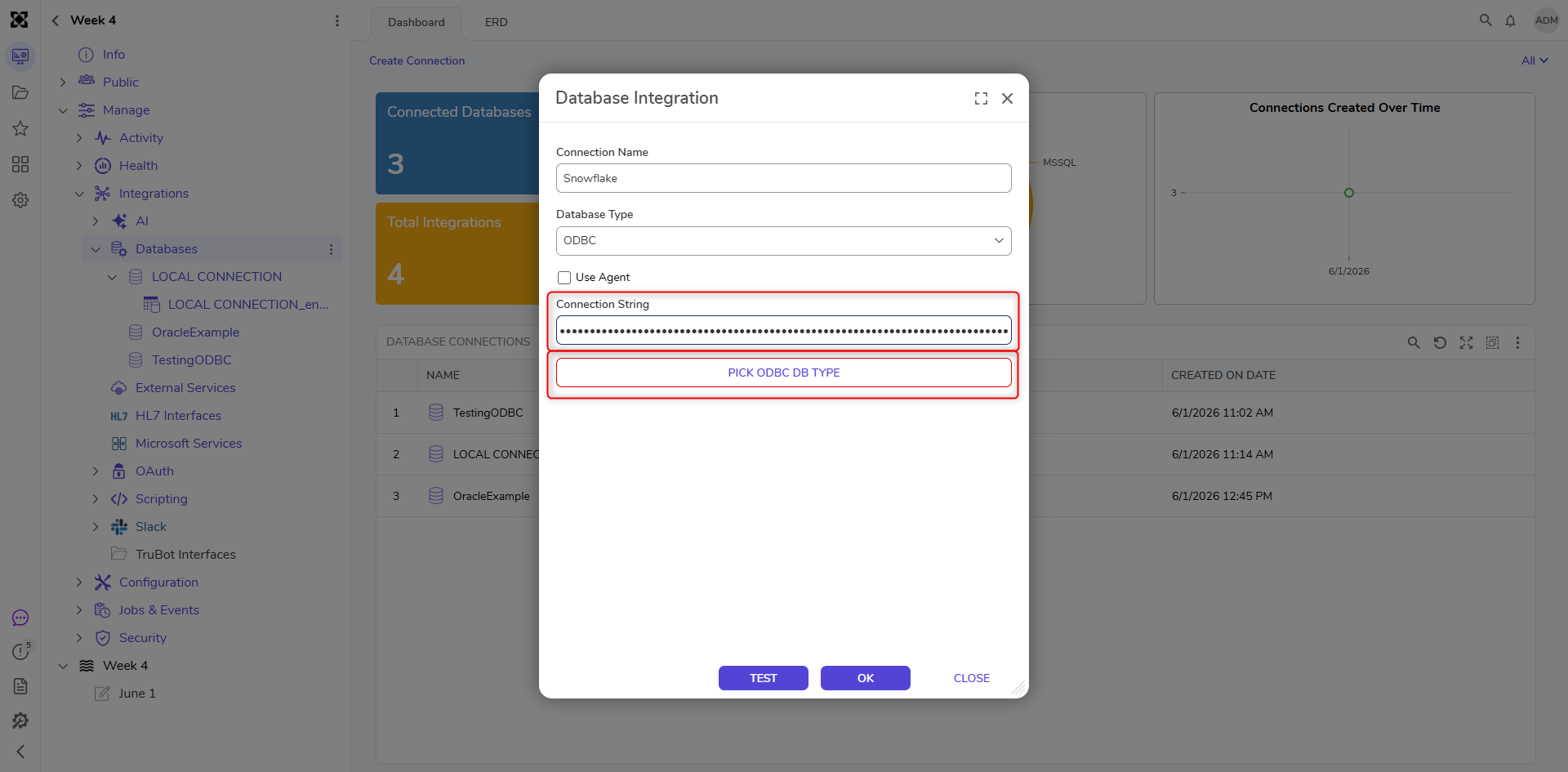
- Enter the connection string to connect to the Snowflake database. Click PICK OR CREATE ODBC DB TYPE and select Pick Existing. Case SensitiveAll values in the connection string are case sensitive. This includes the Snowflake database name, schema, role, etc.
Driver={SnowflakeDSIIDriver};
Server=abc12345.dataCenter.snowflakecomputing.com;
account=abc12345;
Database=SNOWFLAKE_SAMPLE_DATA;
Uid=snowflakeUserID;
Pwd=snowflakePassword;
schema=public;
warehouse=COMPUTE_WH;
role=SYSADMIN;
Driver={SnowflakeDSIIDriver}; Reference the ODBC driver by name.
Server=abc12345.dataCenter.snowflakecomputing.com;
account=abc12345;
The account ID and datacenter location provided by Snowflake.
Database=SNOWFLAKE_SAMPLE_DATA;
The database name.
Uid=snowflakeUserID;
Pwd=snowflakePassword;
Snowflake username and password.
schema=public;
warehouse=COMPUTE_WH;
role=SYSADMIN;
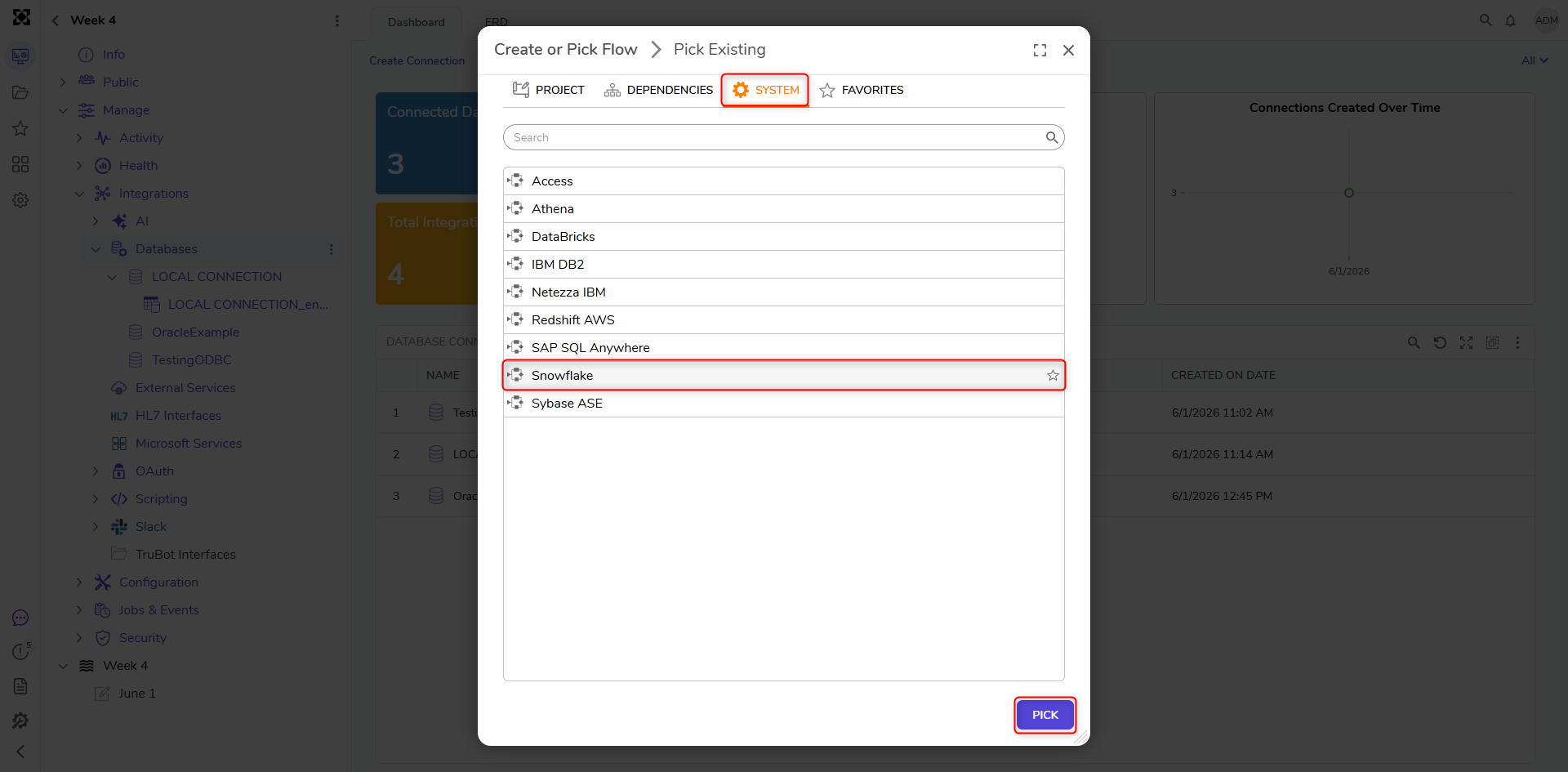
Data usage details. - Navigate to ALL > DatabaseDefinitionWizard, select Snowflake, and click PICK.
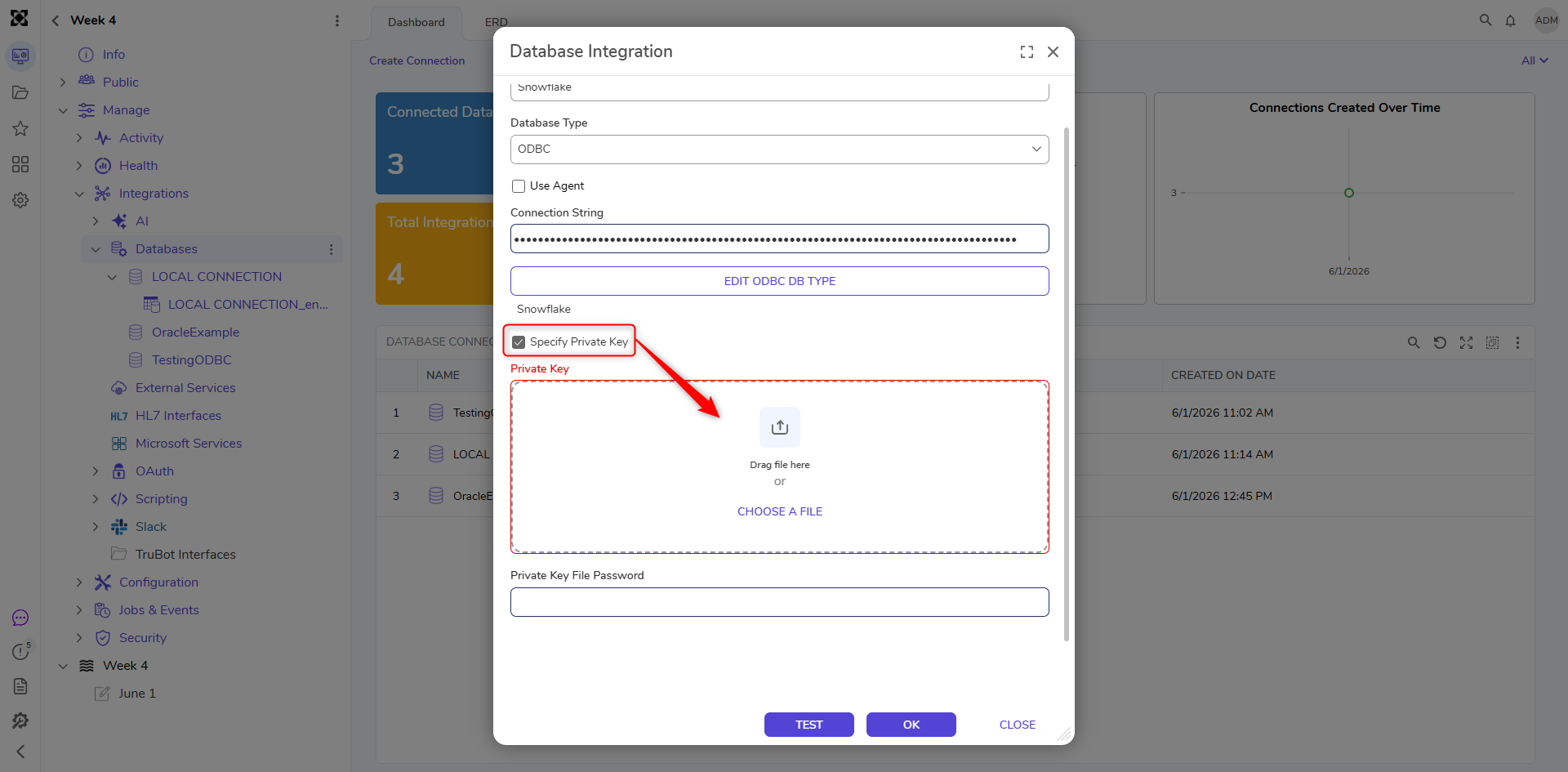
- Enable Specify Private Key to configure key pair authentication.
- Private Key: Upload the private key file associated with the Snowflake user.
- Private Key File Password: Provide the password for the private key file, if applicable.
- The private key information is appended to the connection string automatically.
- Click TEST to test the database connection. If the Test Status is Success, click OK to save.
Communicate with the Integrated Table
A Flow can be created to demonstrate how to communicate with the Integrated Database Table using the system-generated steps in a Workflow process. The steps for the integrated table can be found under Integration > Database > [Integrated Database Name] > [Integrated Table Name] in the Flow Designer.
Special Query Characters
Snowflake query commands can be viewed here.
| Character | Function |
| ? | Specify a parameter. ? takes the parameter order so that a user can re-order parameters accordingly. Each ? is a different parameter. The field must be specified in the INPUT PARAMETERS field. Example screenshots are below. |
| * | The output should include all columns of the specified object, or all columns of all objects if * is not qualified with an object name or alias. |
| $$$$ | Unlimited non-negative integer constant |
| ' ' | Empty string treated as 0. |
MATCH_RECOGNIZE
| Character | Function |
| <^> | Start of partition |
| <$> | End of partition |
| + | Quantifier - 1 or more |
| * | Quantifier - 0 or more |
| ? | Quantifier - 0 or 1 |
| {n} | Quantifier - Exactly n |
| {n, } | Quantifier - n or more |
| {,m} | Quantifier - 0 to m |
| {n,m} | Quantifier - n to m |
| ... ... | Operators - Concatenation |
| {- ... -} | Operators - Exclusion |
| ( ... ) | Operators - Grouping |
| PERMUTE(..., ...) | Operator - Permution |
| ... | ... | Operator - Alternative |
WHERE
| Character | Function |
| + | Used to make joins into outer joins |
Specify a Parameter
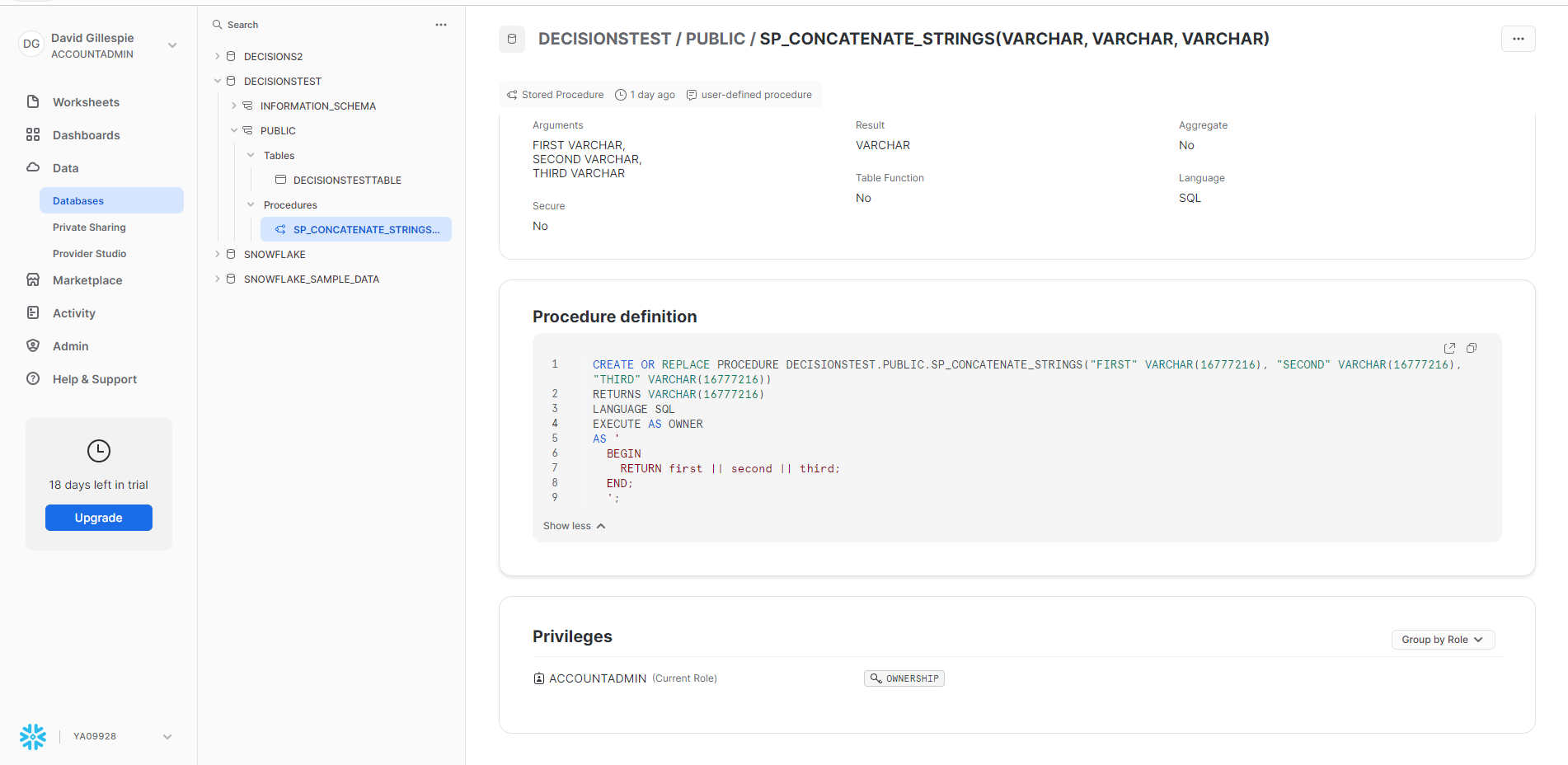
This example returns the first three parameters. CALL sp.example(?,?,?)
Feature Changes
| Description | Version | Release Date | Developer Task |
|---|---|---|---|
| Add The Ability To Specify An OAuth token to use with the Snowflake Connection String | 9.22 | March 2026 | [DT-045237] |
| Snowflake is now supported in Containers. | 9.13 | July 2025 | [DT-045073] |