Overview
Active Directory (AD) is a Microsoft directory service that manages domains, users, objects, and devices that operate within a network. Active Directory can be used to sync users, computers, and groups into the Decisions Portal account base. These accounts can then be used from the Active Directory Server as Decisions accounts without manually adding each account individually.
A few key points of syncing to Active Directory are:
- Active Directory Sync Jobs only fetch users and groups from the Active Directory Server. This is one-way sync where account/user/group information from Active Directory is stored in Decisions.
- Information about organization units is not synced into Decisions.
- For users, Decisions retrieves all the personal information (First Name, Last Name, etc.) and the contact information (Address, Phone Numbers, Emails, etc.) from Active Directory.
- When a user is deactivated in Active Directory, that user will be deactivated in Decisions.
Below are some examples of how Active Directory can be used when integrated into Decisions:
Active Directory Server Authentication
The Active Directory Server Authentication is used to authenticate users or system Active Directory credentials to log in to Decisions. AD accounts cannot be edited in Decisions but can be used to access the Portal and for other purposes such as Assignments and Groups. There are specific steps that must be performed to do this for Decisions to start Authentication with AD accounts.
Active Directory Sync Job
Once AD Server Authentication is configured, AD Sync Jobs can be performed. AD Sync Jobs allows the automatic creation of AD accounts that have logged into Decisions by running a Scheduled Sync Job to the AD Server. The Sync will pull information from the selected AD Domain provided in the Server Authentication. Depending on the options selected, users can sync specified data (Groups, Accounts, Organizations, etc.) or sync all elements by choosing to sync from the Entire Domain.
Active Directory Setup in Containers
To learn more about containers refer to the Containers Overview article.
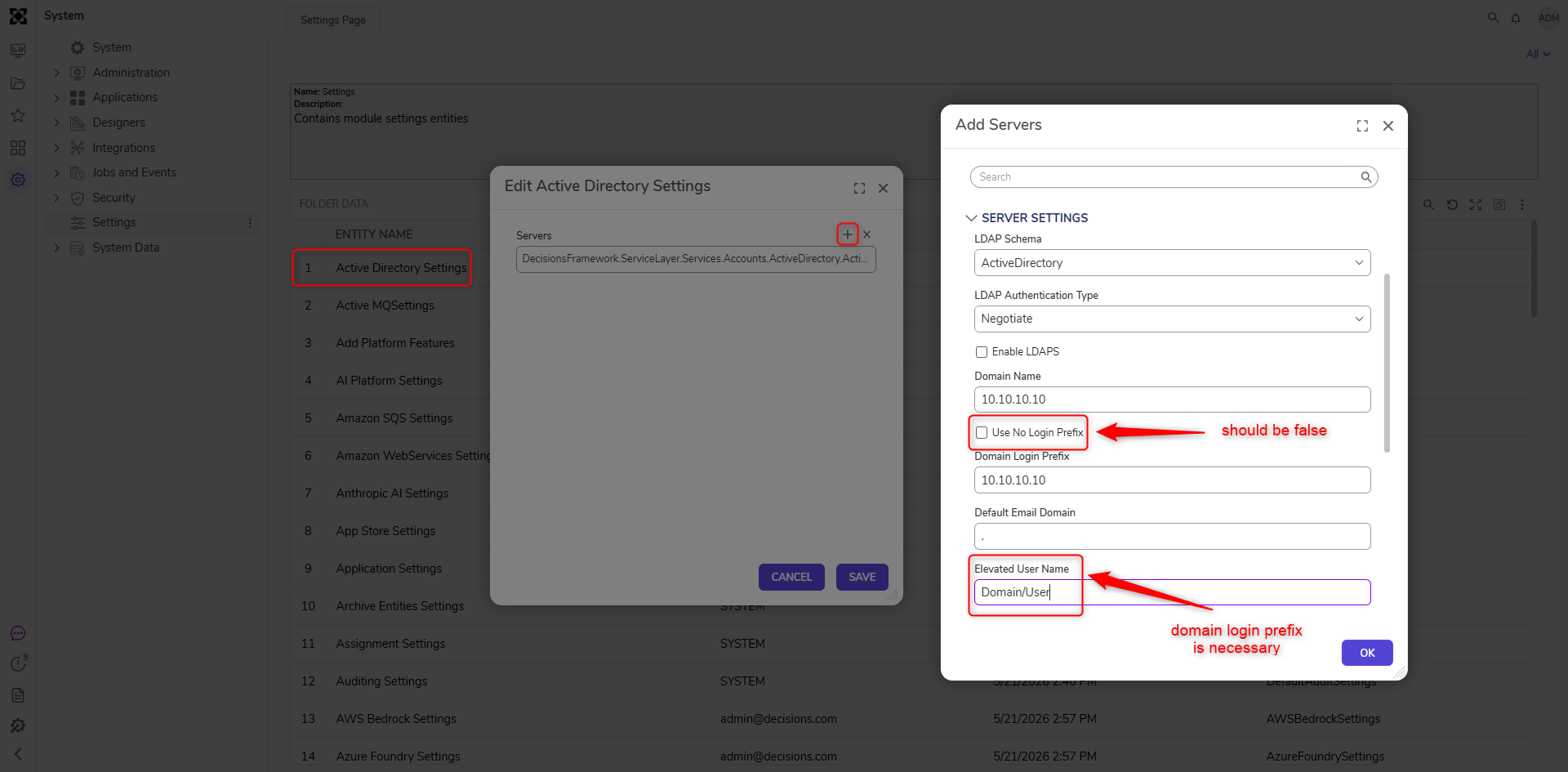
Active Directory module might fail to pass authentication via LDAP/LDAPS to the Active Directory domain when running in Containers. To prevent authentication failure, follow these steps while setting up an AD server.
- Currently, containers can access all steps in the active directory module except for the Create user advanced and Set Password steps. For logging into a container using an AD account, the user must enter the domain name along with the username (domainName\userName).
- Ensure to Disable "Use No Login Prefix" in the server settings while adding the servers. Refer to the following image.
Active Directory Account Sync with Deployment Tower
When environments are connected to the Deployment Tower, Active Directory account synchronization must be managed from the Deployment Tower. This ensures that accounts and directory settings remain aligned across the Deployment Tower and the registered client environments.
Upgrading to Version 10
Use the following guidance when upgrading to version 10.
- AD Settings Already Exist in All Environments: If Active Directory settings already exist in all environments before the upgrade, run the AD Sync action from System Settings on the Deployment Server after upgrading and registering environments to version 10.
- AD Settings Exist Only on Client Environments: If Active Directory settings exist only on client environments, such as Development, QA, and Production, and were never configured on the Repository or Deployment Server:
- Register the environments with the Deployment Tower.
- Add the Active Directory settings on the Deployment Server.
- Run the AD Sync action from System Settings on the Deployment Server.
Fresh Installs
For fresh installations:
Register the environments with the Deployment Tower.
Configure the Active Directory settings on the Deployment Tower.
Configure the Active Directory settings on each client environment.
Run the AD Sync action from System Settings on the Deployment Tower.
Result
After the AD Sync action runs from the Deployment Tower, Active Directory account information is synchronized with the registered client environments. This allows users to authenticate and access the appropriate environments using the expected directory configuration.