Overview
In some instances, an Admin may wish to disable an Account but reserve its associated Email for further use in Flows/Reports as a DataType or Data Source.
This can be achieved through the use of the Deactivate Action. In doing so, Admins prohibit access to the Account without removing the Account completely from the environment.
Alternately, if the Admin wishes to in the future, they may Re-Activate the Account. The following document demonstrates the method by which Admins may Deactivate and Re-Activate Accounts.
If your environment is connected to the Deployment Server, manage centralized user accounts from the Deployment Server. Administrators can create accounts on the Deployment Server and assign them to connected environments to keep access consistent across Development, QA, and other connected servers.
After an account is assigned to an environment, the account information synchronizes with that environment. Permissions specific to projects, folders, or other security settings must still be configured directly in the target environment where the user will work.
For more information, see: Managing Accounts with the Deployment Server
Deactivate Account
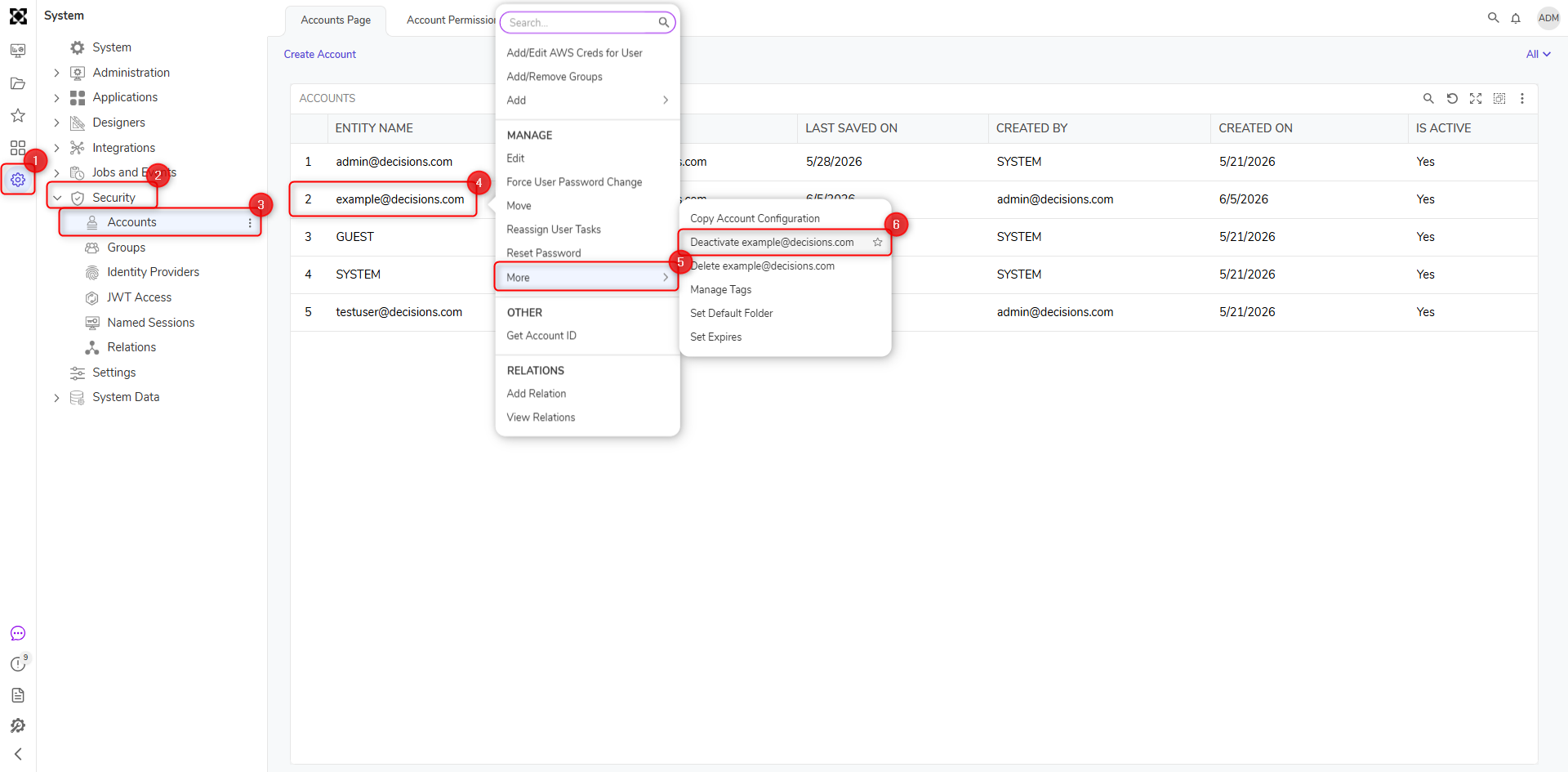
- Navigate to System > Security > Accounts.
- Right-click on the desired Account to access its Action Menu; then select More > Deactivate [AccountEmail].
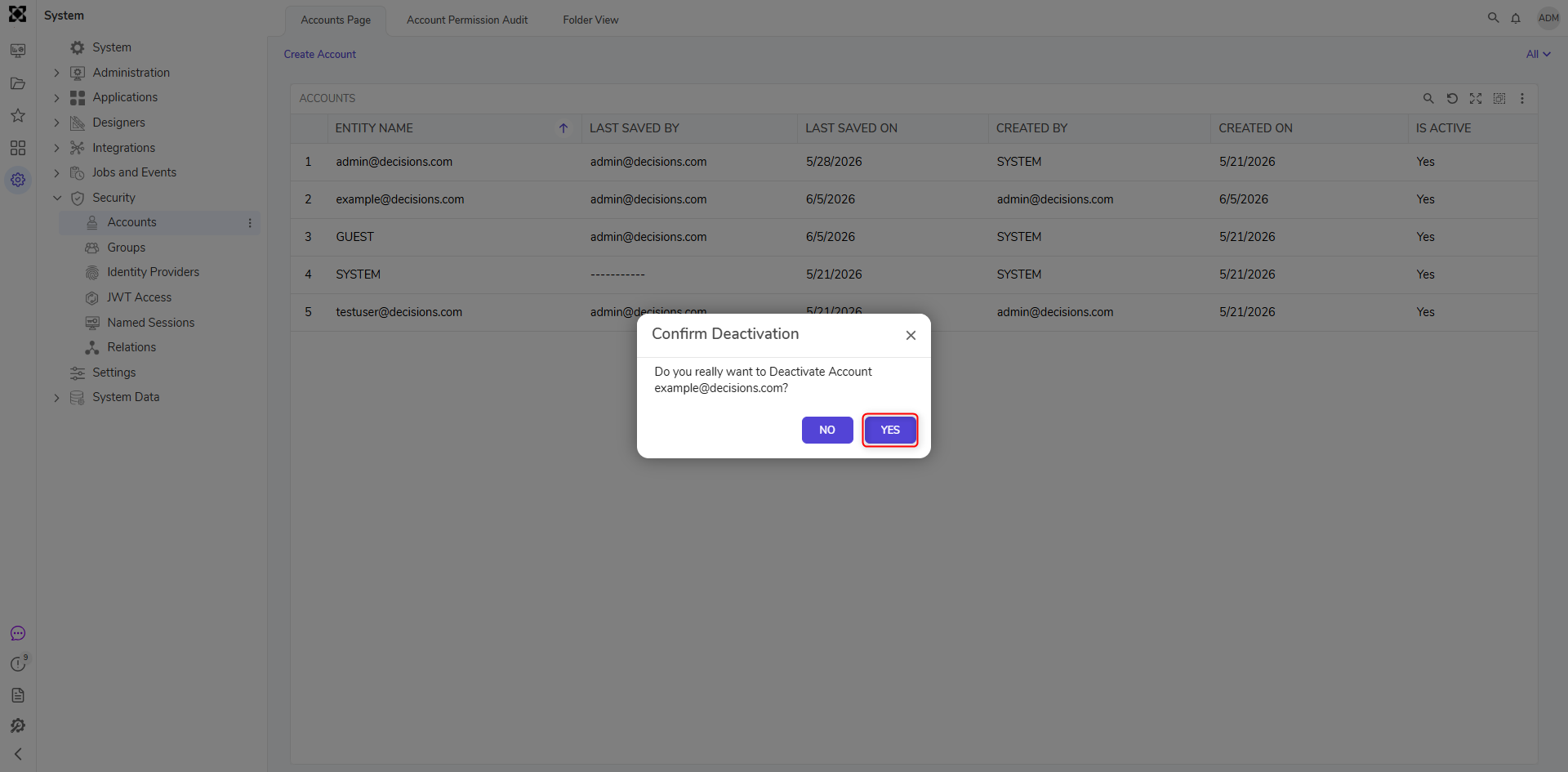
- Confirm Deactivation by selecting YES.
- Verify that the Account has been successfully deactivated by attempting to LOGIN with its credentials. Logging in with a Deactivated AccountUpon attempting to login with an Account's deactivated credentials, an Invalid Username or Password notification will display on the Login screen.
Additionally, the IS ACTIVE column value for the Account in the Accounts Folder will display as False.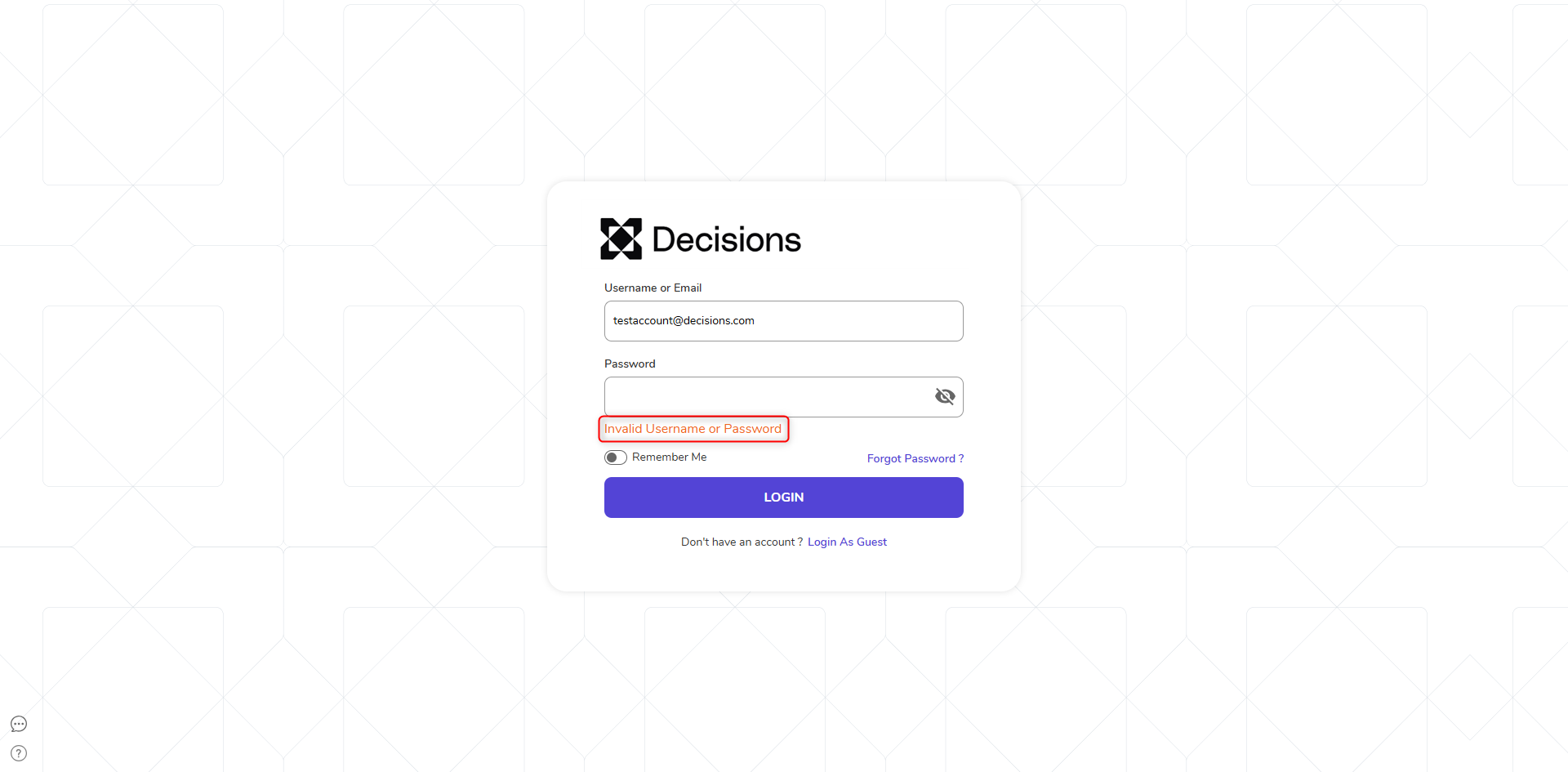
Activate Account
- Navigate to System > Security > Accounts in the Decisions Studio.
- Right-click the Deactivated Account and select More > Activate [AccountEmail].
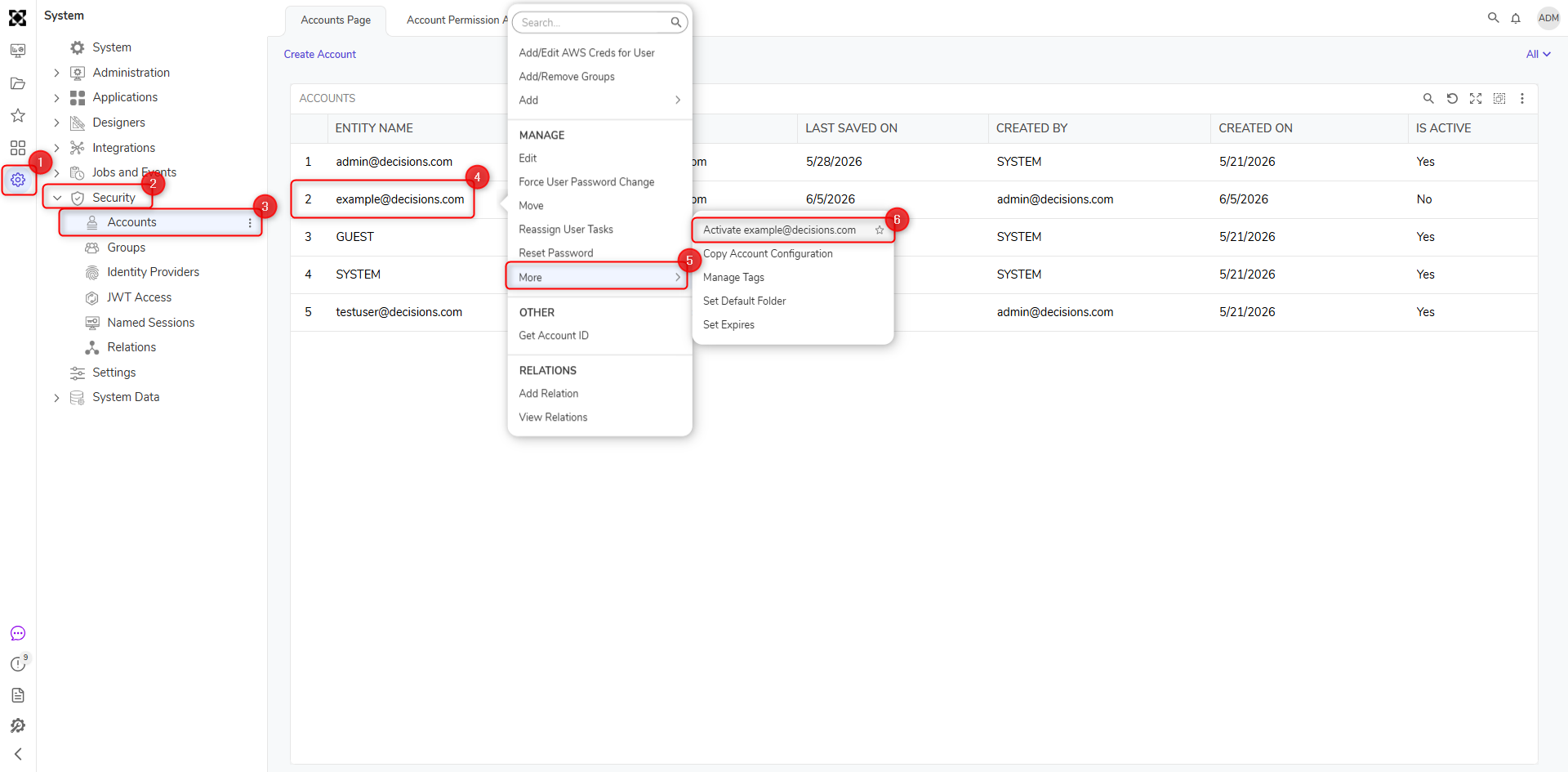
- Select YES in the Confirm Activation window.
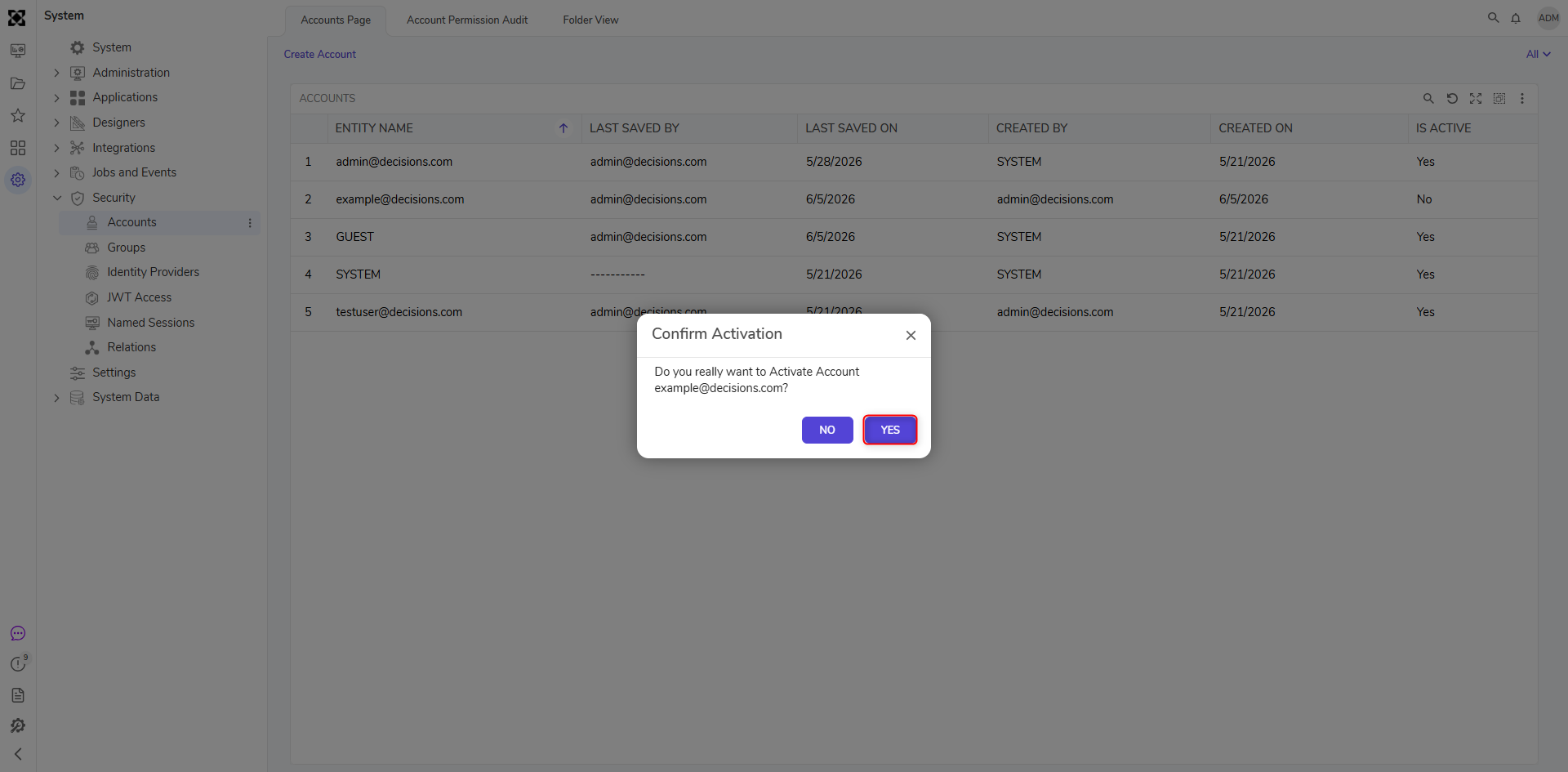
- Verify that the Account was reactivated by attempting to LOGIN with its credentials.