A Defined Data Structure (DDS) allows users to define another data type as a Superclass. This causes the DDS to inherit fields from the Superclass.
Example
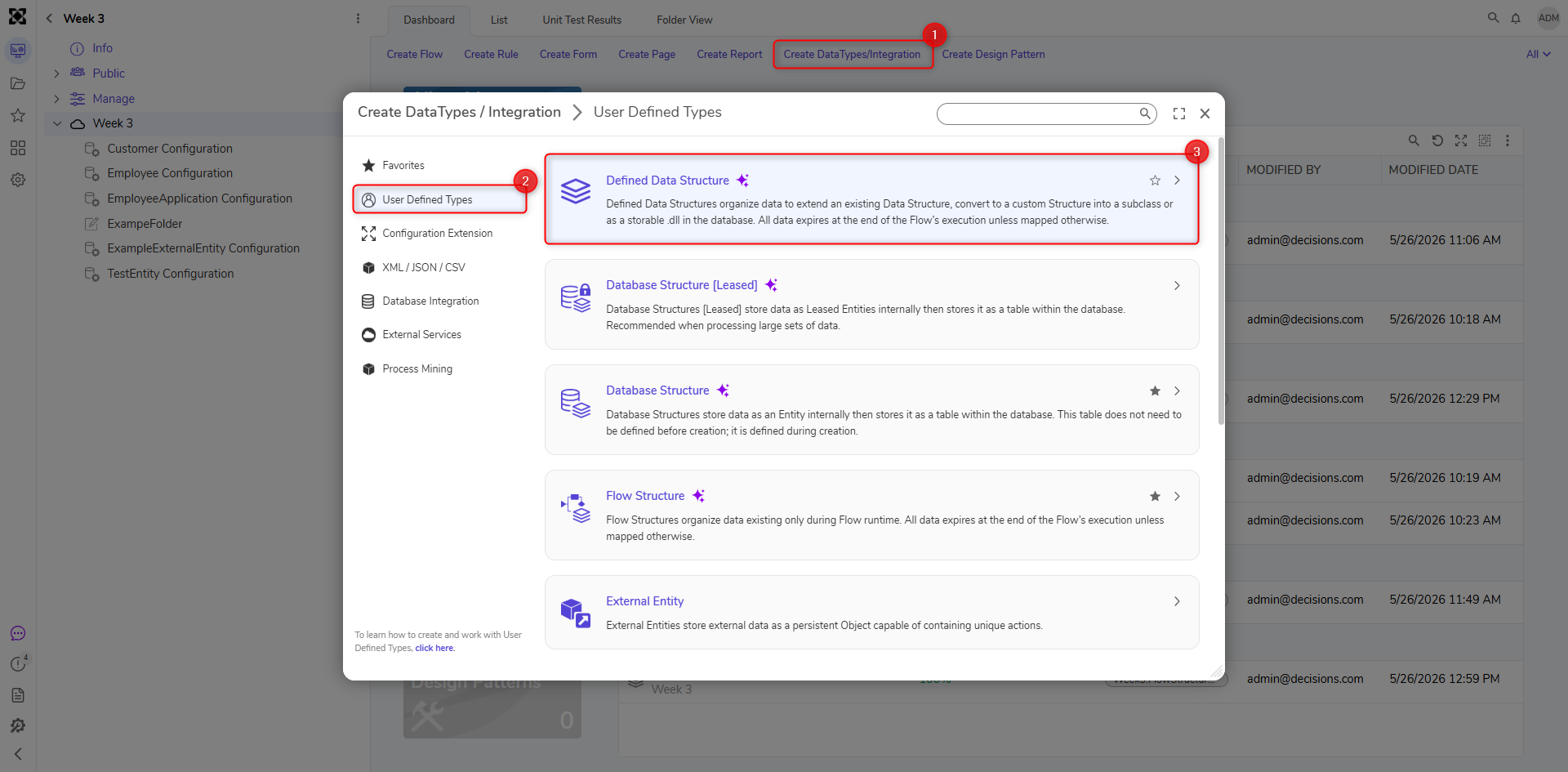
In a Designer Project, click CREATE DATATYPES/INTEGRATION on the top Action Bar.
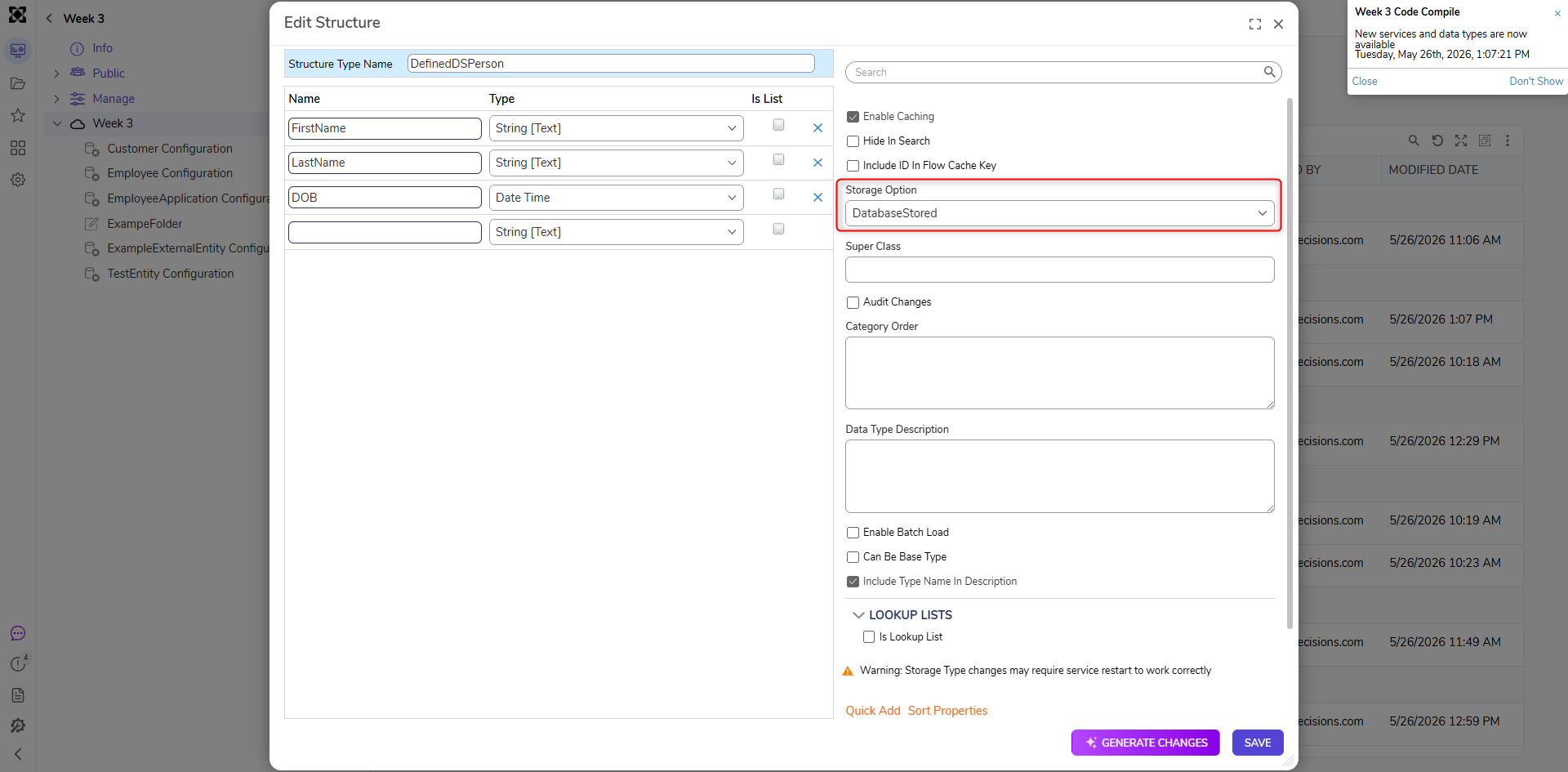
In the Defined Data Structure window, enter a name for the structure and define the data fields for the data structure. The Defined Data Structure can be configured to be database-stored by configuring the Storage Option setting. This would cause Decisions to generate Flow steps under the USER DEFINED TYPES category in the ToolBox panel.
Click on the name of the structure to view the Defined Data Structure's settings. Set the Storage Option field to DatabaseStored.
Saving and Deleting Database Stored DDS
If deleting a database-stored DDS, be sure to delete its table in the database connected to Decisions to prevent clutter. To create another database stored DDS of the same name without deleting this table, a validation error will occur to prevent creation since the same-named table already exists.
Create Defined Data Structure Settings
Setting Name
Description
Hide In Search
Hides the data type from appearing when being searched.
Storage Option
Specifies where the data structure will be stored.
Type Name Space
Creates the unique identifier for the Entity (namespace.typename) to generate the SQL table name for the Entity (namespace_typename).
Super Class
Specifies the class to inherit traits from. The input is case sensitive and is formatted as [Type Name Space].[Structure Type Name].
Category Order
Allows data field categories to be organized in a certain way. For example, grouping required data fields together.
Can Be Base Type
Allows the created type to be used as a super-class for sub-classes.
Include Type Name In Description
This enables or disables the visibility of the Type namespace.