Overview
This article explains how to use the Modify Rule Set with AI functionality inside the platform. This feature allows users to generate a Rule Set with an AI-assisted chat experience.
Modify Rule Set with AI
In v9.31 and above, Users can modify an existing Rule Set. Generating Rules with AI is currently only available in the Rule Designer for Statement Rules. 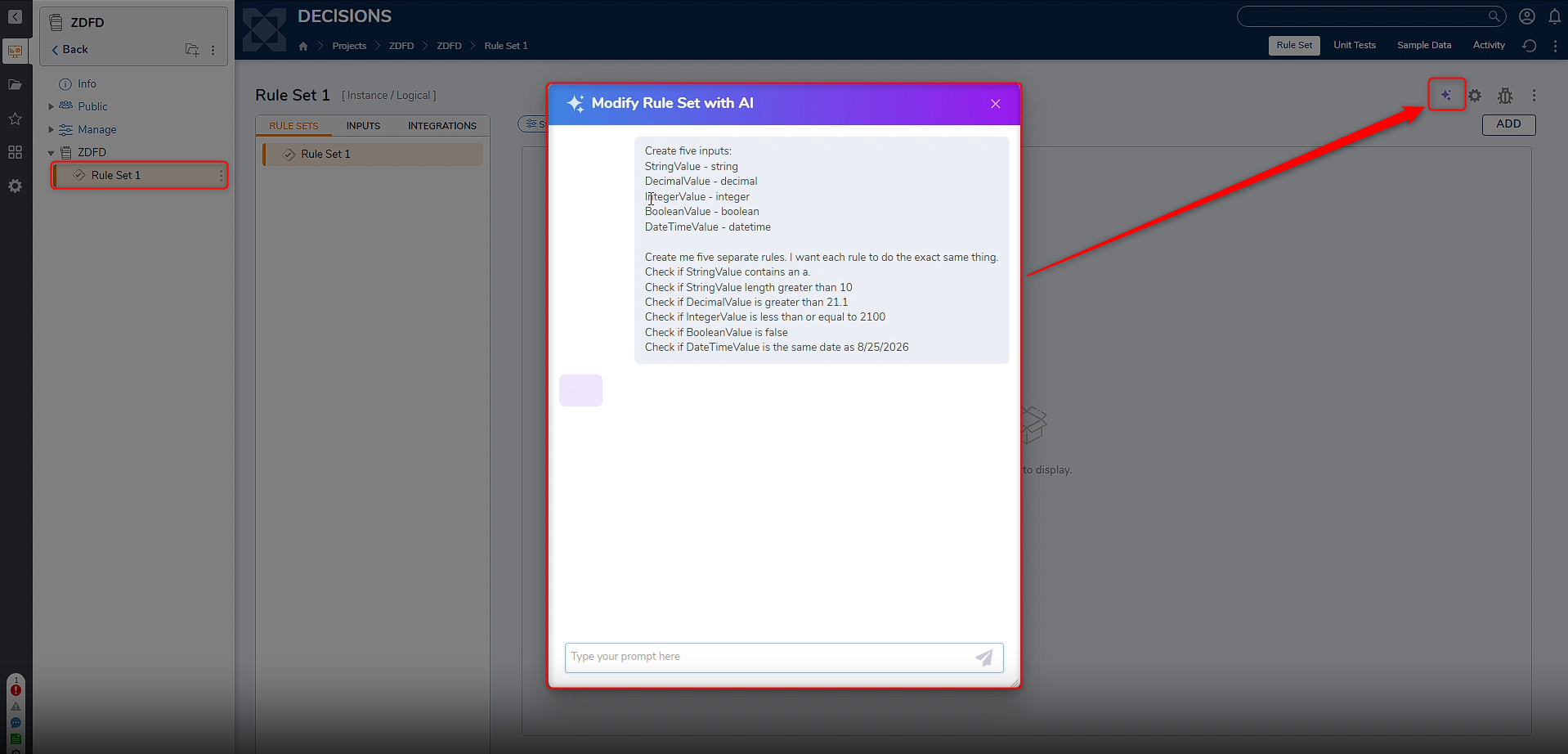
Once a request has been made, the AI feature will ask any follow-up questions if necessary, and if not, it will provide a button titled "Generate". This button will modify the Rule Set with the specific requirements discussed in the chat experience.
Example
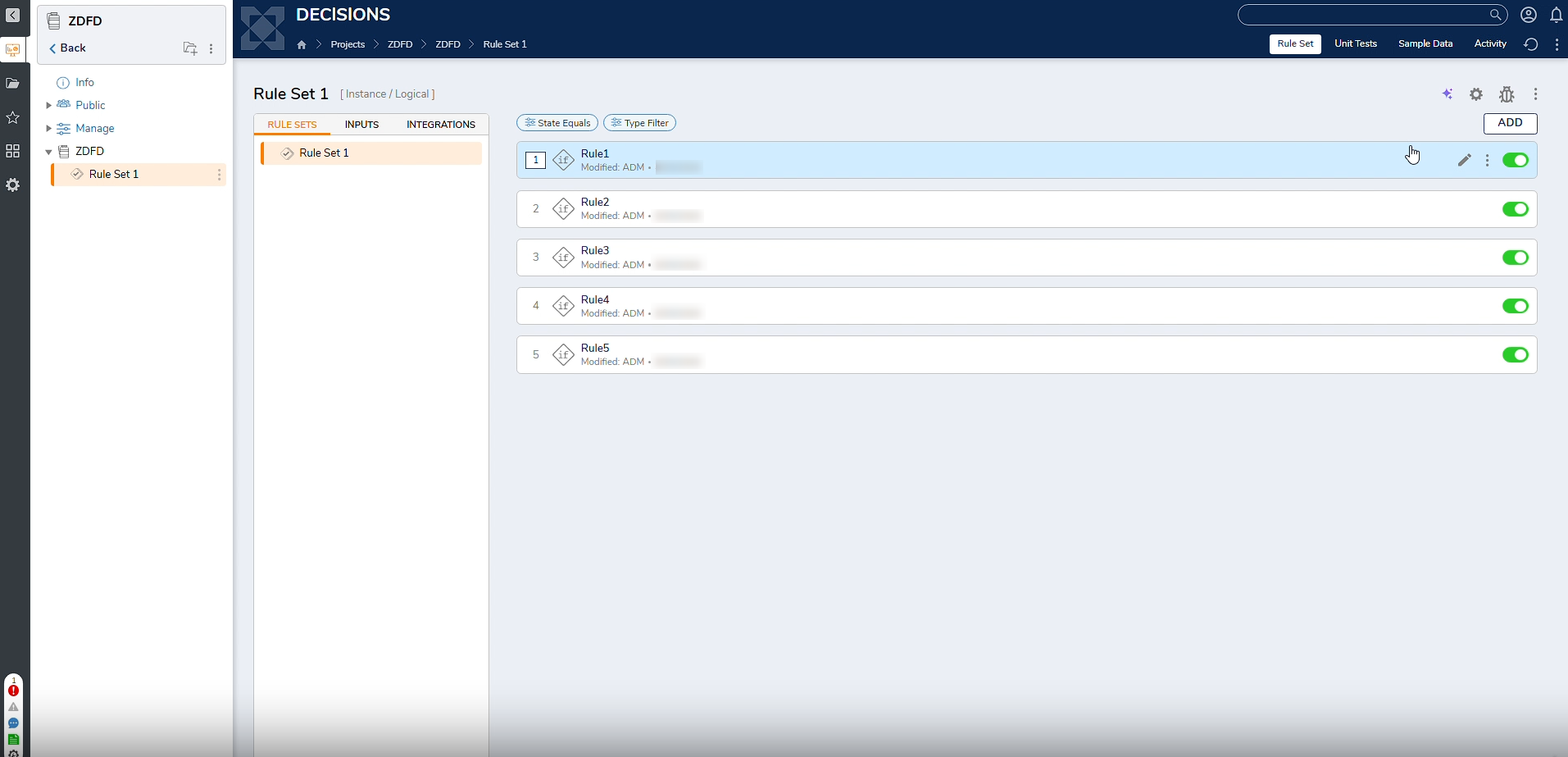
- Create or navigate to an existing Rule Set and make sure it is open to the Rule Set page, as pictured below.
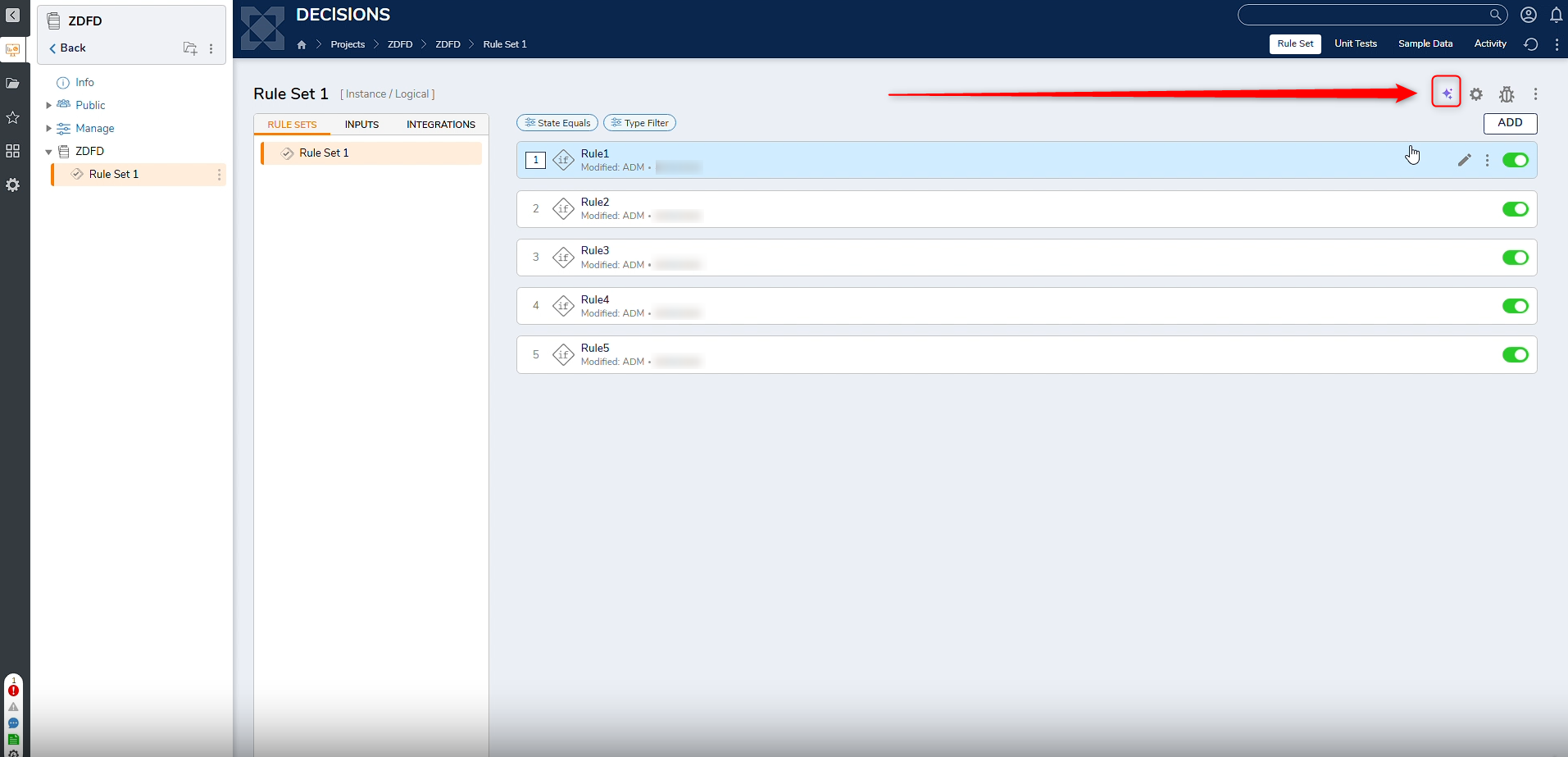
- Click the AI button in the top right corner until the AI chat window appears.
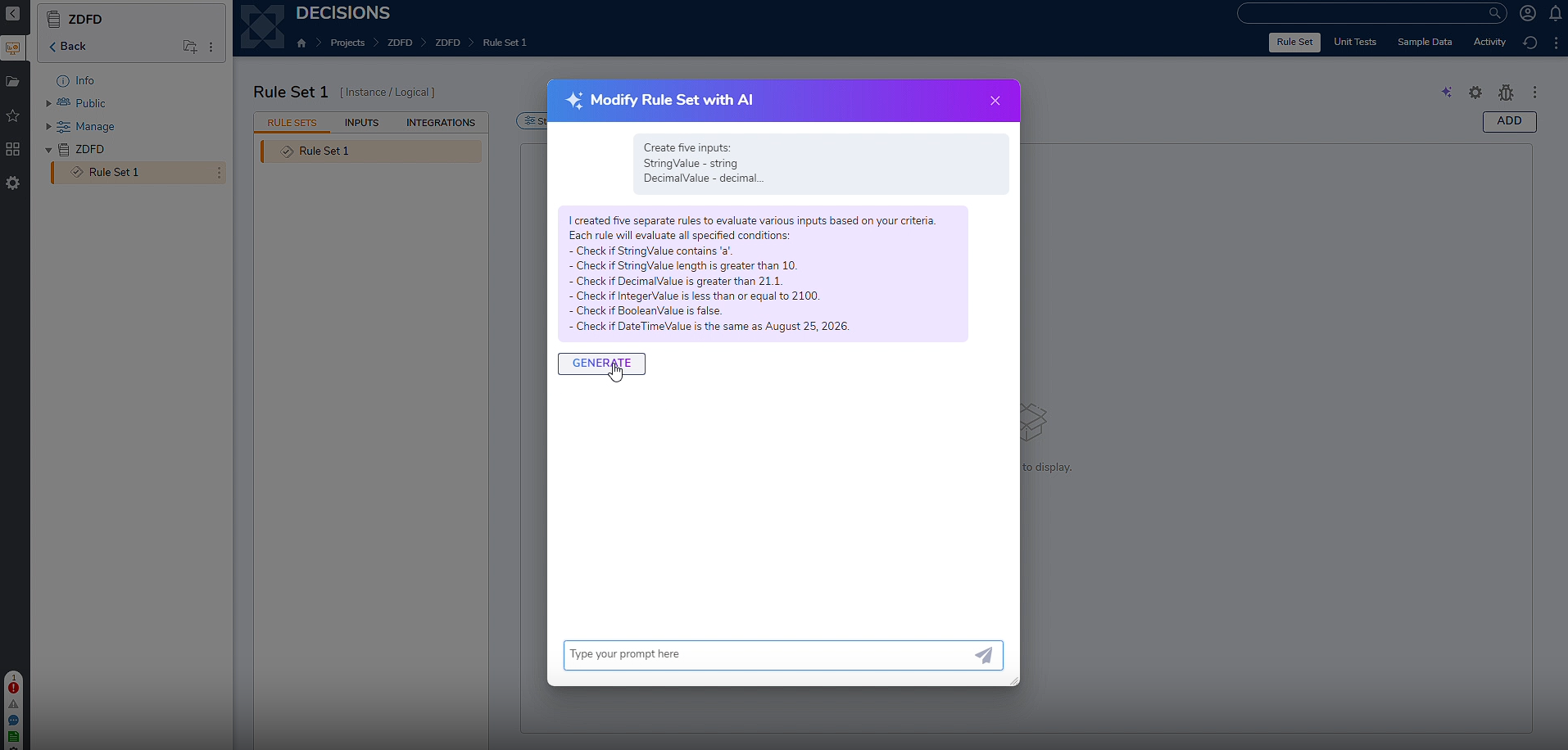
- Once the Chat Window opens, specify how the Rule Set should be modified.
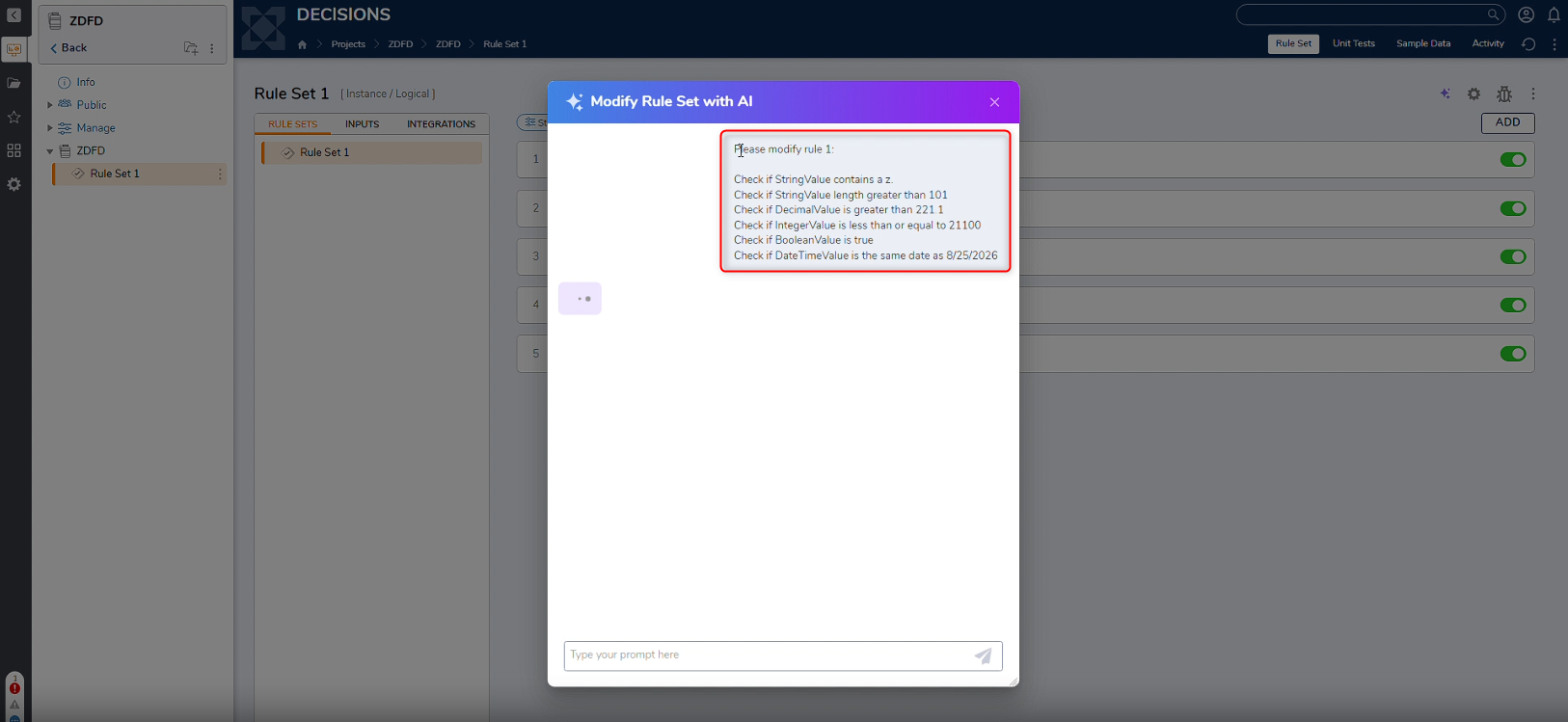
Each rule will evaluate all specified conditions: Check if StringValue contains 'a'. Check if StringValue length is greater than 10. Check if DecimalValue is greater than 21.1. Check if IntegerValue is less than or equal to 2100. Check if BooleanValue is false. Check if DateTimeValue is the same as August 25, 2026. - Allow AI to ask follow-up questions if needed and click Generate when ready. The Rule will be generated with the desired changes.
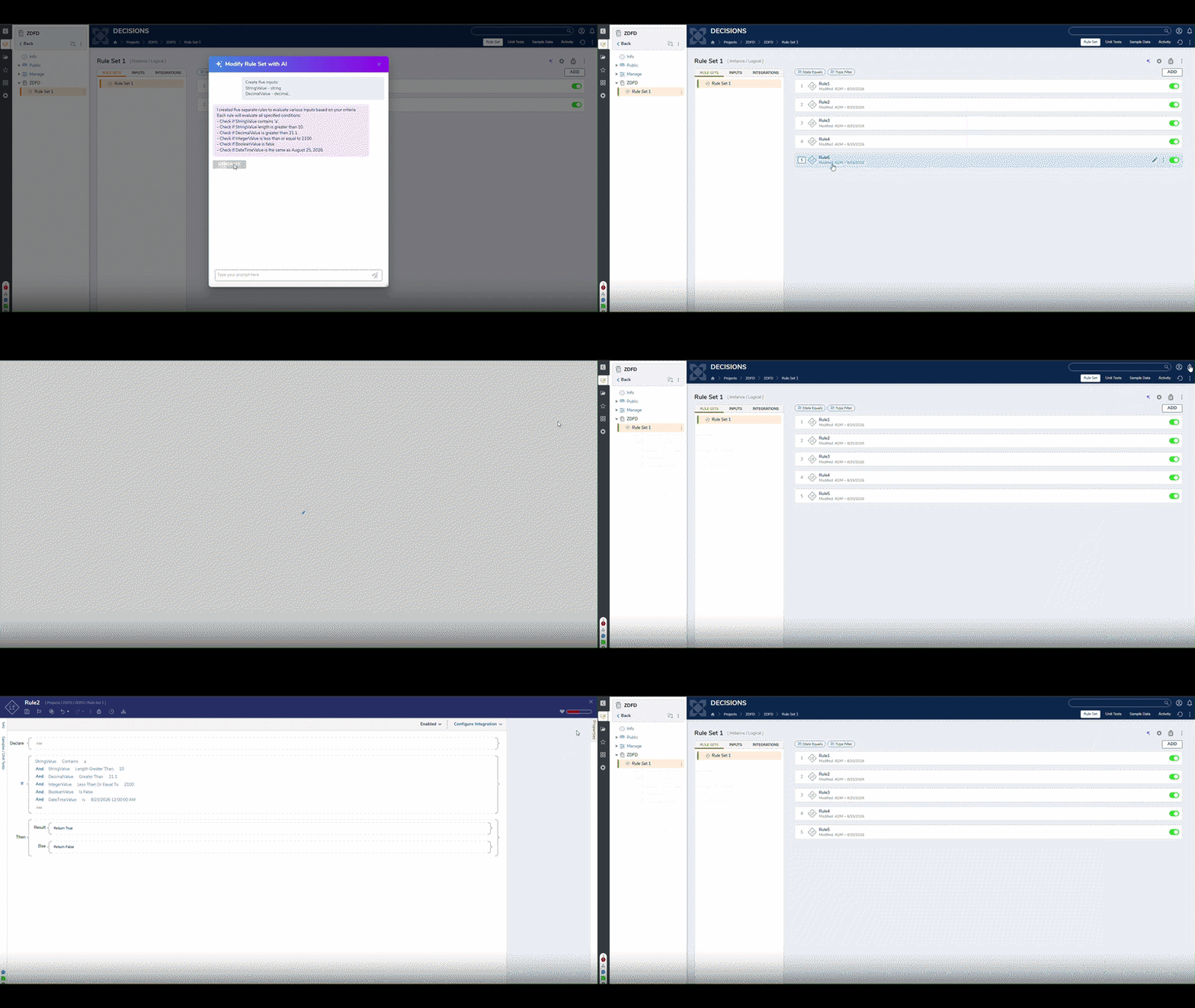
Users can refine and regenerate rules iteratively. However, because the LLM does not have context of the current rule, Users must describe the existing rule structure and specify the desired changes in each request.
Feature Changes
| Description | Version | Release Date | Developer Tag |
|---|---|---|---|
| Users can now use Generative AI to modify Rule Sets. Users can iterate on rules, but the LLM doesn't have context of the rule, so Users will need to tell the LLM what the original structure was and what needs to be changed. | 9.31 | September 2026 | [DT-044948] |