Overview
AI Tool Flows are specialized Flows that expose Decisions logic as callable tools for AI-powered features, such as AI Agents and MCP Servers. An AI Tool Flow can receive inputs, run Flow logic, and return outputs during execution.
AI Tool Flows connect AI interactions with Decisions logic. Common uses include retrieving information, validating data, creating records, running business logic, or returning a formatted response.
- An AI Tool Flow must include a clear description. LLMs use the Flow description to determine when to select the Flow.
- The AI Tool Flow name should not include spaces.
- Each input should include a clear description. LLMs use input descriptions to understand what values are required.
- An AI Tool Flow must return an output. The output can be a simple value, such as a status message, or data returned from the Flow.
- Token-Oriented Object Notation (TOON) has been added as a second serialization format for the AI Tool Flow output, alongside the existing default JSON for v9.29+.
- Async steps are not supported in AI Tool Flows. A validation error is displayed if an async step is added.
Unlike standard Flows, AI Tool Flows are designed to be selected and executed by AI features based on the available tool name, Flow description, input descriptions, inputs, and outputs. Clear configuration helps the AI system choose the correct tool and provide useful results.
What are AI Tool Flows?
An AI Tool Flow is a Flow designer element that makes a Decisions Flow available as a tool. After the AI Tool Flow is added to an AI Agent or MCP Server, the AI system can call the Flow when the Flow matches the request.
Each AI Tool Flow should represent one focused task. A focused Flow is easier for an LLM to understand, select, and execute correctly.
Common AI Tool Flow Actions
- Retrieve account, case, customer, or record information.
- Validate submitted values.
- Create or update records.
- Run business rules or approval logic.
- Return a result to an AI Agent or MCP client.
Where to Find AI Tool Flows
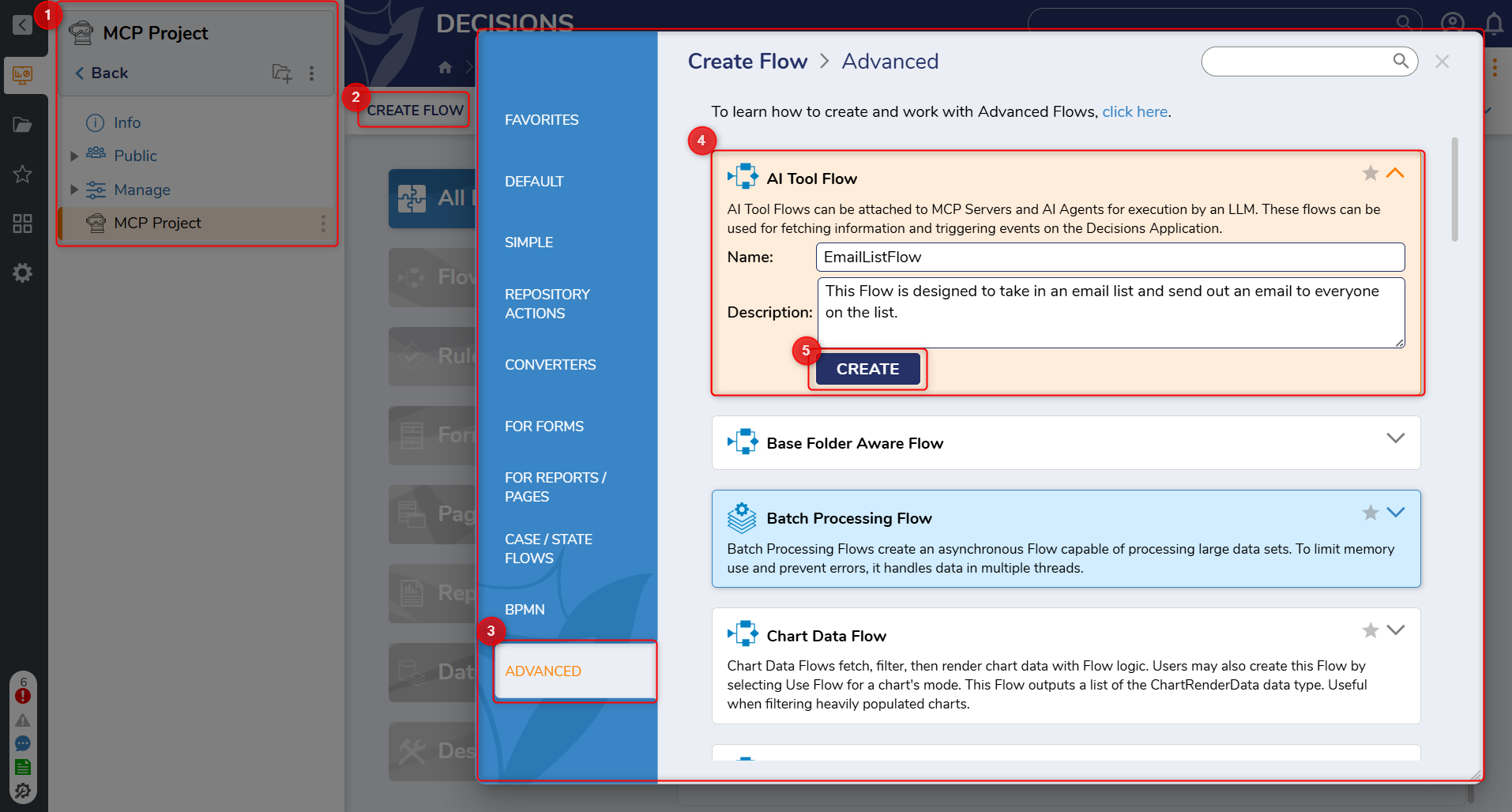
AI Tool Flows are created from the Flow creation dialog inside a Designer Project.
- Create or open a Designer Project.
- Select Create Flow.
- In the Flow type selection dialog, navigate to Advanced > AI Tool Flow.
- Enter a Flow name.
- Select Create.
After the AI Tool Flow is created, configure the Flow logic, inputs, input descriptions, outputs, and Flow description.
Designing AI Tool Flows
When creating an AI Tool Flow, use focused Flow logic and clearly defined data. The AI system relies on the tool name, Flow description, input descriptions, inputs, and outputs to determine whether the tool is relevant for the current request.
Recommended Design Practices
- Name: Use a short, action-based name that describes the Flow's purpose.
- Flow description: Explain when the AI system should use the Flow.
- Inputs: Add only the values required to complete the task.
- Input descriptions: Explain what each input value represents and when the value is required.
- Outputs: Return a clear result that can be used by the calling AI feature.
- Scope: Keep each AI Tool Flow focused on one task instead of combining many unrelated actions into one Flow.
Example Description
The following example shows a clear description of an AI Tool Flow:
Use this tool to retrieve customer details when a customer ID is provided.
This description explains the Flow's purpose and when the AI system should use the tool.
Troubleshooting AI Tool Flows
If an AI Tool Flow is not selected, does not run, or returns an unexpected result, review the Flow configuration and execution behavior.
AI Tool Flow is Not Selected
- Confirm the AI Tool Flow is added to the correct AI Agent or MCP Server.
- Confirm the Flow has a clear description.
- Confirm each required input has a clear description.
- Confirm the Flow name describes the action being performed.
- Reduce the number of assigned AI Tool Flows if several tools have similar descriptions or overlapping purposes.
AI Tool Flow Fails During Execution
- Run the AI Tool Flow directly in the Flow Designer to confirm the Flow logic works outside the AI use case.
- Confirm all required inputs are mapped correctly.
- Confirm the Flow has at least one output.
- Review failed steps in the Flow execution results.
- Check for missing values, validation errors, or failed integrations.
AI Tool Flow Returns Unexpected Output
- Confirm the final output value is mapped correctly.
- Confirm the output data matches the expected response format.
- Use a simple output first, then add additional data only when needed.
Debugging with AI Agents
When an AI Tool Flow is used by an AI Agent, test the Agent with a request that should trigger the tool. Review whether the Agent selected the expected tool and whether the Flow returned the expected output.
If the Agent uses a Chat Completion step, review the step configuration, prompt, available tools, and returned response. This helps identify whether the issue is related to the prompt, tool selection, Flow execution, or returned output.
Available Steps
| Step Name | Description |
|---|---|
| ToonSerialize | This step enables Users to serialize TOON structures. |
| ToonDeserialize | This step enables Users to deserialize TOON structures. |
Use Cases
Using AI Tool Flows with MCP Servers
AI Tool Flows can be added to an MCP Server so external MCP-enabled clients can call the Decisions logic as tools. After an AI Tool Flow is added to an MCP Server, the tool becomes available through the MCP Server configuration.
- Create an AI Tool Flow.
- Add the AI Tool Flow to an MCP Server.
- Connect the MCP-enabled client to the MCP Server.
- Run the tool and review the returned output.
For MCP Server setup details, refer to the MCP Server document.
Using AI Tool Flows with AI Agents
AI Tool Flows can be added to AI Agents as available tools. During execution, the Agent evaluates the assigned tools and selects an AI Tool Flow when the Flow description matches the request.
This allows an Agent to perform actions or retrieve information from Decisions.
- Create an AI Tool Flow for the required action.
- Add a clear Flow description that explains when the Flow should be used.
- Add clear descriptions for required inputs.
- Add the AI Tool Flow to the AI Agent.
- Test the Agent with a request that should use the tool.
- Review the Agent response and Flow execution results.
For AI Agent setup details, refer to the AI Agents document.
Feature Changes
| Description | Version | Release Date | Developer Task |
|---|---|---|---|
| Added TOON (Token-Oriented Object Notation) as a second serialization format for AI Tool Flow output, alongside the existing default JSON. Additionally, the following Flow steps were added: ToonSerializeStep and ToonDeserializeStep. | 9.29 | July 2026 | [DT-046310] |