Overview
Decisions offers many JSON steps that enable users to manipulate JSON, such as through a data pair, without specifying a particular JSON data type. Utilizing these steps permits users to handle different instances of JSON regardless of the JSON datatype. When using other datatypes, users need to work solely within them, whereas Dynamic JSON can handle different JSON Datatypes because it is not associated with a specific one.
Users can utilize different types of JSON and create a process that dynamically retrieves desired values regardless of the original datatype. This article describes use cases that demonstrate how the Decisions platform handles Dynamic JSON.
Handling Dynamic JSON Structures with JSON Deserialization
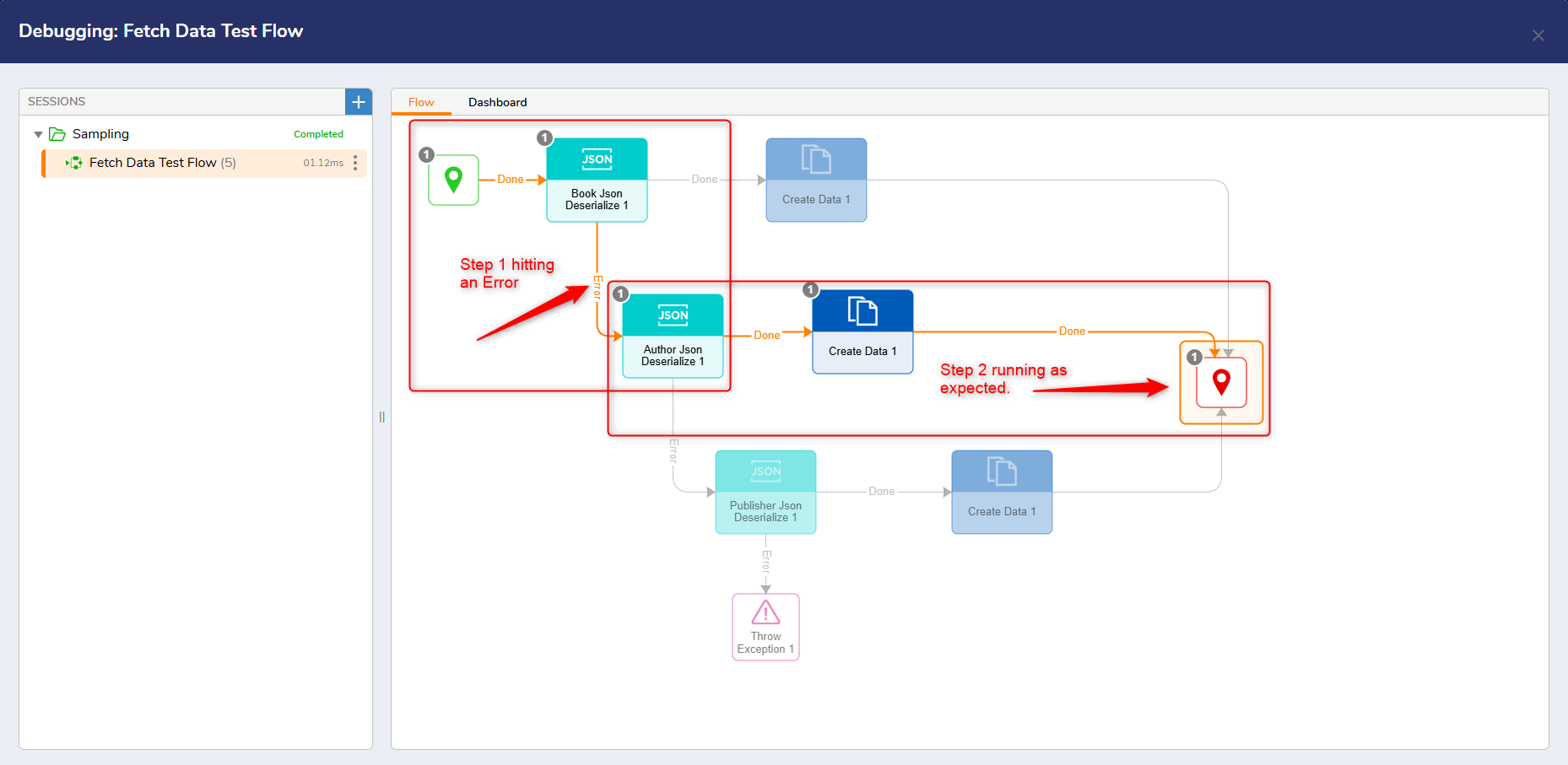
Users can utilize the "Waterfall Method' using JSON Deserialization as another way to handle Dynamic JSON structures. The following image utilizes the JSON Deserialize and Create Data steps. Each error path should be connected the the following JSON Deserialize step.
This example only utilizes three possible Datatypes. Users who require additional Datatypes can attach additional JSON Deserialize steps to the error path of the previous JSON Deserialize step. Users may also add a Throw Exception step although is not required.
.png)
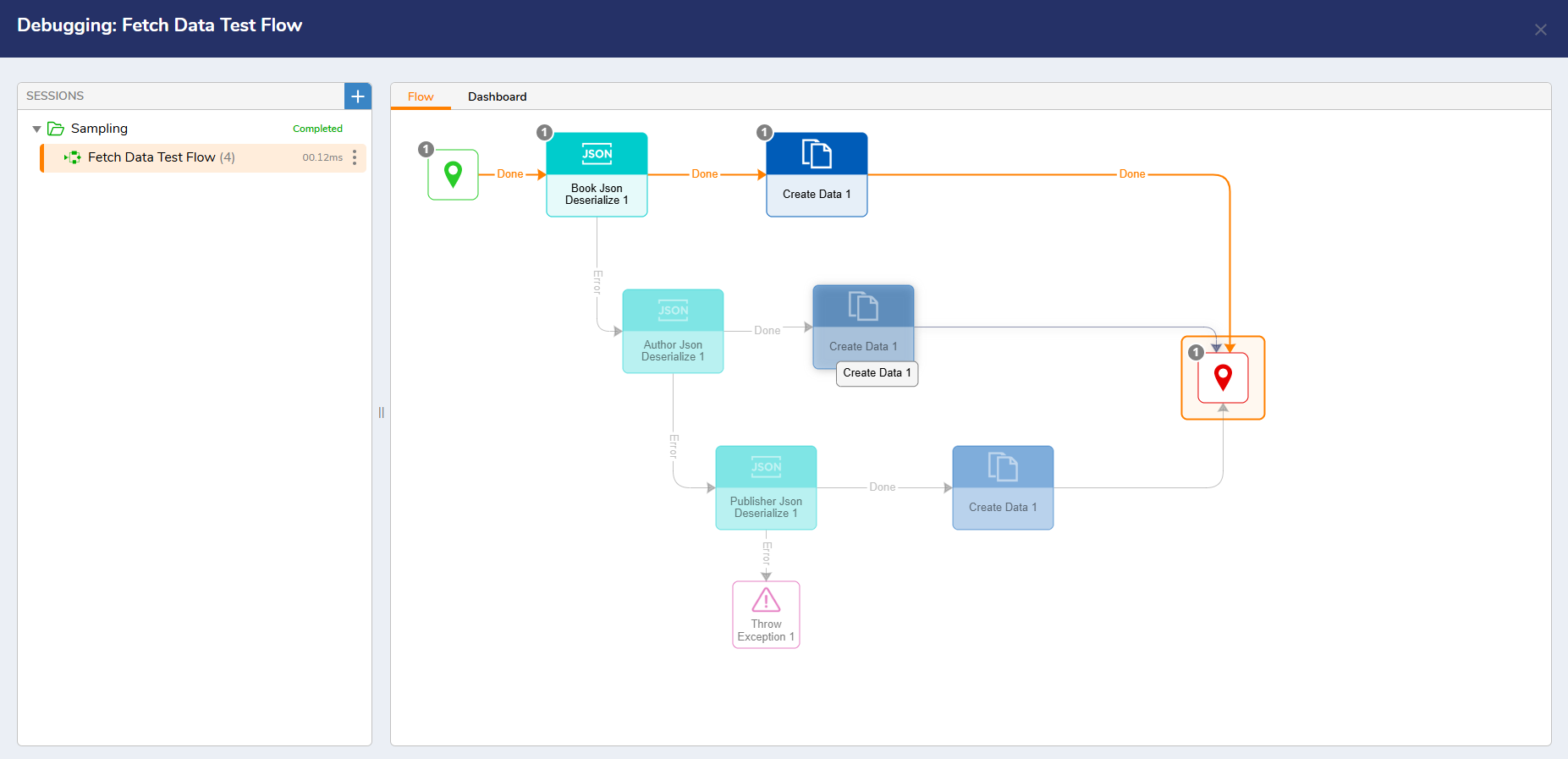
The "Waterfall" structure of the Flow allows Users to run the Flow in the debugger and simultaneously handle errors, if any should occur. The following example shows the first JSON Deserialize step in the Flow hitting an Error. Instead of ending the entire Flow, the waterfall structure allows the next step in the process to continue. Once an error is identified, Users can address it in the Flow and run the Debugger again to review any changes made.
If no errors occur, the Flow will run as expected.
Analyzing Data Properties with Data Pairs
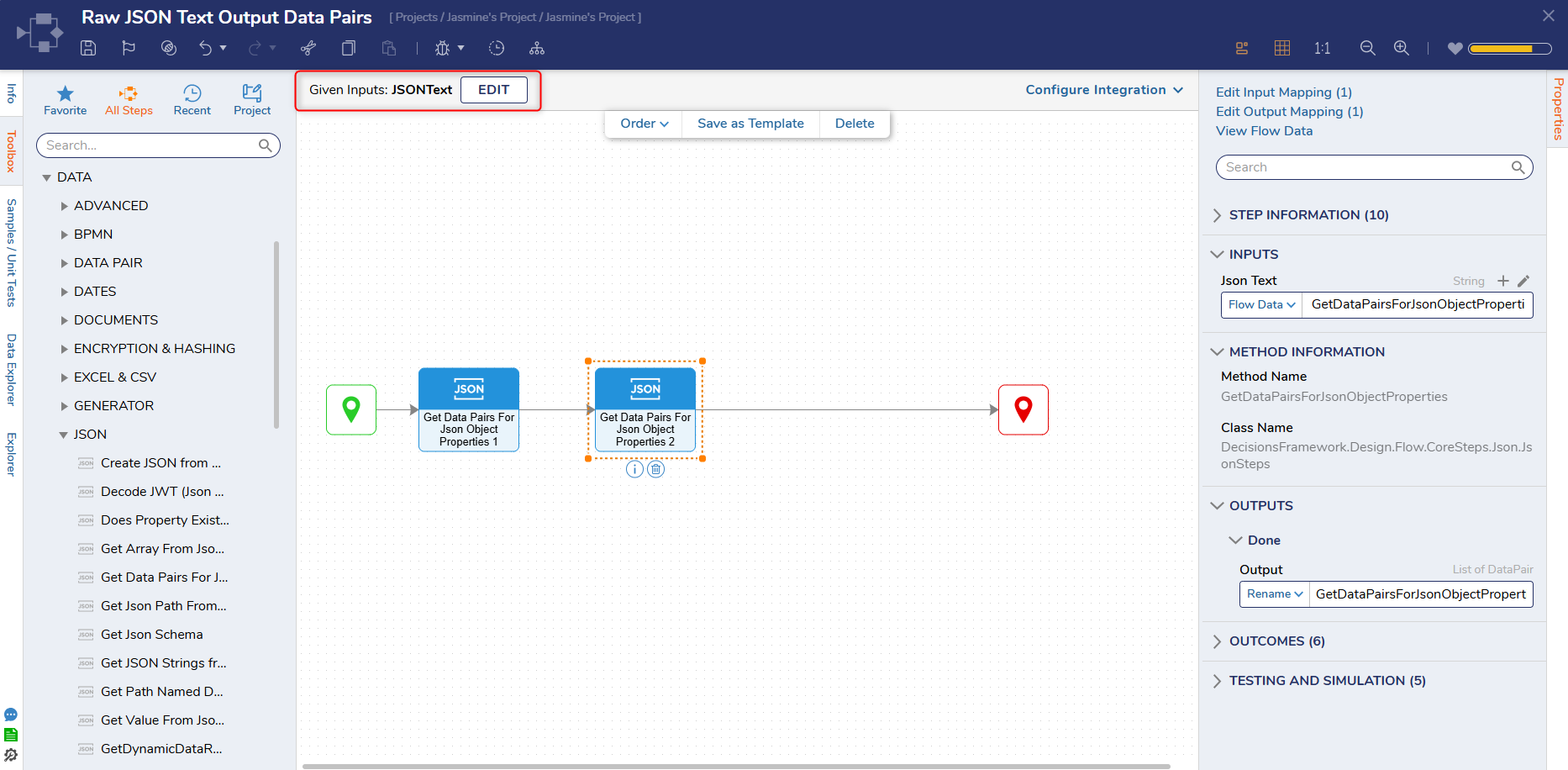
Data pairs are essentially made up of two values: Name and the corresponding Value.
Using the Get Data Pairs for JSON Object Properties Step, Users can input a string of JSON to review all data properties, without the need for a composite type.
Evaluating Data by Searching for Specific Properties
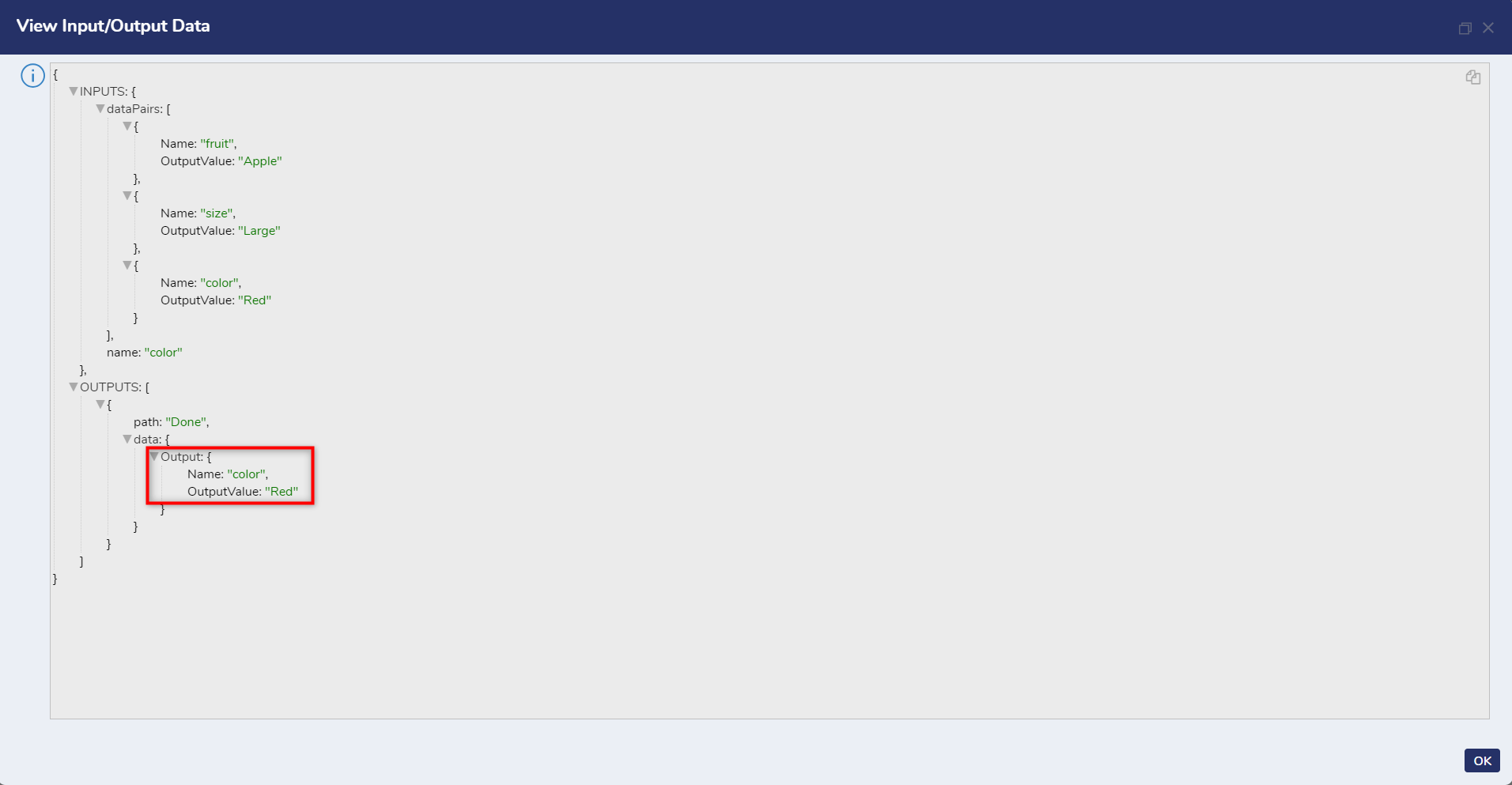
Users who have a list of JSON but want to search for a specific property like color, for example, can use the Does Property Exist in JSON step.
{
    "fruit": "Apple",
    "size": "Large",
    "color": "Red"
}
This step utilized with Dynamic JSON analyzes all properties within a string of JSON text and highlights a specific property in the Output Data.
Available Steps
Steps for these examples can be found by navigating to Data > JSON in the Toolbox.
| Step Name | Description |
|---|---|
| JSON Serialization | This Step changes a data object into a JSON string via serialization. |
| Create JSON From Data | This Step outputs a datatype object in JSON format. |
| Decode JWT | This Step takes in a string of encoded JSON text, decodes it, and outputs the result. |
| Does Property Exist in JSON | This Step evaluates a JSON string to determine whether a specified Property exists and returns a true or false value as output. |
| Get Array From JSON By Name | This Step is used to obtain a String Array from a body of JSON-formatted text. |
| Get Path Named Data Pairs For JSON | This Step allows a user to find the data pairs using a JSON text input and outputs a list of Data Pair types. |
| Get JSON Path From Value | This Step provides a way to retrieve the JSON path for a field in a JSON Object based on a token value. |
| Get Data Pairs For JSON Object Properties | This Step returns all of the JSON as a list of data pairs. |
| Get Value from JSON by Name | This Step allows you to extract a specific value from JSON data using its name or key |
| GetDynamicDataRowsFromJSONArray | This Step converts a JSON array of arrays into a List of Dynamic Data Rows. |
| GetDynamicDataRowsFromJSONObjectProperty | This Step converts a JSON object property (specified by name) into a List of Dynamic Data Rows. |
| JSON to Dynamic | This Step converts a string of JSON data into its respective dynamic object. |
| JSON Deserialization | This Step converts a string of JSON data into its respective Decisions data object type. |
| Test JSON Is Valid | This Step checks whether a given string input is JSON text or non-JSON Text. |
| Convert Flow Data To JSON Object (v9.29+) | This step allows the user to generate a JsonDataObject for use with the other JSON steps. |
| Get All Property Names (v9.29+) | This Step returns the property names on the object as a list of string. |
| Get JSON String (v9.29+) | Returns the serialized JSON string of the JsonDataObject provided. |
| Get Property (v9.29+) | Returns the specified property of the JsonDataObject as an Object. |
| Get Property As String (v9.29+) | Returns the specified property of the JsonDataObject as a string. |
| Get Property As Int (v9.29+) | Returns the specified property of the JsonDataObject as an Int. |
| Get Property As Decimal (v9.29+) | Returns the specified property of the JsonDataObject as a decimal. |
| Get Property As Date (v9.29+) | Returns the specified property of the JsonDataObject as a DateTime. |
| Get Property As Array (v9.29+) | Returns the specified property of the JsonDataObject as a list of Object. |
| Get Property And Set Type (v9.29+) | Allows Users to specify the type that the specified property should be returned as, allowing for handling of data structures. |
| Add Or Set Property (v9.29+) | Allows Users to add a new property to the JsonDataObject or set the value of an existing property. |
| Set Multiple Properties on JSON Object (v9.29+) | This step allows the designer to set the value of properties on the JsonDataObject. |
| Remove Property (v9.29+) | Removes the specified property from the object. |
| Remove Properties (v9.29+) | Removes specified properties from the object. |
| Clear Properties On Object (v9.29+) | Resets all properties on the object to null. |
Set Property on JSON (v9.30+) | Sets the value of a property in a JSON string. |
| Add Property to JSON (v9.30+) | Adds a property to a JSON string. |
| Add Property to Dynamic Object (v9.30+) | Adds a property to a dynamic object. |