Overview
Deployment Packages are a key component of the Deployment Server, enabling customers to move their projects efficiently and reliably between environments. They provide a structured way to track, manage, review, and audit changes across the development lifecycle, ensuring that all necessary work is deployed with confidence.
Deployment Packages allow teams to organize related sets of modifications, clearly identifying what has been added, changed, or removed. Visual indicators distinguish these changes, such as blue for modified items and red for removed items, making it easier to understand the scope of each package.
Each Deployment Package can include committed changes from multiple projects, allowing teams to deploy all included projects together as a single unit. Deployment Packages also track builds. A build represents a point-in-time snapshot of the committed work in the package, providing traceability and supporting review and audit workflows.
Role Within the Deployment Server Workflow
Deployment Packages serve as the core unit of change within the Deployment Server workflow, grouping related work into versioned packages through builds generated from committed user story changes.
They provide visibility, control, and confidence throughout the release process by ensuring all changes are tracked, reviewed, and approved before promotion to the next environment.
- Track what is going to production – Clearly see which builds and changes are included in each deployment.
- See approvals and deployment status – Ensure required reviews are completed before release.
- Know exactly what changed – Review committed stories, revisions, and builds in one place.
- Review committed work before deployment – Validate changes before they move forward.
- Improve deployment reliability – Reduce risk through traceable and controlled deployments.
Each Deployment Package provides a complete, versioned snapshot of work, enabling safe and predictable movement of changes from development to testing and production environments.
Deployment Package Versioning
Deployment Packages display a version label in the Version column using the format: [MajorVersionNumber].[PackageNumber].[BuildNumber].
An initial Deployment Package always exists. It starts blank and does not include any builds until work is committed.
For more information about builds, see the Builds documentation.
- Major: A manually set number that represents a major release line (default is 1).
- Package: The Deployment Package number. The first package starts at 0, and this number increments when a new package is created.
- Build: The number of builds created within the current package. This increments when work is added/committed to the package.
How the Version Changes
- New package: A newly created package starts at 1.0.0.
- Build creation: When a build is created for the package (for example, when user stories are included and changes are committed), the Build number increments: 1.0.1, 1.0.2, and so on.
- New package after release: When a package is completed and promoted to the final environment (for example, Production), a new Deployment Package is created. The Package number increments and the Build number resets to 0 (example: 1.0.6 -> 1.1.0).
Set Major Version
The Major number can be changed using the Set Major Version action.
Example
| Scenario | Example Version |
|---|---|
| The first Deployment Package is created | 1.0.0 |
| The first build is created in the package | 1.0.1 |
| Multiple builds created in the same package | 1.0.6 |
| Package is promoted to Production → new package created | 1.1.0 |
| Major version is changed (example: set to 5) | 5.0.0 |
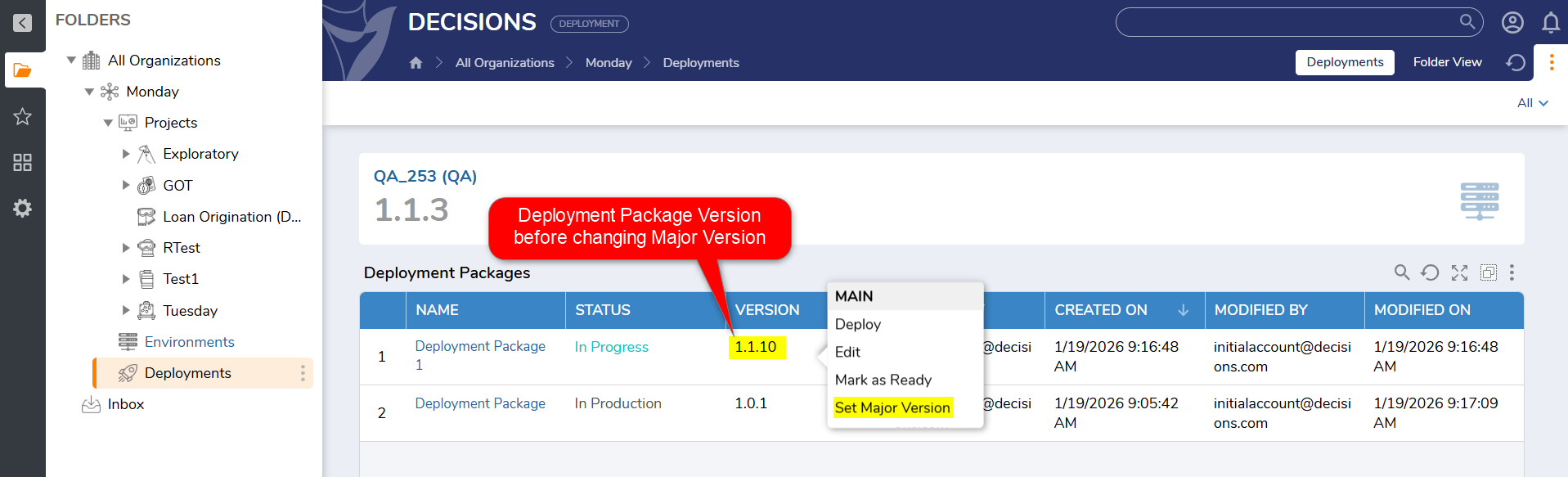
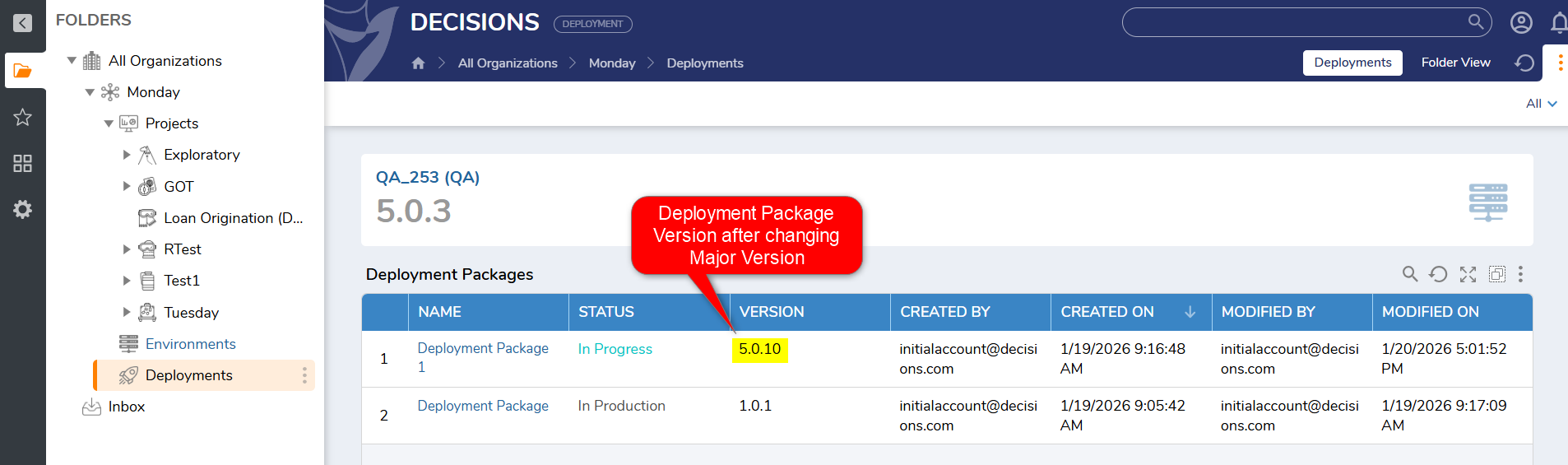
Adding User Stories to a Deployment Package
There are two ways to add User Stories to a Deployment Package:
User Stories are created and committed on the Development Server. Those committed changes are collected into Deployment Packages on the Deployment Server for review and deployment to target environments.
- Include in Deployment Package: This action is available at the User Story level. Navigate to: Project > Sprints > User Stories. A User Story can be included in the current active Deployment Package in one of the following ways:
- During creation: Select the Include in Deployment Package checkbox while creating the User Story.
- When editing: Edit an existing User Story and select the Include in Deployment Package checkbox.
- When Include in Deployment Package is enabled, each commit to that User Story creates a new build within the active Deployment Package.
- Edit Deployment Package: Right-click on an in-progress Deployment Package and select Edit. This opens the Edit Deployment Package dialog, where relevant User Stories can be selected for inclusion. After selecting the required items, click OK to confirm.
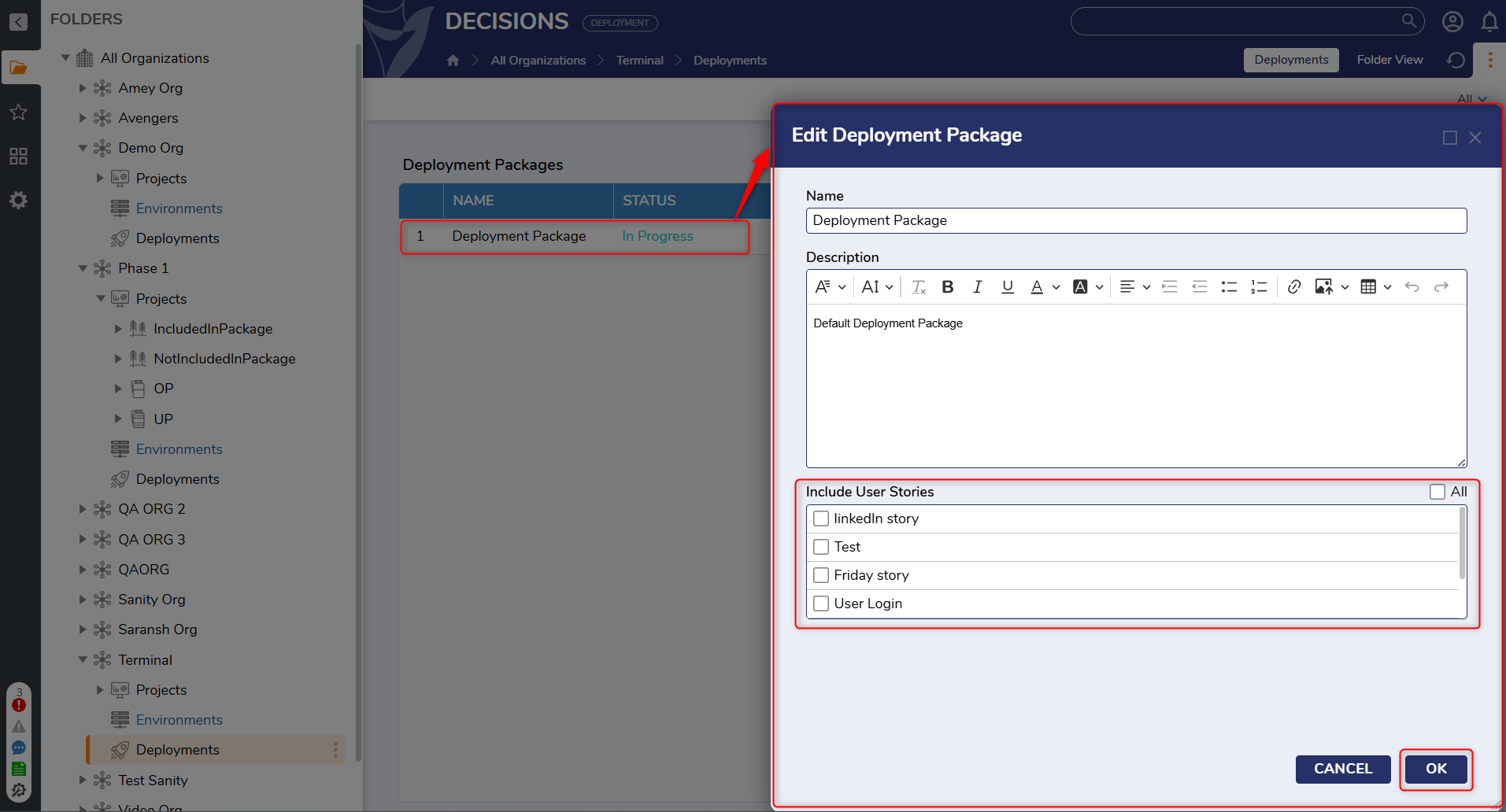 NoteOnce one or more User Stories are added to a Deployment Package, either through Include in Deployment Package or Edit Deployment Package, a build is automatically created for that Deployment Package, which increments the Build number in the package Version.
Package and Build Details Dashboard
The Deployment Server includes package-level and build-level dashboards that provide a detailed view of the contents of a Deployment Package and its builds. These dashboards support review, validation, and audit workflows by surfacing the items included in a package before deployment.
Package Details Dashboard
Each Deployment Package includes a Changes dashboard that displays the contents of the selected package. This dashboard groups information by project and shows the entities and user stories included in that package.
For each listed item, the dashboard can display details such as the entity name, user story, last revision, commit metadata, and the activity associated with the entity. Activities indicate whether the entity was added, modified, or deleted.
This package-level view provides a clear audit trail of what is included in the package and helps teams review the scope of deployment before promotion to another environment.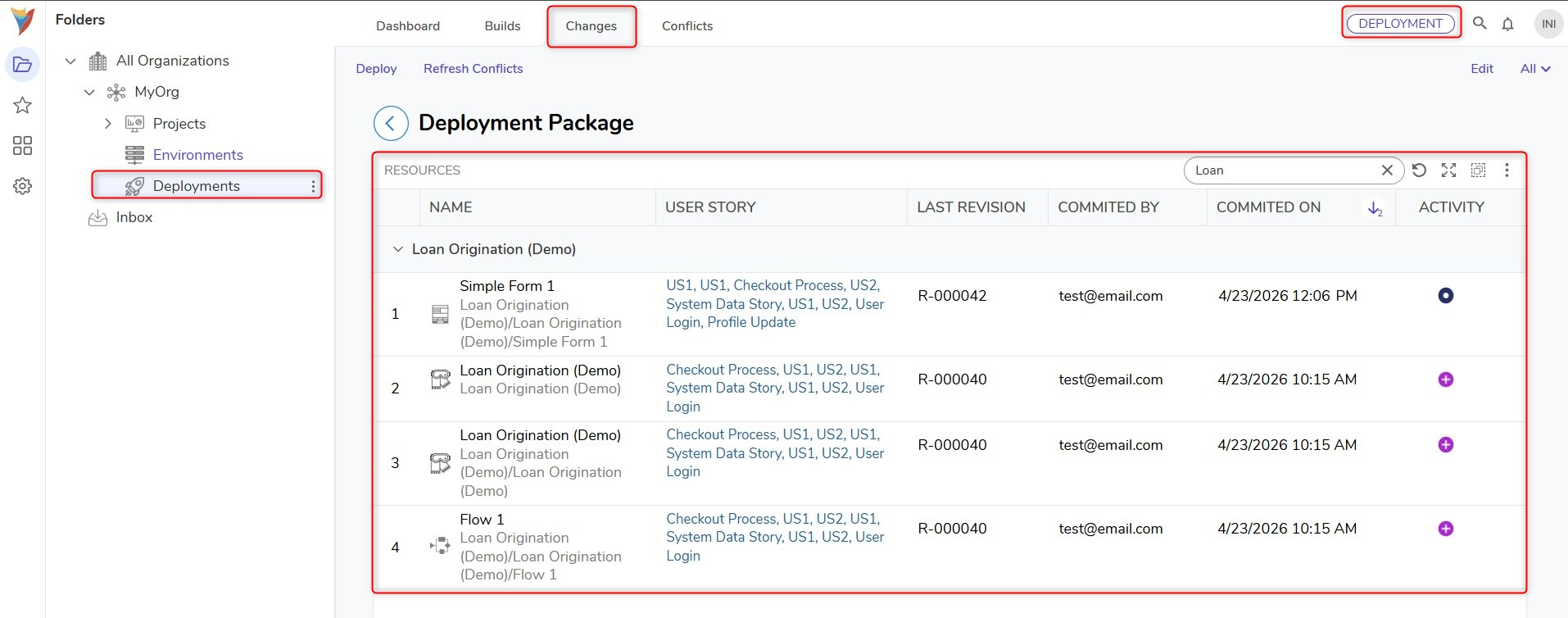
Build Details Dashboard
Each Deployment Package can contain multiple builds. Build-level reports provide a more focused view of the entities included in an individual build.
The build details view surfaces information such as the associated user story, the last revision, commit details, and the activity performed on each entity within that build.
Build activities are categorized as added, modified, or deleted. Deleted items are visually distinguished in the dashboard, including a red indicator and a cross icon, to make removal activity easy to identify during review.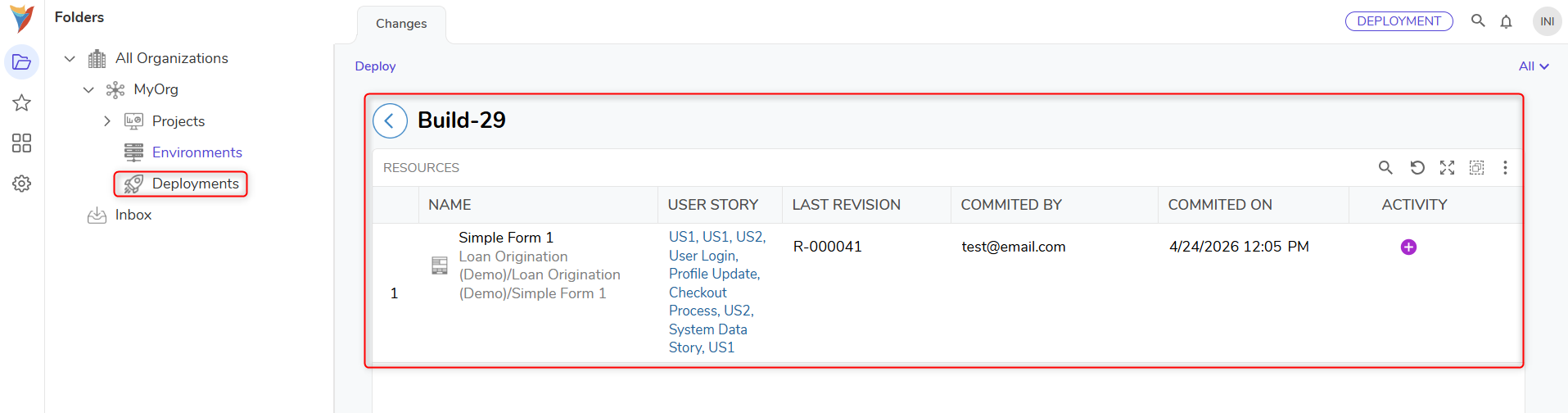
Together, the package and build dashboards provide line-by-line visibility into what is being prepared for deployment, helping support review and audit processes across the deployment lifecycle.
Deploying a Package
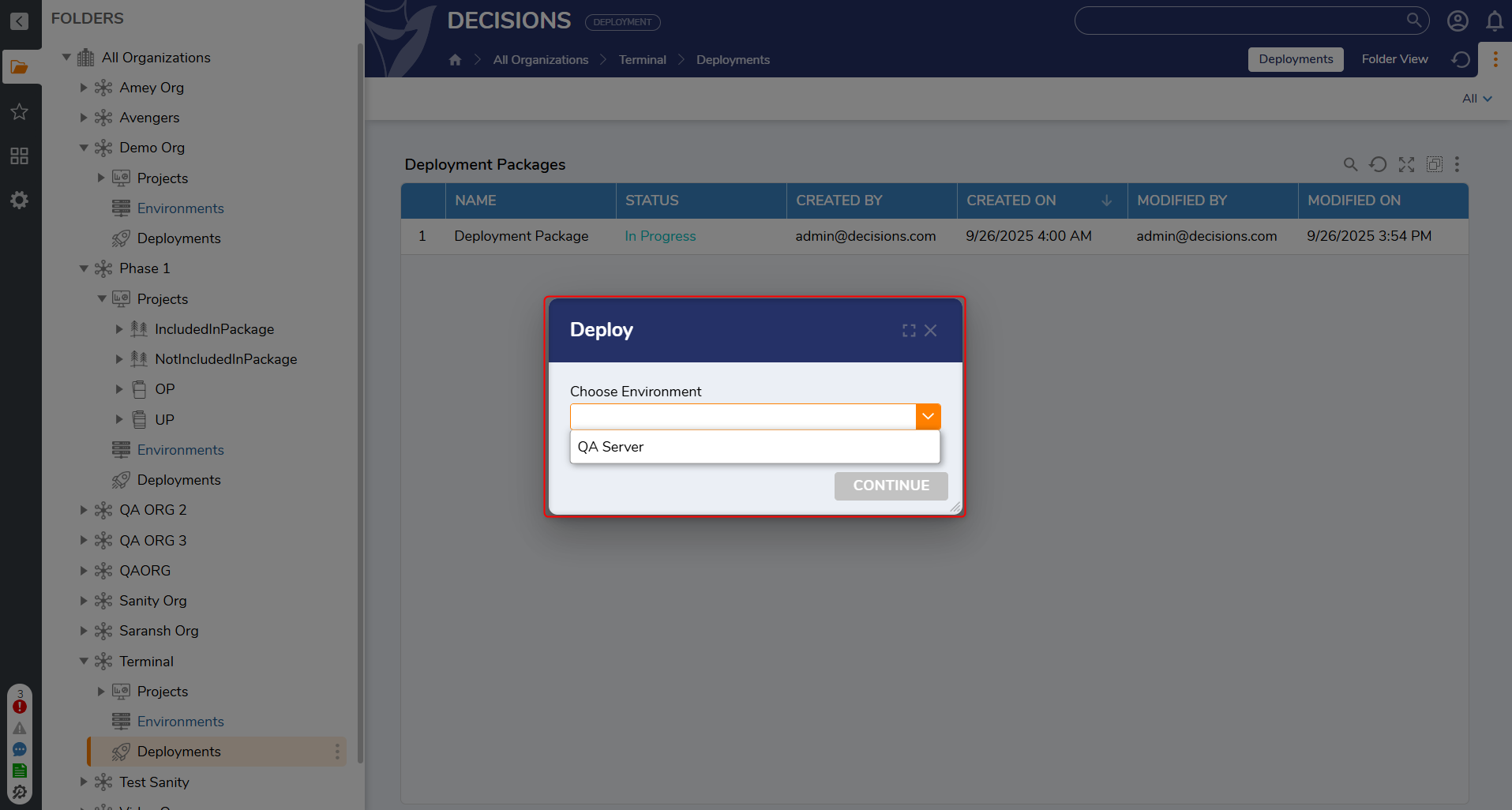
To initiate deployment, right-click on the Deployment Package and select Deploy. A dialog will appear, prompting a selection of the target environment from a dropdown menu. After selecting the appropriate environment, click Continue to proceed with the deployment. 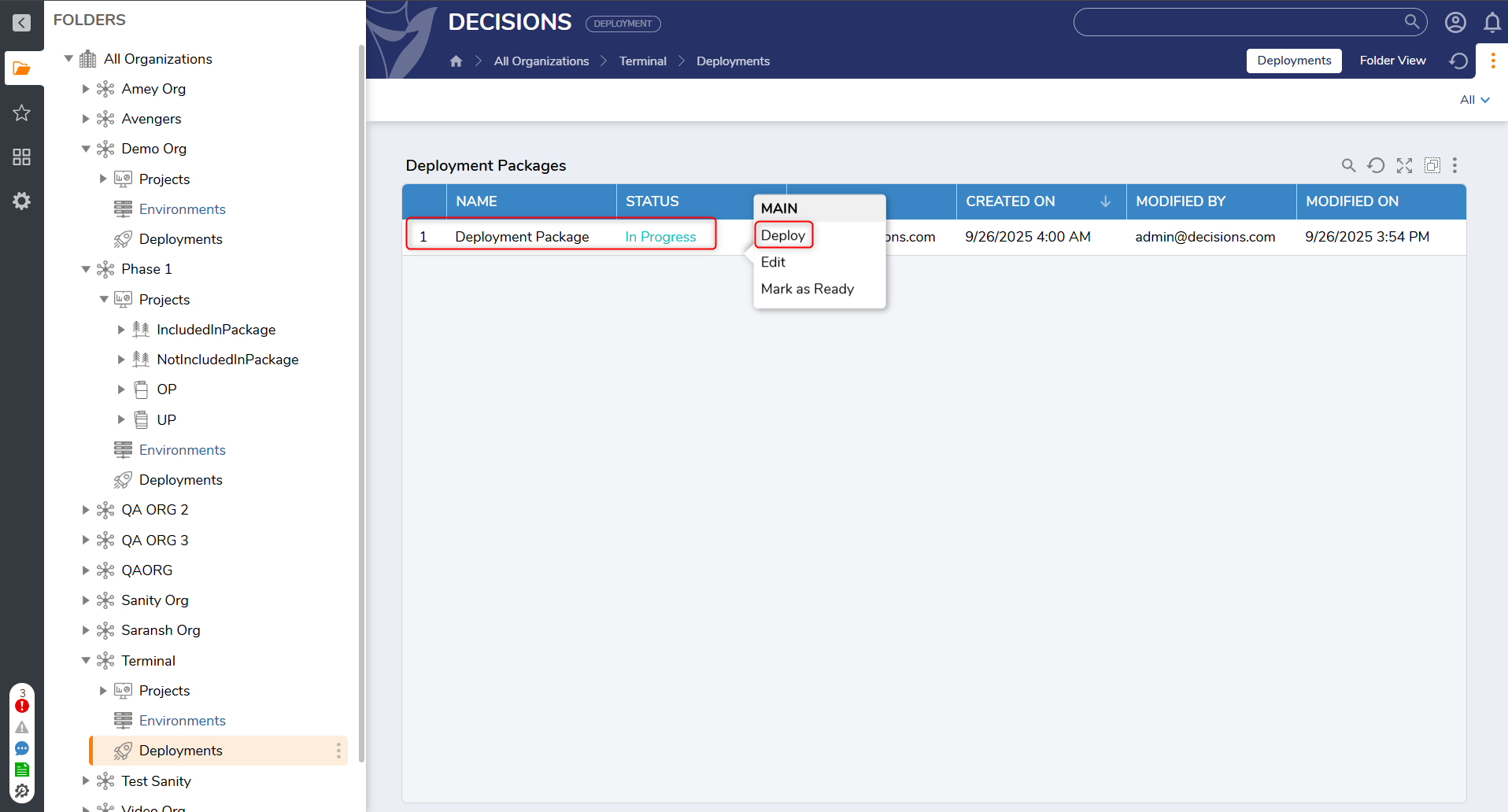
Unit Test Execution on Target Environments:
The Deployment Server can run unit tests in the selected target environment during deployment. This helps verify project integrity before changes are promoted.
- Manual: Run unit tests during deployment.
- Automatic: Configure the environment to run unit tests automatically on every deployment.
Deployment Wizard
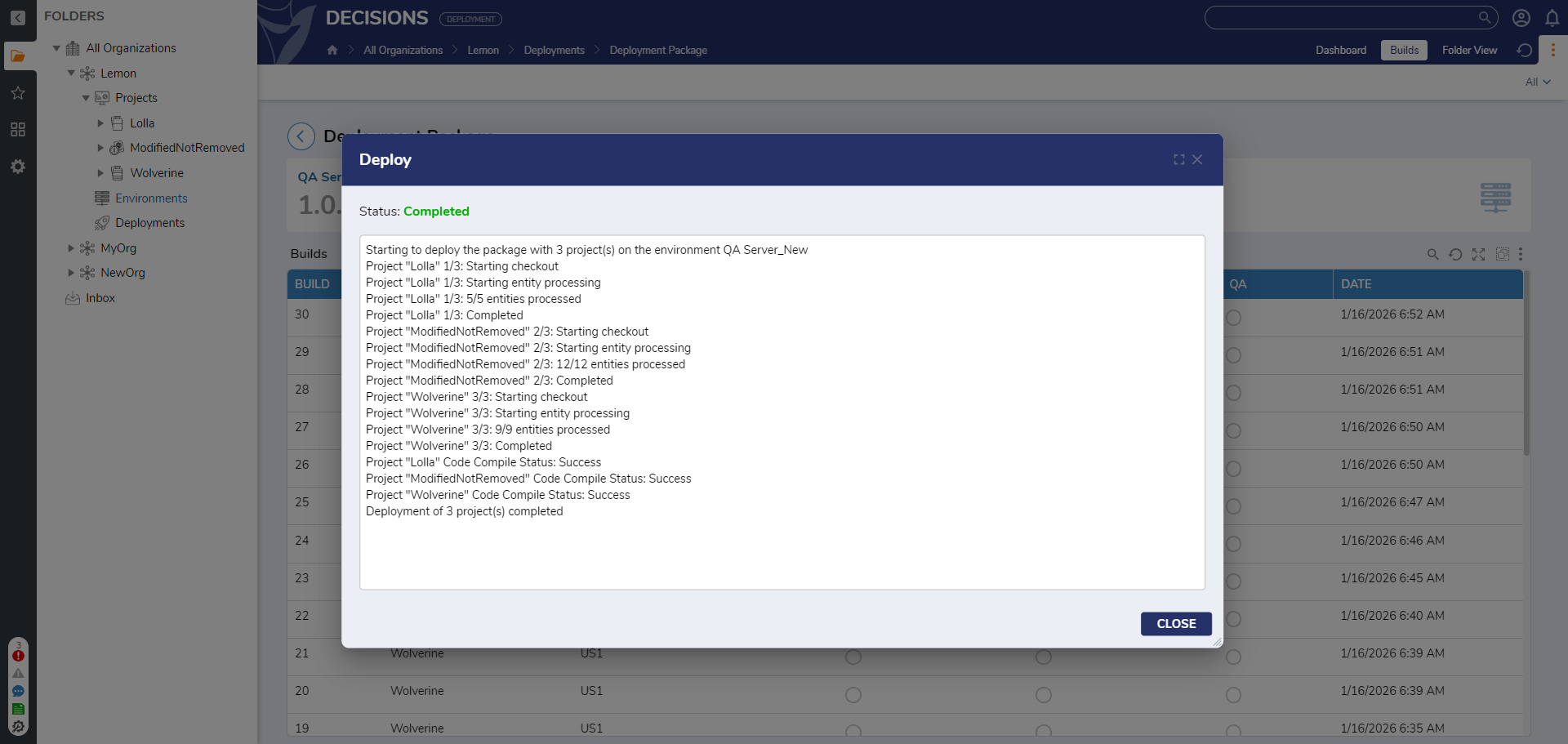
After clicking Continue, deployment runs through the Deployment Wizard, which provides line-by-line visibility into each action performed during deployment to support review and troubleshooting.
For recovering from unintended changes, refer to Rollback and Revert in the User Stories documentation.
No manual dependency management is required. If the project included in the Deployment Package has module dependencies, the Deployment Server automatically installs the required modules on the selected target environment during deployment.