Overview
The MCP Server feature in Decisions allows the platform to expose AI Tool Flows as callable tools that Large Language Models (LLMs) can interact with. This enables Decisions flows to execute logic or return structured data when invoked by an external AI system.
Model Context Protocol (MCP) is an open protocol that defines how Large Language Models (LLMs) communicate with external tools and systems.
For more information, see: What is the Model Context Protocol (MCP)?
MCP Server functionality requires Decisions Version 9.18 or later.
Configuring Decisions as MCP
Using Decisions as an MCP server allows designers to expose Decisions Flows as callable tools that Large Language Models (LLMs) can interact with. This means any logic built within a flow can be executed by an AI model or used to return structured data, enabling seamless integration between Decisions and AI-driven systems.
To learn more about AI Tool Flows, see the AI Tool Flow article.
For a Large Language Model to call a Decisions Flow, three key components are required:
- AI Tool Flow – A special type of flow that is designed to be callable by an LLM.
- Authentication (Named Session)– Provides secure access when the external system calls Decisions.NoteWhen connecting to a Decisions MCP Server, the Named Session Value is not passed as a query parameter. It must be included in the
Authorizationheader using theSessionscheme. - MCP Server URL – A unique endpoint (based on the element slug) where the AI Tool Flows are exposed.
When these components are configured, the LLM can send requests to the Decisions MCP Server, execute the flow, and receive the results.
The following example shows how this configuration is typically provided to an MCP client:
{
  "mcpServers": {
    "localmcp": {
      "command": "C:\\Users\\{user}\\AppData\\Roaming\\npm\\mcp-remote.cmd",
      "args": [
        "--header",
        "Authorization: Session <NamedSessionValue>",
        "http://{portalbaseurl:portnumber}/Primary/mcp/decisions_mcp"
      ]
    }
  }
}
Creating an MCP Server in Decisions
Follow the steps below to configure an MCP Server and enable communication with external MCP clients.
- Create an AI Tool Flow
- Create the MCP Server
Once the AI Tool Flow is ready, create the MCP Server to expose it.
- Navigate within the project to Public > Integrations > MCP Servers.
- Select Add MCP Server.
- In the pop-up window, configure the following:
- Name
- Description (optional)
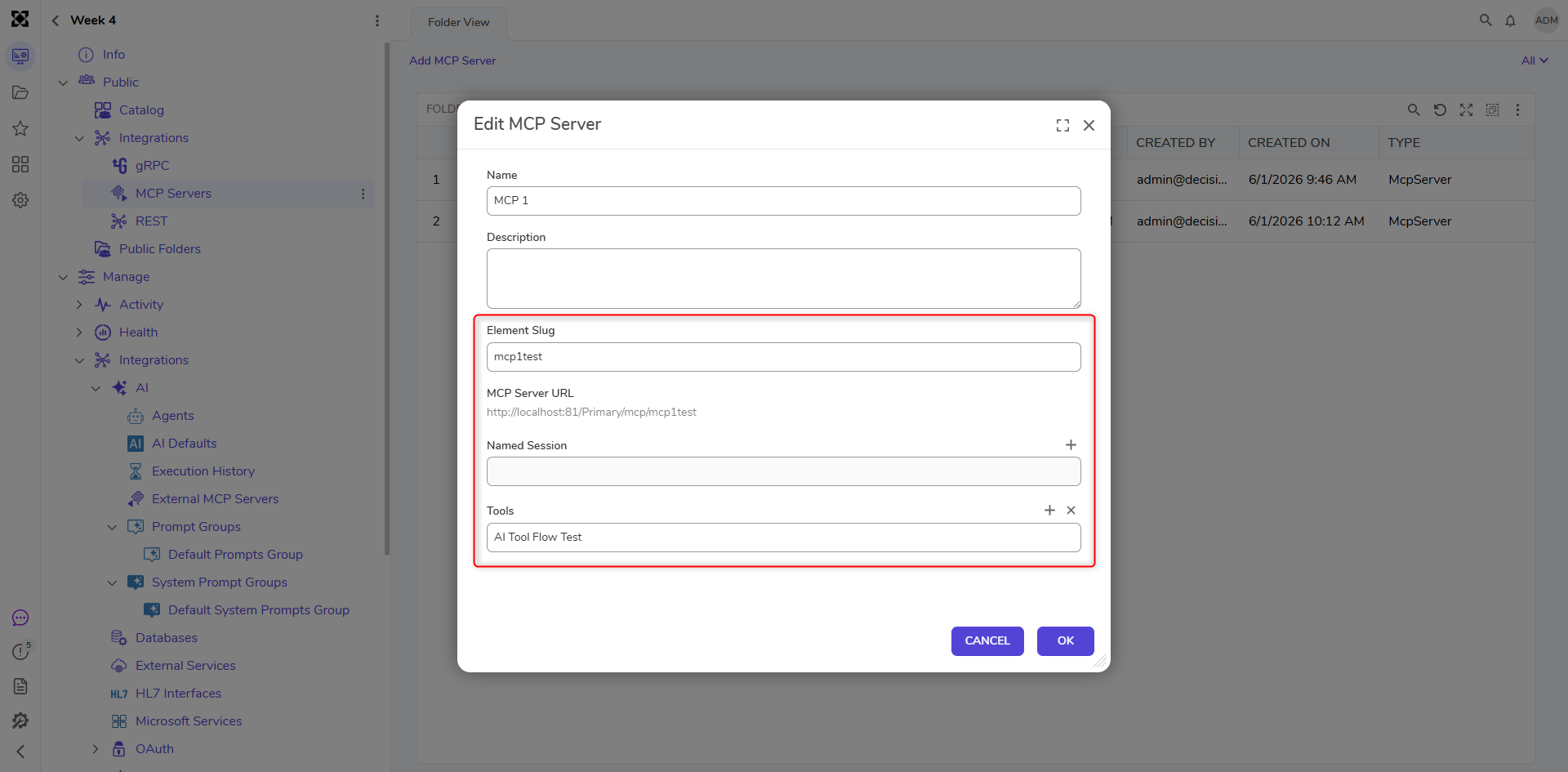
- Element Slug – determines the unique MCP Server URL.
- Tools – select the AI Tool Flow(s) created in Step 1.
- After saving, the MCP Server URL is automatically displayed. It follows the format: http://{portalBaseUrl}/mcp/{elementSlug}
Example:http://localhost:80/Primary/mcp/myserver
This URL is required for MCP configuration in external clients.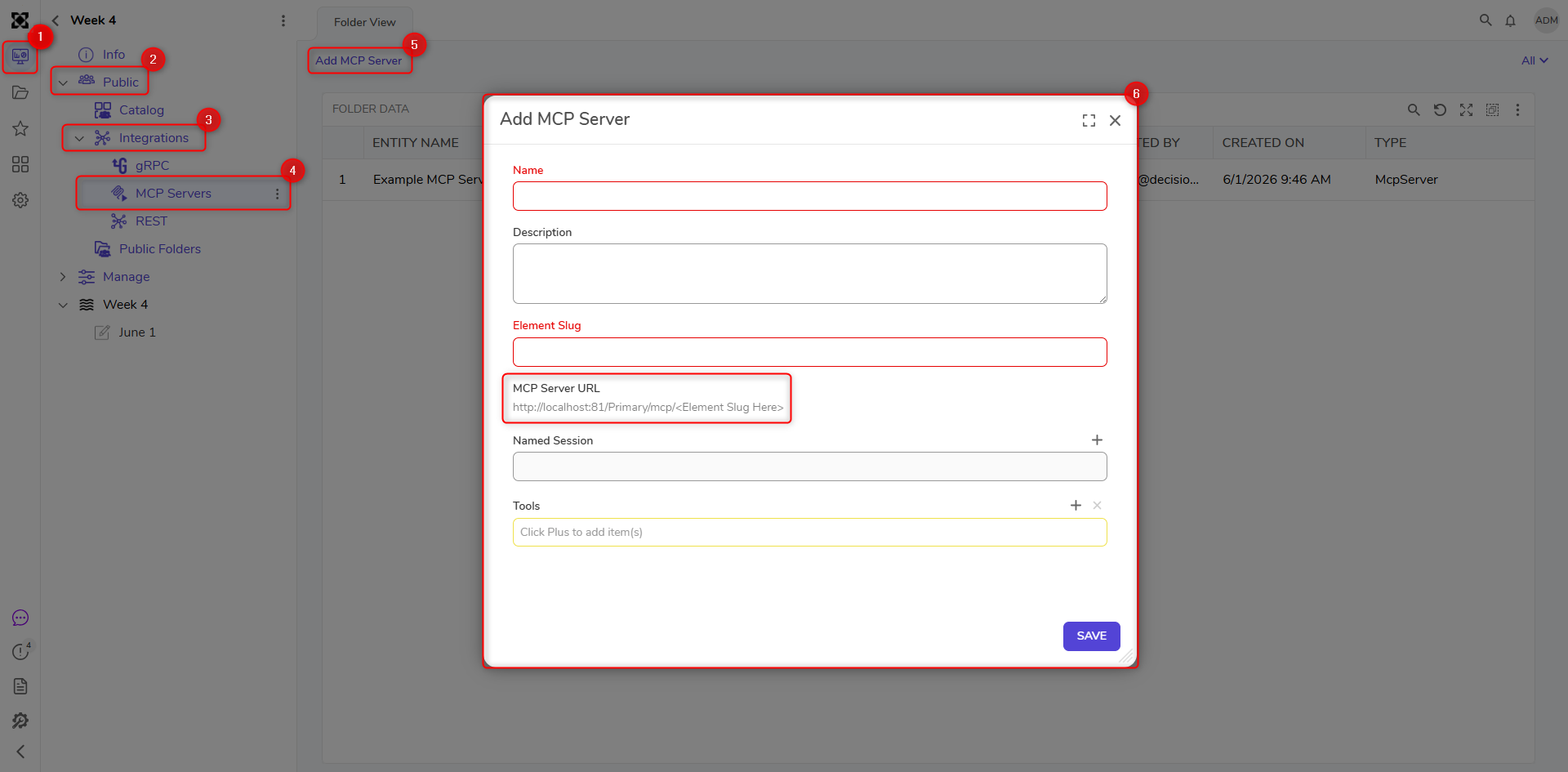
- Create a Named Session for Authentication
MCP clients require a Named Session Value to authenticate with the Decisions environment.
- Create a Named Session.
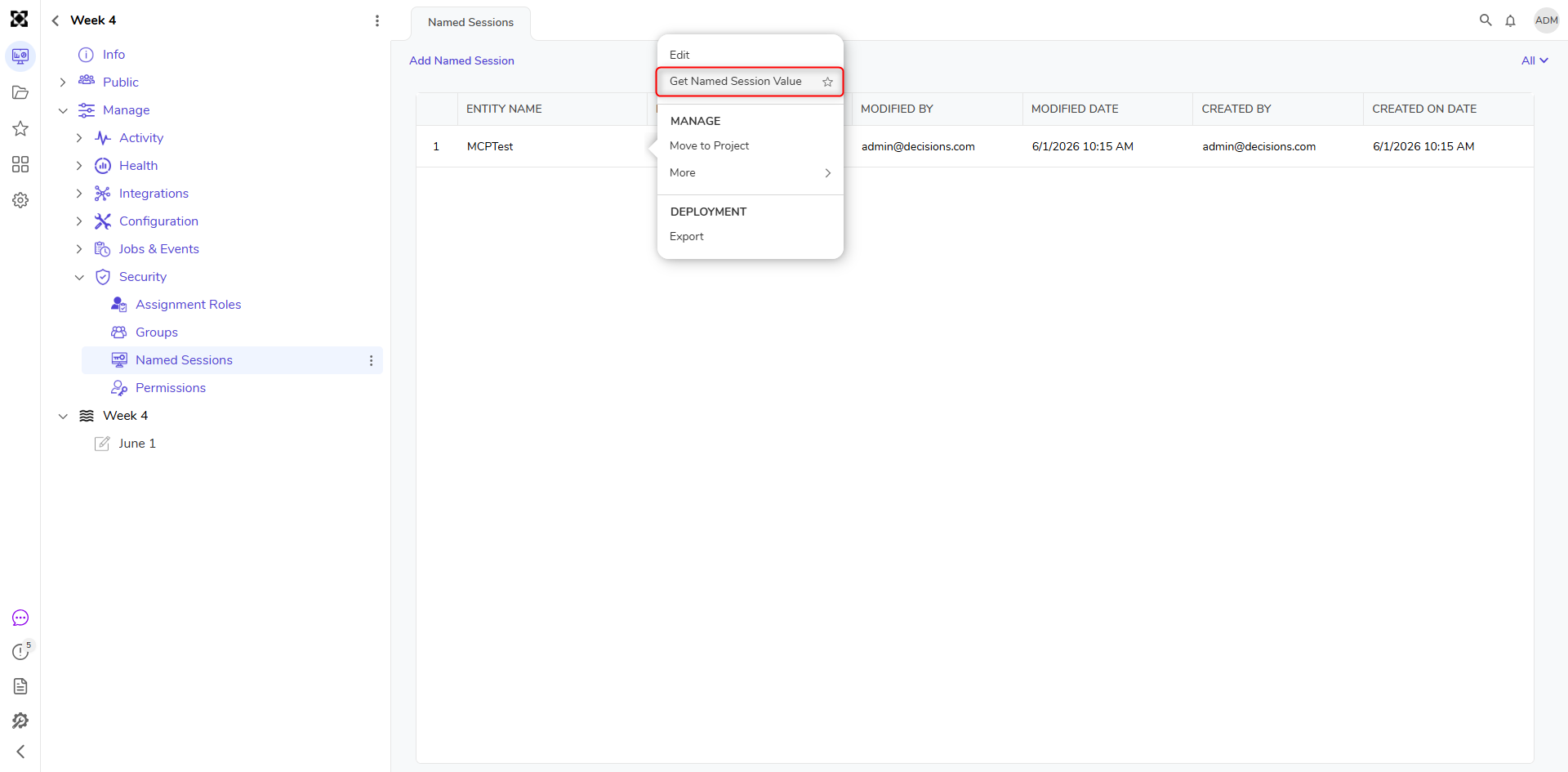
- Right-click the Named Session and select Get Named Session Value.
- Copy the generated Named Session Value.
- External MCP clients must pass the Named Session Value in the request header using the following format:
Authorization: Session <NamedSessionValue>
Example:Authorization: Session NS-XXXXXXXX
This Named Session Value, along with the MCP Server URL, is used in themcp.jsonfile or equivalent client configuration when connecting MCP-enabled tools to the Decisions platform.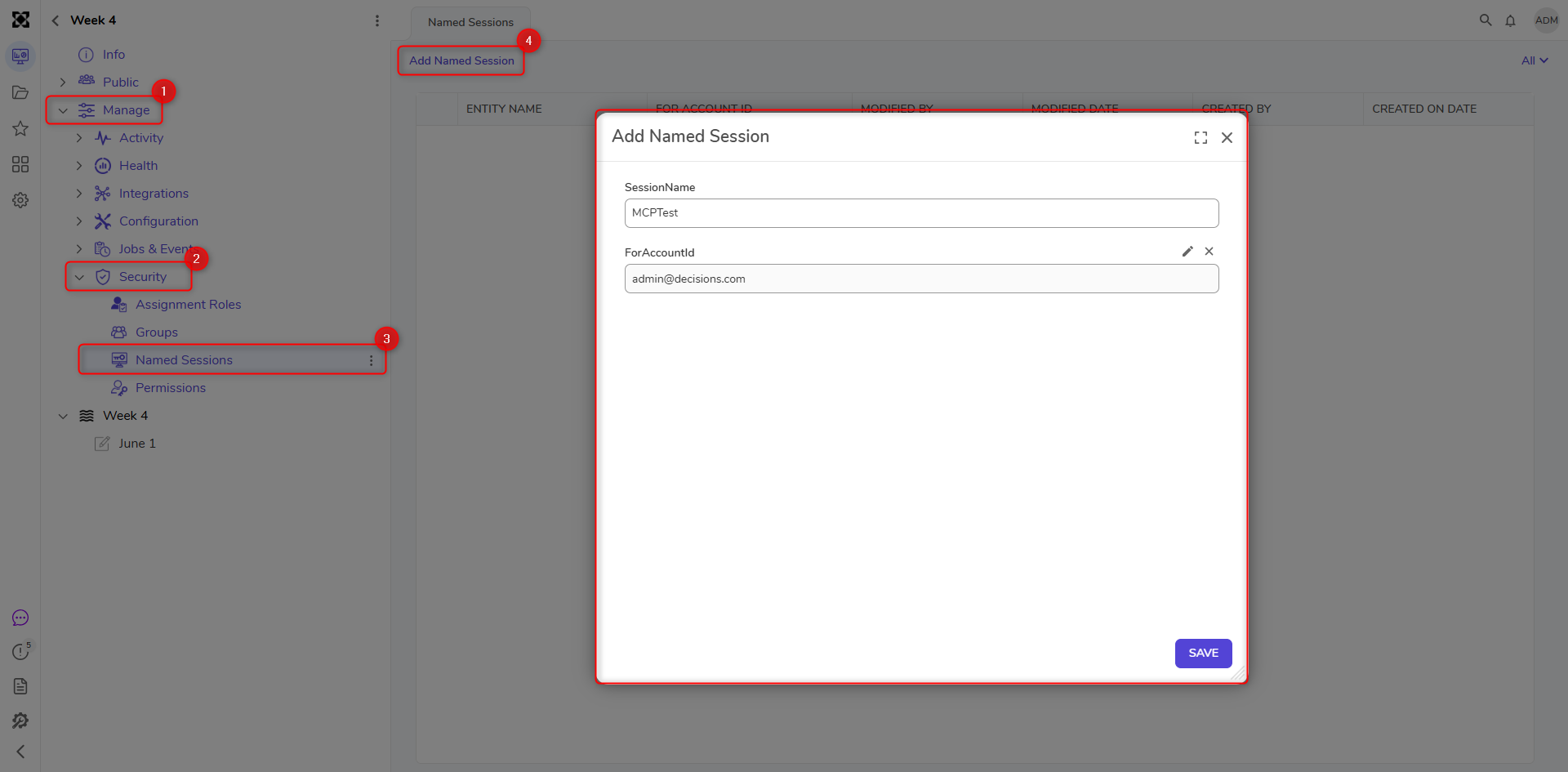
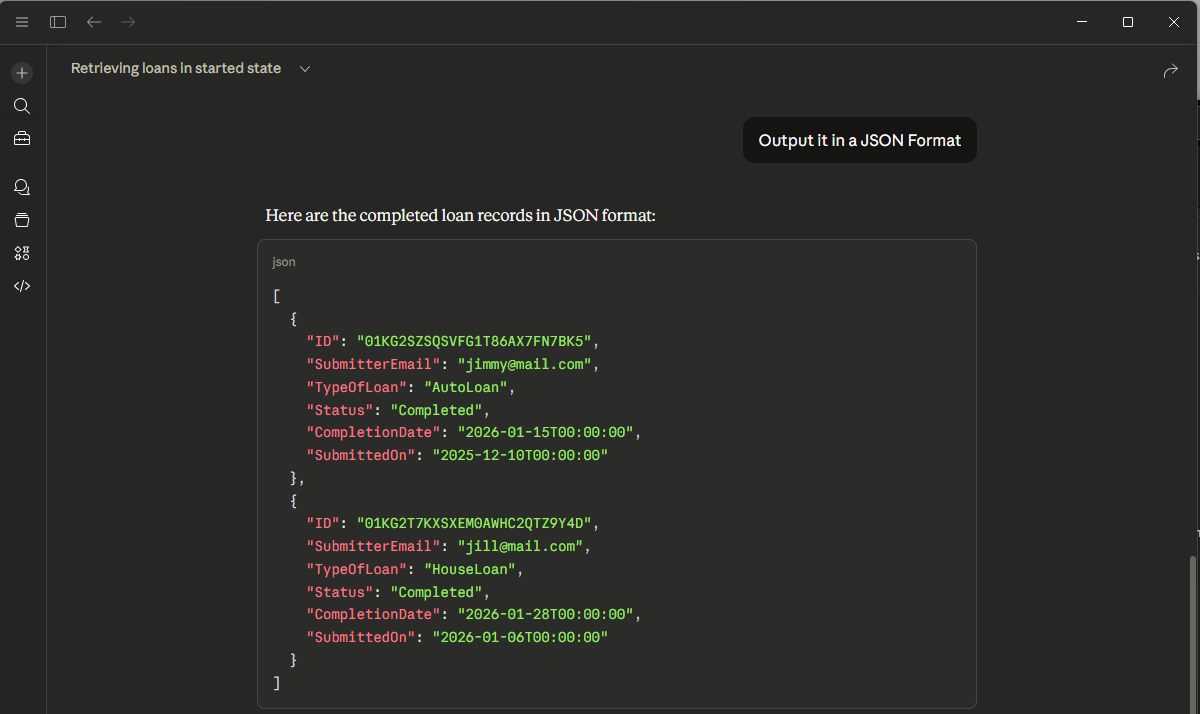
Example Output from an MCP Tool Call
When an MCP client runs an AI Tool Flow, the output returned by the flow is sent back in the MCP response. The following examples show what a successful tool execution output looks like in an MCP-enabled client. 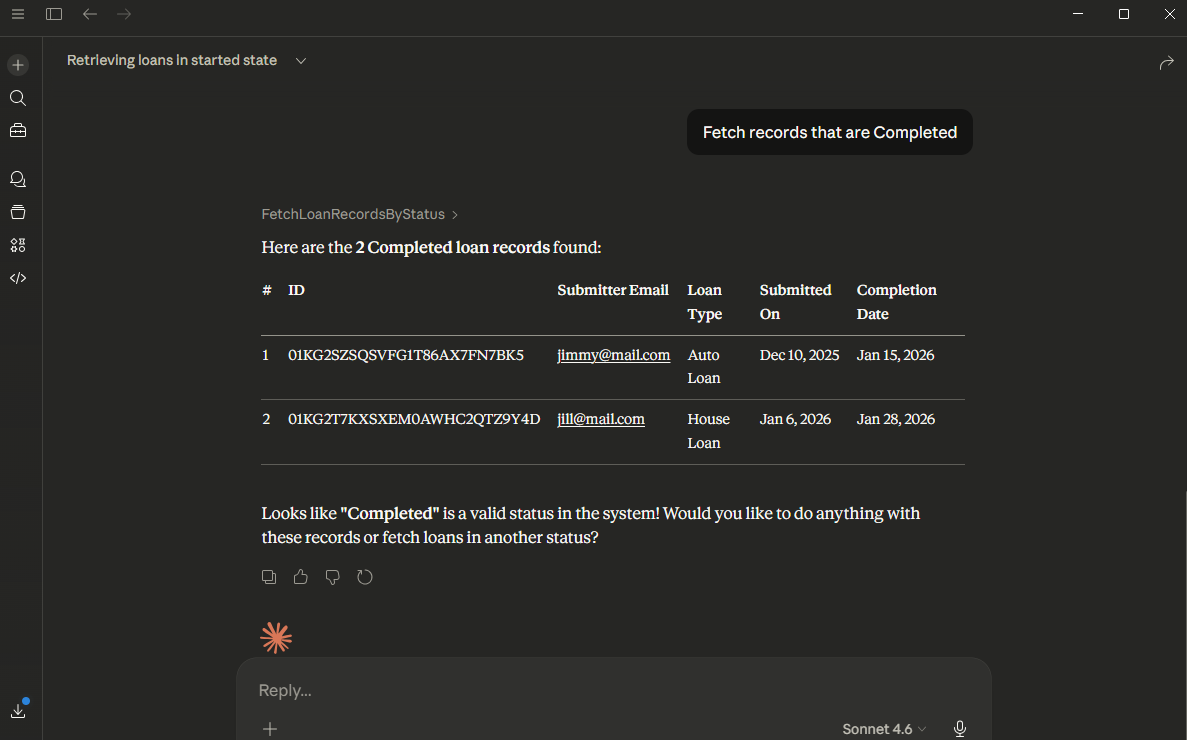
OAuth Authentication(v10.2+)
In v10.2+, Decisions MCP Servers can utilize OAuth authentication, allowing Users to integrate MCP servers with AI platforms such as Claude and ChatGPT. 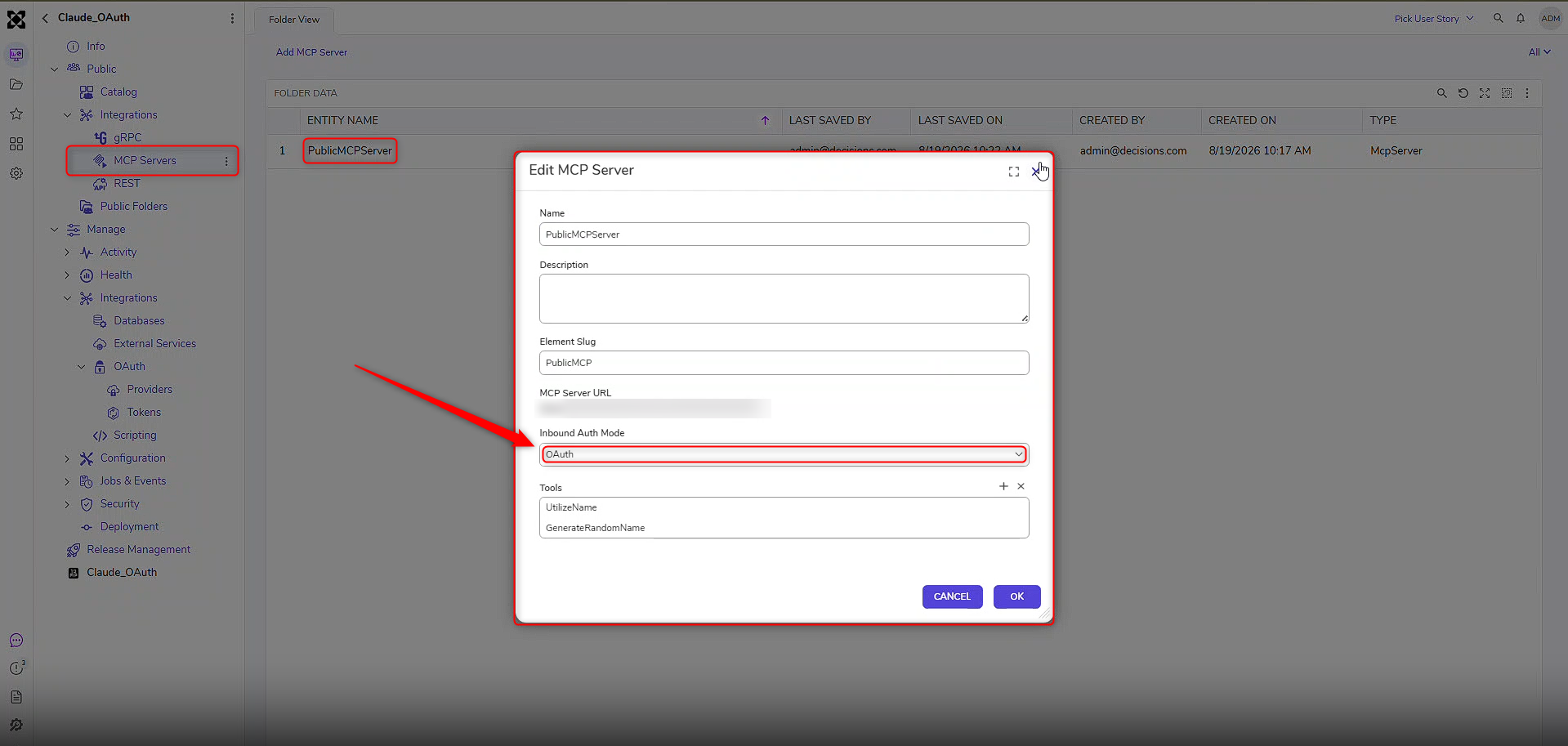
Feature Changes
| Description | Version | Release Date | Developer Tag |
|---|---|---|---|
| Allows a Decisions MCP Server (In a Project, navigate to Public > Integrations > MCP Servers) to use OAuth authentication, leveraging new functionality of Decisions acting as an OAuth Application. | 10.2 | September 2026 | [DT-047125] |